
CallHippo keeps a complete history of every call, so you can look back at past call details, recordings, and notes from the Call Logs section whenever you need them.
Whether you are preparing for a follow-up, resolving a dispute, or reviewing a call for training, retrieving previous call details takes just a few clicks with the right filters applied.
Why Retrieve Call Details? (Use Cases)
- Call follow-ups — check past call details before reconnecting with a customer.
- Issue resolution — review previous conversations to understand customer concerns.
- Billing and compliance — verify call records for invoicing or regulatory purposes.
- Quality monitoring — analyze past calls for performance evaluation and training.
- Dispute resolution — retrieve call logs to resolve misunderstandings with customers.
How to Retrieve Previous Call Details
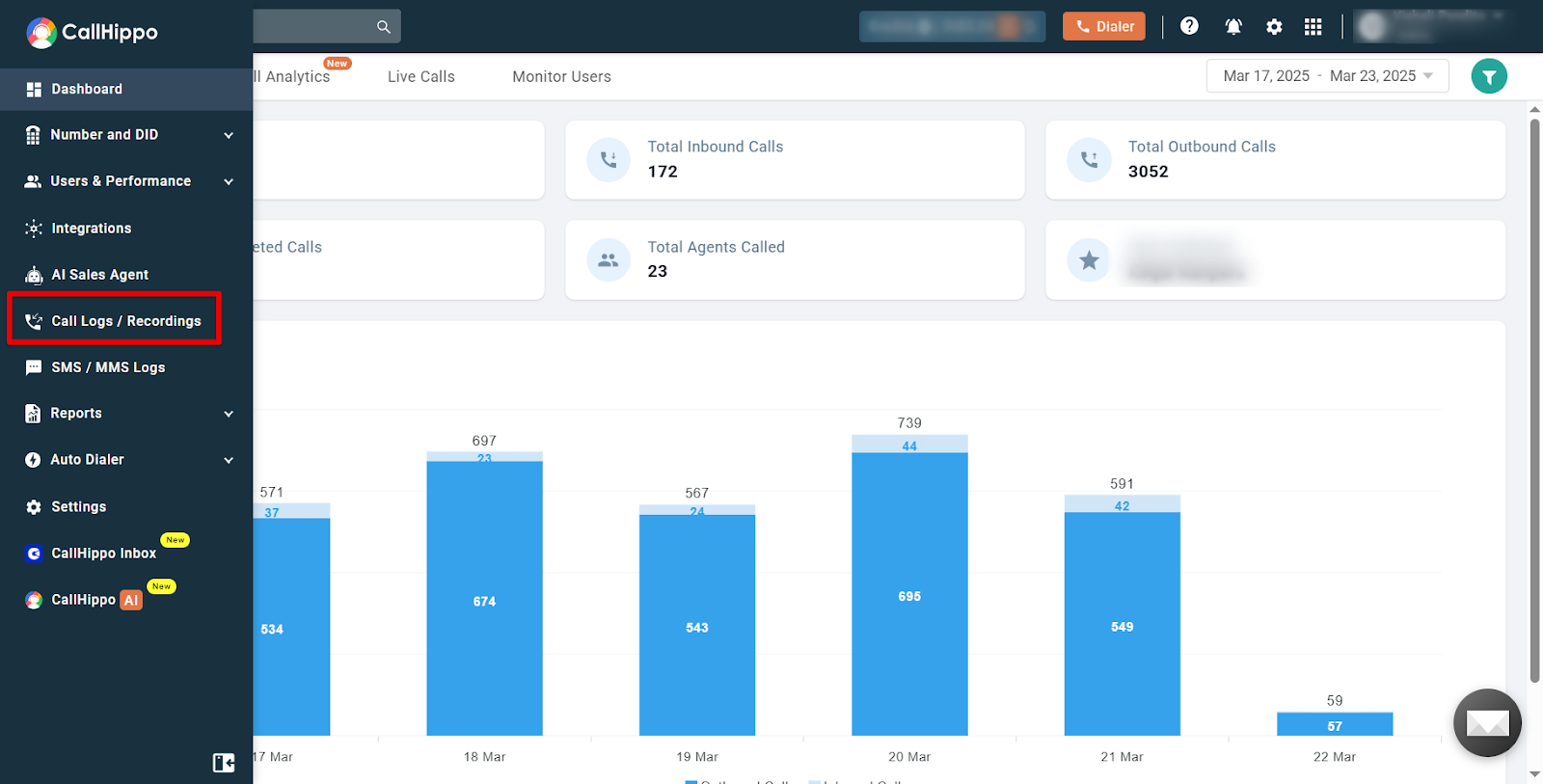
- Sign in to your CallHippo account at web.callhippo.com/dashboard and open the Call Logs / Recordings section from the menu.
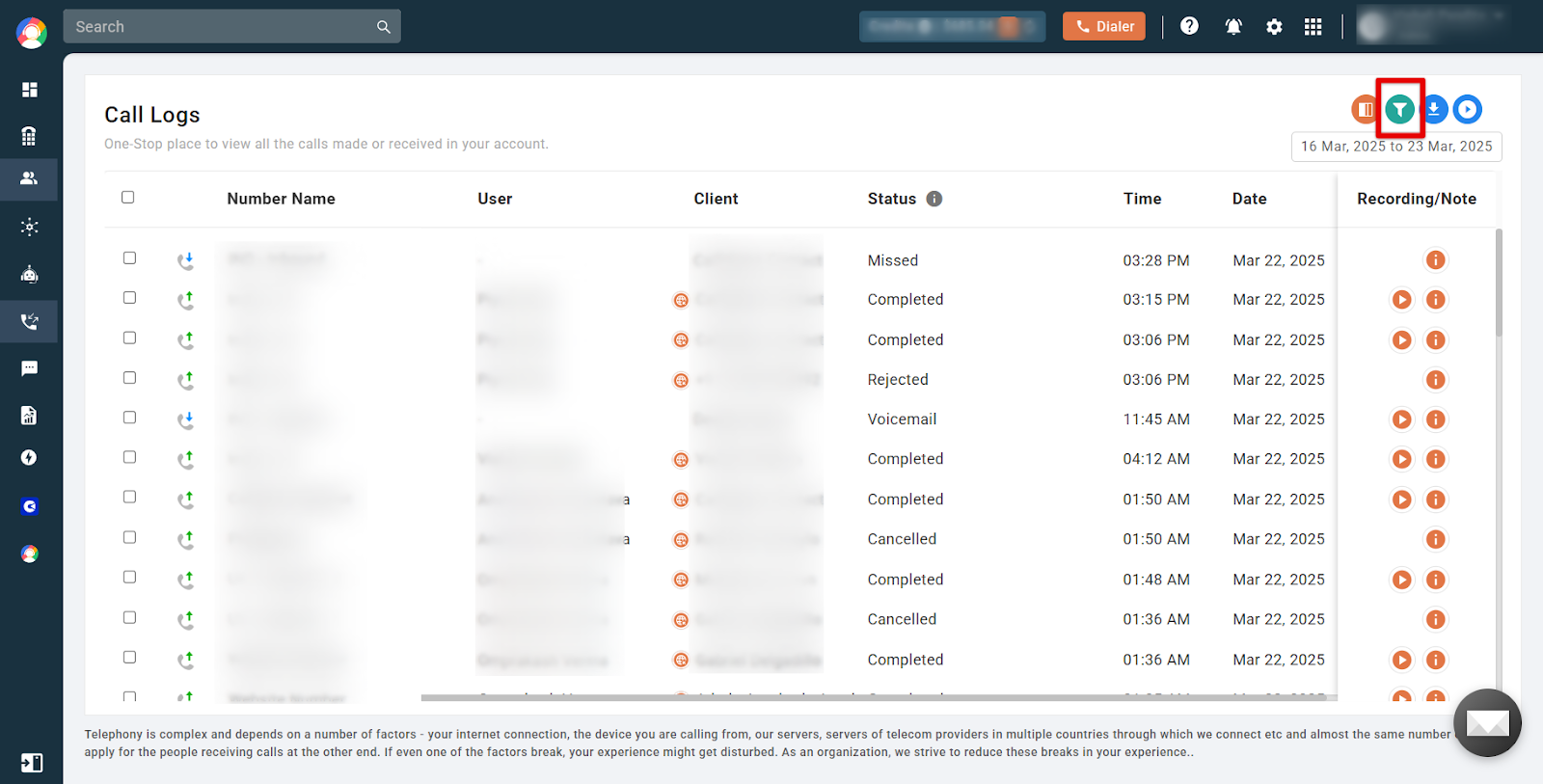
- Click the Filter icon to narrow down the call records you want.
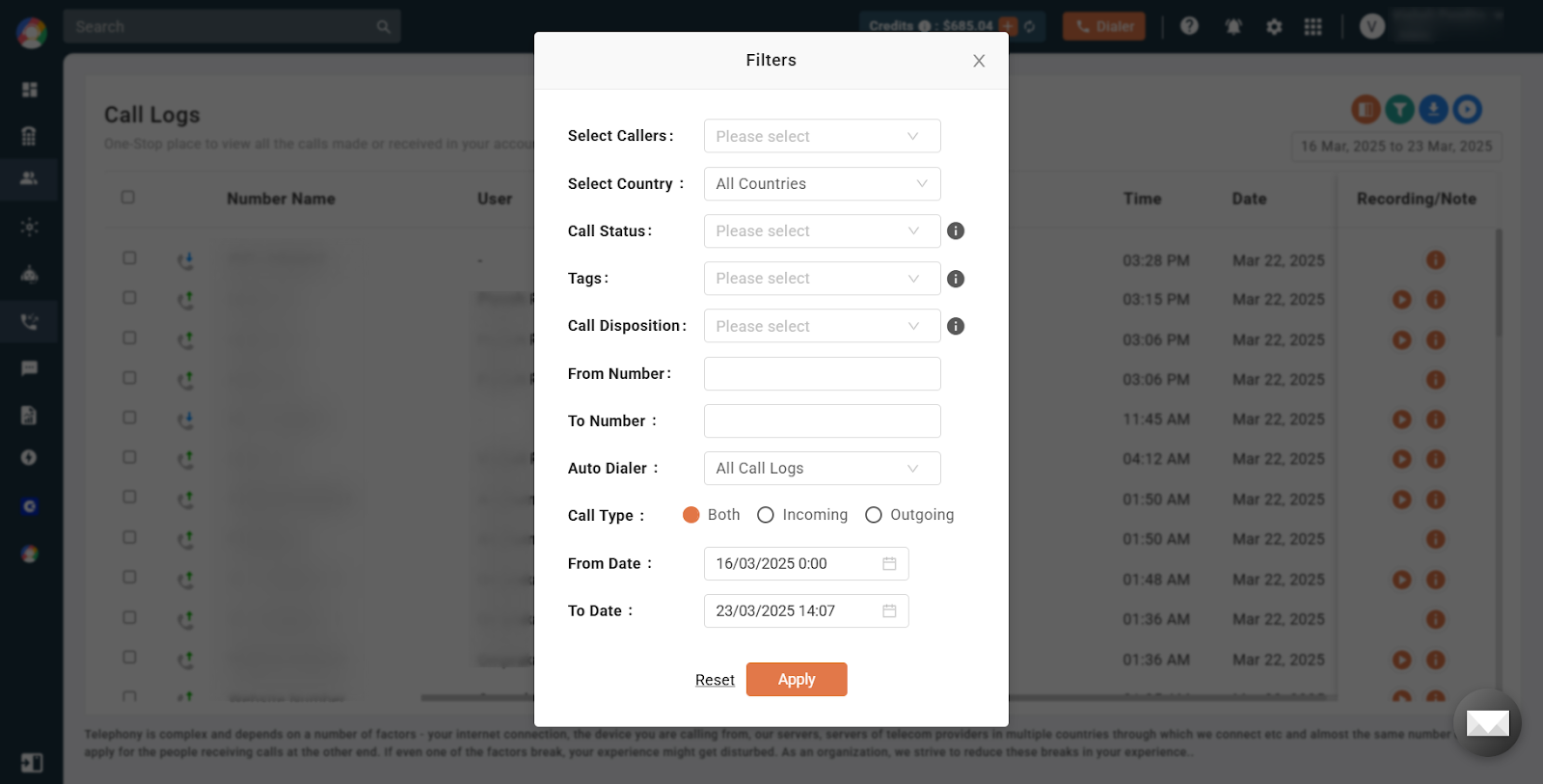
- Set your desired conditions, such as specific dates, callers, or call types, then click Apply to view the filtered results.
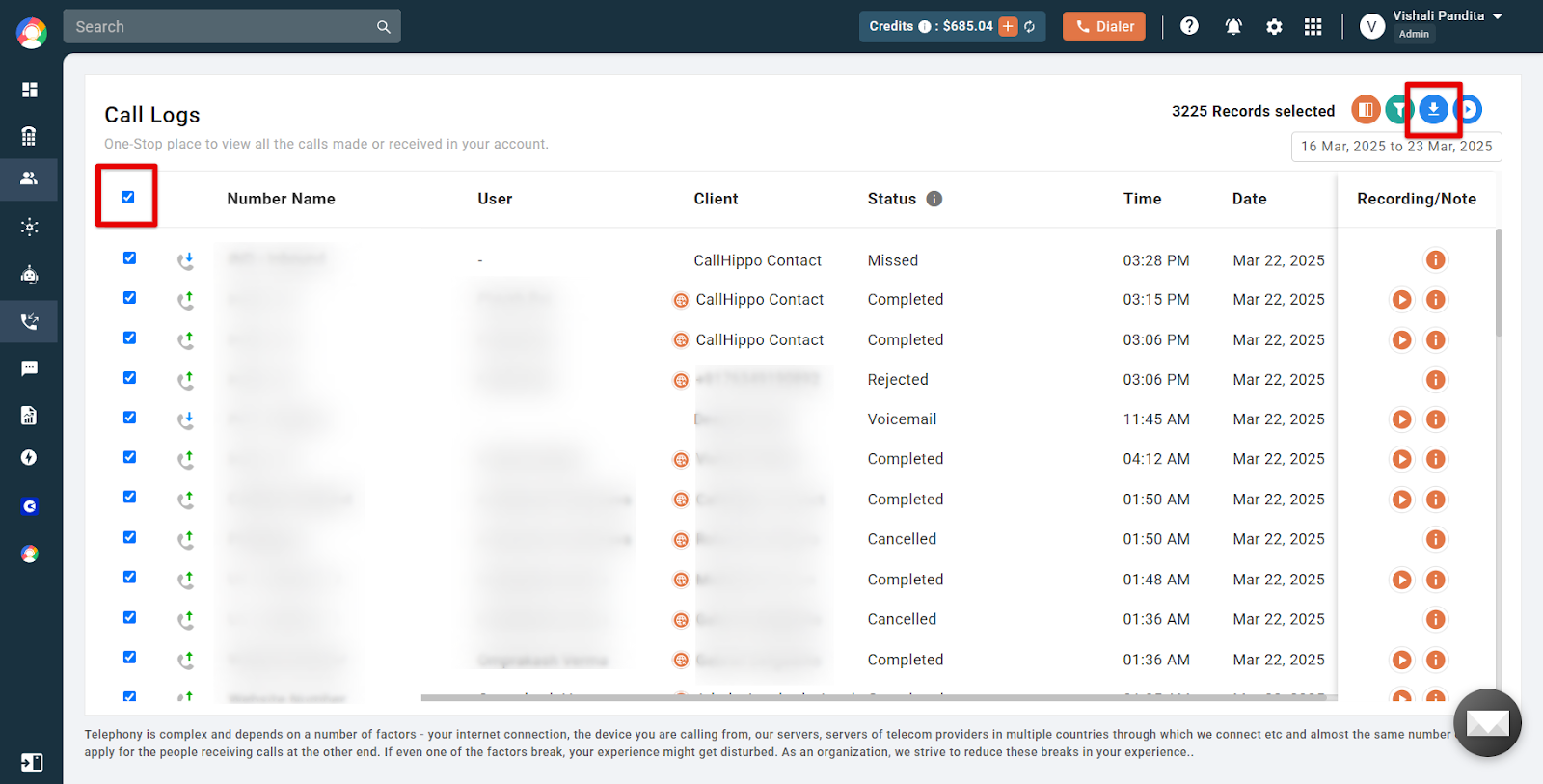
- The filtered call details appear in the Logs section. To export them, click the checkbox to select all, then click the download icon.
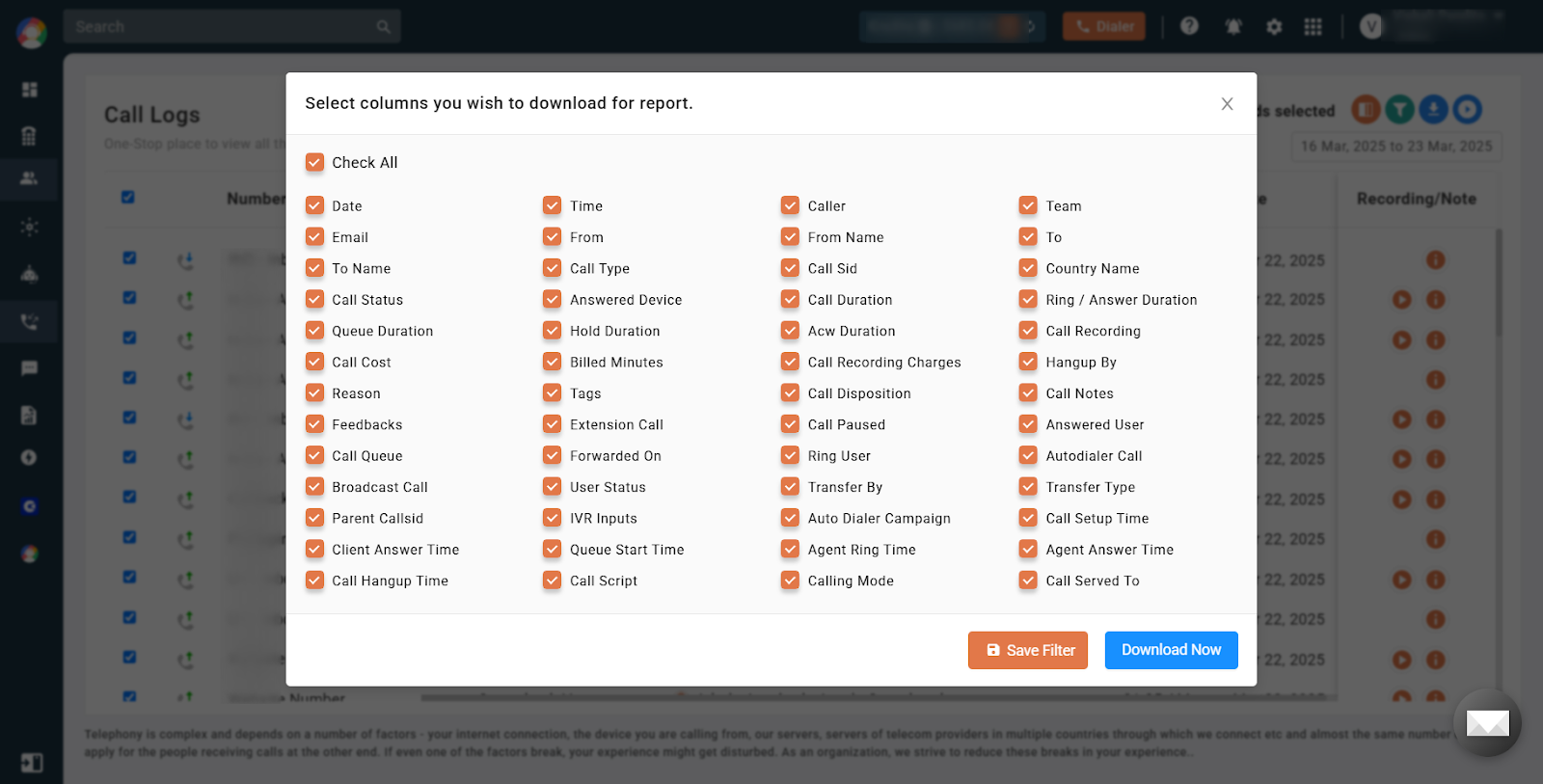
- Select the columns you want to include and click Download Now. The report will be sent to your registered email address.
Common Use Cases
- Performance analysis: managers can assess team call activity over a specific period.
- Customer follow-up: sales reps can review past calls to prepare for upcoming client interactions.
- Billing and reporting: finance teams can extract call logs for billing or usage reports.
Possible Issues and Solutions
Call details are not visible.
Filters may not be set correctly. Adjust the date range and filters, then apply again.
A call recording is missing.
The recording feature may not be enabled. Turn on call recording in your settings.
The activity feed is not loading.
This is usually a network or browser issue. Refresh the page, clear your cache, or try incognito mode.
The call log data looks incorrect.
This is often a time-zone mismatch. Make sure the correct user and time zone are set.
I’m unable to download logs.
This may be due to plan limitations. Upgrade your plan or contact support for assistance.