
Adding a user to your CallHippo account takes just a few steps: invite them by email, assign a role, and allocate numbers. Here is everything you need to know first.
Before You Add a User
Seat charges: Each user occupies one seat, which costs the same as your plan charges. For example, if your plan is $25 per month, two users cost $50 per month, and five users cost $125 per month.
Why you pay full plan charges per user: Every user brings their plan benefits into the owner account. If one user’s plan includes 500 free US/Canada minutes, 100 free SMS, and 1 free standard number, then two users give the account 1,000 free minutes, 200 free SMS, and 2 free standard numbers.
Additional details:
- Each user receives their own unique credentials with access to a separate dashboard and dialer.
- You need a new, unique email address for each user. The same email cannot be used for multiple users.
- If a number is allocated to multiple users, they can make concurrent calls on it.
Steps to Add a User
- Log in to your CallHippo dashboard.
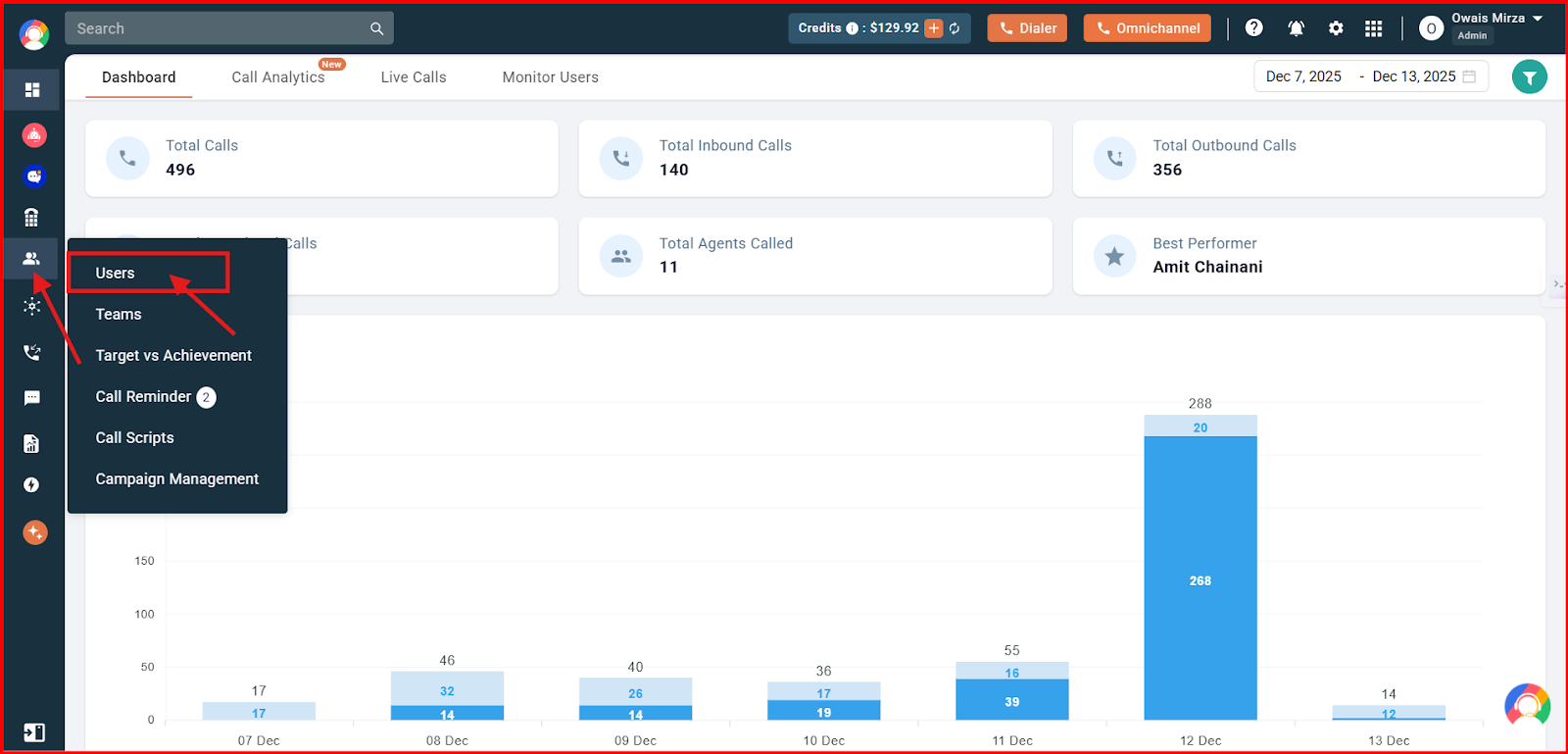
- Open Users: Go to Users & Performance on the left panel and click Users.
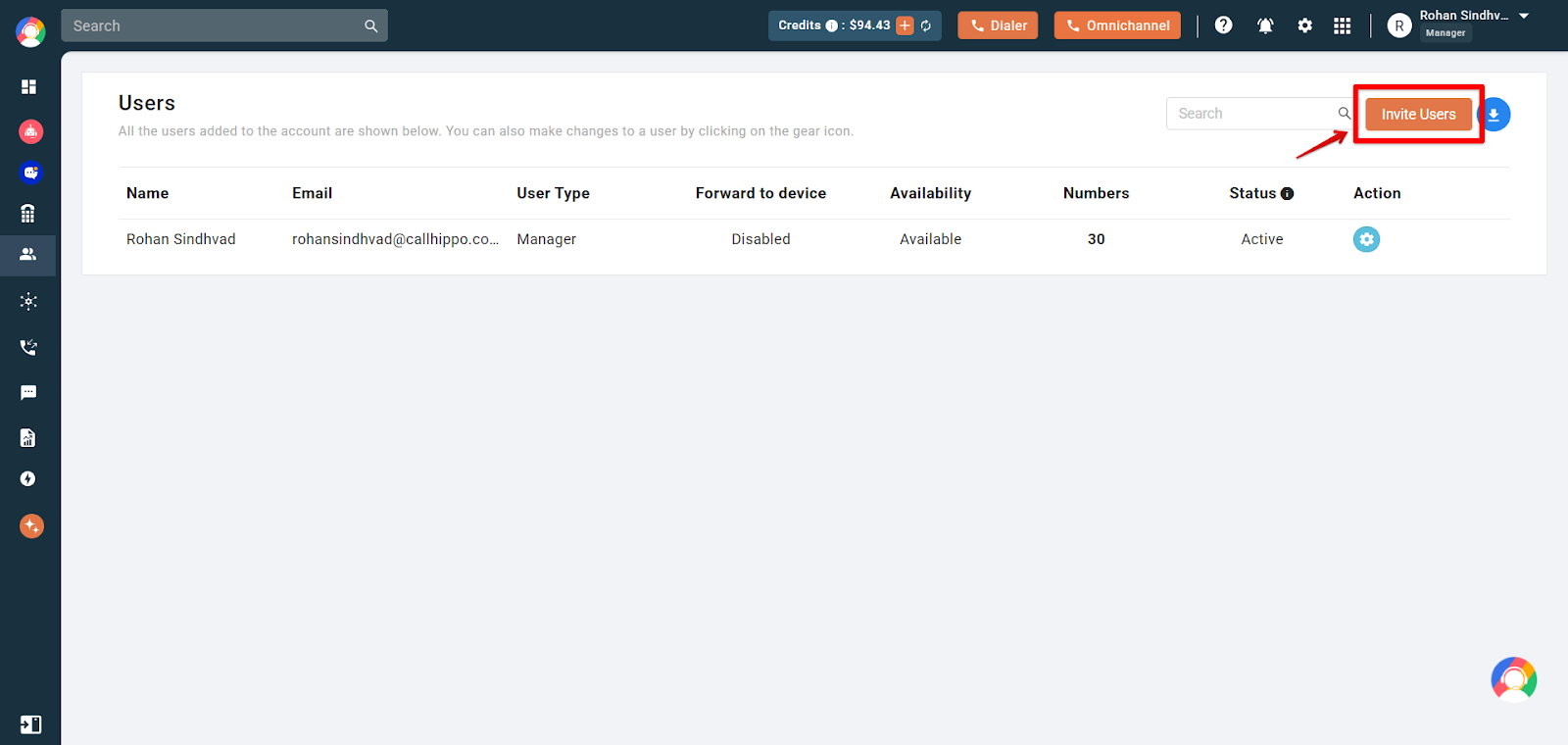
- Start the invite: Click the Invite Users button in the top right corner.
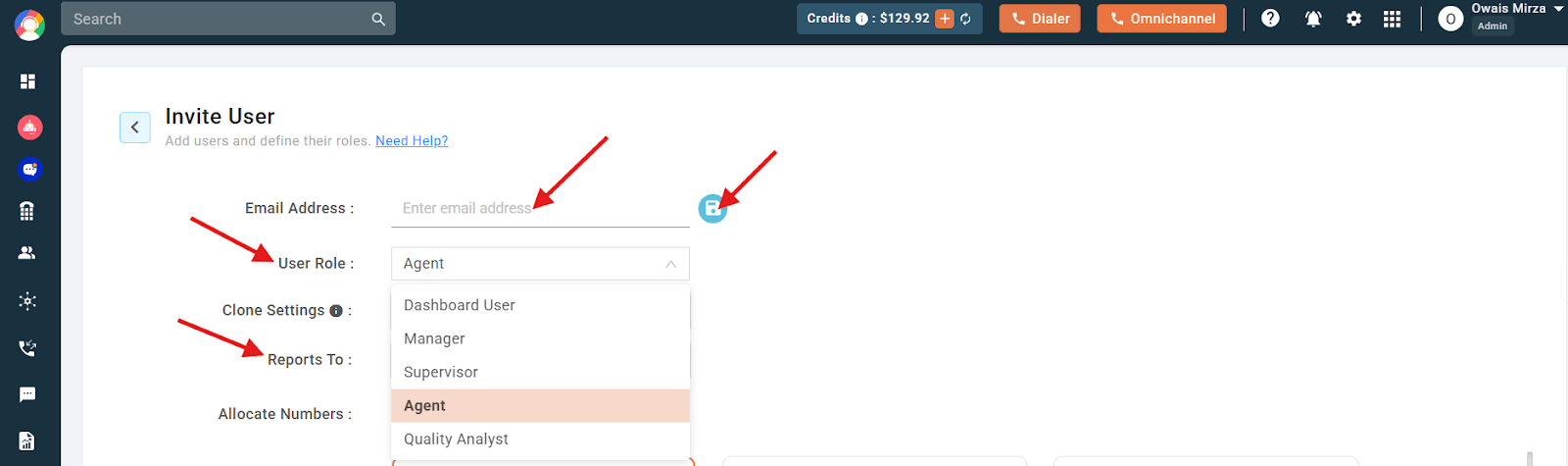
- Enter details: Add the user’s email, choose a role from the drop-down, and optionally assign a reporting manager with the Reports To field.
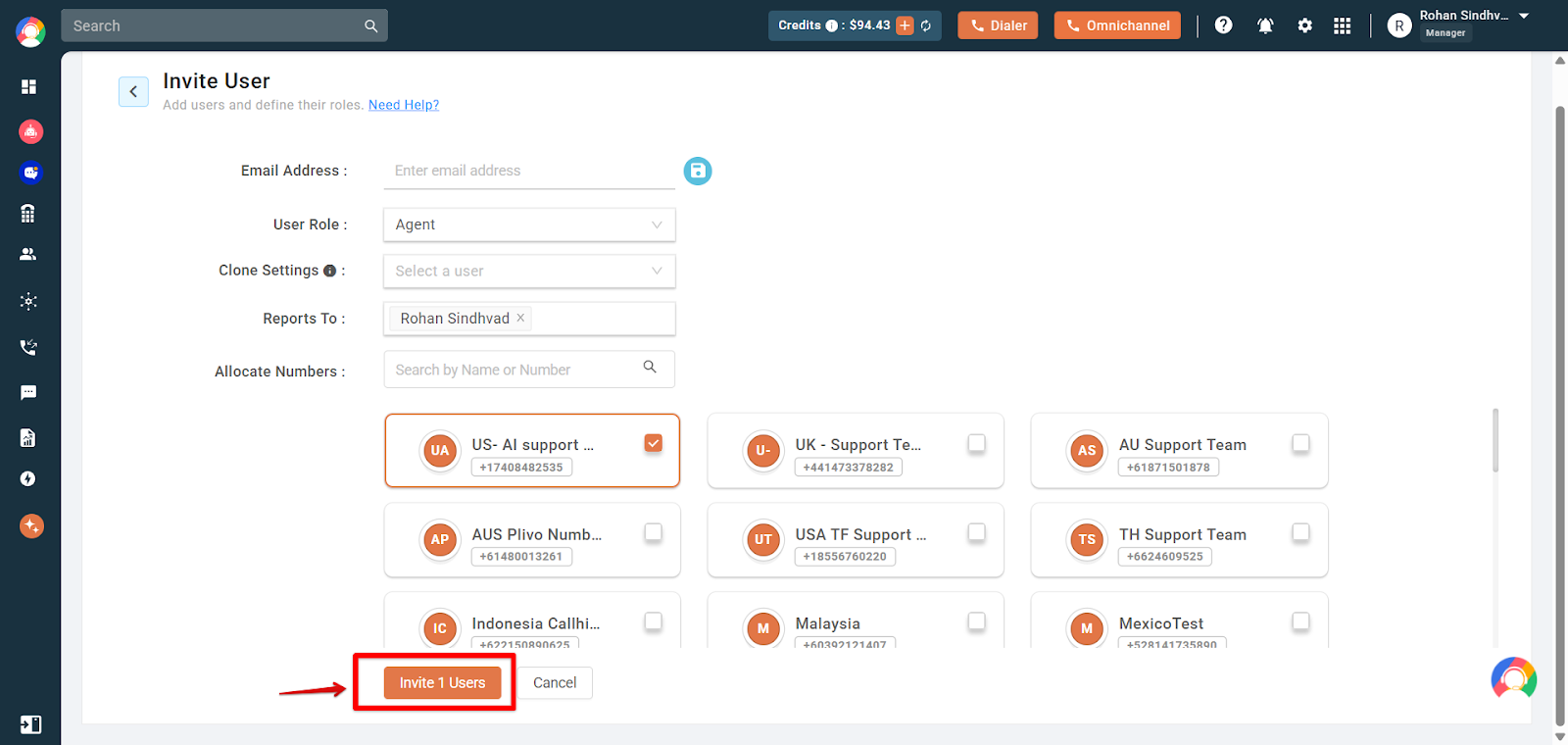
- Allocate numbers: In the Allocate Numbers section, click any available numbers to assign them. You can select more than one.
- Send the invite: Click Invite 1 User to email the invitation link to the user.
Important:
- The cost for the new user is charged instantly to your saved primary payment method on a pro-rata basis, based on the remaining days of your billing cycle.
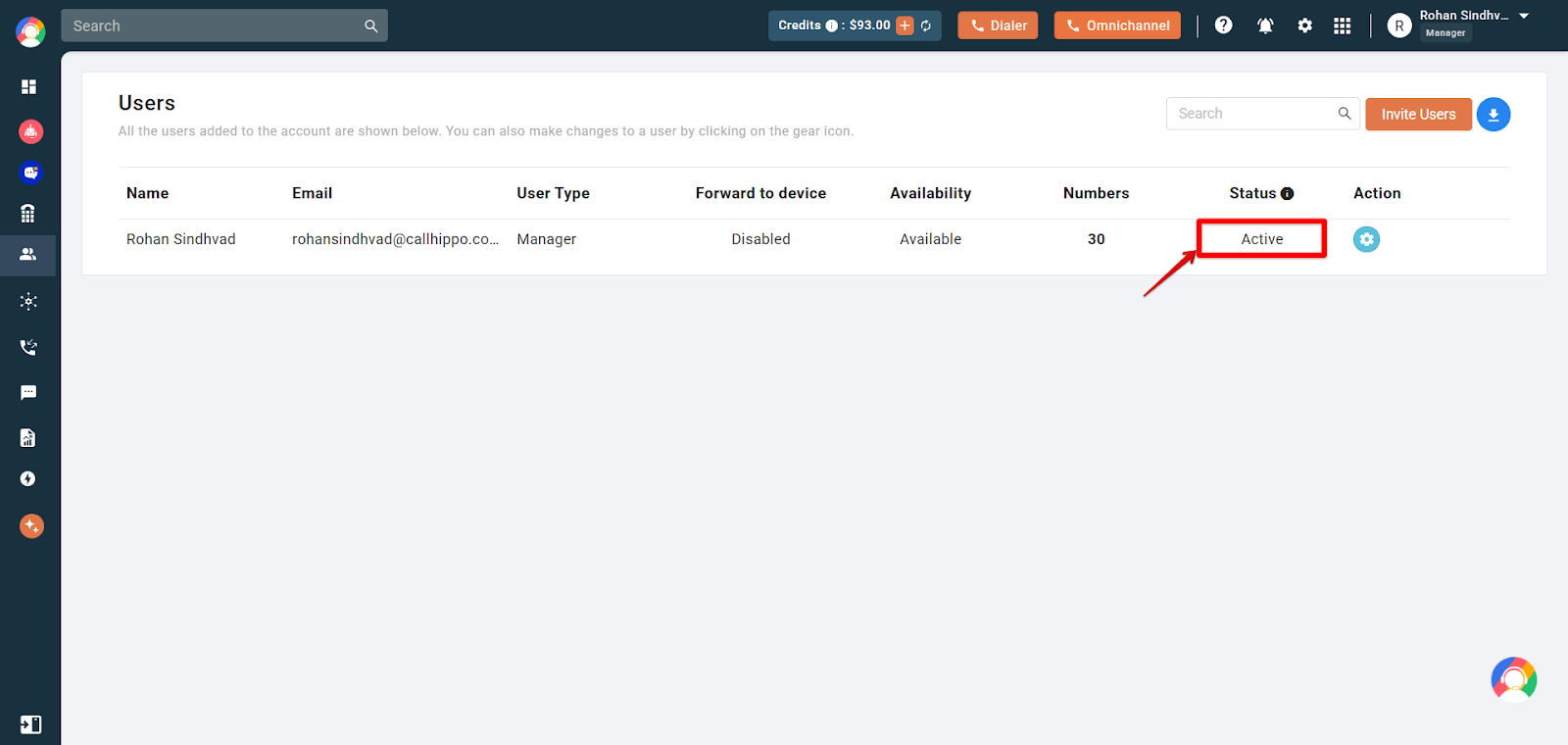
- The user is not active immediately. They must click the activation link in their email first. Until they do, their status shows as pending; once activated it becomes Active.
Using the Clone Settings Option
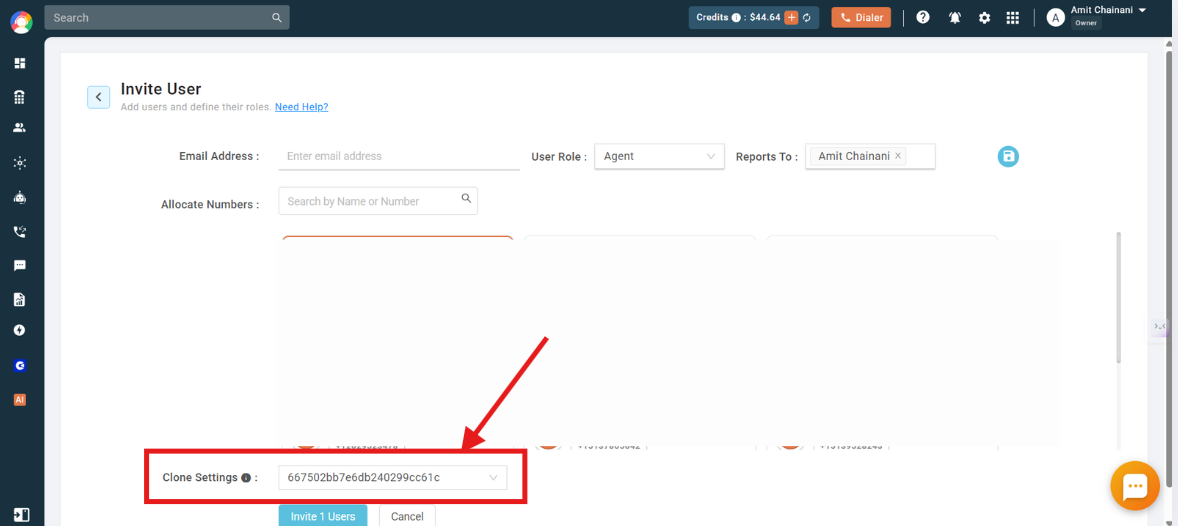
The Clone Settings option lets you keep the new user’s configuration identical to an existing user’s. These settings include voicemail, user availability, after-call work, forward-to-device, and more.
Open the dropdown in the Clone Settings field to see your active users, then select one. All of that user’s settings are copied and applied to the new user automatically.
Notes on Clone Settings:
- Forward to Device is not cloned.
- Cloning can be done multiple times for a user.
- After cloning, changes to the source (“From User”) do not reflect in the “To User”.
Adding Multiple Users at Once
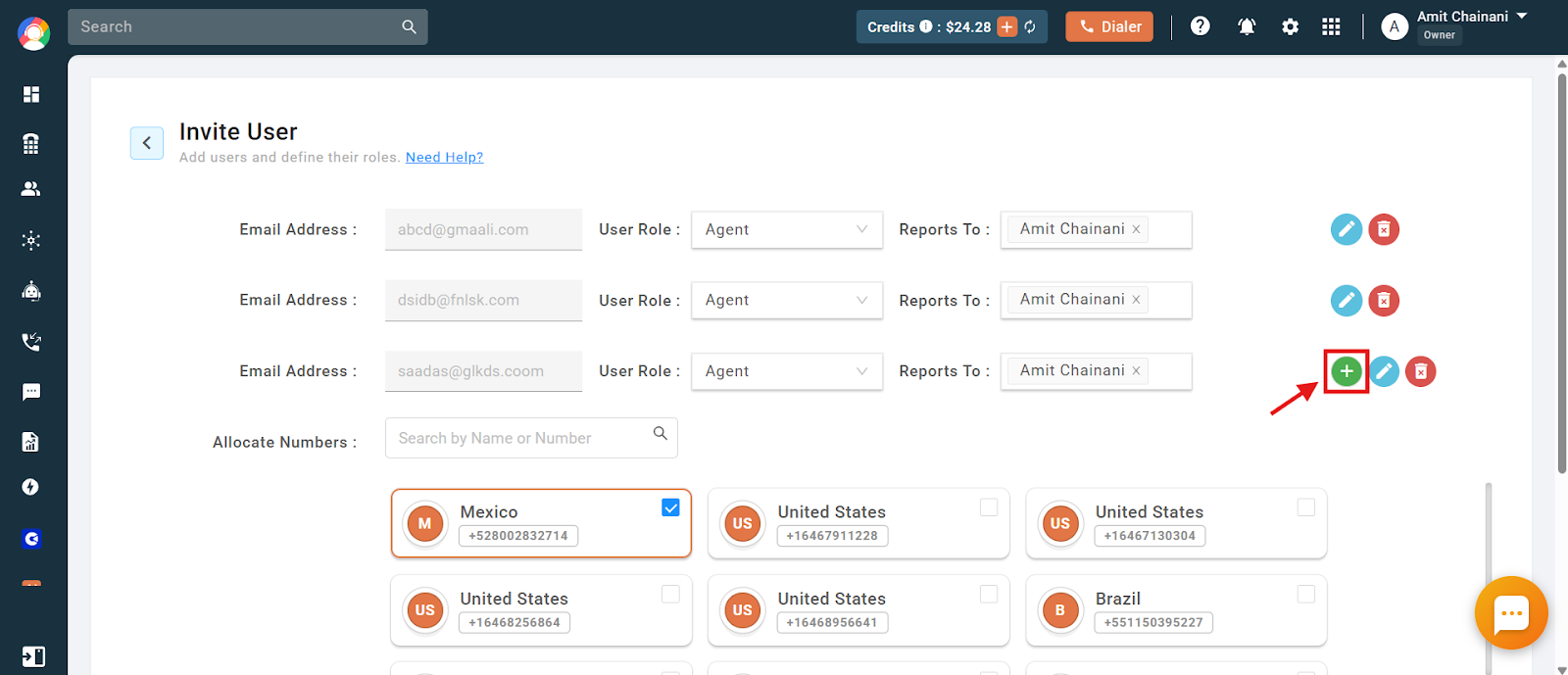
You can add up to 25 users at a time using the same Invite User flow, which is helpful for onboarding larger teams. Enter the details for each user on the invite screen, then click the save icon so a plus (+) button appears. Click the plus button to add the next user’s details. All invited users receive activation emails, and seat charges apply on a pro-rata basis.
Frequently Asked Questions
Can I change a user’s role after they are added?
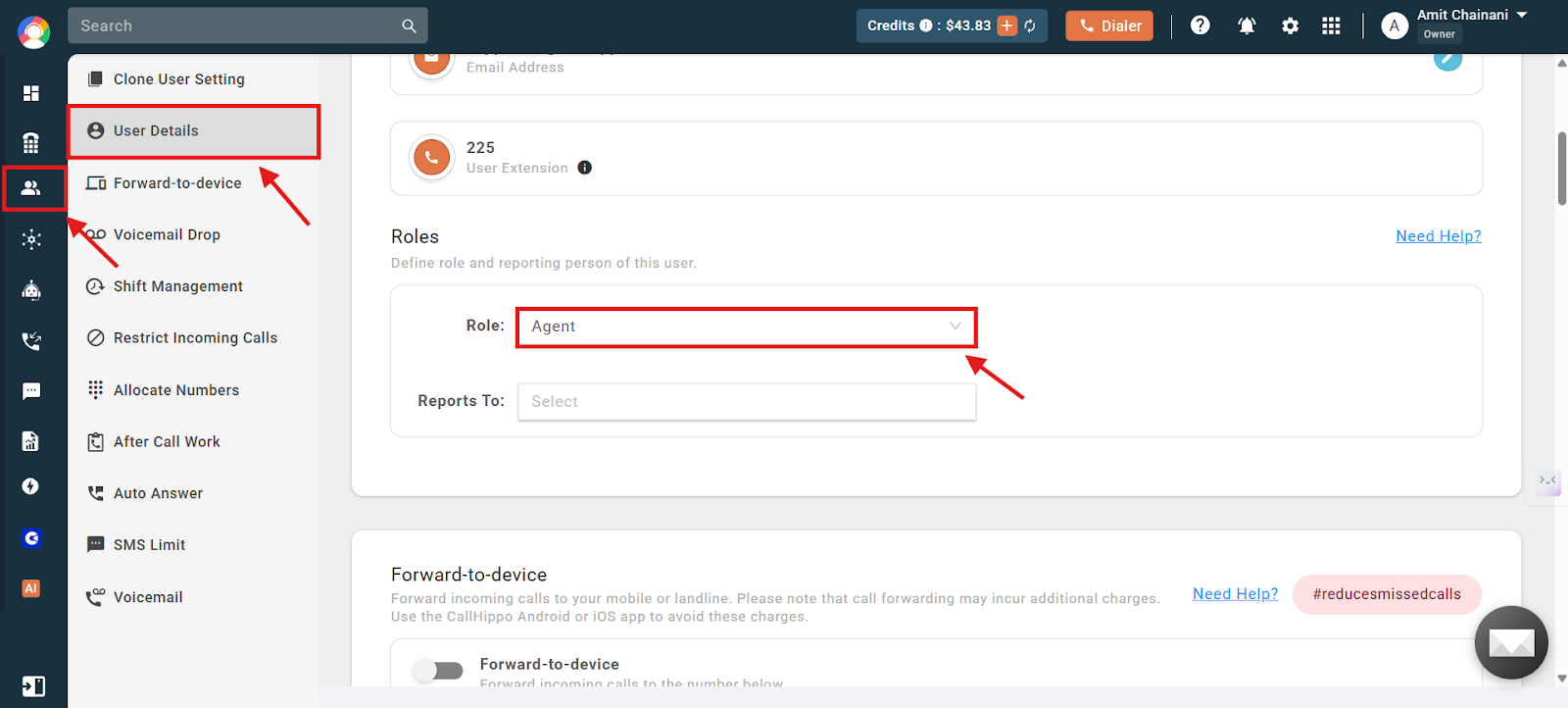
Yes. You can change a user’s role anytime from the User Details options in the user’s settings.
Can I promote another user to owner and demote myself?
No. The owner account cannot be directly interchanged with another user.
Can I hide CallHippo branding from the user I add?
No. The user will see the CallHippo dashboard and dialer.
Can I hide my numbers from a new user?
The new user will only see the CallHippo numbers allocated to them.
I get an error saying “this user already exists.” What should I do?
This appears in two cases. If the user has already created another CallHippo account, contact support to resolve it. If you have already invited the user, ask them to check their inbox for the activation link, or to log in if they have already accepted.
The invited user did not receive the invitation email. How do I resolve this?
Delete the user and add them again. This sends a fresh invitation link, and you will not be charged again for the process.
Can I assign more than one number to a new user?
Yes. During the invitation process, you can select and allocate multiple available numbers.
What does the Reports To option do?
It assigns a reporting manager to the new user, helping you build a user hierarchy and manage team performance.
Will deleting a pending user remove the charges for adding them?
Yes. If the user has not activated their account (pending status), you can delete and re-invite them without extra charges.
Do cloned settings update automatically if I change the original user’s settings later?
No. Once cloned, the settings are independent, so later changes to the original user do not carry over.
Can a sub-user view the activity of other users?
No. An agent cannot view the activities, such as call logs, of other users.
Can I log in with one user’s credentials on multiple devices and make calls?
No. One user can only be logged in on one device at a time. Each person who needs to make calls must have their own user account.
Why am I charged before adding a user?
You are charged a prorated seat fee based on the remaining days in your current billing cycle, applied instantly to your saved payment method.
If multiple users share one number, am I still charged per user?
Yes. Billing is based on the number of users (seats), not the number of phone numbers.
I get a “something went wrong” error when adding a user. What should I do?
Try a different browser or clear your current browser’s cookies and cache, then try again. If the issue persists, contact support.
Can two users assigned the same number make calls at the same time?
Yes. Multiple users can make concurrent calls using the same CallHippo number, letting teams share numbers efficiently.