
Already built a team in CallHippo? You can expand it at any time by adding more members in just a few clicks.
Whether you are onboarding new employees or restructuring a department, the steps below walk you through adding users to an existing team so everyone stays connected and productive.
Steps to Add Members to a Team
- Log in to your CallHippo dashboard.
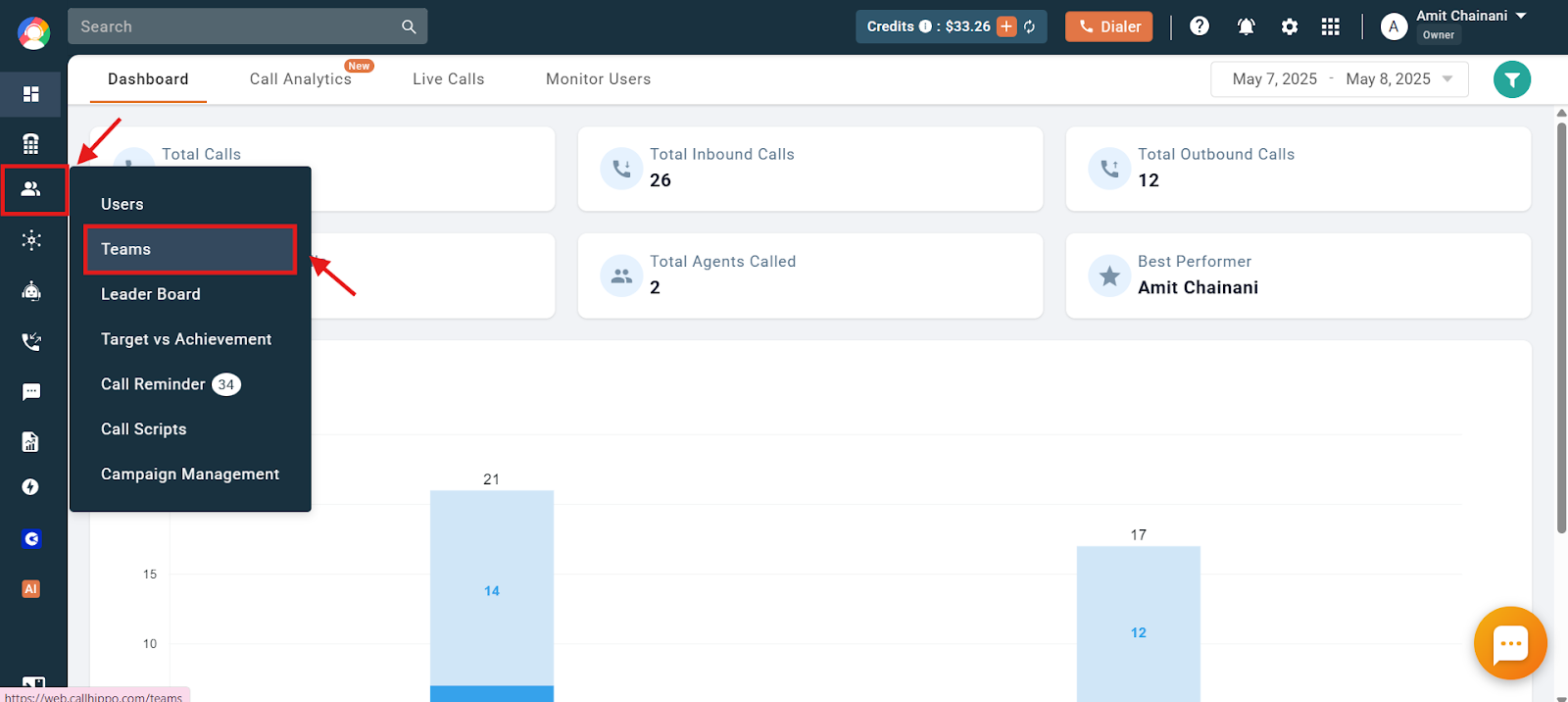
- Open Teams: Navigate to the “Users & Performance” section and click “Teams”.
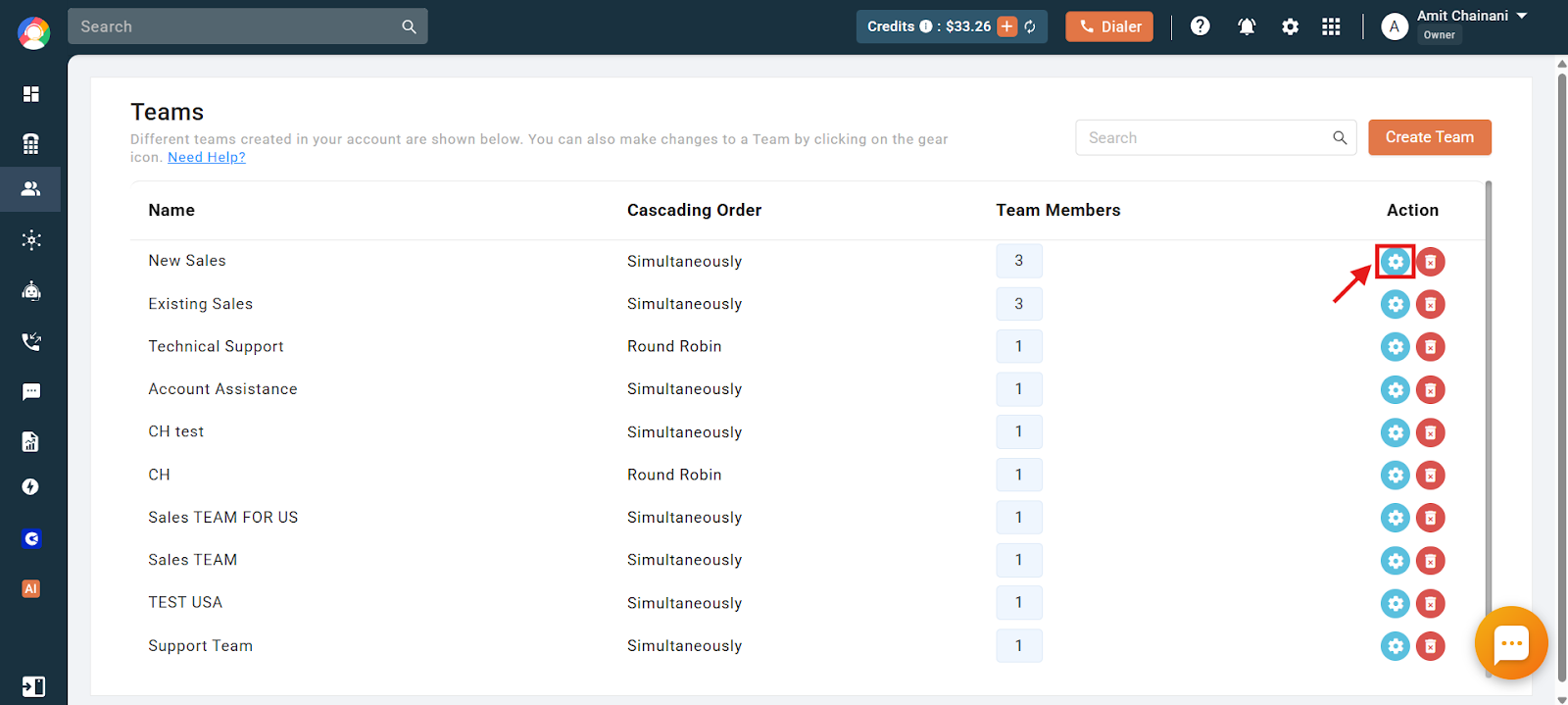
- Edit the team: Click the settings (gear) icon of the team you want to add a member to.
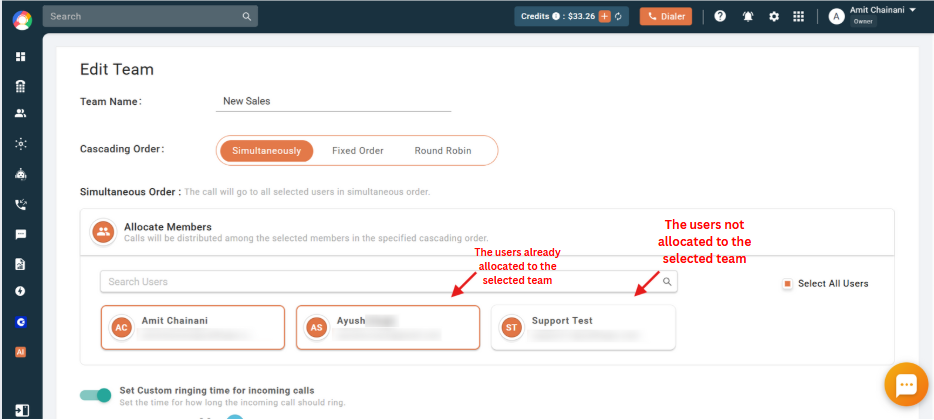
- Find the user: Members already in the team have a highlighted box around them, while users not yet allocated do not.
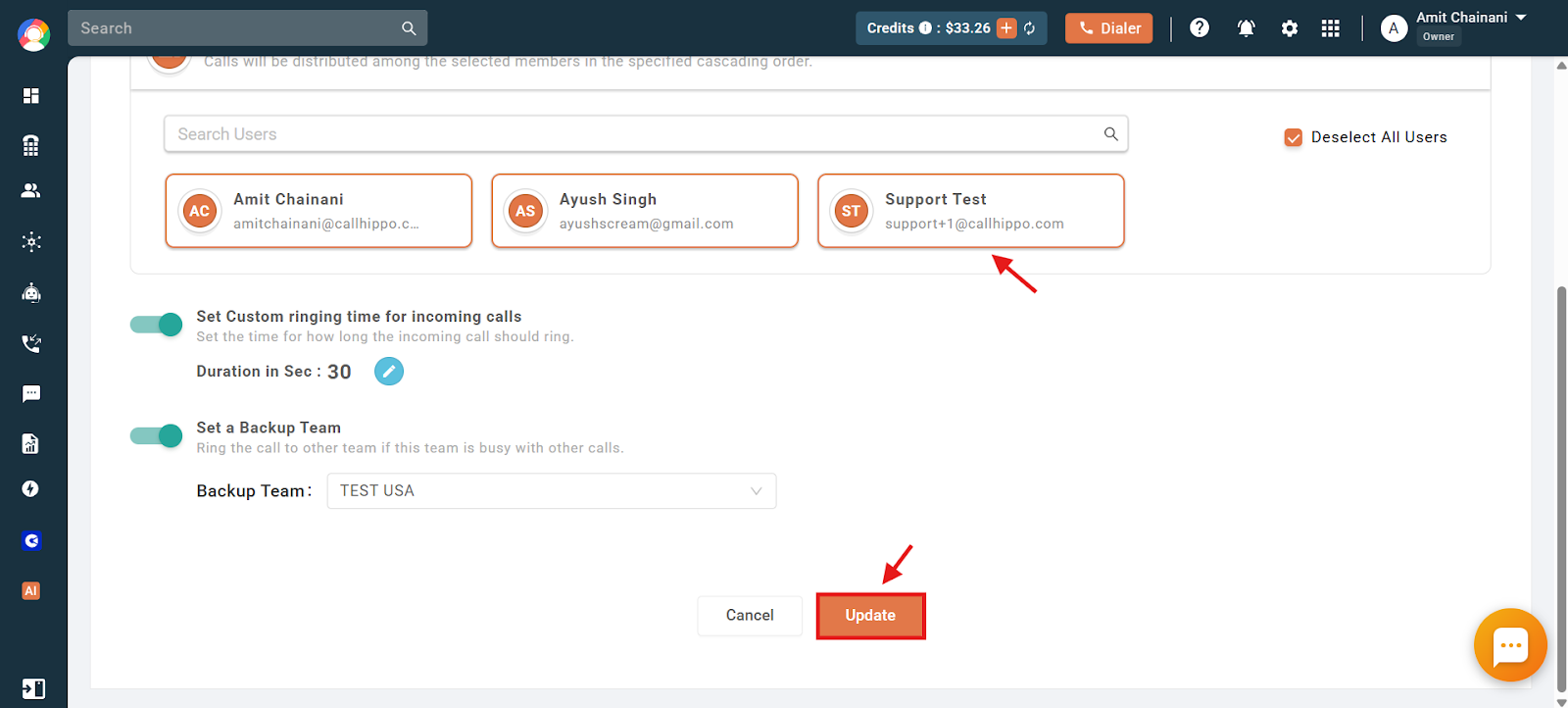
- Add and save: Click the user you want to add, scroll down, and click “Update” to finalize the change.
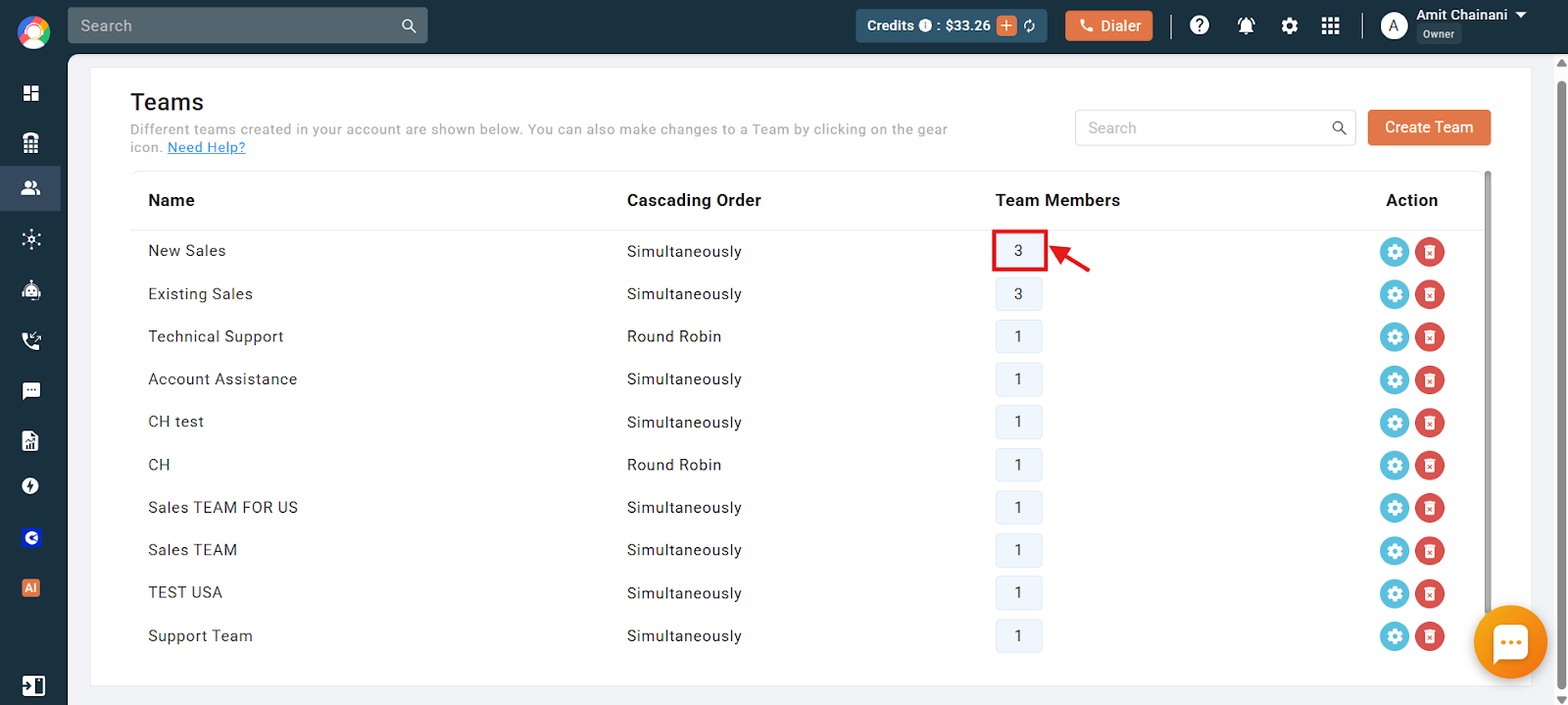
- Verify: The updated member count appears under the “Team Members” column. The user is now part of the team.
Need help managing your teams? Reach out to us at [email protected] and we will be glad to assist.