
Dynamic variables let your CallHippo AI Voice Agent personalize every call using real-time customer data, so instead of a generic “Hello!” the agent can greet each caller by name. This guide covers where to use variables, how to create them, and how to map them to your campaign data.
What are dynamic variables?
Dynamic variables pull values from your uploaded campaign list and inject them into the conversation while the call is happening. For example, instead of “Hello!”, the agent can say “Hello {{first_name}}!” The correct value is filled in automatically for each contact.
Where you can use dynamic variables
- AI conversational flow (message nodes): personalize any dialogue the AI voice speaks.
- Auto Dialer campaigns: map variable names to the column headers of your uploaded data.
Create and manage variables
To open the dynamic variables settings:
- Go to Global Settings.
- Navigate to Call & SMS Settings.
- Open In Call Settings.
- Select Dynamic Variables.
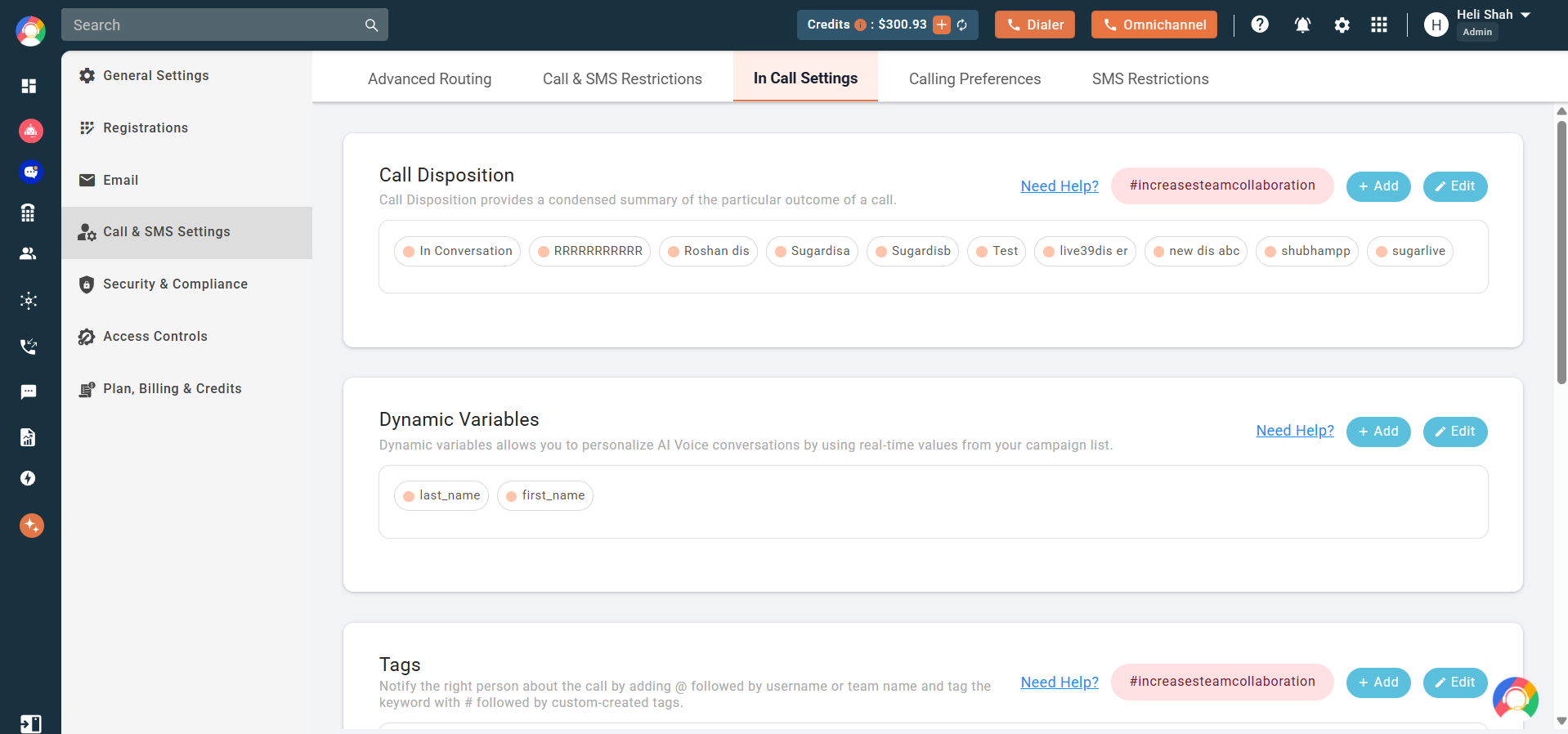
CallHippo provides four default variables, first_name, last_name, email_id, and phone_number, which you can edit or delete. You can also add your own.
Rules for naming variables
- Use lowercase only — no capital letters are allowed.
- Use an underscore for two words, for example
customer_name. - No spaces — avoid names like
customer name. - No special characters — symbols such as @, #, or $ are not allowed.
Use variables in conversations
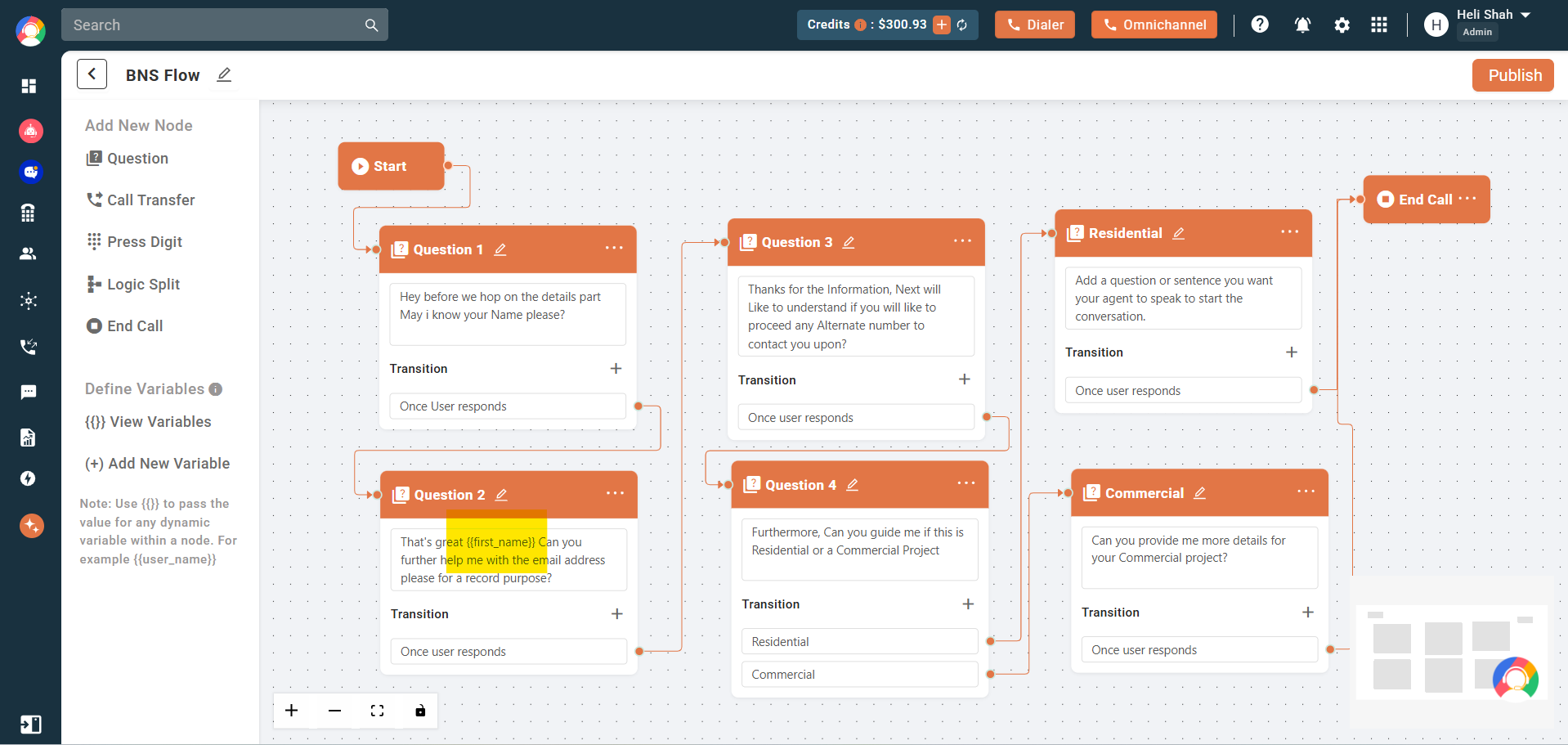
Inside any AI Voice workflow text box, insert a variable using double curly brackets. For example:
- “Hi {{first_name}}, welcome to CallHippo!”
Use {{ }} to reference any dynamic variable you have created.
Map variables during campaign setup
When you assign an AI Voice Agent to an Auto Dialer campaign:
- The system prompts you to map variables.
- Every variable used in the selected AI Voice flow appears in the list.
- Match each variable to a column from your uploaded CSV or Excel file.
Mapping every variable is not mandatory — you can skip any you don’t need.
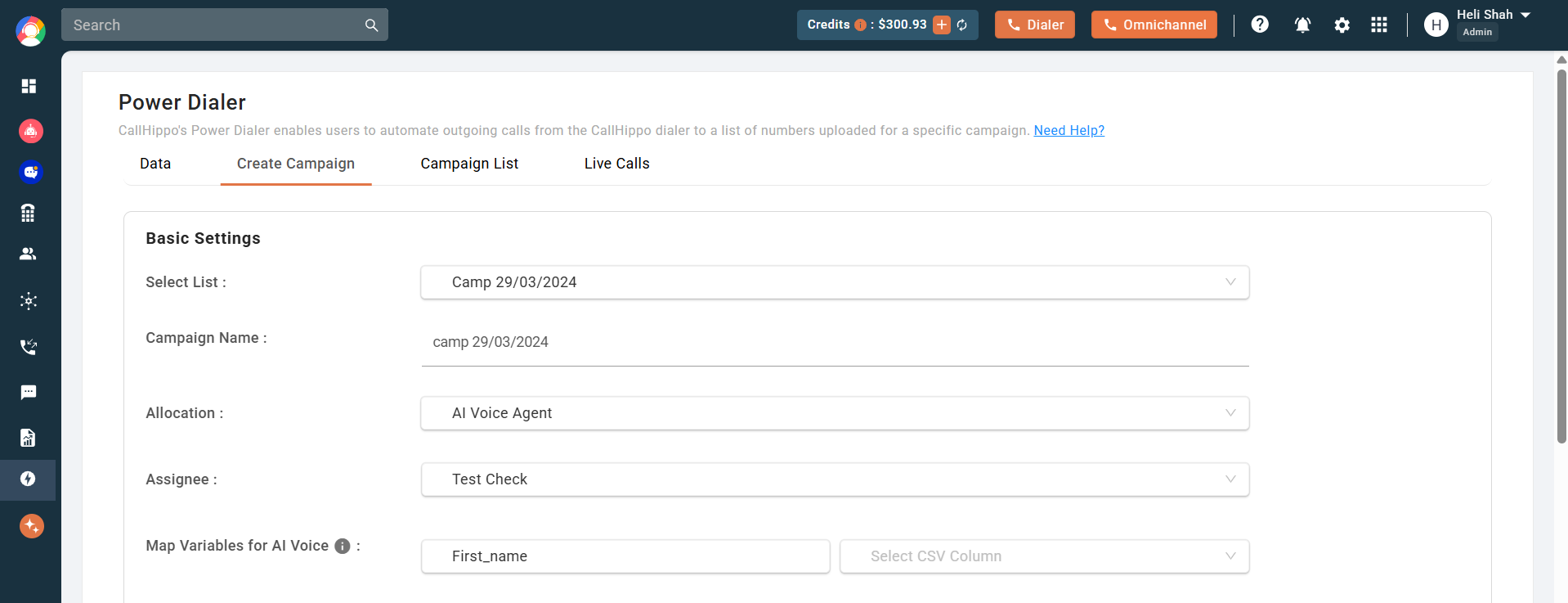
For example, if your flow uses {{name}}, {{email}}, and {{pan}}, you would map them to CSV headers such as “Lead Name”, “Email Address”, and “PAN Number”.
What happens if data is missing?
If a value is missing for a particular contact, the AI adjusts the sentence automatically. For example, “Hey {{first_name}}, how are you?” becomes “Hey there, how are you?” when no name is available.
Deleting a dynamic variable
You cannot delete a variable while it is still being used in an AI workflow or an Auto Dialer campaign mapping. If you try, you’ll see the error: “Please change/delete this variable from associated AI Voice Workflows before deleting.” Once you remove it from the workflow, the AI stops expecting that data automatically.
Important notes
- Applicable only to AI Auto Dialer and batch outbound calling.
- Has no impact on your call logs.
- Variables must be defined in Global Settings before they can be used.
Still need help? Reach us at [email protected].