
Once your CallHippo account is connected to a CRM or third-party tool, you can control exactly which numbers log calling and SMS activity to that integration.
Before you begin, make sure your CallHippo account is already integrated with the CRM or tool in question. Once the integration is active, you can view and update its allocated numbers at any time. Both methods below let you:
- View the list of numbers currently allocated to the integration.
- Choose which numbers should log calling and SMS activity through the CRM.
- Deallocate a number you no longer want associated with the tool.
- Allocate a number that is not currently linked, when the integration already exists.
Method 1: From the Integration settings
- Log in to your CallHippo dashboard.
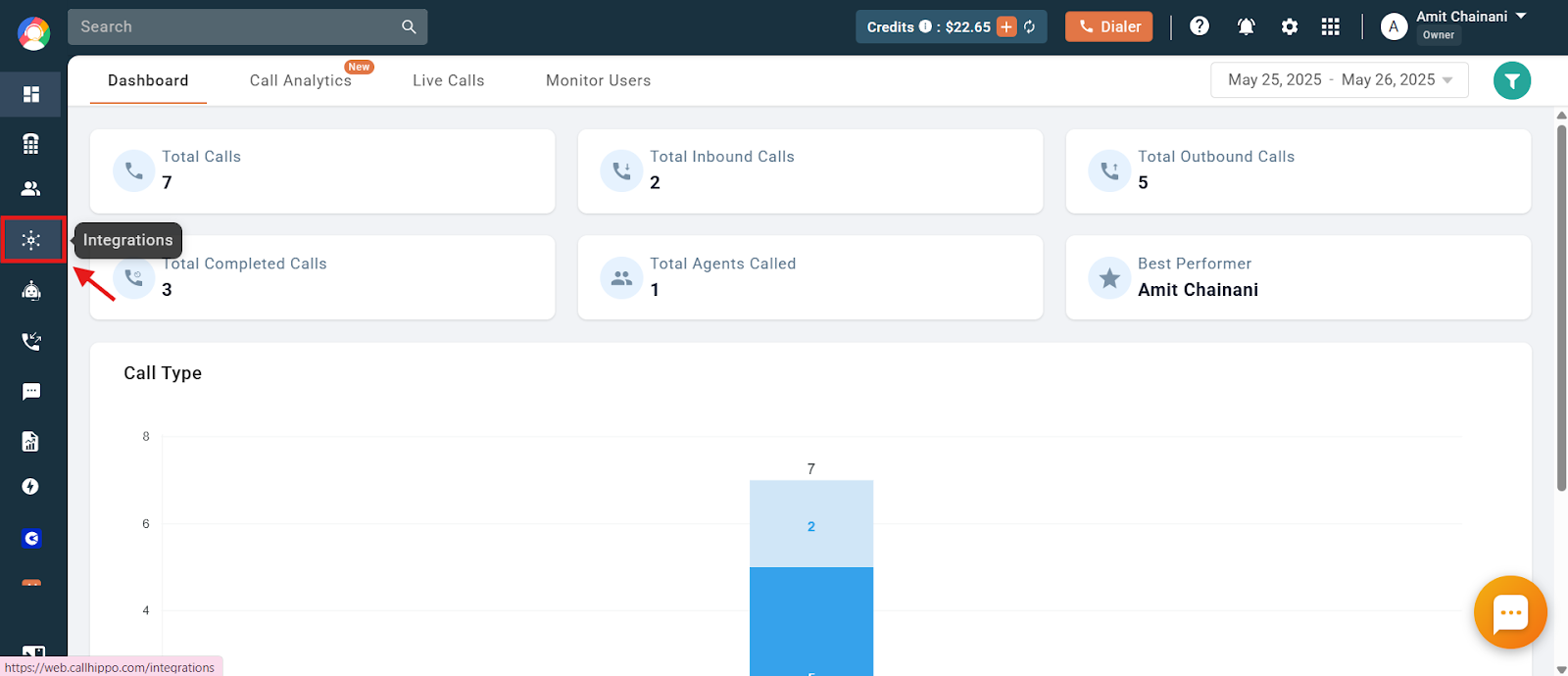
- Click the Integrations section in the left sidebar.
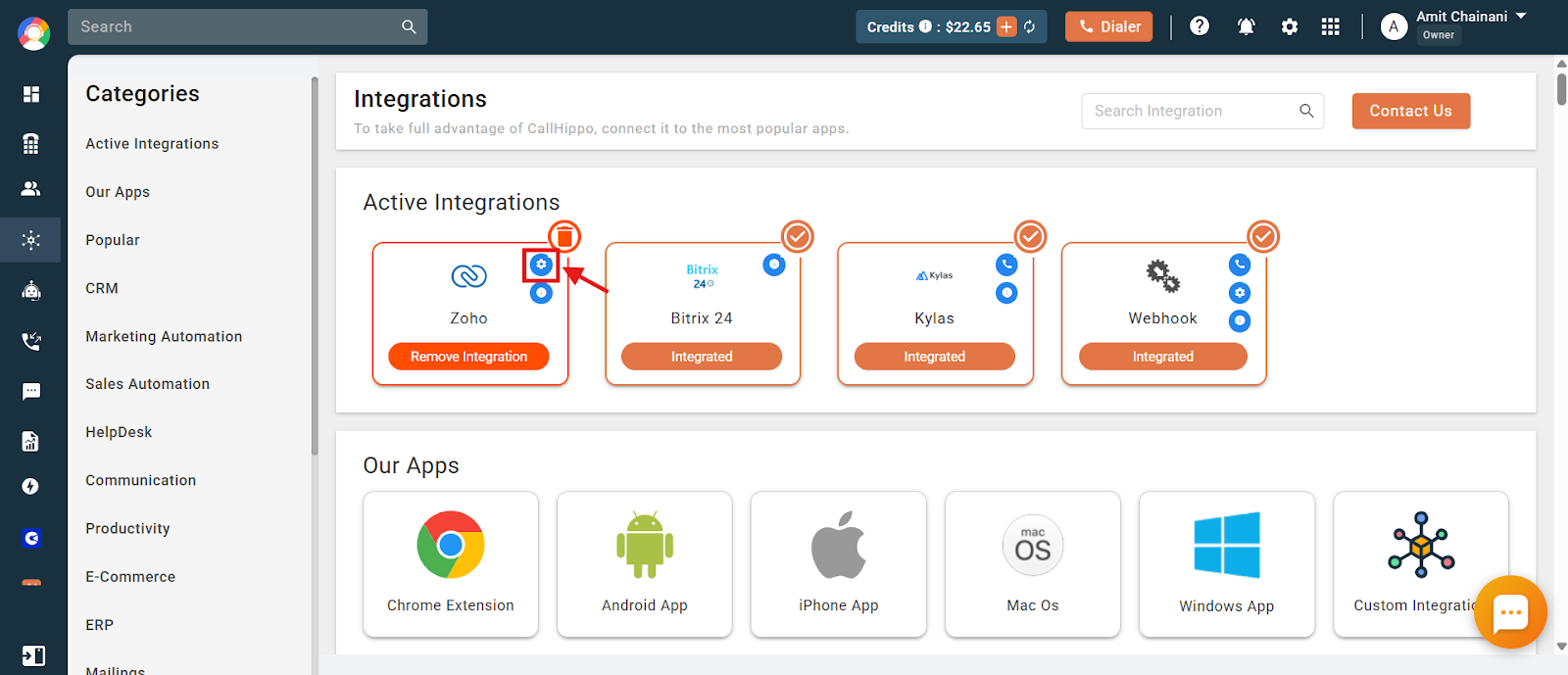
- Click the settings (gear) icon on your active integration.
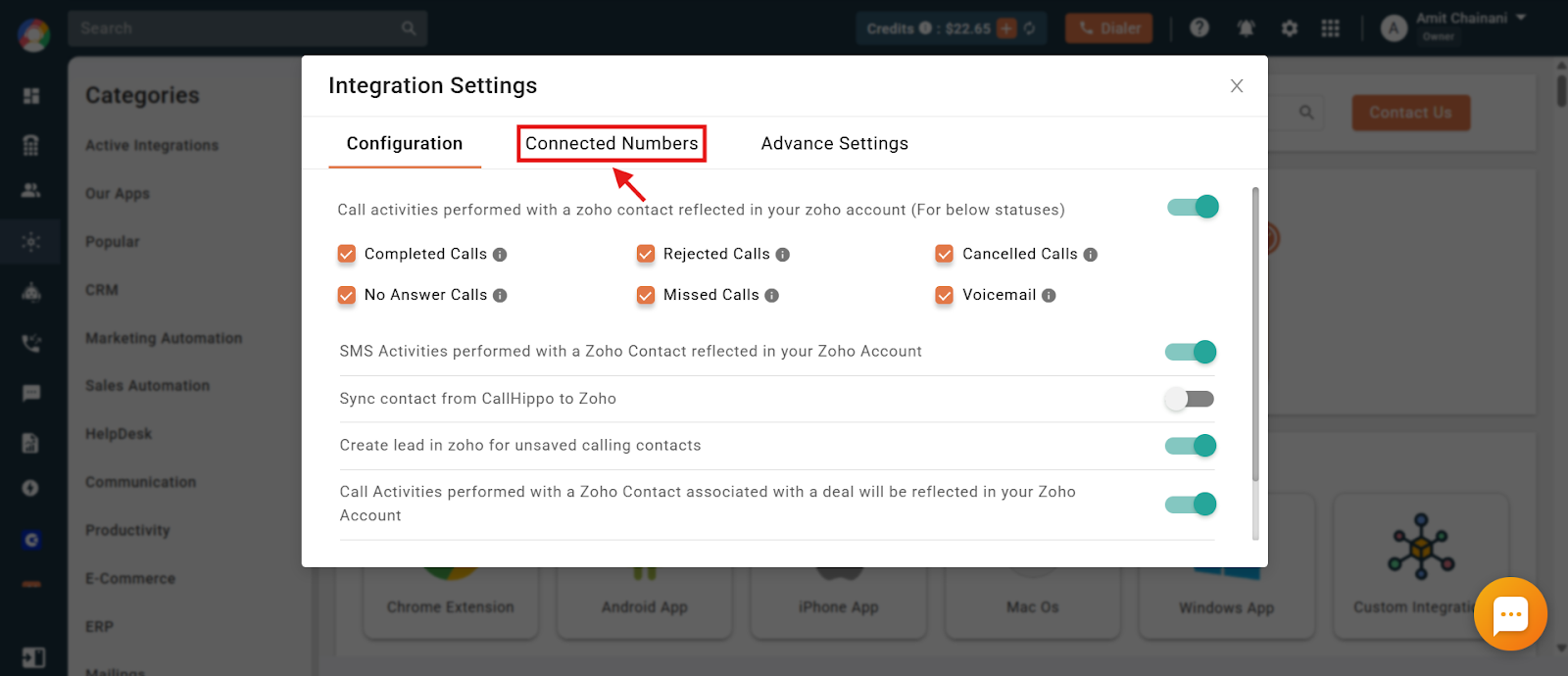
- Open the Connected Numbers tab.
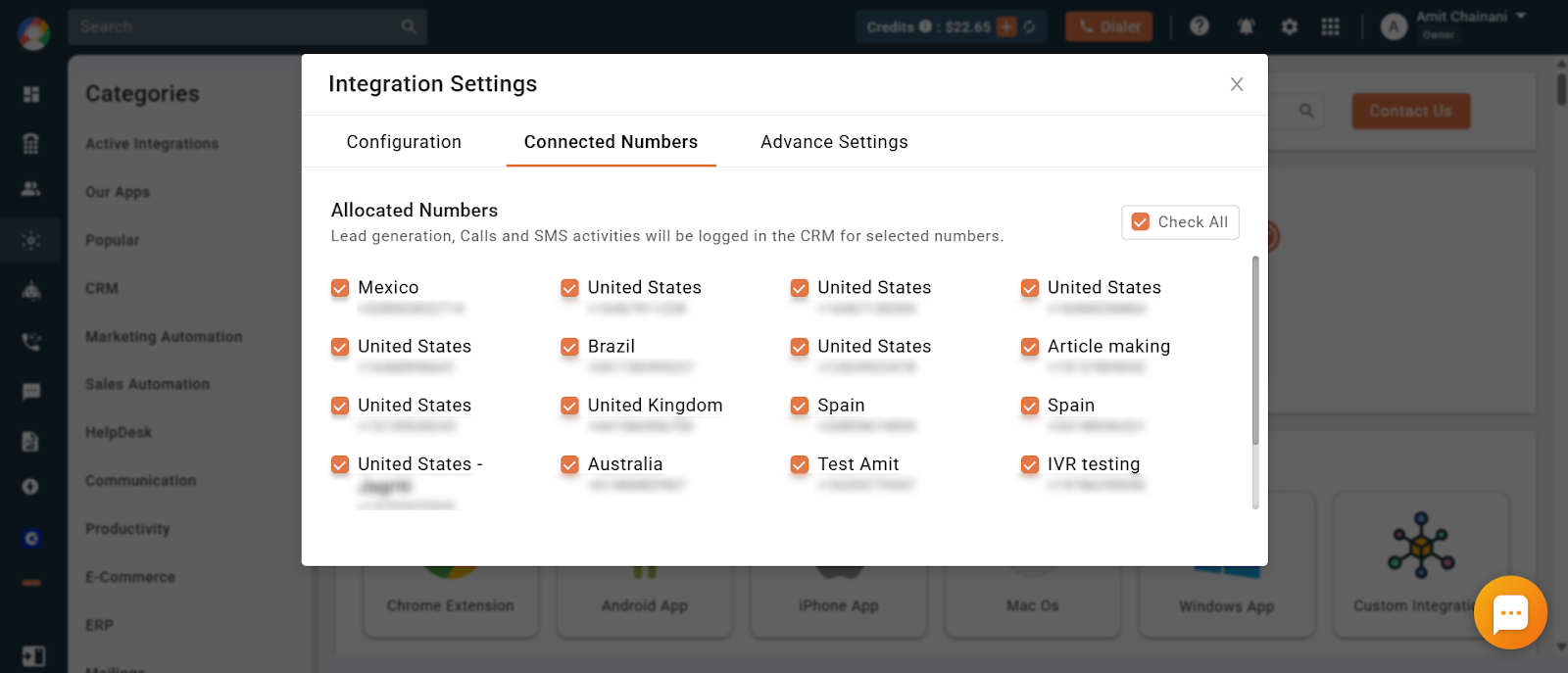
- Check or uncheck the numbers you want to allocate or deallocate for the selected CRM. Only the checked numbers will log call and SMS activity.
Method 2: From Number Settings
- Log in to your CallHippo dashboard.
- Go to the Numbers and DID section on the left, then click Numbers.
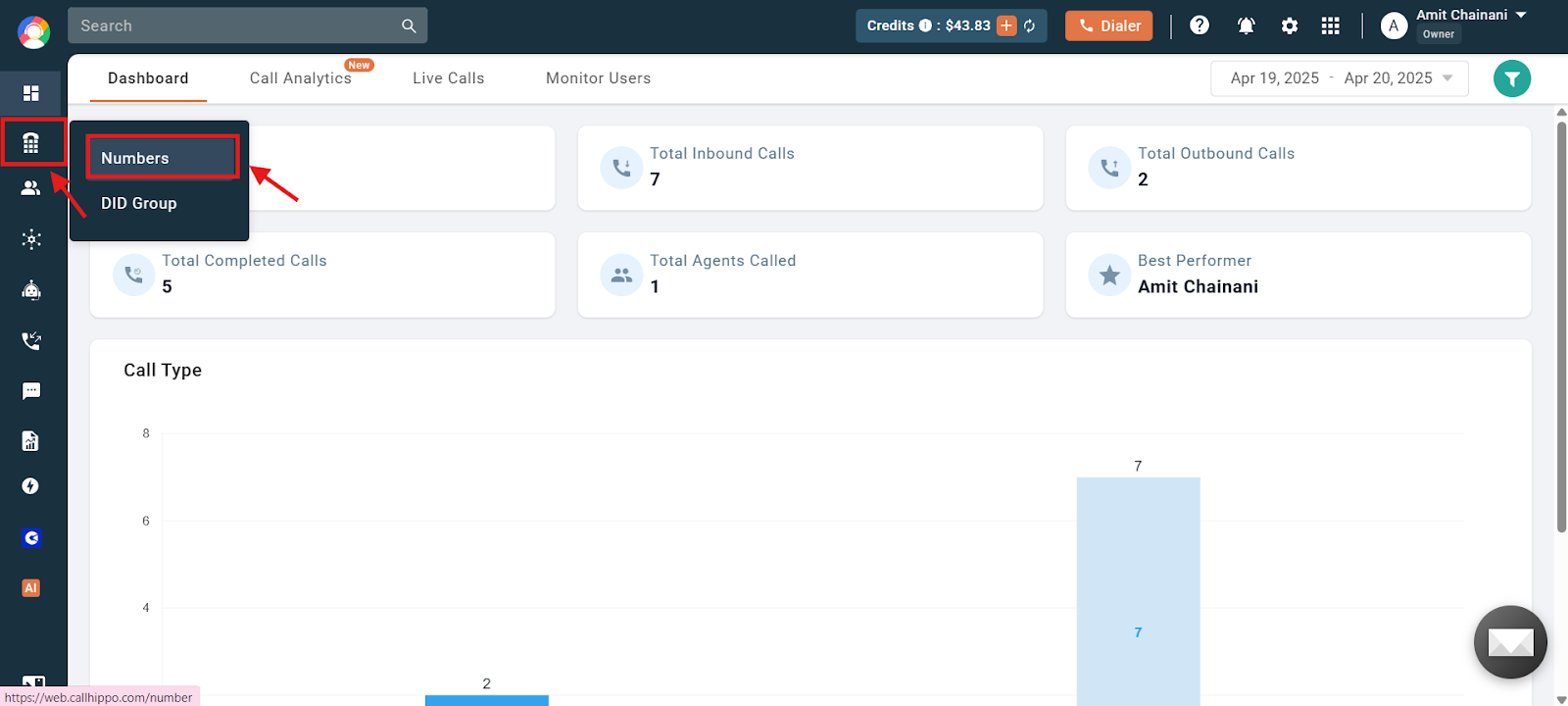
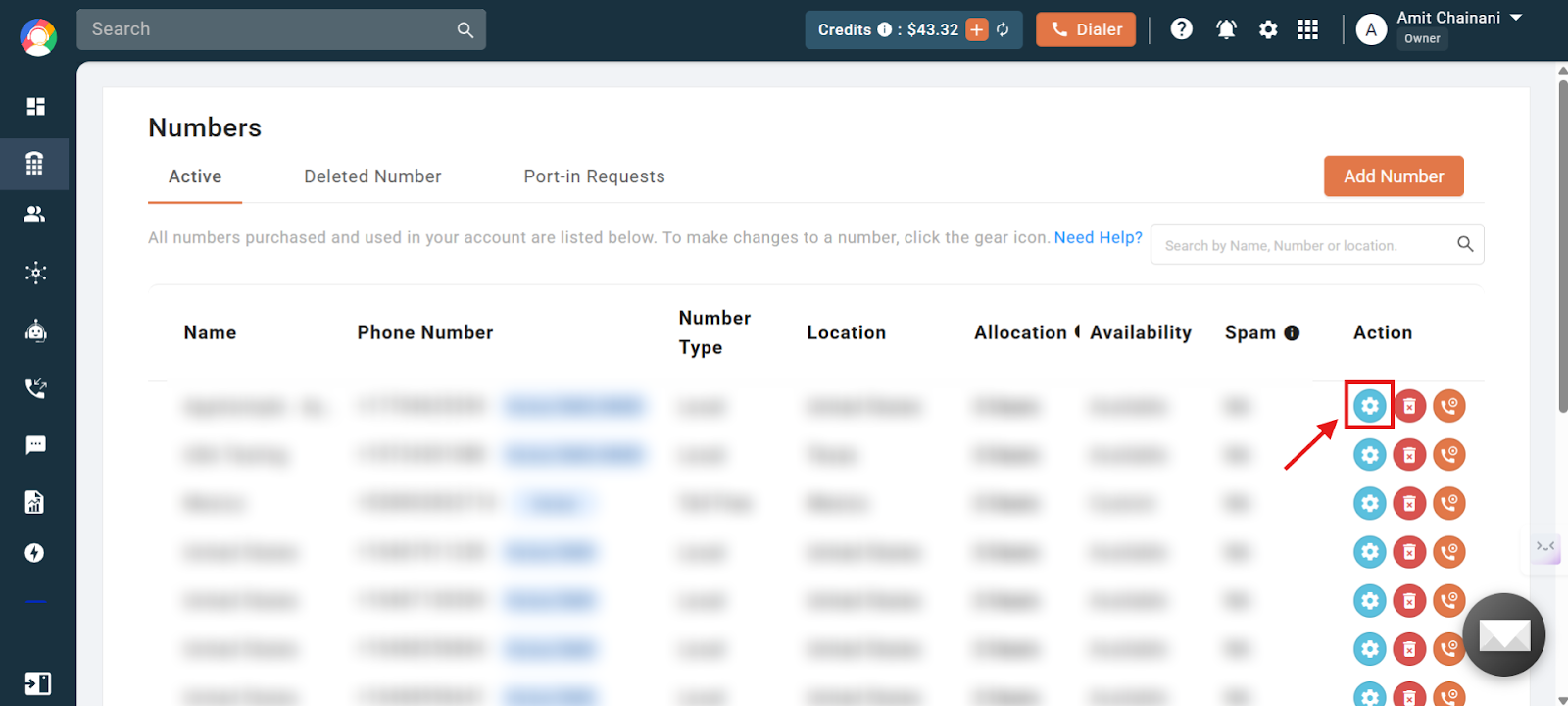
- Click the settings (gear) icon for the number you want to allocate or deallocate.
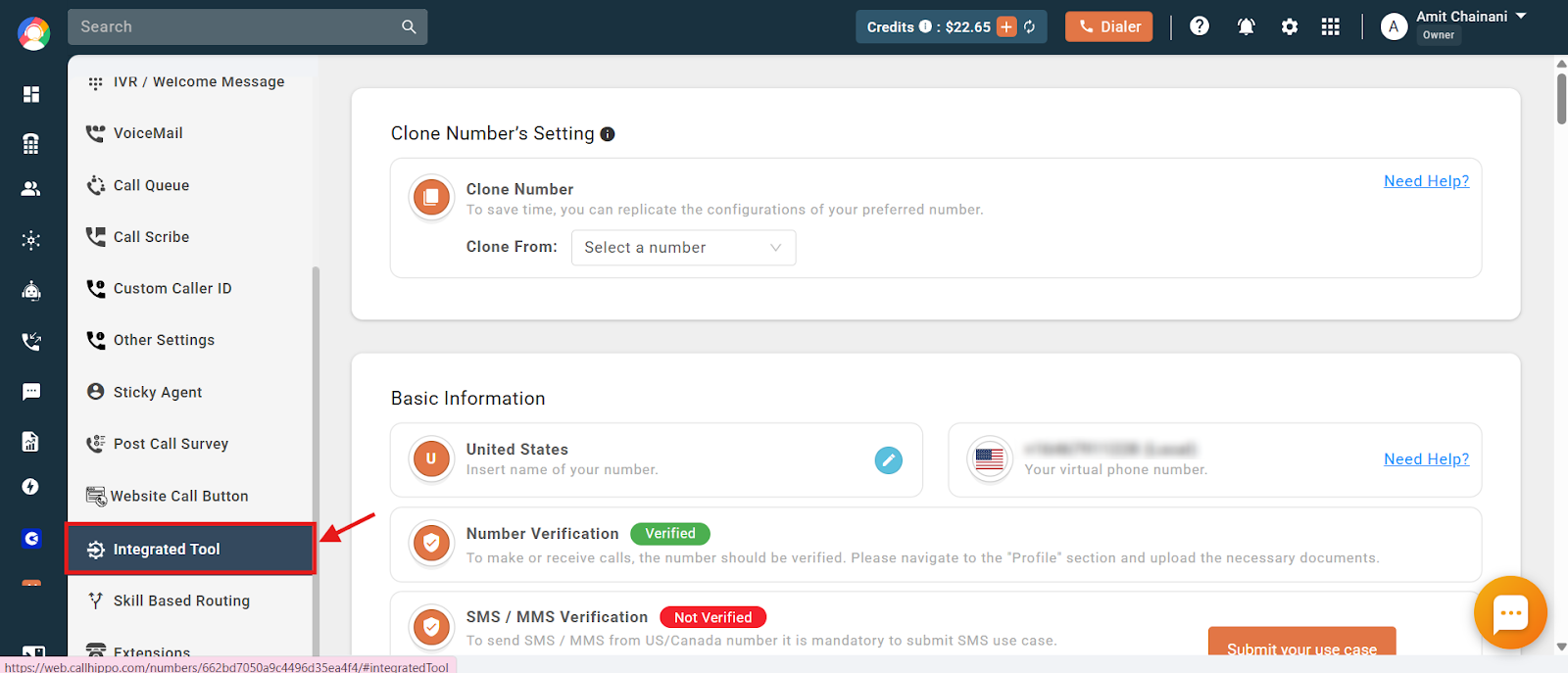
- In the number settings sidebar, scroll down and click Integrated Tool.
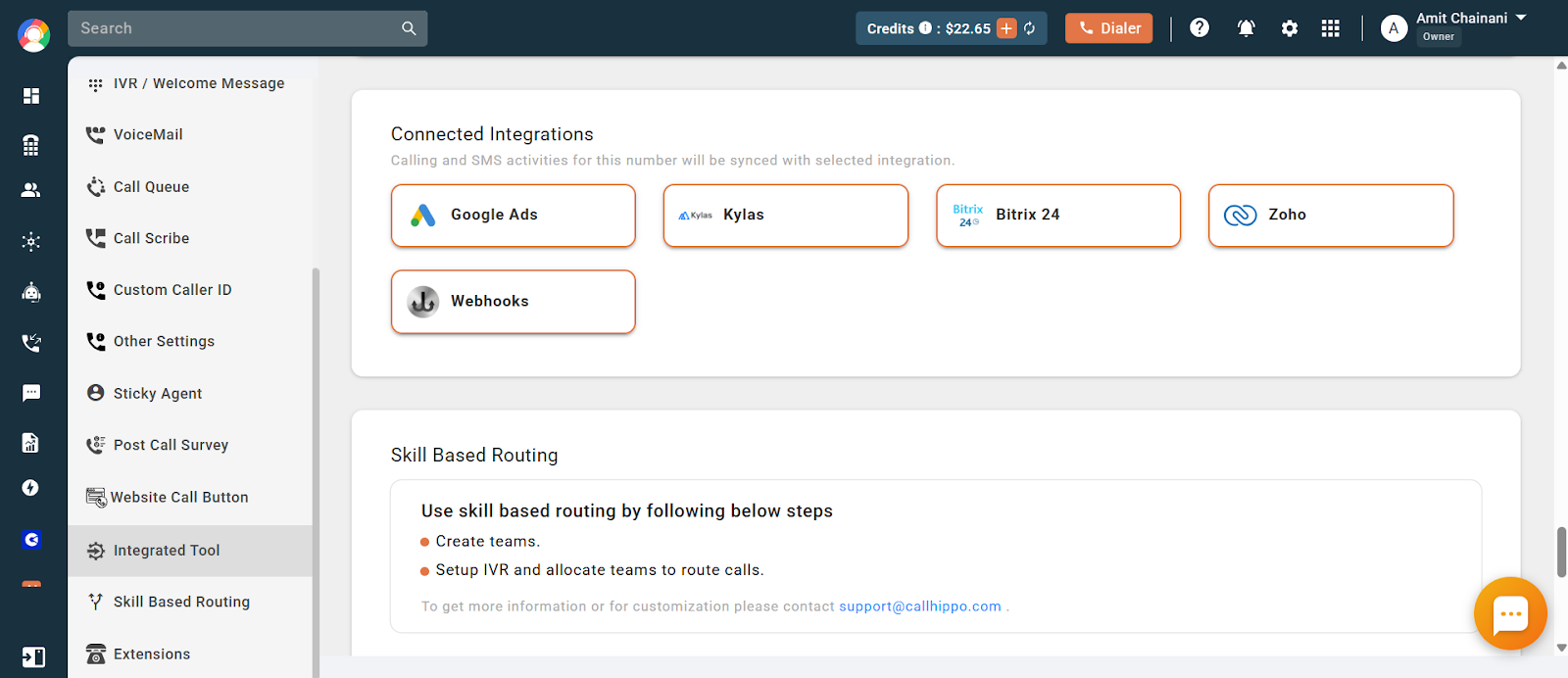
- Click the integrated CRM to allocate or deallocate it for this number, depending on whether you want to log its call and SMS activity.
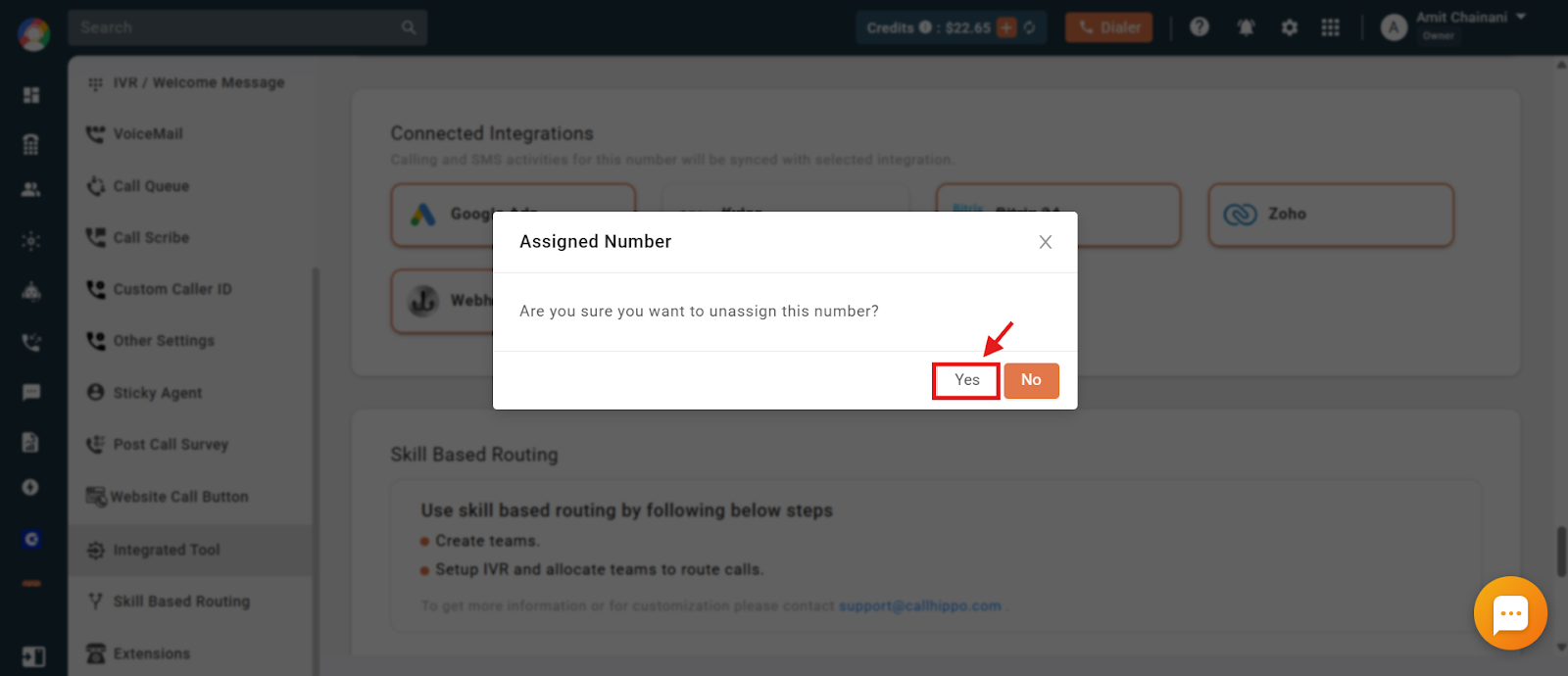
- Click Yes to finalize the change.
Important note
If only one number is currently allocated to an integration, it cannot be removed. CallHippo requires at least one number to remain linked to an active integration.
Frequently asked questions
How do I know if my CallHippo account is integrated with a CRM?
Log in to your CallHippo dashboard and open the Integrations section. If an integration is active, it will be listed there with settings available to manage connected numbers.
I want to remove a number from my CRM integration. What should I do first?
First make sure your CallHippo account is already integrated with the CRM. Then remove the number either through the Integration settings or via the Number Settings section.
Can I remove all numbers from an integration?
No. CallHippo requires at least one number to remain connected to an active integration, so if only one number is allocated you will not be able to deallocate it.
How can I double-check which numbers are currently linked to my CRM?
You can view this in the Connected Numbers tab under Integrations, or by opening an individual number’s settings and checking the Integrated Tool section.
Will deallocating a number remove past call logs from the CRM?
No. Deallocating a number only stops future call and SMS logs from being sent to the CRM. Logs already recorded will remain in the CRM.
What’s the difference between updating settings from Integrations vs. Number Settings?
Both methods let you allocate or deallocate numbers. The Integration settings show all connected numbers for a specific tool, while the Number Settings focus on managing integrations for one number at a time.
I changed the number settings, but nothing updated in the CRM. What should I do?
Try logging out and back into your dashboard, double-check the integration status, and confirm your changes were saved. If the issue persists, reach out to CallHippo support.