
Connecting Asana with CallHippo lets every call and SMS you handle flow straight into your Asana workspace, so follow-ups and project tasks stay aligned with your conversations.
Connect Asana to CallHippo
- Log in to your CallHippo account.
- From the left sidebar of your dashboard, open Integrations.
- Search for Asana and click the Connect button on the Asana card.
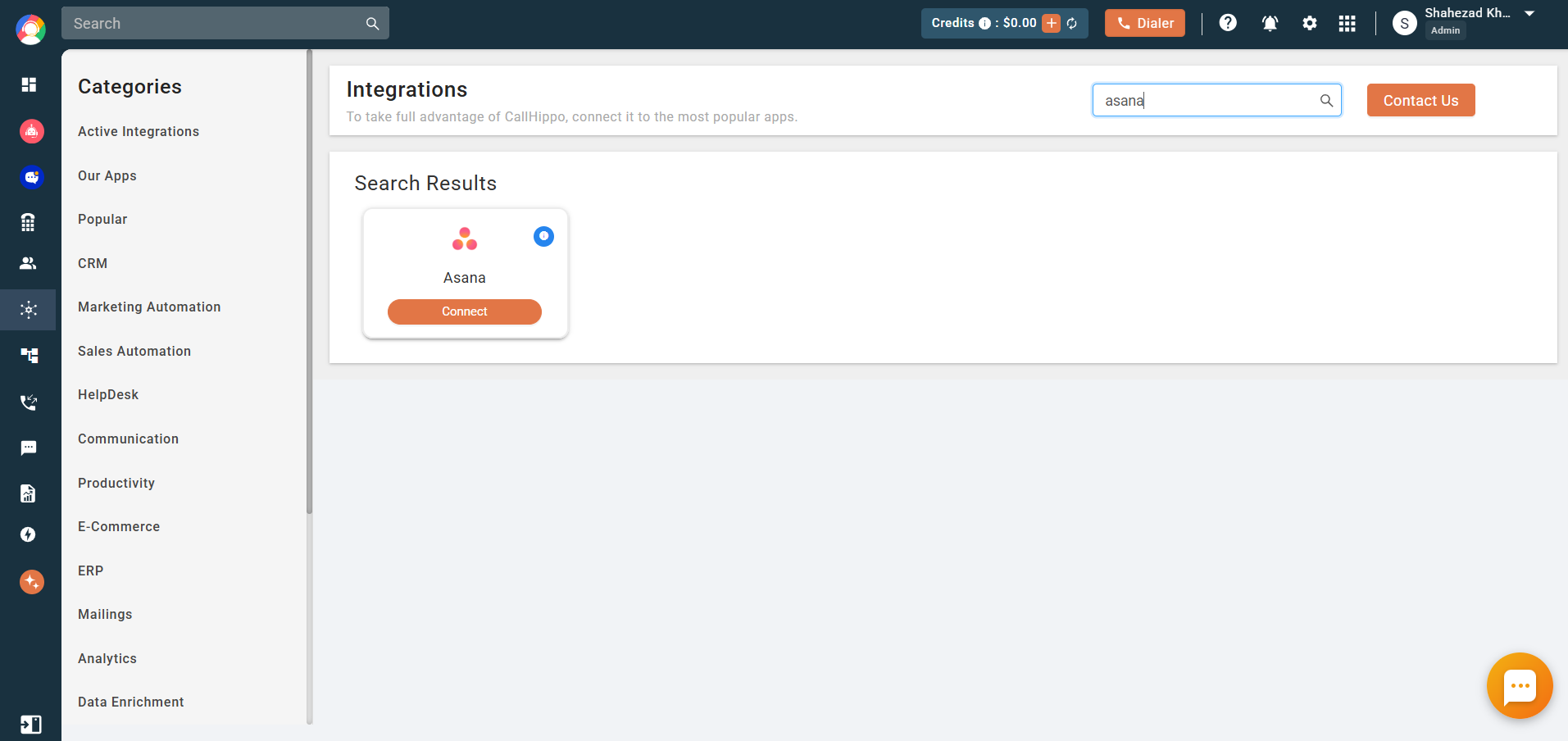
- In the Integration Setup pop-up, click Connect Now.
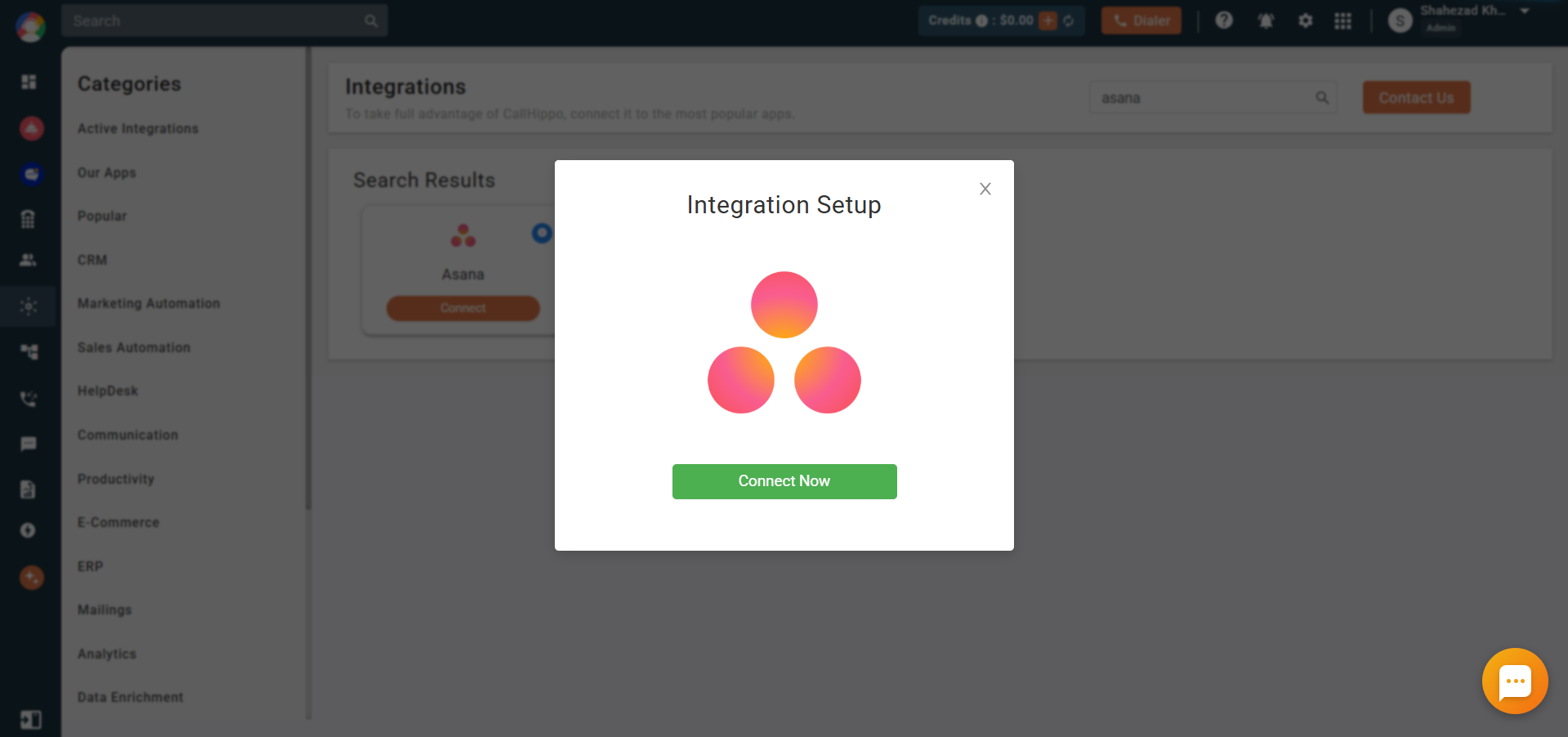
- Sign in to Asana with your email and password. If you are already signed in to Asana in another tab, you will be taken straight to the permissions screen.
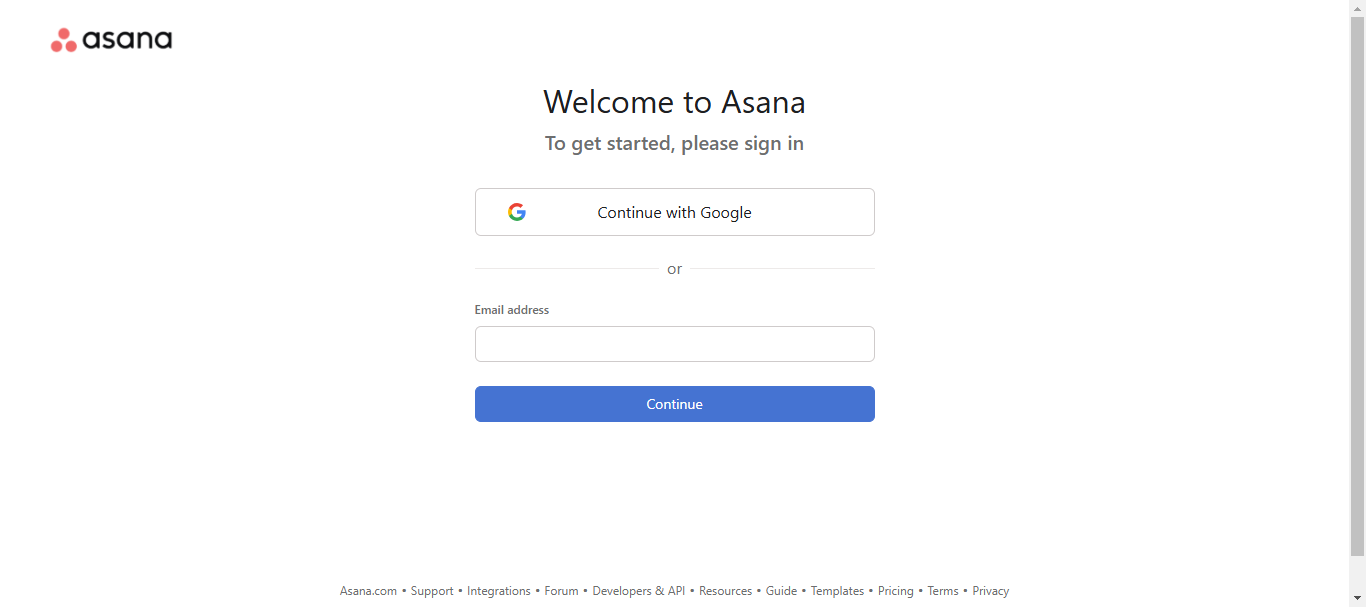
- On the Grant Permission screen, click Allow to authorize CallHippo.
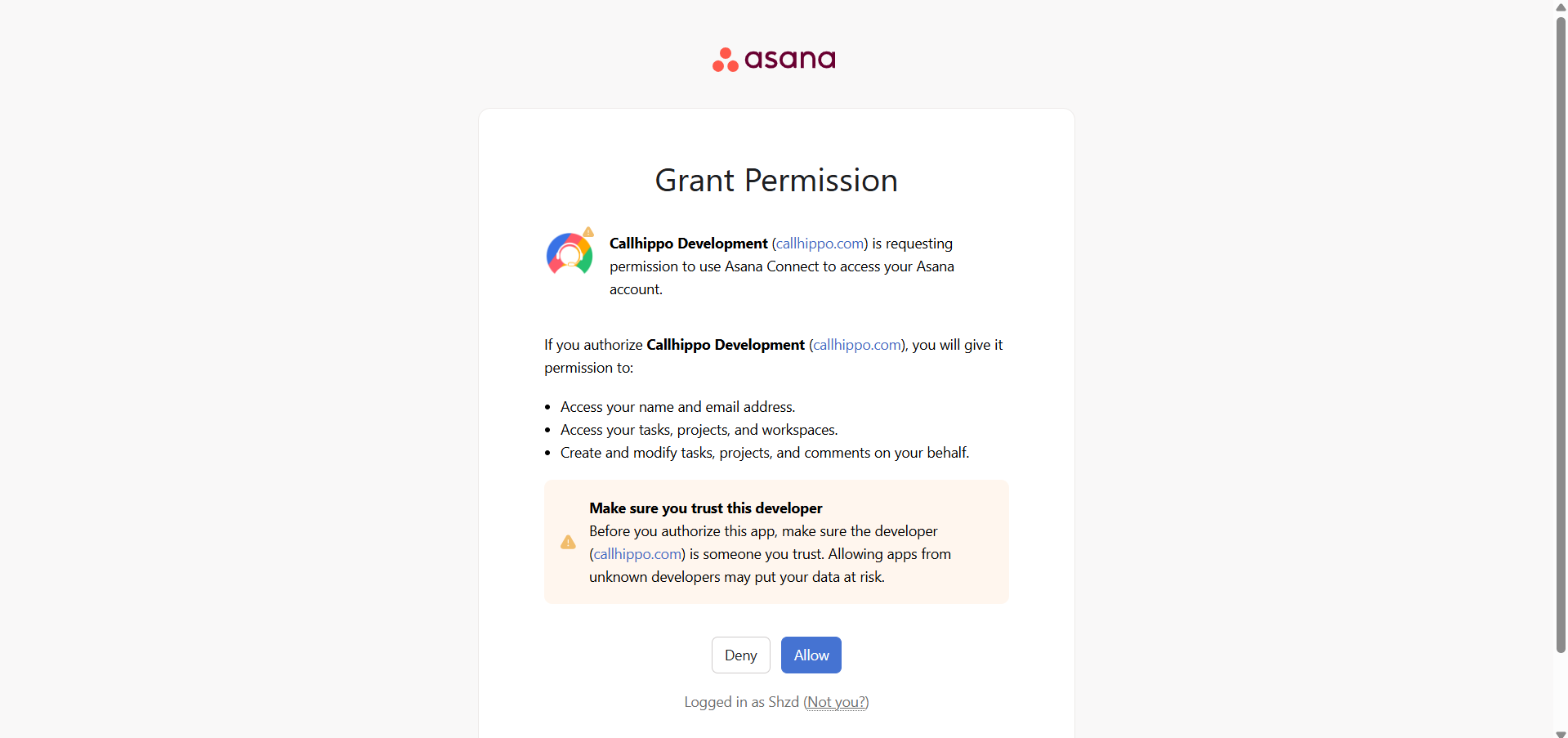
- You are redirected back to CallHippo, where the Asana Integration Settings pop-up opens automatically.
Configure your integration settings
Use the Integration Settings pop-up to control which activities are pushed to Asana and where they land.
- Call activities sent to Asana – when enabled, calls made or received on the CallHippo dialer are logged in your Asana account. Choose the statuses you want to capture: Completed, Rejected, Cancelled, No Answer, Missed and Voicemail.
- SMS activities sent to Asana – when enabled, SMS activity from the CallHippo dialer is shown in the Activities section in Asana.
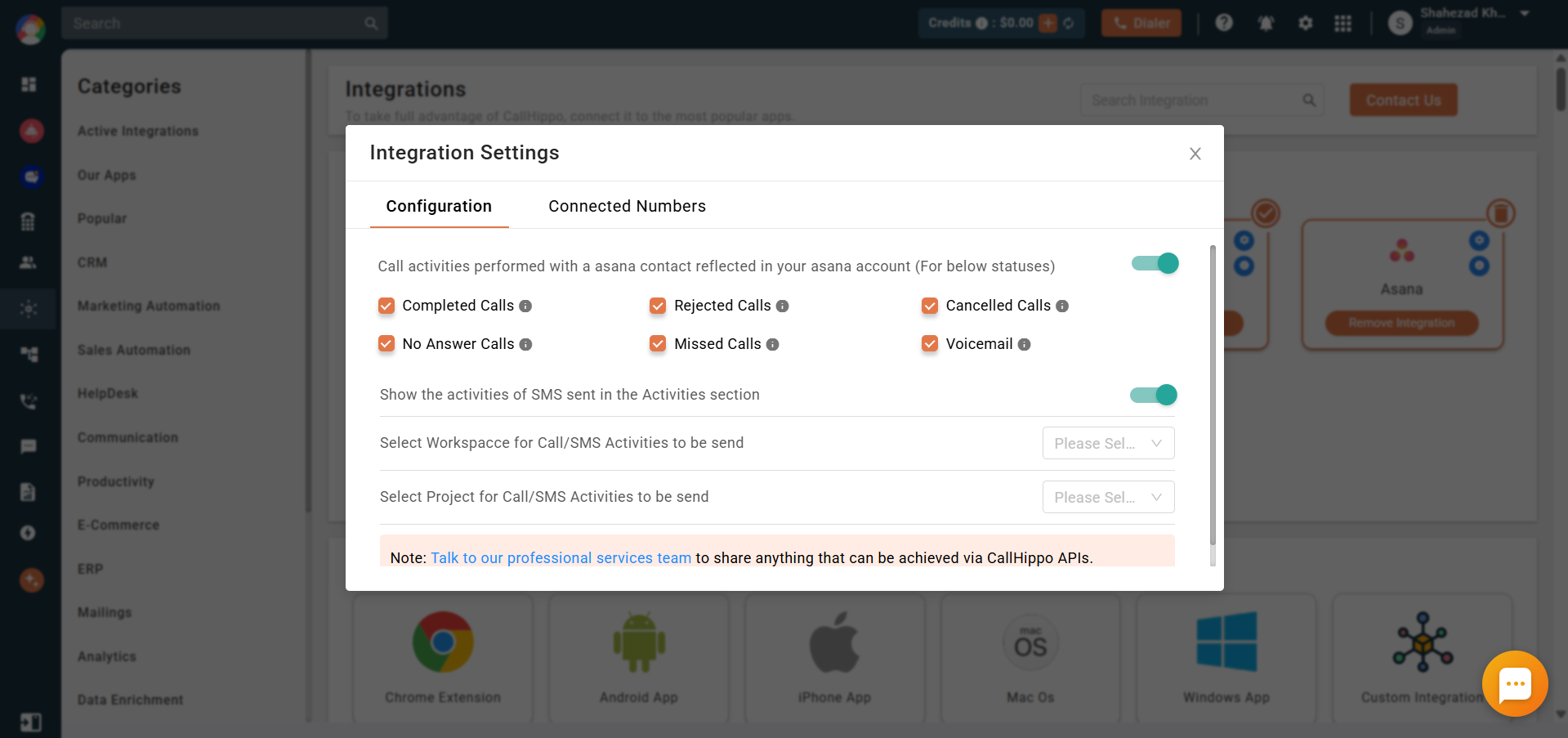
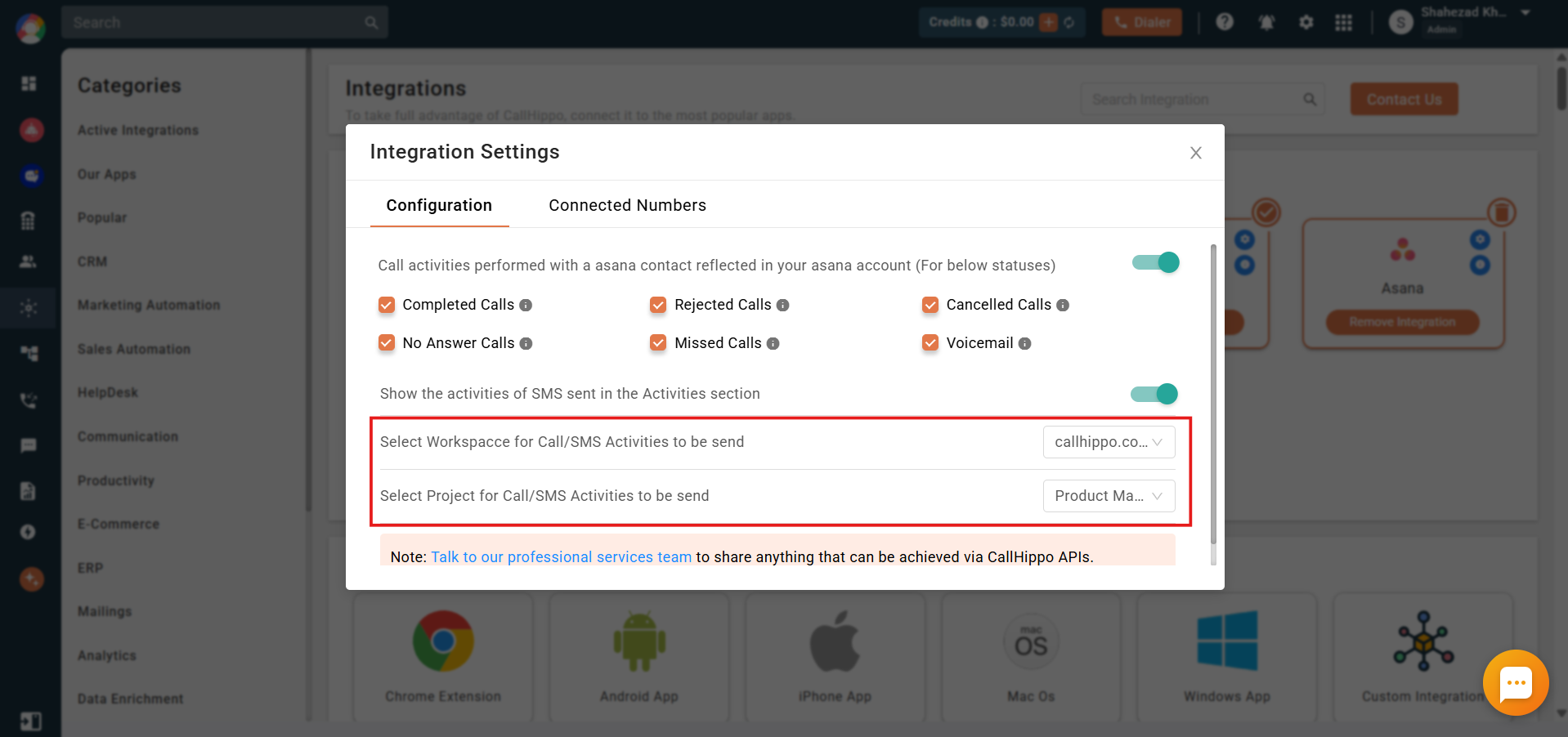
- Select Workspace – pick the Asana workspace where Call and SMS activities should be logged.
- Select Project – pick the Asana project within that workspace to receive the activities.
Confirm the integration
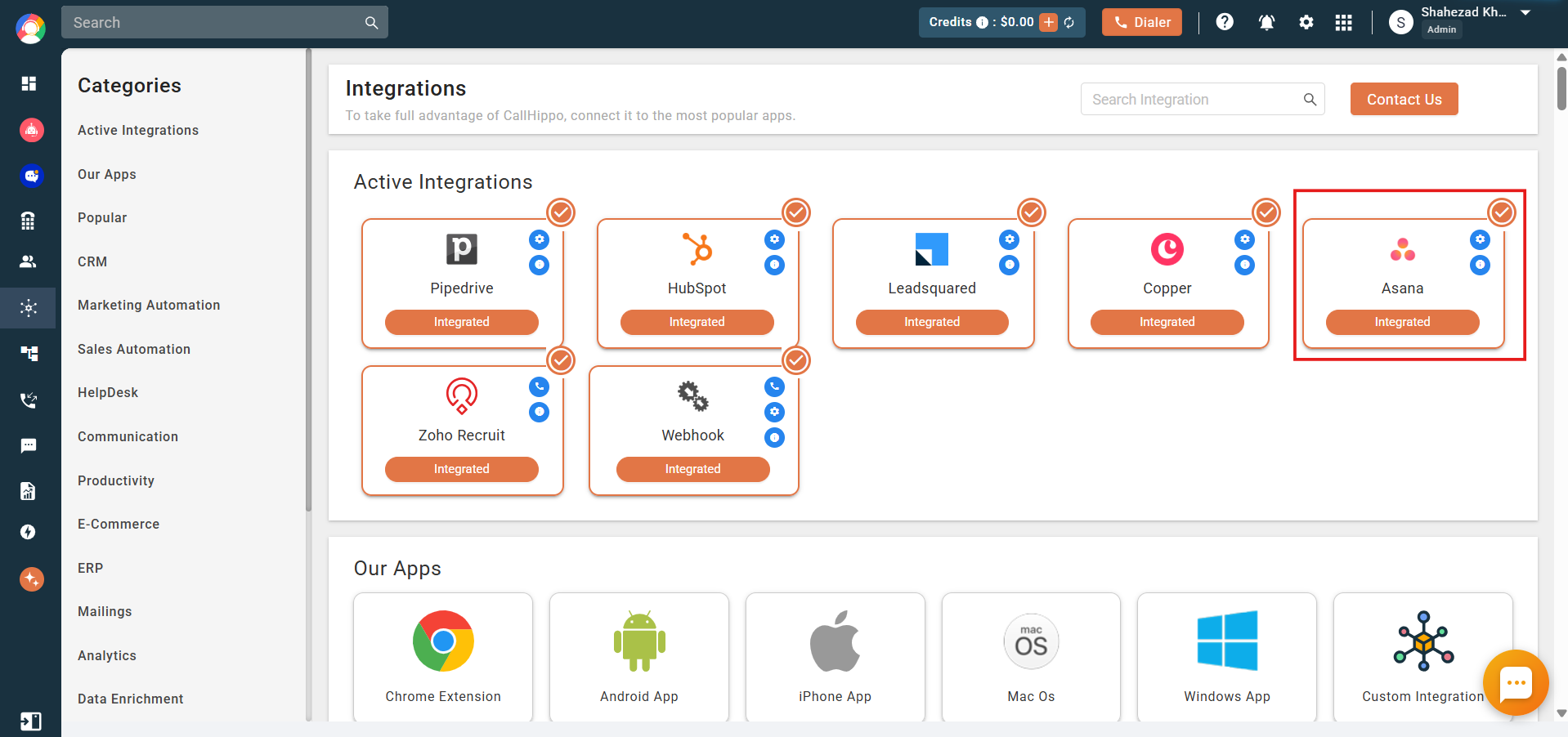
Once saved, Asana appears under Active Integrations with an Integrated status, confirming the connection is live.
Features of the Asana integration
- All call and SMS activity performed on the CallHippo dialer is reflected in your Asana account.
- Activities appear inside the specific project you selected in the integration settings.
- To capture a sub-user’s activity, the CallHippo sub-user must also be invited to Asana.
FAQ
Where do my call activities appear in Asana?
They appear inside the workspace and project you selected in the Integration Settings pop-up.
Why is my sub-user’s activity not showing?
The sub-user must be invited to your Asana account before their CallHippo activity can be logged.
Need a hand setting up your Asana integration? Reach our team at [email protected] and we will be glad to help.