
Audit Logs give you a complete, chronological record of every user activity and administrative action in your CallHippo account.
What Are Audit Logs?
The Audit Logs section provides a comprehensive record of all user activities and administrative actions performed within your account. It helps Owner, Admin, and Dashboard User roles maintain transparency, monitor user behavior, and ensure security by tracking every key action, such as logins, number changes, user additions, and system modifications.
Each entry includes the user name, an action description, and a timestamp, so the logs act as a central reference point for account accountability, whether you’re verifying login history, tracking number or user updates, or reviewing system changes.
Note: Audit logs are stored for 90 days. Any log older than that is no longer visible from the dashboard.
Where to Find Audit Logs in the Dashboard
- Log in to your CallHippo dashboard.
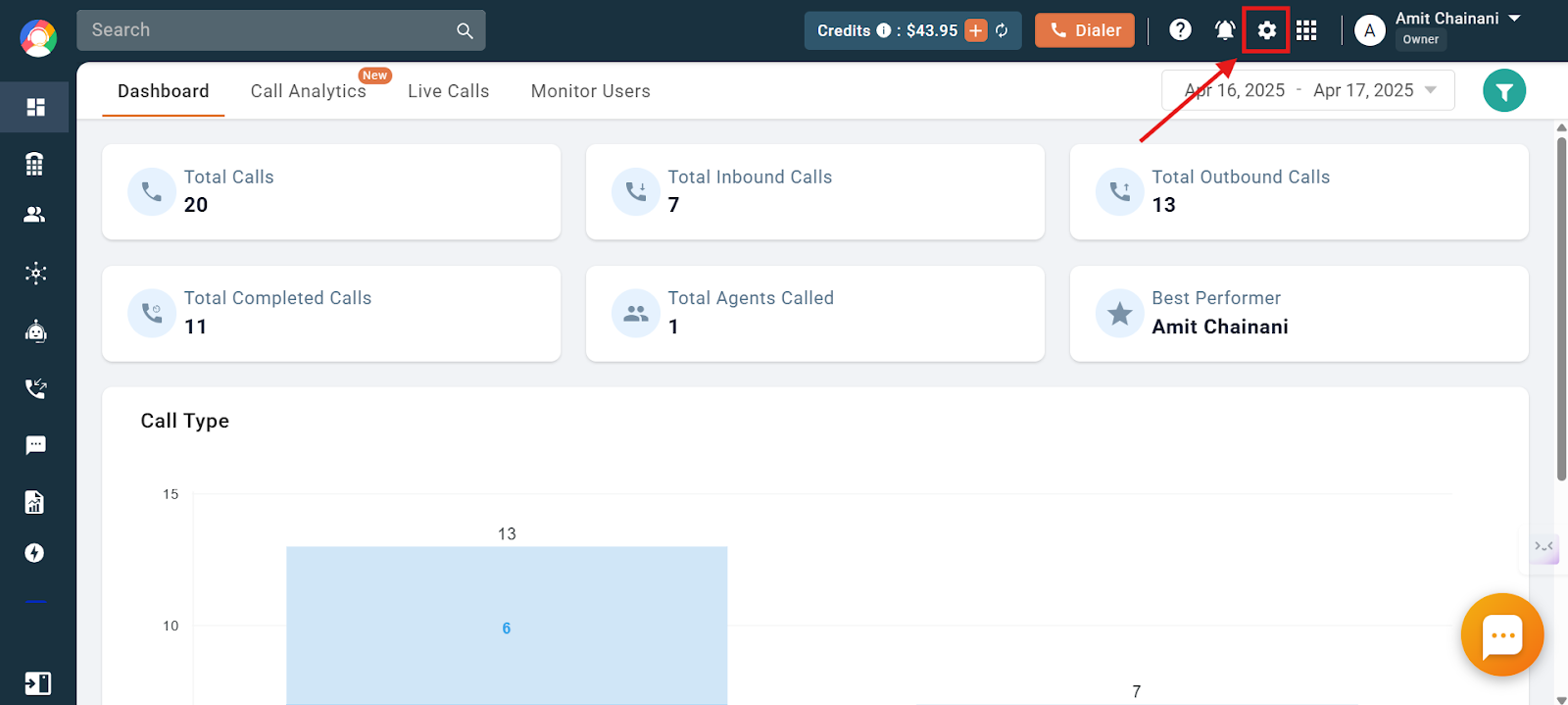
- Open Settings: Click the Settings icon at the top of the dashboard.
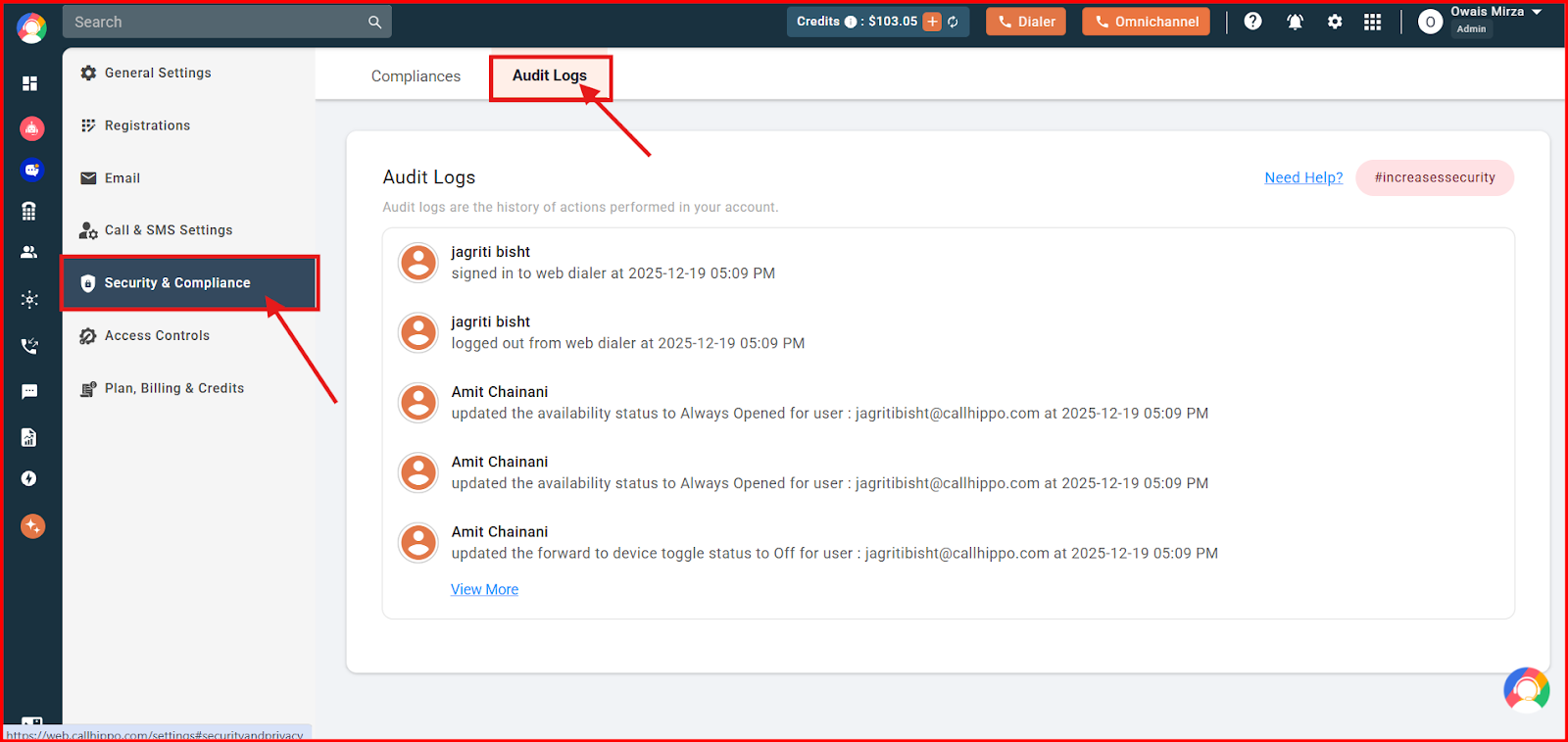
- Go to Audit Logs: In the left panel, navigate to Security and Compliance and select Audit Logs. The most recent logs appear here.
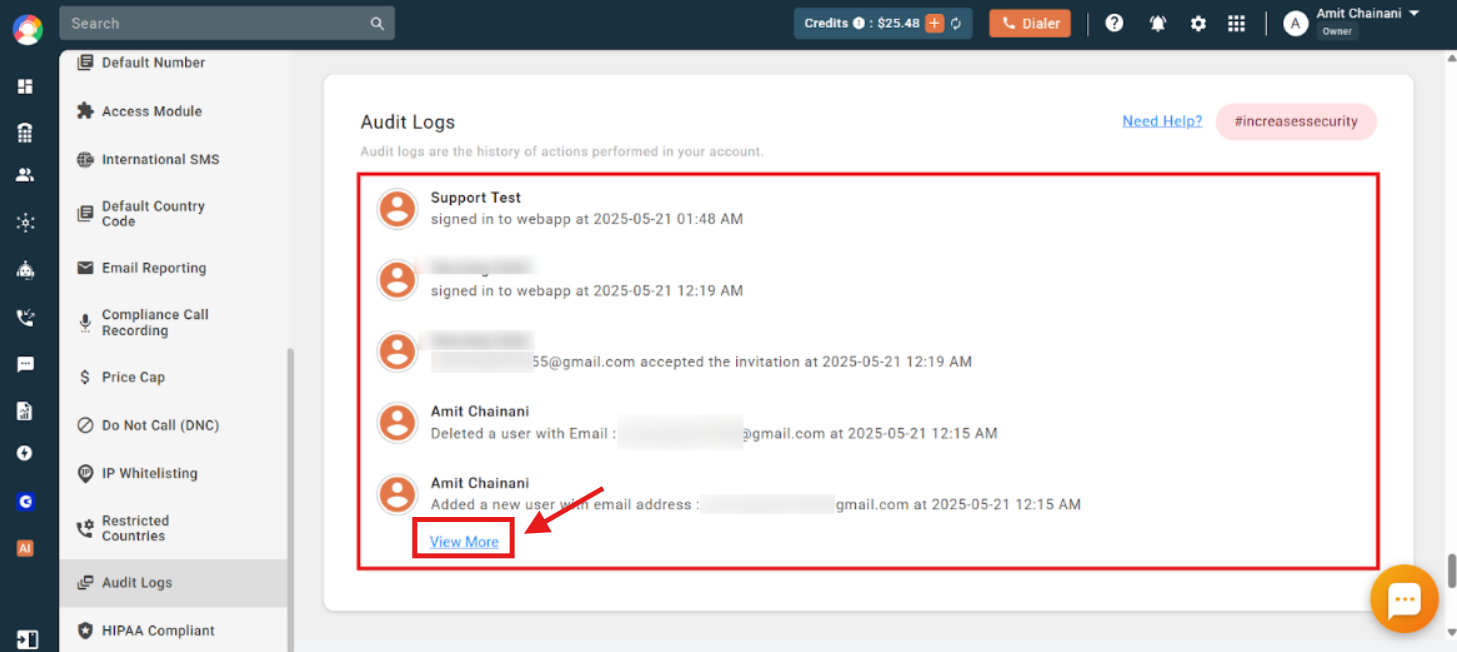
- View older logs: Click the blue View More link to see older audit logs.
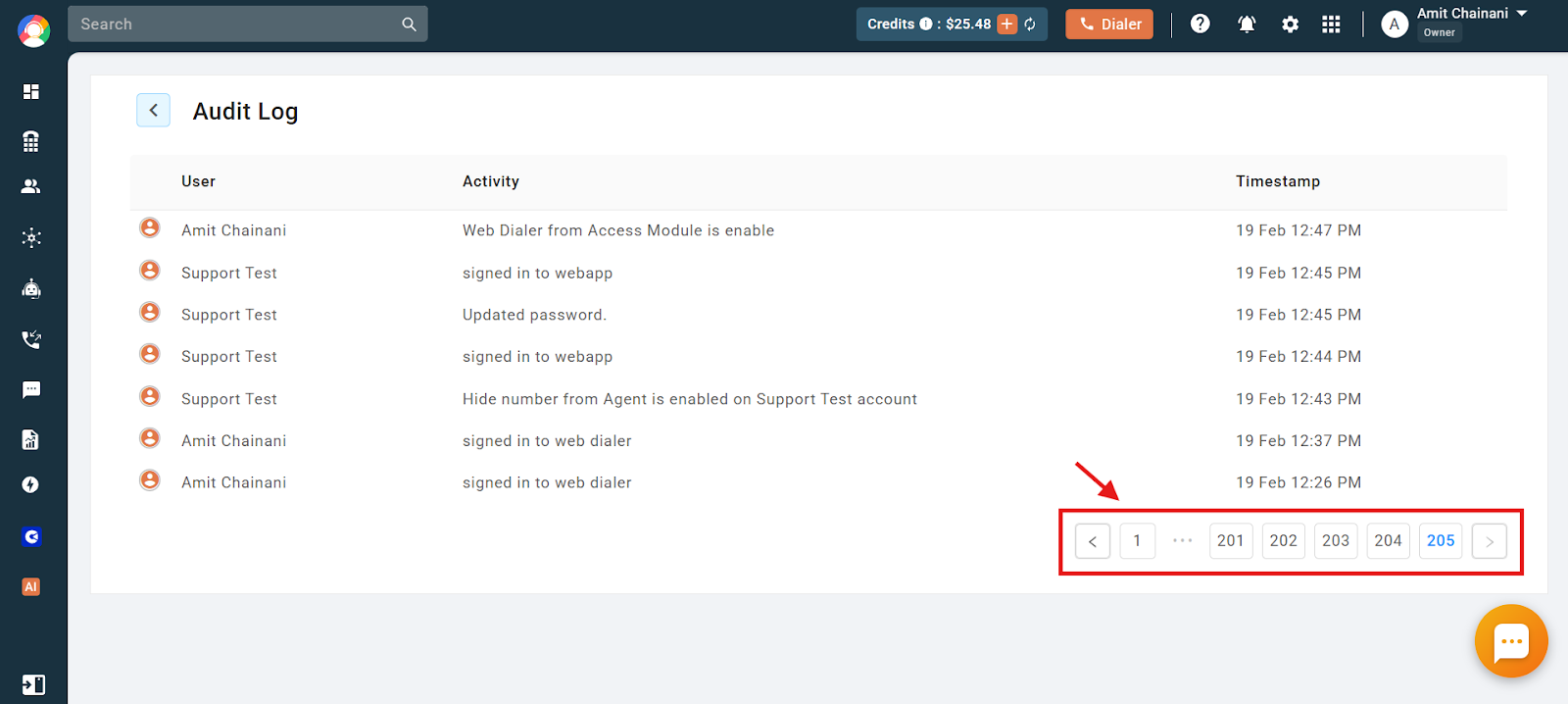
- Browse by page: Navigate through the pages to review older entries. Only 10 entries are displayed per page.
What Activities Audit Logs Track
Audit Logs capture a wide range of actions, including:
- Login and logout events for Admins and sub-users, on both the web app and the web dialer, with date and time.
- Number changes: numbers added or removed, and number porting activity.
- User changes: users added, deleted, or removed from the account.
- Configuration toggles in Number and User configurations.
- Credits added or deducted, and transaction amounts moved to promotional credits.
- Integrations connected or disconnected.
- Reports and Activity Feed downloaded, and field values updated.
- Module rights allocated or deallocated, and team-related changes.
- Compliance actions: SMS profile submitted, SHAKEN/STIR form submitted, currency changed, FTE toggle updated.
- Voicemail Drop and Auto Voicemail Drop toggles enabled or disabled, and Website Call Button disabled.
- Auto Dialer and Power Dialer activity: lists added or removed, holidays enabled, failed number purchase attempts and their reasons, timezone actions, and campaigns auto-paused or auto-resumed due to timezone settings.
Frequently Asked Questions
What are Audit Logs used for in CallHippo?
They help you track every important activity in your account, such as user logins, number changes, or settings updates, so you know what changed, by whom, and when. This supports accountability and security.
Why is my Audit Logs section empty?
It could mean no recent activities have been performed, or that you don’t have the right access. Make sure you’re logged in as an Owner or Admin, as only these roles can view audit logs.
Can an agent see the Audit Logs?
No. Only users with Owner or Admin roles can access the Audit Logs section. Regular users and sub-users won’t see this feature.
Will Audit Logs show login attempts from the web dialer as well?
Yes. The Audit Logs track login and logout events from both the web app and the web dialer for Admins and sub-users.
A user was removed and I want to know who did it. Can the Audit Logs help?
Yes. The Audit Logs show user addition and removal activities, including the name of the person who performed the action and the timestamp.
Can I check the login and logout timings of our users?
Yes. You can view login and logout times for all users in a chronological list, complete with user names and exact timestamps, across both the web app and the web dialer.
Can a sub-user check the activity of other users in the account?
No. Only users with the Owner, Admin, or Dashboard User roles have access to the Audit Logs section.
How long are audit logs stored in CallHippo?
Audit logs are stored for 90 days. Any logs older than 90 days are no longer visible from the dashboard.
Can I view audit logs beyond 90 days?
No. Audit logs older than 90 days are automatically removed from the dashboard and cannot be accessed.