
Connect your BoldDesk helpdesk with CallHippo to log every call and SMS against the right contact, sync customer records automatically, and keep all your support interactions in one place. Follow the steps below to set up the integration end to end.
Before you begin
Make sure the following are in place before you start:
- Use an account with owner access on both CallHippo and BoldDesk to set up the CallHippo <> BoldDesk integration.
- Ensure API permissions are enabled in BoldDesk. Full access to settings is required.
- Data synchronization is almost instantaneous, but the initial sync of contacts may take a few minutes.
Set up BoldDesk and get your API key
First, generate an API key in BoldDesk and note your domain name.
- Log in to the BoldDesk account you want to integrate with CallHippo. An owner account is preferable.
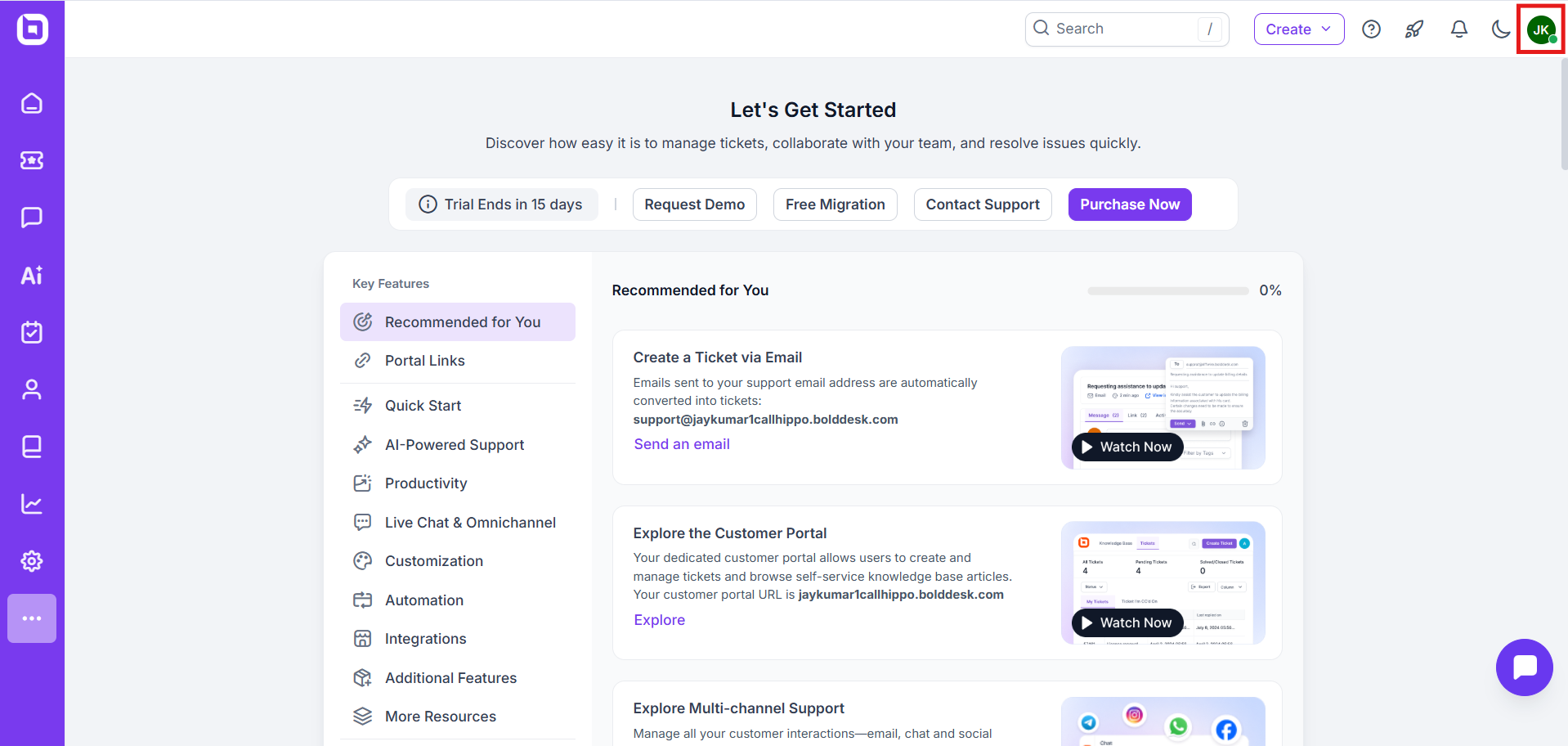
- Click the profile icon in the top-right corner.
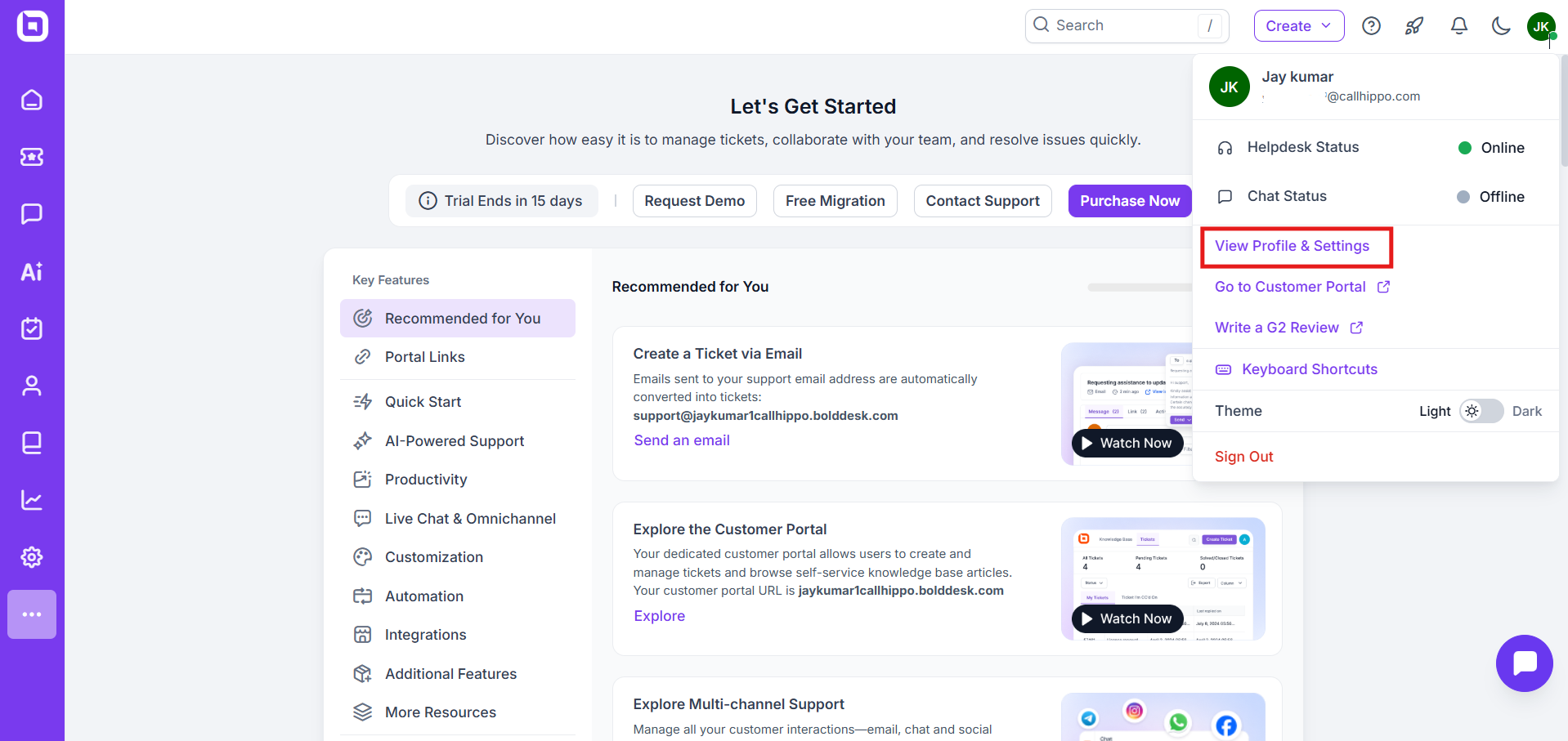
- Click View Profile & Settings, then open the API Keys tab.
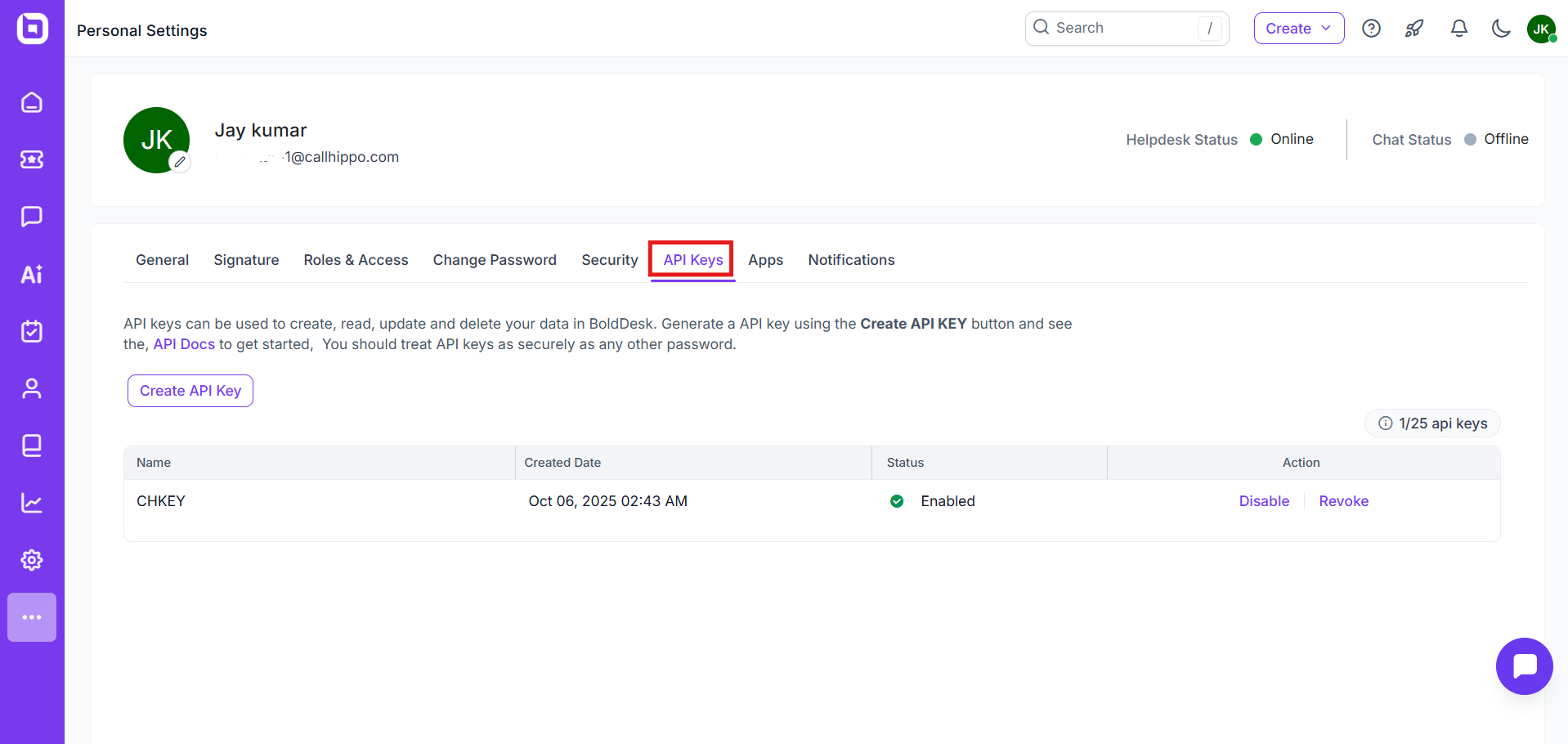
- Click the Create API Key button.
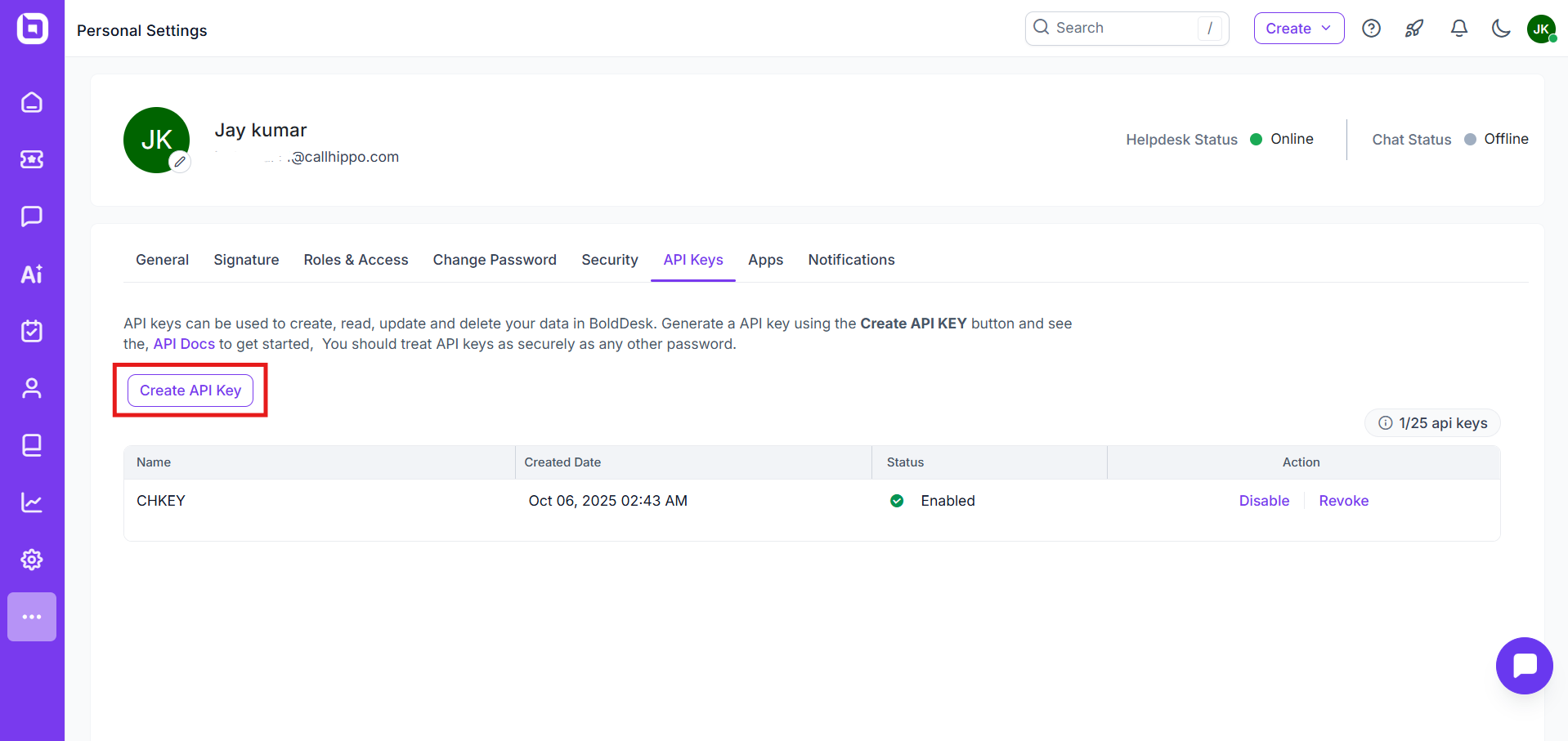
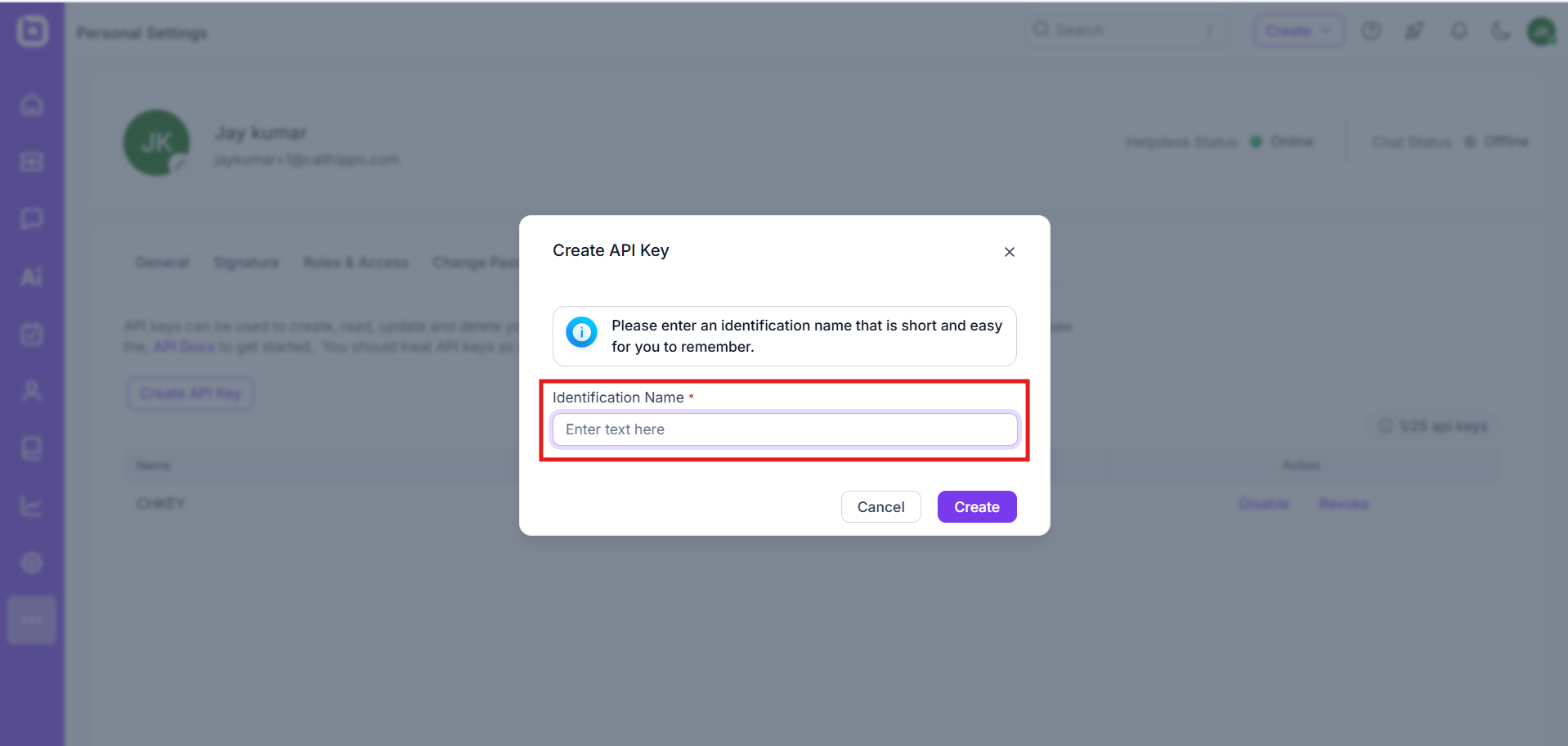
- Enter an identification name, then click Create.
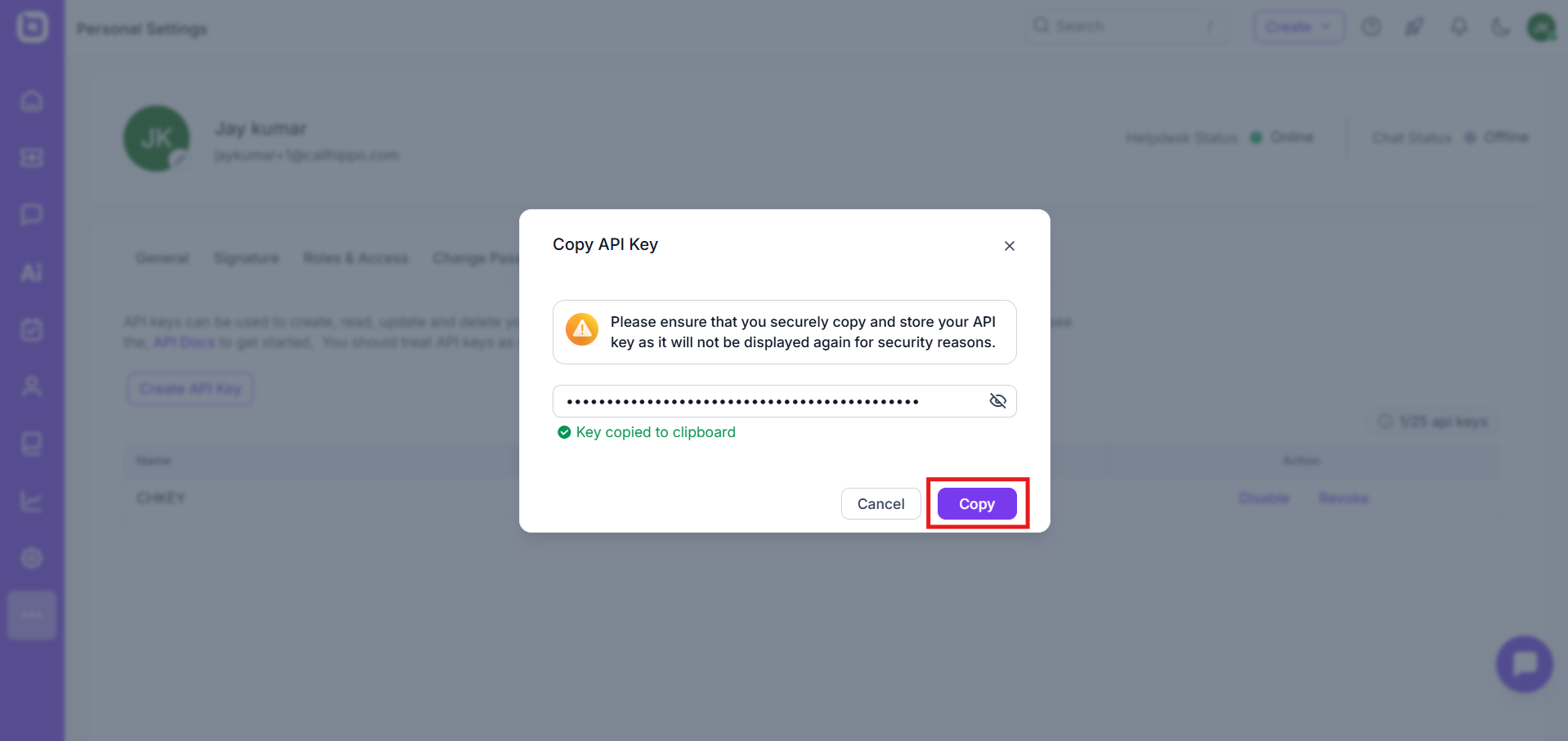
- Your API key is created. Copy it and store it securely, as it will not be shown again.
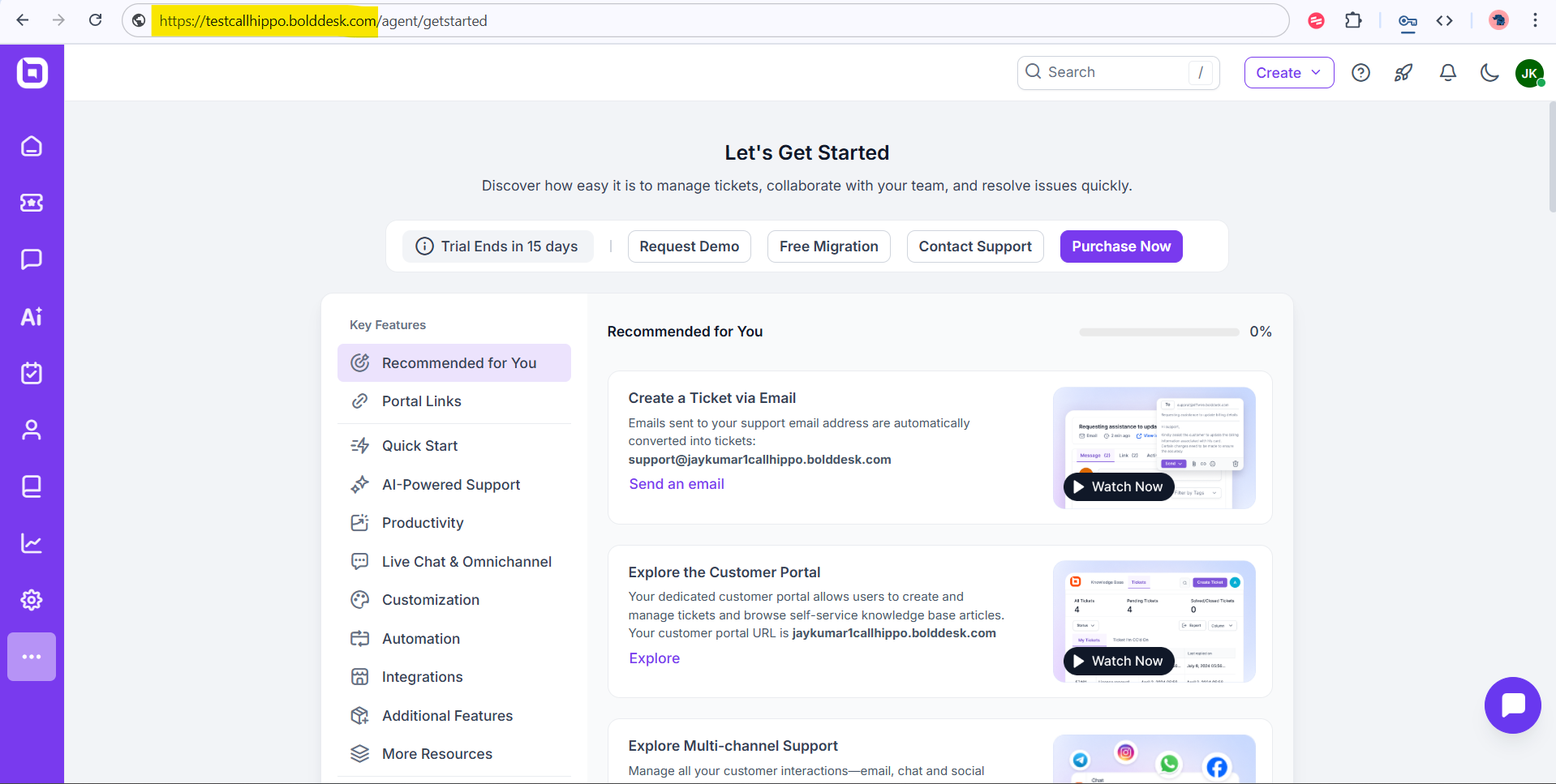
- Note your domain name from the BoldDesk URL. Copy the highlighted part of the address, as you will need it to connect BoldDesk with CallHippo.
Connect BoldDesk in CallHippo
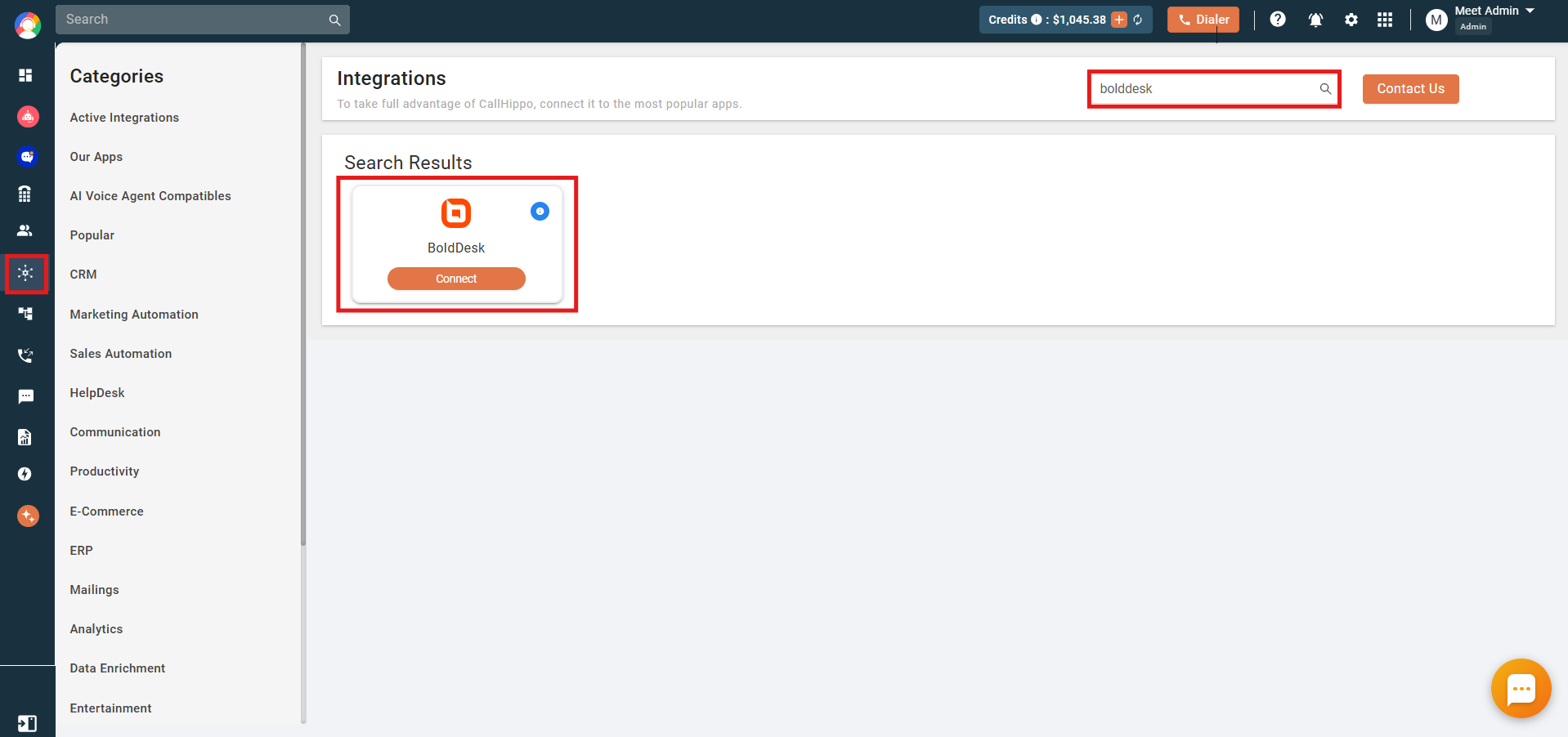
- Go to the Integrations page in CallHippo, find BoldDesk, and click Connect.
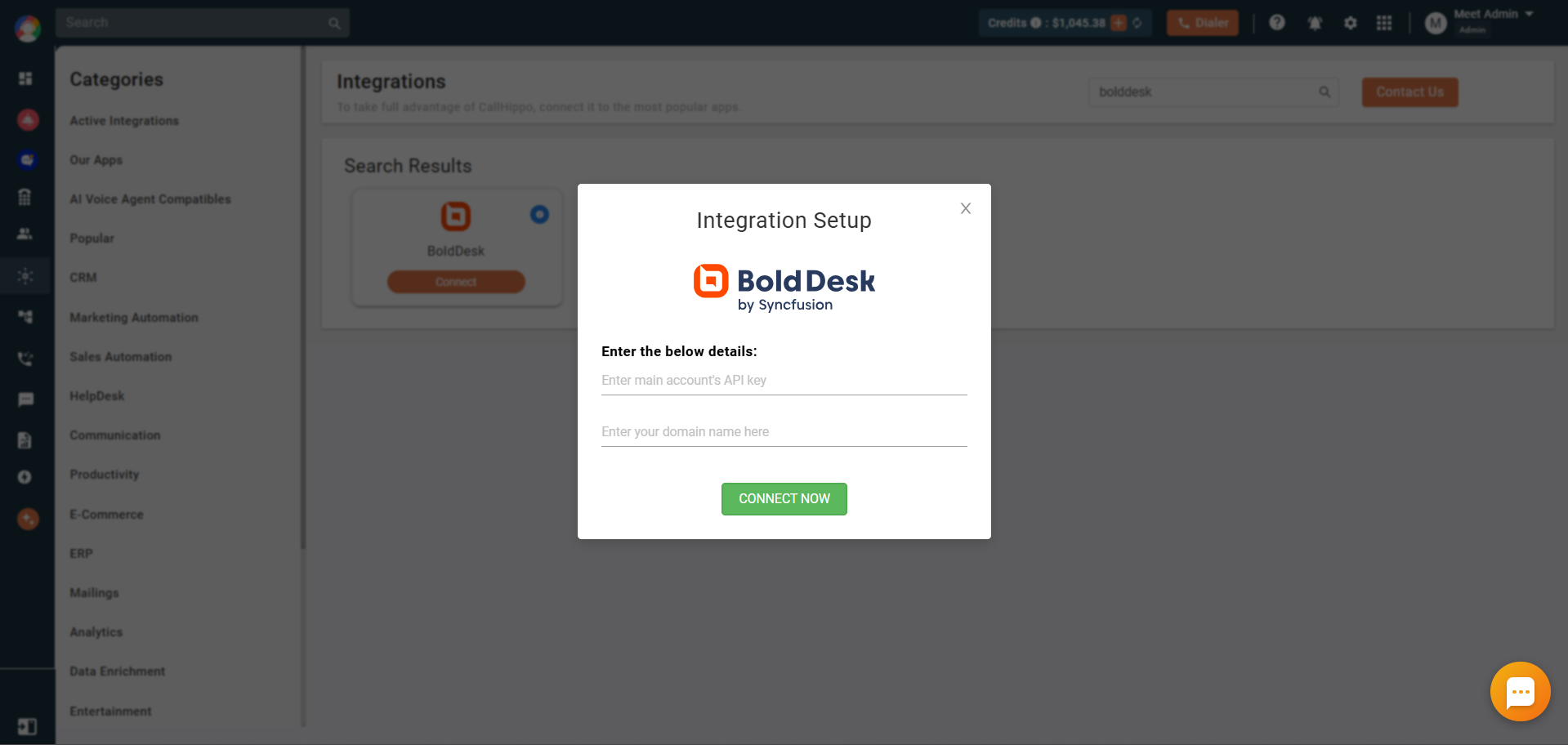
- Paste the domain name and API key you copied from BoldDesk.
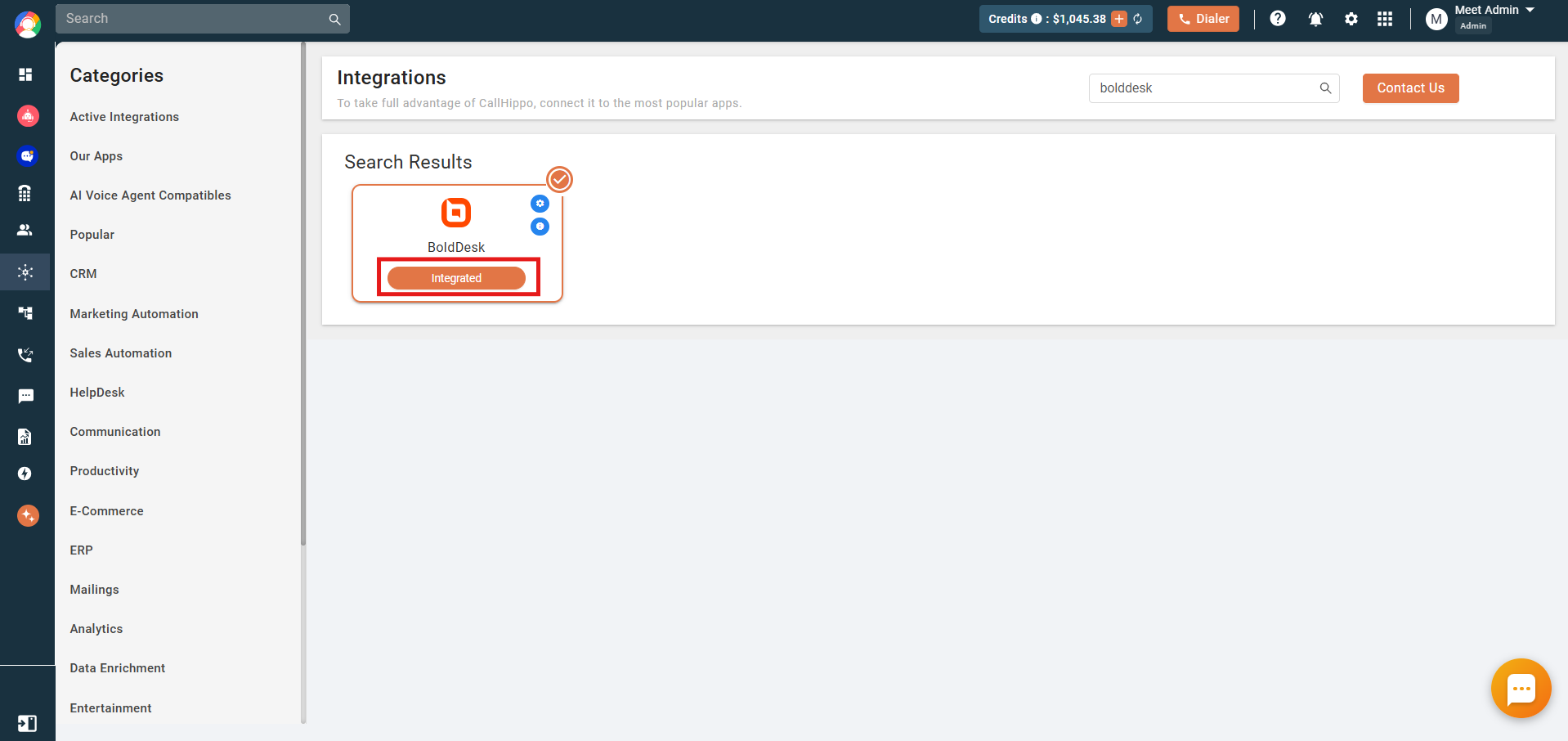
- Click Connect now. Once authorized, the status changes to Integrated, confirming your CallHippo account is connected to BoldDesk.
Configure the integration
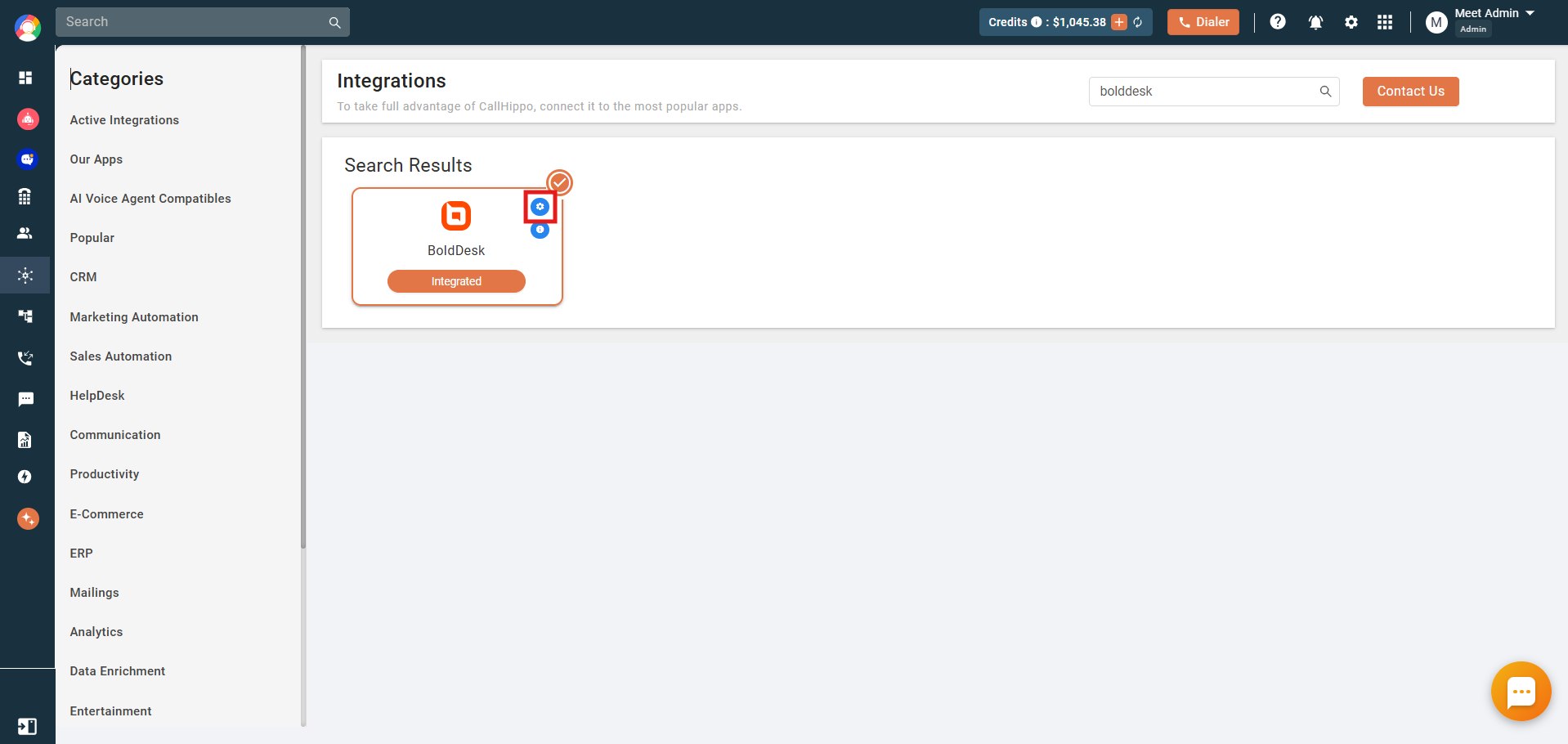
Click the settings icon on the BoldDesk card to open the configuration, where you decide which activities sync and which numbers push data into BoldDesk.
- Click the settings icon on the BoldDesk integration card.
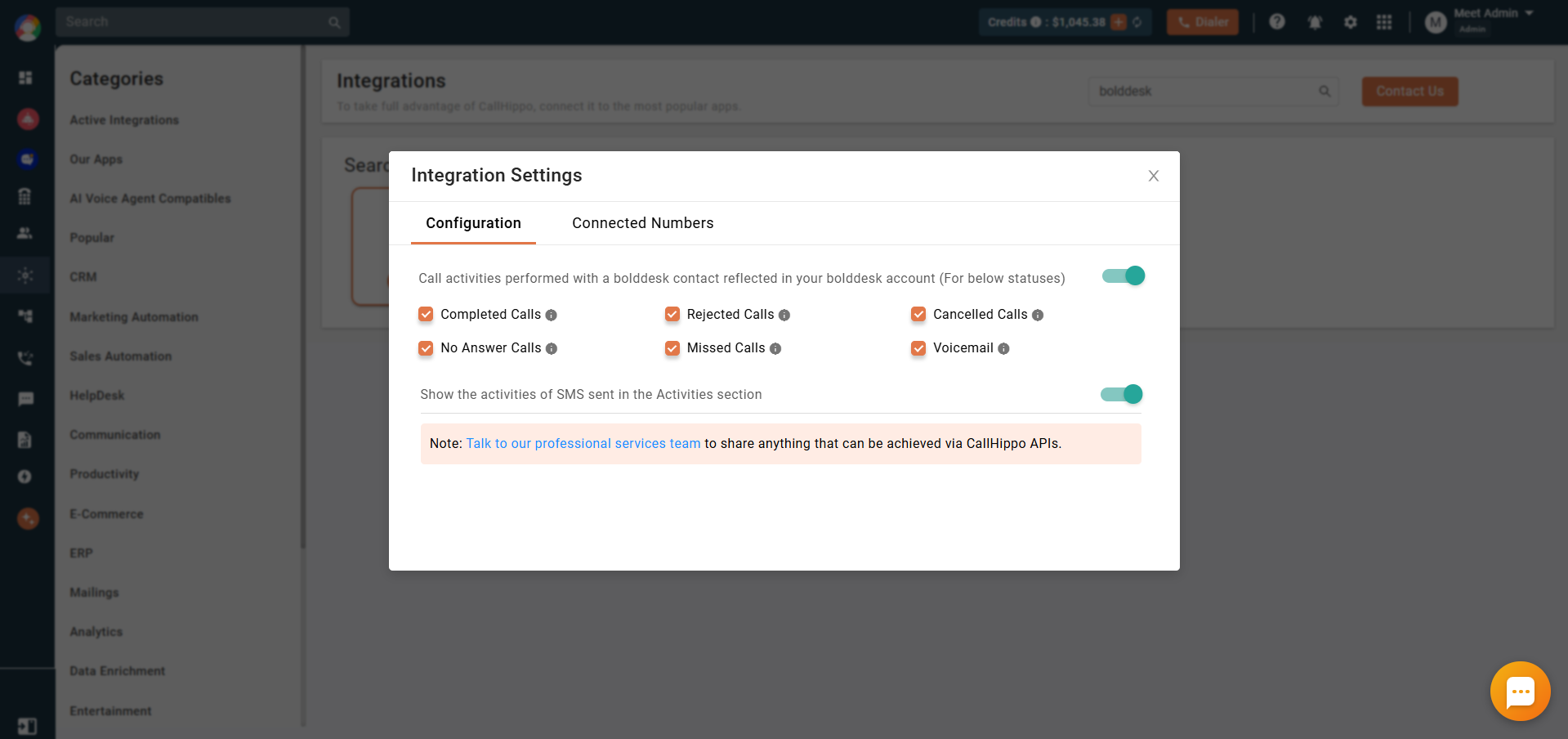
- Under Configuration, enable the toggle for call activities performed with a BoldDesk contact to reflect in BoldDesk. Select or deselect the checkbox next to each call status (Completed, Rejected, Cancelled, No Answer, Missed, Voicemail) to choose which activities sync. You can also toggle whether SMS activities appear in the Activities section.
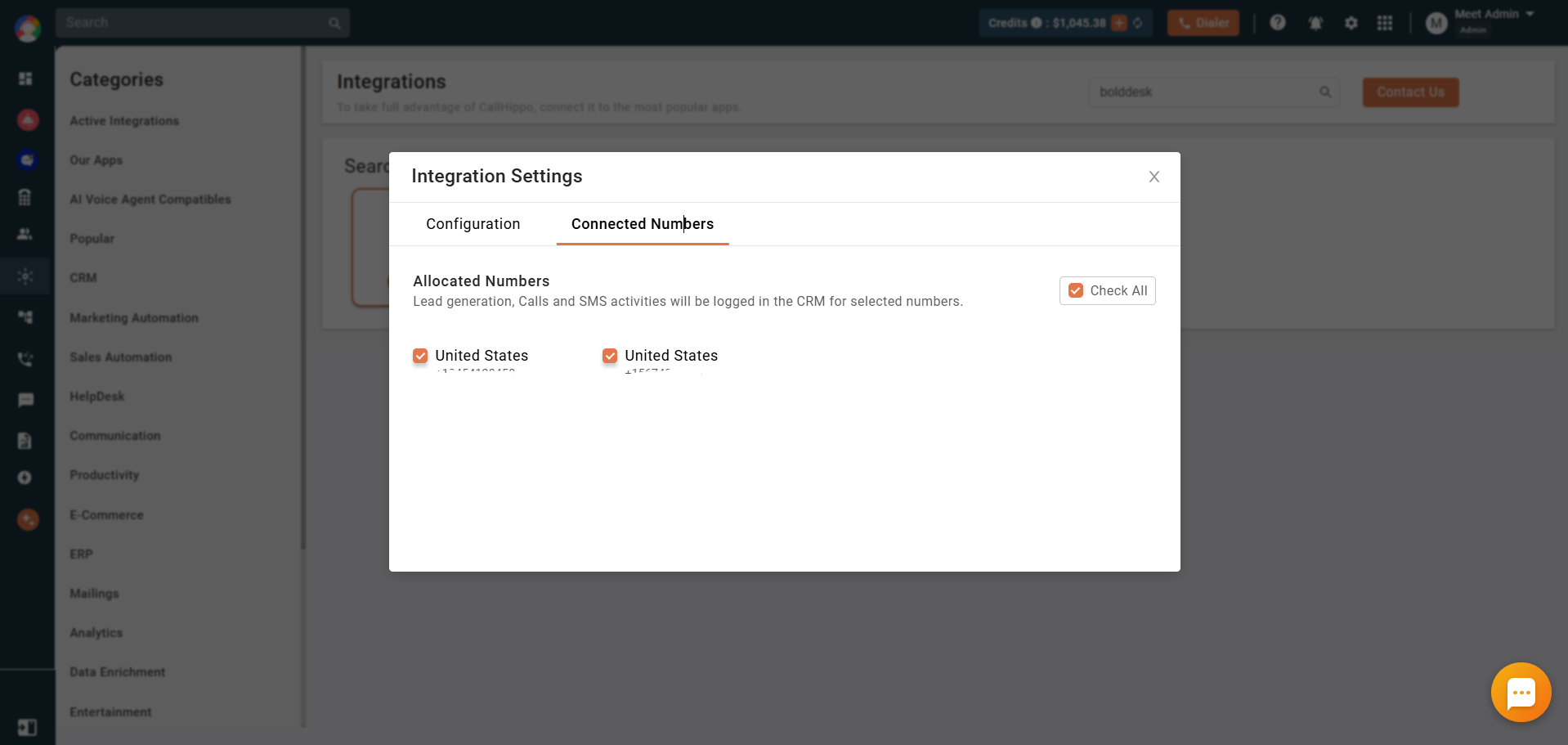
- Open the Connected Numbers tab and select or deselect the numbers you want to connect with BoldDesk. Call and SMS activities are logged in BoldDesk only for the selected numbers.
What syncs to BoldDesk
Once connected, the integration keeps contacts and activities in sync between the two platforms.
- Contact sync: New contacts in BoldDesk sync with CallHippo the first time you use Click to Call on that contact. Synced contacts appear in the CallHippo dialer’s Contacts tab, and existing BoldDesk contacts sync once you dial the number through Click to Call.
- Outbound calls: Make calls directly from BoldDesk using the CallHippo Click to Call extension.
- Call and SMS activity logs: BoldDesk logs all call and SMS activities related to a contact.
Call and SMS activities appear under the contact’s Activities tab in BoldDesk.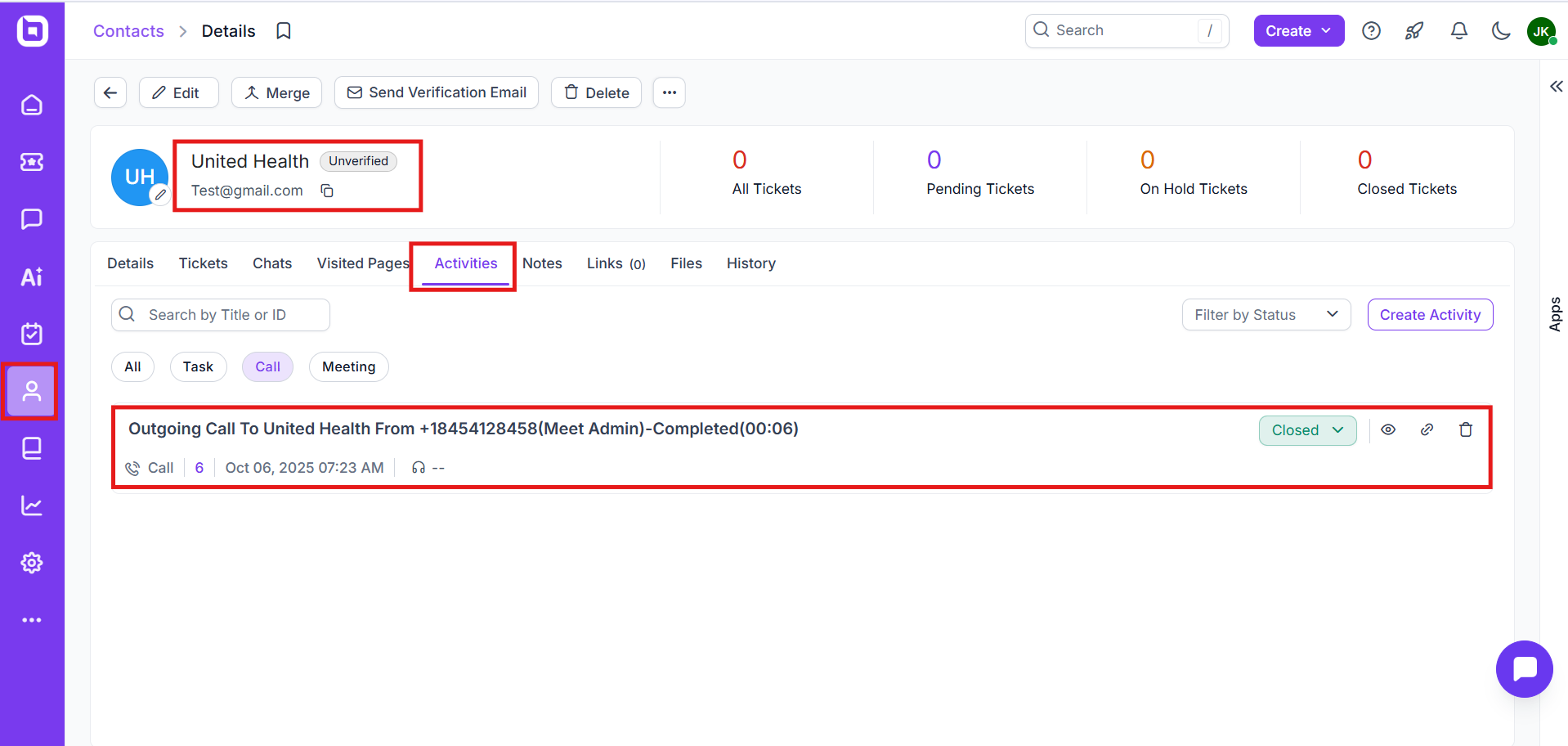
For each call activity, CallHippo passes fields such as the caller name, from and to numbers, call type, call status, duration, start time, recording URL, call notes, call tags, and call disposition. For AI Voice Agent calls, additional fields are synced, including the AI voice agent name, AI summary, user sentiment, and call outcome. For each SMS activity, the sent or received time, the sender, from and to numbers, and the message content are passed to BoldDesk.
After Call Work: If your CallHippo plan includes the call tags and disposition service and it is enabled, the activity pushed to BoldDesk includes the tags and disposition added on the After Call Work (ACW) screen. Note that this only syncs when the tags and disposition are added on the ACW screen; tags or disposition added later from the call logs or another feed will not sync to BoldDesk.
Still need help? Reach us at [email protected].