
Connecting Bullhorn with CallHippo lets your recruiting team place calls, log call and SMS activity, and sync candidate and contact data directly inside your Bullhorn ATS.
Before You Begin: Get Your Bullhorn Credentials
Start in your Bullhorn account and gather the credentials CallHippo needs:
- Log in to your Bullhorn account.
- Collect your Client ID and Client Secret. Raise a support ticket with Bullhorn to obtain the Client ID and Client Secret for your account, and keep them handy for the next step.
- Have your Bullhorn username and password ready — the same credentials you use to log in to Bullhorn.
Connect Bullhorn in CallHippo
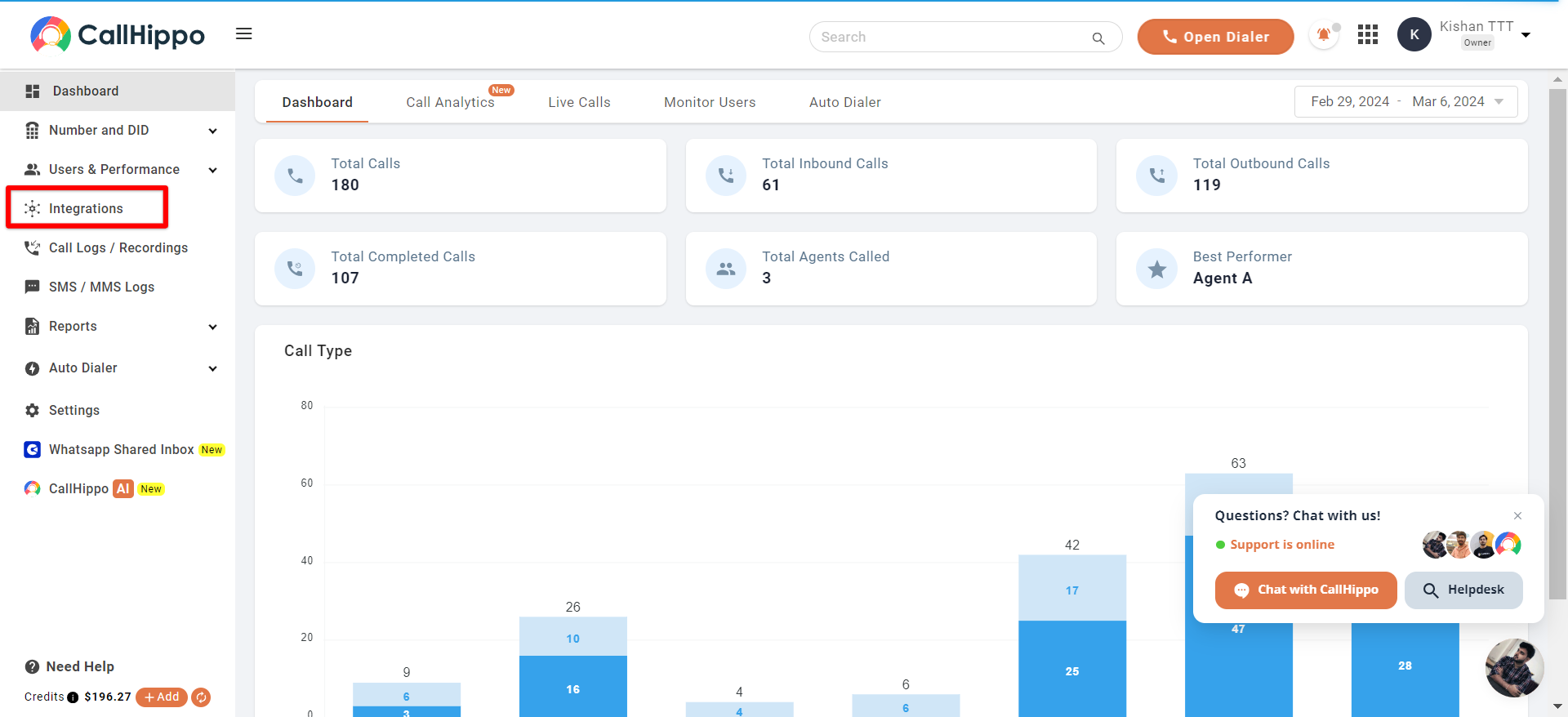
- Log in to your CallHippo account and click the Integrations tab in the side menu.
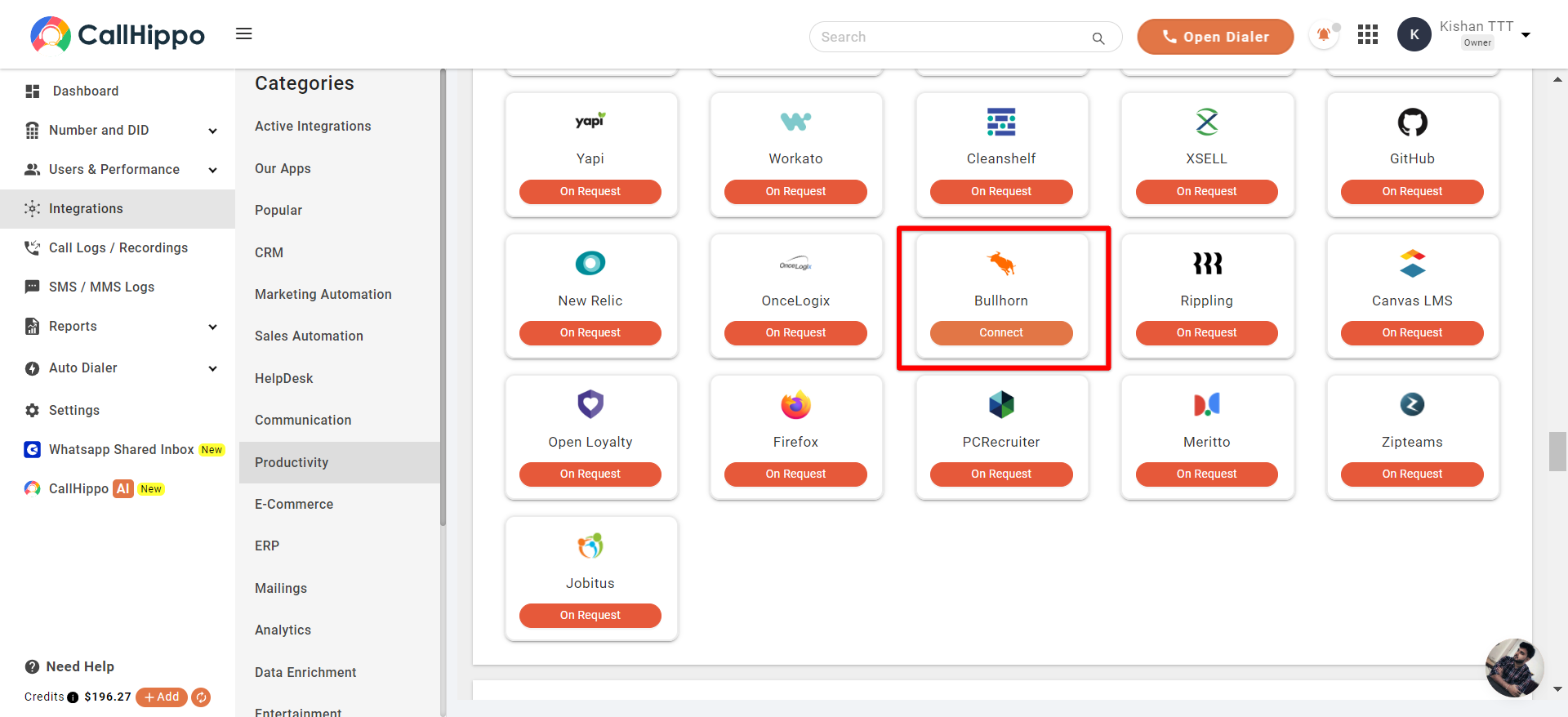
- Find Bullhorn in the Productivity section and click Connect.
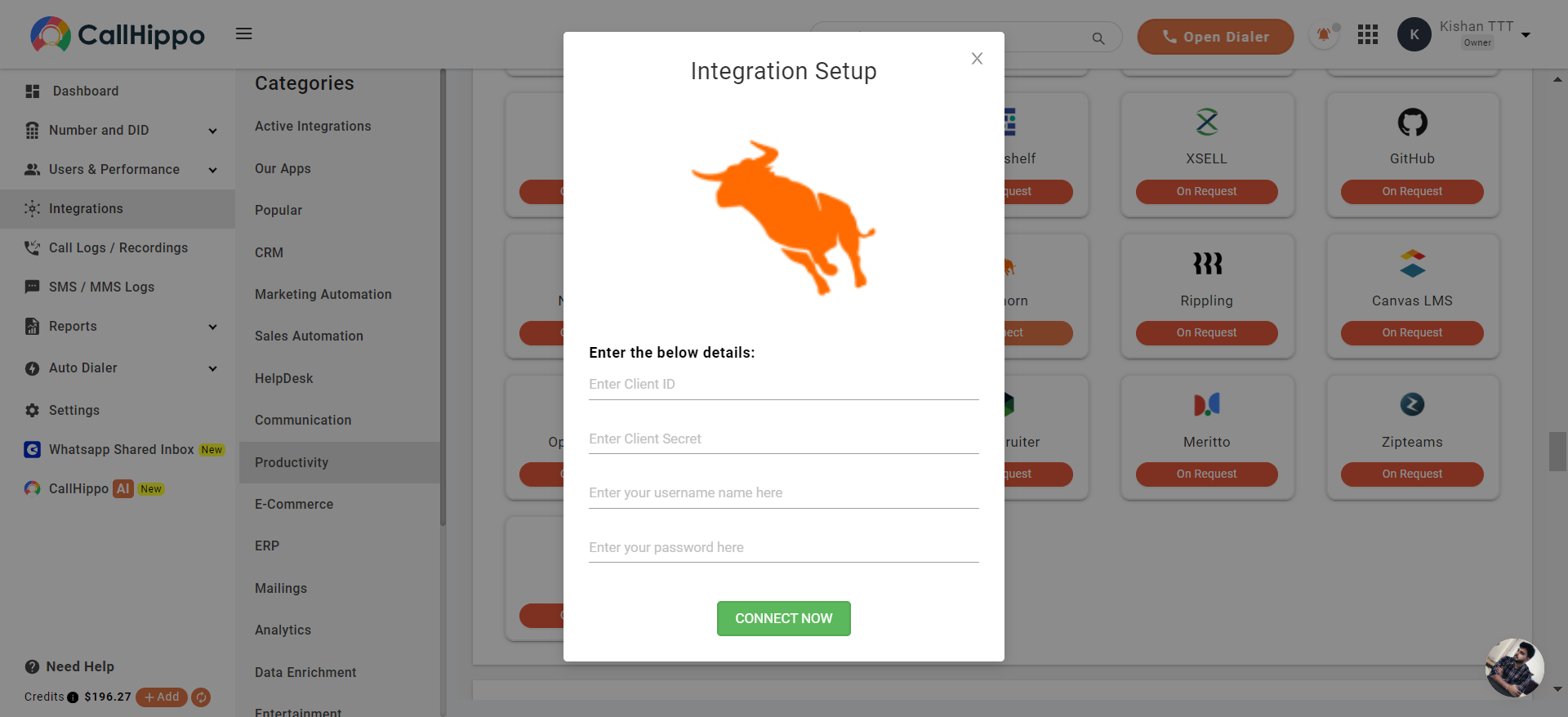
- Enter your details in the integration popup — Client ID, Client Secret, Bullhorn username, and Bullhorn password.
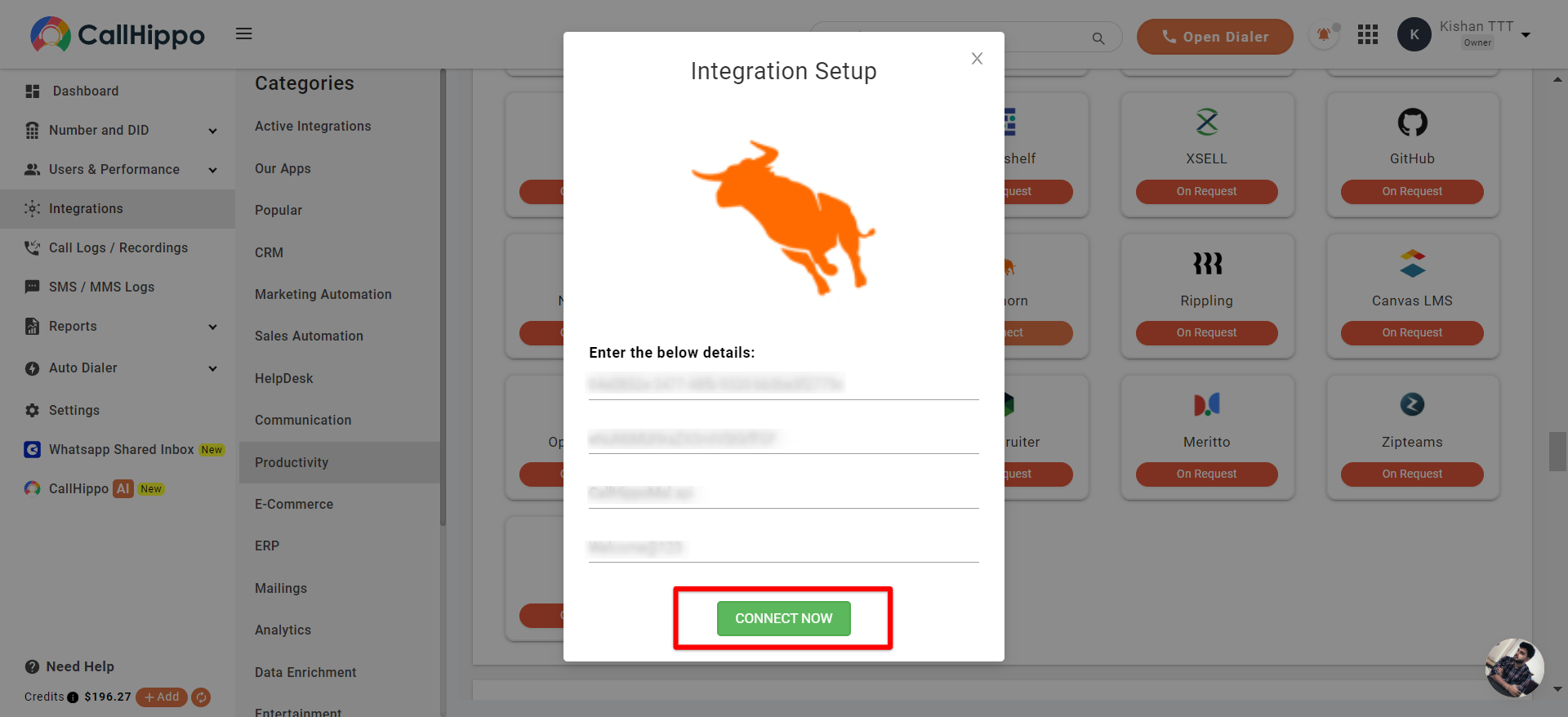
- Once all details are filled in, click Connect Now.
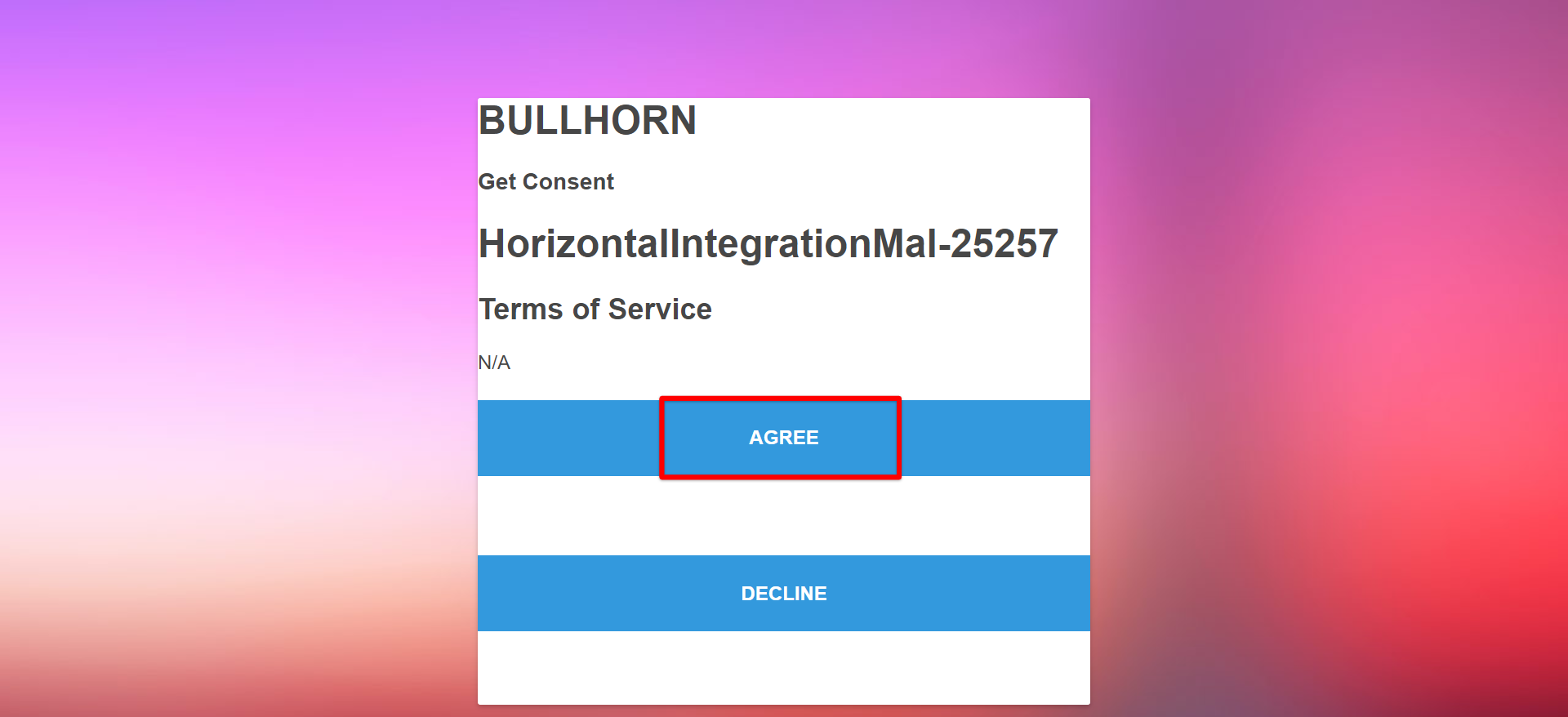
- You’ll be asked for consent to proceed. Click Agree.
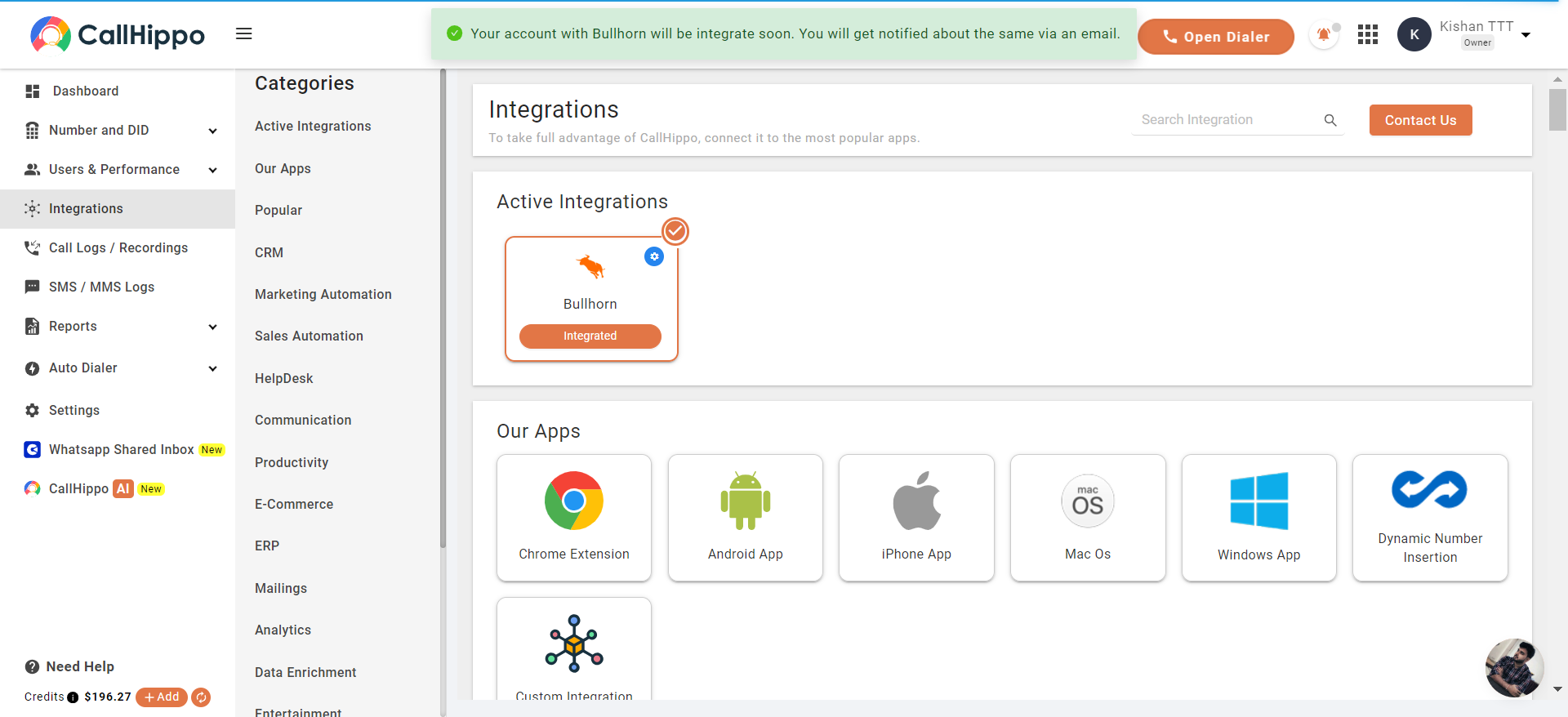
- You’ll be redirected back to CallHippo with the message: “Your account with Bullhorn will be integrated soon. You will be notified about the same via an email.” Once complete, Bullhorn shows as Integrated under Active Integrations.
Enable Click-to-Call
To dial Bullhorn contacts directly from your browser, install the CallHippo Click-to-Call Chrome extension:
Configure Integration Settings
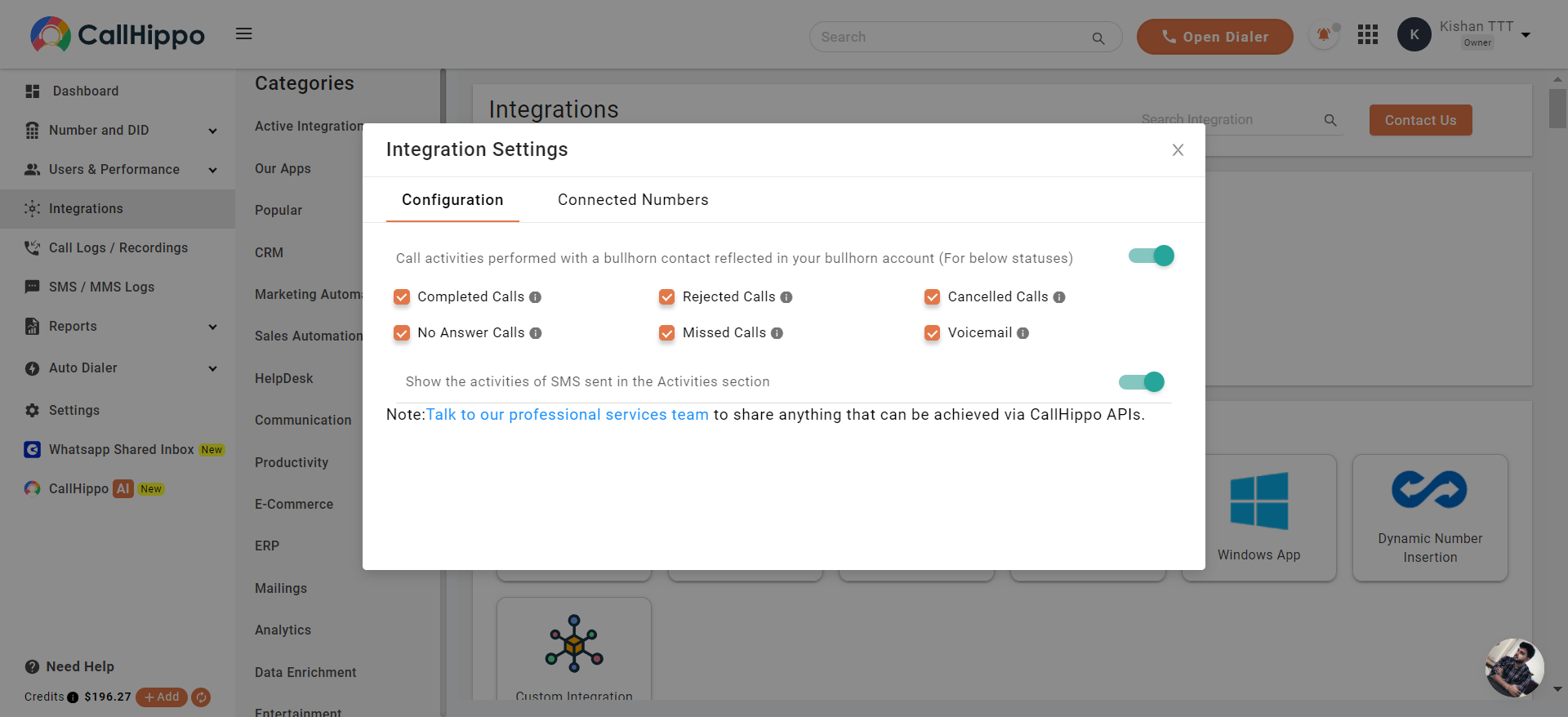
Open the Bullhorn integration settings to control what gets logged.
- Configuration: Choose which call statuses (Completed, Rejected, Cancelled, No Answer, Missed, Voicemail) reflect in your Bullhorn account, and toggle whether SMS activity is shown in the Activities section.
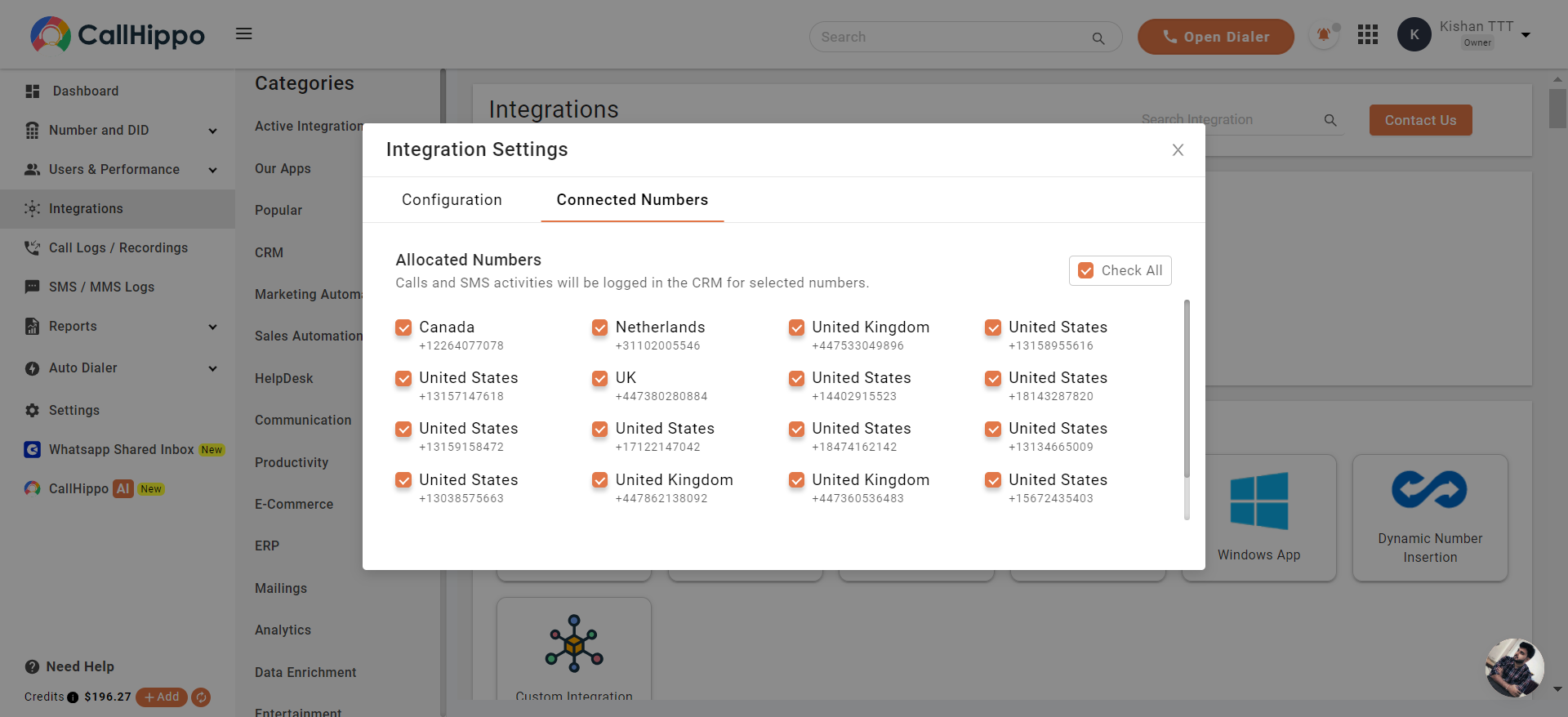
- Connected Numbers: Select which numbers should log call and SMS activity to Bullhorn.
Features of the Bullhorn + CallHippo Integration
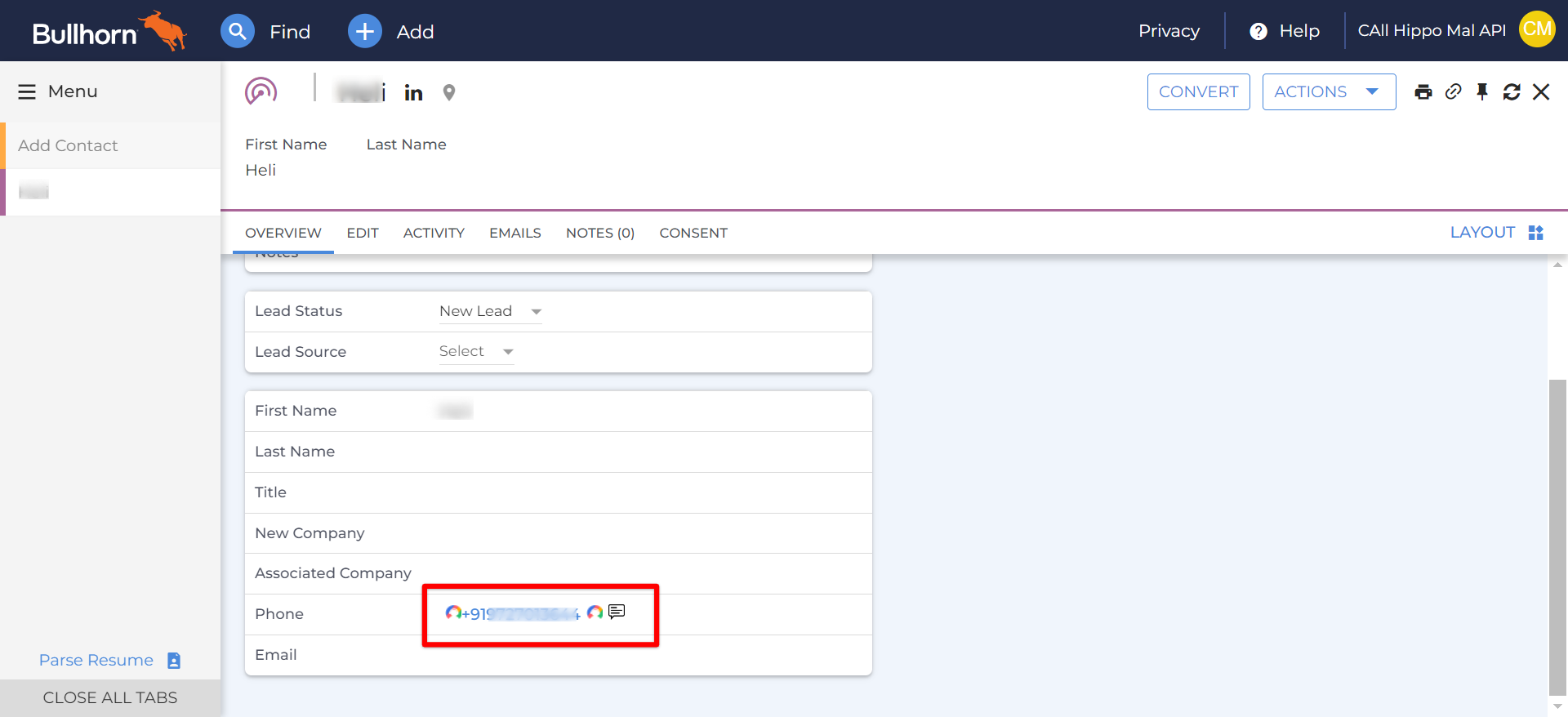
- Click-to-call from contacts: Click the CallHippo icon beside a phone number on the Contacts page to start dialing.
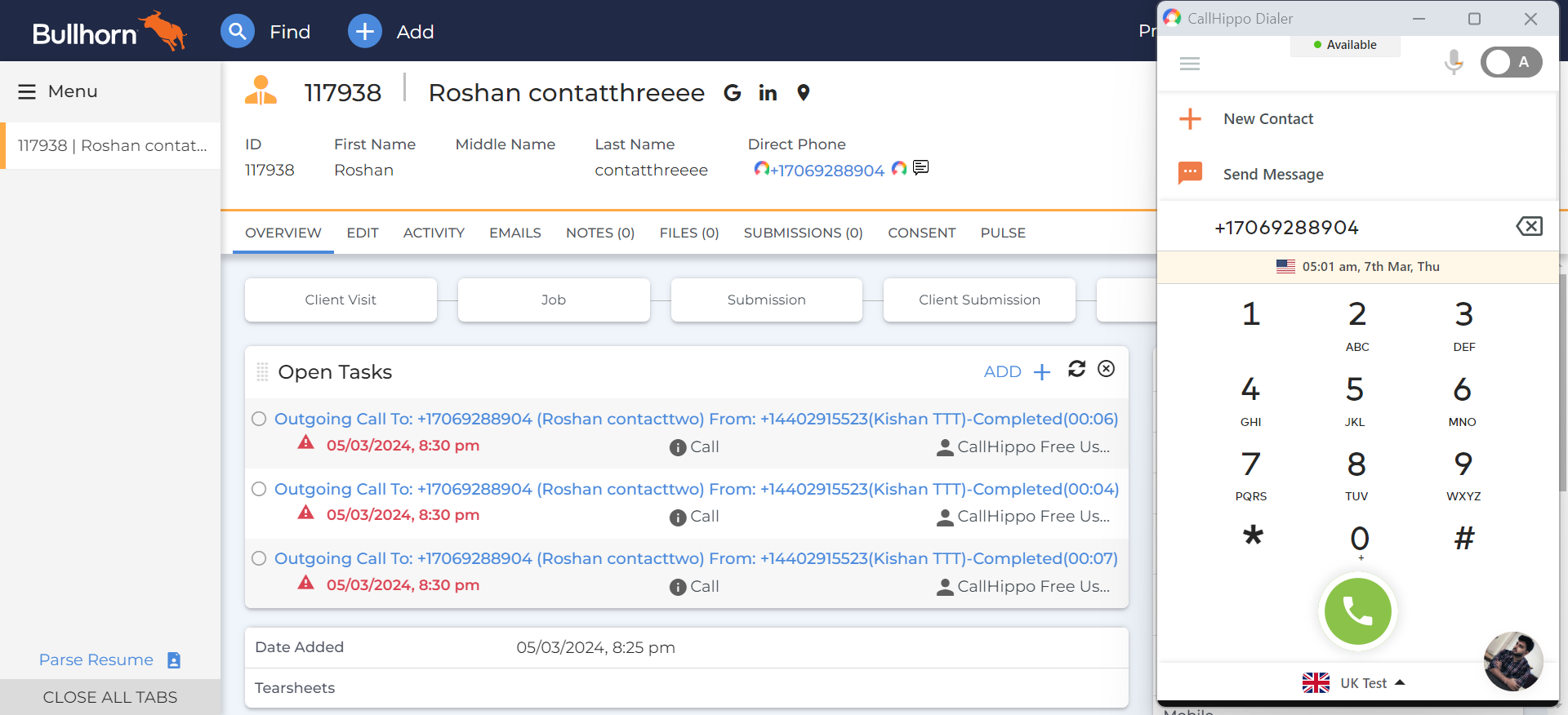
- Automatic contact sync: Bullhorn contacts are synced to the CallHippo dialer as a contact after click-to-call or SMS.
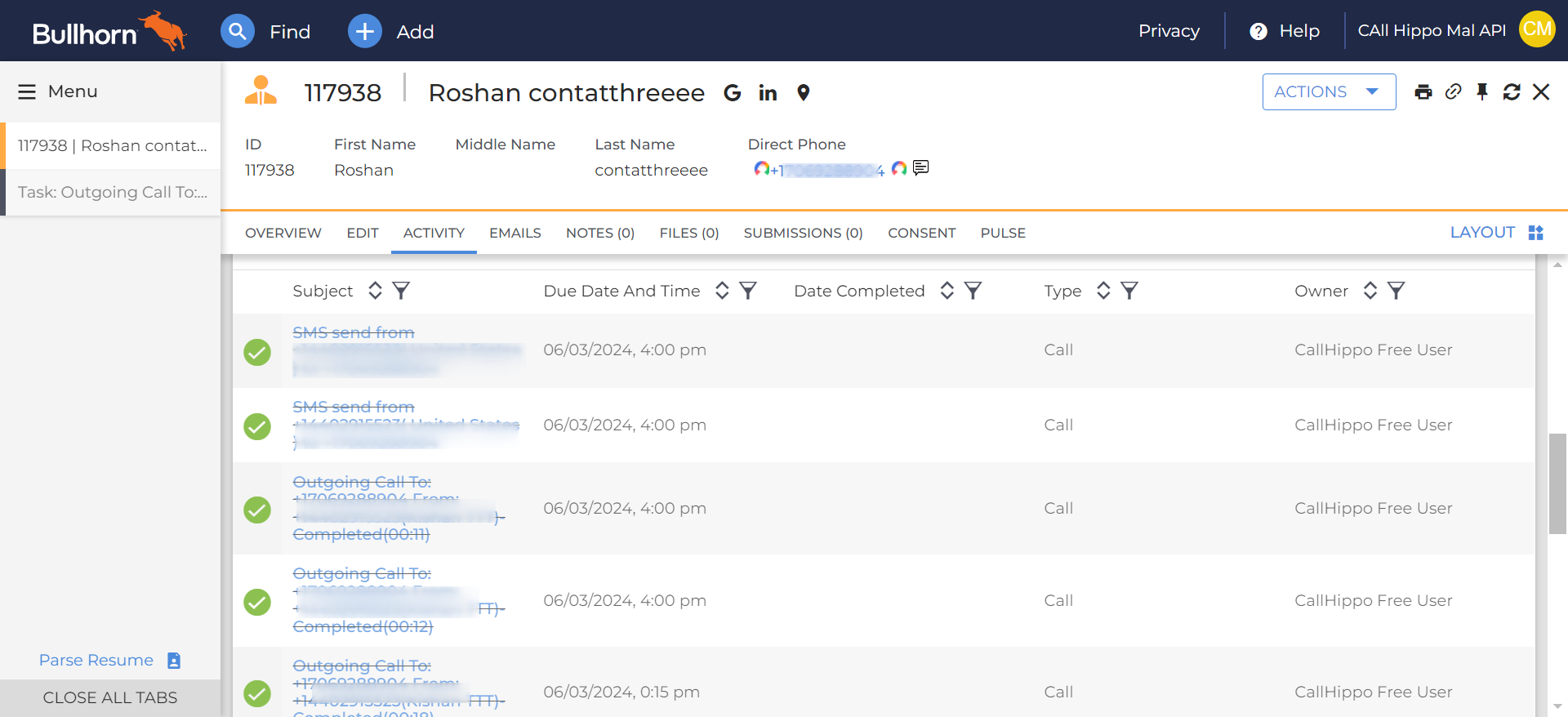
- Call logs: When you call a Bullhorn contact with the CallHippo dialer, the call log activity syncs to that contact’s detail page.
- SMS logs: When you send an SMS to a Bullhorn contact, the SMS log syncs to the contact’s detail page.
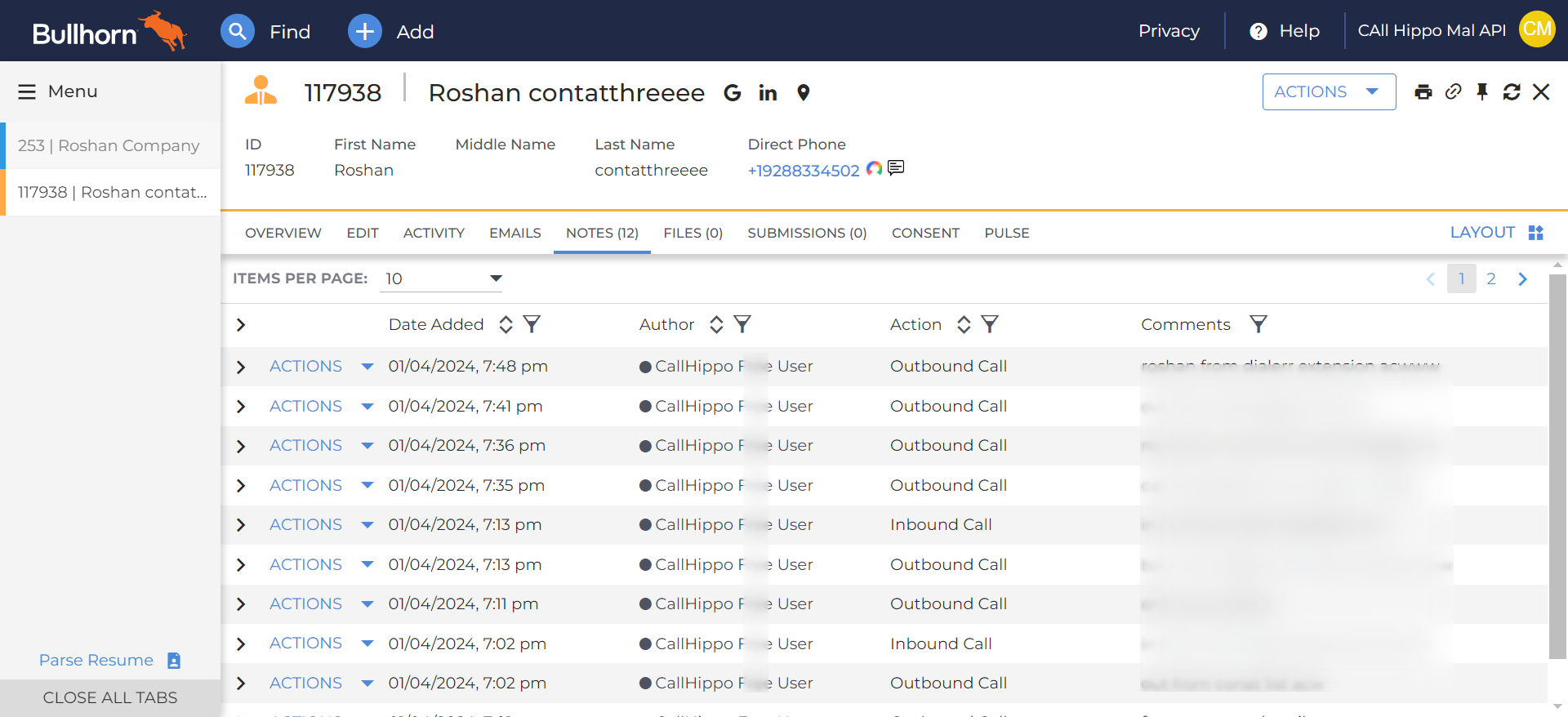
- Notes sync: Synced notes appear under the Notes section of the Contact, Lead, or Candidate.
FAQ
Where do I get the Client ID and Client Secret?
You need to raise a support ticket with Bullhorn to obtain the Client ID and Client Secret for your account.
Which numbers log activity to Bullhorn?
Only the numbers you select in the Connected Numbers tab of the integration settings will log call and SMS activity to Bullhorn.