
CallHippo can prompt you to set a call reminder after each call, helping you stay on top of follow-ups and pending conversations. Enable the setting to receive these prompts automatically, or turn it off whenever you don’t need them.
Why enable Call Reminder notifications
Call reminders are especially useful for users who need to take quick notes or schedule future interactions immediately after a call. Enabling them helps your team:
- Follow up on time – schedule follow-up actions while the call details are still fresh.
- Improve customer engagement – ensure no lead or customer concern falls through the cracks.
- Manage tasks better – prioritize next steps right after the interaction.
- Reduce manual tracking – automate reminder scheduling to save time and reduce oversight.
- Increase accountability – keep teams proactive and focused on follow-up actions.
Enable or disable Call Reminder
To update this preference, follow the steps below:
- Log in to your CallHippo dashboard.
- Click the Settings (gear) icon in the top-right corner, open the Email section, and select the Email Notification tab.
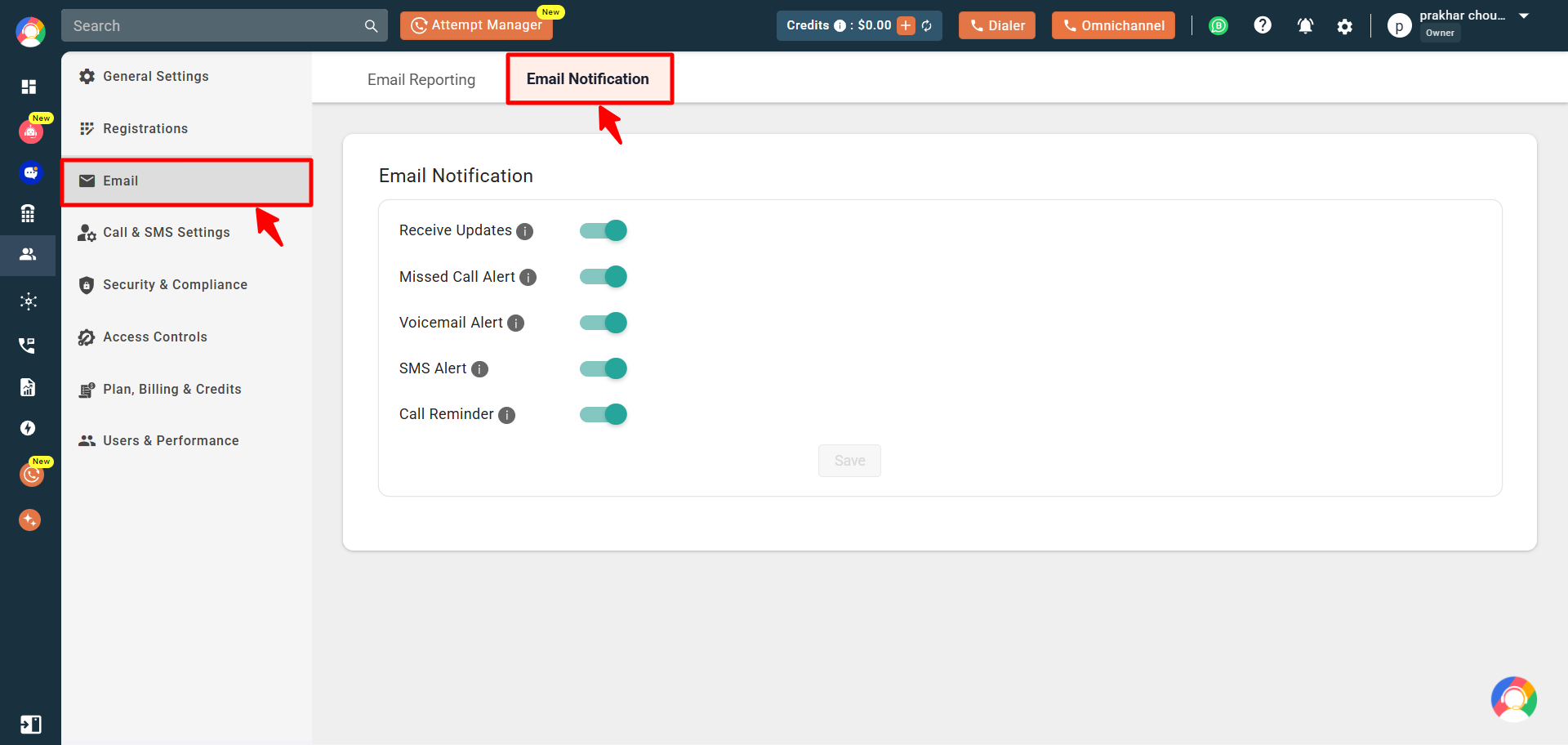
- Toggle the Call Reminder option on or off, then click Save to apply your changes.
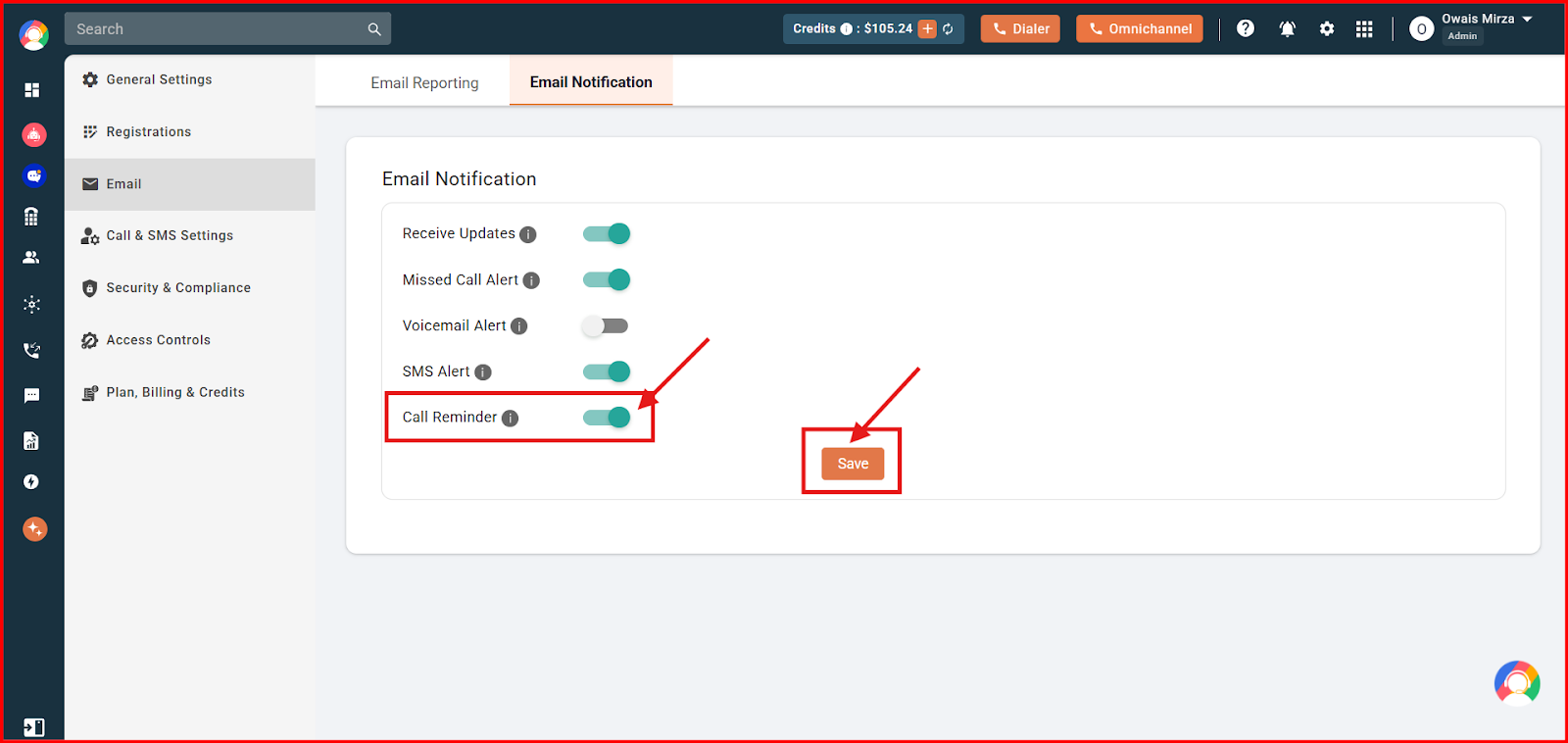
- You will see a “User updated successfully” confirmation on screen.
You can also set a call reminder directly from the call logs or the after-call work screen. This keeps your daily workflow organized and ensures no conversation is left unresolved.
Frequently asked questions
Where do call reminder prompts appear?
When enabled, you can set a reminder after a call from the call logs or the after-call work screen.
Can I turn call reminders back on later?
Yes. You can toggle the Call Reminder setting on or off at any time from the Email Notification tab.
Still need help? Reach us at [email protected].