
The Call Report gives you a detailed view of your team’s call activity and performance, with real-time dashboards and analytics that help you improve communication and customer engagement.
With this feature you can track user performance, understand customer interaction trends, and measure call efficiency and team productivity, all from a single report you can filter and export.
Benefits of Call Reports for Your Company
- Analyze call data to improve the efficiency of your company.
- Track remote-team performance and productivity.
- Get a transparent overview of individual and team performance.
- Optimize call handling and day-to-day operations.
- Set goals and KPIs based on real data.
- Boost profitability by using report insights to raise productivity.
What Data Does the Call Report Include?
Here are the key metrics available in the Call Report:
- Users: lists all agents in your account.
- Total Calls: total calls made by the user within the selected date range.
- Incoming Unattended: incoming calls not answered by the agent.
- Outgoing Unattended: outgoing calls that were rejected or canceled.
- Calls <30s: calls shorter than 30 seconds.
- Calls ≥30s: calls of 30 seconds or more.
- Successful Calls: count and percentage of calls that connected and completed.
- Total Hold Time: total time customers were placed on hold.
- Total ACW (After-Call Work): time spent on post-call activities.
- Target Talk Time: the target talk time set for the user.
- Total Talk Time: total time the agent spent speaking with customers.
- Total Consumed Minutes: total call minutes used by the agent.
- Dial-out Achievement: number and percentage of outgoing calls completed against the agent’s target.
- Achieved Talk Time: percentage of the talk-time goal the agent achieved.
How to Check the Call Report
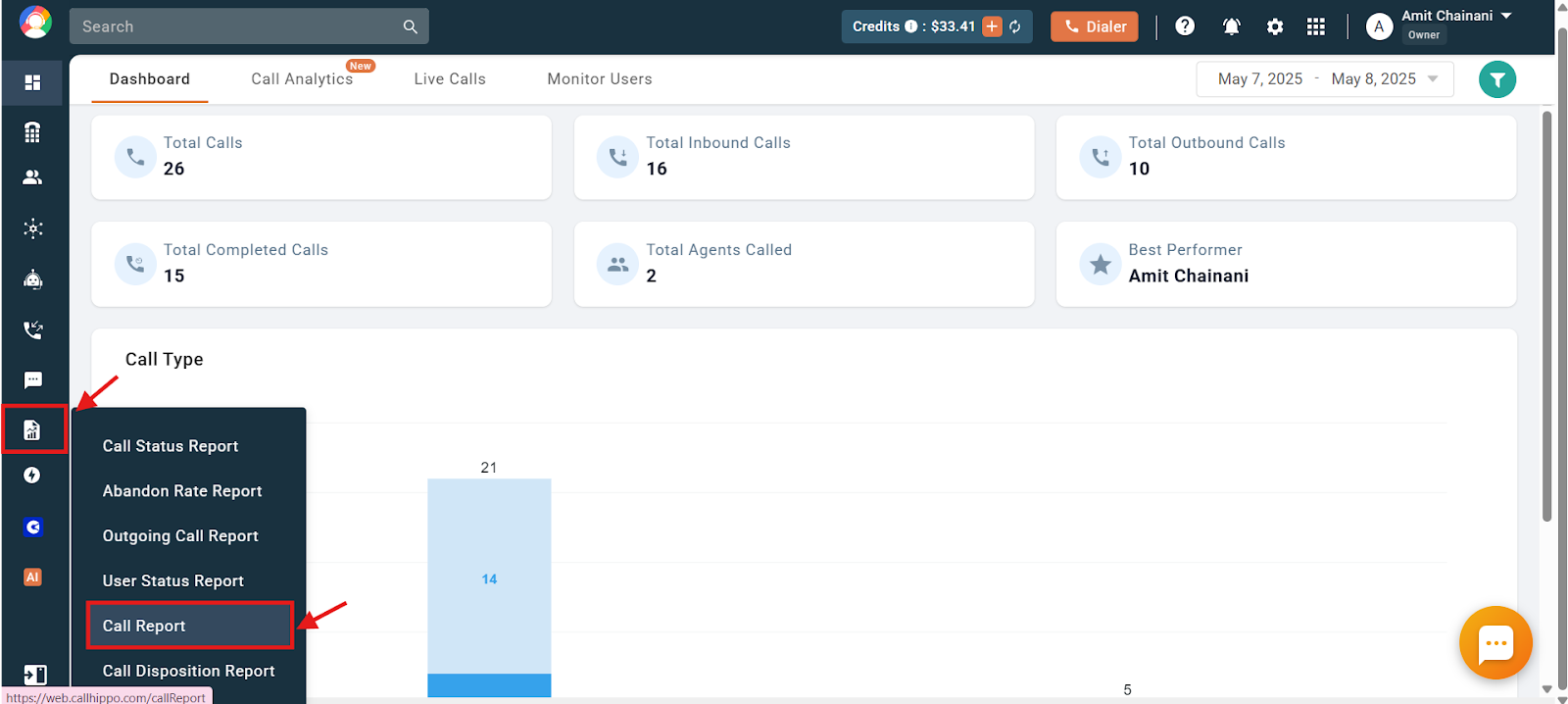
- Log in to your CallHippo dashboard.
- Go to the Reports section and click Call Report.
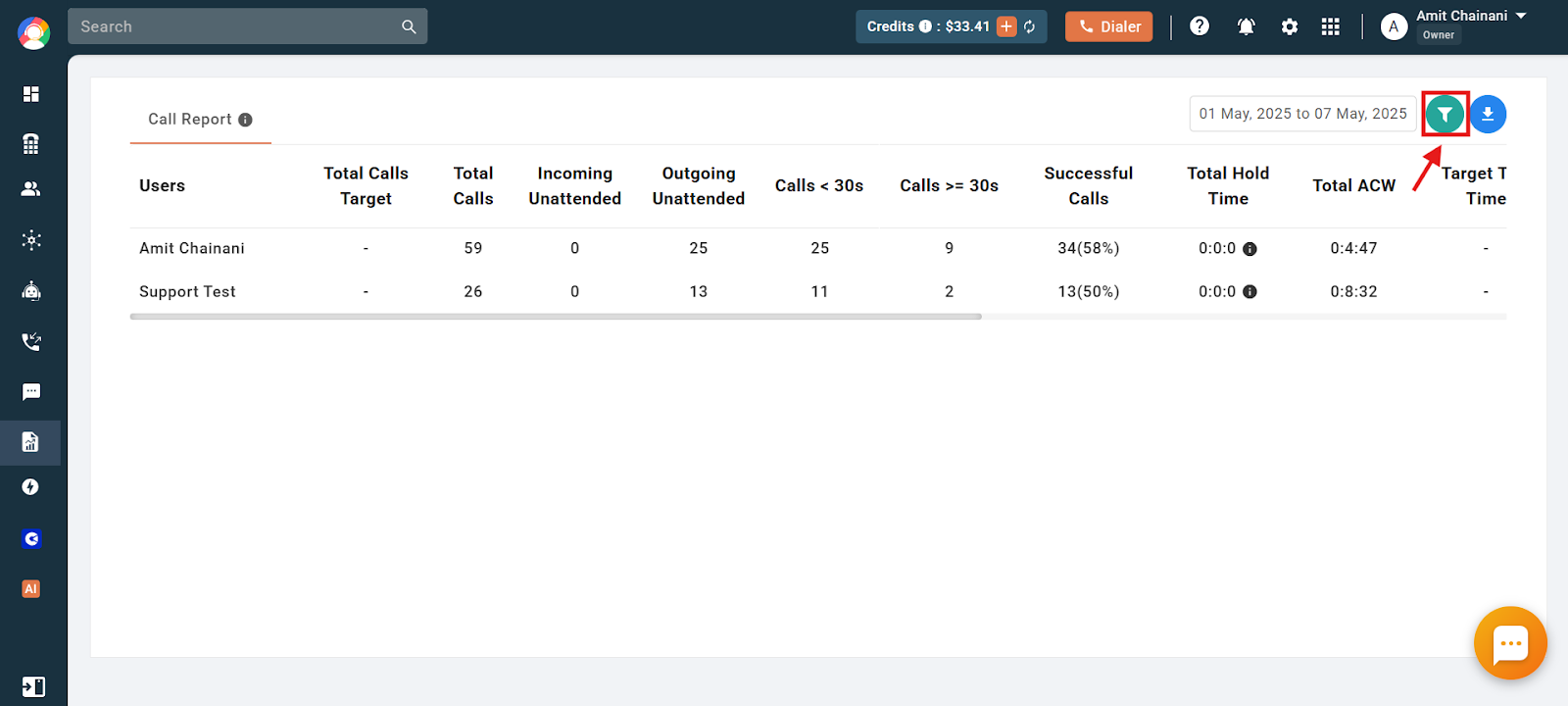
- Click the filter icon to customize your report. Available options include:
- Filter By: User, Department, or Team.
- Select Users: one or more users whose data you want to analyze.
- Start and End Date: a custom date range.
- Duration (in seconds): filter calls by their duration.
- Total Call Time: focus on agents within a specific talk-time range.
- Call Type: Incoming, Outgoing, or Both.
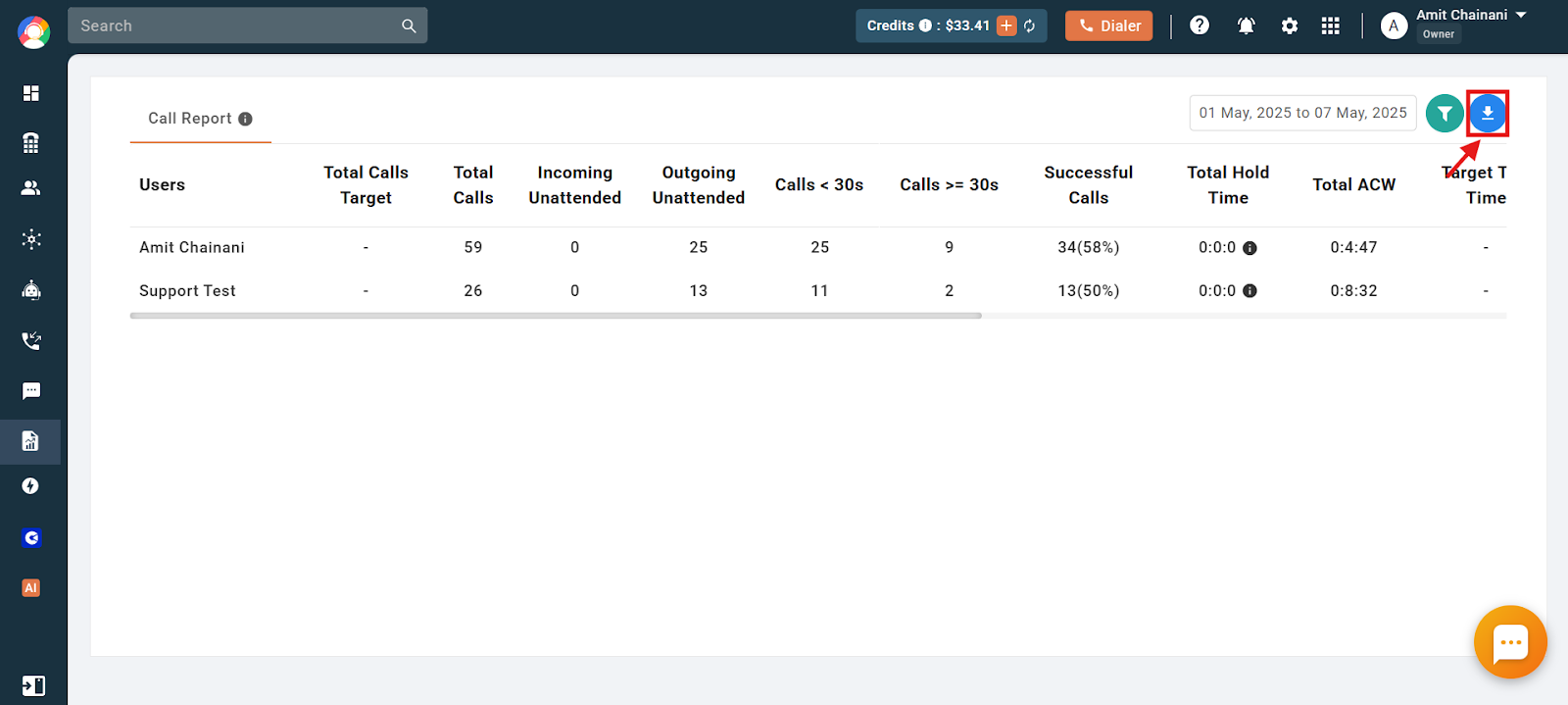
- To export the data, click the download icon.
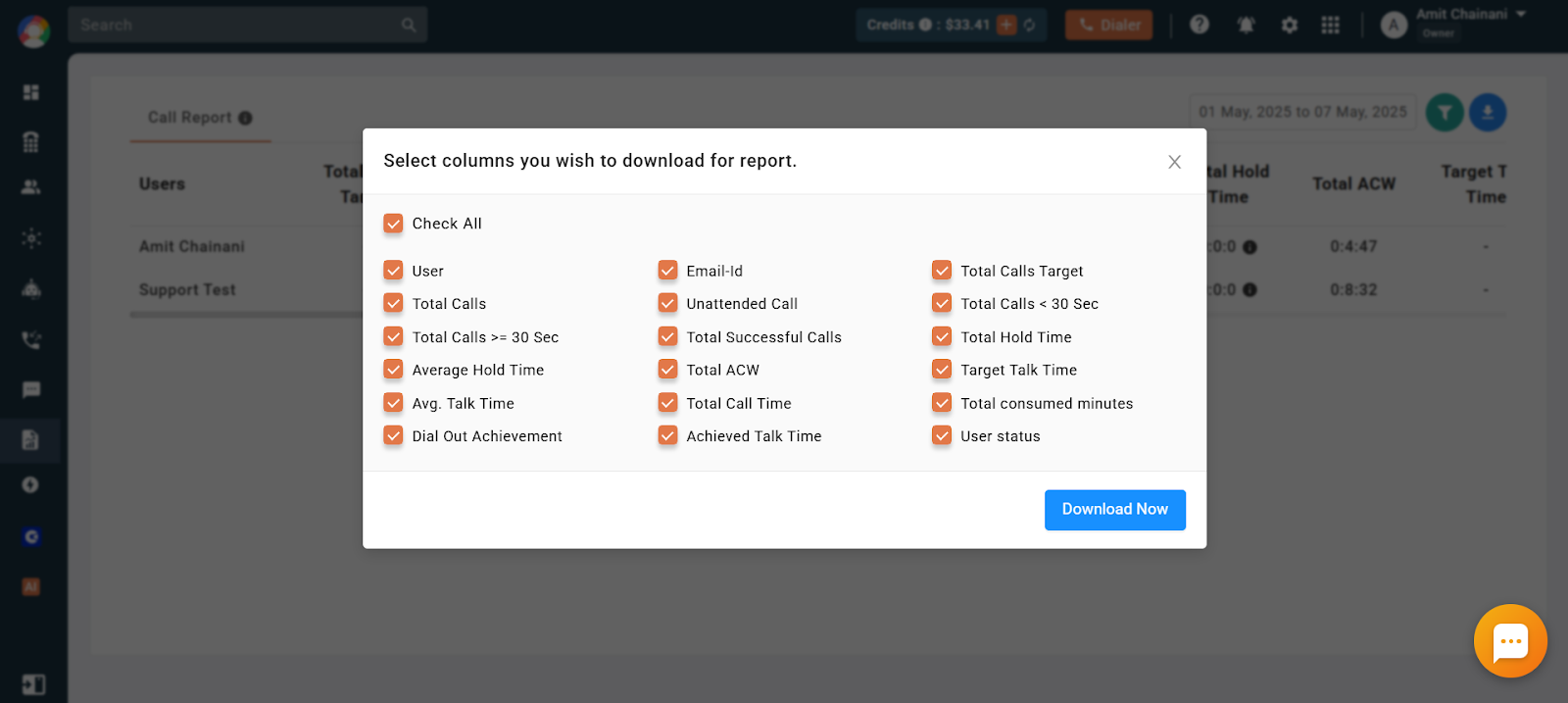
- Select the columns you want to include and click Download Now to save the report as an Excel file.
Important Information
- The maximum date range you can select is 30 days.
- You can view data from the last 3 months directly on the dashboard.
- For any date range older than 3 months, the report is sent to your registered email address instead.
Frequently Asked Questions
I have a multiple-user account. Why can’t I see other agents’ call reports?
Since all users have agent-level access, they are not permitted to view each other’s call reports.
The date range tab won’t let me choose 3/1 to 3/31. Why?
The maximum date range you can select is 30 days, so a full-month range like March 1 to March 31 cannot be selected.
Will different time zones set for different users affect call reports?
Yes. Time-zone settings can affect how call data is recorded and displayed in reports.
Can I filter the Call Report by team instead of individual users?
Yes. The Call Report can be filtered by User, Department, or Team to suit your analysis needs.
Can the Call Report show how many calls an agent completed compared to their target?
Yes. The Dial-out Achievement metric shows the number and percentage of outgoing calls completed relative to each agent’s target.
How can the Call Report help improve my team’s productivity?
It provides detailed insights into call activity and agent performance, helping you spot trends, set goals, and optimize your communication strategy.
What is the purpose of the ‘Total ACW’ metric?
Total ACW (After-Call Work) tracks the time agents spend on post-call tasks, giving a clearer picture of their workload and efficiency.