
Calling credits are the prepaid balance CallHippo uses to cover calls and messages that fall outside your plan. This guide explains what calling credits are, when they are used, and how to add them from the dashboard or the web dialer.
What Are Calling Credits?
Calling credits work like a prepaid balance in your CallHippo account. They are used whenever your calls or SMS go beyond what your plan covers.
When Are Calling Credits Used?
Calling credits are required when:
- You call or receive calls from countries not included in your plan.
- You send or receive SMS messages.
- You exceed your free calling minutes.
- You call or receive calls from premium-rate numbers.
- You forward calls to external numbers outside your plan coverage.
How Are Credits Deducted?
Credits are deducted based on actual usage and country-wise rates. You can check charges here:
How to Add Calling Credits
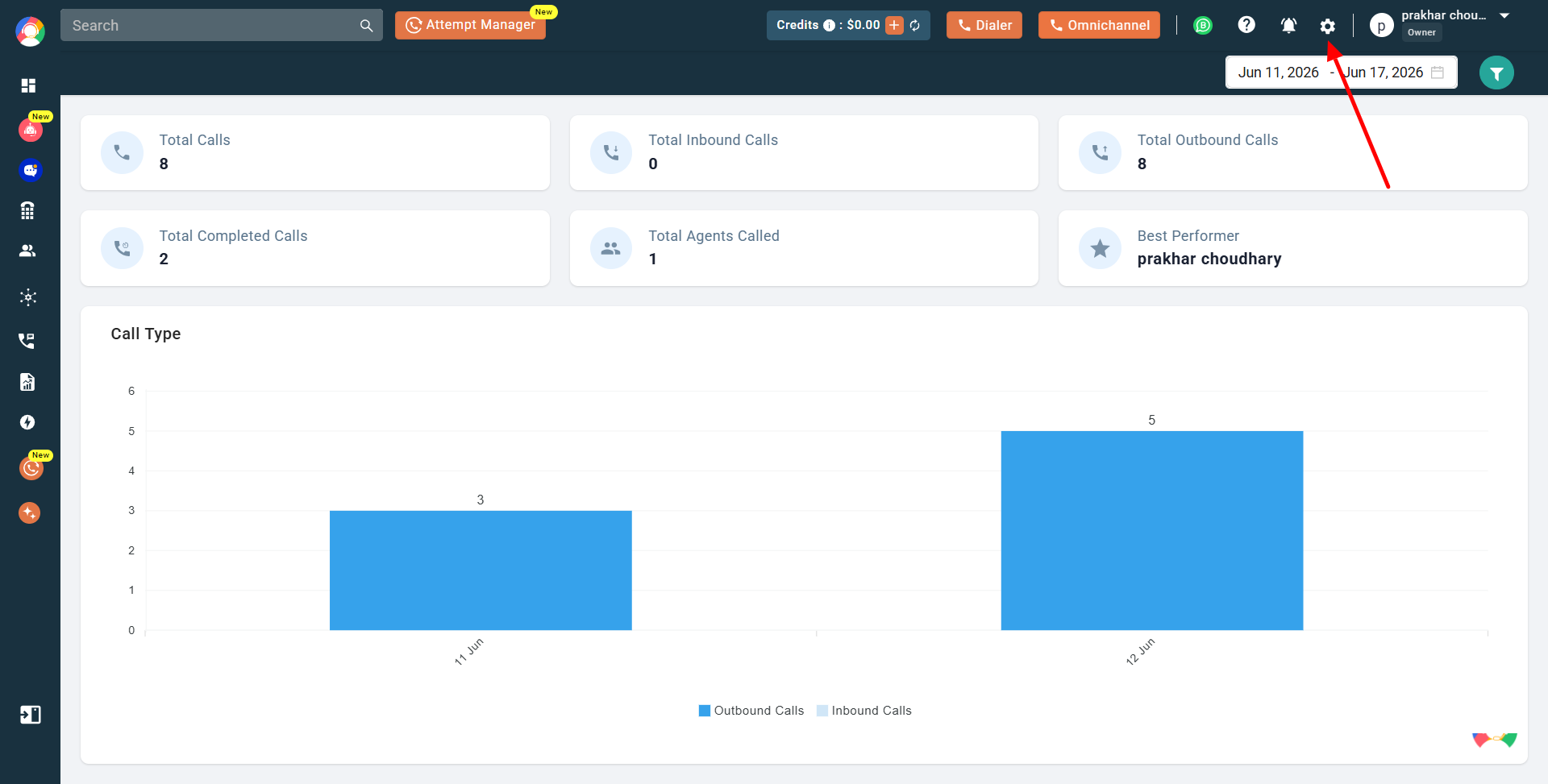
- Log in to your CallHippo Dashboard and click the Settings (gear) icon.
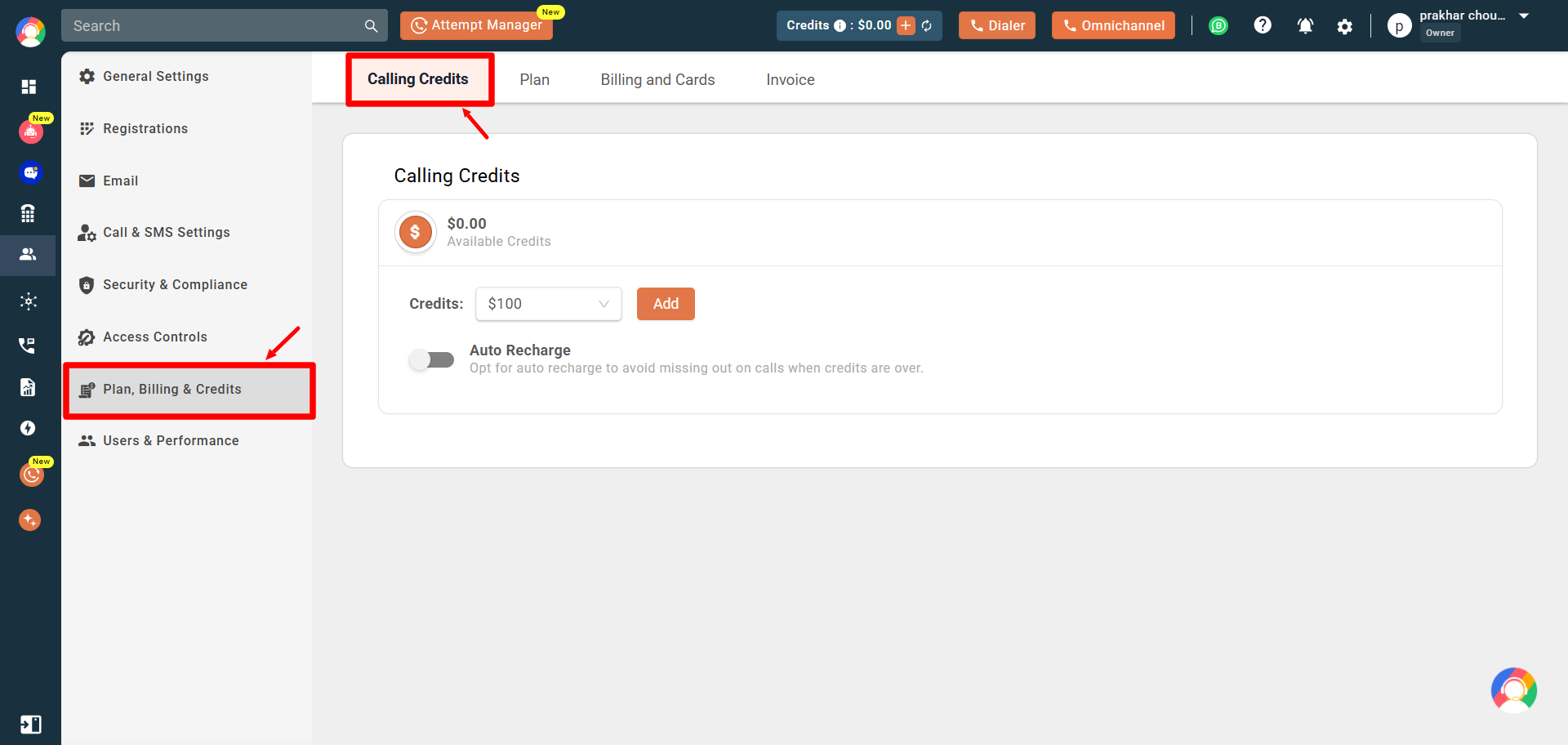
- Go to Plan, Billing & Credits and open the Calling Credits tab.
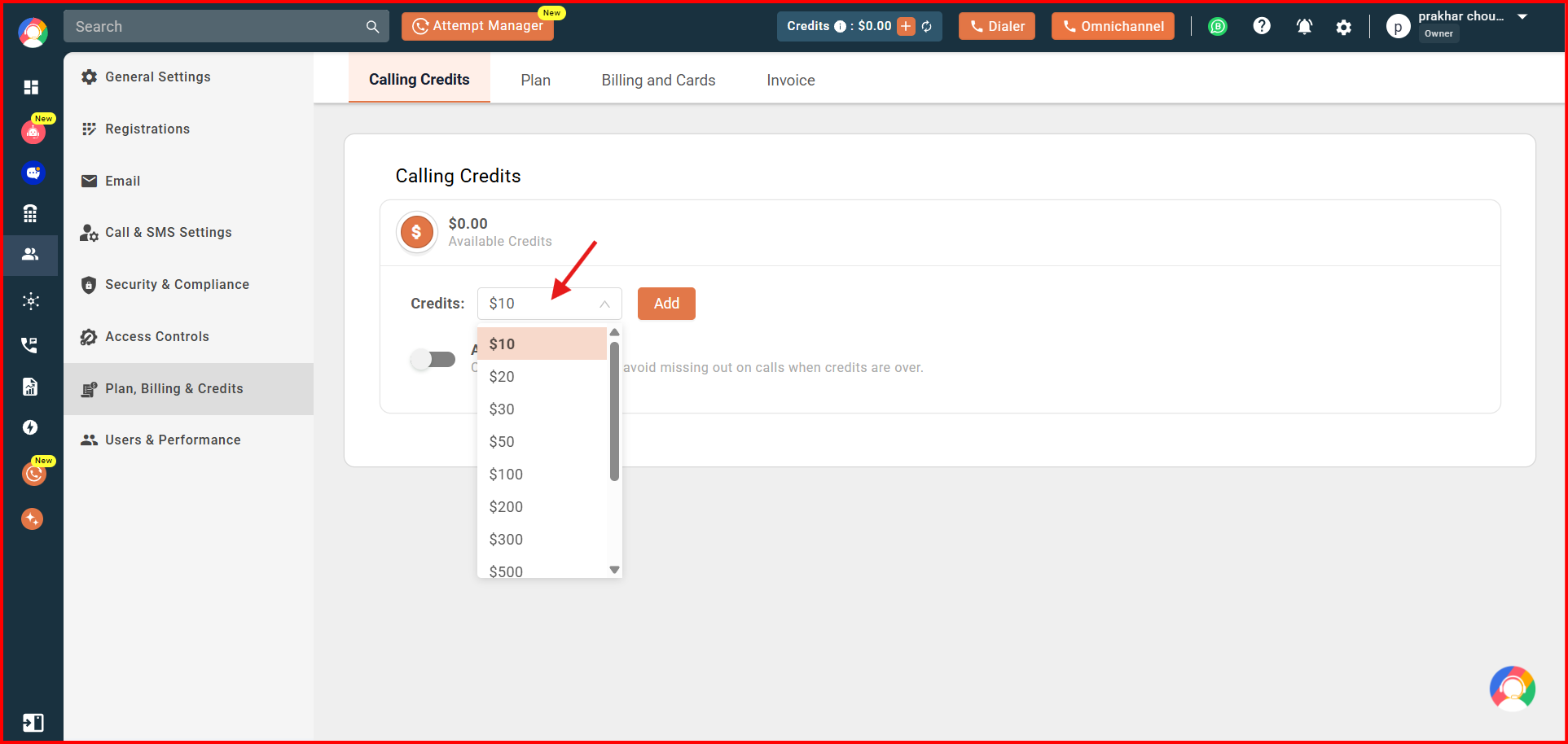
- Select an amount from the list, or choose More to enter a custom amount (min. 10 – max. 2000).
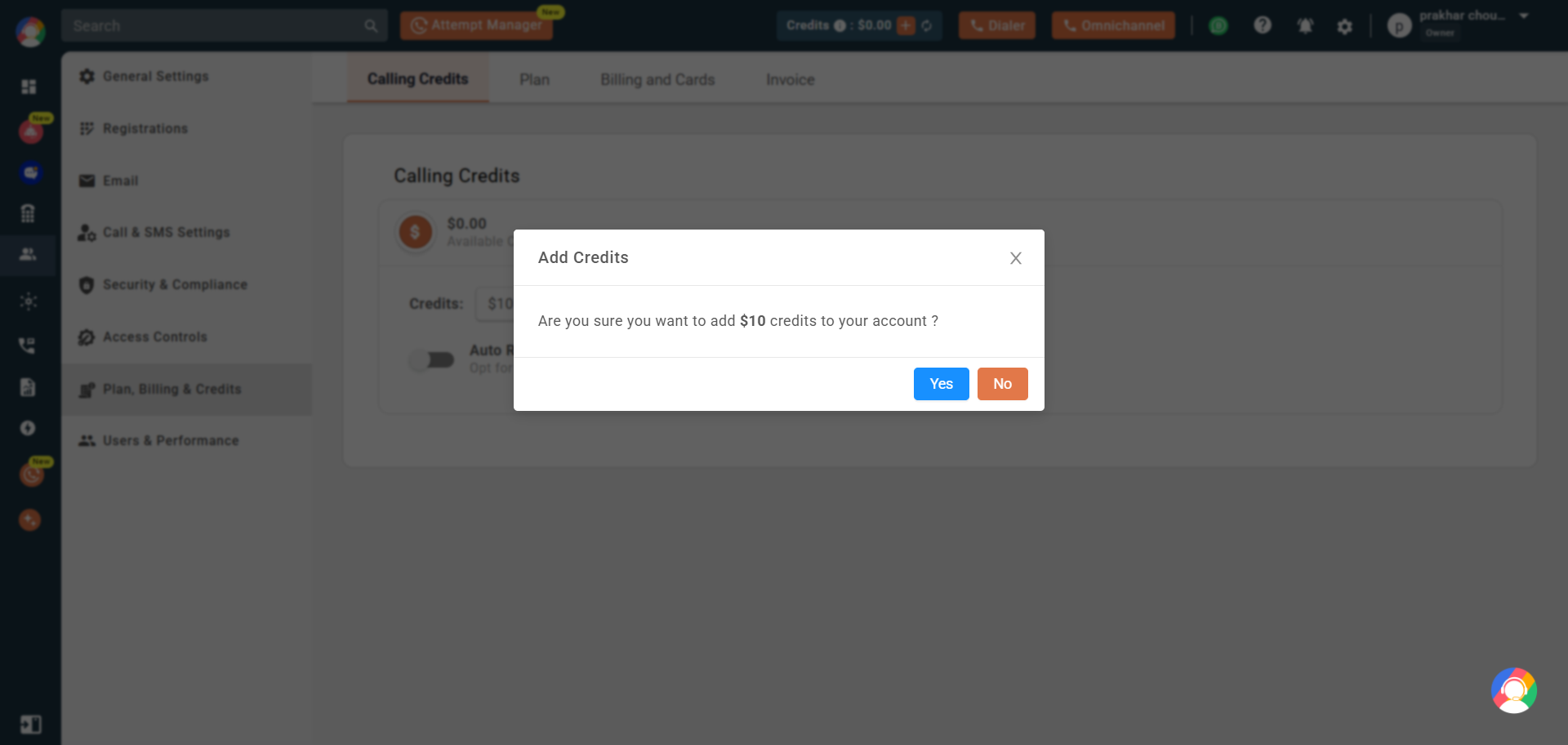
- Click Add.
- Confirm the purchase in the popup, then click Yes to complete payment.
Auto-Recharge Feature
Auto-recharge automatically adds credits when your balance drops below your chosen limit. This ensures your calling never gets interrupted.
You can set:
- Minimum balance trigger
- Amount to add automatically
Charges are billed to your saved primary payment method.
How to Enable Auto-Recharge
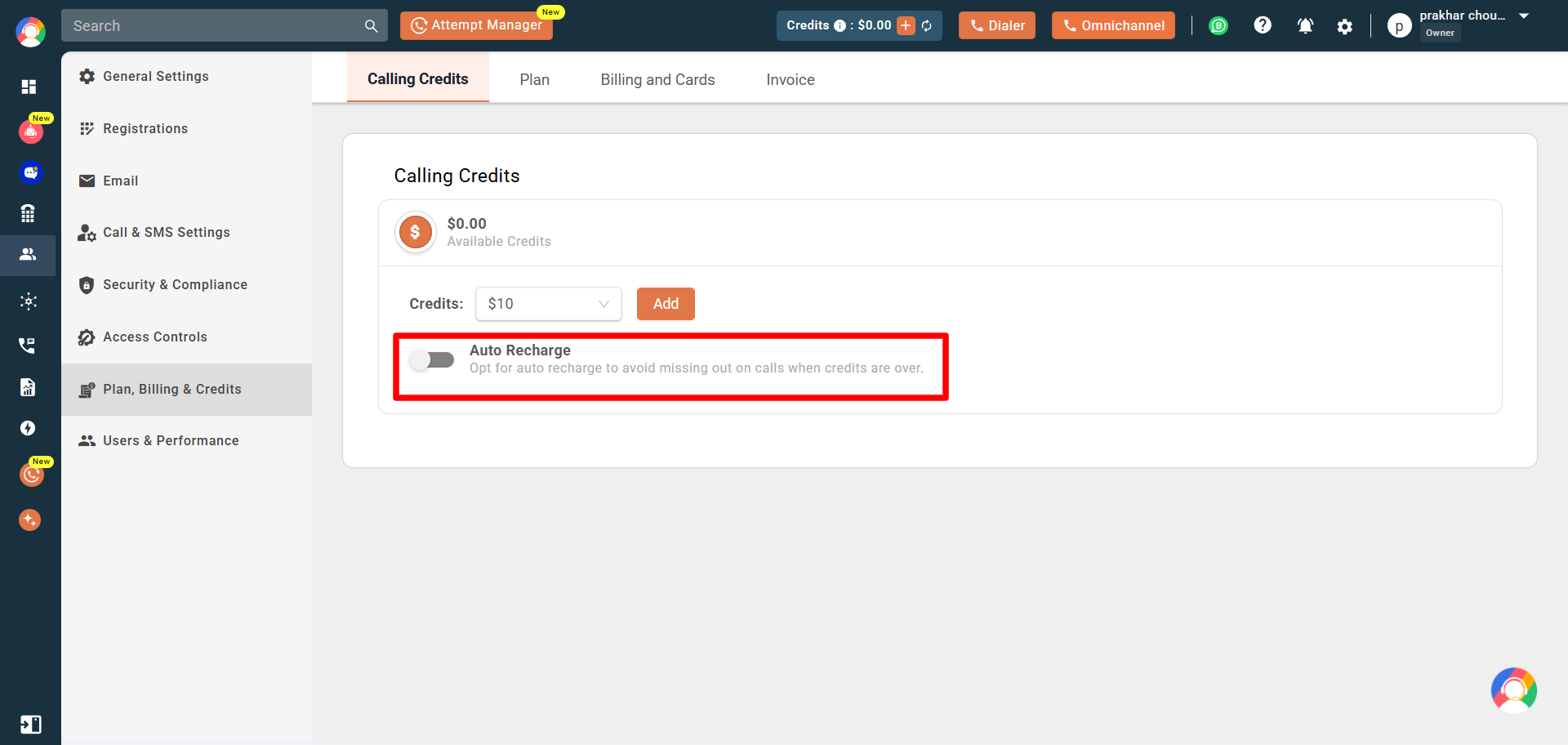
From the Calling Credits tab (Plan, Billing & Credits section):
- Turn on the Auto Recharge toggle.
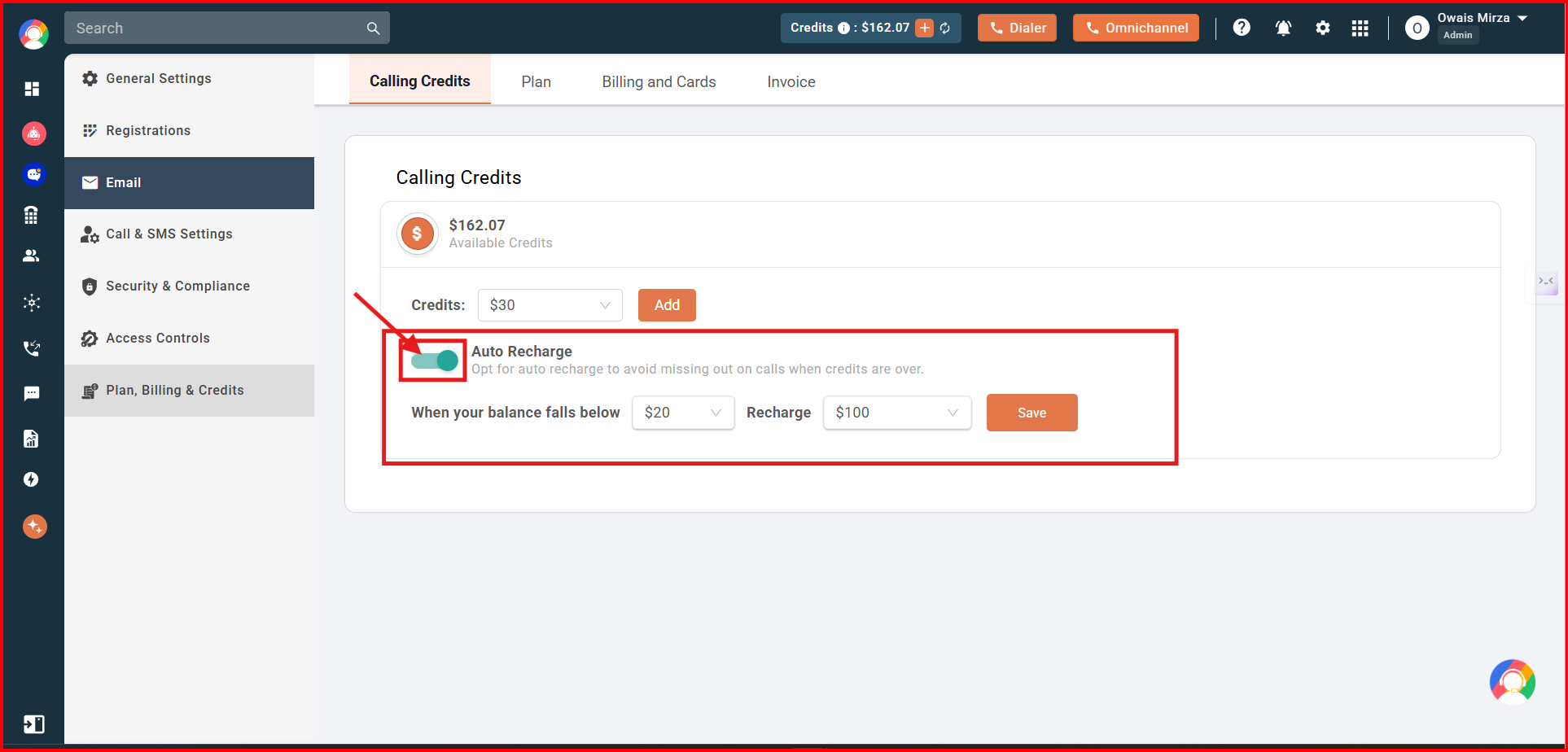
- Set the minimum balance at which recharge should trigger.
- Choose the recharge amount to add.
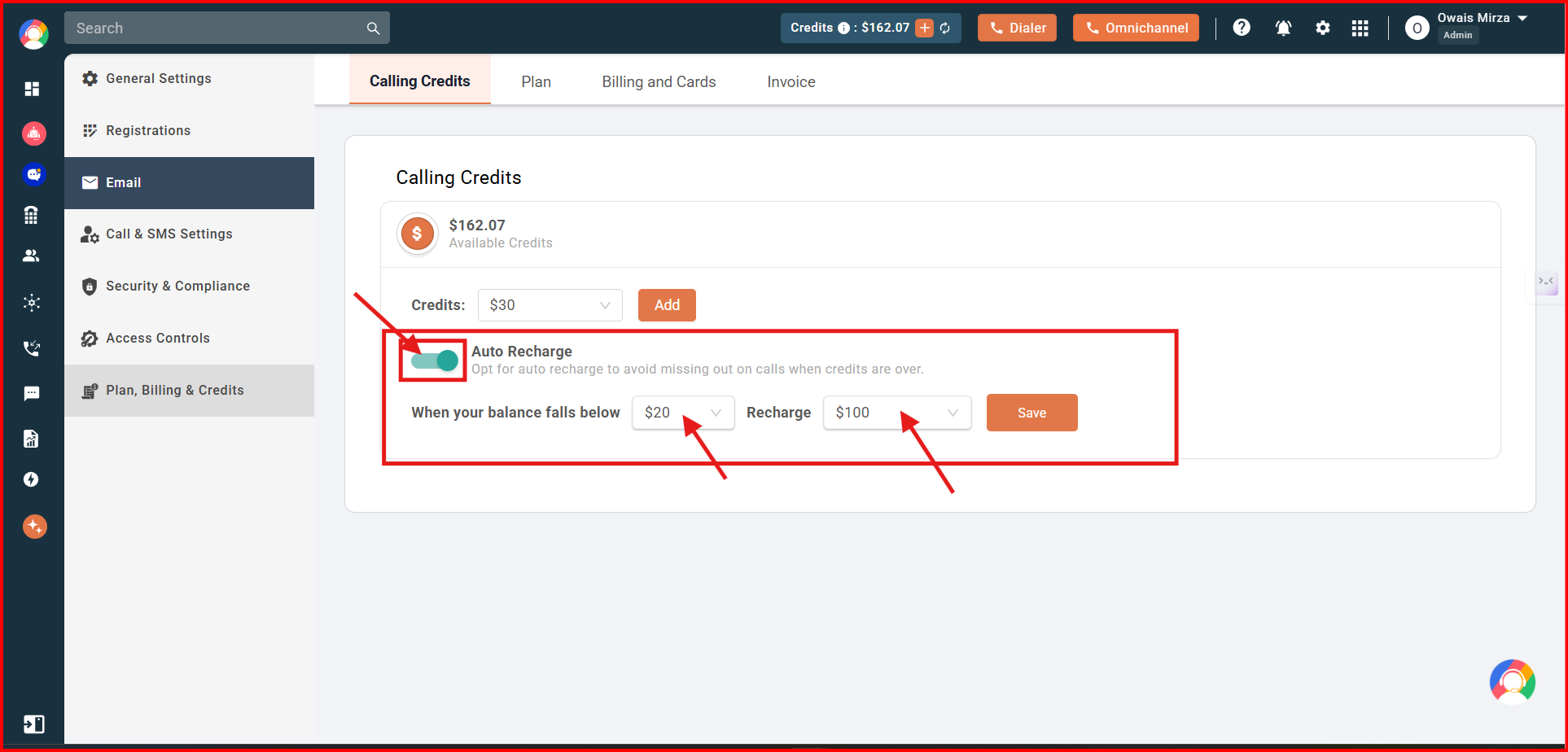
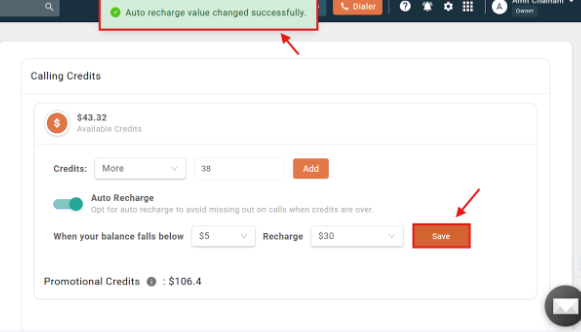
- Click Save.
Note:
- Auto-recharge triggers when your balance drops below $5 or your set limit.
- If 2 payments fail, auto-recharge automatically turns off. Re-enable it by updating your card details and turning the feature back on.
Adding Credits via the Web Dialer
You can also add credits through the CallHippo Web Dialer:
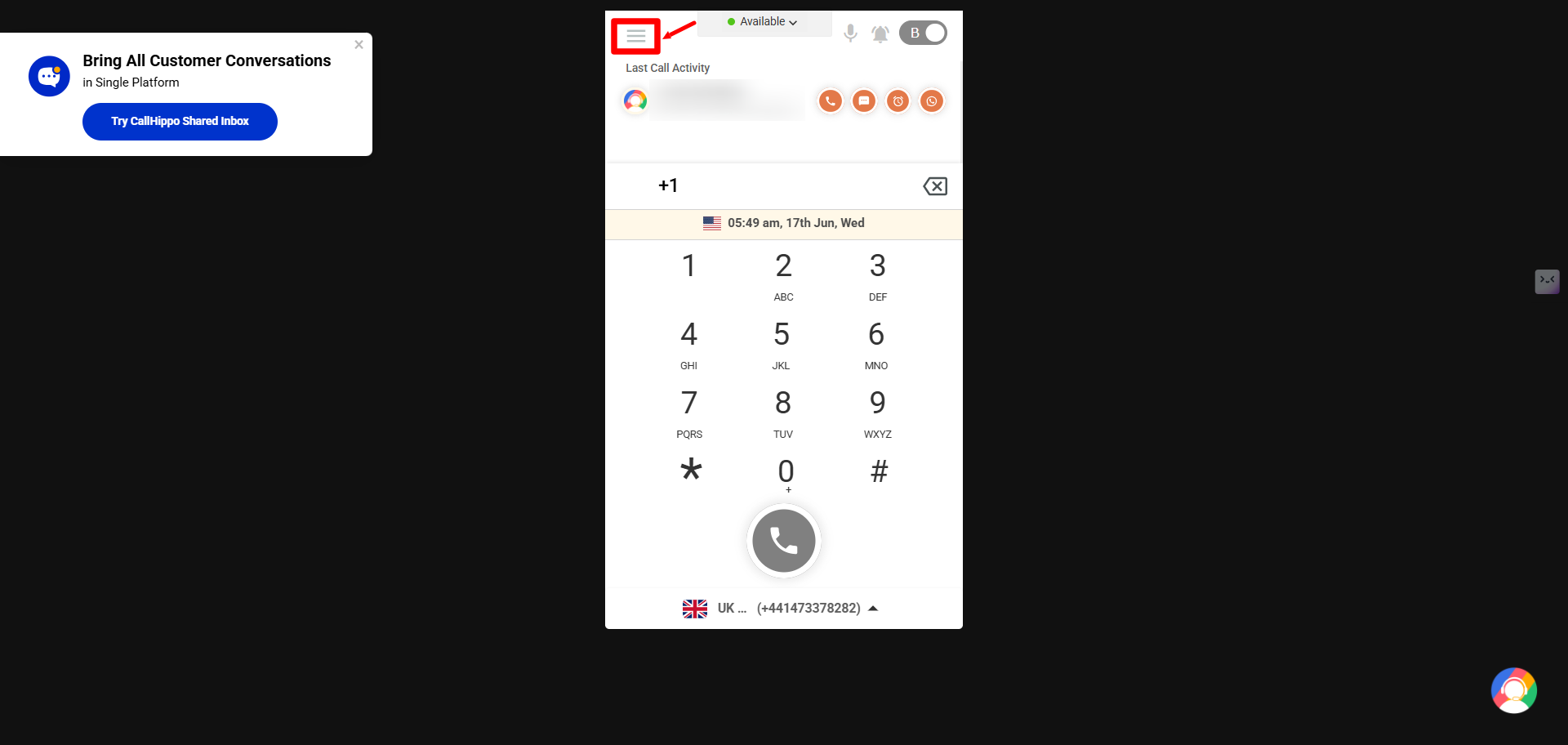
- Open the Web Dialer.
- Click the three horizontal lines menu icon.
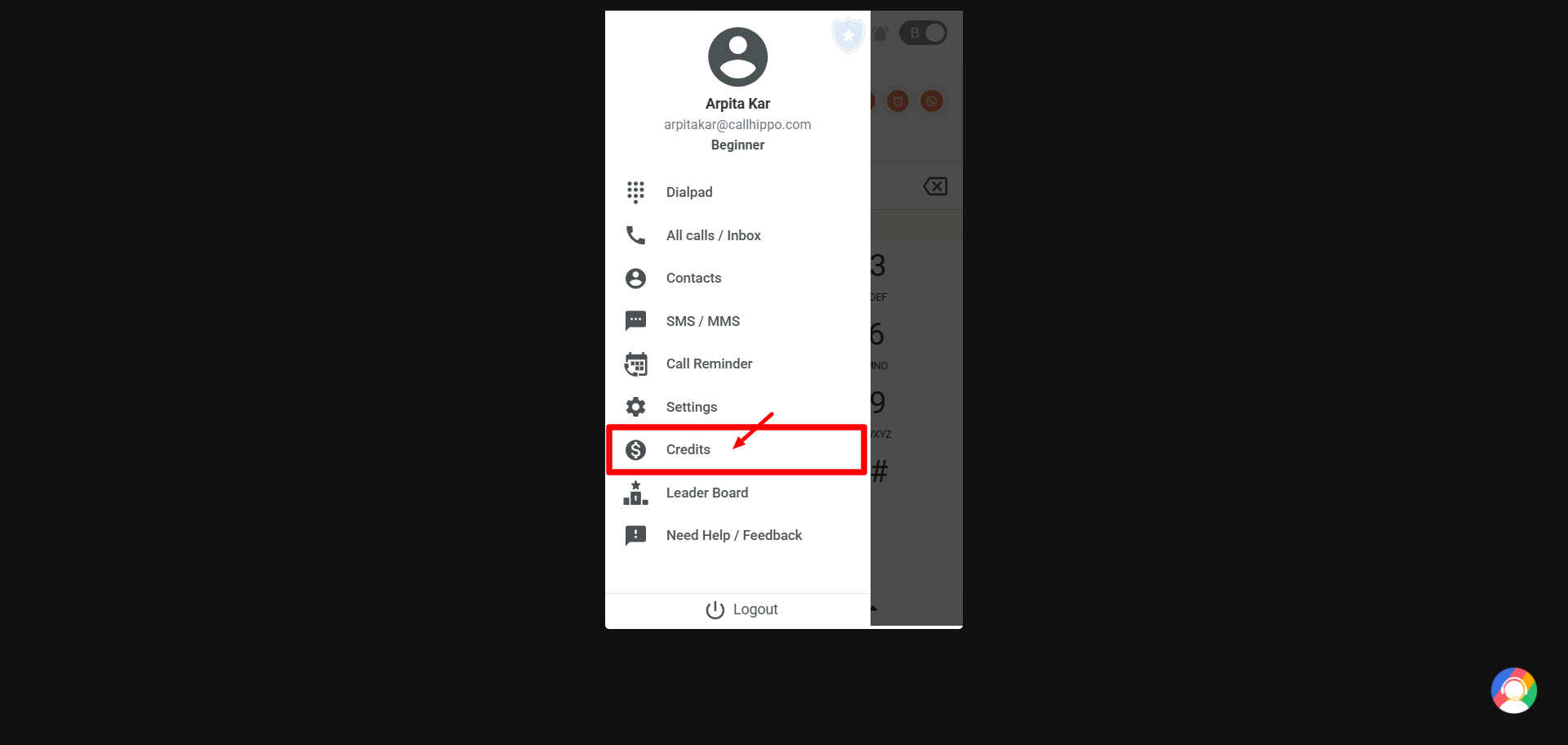
- Select Credits.
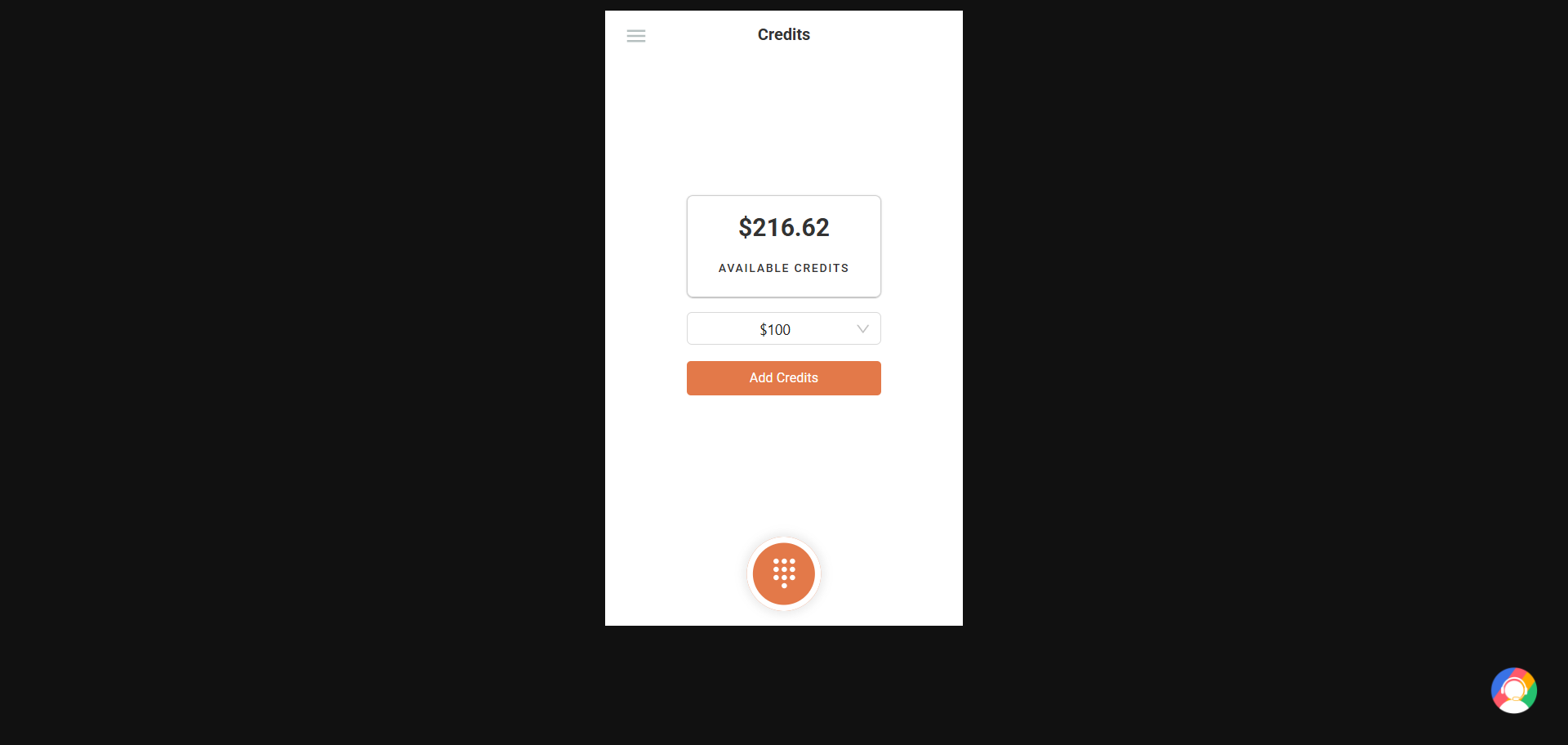
- Choose an amount, then click Add Credits.
Note:
- Only the Owner account can add credits via the web dialer or desktop app.
- Credit purchase is not available on mobile apps.
Frequently Asked Questions
Q: Are unused calling credits refundable?
No. Credits are non-refundable unless you reactivate within 30 days and contact support for restoration.
Q: Will I lose credits if I cancel my subscription?
Yes. Unused credits are removed after cancellation. If you reactivate within 30 days, support can restore them.
Q: When does auto-recharge trigger?
When your balance goes below $5 or the limit you set.
Q: Can I still call after my free plan minutes are exhausted?
Yes. Calls will continue using your calling credits.
Q: Why is my auto-recharge not working?
Likely due to a payment failure. If 2 attempts fail, the feature is disabled automatically.
Q: How do I reactivate auto-recharge after failed payments?
Update your card in account settings, then disable and re-enable auto-recharge.
We hope this helps. If you still have questions, feel free to reach out at [email protected].