
We’re sorry to see you go! If you’re facing any issues or concerns, we recommend reaching out to our support team at [email protected] — we’re here to help and may be able to resolve the problem quickly. However, if you have decided to cancel your account, this guide walks you through the steps and explains what happens to your data and numbers afterward.
Steps to cancel your account
- Log in to your CallHippo dashboard.
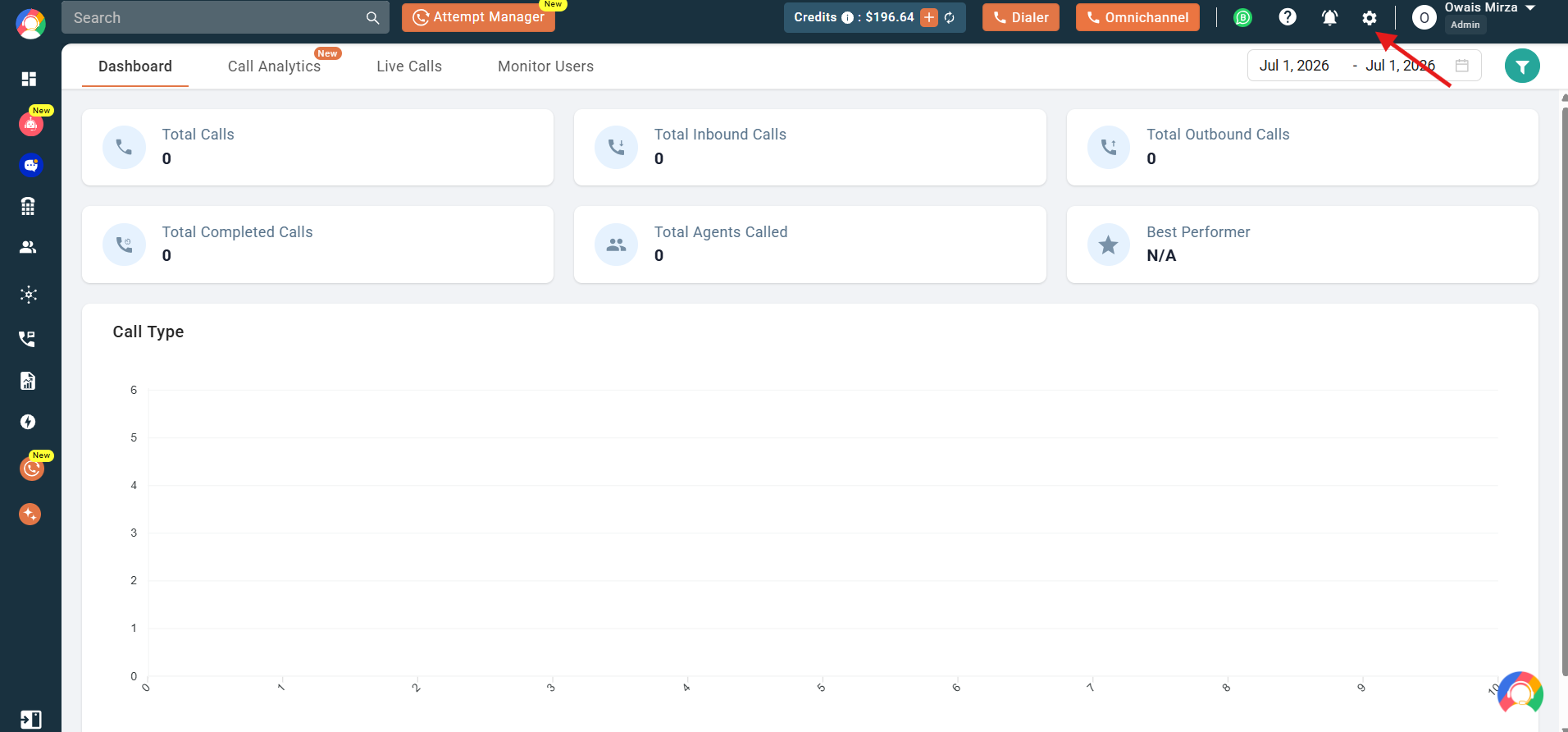
- Navigate to the settings (gear) icon in the top right corner of the screen.
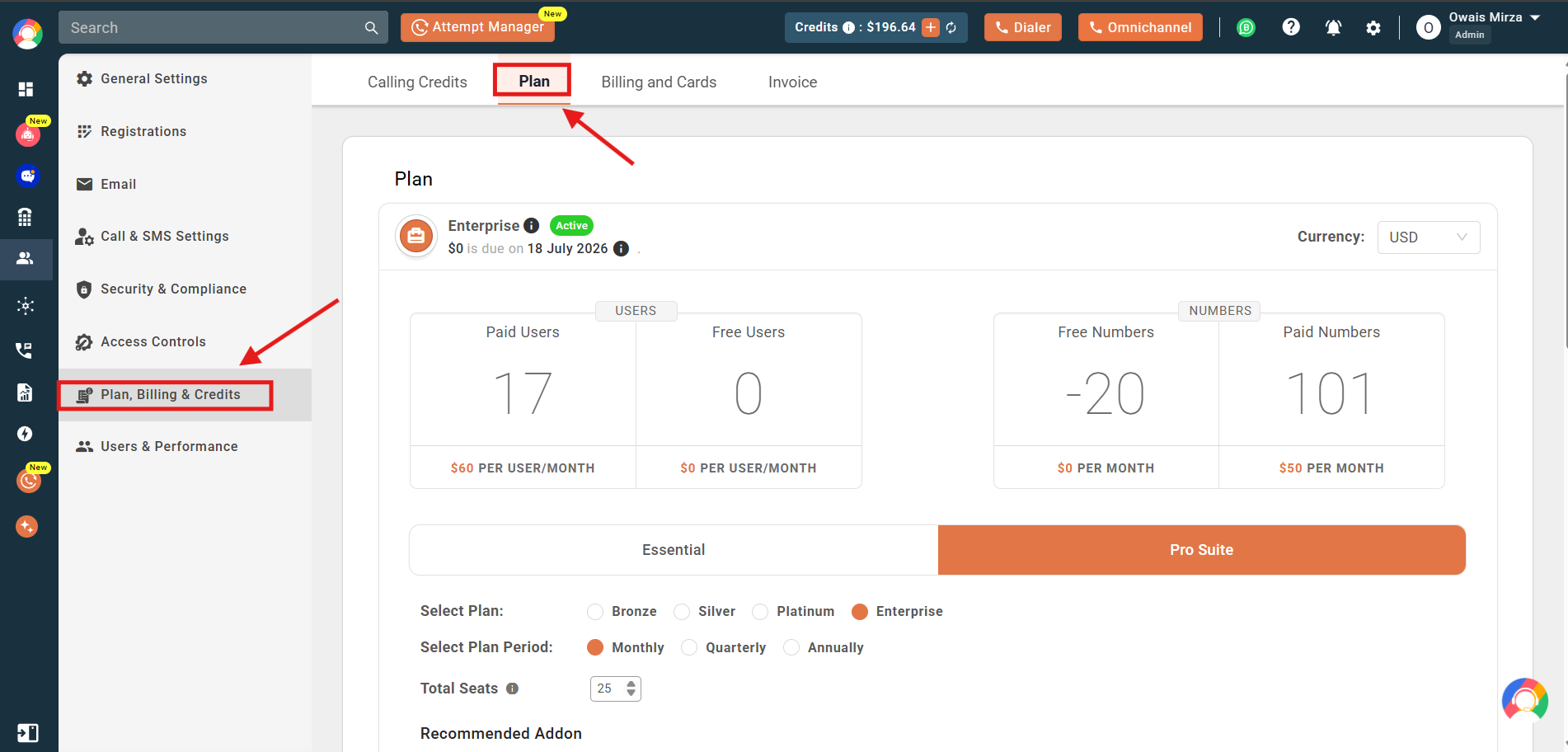
- Click on the Plan, Billing & Credits section and then select the Plan tab.
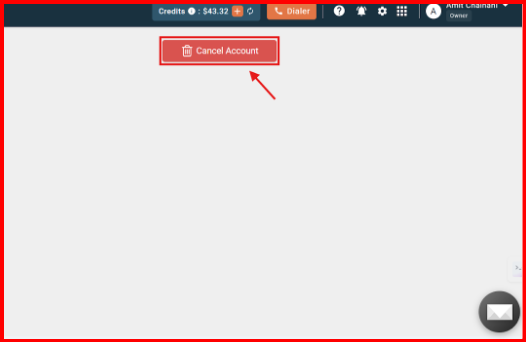
- Scroll to the Cancel Account section and click the red Cancel Account button.
- Click Continue to Cancel to confirm the cancellation of your account.
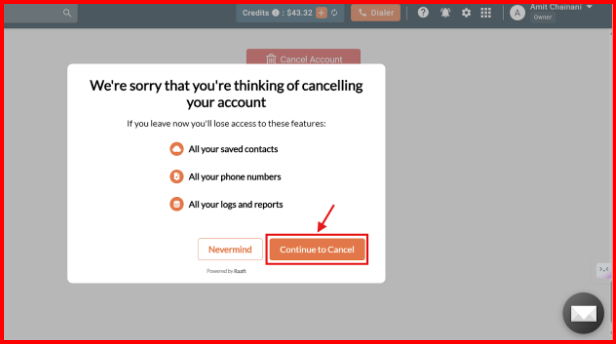
- When you click Continue to Cancel, a prompt will appear asking for the reason for cancellation. Select a reason to proceed.
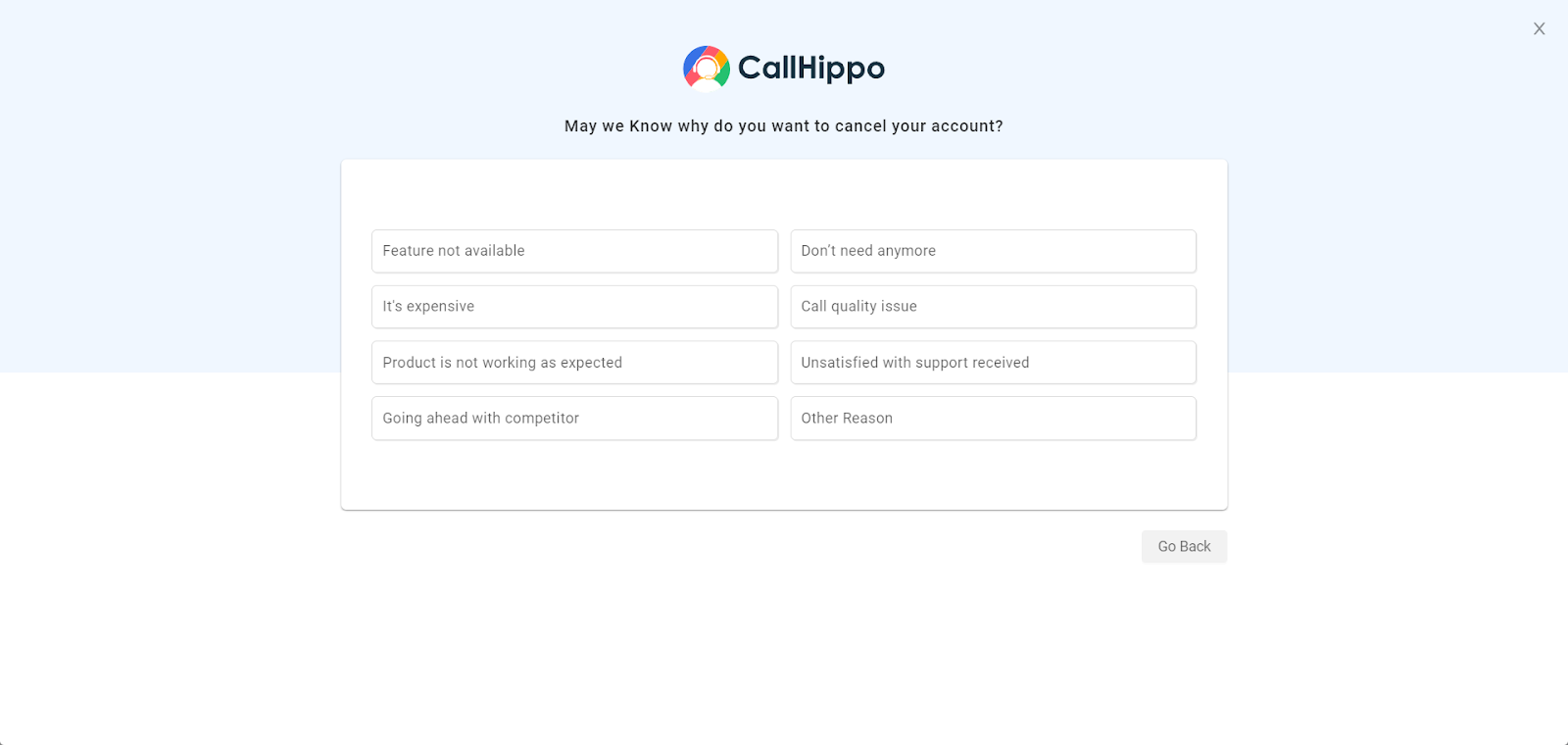
Once you submit the reason, a request for account cancellation will be initiated.
Note: If you are currently on a free trial, please send an email to [email protected] to cancel the account.
What happens after you cancel
- Once you place the cancellation, your account will remain active until your next billing date.
- Until then, you will be able to use our services without any changes.
Frequently asked questions
Do I need to contact support to cancel my account?
No, you can cancel it from your dashboard, but we strongly recommend reaching out to our support team first — we may be able to resolve any concerns you’re facing.
Will my account be deactivated immediately after cancellation?
No, your account will remain active until your next billing date, and you can continue using our services during this time.
What if I cancel by mistake — can I stop the cancellation before my billing cycle ends?
If your account is still within the active billing period, please contact support immediately so that we can assist you in stopping the cancellation.
Can I cancel my account via the mobile app?
Currently, cancellation must be done via the web dashboard, accessible only through a desktop browser.
Can I pause my account instead of cancelling?
You can check the possibility of pausing the account by sending the exact date range and a valid reason for pausing to our support team.
Will I be able to reactivate the account later if needed?
Yes!
Will I be able to restore the same numbers I previously had if I reactivate the account later?
You can restore the numbers in your account only until 8 days after the date of number deletion. However, if you still want to check the possibility of the number being restored to your account, you can reach out to our support team.
Will cancelling my account delete all the data related to my account from CallHippo’s system?
No. If you want to permanently delete all the data related to your account from the CallHippo system, you need to request a HARD DELETE from the support team.
Will cancelling my account cancel my subscription as well?
Yes, when you cancel your account, your subscription will also be cancelled, effective from your next billing date.
I am in the middle of a free trial. Will my account be cancelled immediately if I cancel now?
Yes. If you cancel during your free trial, your account will be cancelled immediately.
You’re always welcome back
We appreciate the time you spent with CallHippo. If you ever decide to return, we’ll be here to help you get set up again — no hassle, just reach out.
We hope this helps. If you still have questions, feel free to reach out at [email protected].