
If you need to update the email address linked to your CallHippo account—whether due to a change in your organization’s domain, switching users, or personal preference—CallHippo makes the process simple, secure, and quick so you keep uninterrupted access to your account and communications.
Important information
- Every user can update their registered email address directly from the CallHippo dashboard; this permission cannot be restricted.
- Account Owners can change the email addresses of other users within their CallHippo account.
- No user can change the email address of the Owner account.
- You must have access to the inbox of the new email address to complete the change.
- You cannot change your account’s email address to one that is already associated with an existing CallHippo account.
For the Owner account:
- If you are changing the email address within the same domain, the change can be done without issues.
- The system does not allow changes to generic email domains (e.g., gmail.com, outlook.com, yahoo.com, etc.). It is mandatory to have a business email address as the primary email for the CallHippo Owner account.
- If you are changing the domain of your email address, the system may or may not allow the change after the new email address passes verification checks set by our team.
Change the email address of your own CallHippo account
- Log in to your CallHippo dashboard.
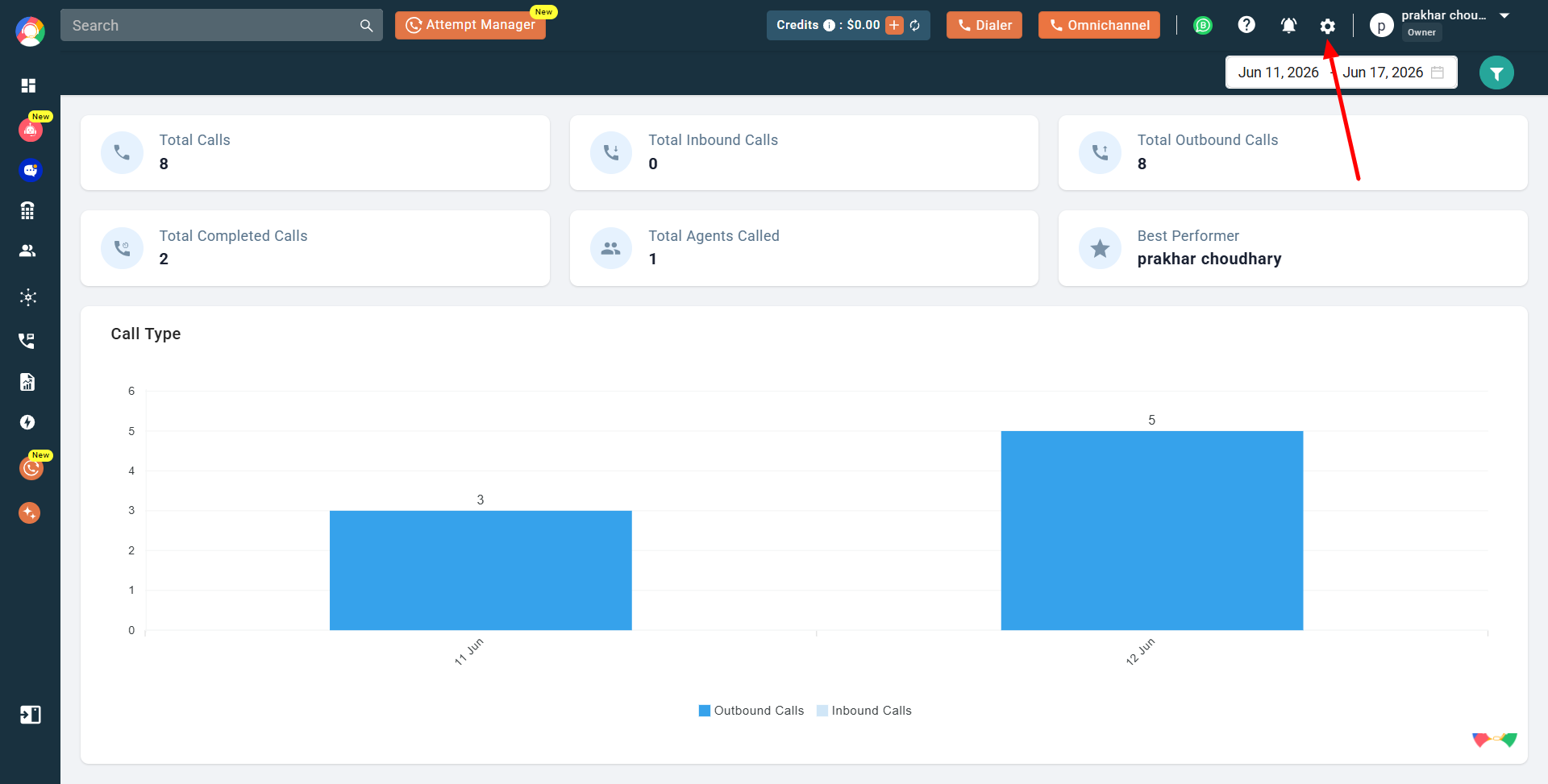
- Click the settings (gear) icon in the top-right corner of the screen, then open the General Settings section and select the Profile tab.
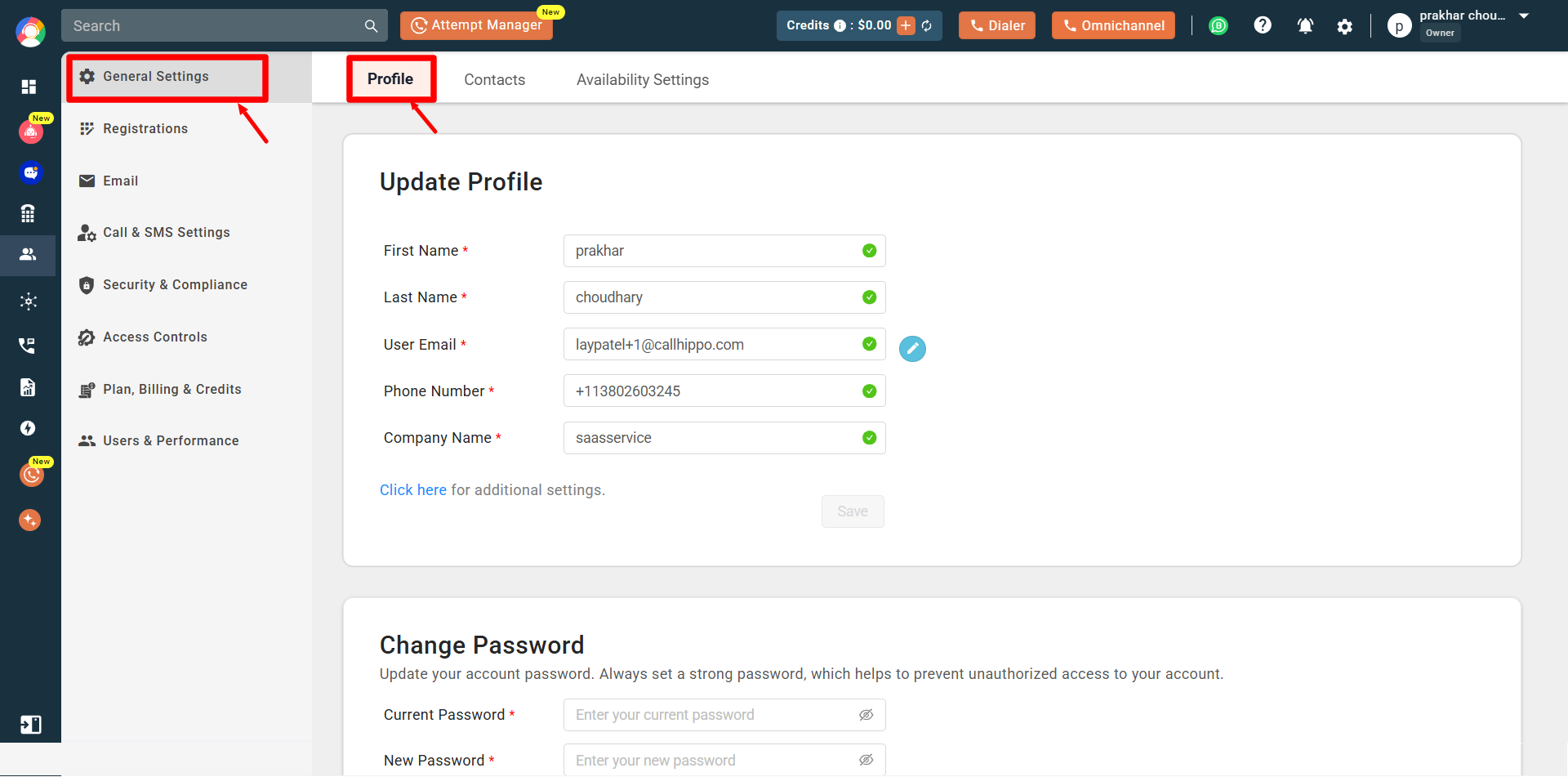
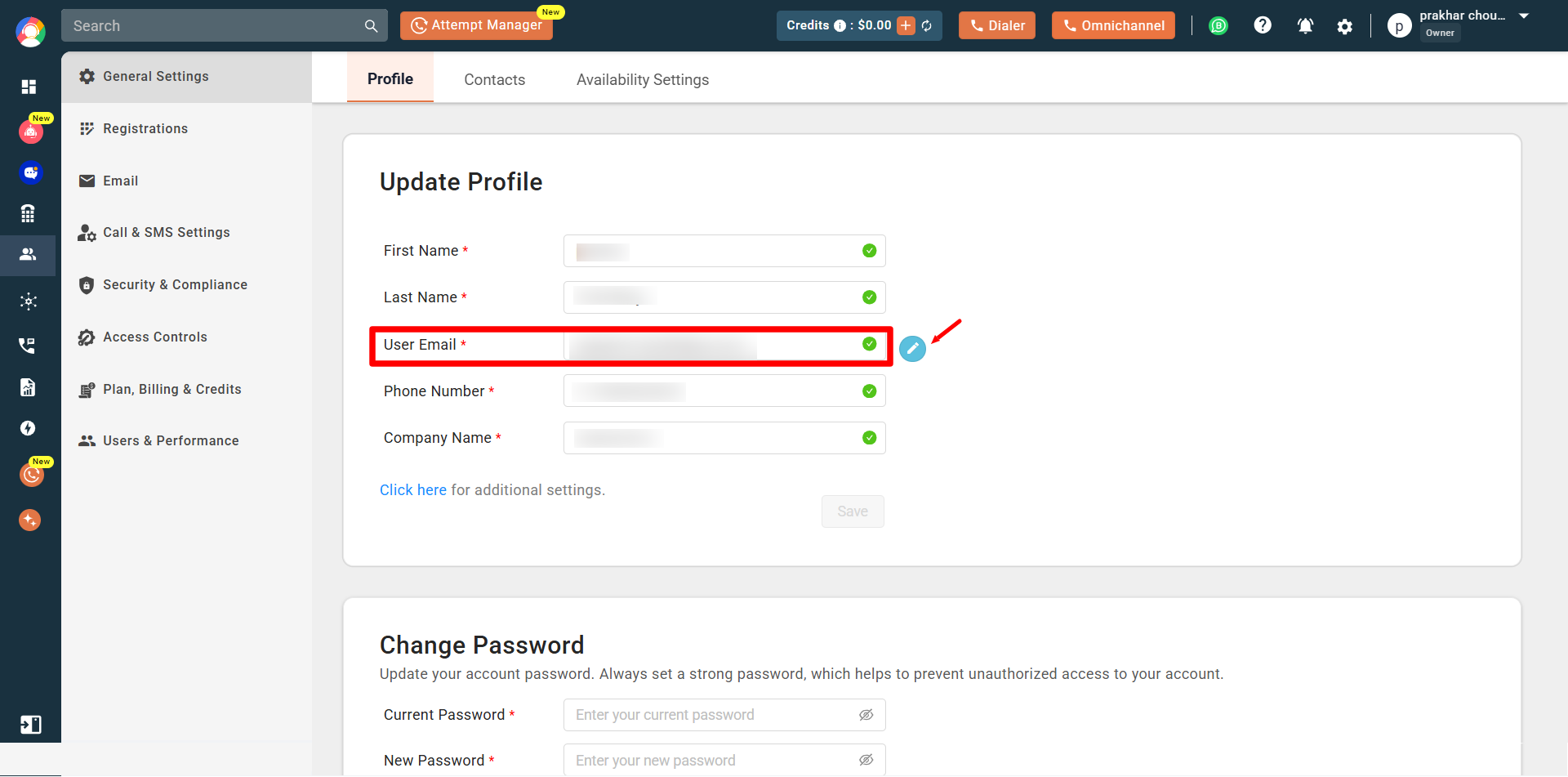
- Click the blue edit icon next to the User Email field.
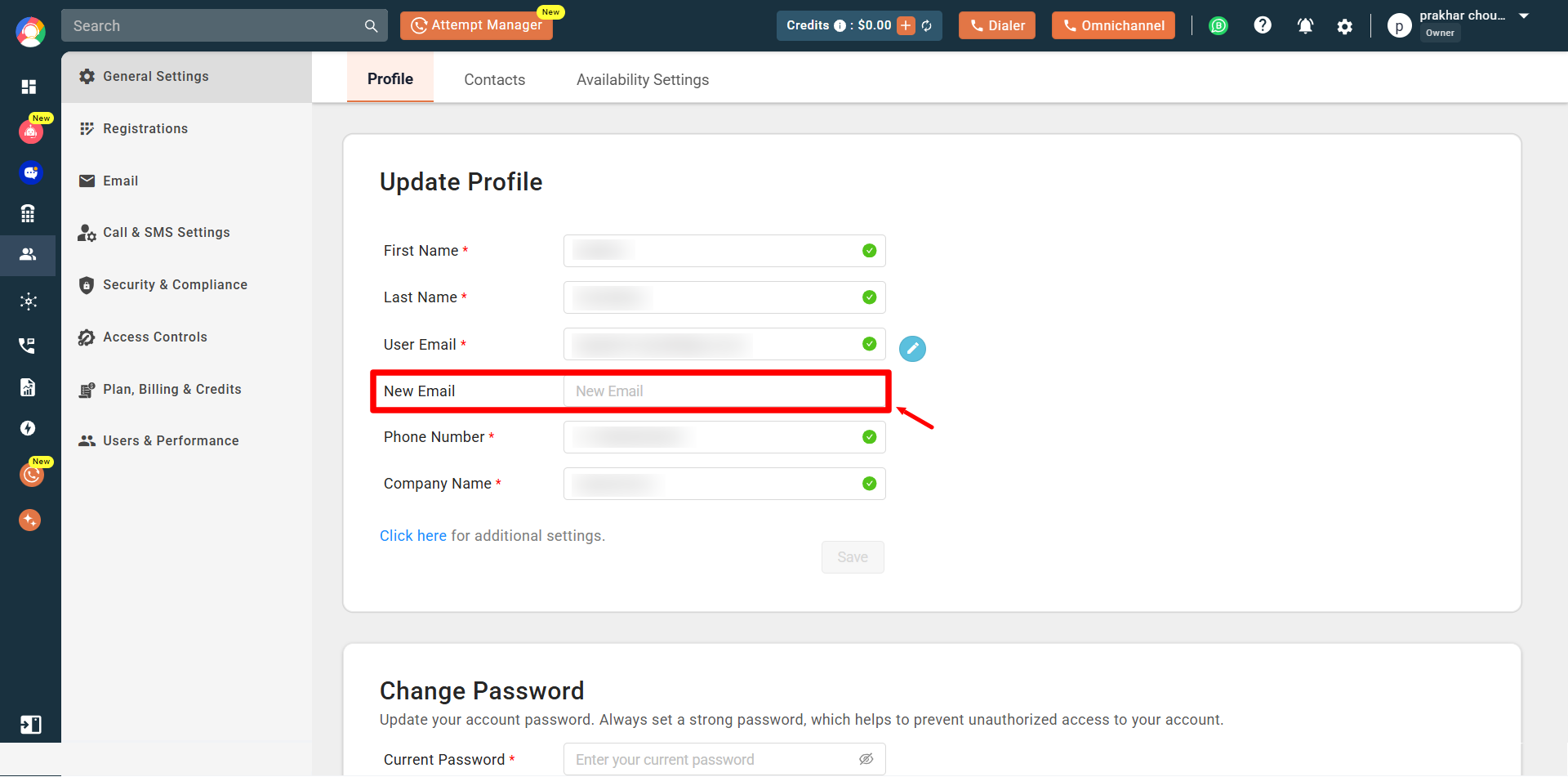
- Enter the new email address you want to change to and press Enter.
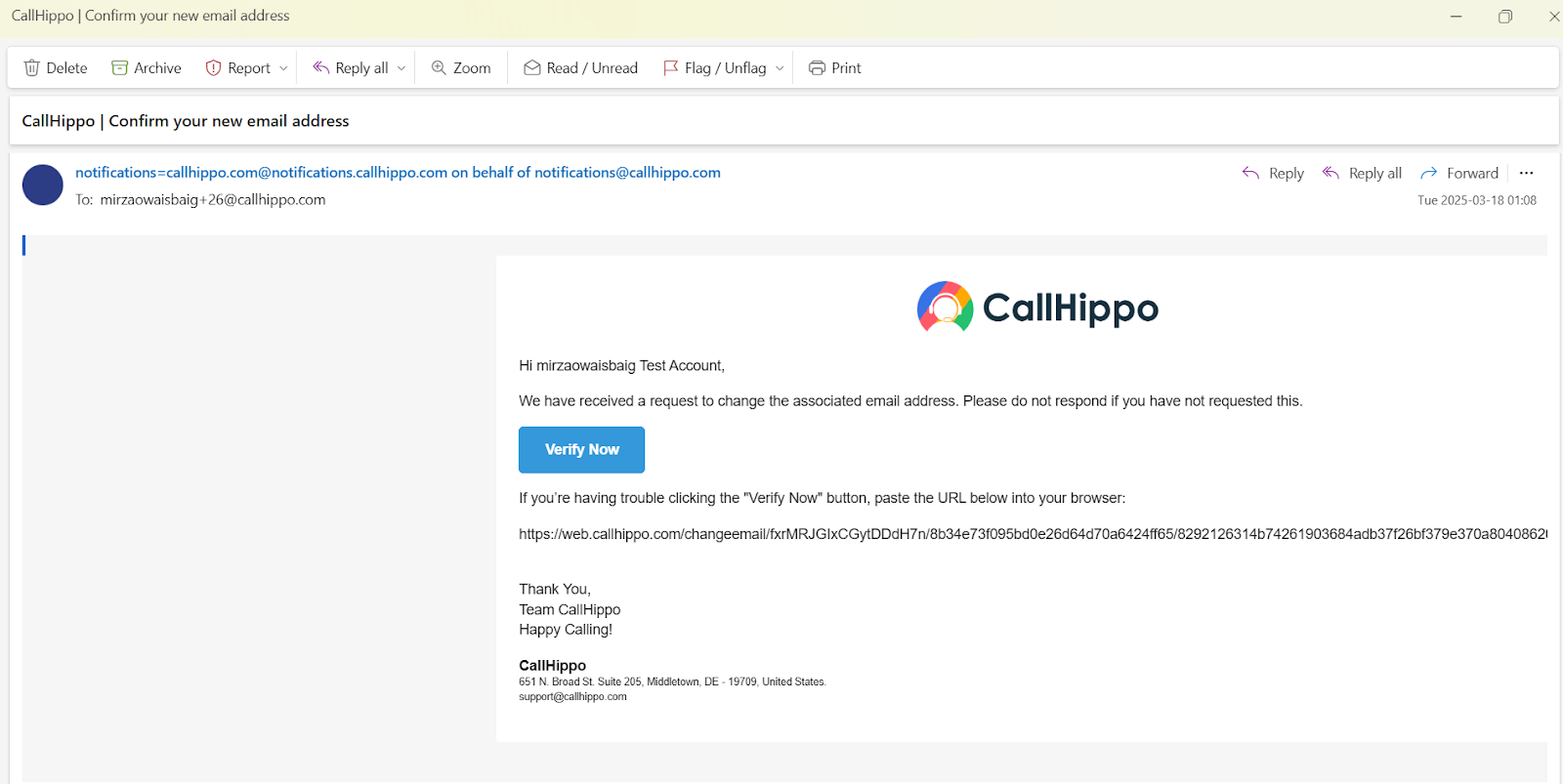
- You will now receive an activation link at the new email address you just entered. Click it to proceed with the activation steps.
- After the change is complete, log in to your account using the new credentials via our login page.
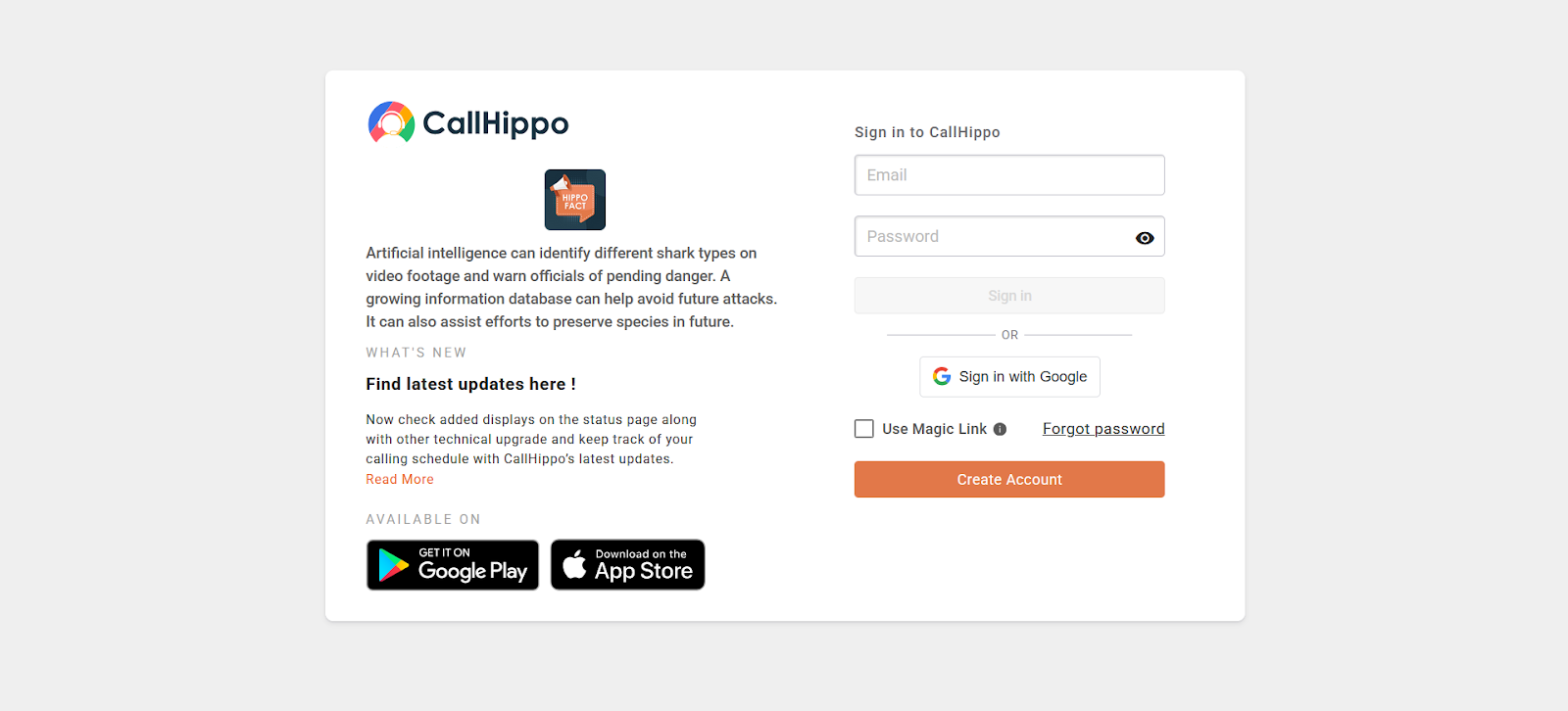
Your CallHippo registered email address has now been changed.
Change the email address of a sub-user
As an Account Owner, you may need to update a sub-user’s email address in cases such as:
- Employee transition: When an employee leaves and is replaced, updating the email ensures the new agent receives relevant notifications.
- Email corrections: Correcting typos or errors in the initial email entry ensures the sub-user can access their account.
- Departmental changes: If an agent shifts to a different department with a new email alias, updating their email maintains consistency.
- Log in to your Owner account’s CallHippo dashboard.
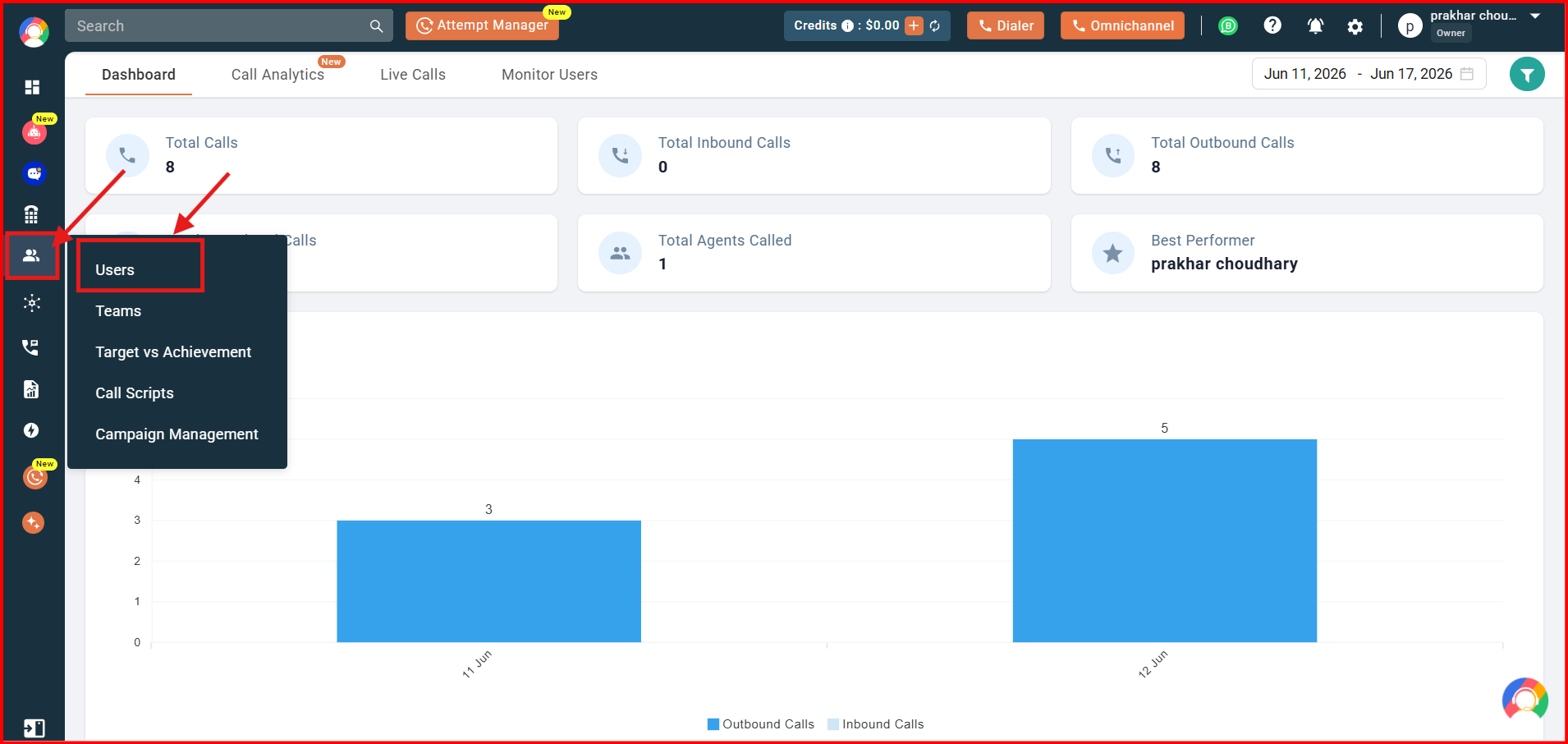
- Go to the Users and Performance section on the left side of the screen and click Users.
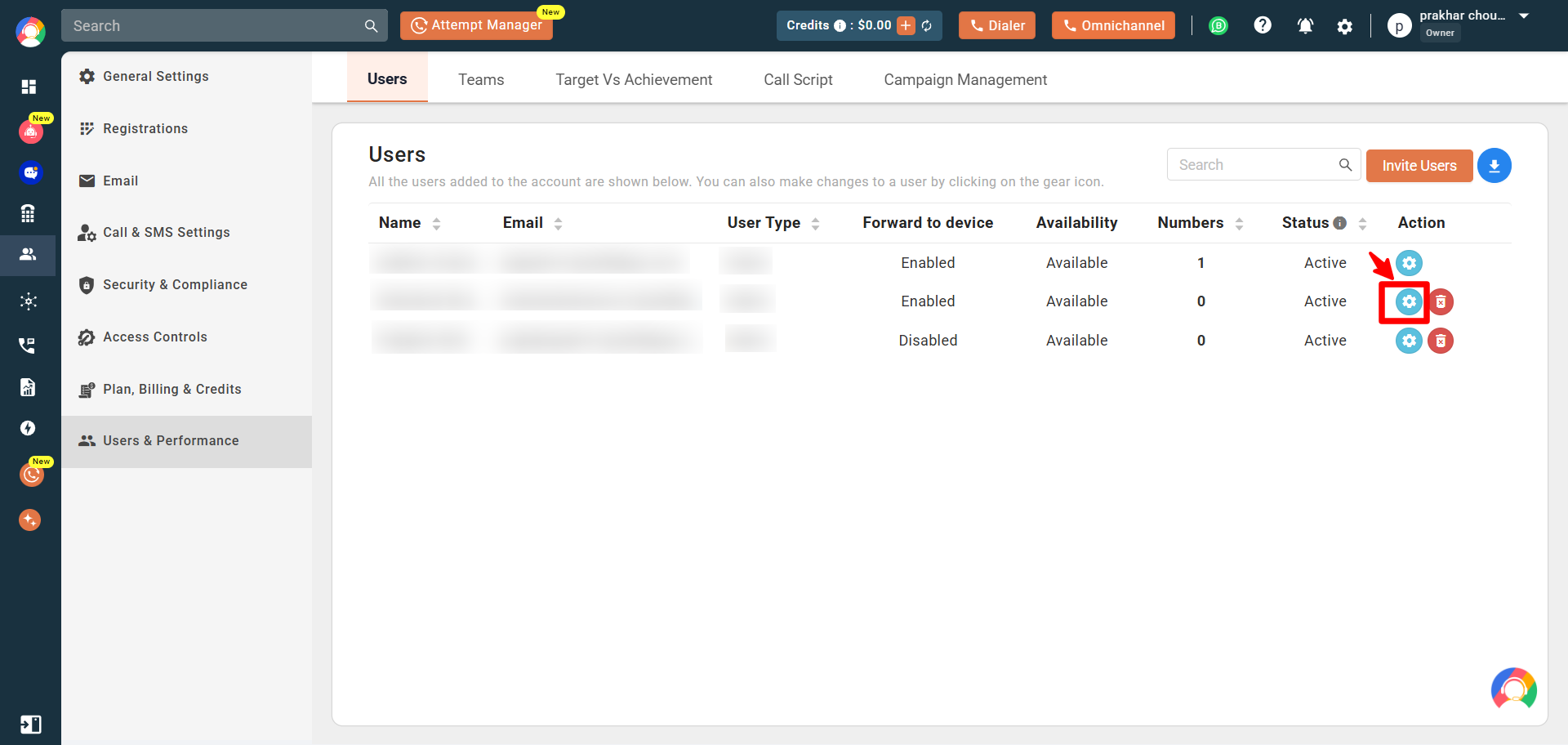
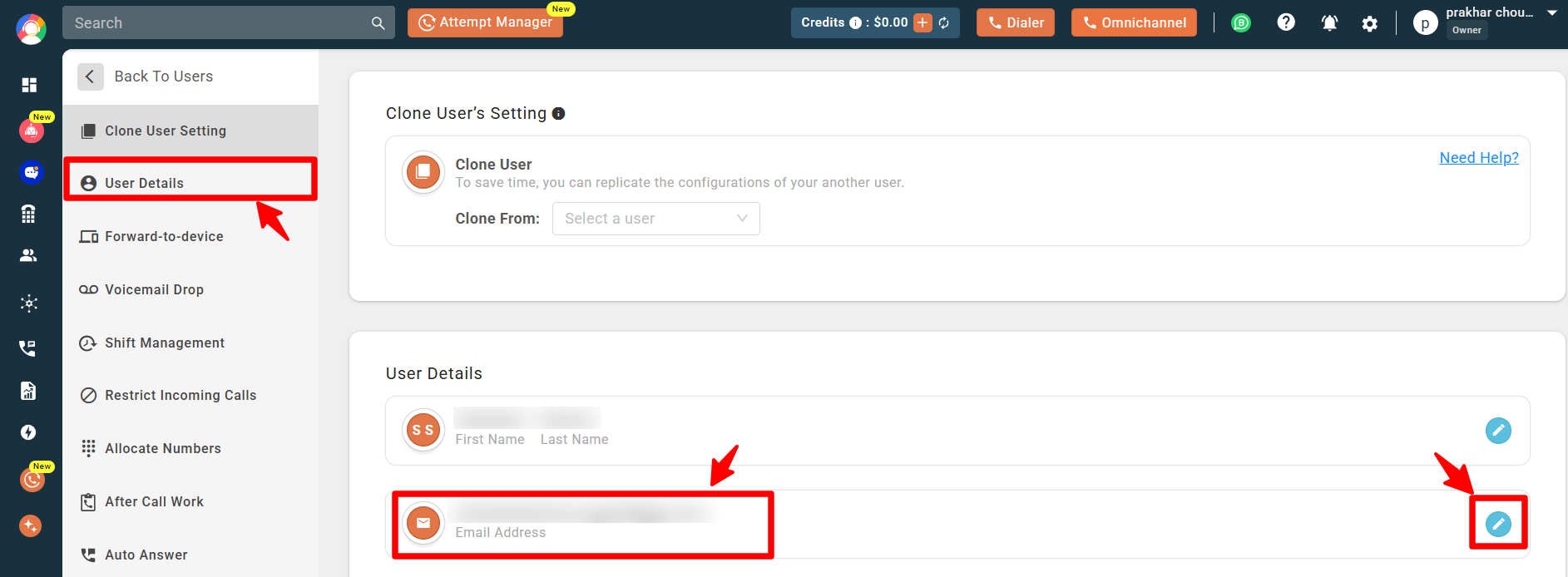
- Click the settings (gear) icon for the user whose email address you want to change.
- In User Details, click the blue edit icon next to the email address.
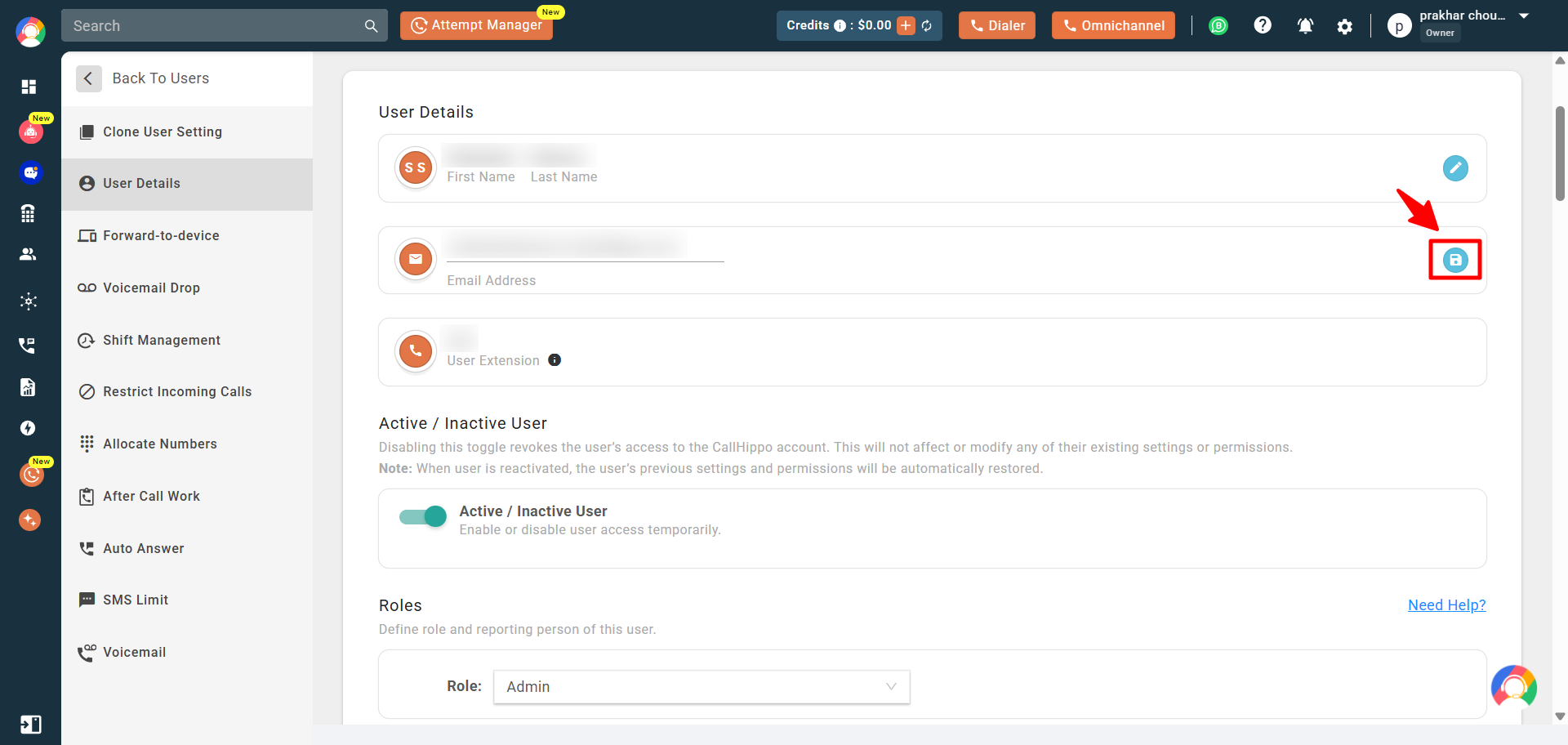
- Enter the new email address and click the blue save button.
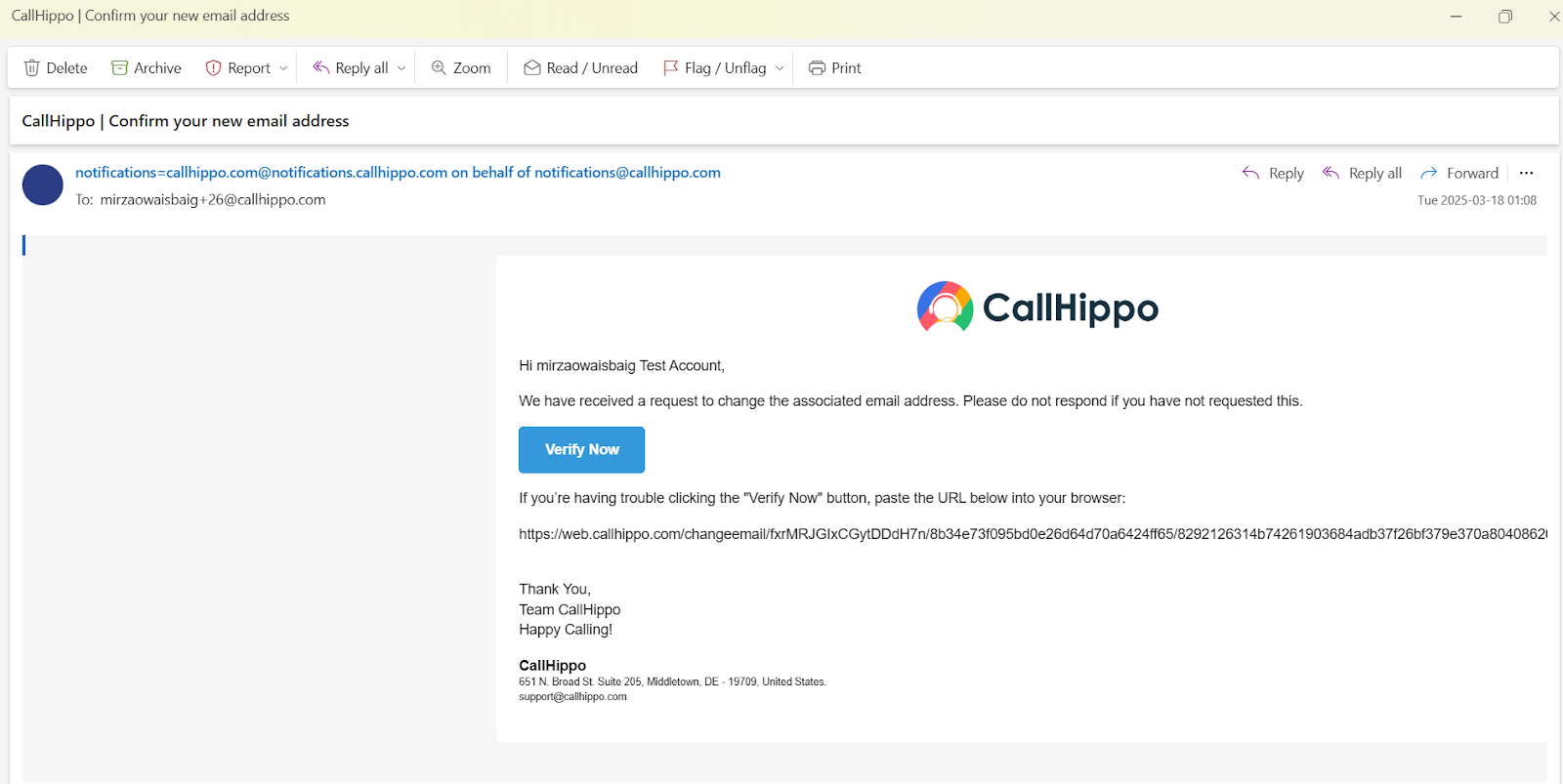
- The user will now receive an activation link at the new email address you just entered. Ask the user to click it to proceed with the activation steps.
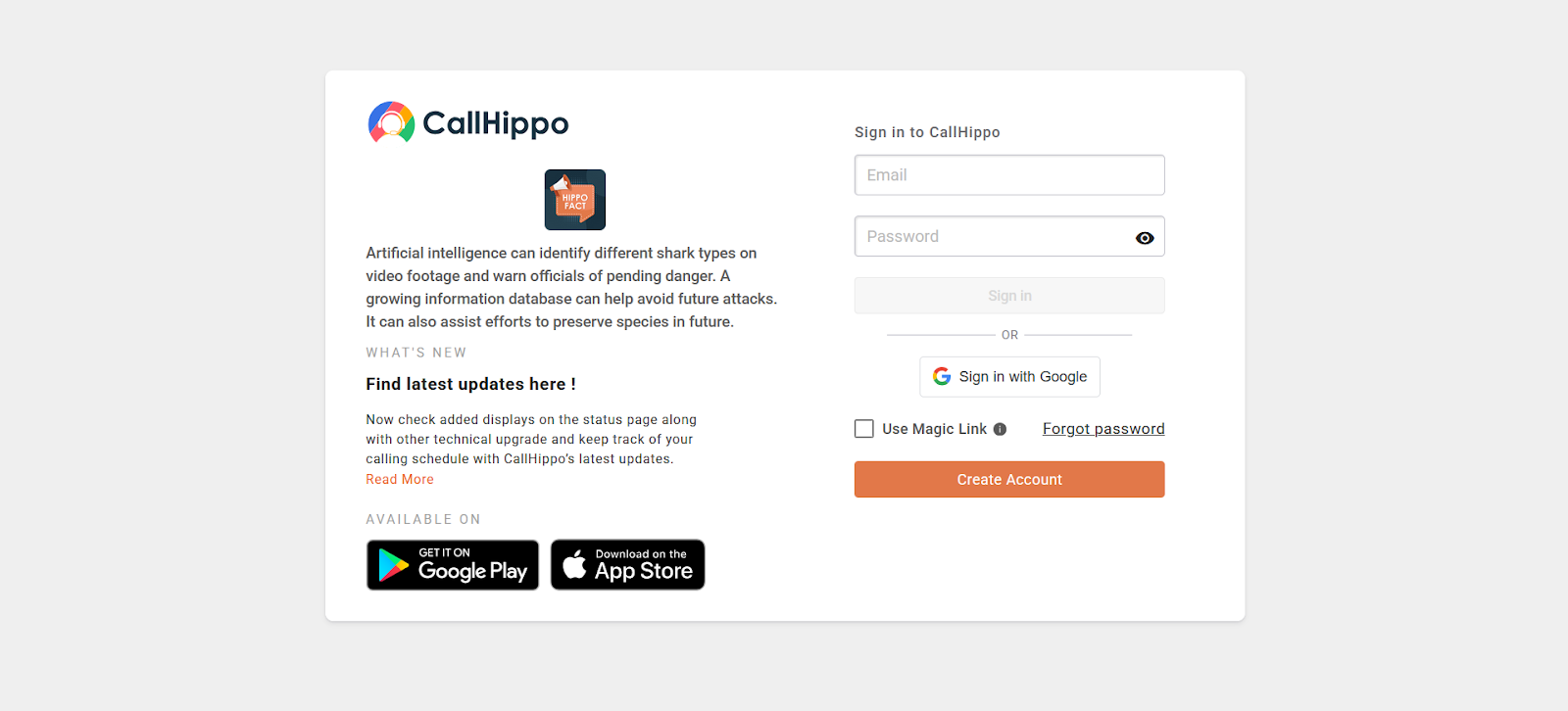
- After the change is complete, ask the user to log in to their account using the new credentials via our login page.
The registered email address of the user has now been changed.
Frequently asked questions
What should I do after updating my email address?
You need to verify the new address through the activation link sent to your inbox and then log in using the new email.
Can I change the email of the Owner account to a different domain?
It depends. If the new domain passes our system checks—such as social presence, active website, fraud score, and other credibility parameters—you’ll be able to change the Owner email directly from the dashboard. However, if the new domain does not meet these criteria, you’ll need to contact support. In that case, please share the following:
- LinkedIn profile (or equivalent social presence)
- Active website URL
- Company registration document for the new domain
- Reason for the email change
Our team will review the information and assist you further.
Will the user lose access to their account during the email update?
Yes. Once the email address is changed, the user will not be able to access the system until the new email address is verified through the activation link sent to their inbox. It is important to complete the verification promptly to restore full access.
We hope this helps. If you still have questions, feel free to reach out at [email protected].