
You can adjust the number of user seats in your CallHippo account at any time by adding or removing seats from your current plan directly in the dashboard. This guide walks you through each step.
Change the number of seats
- Log in to your CallHippo dashboard.
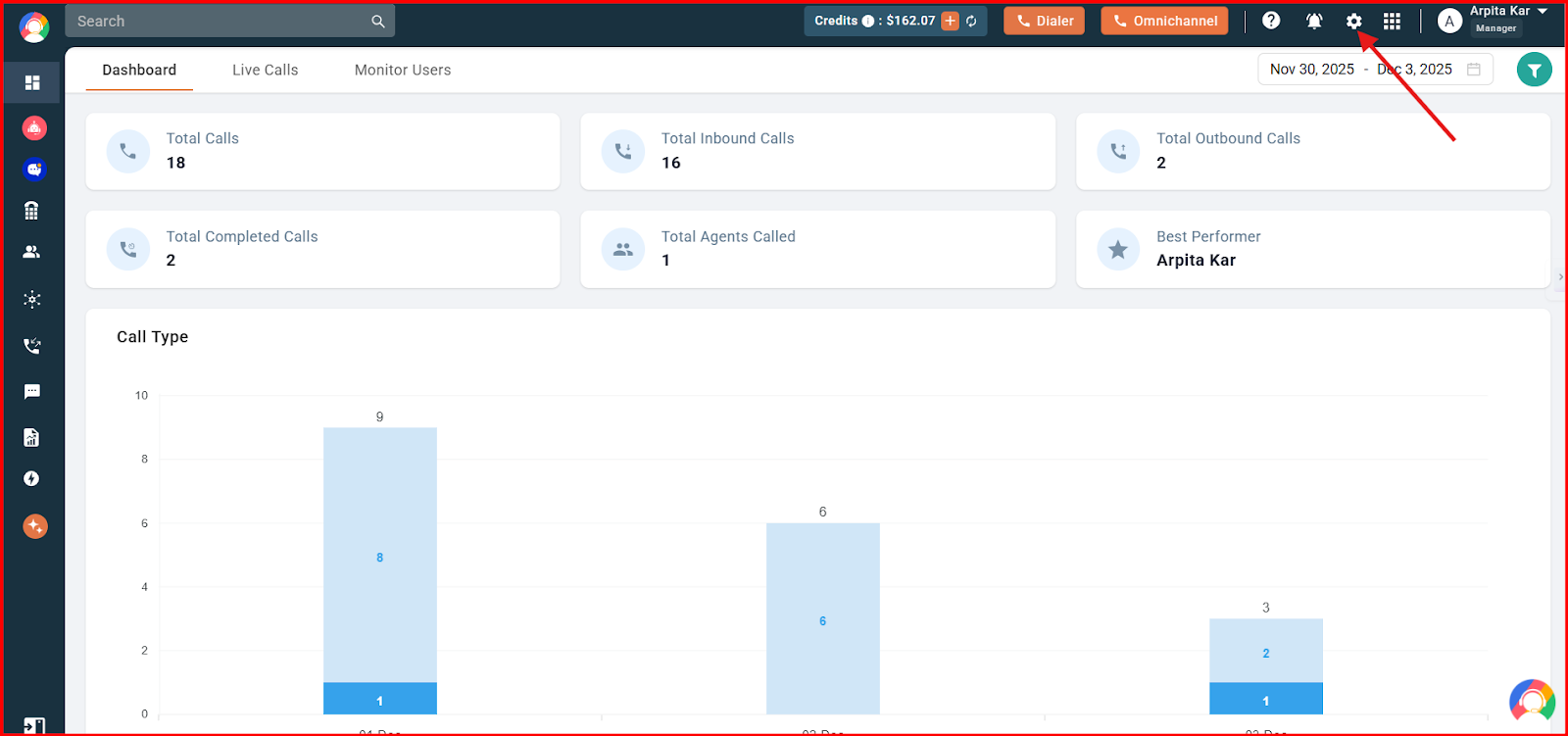
- Navigate to the settings (gear) icon in the top-right corner of the screen, then open the Plan, Billing & Credits section and select Plan.
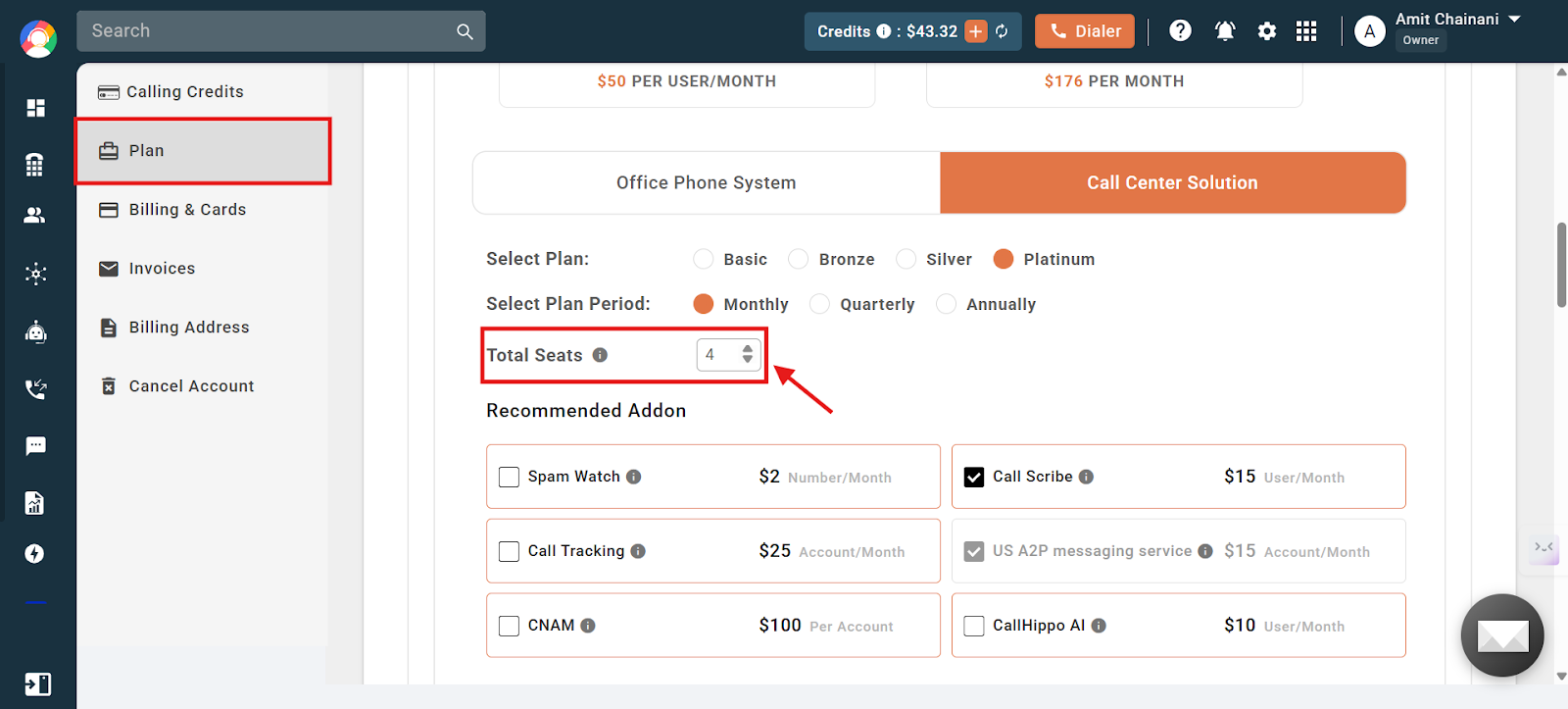
- Scroll down a little until you see the Total Seats option, as shown in the screenshot.
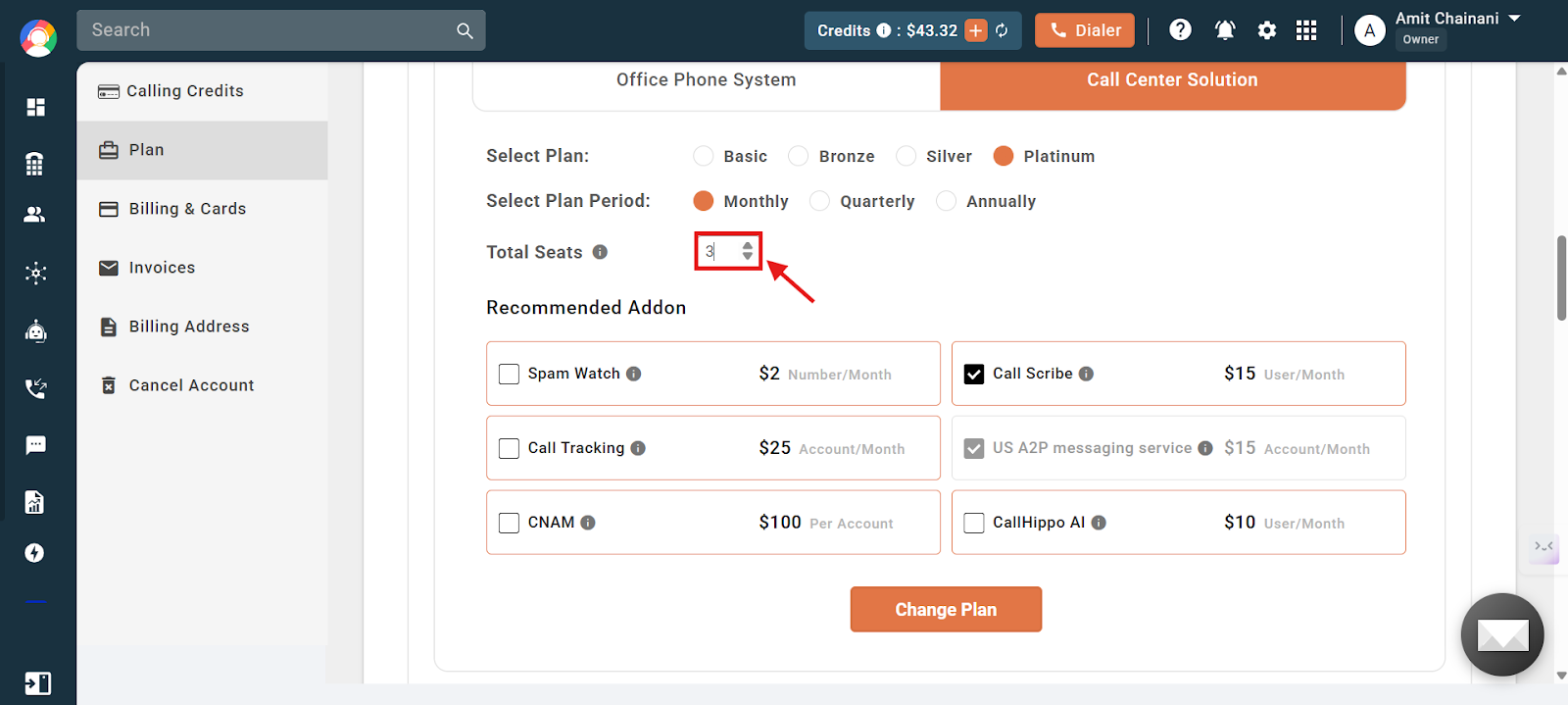
- Use the arrow keys to change the number of seats, or manually enter the number of seats you want in your account.
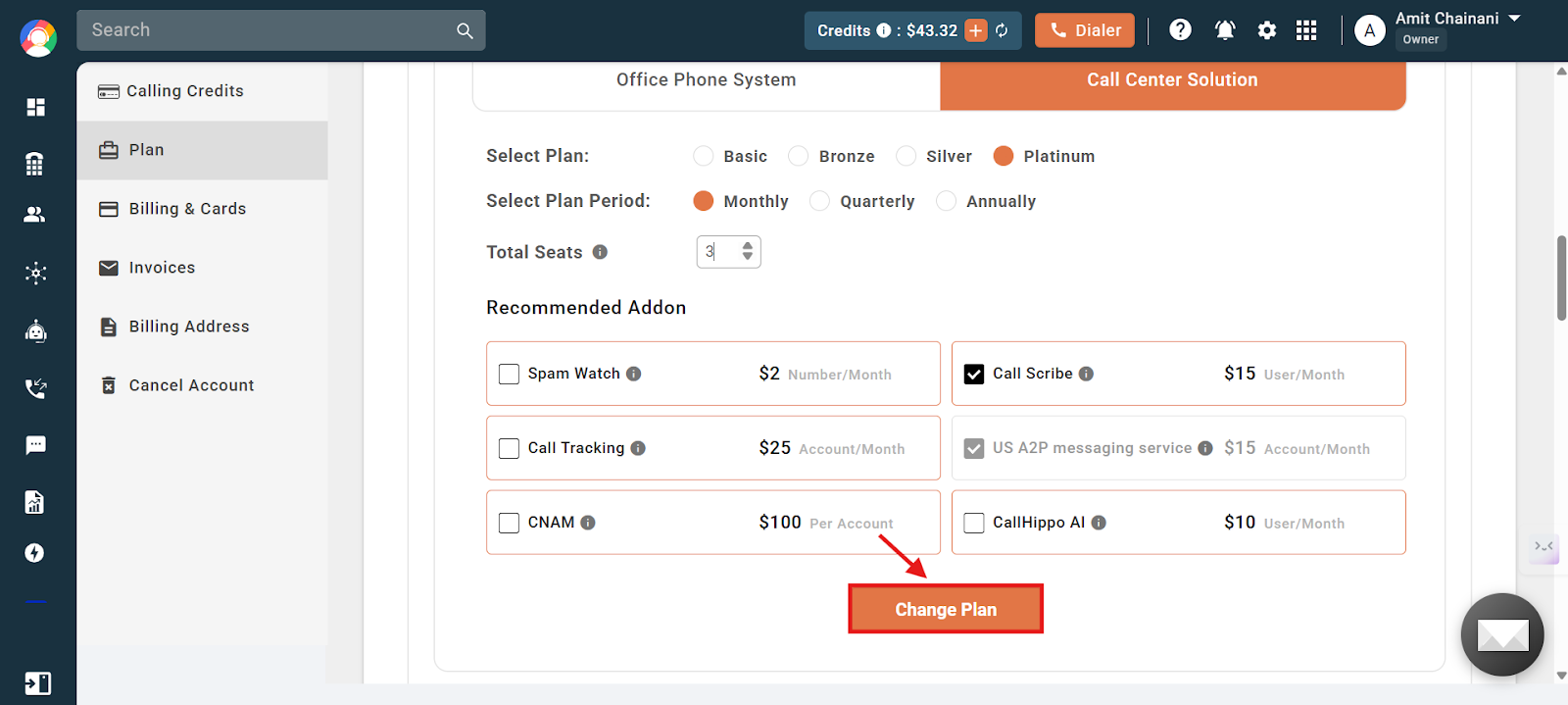
- Once the number of seats is changed from the previously set value, the Change Plan button will turn red and become available.
- Click the Change Plan button to proceed.
- A dialog box will appear showing the change in pricing. Click the Upgrade button to finalize the changes.
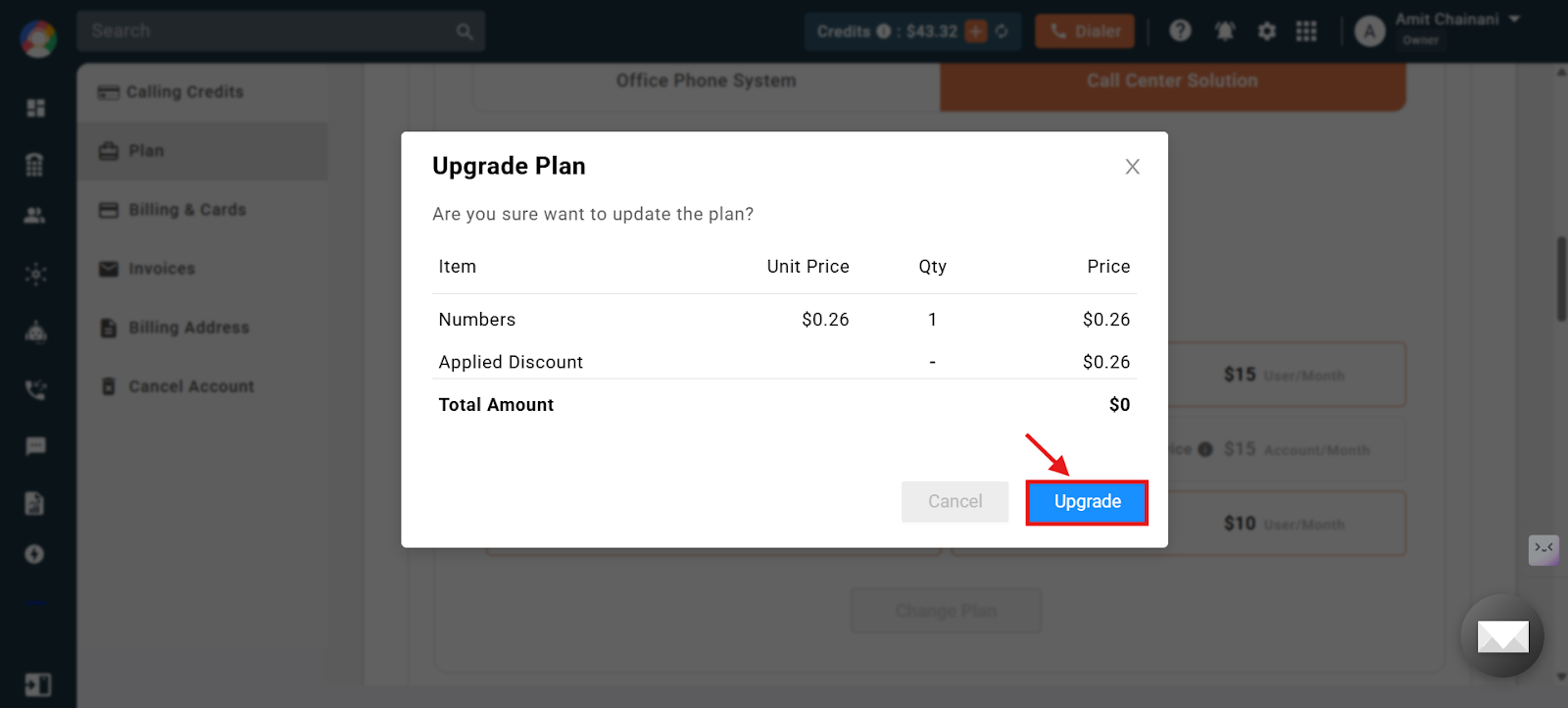
Once done, the number of seats in your account has been successfully changed.
Important notes on billing
- Any changes to billing will take effect from the next billing cycle.
- Refunds are not provided for users or seats deleted during a billing cycle.
Frequently asked questions
When will the updated seat count and billing take effect?
Any changes to the number of seats will take effect from your next billing cycle. Pricing will be adjusted in the upcoming invoice accordingly.
What happens if I reduce the number of seats in the middle of my billing cycle?
The changes will apply starting from your next billing cycle. No refunds are issued for seats removed during an ongoing billing cycle.
Why is the “Change Plan” button not clickable after updating the number of seats?
The Change Plan button only becomes active when the seat number is changed from its current value. Ensure you have modified the number before proceeding.
Do I need to contact support to change my seat count?
No, you can update the seat count directly from the dashboard. If you encounter any issues, you can reach out to [email protected] for assistance.
We hope this helps. If you still have questions, feel free to reach out at [email protected].