
CallHippo’s Click-to-Call Chrome extension lets you dial any phone number directly from your browser — without copying and pasting numbers into the dialer.
What is the Click-to-Call extension?
CallHippo’s Click-to-Call tool lets you make calls by clicking phone numbers directly on any webpage, bringing calling into your browser so you don’t have to copy and paste numbers into the dialer.
How to install it
- Log in to your CallHippo dashboard.
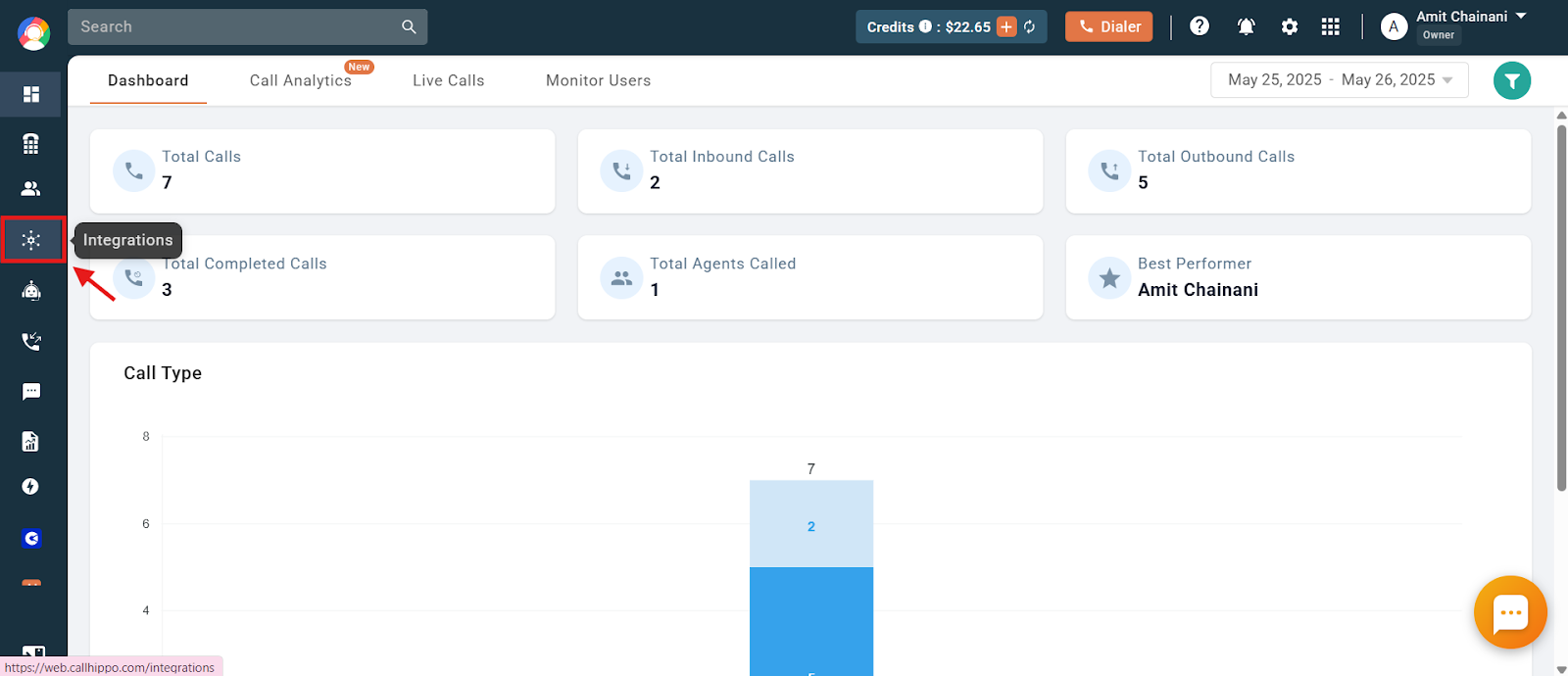
- Click on the Integrations section.
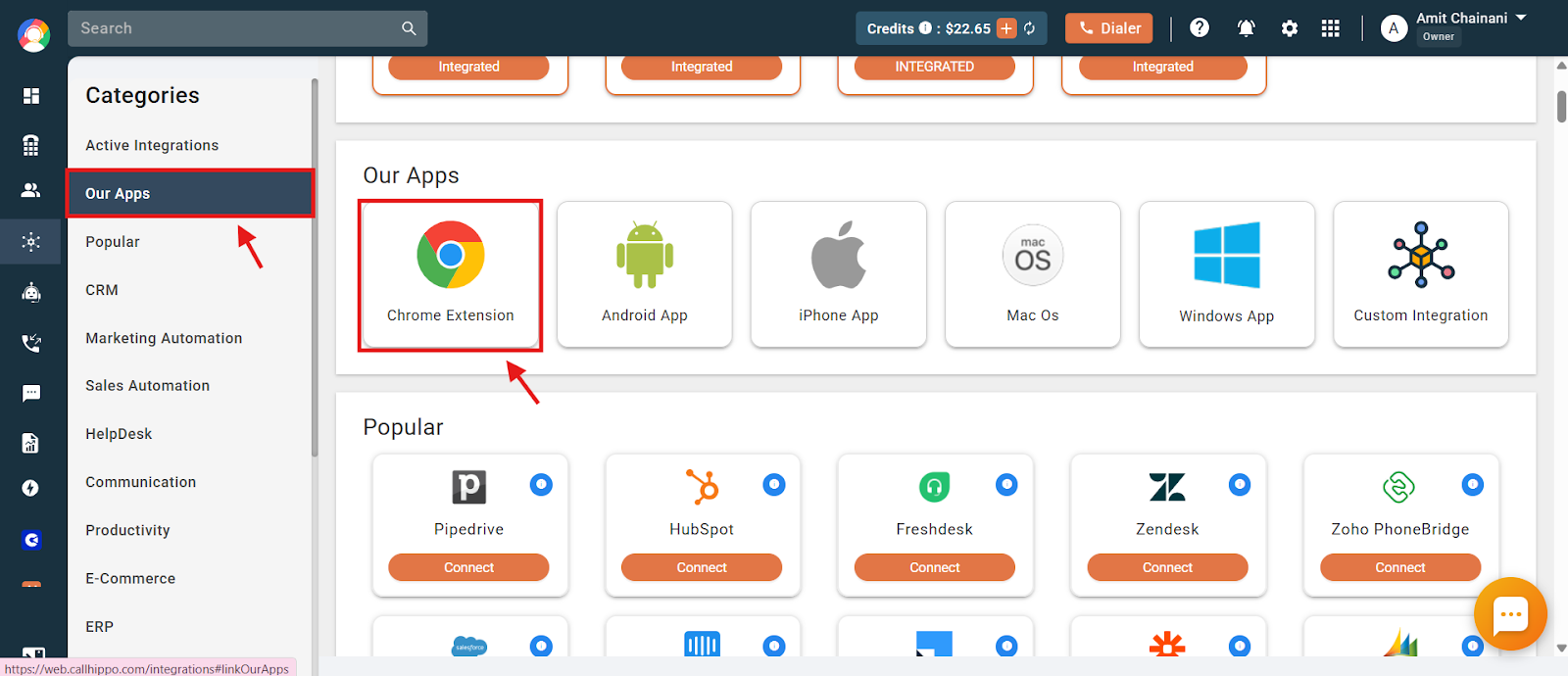
- Go to Our Apps and then click on Chrome Extension.
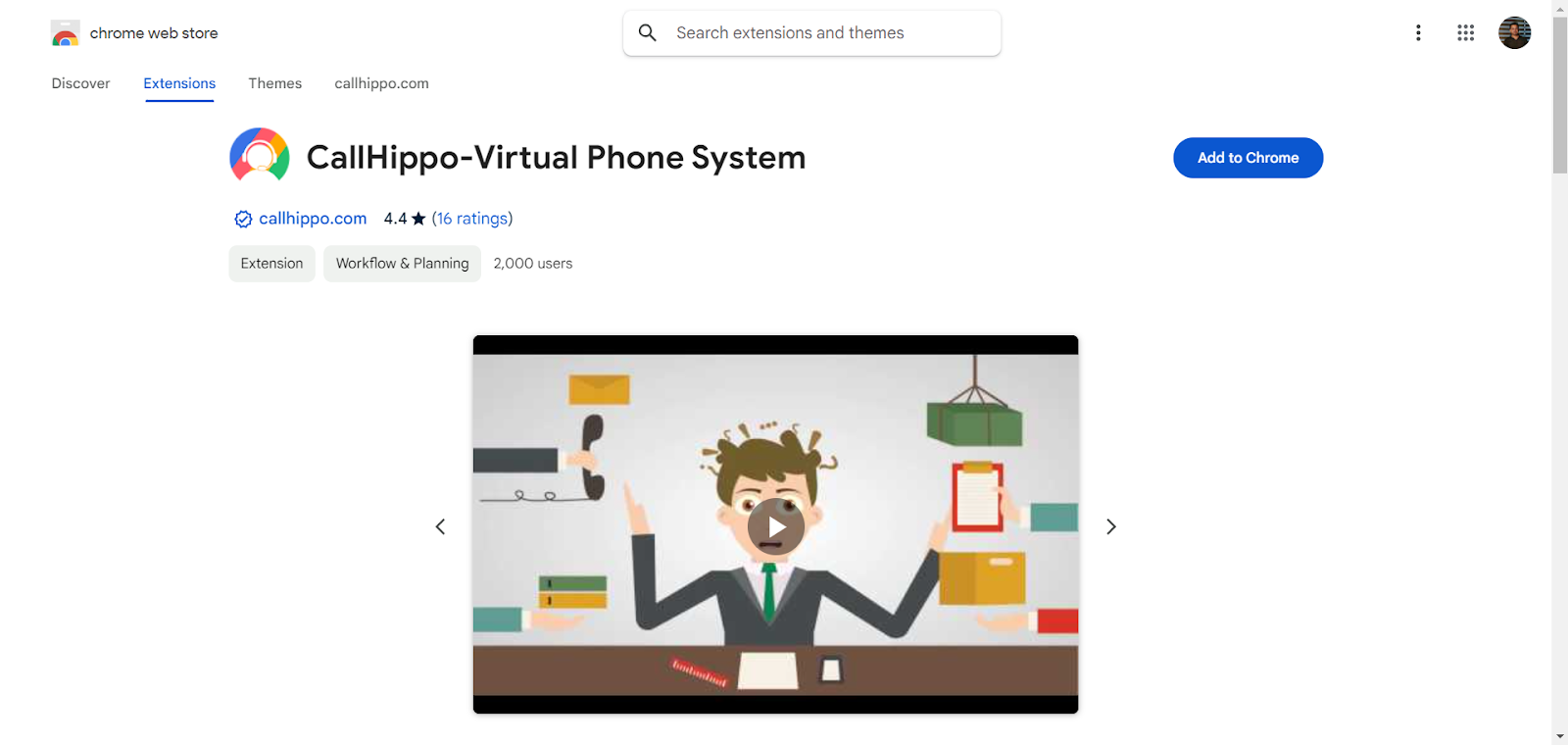
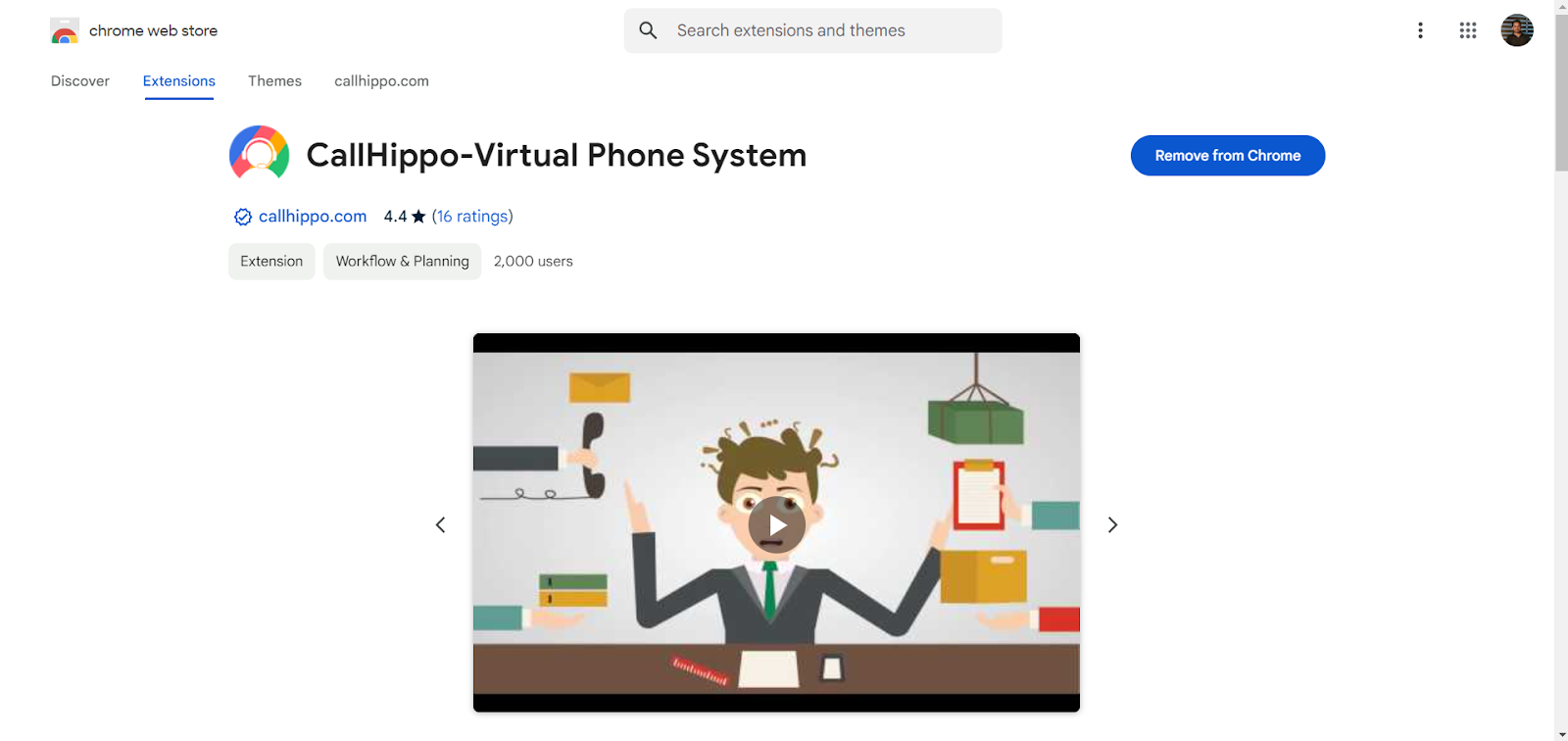
- On the Chrome Web Store page, click Add to Chrome to install the extension.
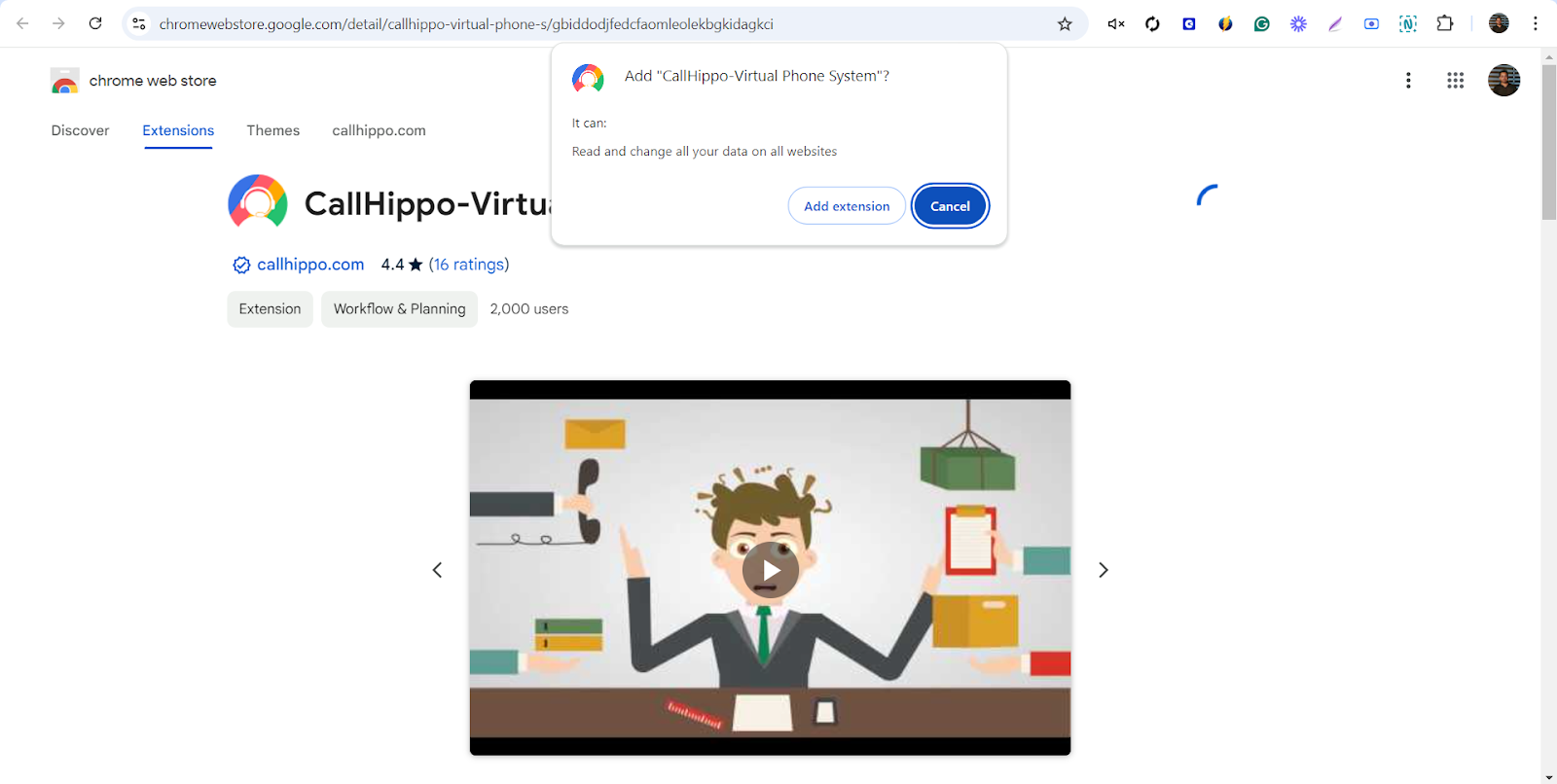
- A pop-up window will appear asking you to confirm adding the CallHippo extension. Click Add Extension to proceed.
- Your Click-to-Call extension is now installed.
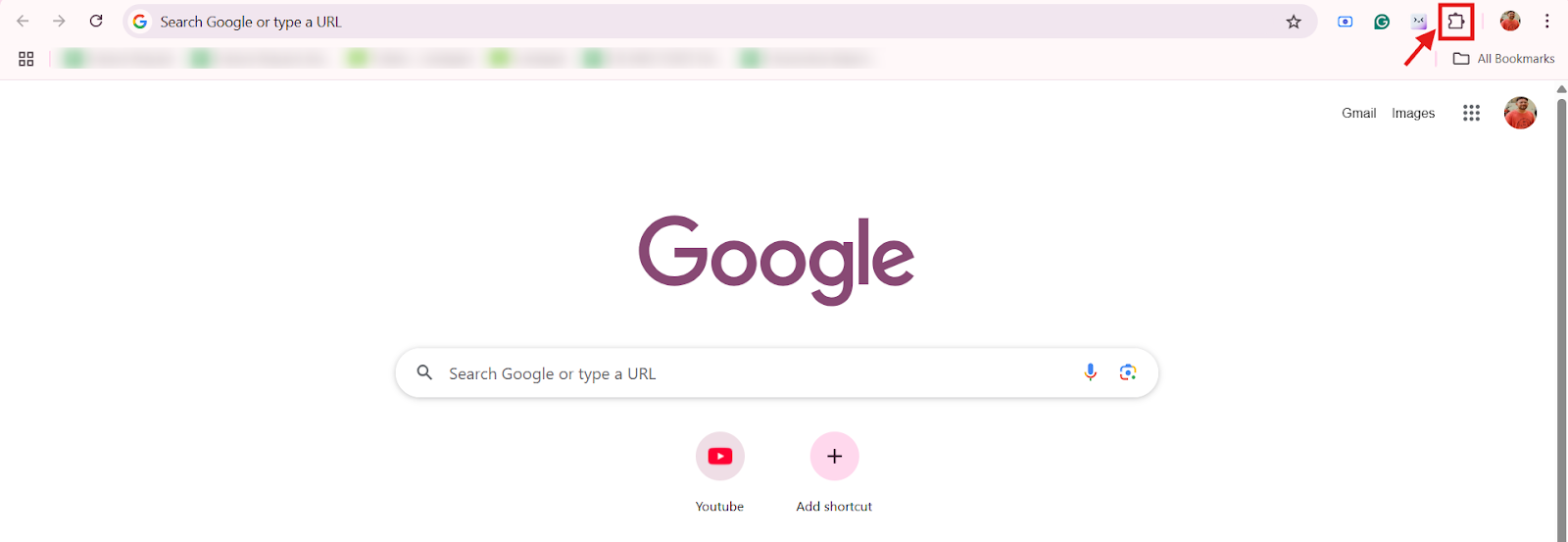
- Click on the Chrome Extensions icon.
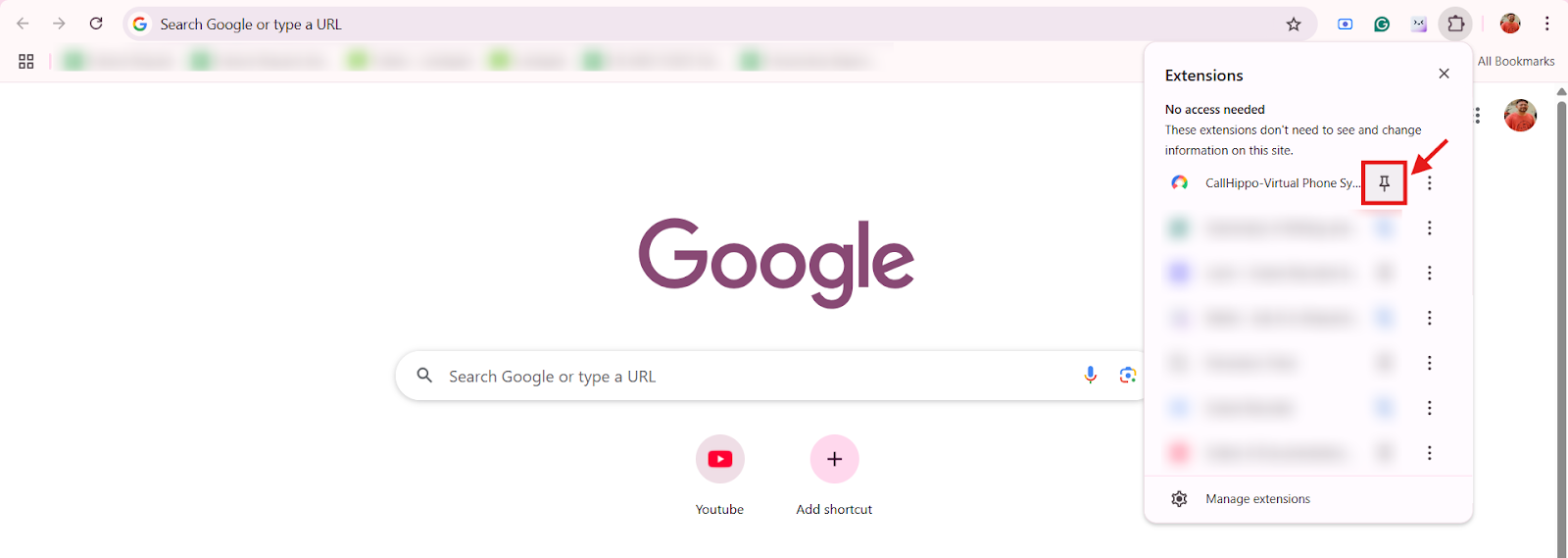
- Click the Pin icon to pin the CallHippo Click-to-Call extension in the Chrome browser.
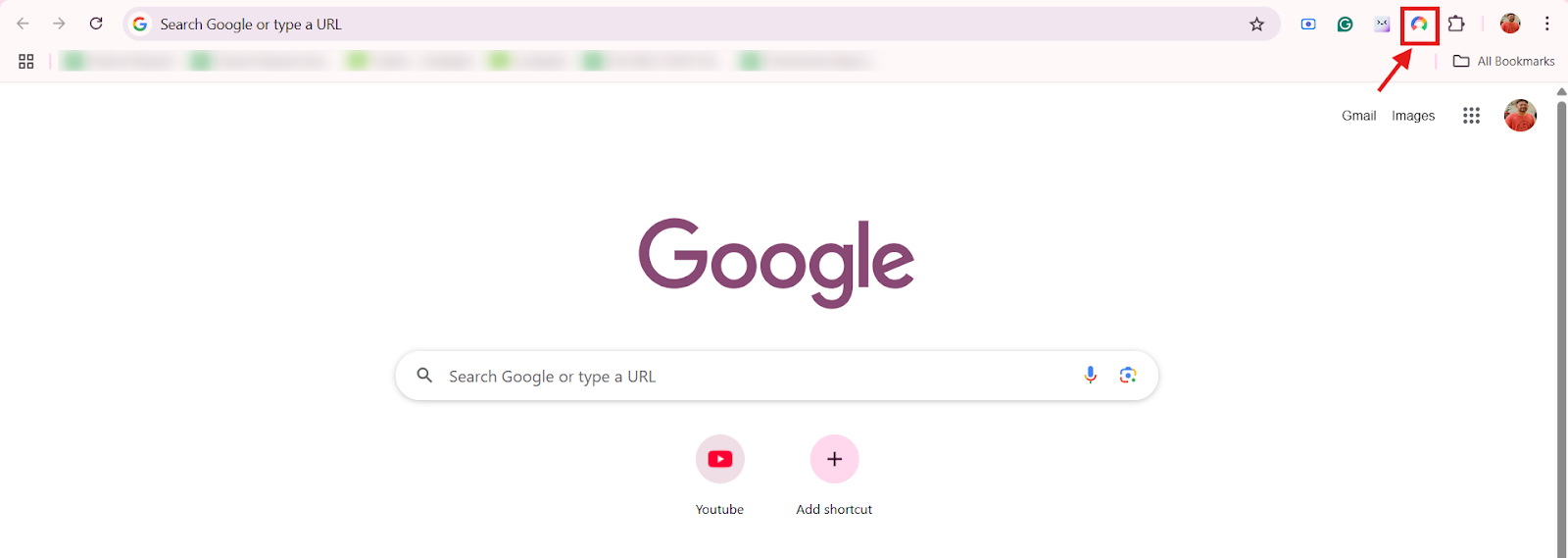
- Click on the CallHippo extension icon.
- You can select from two options:
- Desktop app: Select this only if the CallHippo desktop application is installed on your computer and you want calls to connect via the desktop application.
- Extension: In all other cases, select Extension.
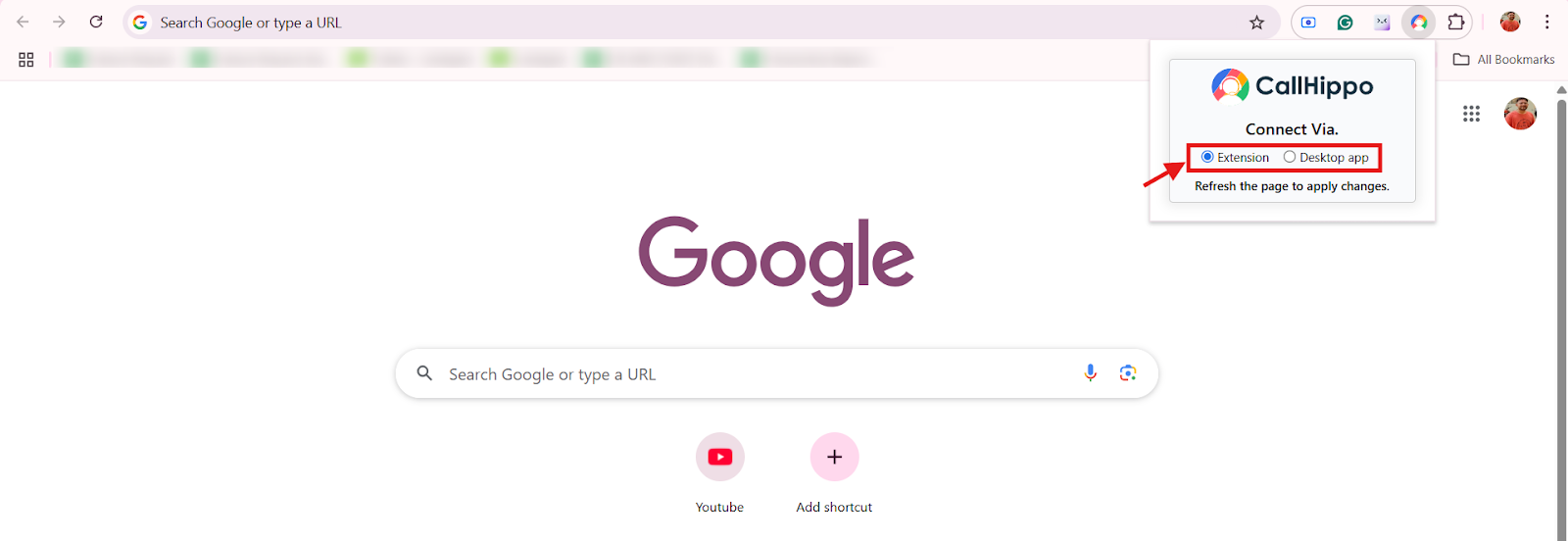
- Refresh the tab, or re-log in to your CRM, and the Click-to-Call extension will now be visible against the contact numbers.
Important: Make sure no other Chrome extensions that use calling features, voice transmission, or microphone access are installed, to avoid interference.
- Open any website or tool on which the Click-to-Call functionality will work.
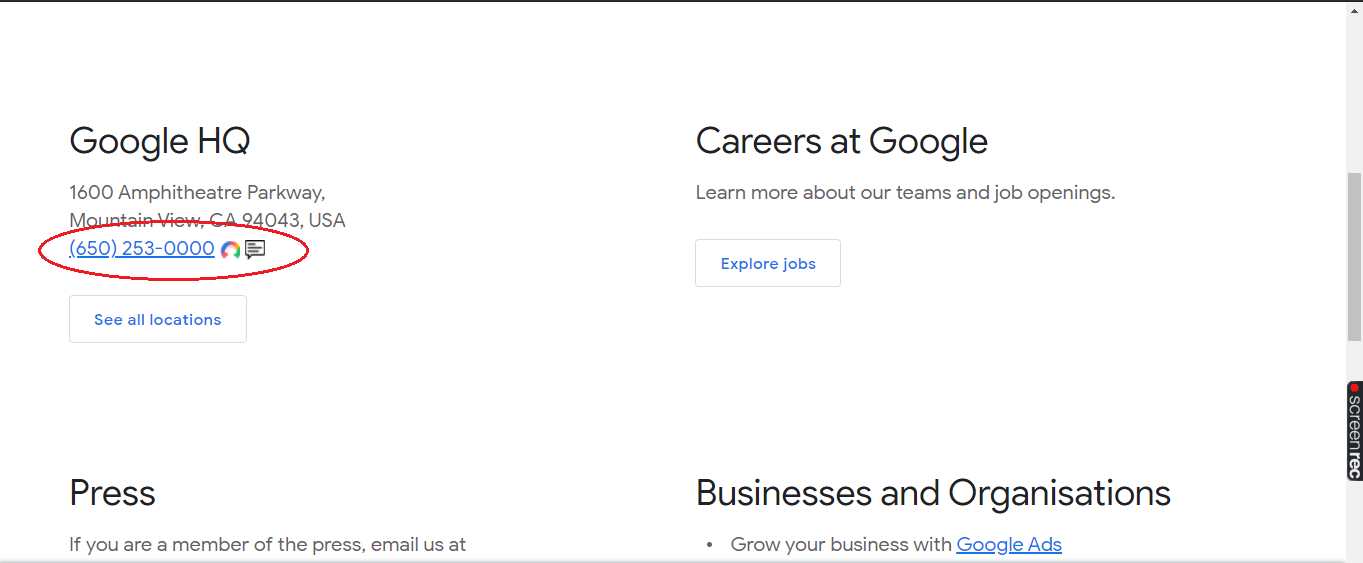
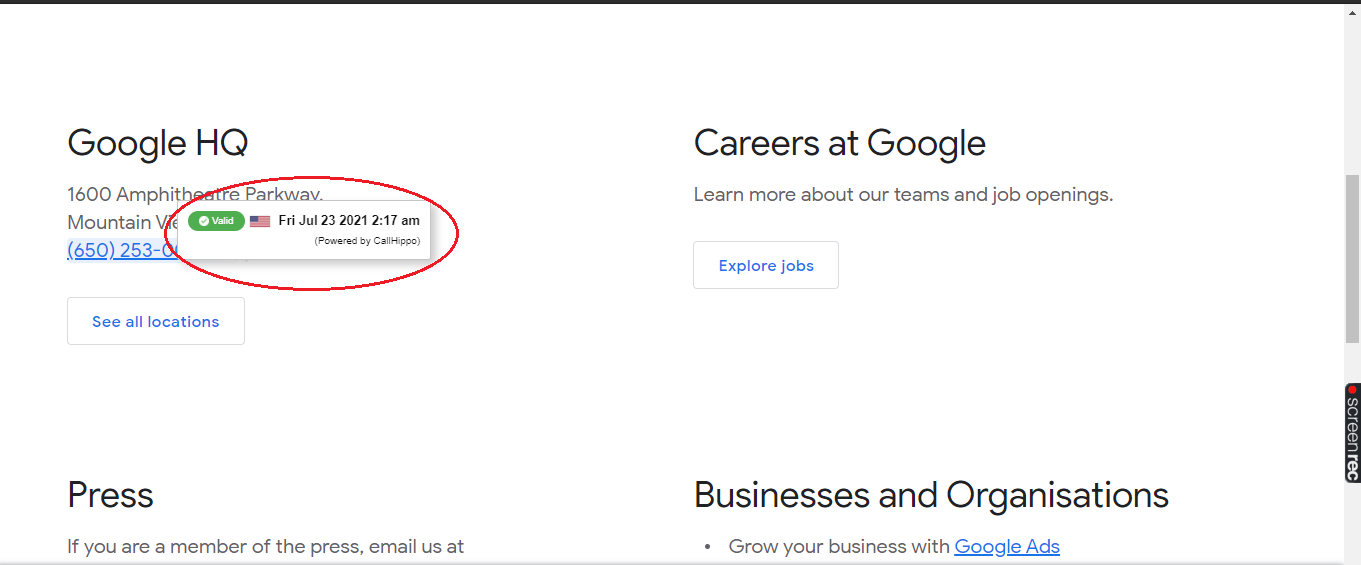
- Hover the cursor over a number, and it will check whether the number is valid.
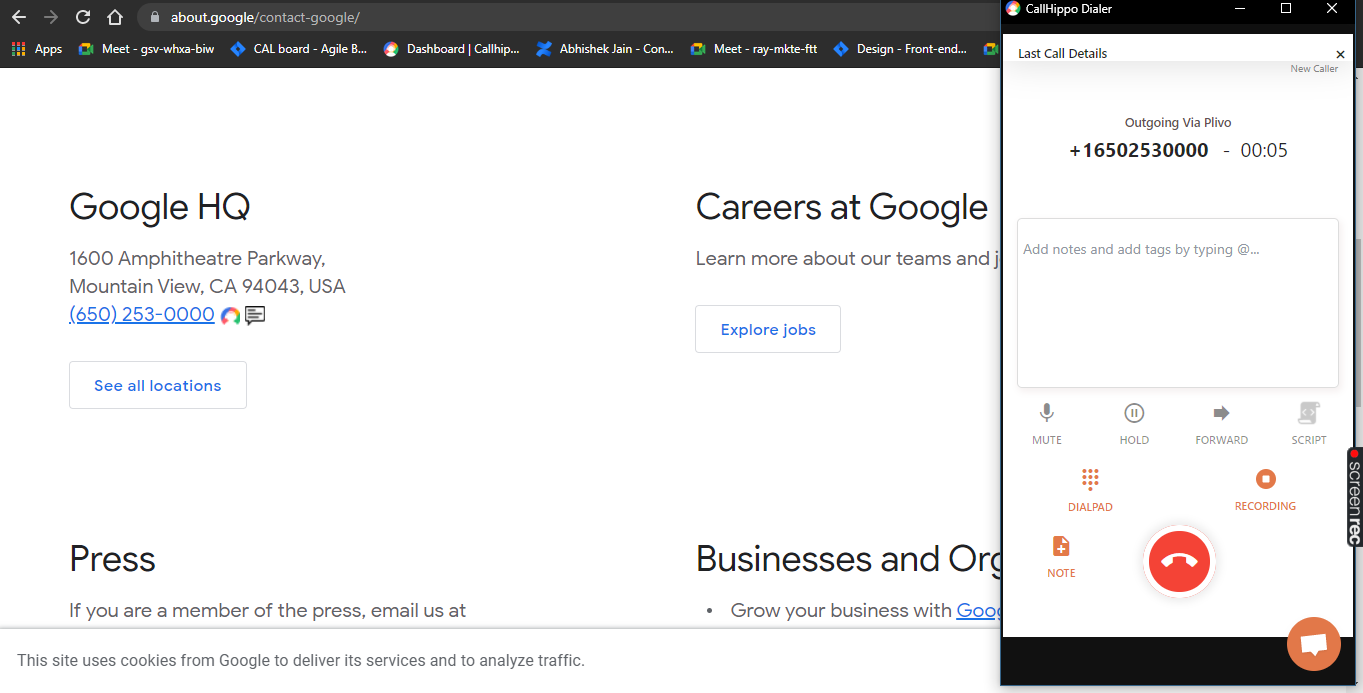
- Then click on that number, and the call will go through.
Frequently asked questions
Q: How do I install the Click-to-Call extension?
Log in to your CallHippo dashboard, navigate to Integrations > Our Apps > Chrome Extension, and complete the installation steps.
Q: Do I need to install any other CallHippo app to use this extension?
No, the extension operates independently, though the desktop app is optional.
Q: What’s the difference between selecting ‘Desktop app’ and ‘Extension’ when setting it up?
Choose ‘Desktop app’ if you have the CallHippo desktop app installed and want to route calls through it. Otherwise, select ‘Extension’.
Q: I’ve installed the extension, but don’t see the CallHippo icon — what should I do?
Click the Chrome Extensions icon and pin the CallHippo extension for visibility.
Q: The extension is installed, but nothing happens when I click on phone numbers. What could be wrong?
Try refreshing the tab or logging out and back into your CRM, and verify the correct calling mode is selected.
Q: Do I have to be logged into my CallHippo account for the extension to work?
Yes, you must maintain an active CallHippo account login.
Q: Can I use the Click-to-Call extension on browsers other than Chrome?
No, this extension is specifically designed for Google Chrome.
Q: The Click-to-Call extension doesn’t work with my CRM — what can I do?
Refresh your CRM tab after setup and confirm CRM compatibility.
Q: The extension used to work, but now it has stopped responding. What should I check?
Disable any other calling or microphone-related extensions, then reinstall CallHippo’s extension.
Q: I’m using another click-to-call extension. Can I use both at the same time?
No, uninstall or disable other call-related extensions to avoid conflicts.
Q: After clicking on a number, the call isn’t connecting. What could be the issue?
Ensure a stable internet connection, the correct calling method is selected, and there are no conflicting extensions.
Q: I don’t see phone numbers turning into clickable links. Is something wrong?
Verify that the extension is active and pinned, and that you’re logged into CallHippo.
For additional assistance, contact our support team at [email protected].