
CallHippo’s Clone Settings feature lets you copy the configuration of one user or number to another in a few clicks, saving setup time and keeping your account consistent.
Cloning helps you duplicate existing settings without configuring everything from scratch. It works for both users and numbers, and the details for each are covered below.
Clone a User’s Settings
The Clone User Settings feature replicates the configuration of an existing user and applies it to another user, ensuring uniformity while cutting down on setup time.
Which user settings are cloned:
- Name of the user
- Voicemail drop settings
- Shift management
- Restrict incoming calls settings
- Number allocations
- After Call Work settings
- Auto Answer incoming calls
What is not cloned: the Forward-to-Device feature.
Steps to clone a user’s settings
- Log in to your CallHippo dashboard.
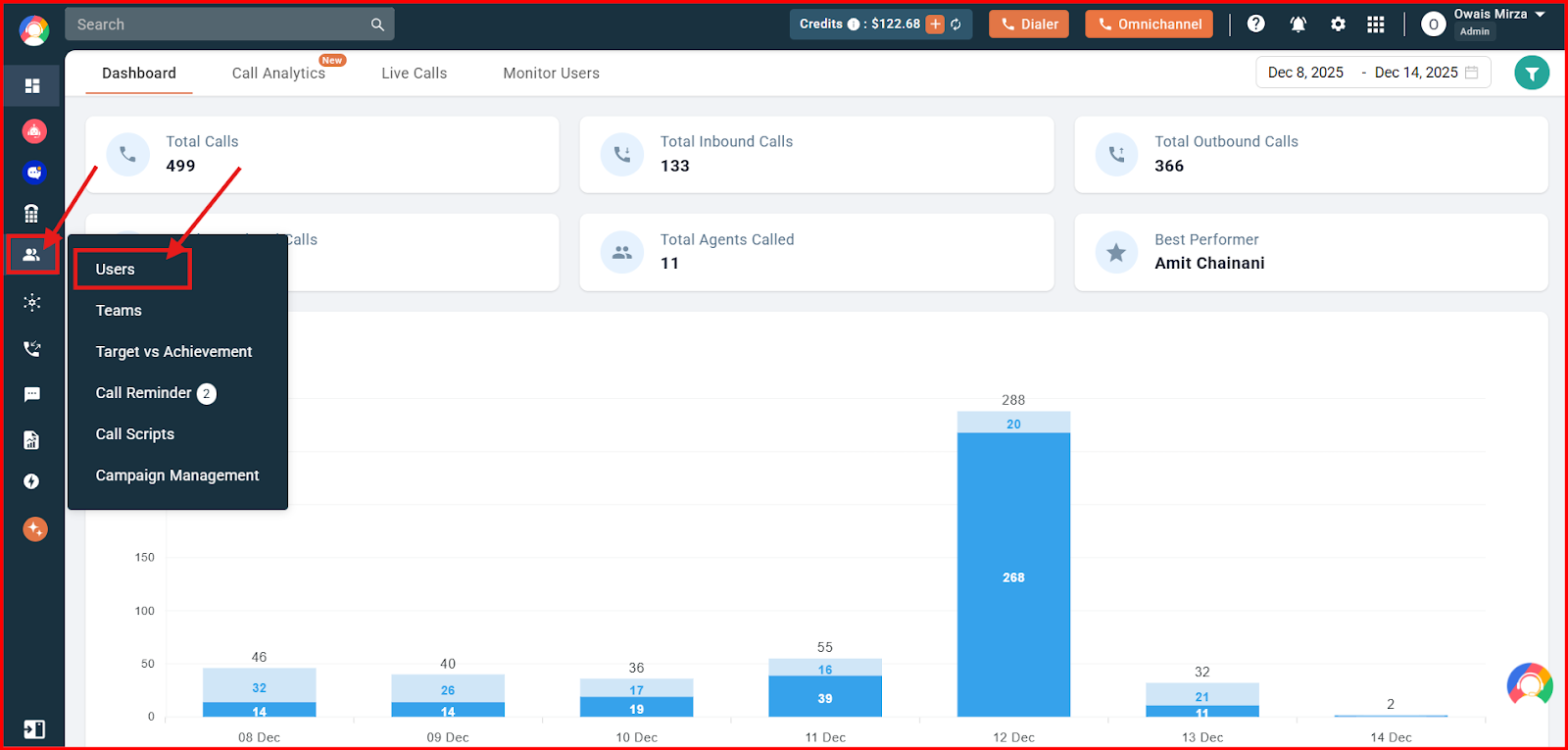
- Open Users: Go to the Users and Performance section on the left and click Users.
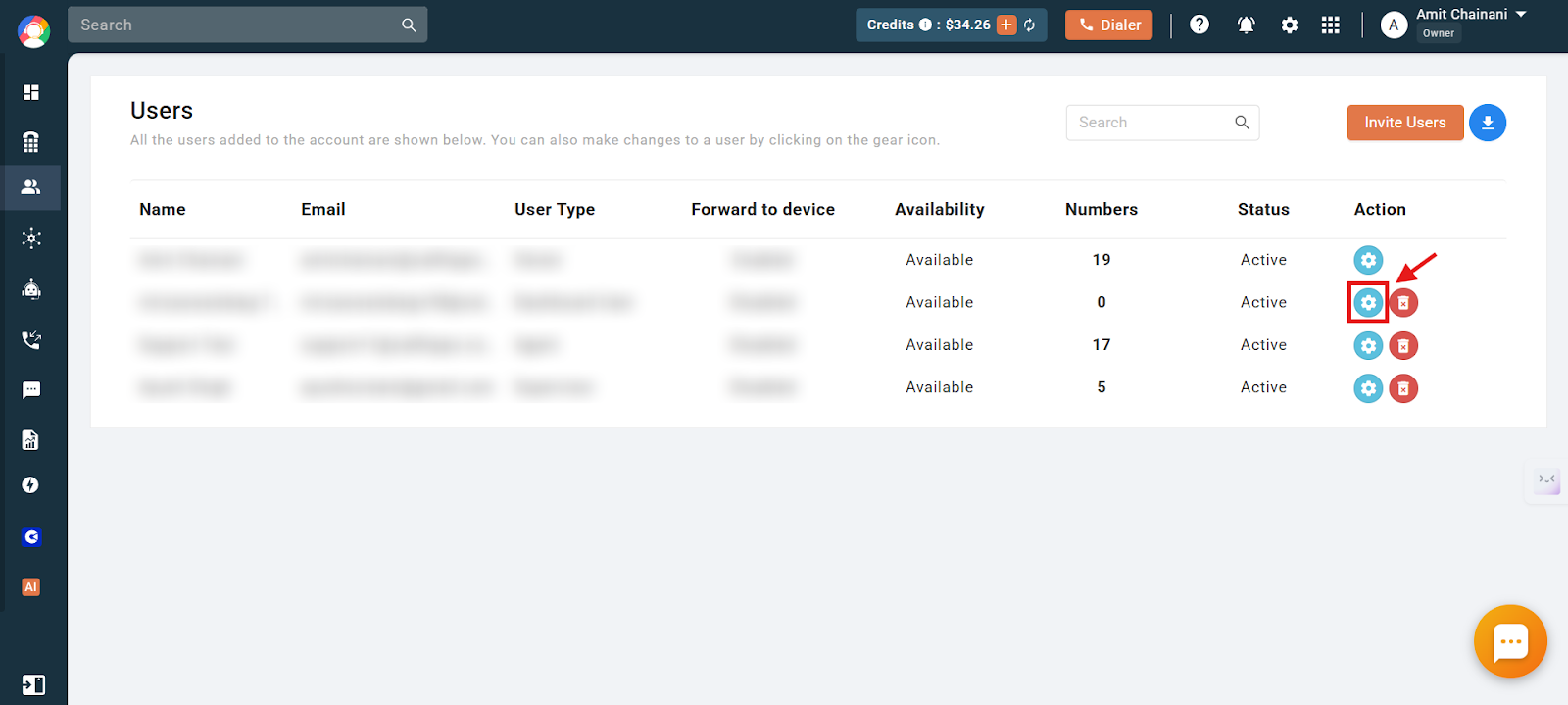
- Open user settings: Click the settings icon of the user you want to apply changes to.
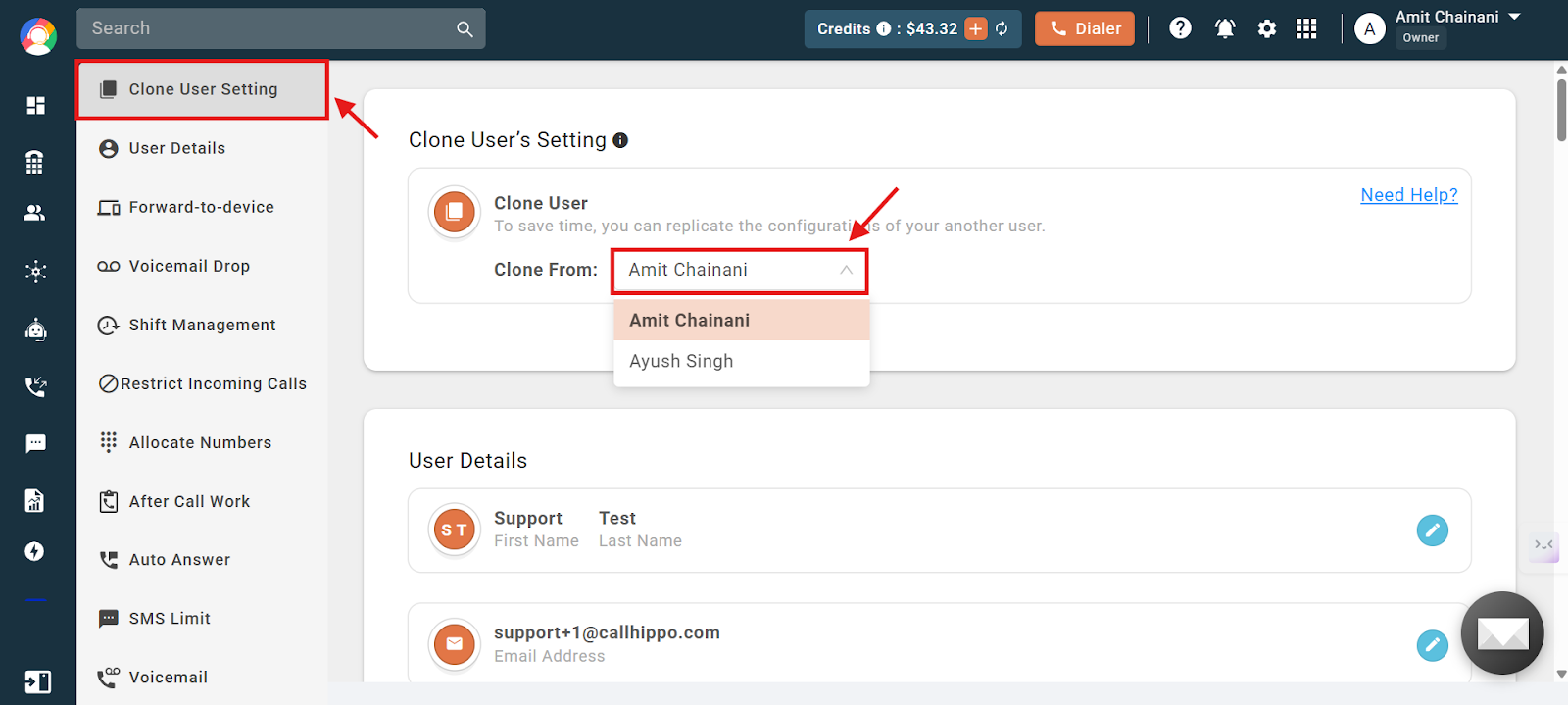
- Select the source user: Go to the Clone User’s Setting option and use the drop-down to see active users, then choose the user you want to clone settings from.
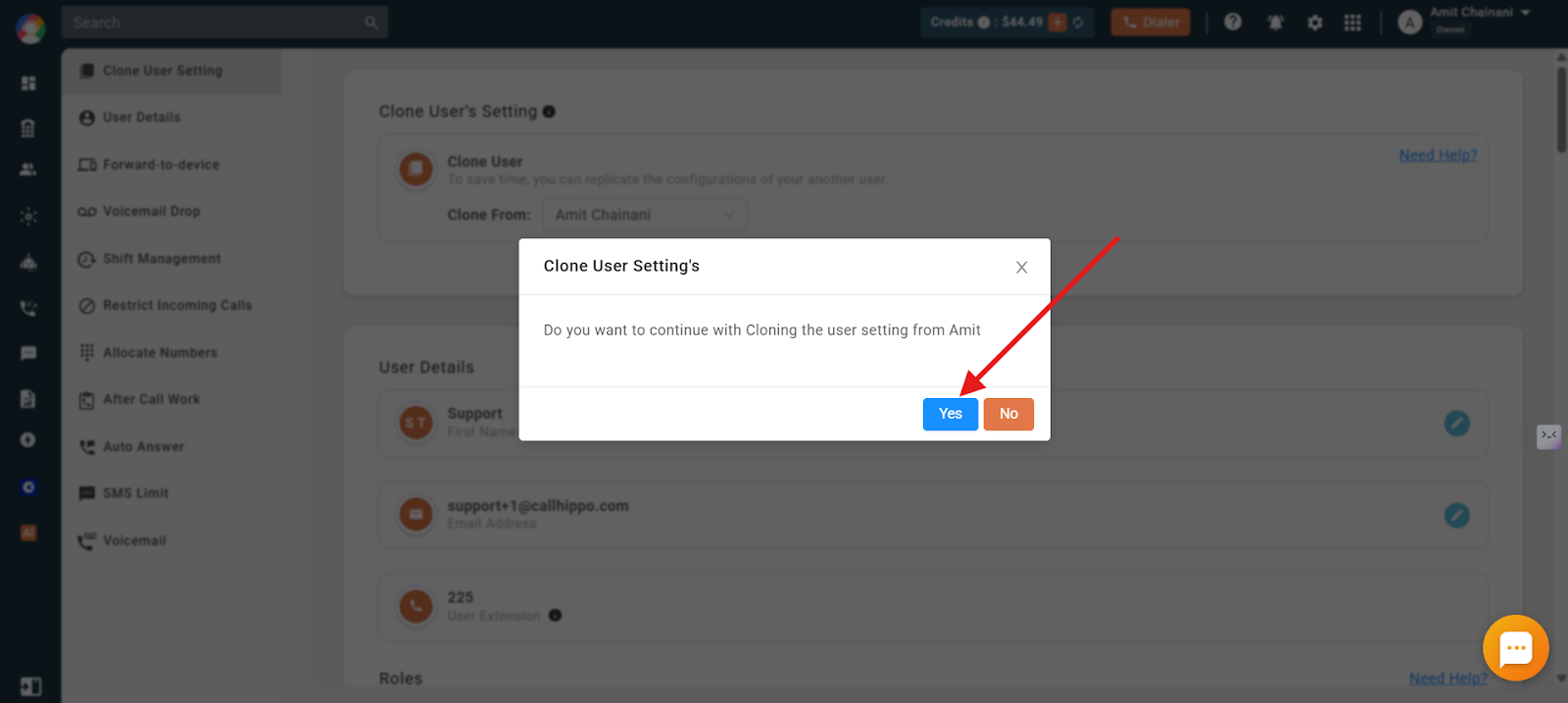
- Confirm: Click Yes to apply the changes. A confirmation message will appear once done.
Important notes:
- Forward to Device is never cloned.
- Cloning cannot be done more than once for a user.
- After cloning, changes made to the source (“From User”) do not reflect in the “To User”.
Clone a Number’s Settings
The Clone Number Settings feature replicates the configuration of an existing number and applies it to another number, keeping your numbers consistent while saving time.
Which number settings are cloned:
- Name of the number
- Call recording settings
- Allocation of the number to users
- Business hours
- Welcome message and IVR settings
- Voicemail message
- Call Queue settings
- Call Scribe settings
- Customer ringing time
- Sticky agent
- Post-call survey
- Website call button
What is not cloned: Customer Caller ID, A2P verification, and integrations.
Steps to clone a number’s settings
- Log in to your CallHippo dashboard.
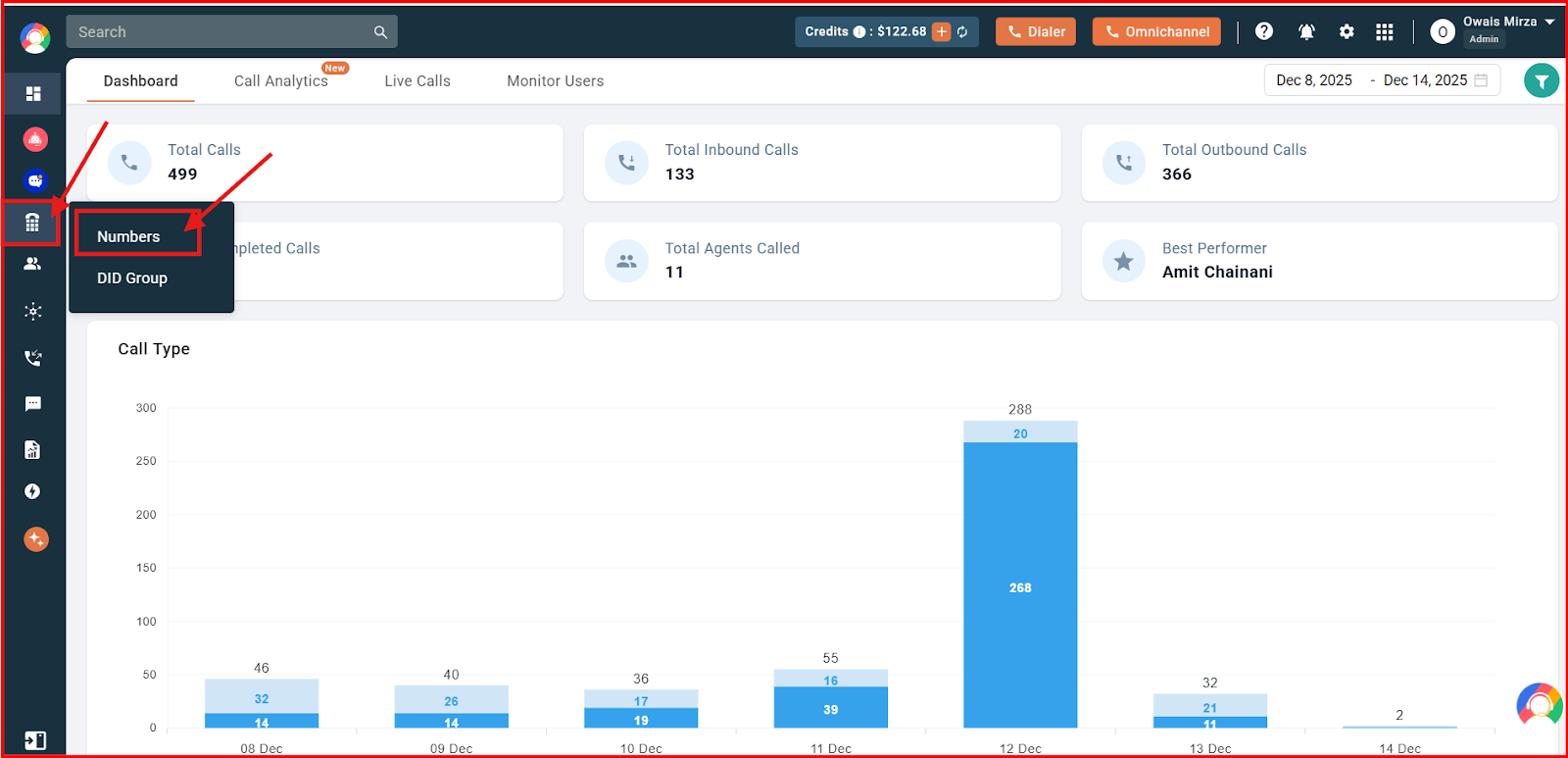
- Open Numbers: Go to the Numbers and DID section on the left and click Numbers.
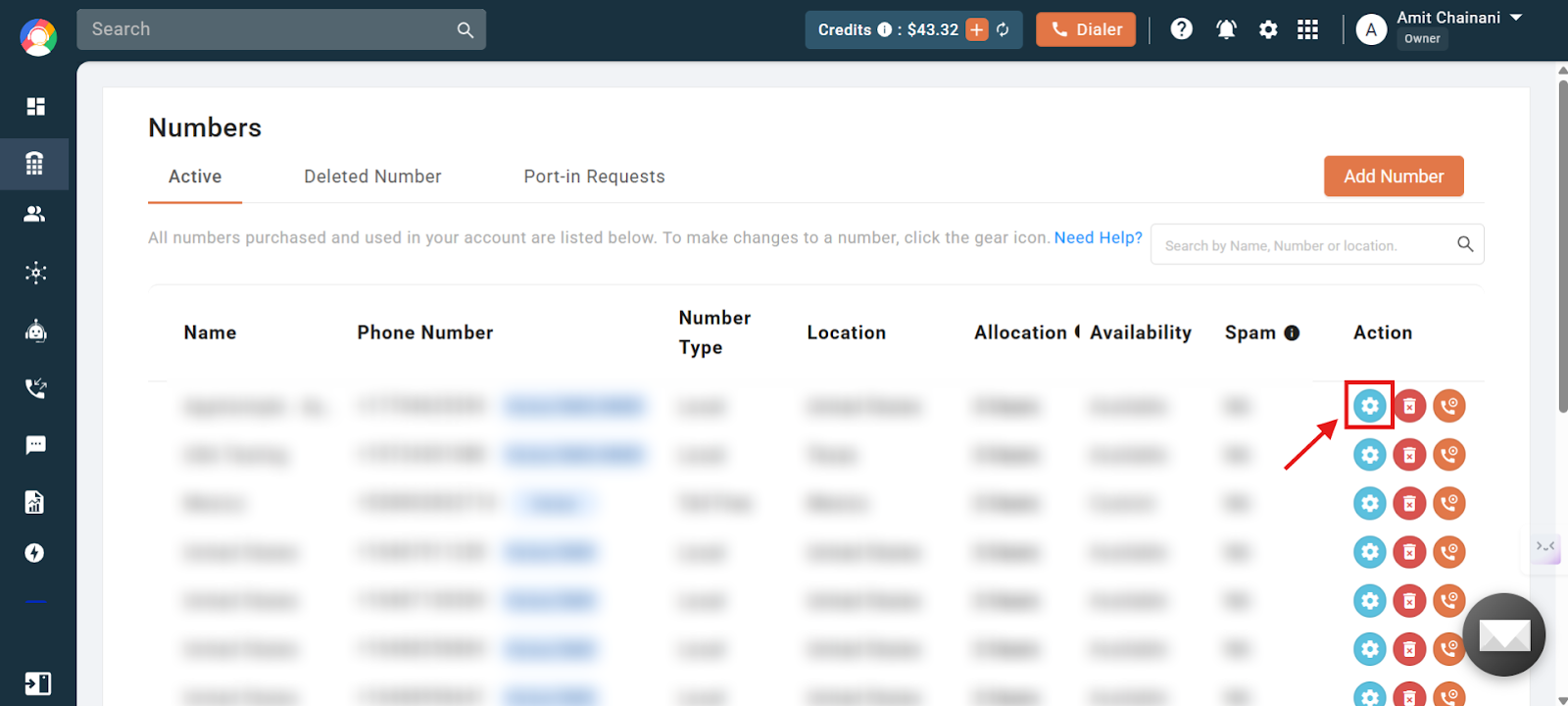
- Open number settings: Click the settings icon of the number you want to apply changes to.
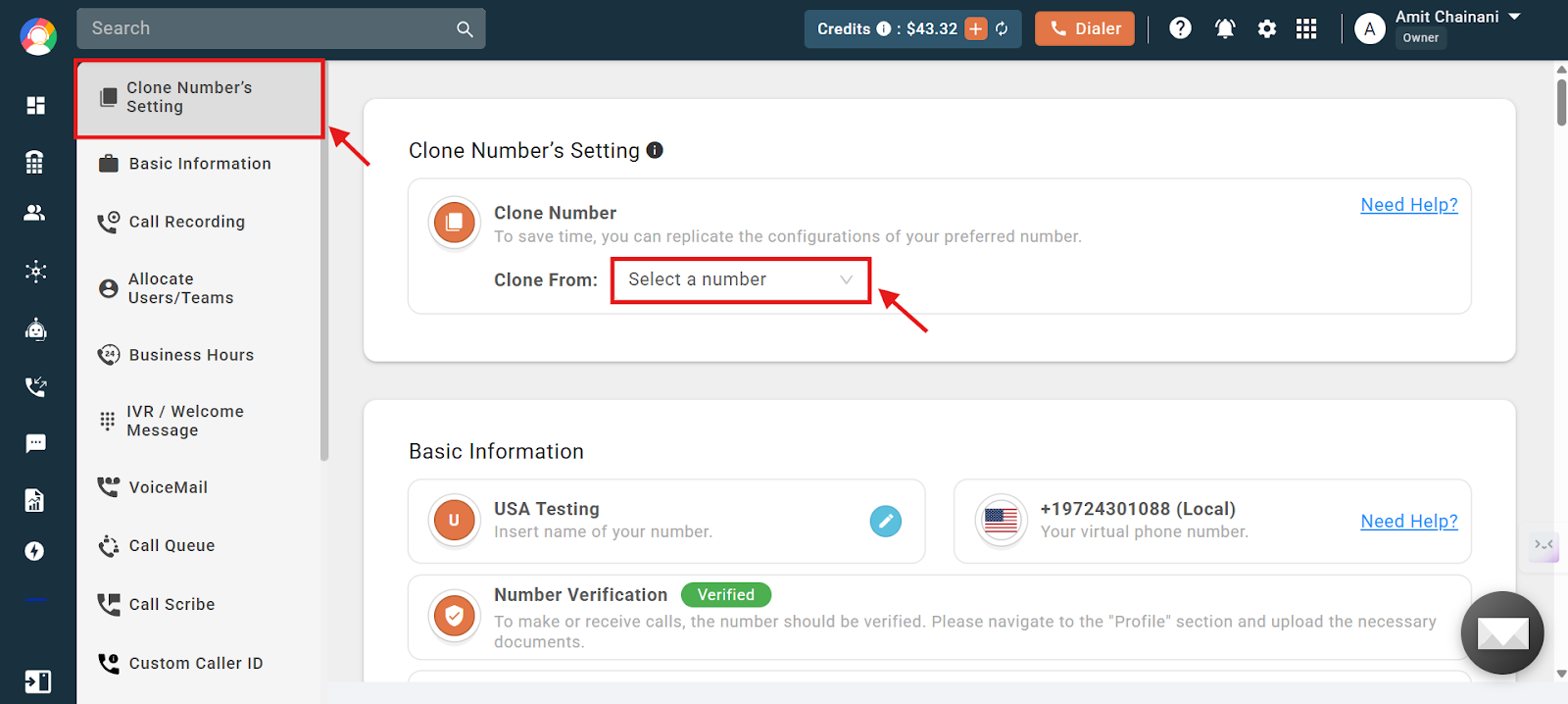
- Select the source number: Go to the Clone Number’s Setting option and use the dropdown to choose the number you want to clone settings from.
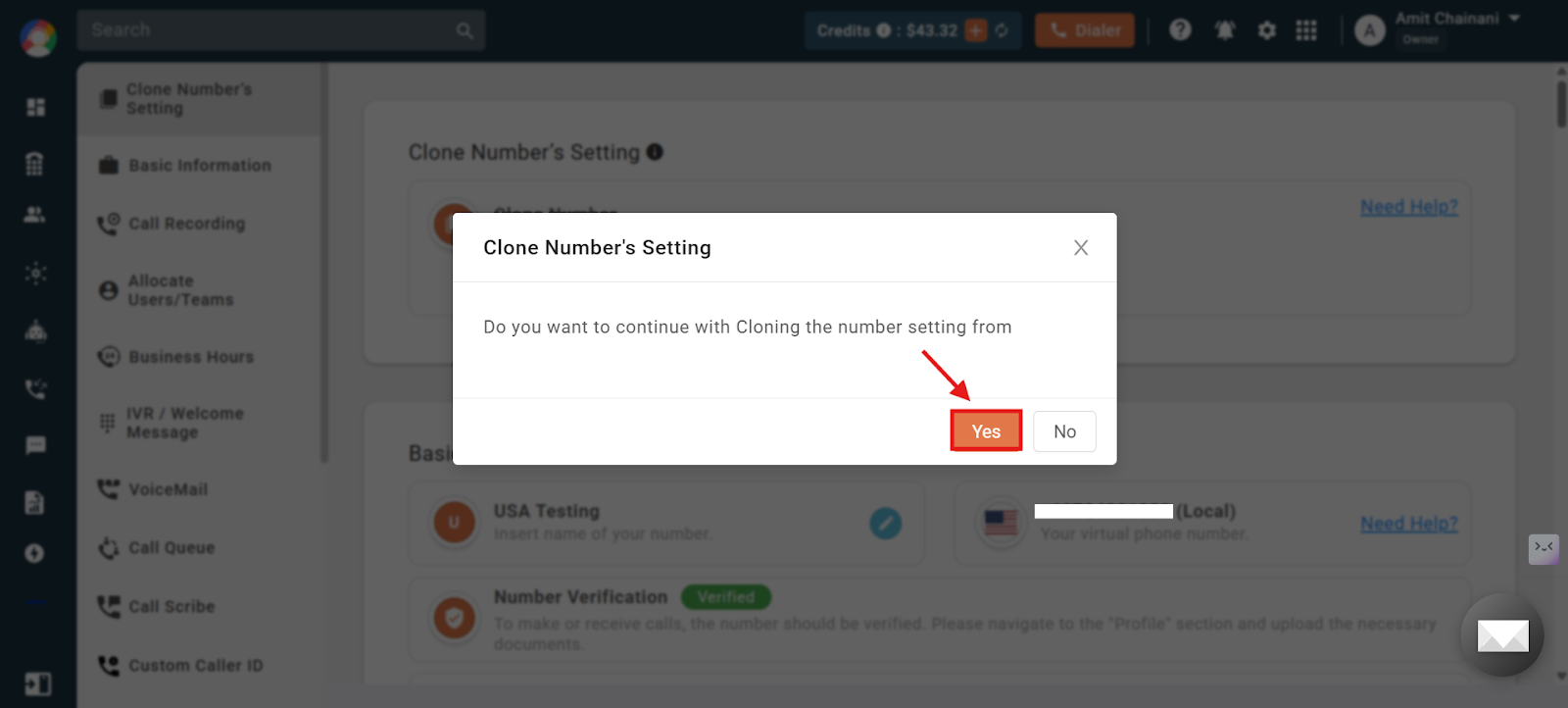
- Confirm: Click Yes to apply the changes. A confirmation message will appear once done.
Important notes:
- Cloning can be performed multiple times for the same number.
- After cloning, changes made to the “From Number” do not reflect in the cloned number.
- If a cloned number is deleted and later restored, its previous configurations are automatically reapplied.
Frequently Asked Questions
Will cloning overwrite existing settings on the new number?
Yes. Cloning applies the selected settings from the original number to the new number, replacing existing ones.
Can I undo a cloning operation?
No. Cloning actions cannot be undone directly. You will need to reconfigure the number manually if needed.
If I change the original number after cloning, will it affect the cloned number?
No. Any changes made to the “From Number” after cloning will not impact the cloned “To Number” settings.
Can I choose specific settings to clone?
No. Cloning copies all eligible settings by default, so you cannot selectively clone individual settings.
Can I clone user settings multiple times for the same user?
No. Cloning can only be performed once per user.
Which number settings are excluded from cloning?
Customer Caller ID, A2P verification, and integrations are not cloned.
Can I clone number settings multiple times?
Yes. You can clone the same number as many times as you need.
What happens if a cloned number is deleted and then restored?
The previously cloned settings are automatically reapplied when the number is restored.