
CallHippo runs on cloud telephony and WebRTC, so your browser setup has a direct impact on call quality. A few quick settings, including the right browser and the correct microphone permissions, ensure clear, reliable calling every time.
Recommended browser
CallHippo works on all modern browsers, but Google Chrome delivers the best performance and stability thanks to its strong WebRTC support. If Chrome isn’t available, Mozilla Firefox is the next best option.
Tip: Always use the latest browser version to avoid compatibility issues and maintain optimal call quality.
Check that Chrome is up to date
- Open Google Chrome.
- Click the three-dot menu in the top-right corner.
- Go to Help → About Google Chrome.
- Chrome checks for updates automatically and asks you to relaunch if an update is available.
Allow microphone and sound access in Chrome
To make or receive calls on the CallHippo web dialer, Chrome must have permission to use your microphone and audio devices. If these permissions are blocked, calling will not work.
- Open Google Chrome and go to the CallHippo web app.
- Whenever you open a new tab of the CallHippo dialer, click Allow on the microphone prompt.
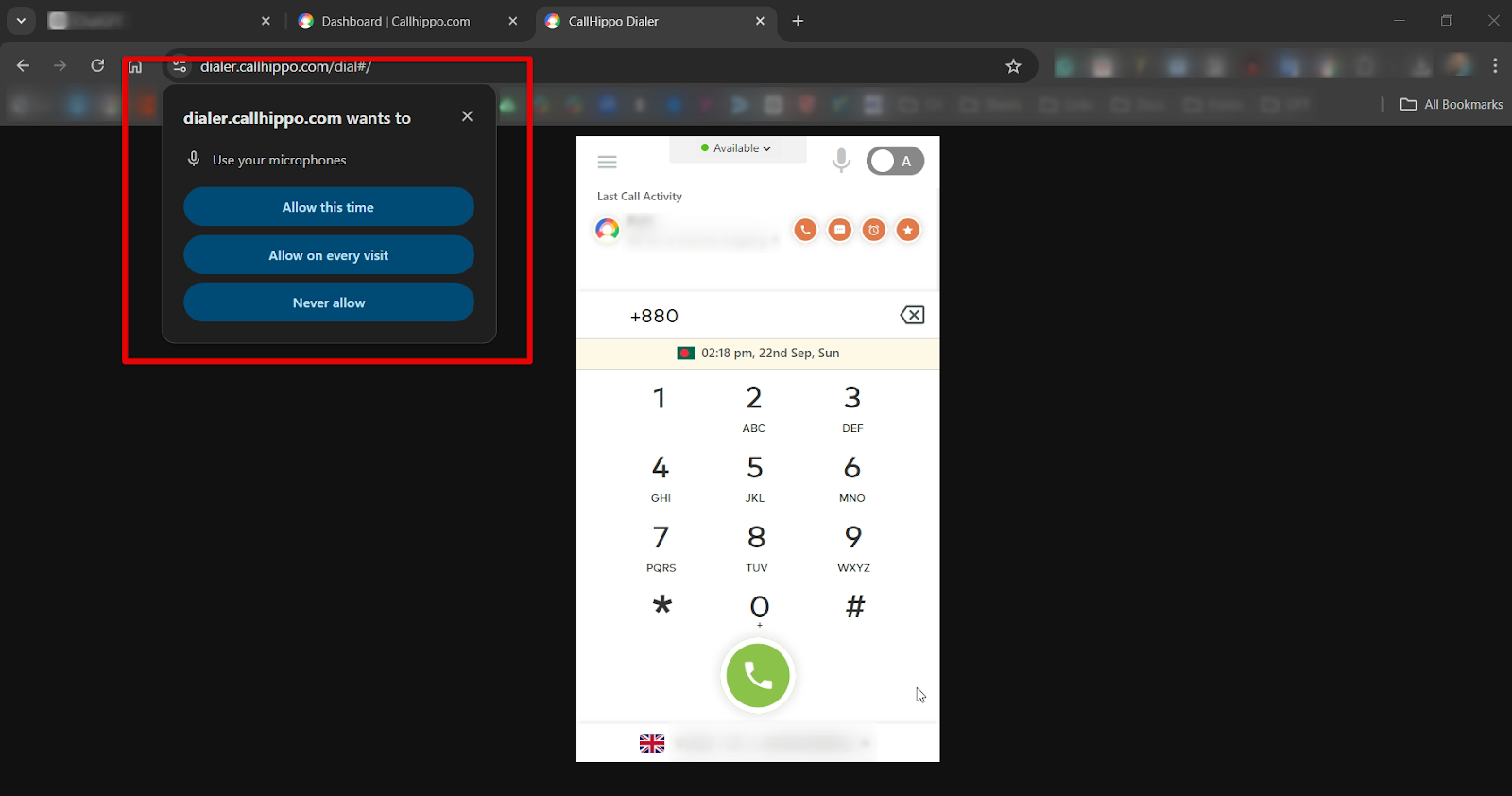
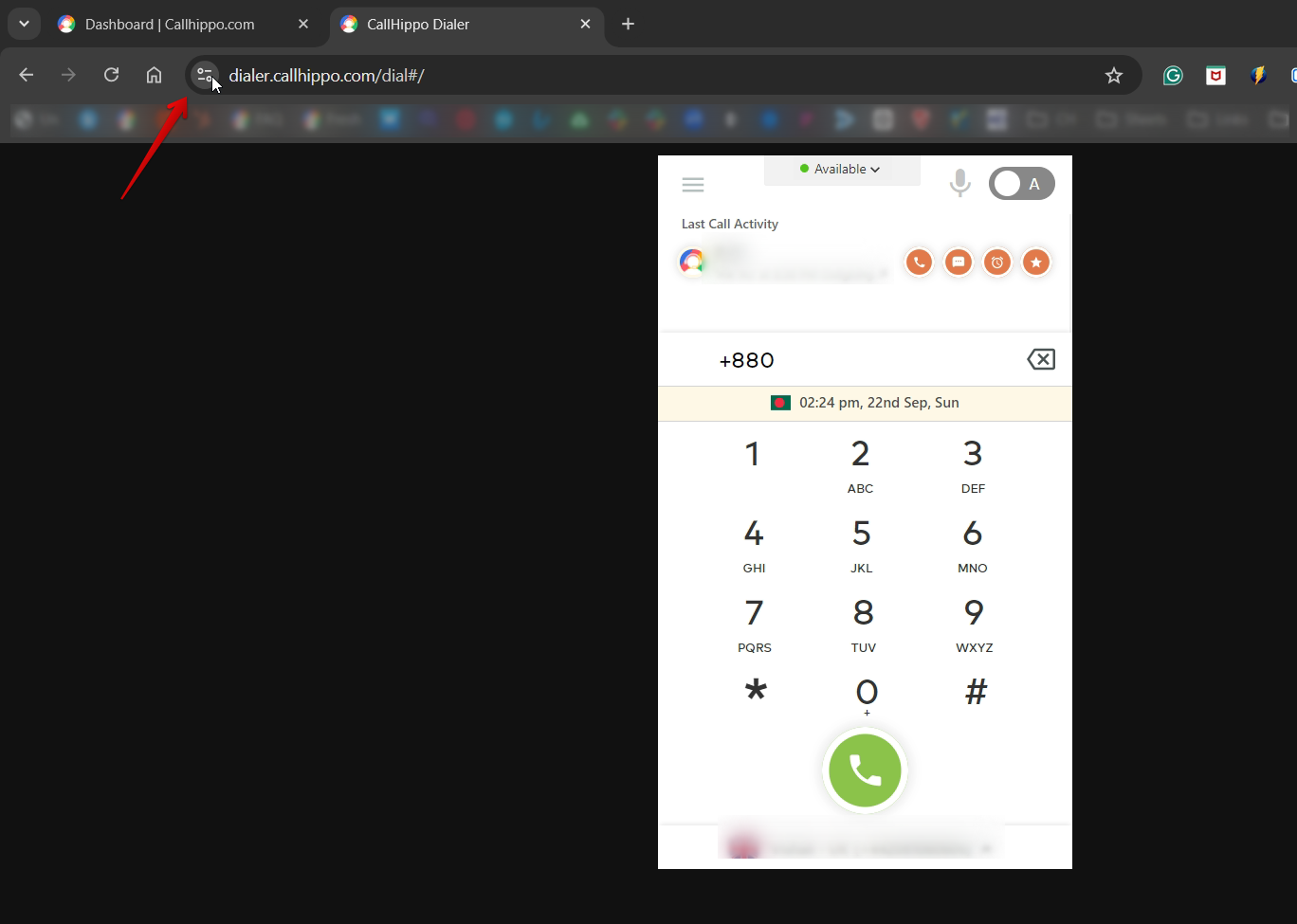
- If you accidentally clicked Never allow, don’t worry. Click the site information icon on the left of the address bar.
- In the dropdown, turn on the toggles for Microphone and Notifications.
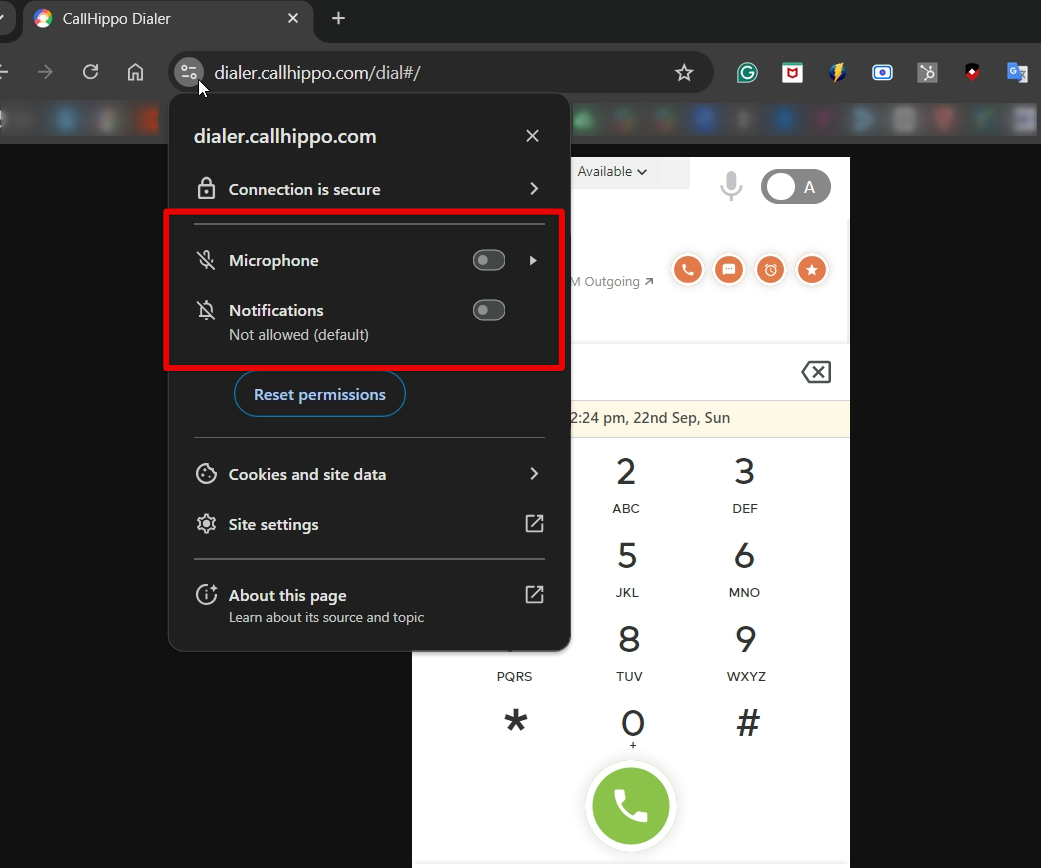
- Refresh the page to apply the changes.
- If prompted again, click Allow when Chrome asks for permission.
Browser settings and conflicts to avoid
To keep call performance stable, watch out for these common browser-level conflicts:
- Disable VPNs and ad blockers. A VPN or ad-blocker extension can interfere with CallHippo’s ability to establish real-time WebRTC connections. Disable these while using CallHippo, or whitelist CallHippo URLs in their settings.
- Avoid Brave and similar browsers. Brave’s strict privacy controls, including a built-in VPN and aggressive tracking protection, can disrupt real-time voice. Use Google Chrome or Mozilla Firefox for the most stable experience.
- Remove conflicting extensions. Some extensions affect audio quality, microphone access, or cause the interface to behave unexpectedly.
Extensions known to cause conflicts include:
- Cisco WebEx
- Adblock Plus and AdBlock
- HTTPS Everywhere
- ScriptSafe
- FlashBlock
- Disconnect
- DoNotTrackMe
- Ghostery
- WebRTC Network Limiter
To remove an extension in Chrome:
- Open Chrome and click the three-dot menu.
- Go to More tools > Extensions.
- Locate the extension you want to remove.
- Click Remove from Chrome, then confirm by clicking Remove in the pop-up.
Pro tip: For an even more stable calling environment, try the CallHippo desktop app, which eliminates browser-related conflicts.
Still need help? Reach us at [email protected].