
Connecting Constant Contact with CallHippo syncs your email subscribers into the dialer, so you can call and text your marketing contacts without leaving CallHippo. This guide covers adding contacts in Constant Contact, generating an API key through Mashery, and connecting it in CallHippo.
Before you begin
Make sure you have the following ready:
- A Constant Contact account with contacts you want to sync.
- Access to the Constant Contact Mashery developer portal to create an application.
- An active CallHippo account with access to the Integrations tab.
Add a contact in Constant Contact
- Log in to your Constant Contact account and click Contacts in the navigation bar.
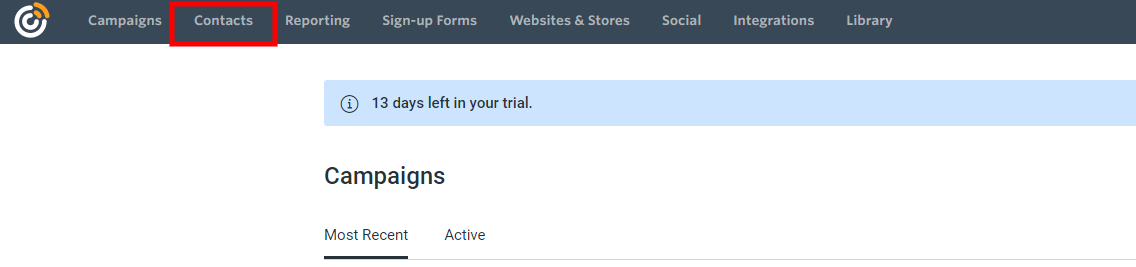
- Click Add Contacts on the right.

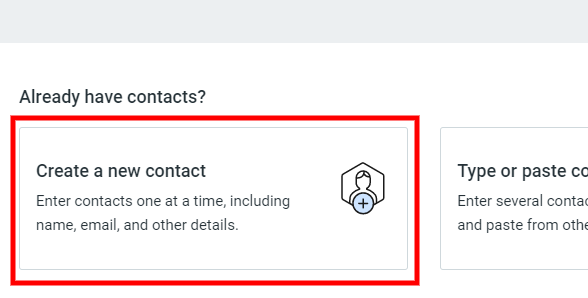
- Choose Create a new contact.
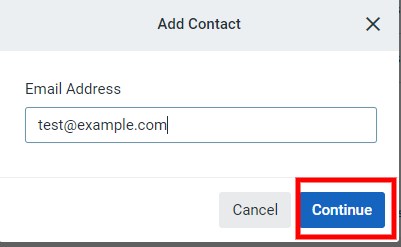
- Enter the contact’s email address and click Continue.
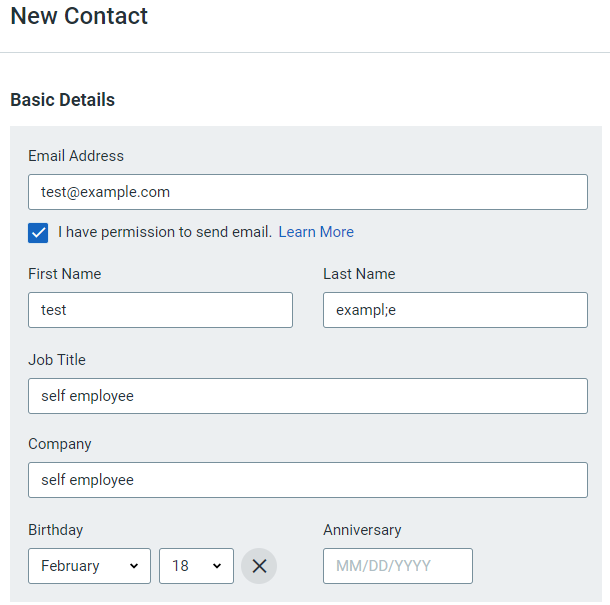
- Fill in the basic details and check I have permission to send email.
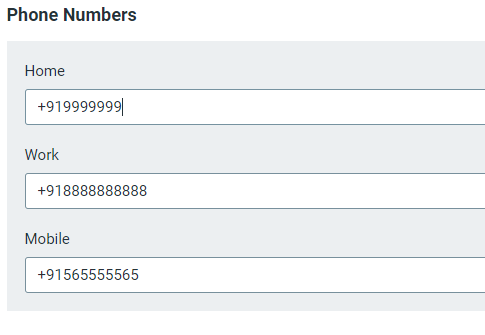
- Add the contact’s phone numbers.
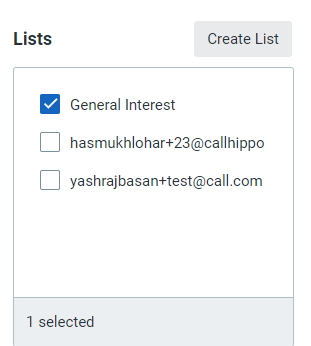
- Select the email list you want to add the contact to.
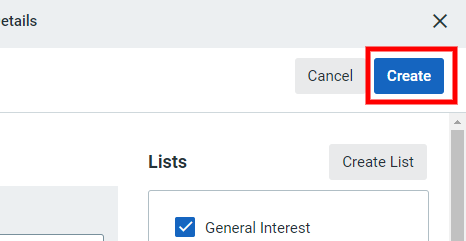
- Click Create at the top right.
Generate your API key in Mashery
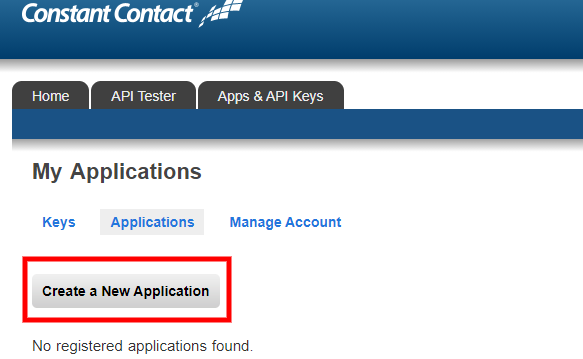
- Log in to your Constant Contact Mashery account and click Create a New Application.
- Fill in the Application Name, Company Name, and Website.
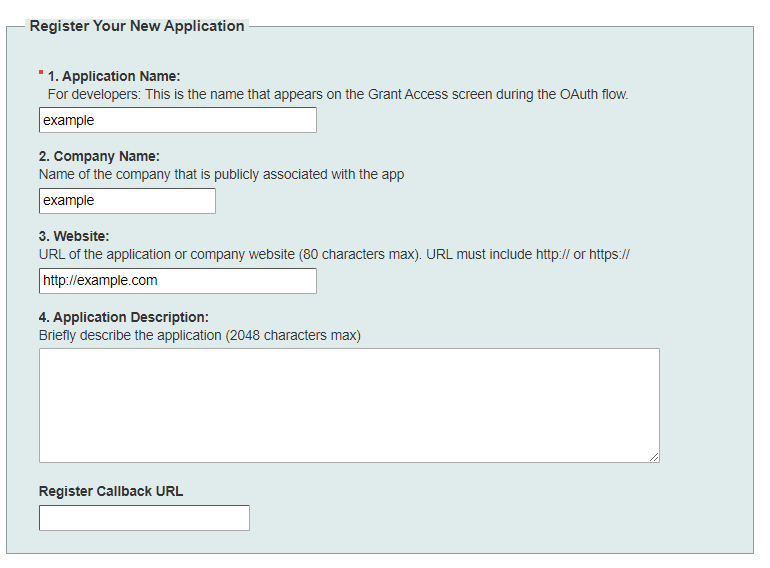
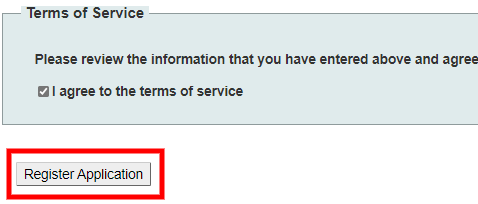
- Check I agree to the terms of service and click Register Application.
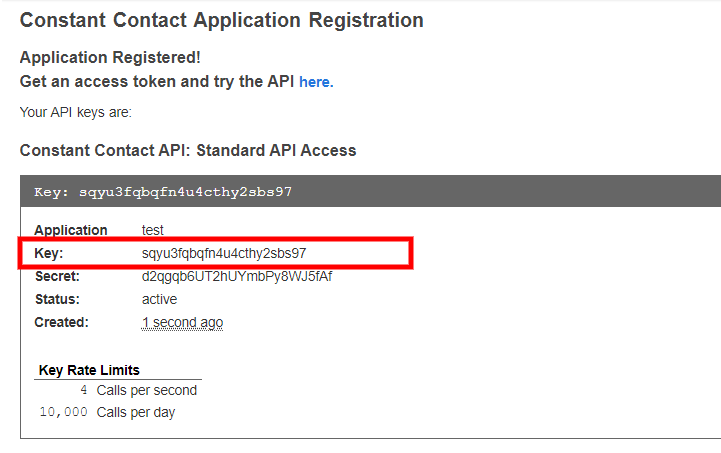
- Copy the Key. You will need it when connecting CallHippo.
Connect Constant Contact in CallHippo
- Log in to your CallHippo account and click Integrations in the left sidebar.
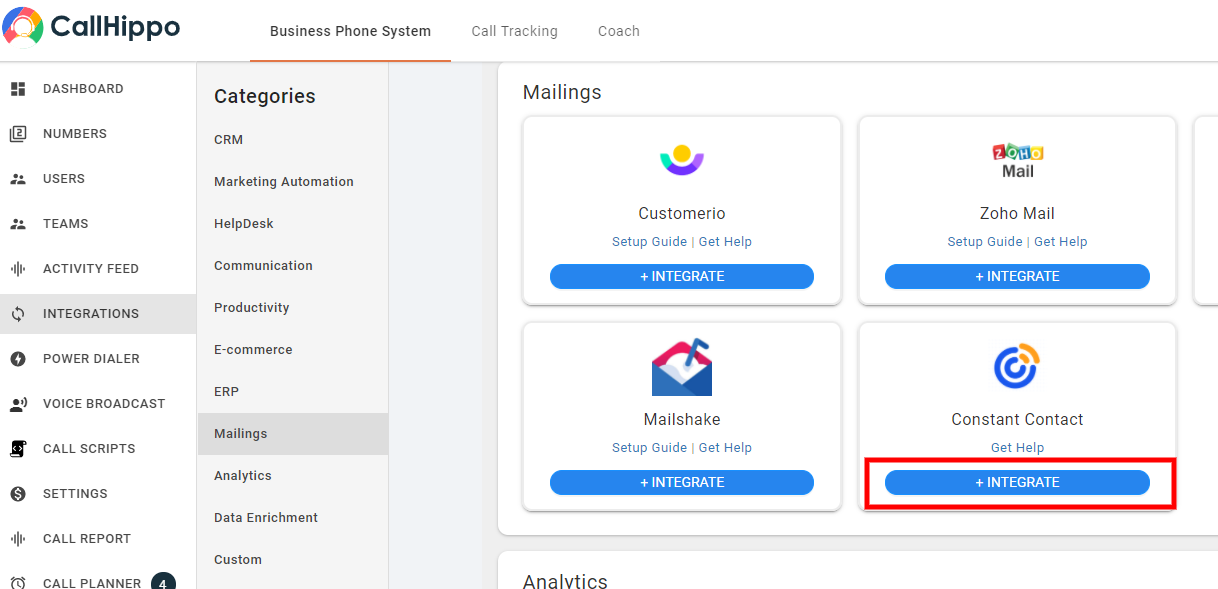
- Find Constant Contact and click Integrate.
- On the setup page, click Connect your Constant Contact.
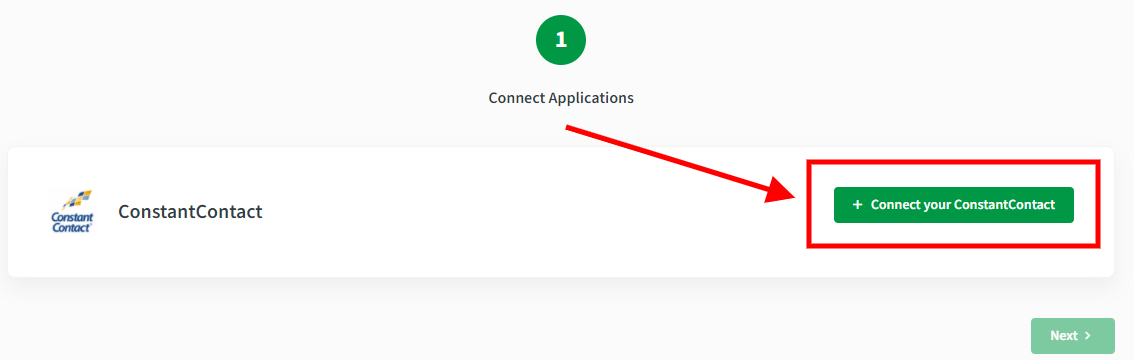
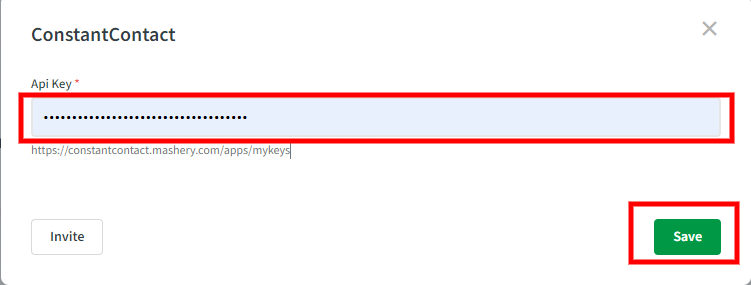
- Paste the key you copied from Mashery and click Save.
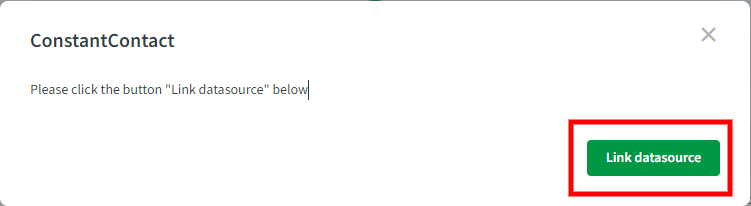
- Click Link datasource.
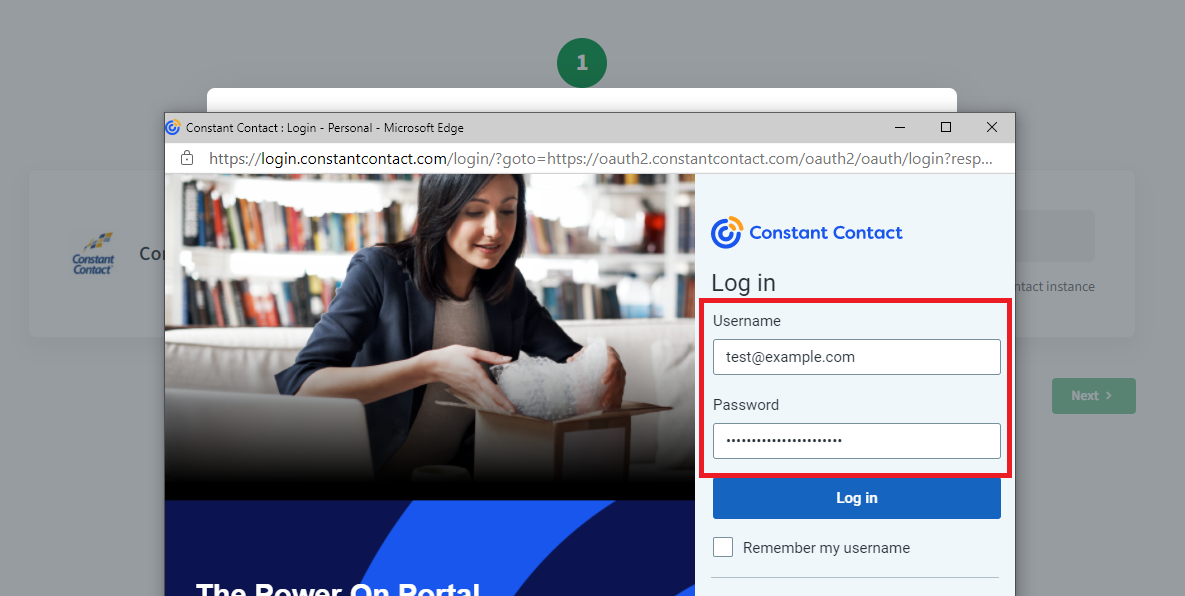
- Enter your Constant Contact email and password to log in.
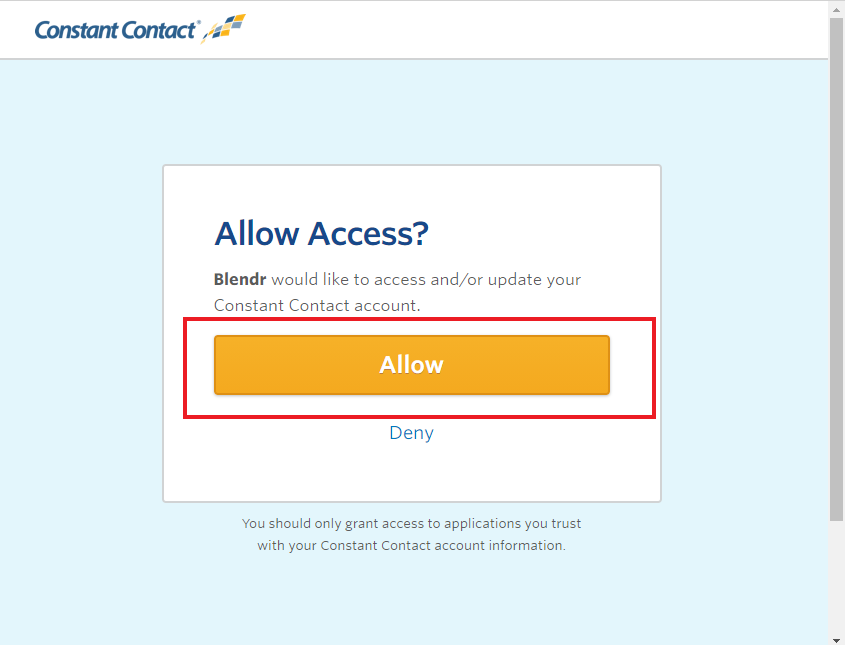
- On the permission page, click Allow.
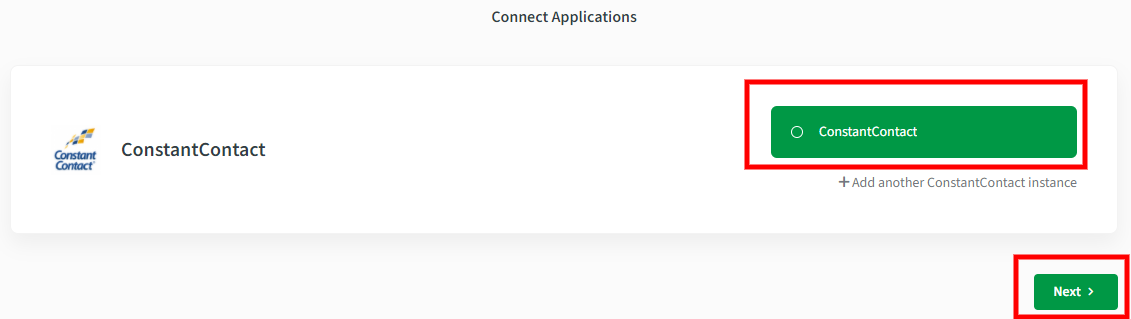
- Your Constant Contact account is now connected. Click Next.
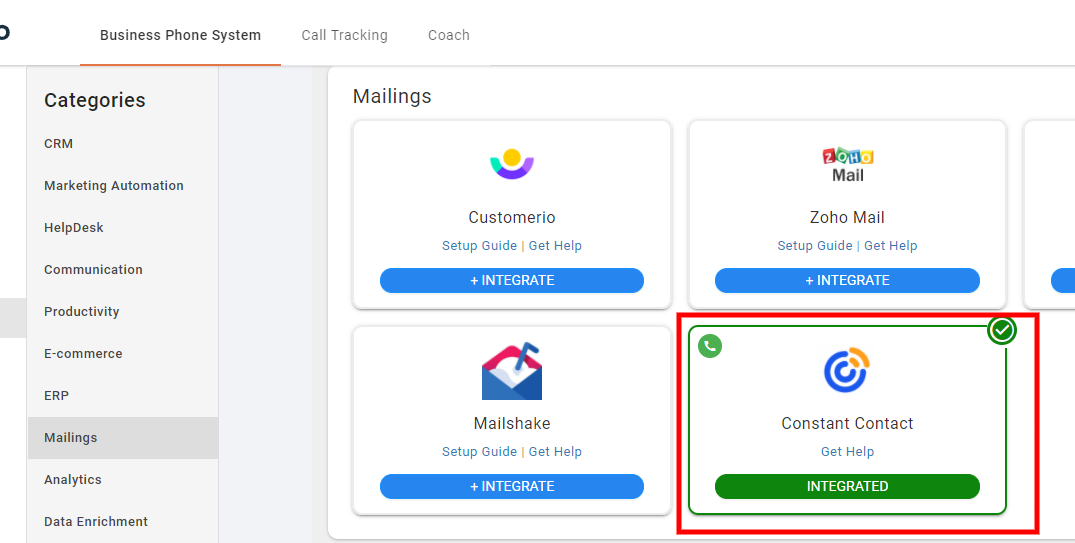
- The integration is complete and the Constant Contact card shows Integrated.
How the Constant Contact sync works
- All your Constant Contact contacts sync to CallHippo.
- You can make calls and send SMS to those contacts directly from the CallHippo dialer.
Still need help? Reach us at [email protected].