
Creating a team in CallHippo lets you group agents together and route calls to them in the order that suits your workflow.
Steps to Create a Team
- Log in to your CallHippo dashboard.
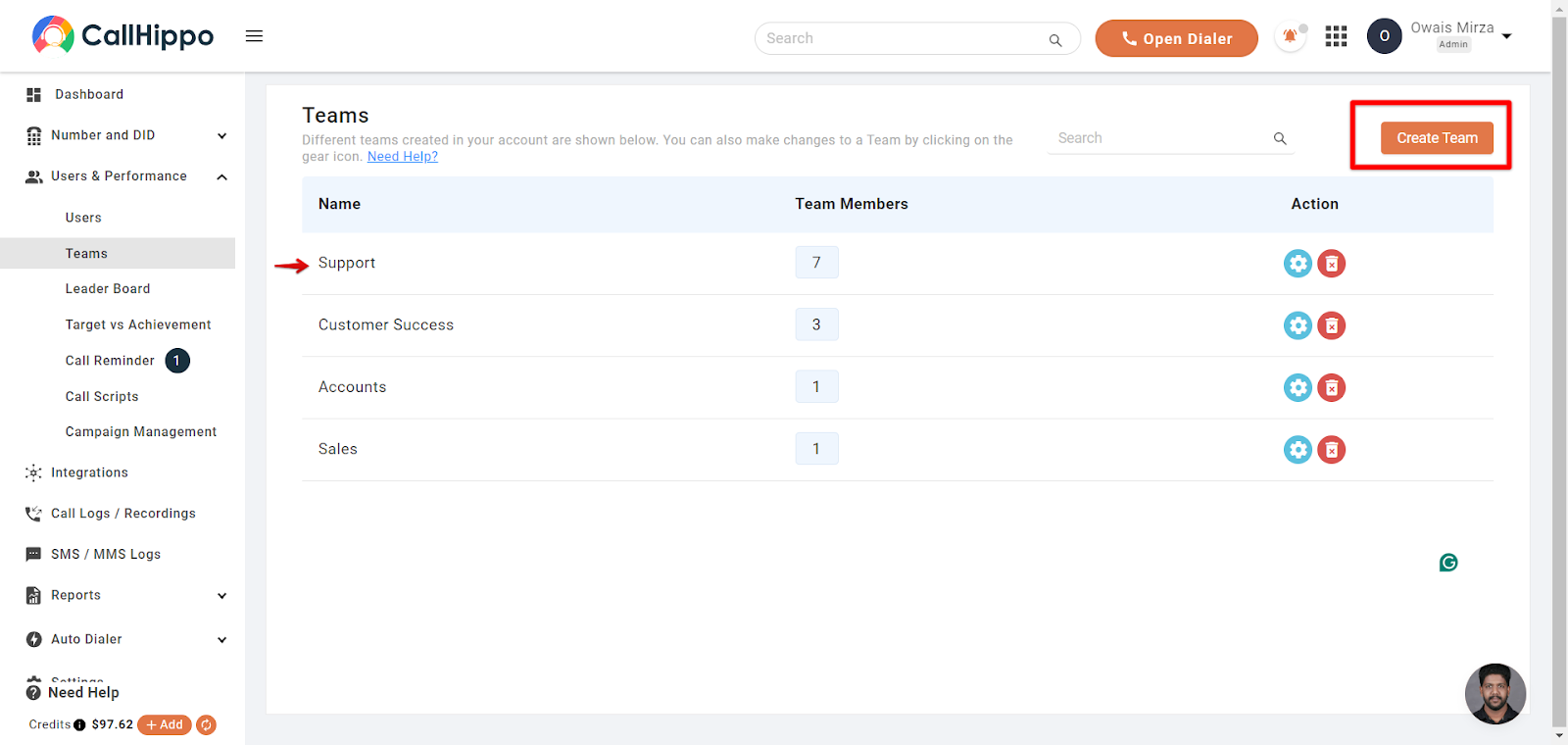
- Open Teams: Click “User & Performance” in the left-hand panel, then click “Teams”.
- Start a new team: On the Teams page, click the orange “Create Team” button at the top right.
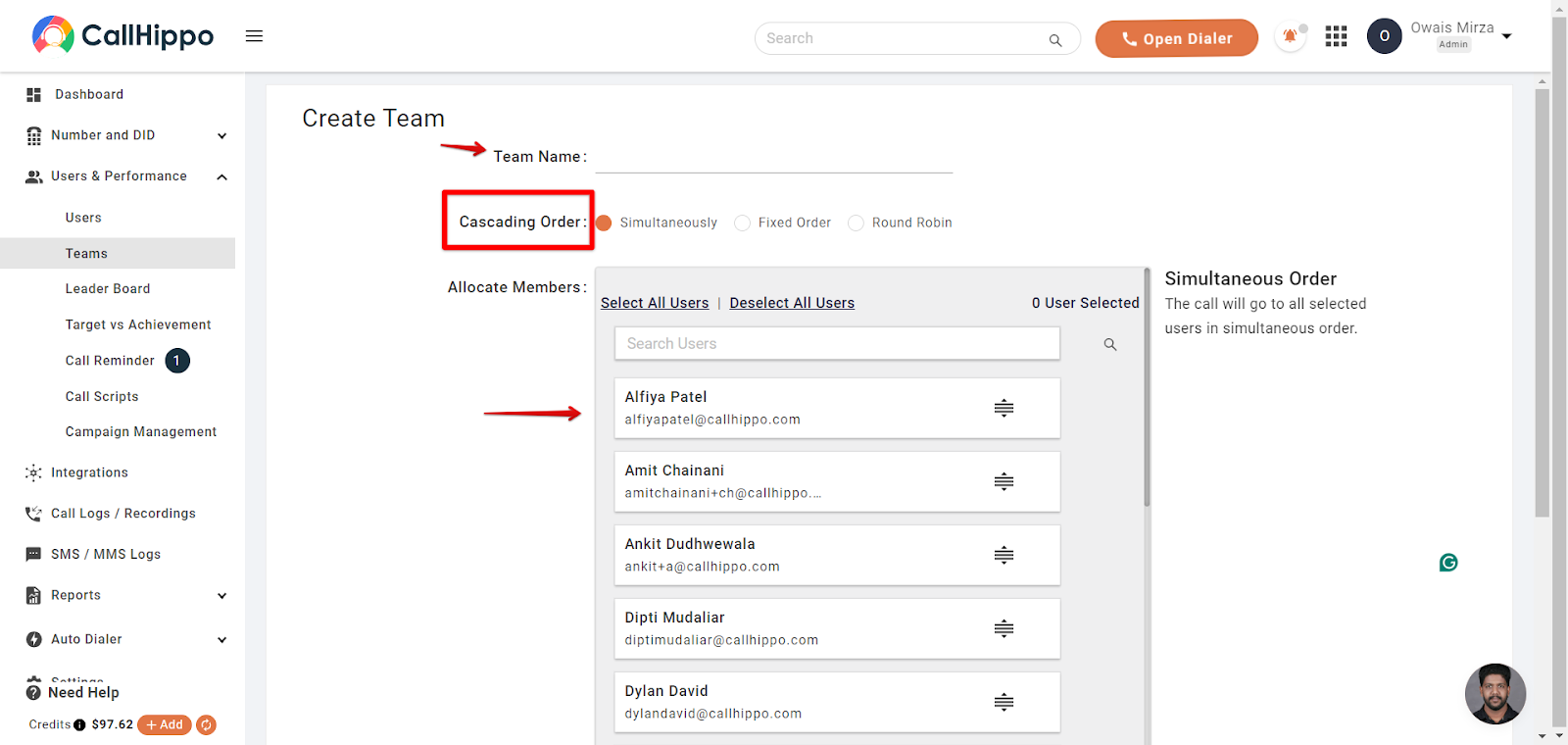
- Name the team and set the order: Enter a team name and choose a “Cascading Order” (Simultaneously, Fixed Order, or Round Robin) that decides how calls are distributed to your agents.
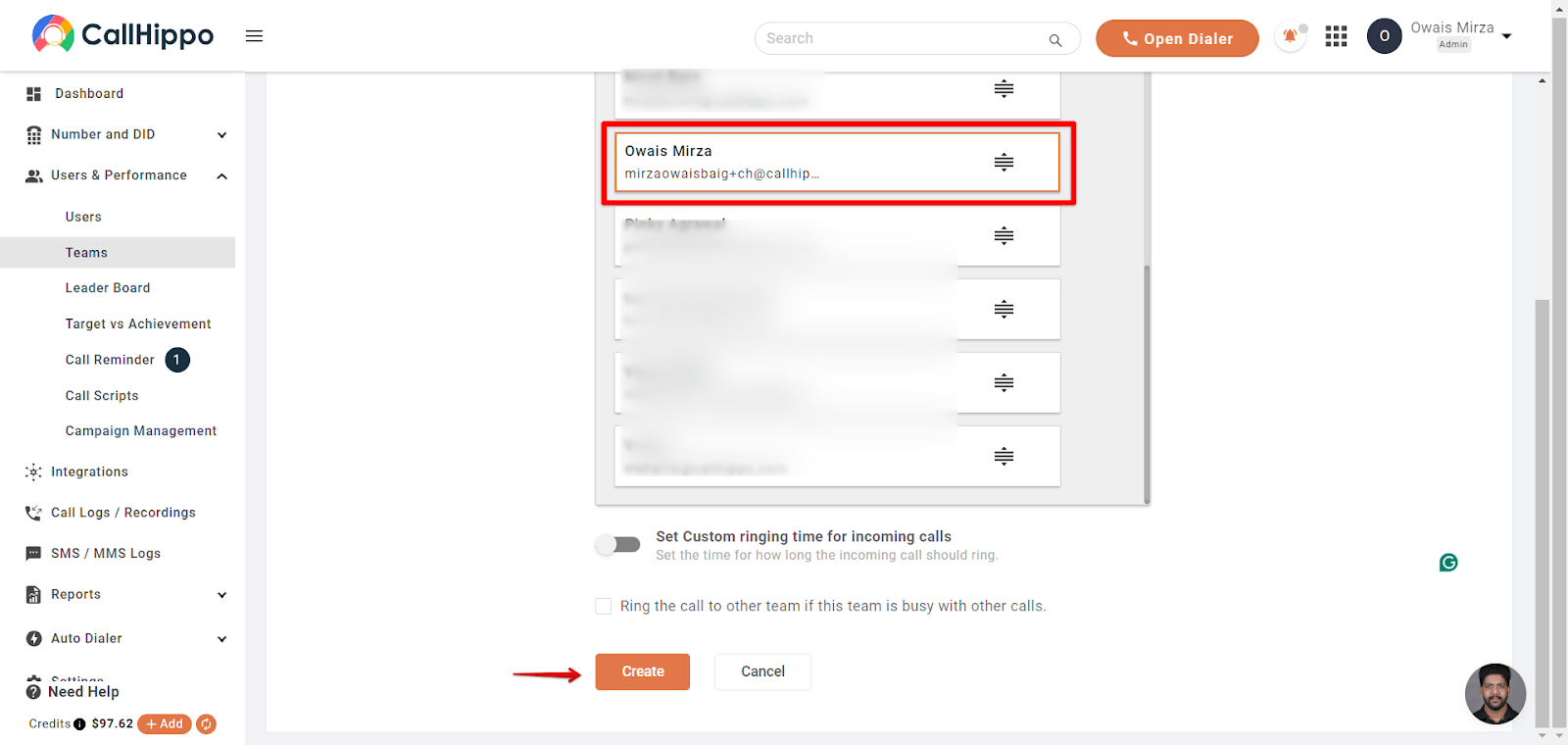
- Add members: Select the users you want in the team, then click “Create”.
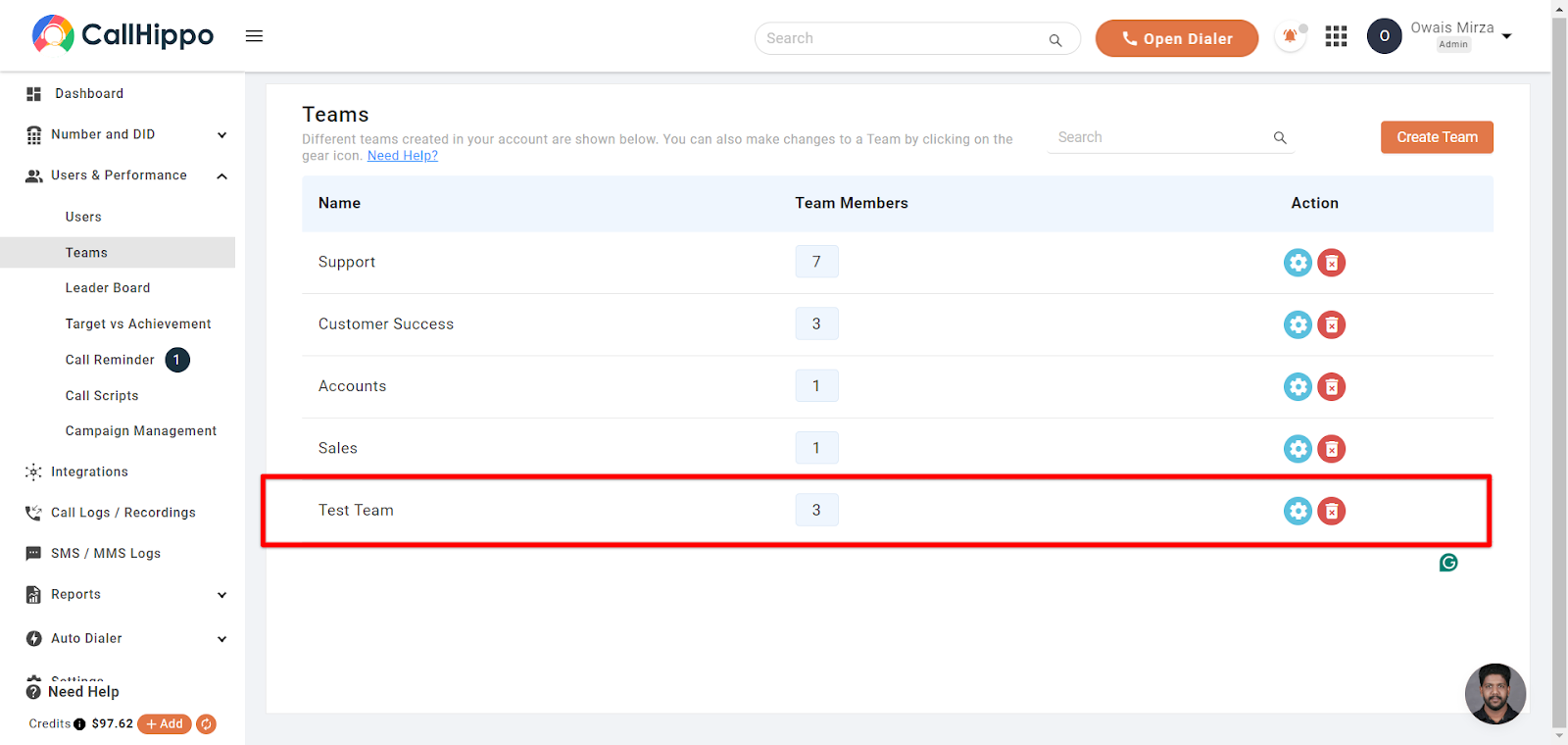
- Done: Your new team now appears in the Teams list.
Managing Your Teams
- Delete a team: The red bin button on the right of each row lets you remove any team you have created.
- Edit a team: Use the settings (gear) icon beside a team to update its name, order, or members at any time.
Need a hand setting up your teams? Reach out to us at [email protected] and we will be glad to help.