
CallHippo lets you view your team’s calling activity and download detailed call logs, complete with per-call costs, in just a few clicks.
How to Download Your Call Logs
Follow these steps to filter and export your call logs from the dashboard:
- Log in to your CallHippo dashboard.
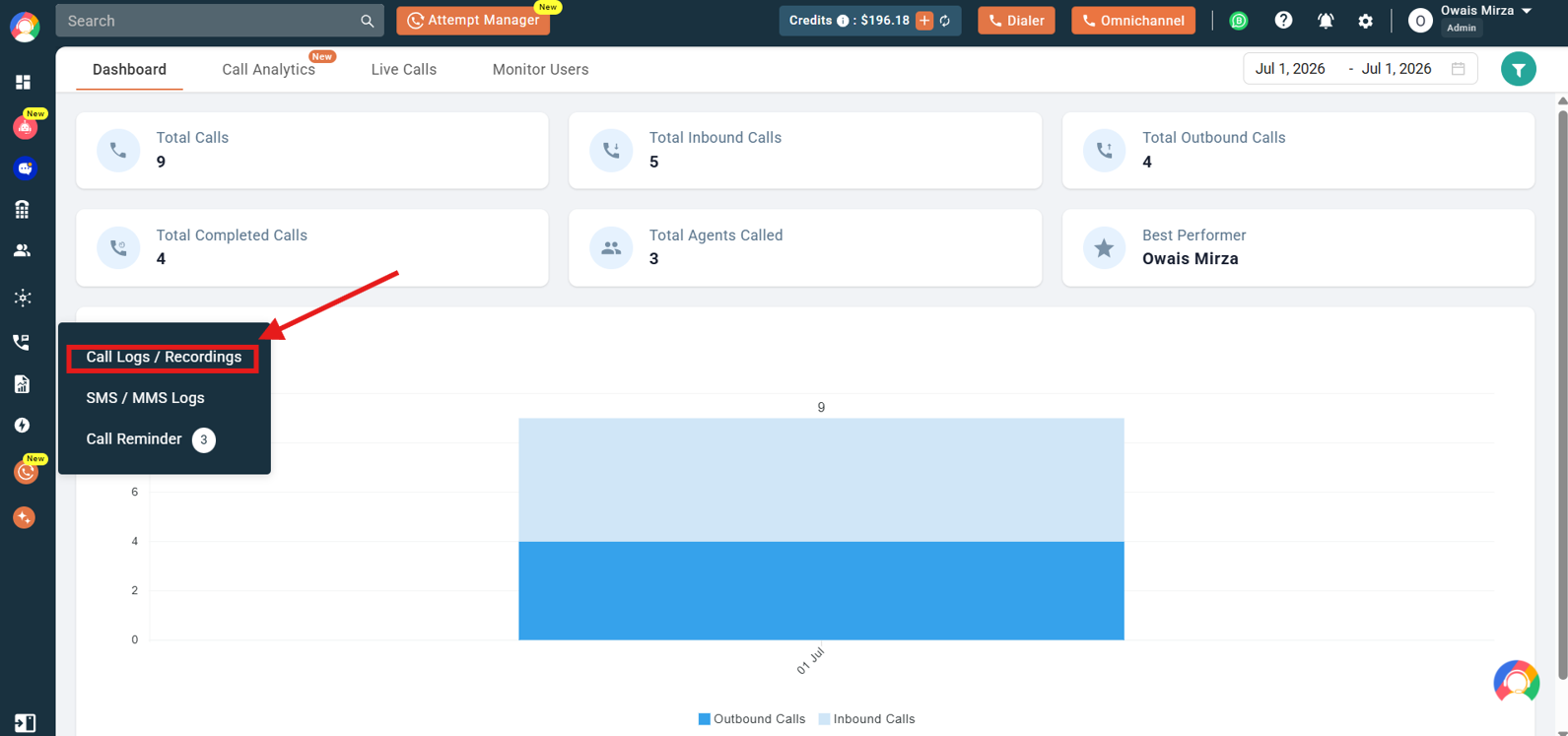
- Open Call Logs: Click the Call Logs / Recordings section on the left side of the dashboard.
- Open the filter: Click the green Filter icon to choose the date range and other criteria for the logs you want. By default, the date range is set to the last 7 days.

- Set your criteria: In the Filter panel you can narrow logs by Callers (specific users or teams), Country, Call Status (answered, missed, failed), Call Type (incoming, outgoing, or both), From / To Number, Auto Dialer, and a custom Date Range.
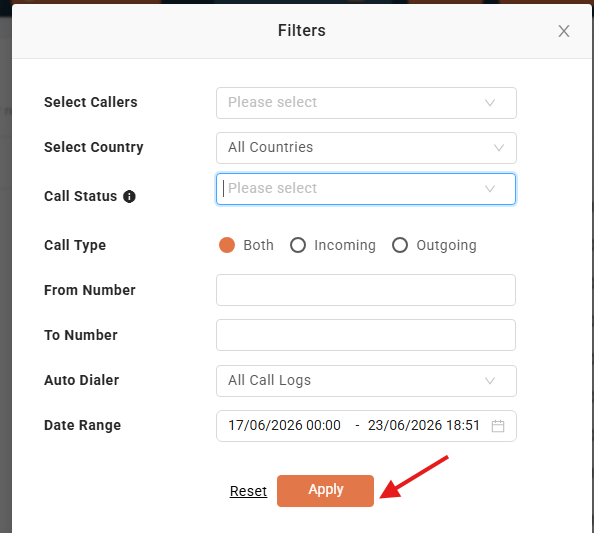
- Apply the filter once your parameters are set.
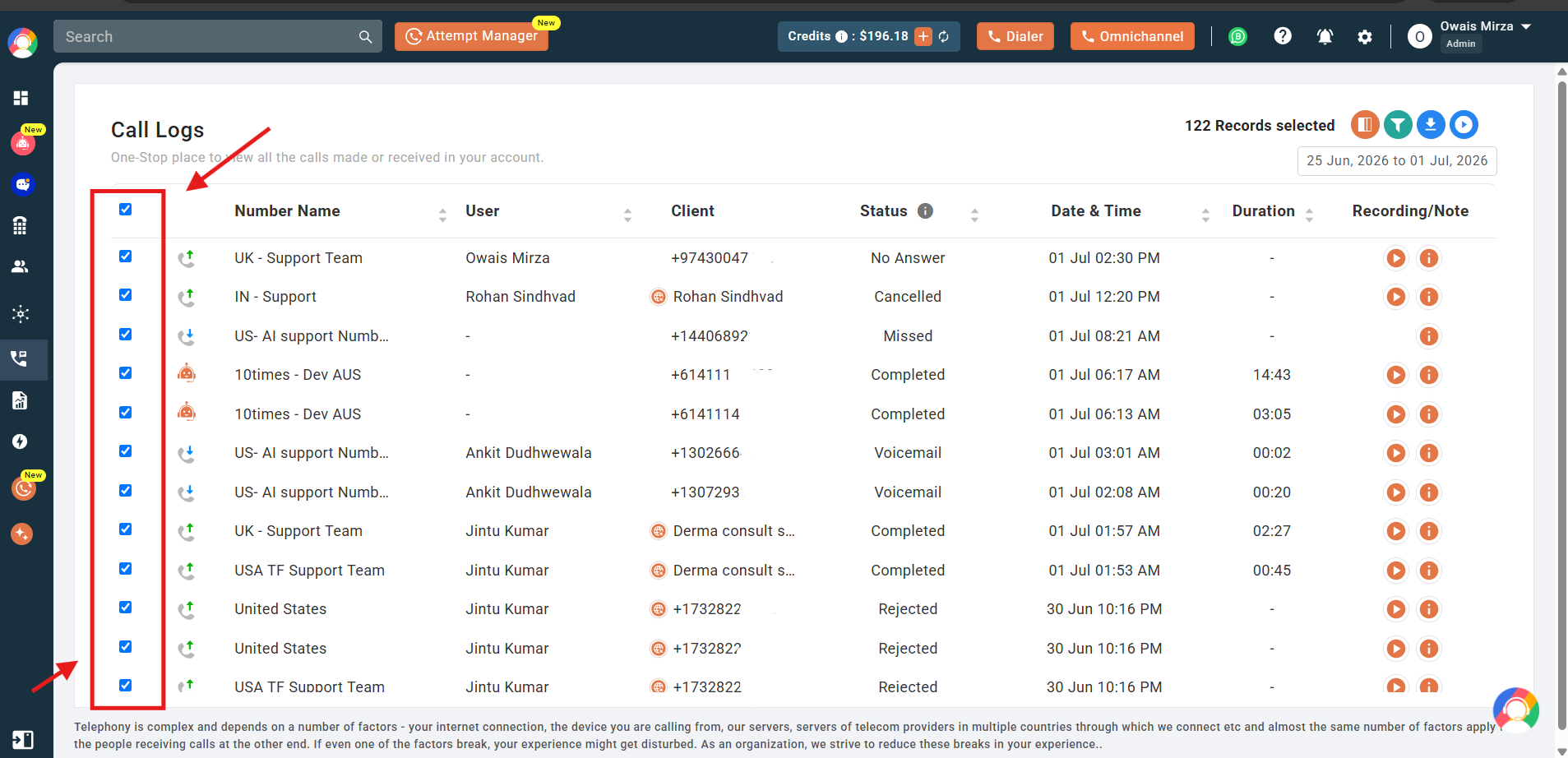
- Select calls: Tick the checkbox next to individual calls, or use the checkbox at the top to select all calls in the applied filter.
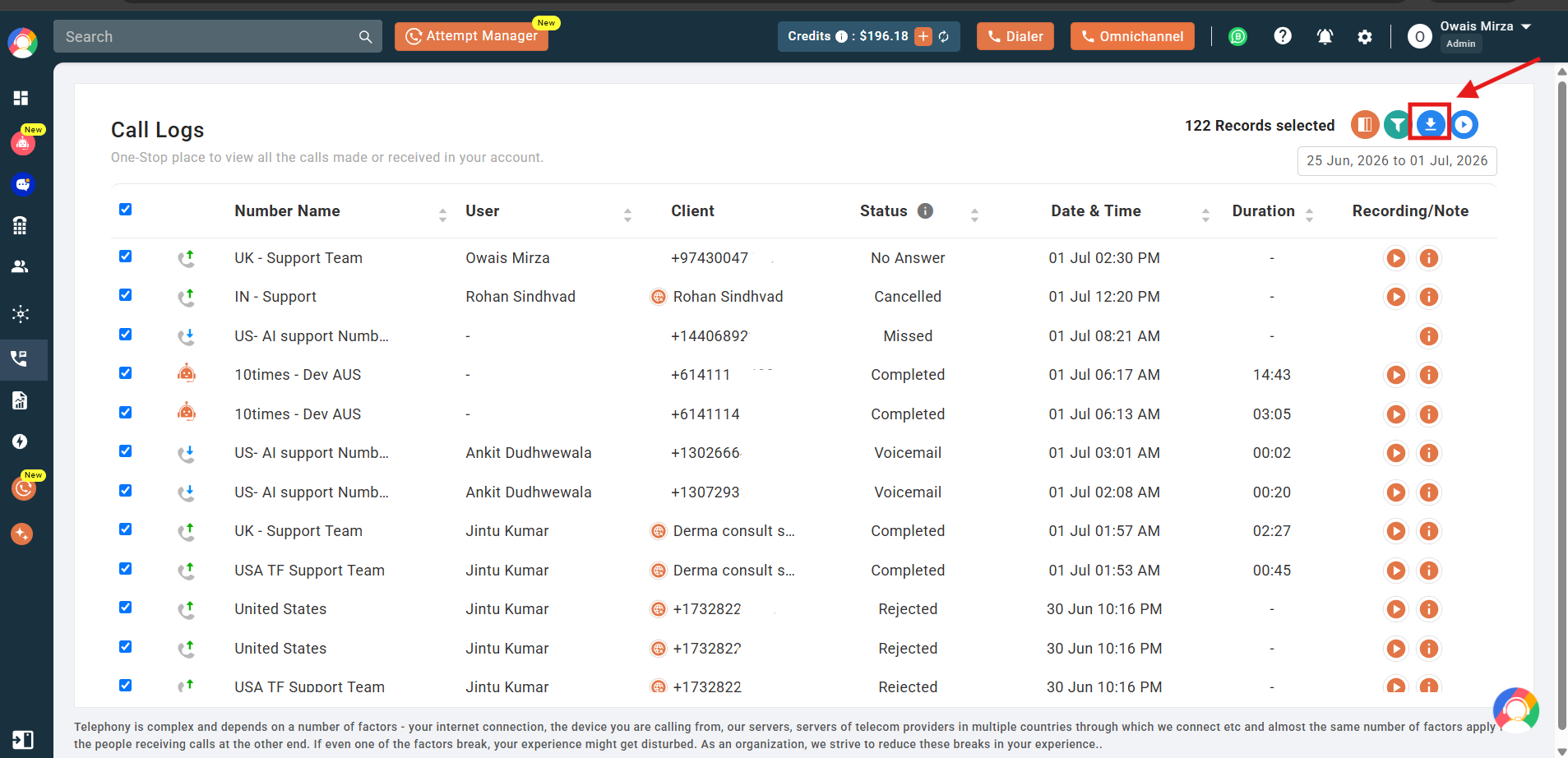
- Download: Click the blue download icon.
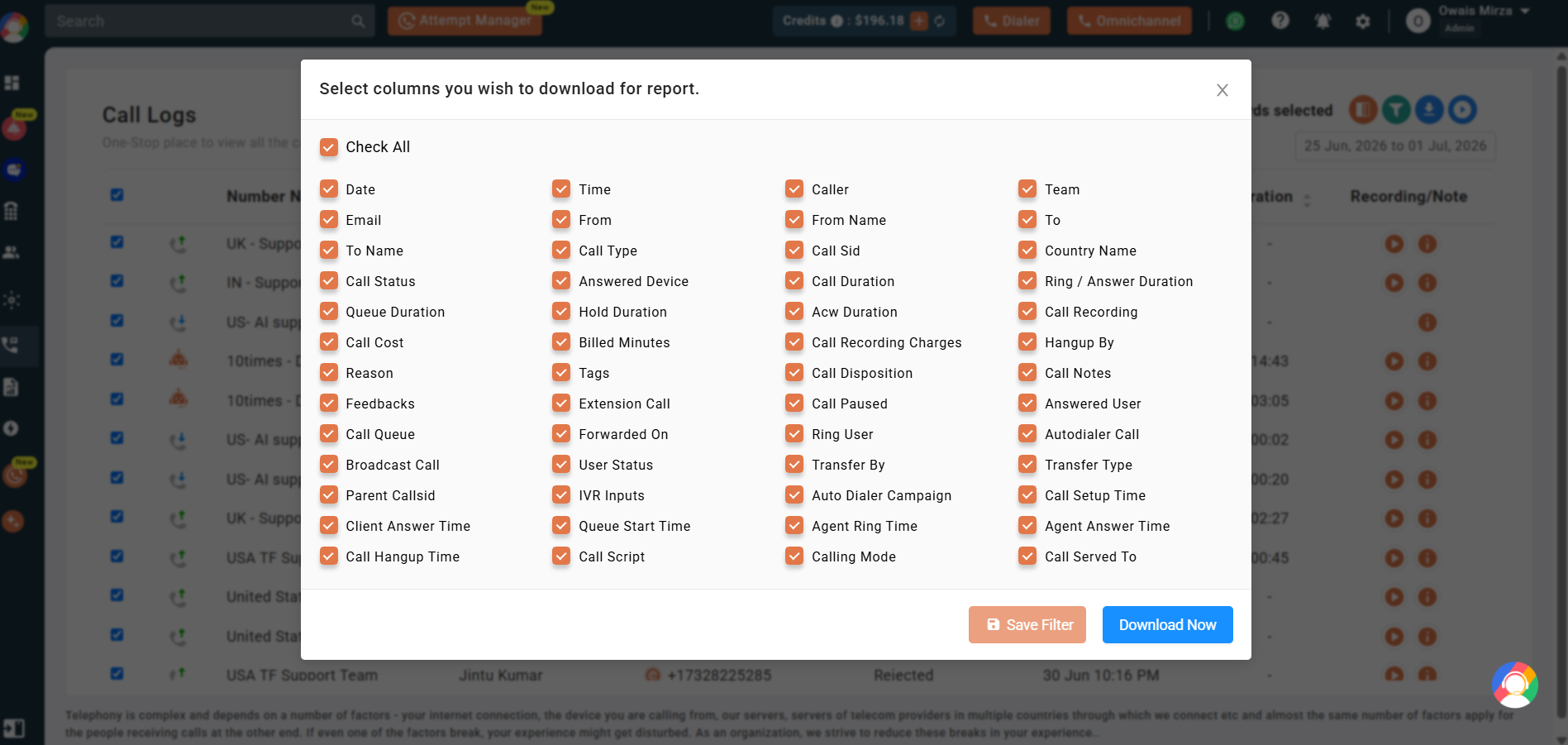
- Choose columns: Check or uncheck the fields you want included in the exported file.
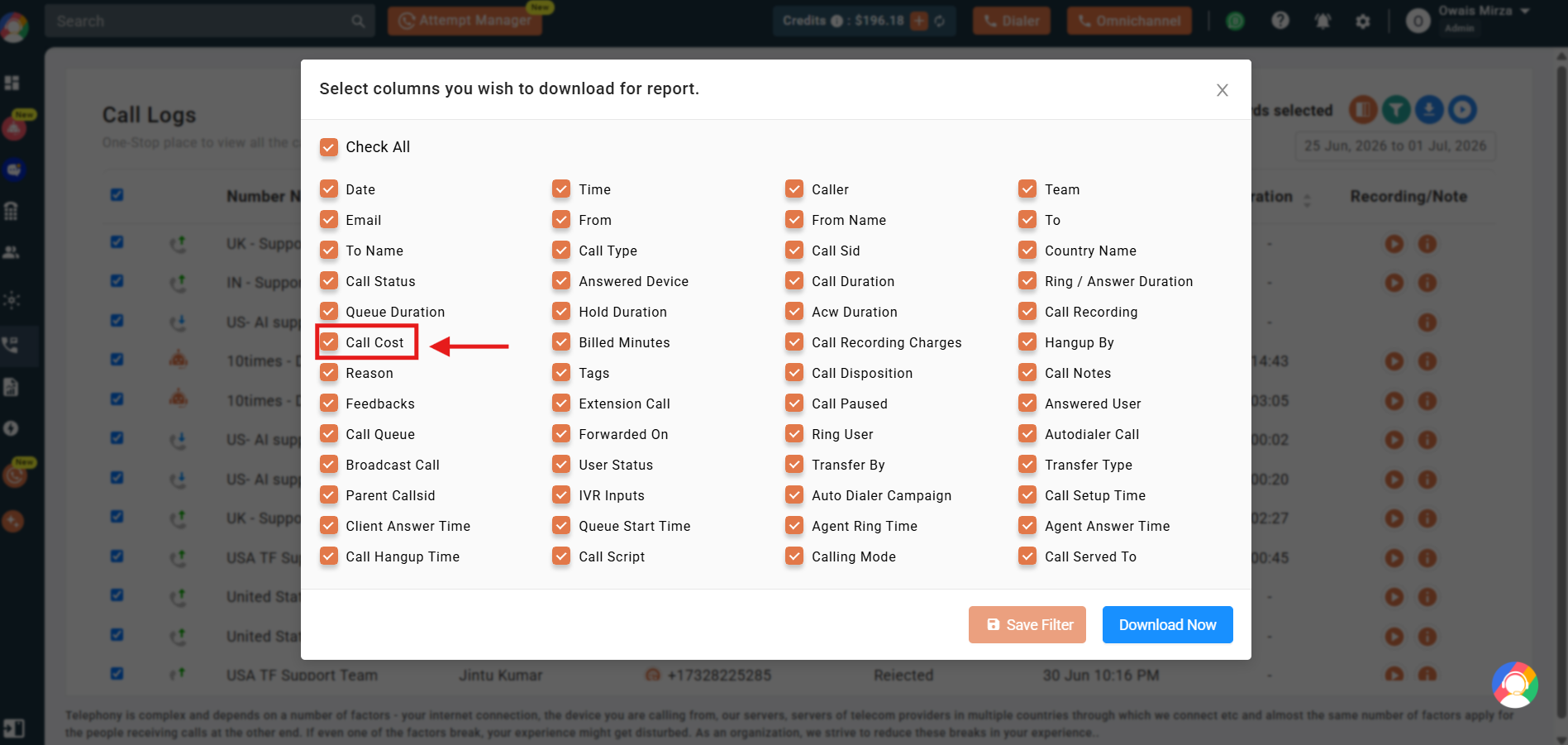
- Include call cost: To review spending, make sure the Call Cost option is selected.
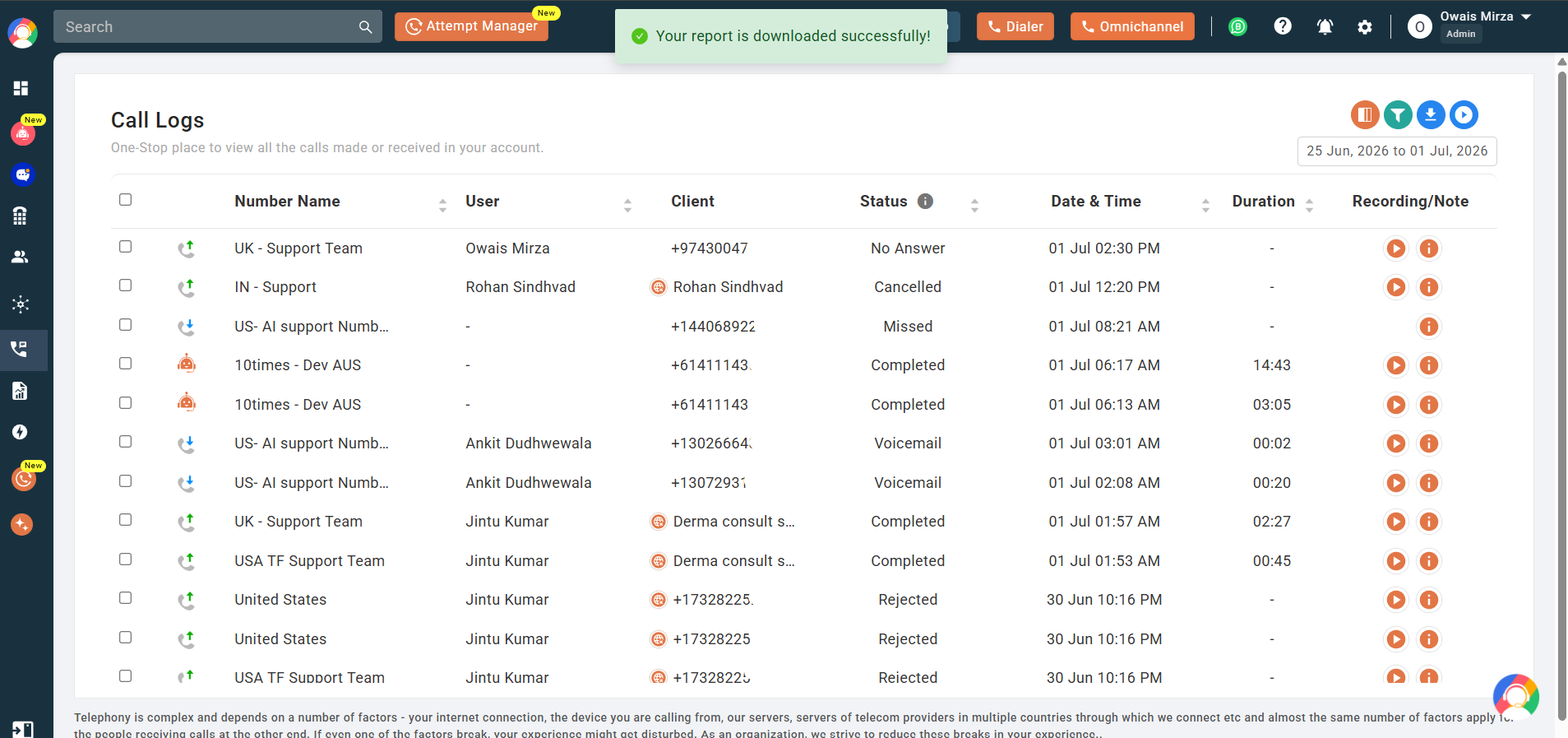
- Save and download: Choose Save Filter if you’ll reuse these options later, then click Download Now. Your logs are exported as an XLS file.
How to Check the Call Cost
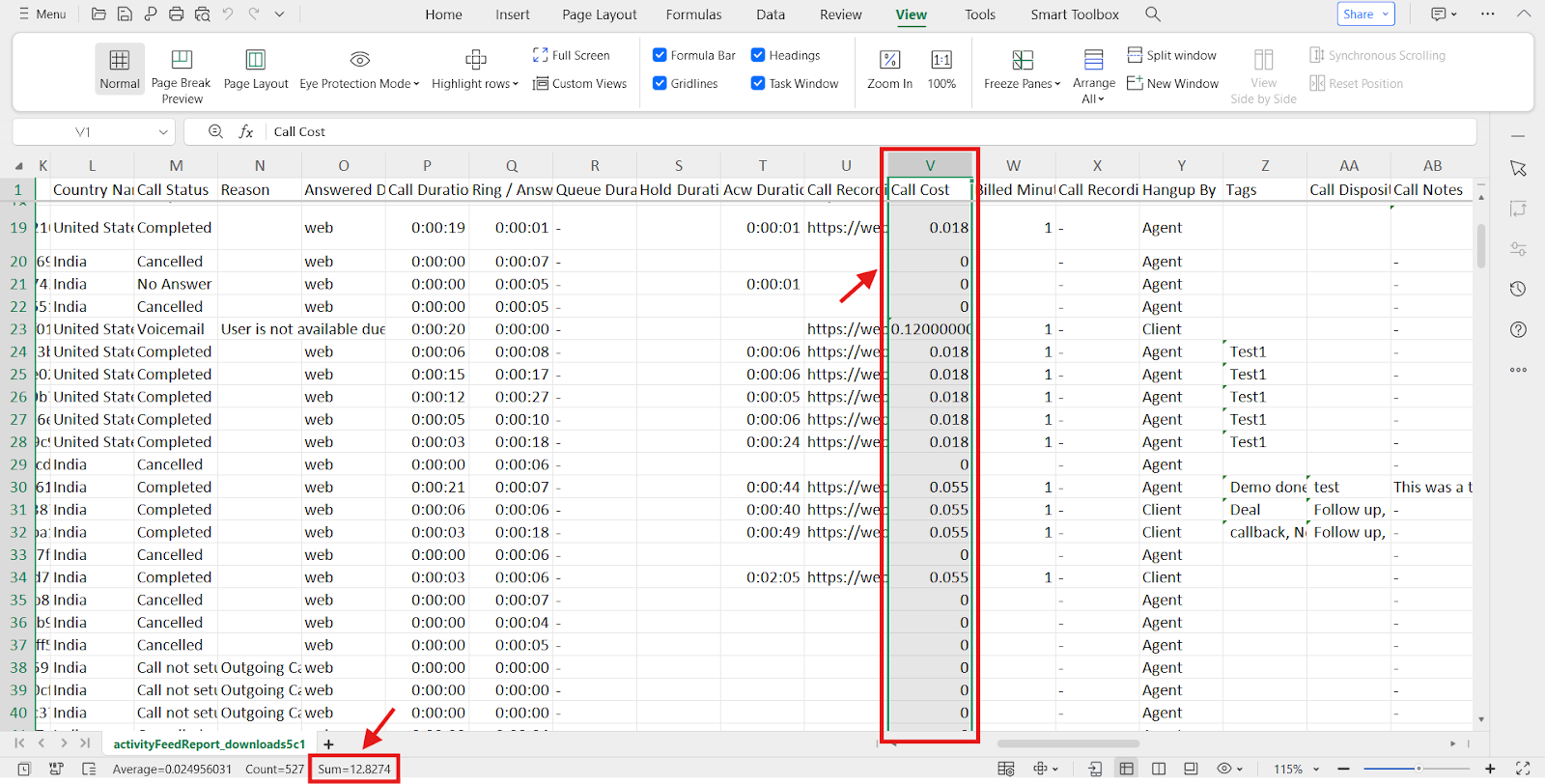
Open the downloaded file and find the column named Call Cost. The sum at the bottom of this column shows the total calling credits used across all the calls in your export.
Important Notes
- 90-day limit: Call logs can be viewed on the dashboard for up to 90 days (3 months). If you select a longer range, the logs are emailed to your registered address instead.
- No charge: Downloading call log reports is completely free.
FAQs: Call Logs & Call Cost Details
What is the default date range for viewing call logs?
By default, CallHippo shows call logs from the last 7 days.
How can I filter call logs?
Click the green Filter icon and apply filters such as date range, call status, country, users, and call type.
Can I filter call logs by a specific user or team?
Yes. Use the Select Callers option in the filter section to choose specific users or teams.
Can I filter calls by call outcome or disposition?
Yes. If you use the After Call Work feature, you can filter calls by dispositions such as resolved or follow-up required.
Can I view call logs for more than 90 days on the dashboard?
No. The dashboard supports up to 90 days. For longer ranges, the logs are sent to your registered email address.
How do I include call cost details when downloading logs?
Before clicking Download Now, make sure the Call Cost option is selected.
Where can I see the total cost of the calls?
Open the downloaded XLS file and check the Call Cost column. The total credits used appear at the bottom.
In what format are call logs downloaded?
Call logs are downloaded in XLS and CSV formats, including call cost details if selected.
Does downloading call log reports incur any charges?
No. Downloading call log reports is free of charge.