
Connecting Freshservice with CallHippo ties your calling into your IT helpdesk, so call data reaches your service desk and ticketing workflow automatically.
Get your Freshservice API key and domain
Start in Freshservice to collect the two details CallHippo needs.
- Log in to your Freshservice account.
- Open your profile and click Profile Settings.
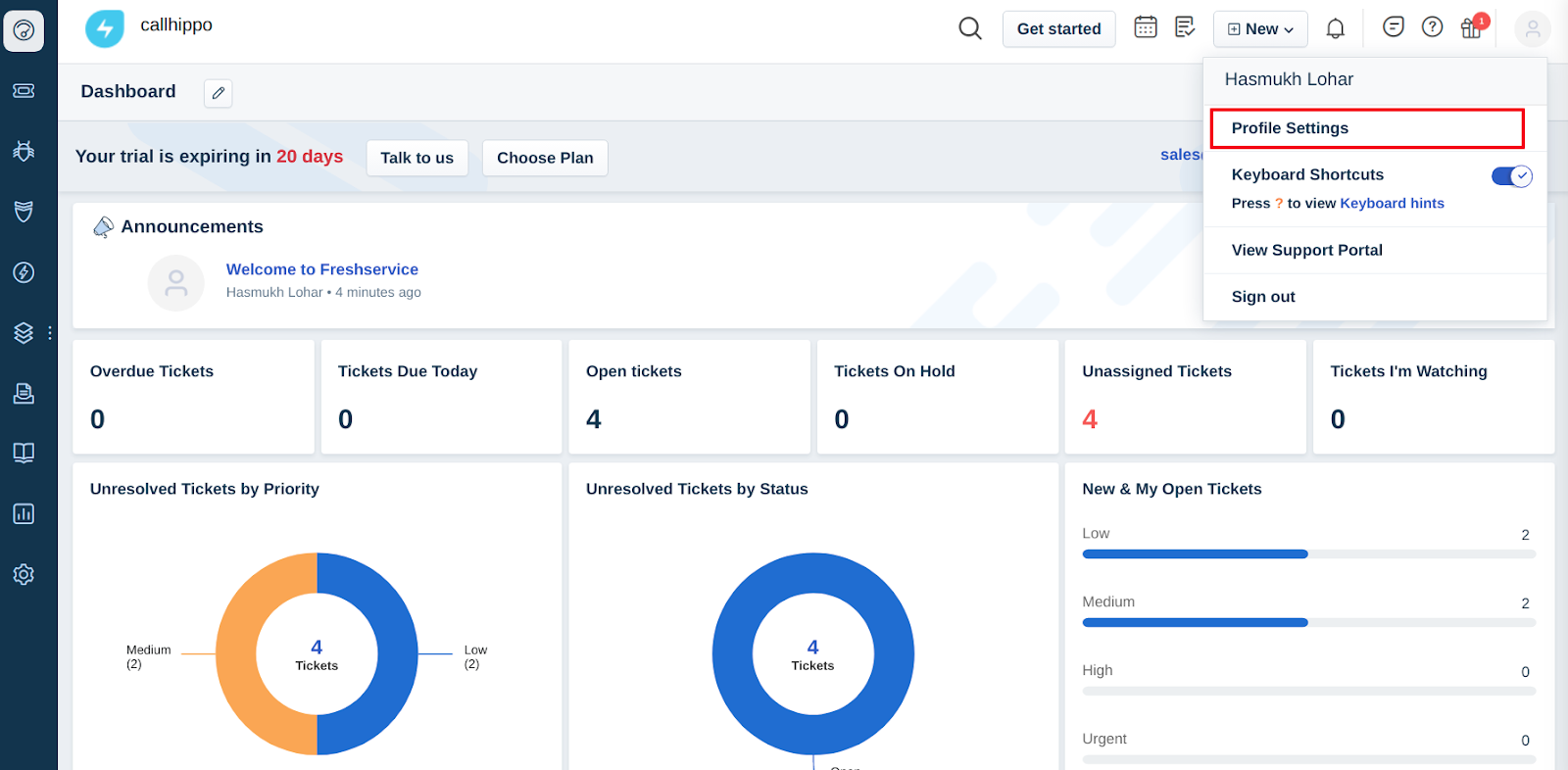
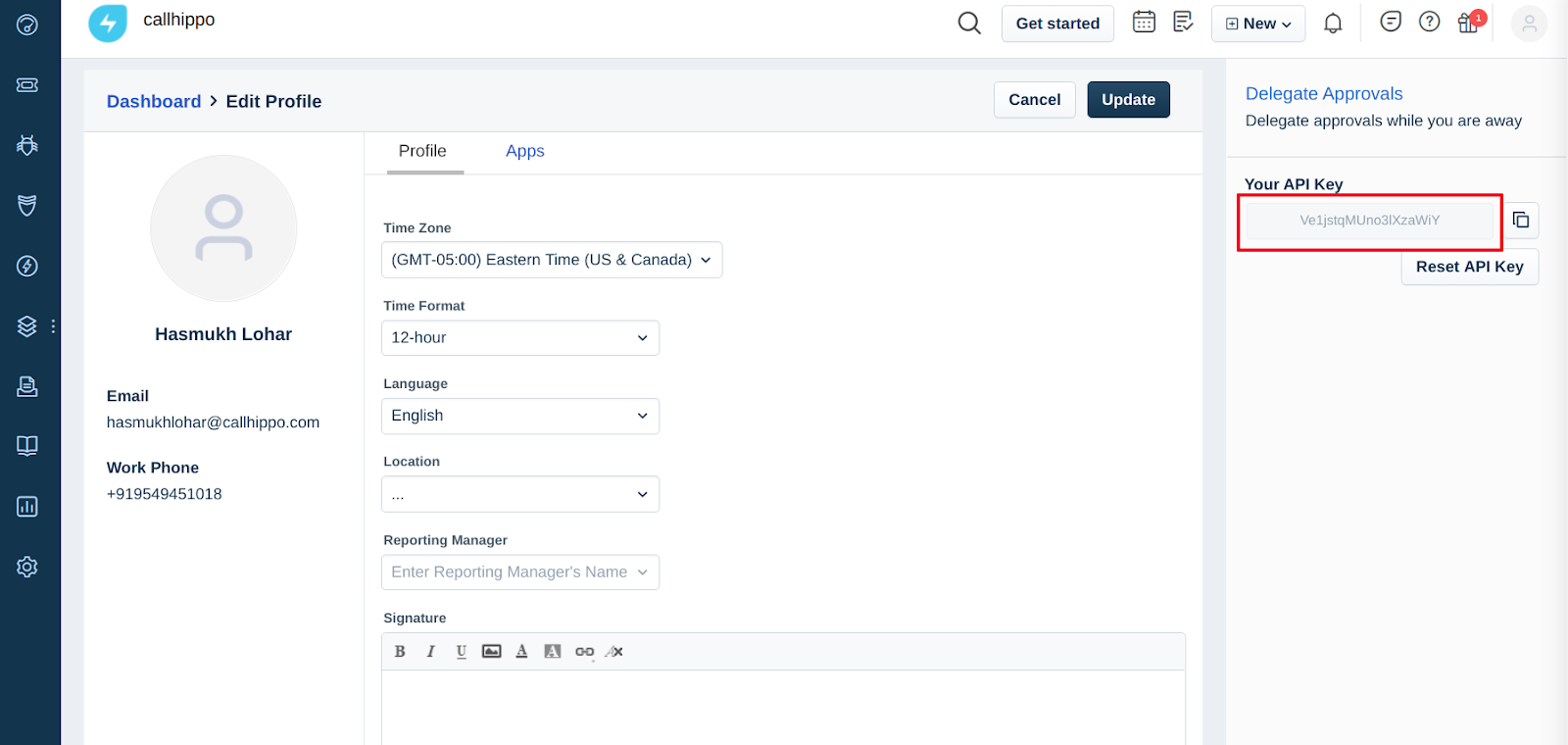
- Copy your API Key from the profile page, and note your domain from the URL. For example, if your URL is https://yourname.freshservice.com, the domain is yourname.
Connect Freshservice in CallHippo
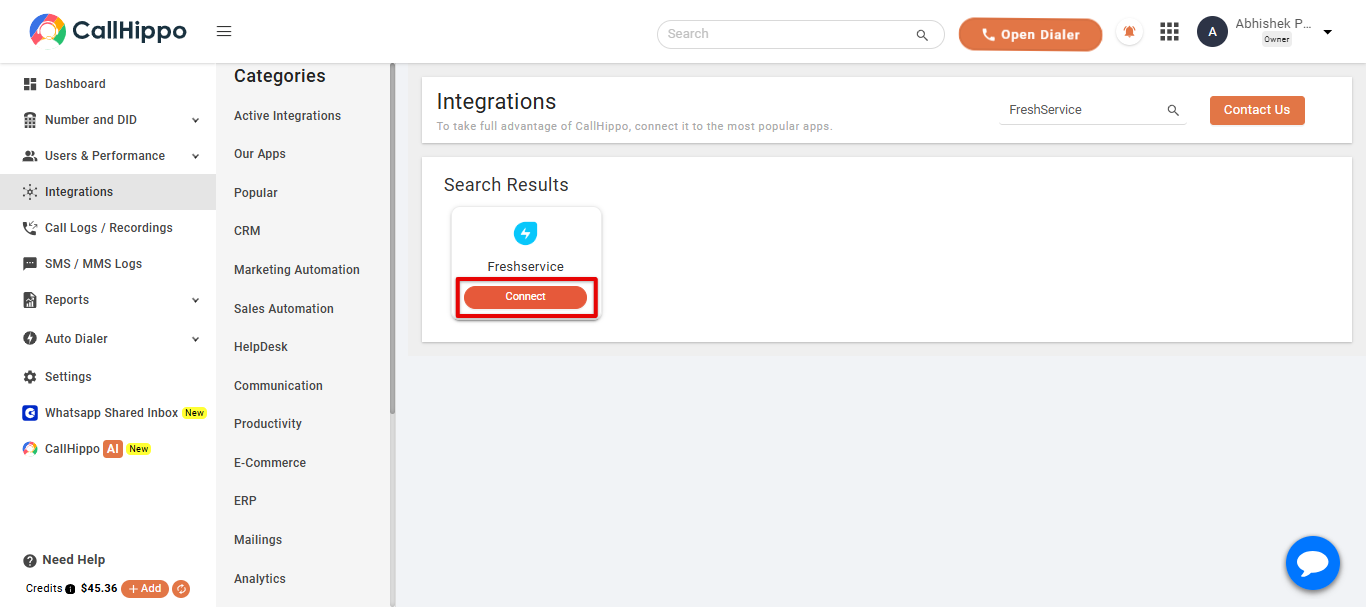
- Log in to your CallHippo account and open the Integrations tab. Search for Freshservice and click Connect.
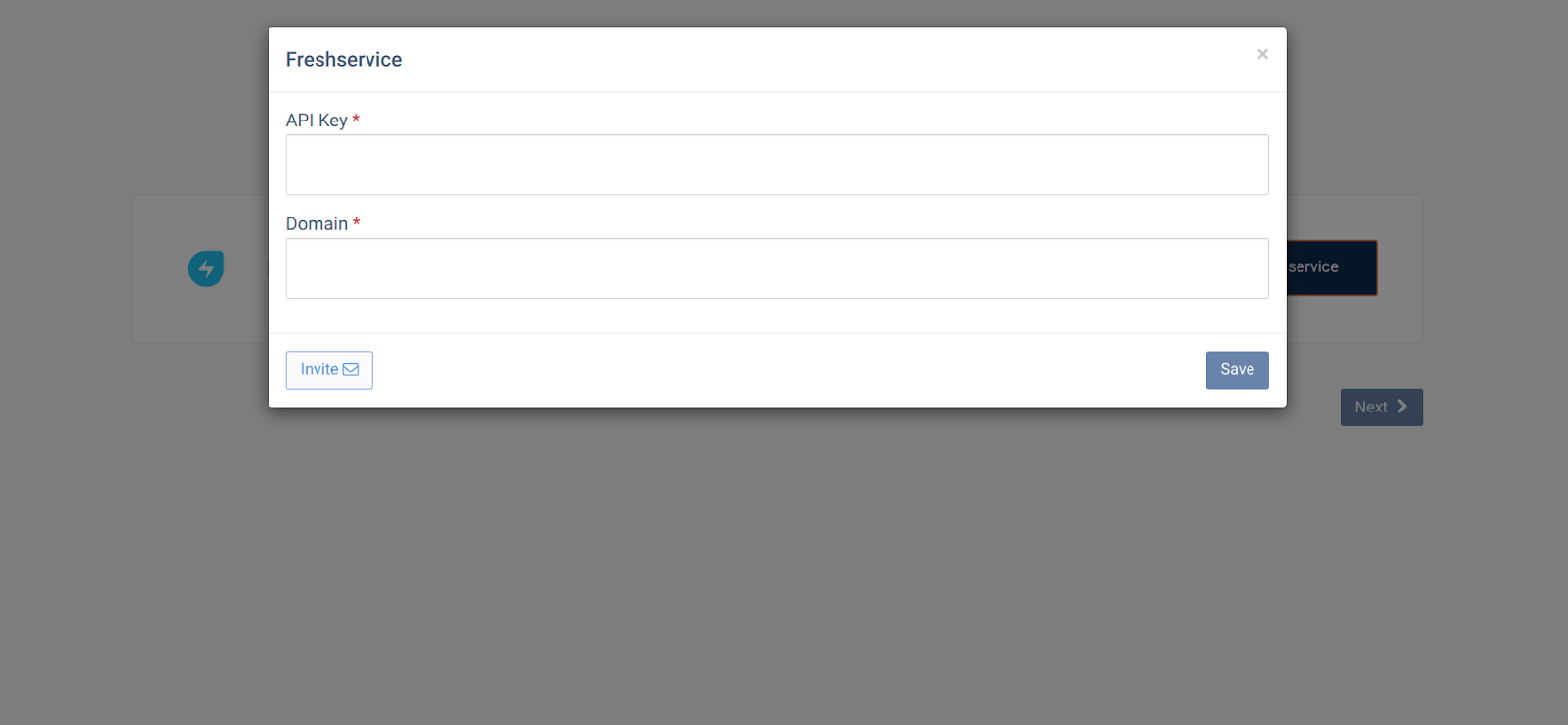
- Enter the API Key and Domain you copied earlier, then click Save.
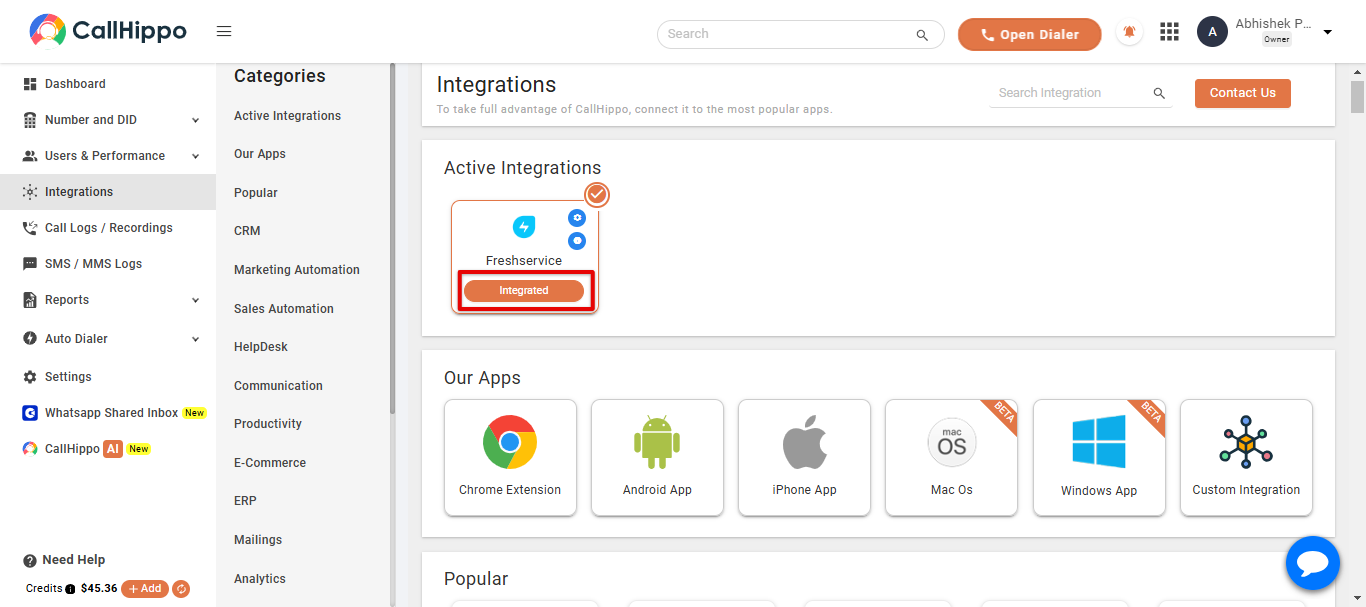
- Click Next. You are redirected back to CallHippo and the status changes to Integrated.
FAQ
Where do I find my Freshservice domain?
It is the first part of your Freshservice URL. For https://yourname.freshservice.com, the domain is yourname.
Where is my Freshservice API key?
Open your profile, click Profile Settings, and copy the API key shown in the “Your API Key” panel.
Need help connecting Freshservice with CallHippo? Our team is here for you at [email protected].