
Integrating Gong with CallHippo automatically sends your call activity and recordings into Gong's revenue intelligence platform, so every conversation is captured and ready for analysis. This guide covers connecting the two tools and configuring what syncs.
A few things to know before you start:
- Who can integrate: Any CallHippo user with admin access on both CallHippo and Gong.
- Time to sync data: Data synchronization is real-time once the integration is set up.
- Prerequisites: An active Gong account with Technical Administrator access enabled.
Connect Gong in CallHippo
- Log in to your CallHippo account.
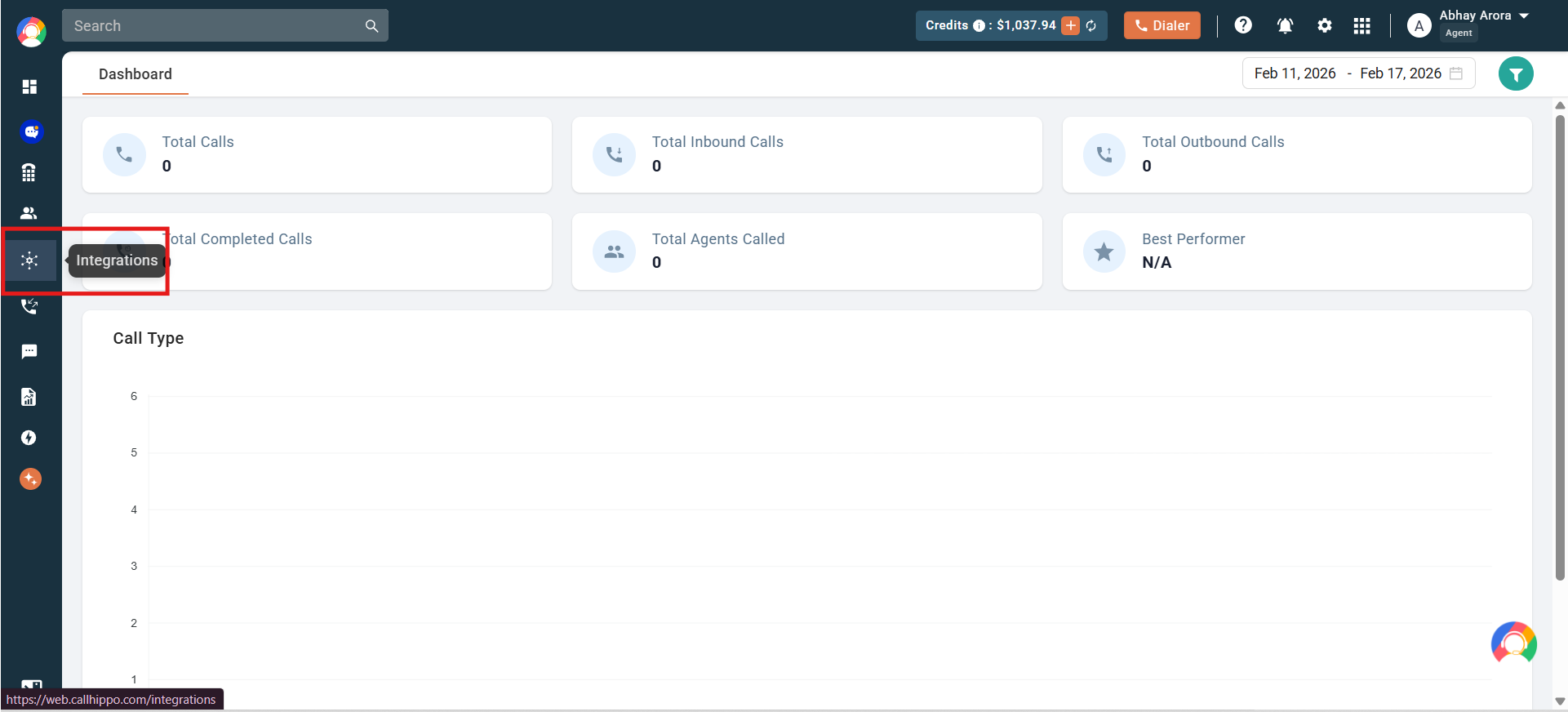
- From the left sidebar of your dashboard, click Integrations.
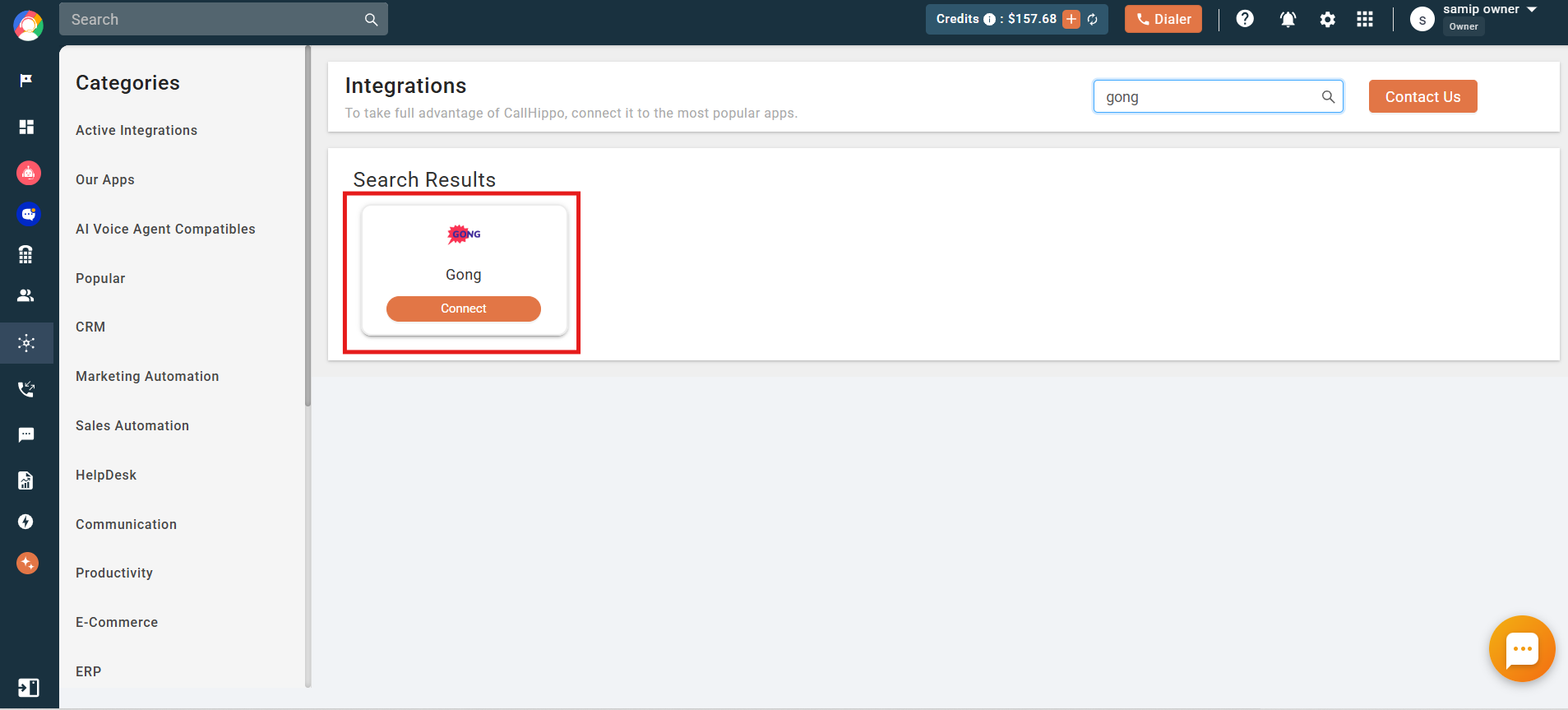
- Search for Gong and click the Connect button.
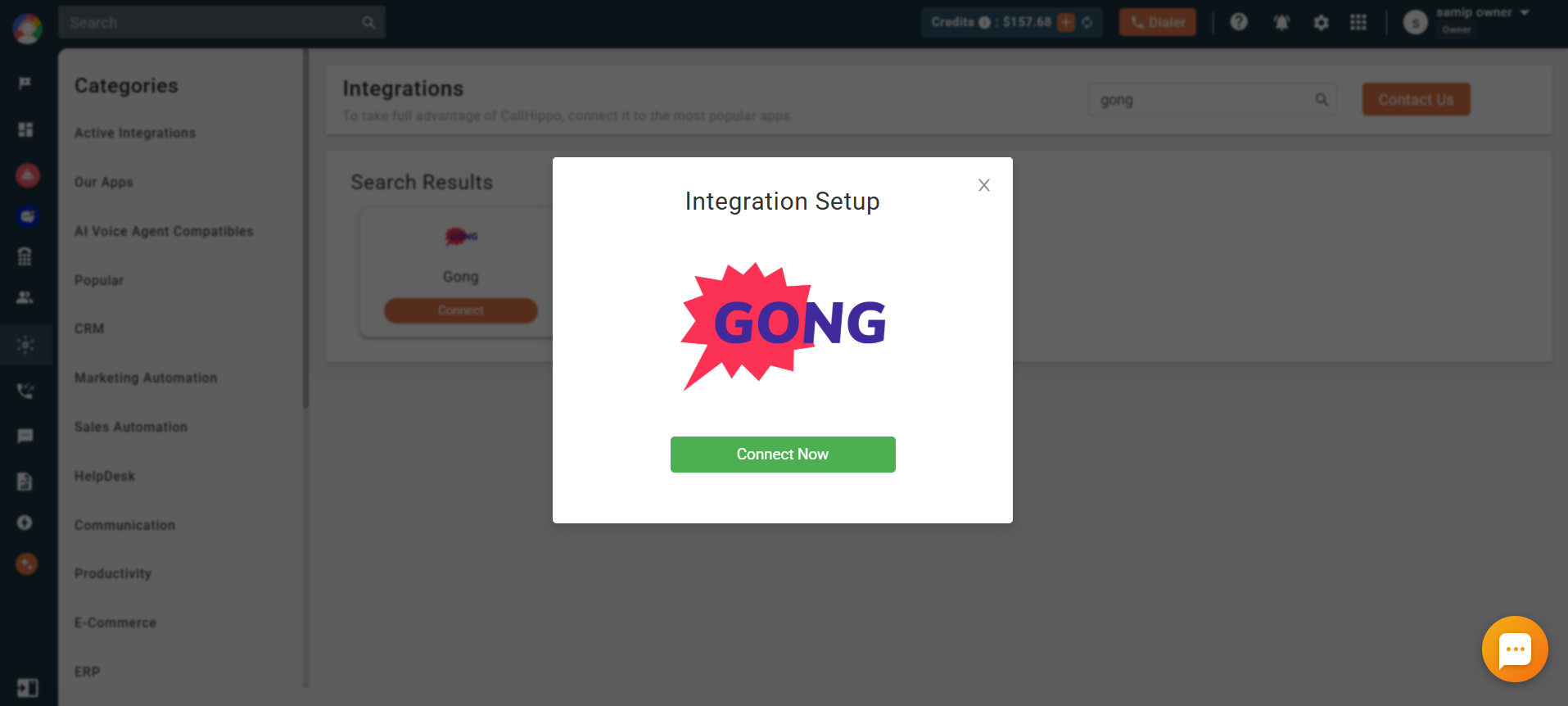
- A pop-up box appears — click Connect Now. You are redirected to the Gong login page.
- Log in to your Gong account and grant the required permissions for CallHippo by clicking Allow.
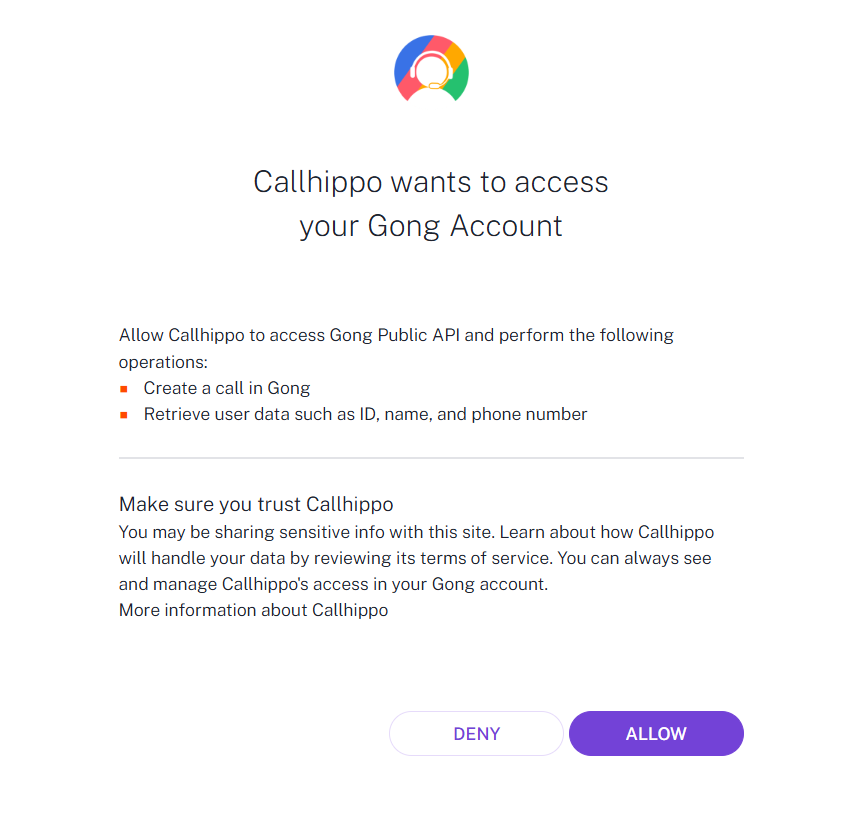
- After granting permissions, you are redirected back to CallHippo. Gong is now successfully integrated.
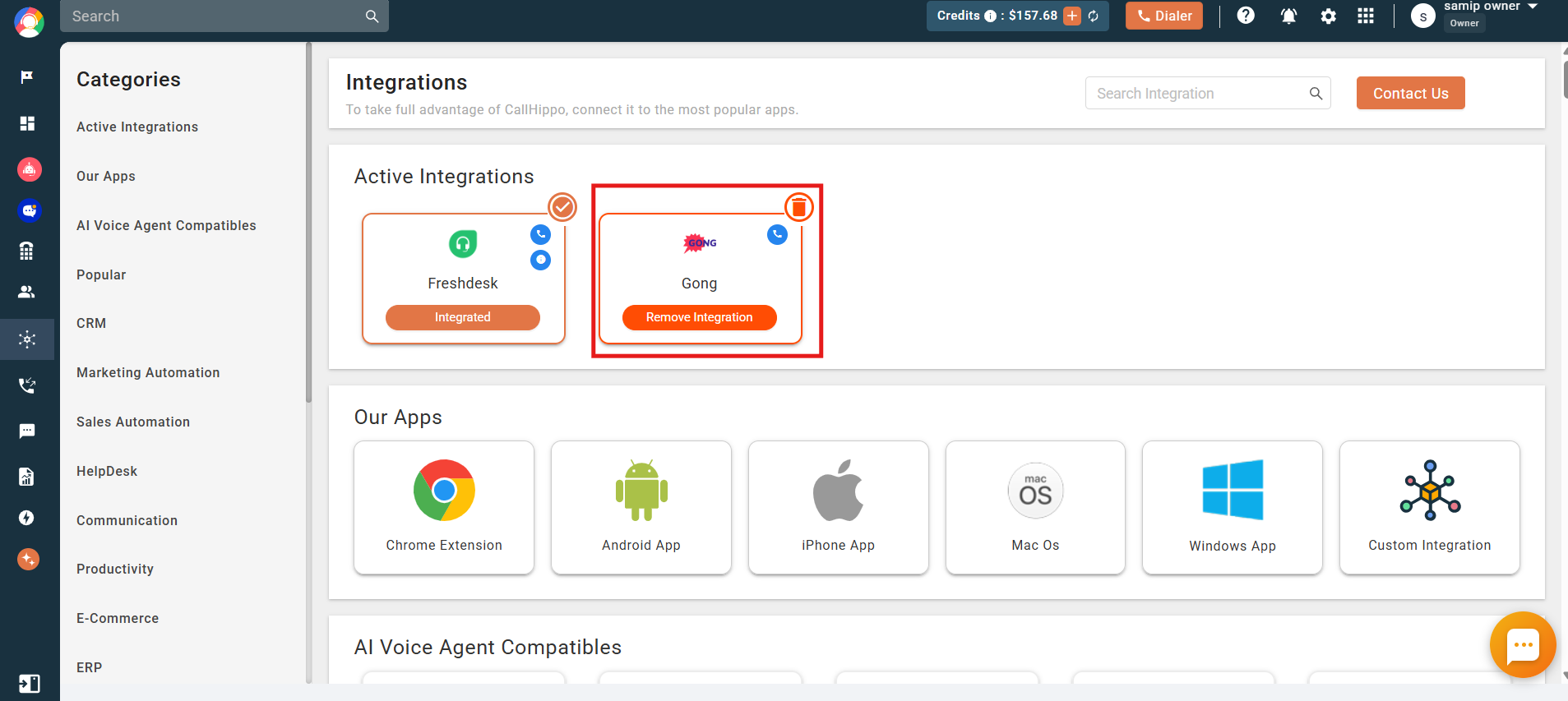
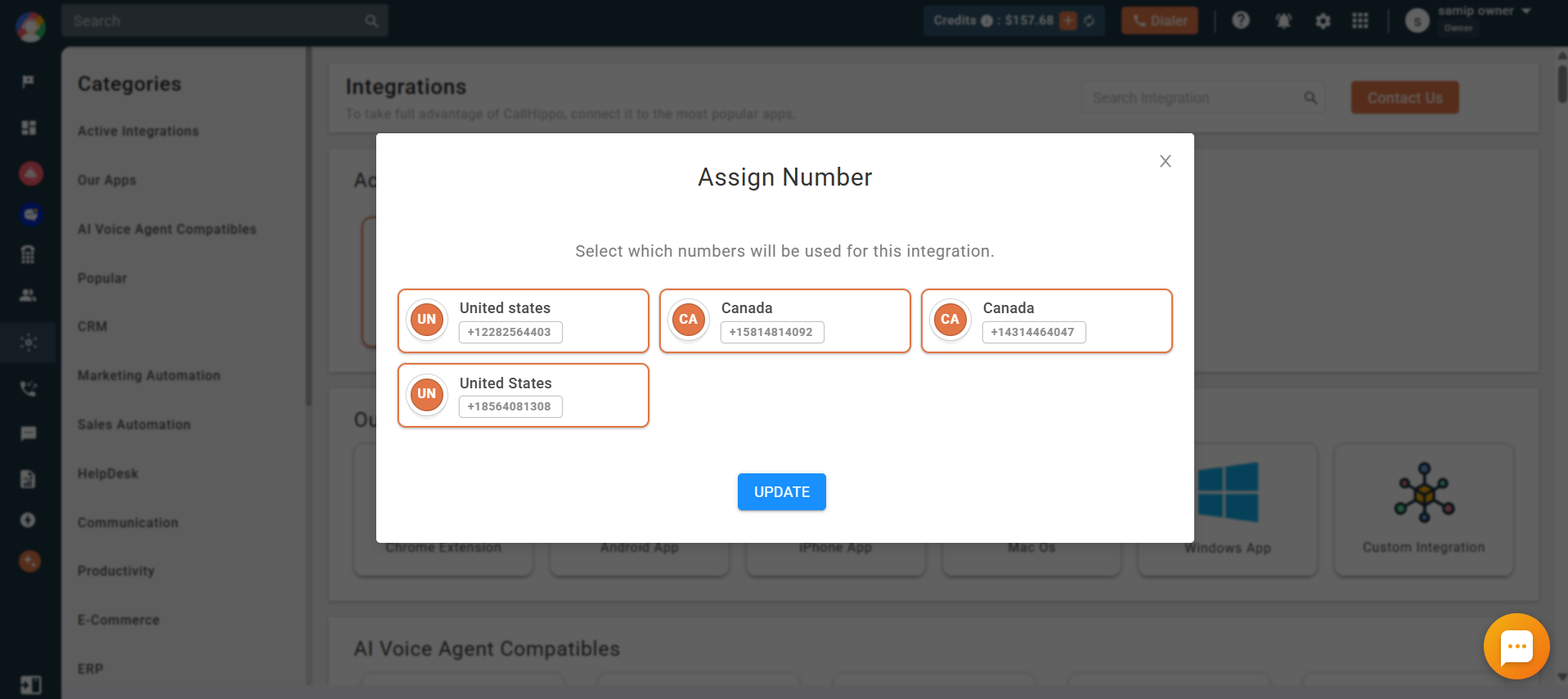
Integration settings
Under Connected Numbers, select or deselect the phone numbers whose call activity you want to pass into Gong. All numbers are selected by default.
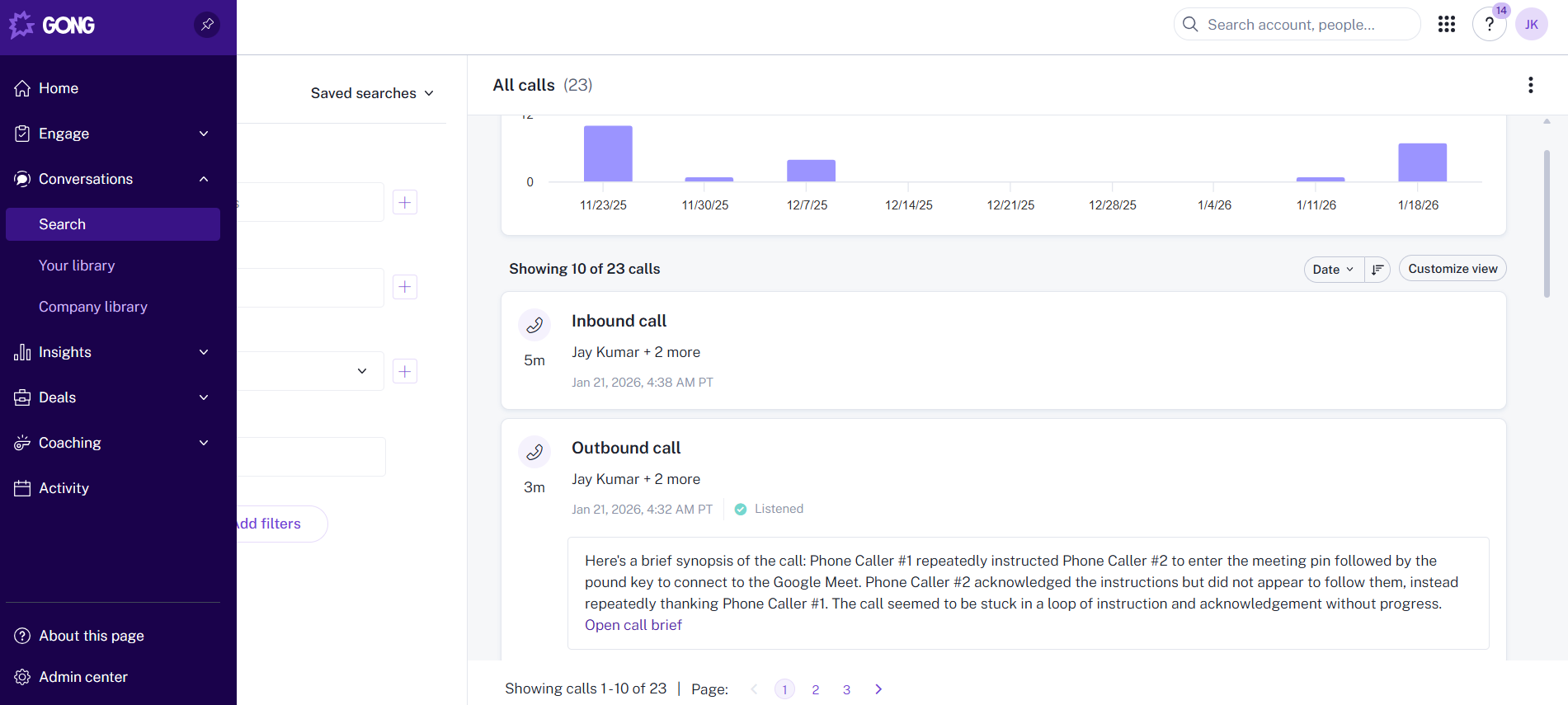
What activity syncs to Gong
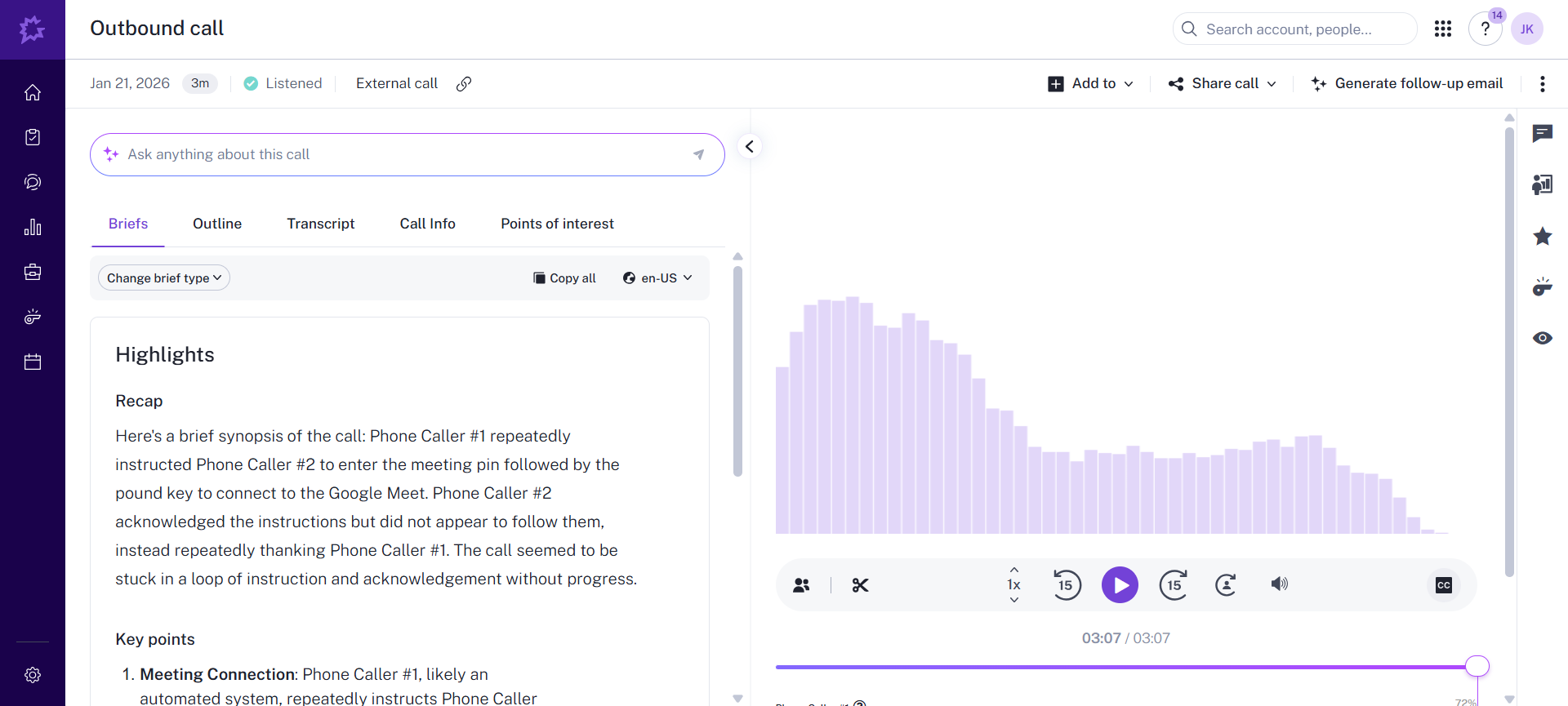
An activity log for every call made or received on the CallHippo dialer is sent to Gong, where you can review it alongside the recording and AI-generated insights.
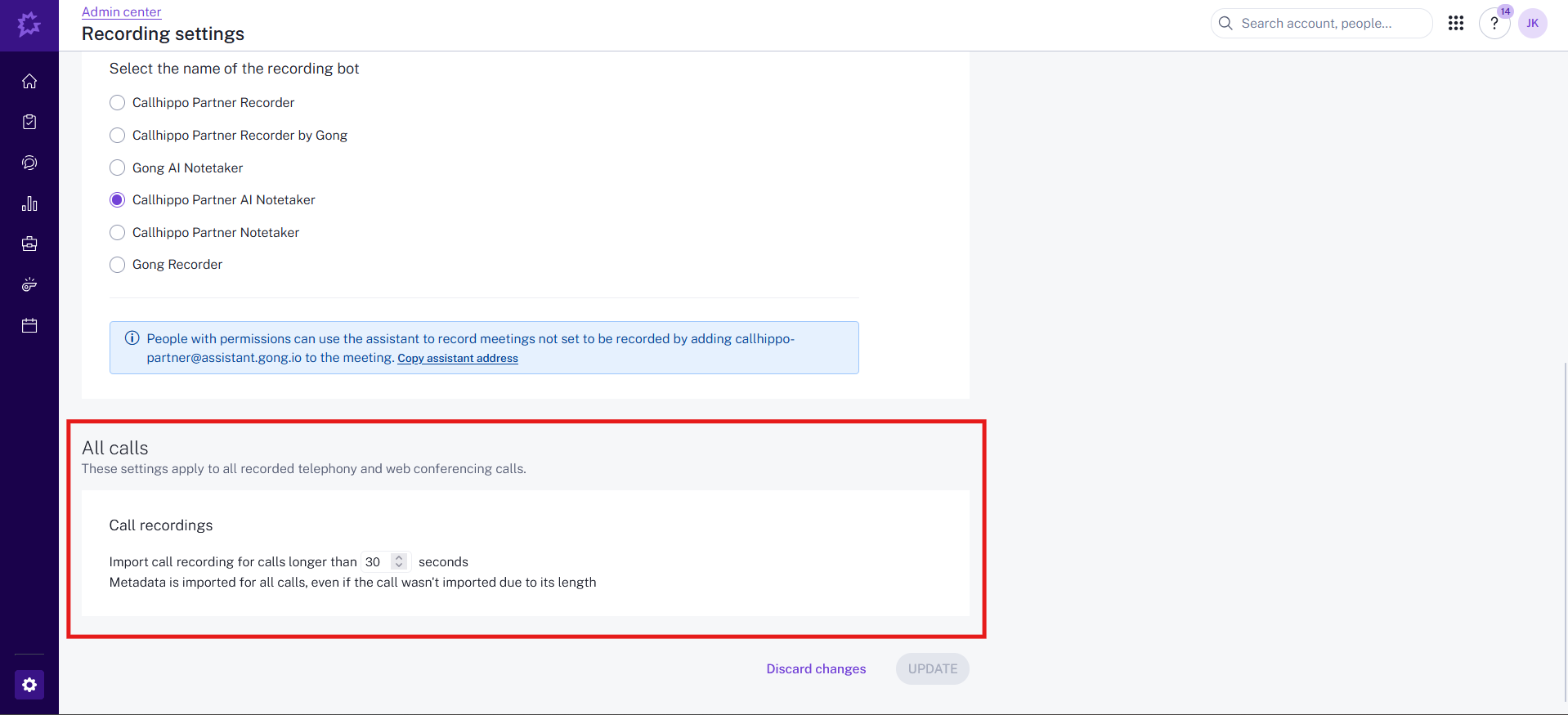
About call recordings: Recordings are imported only for calls that exceed the minimum duration set in your Gong Admin Center. To configure this, go to Gong Admin Center > Recording Settings > All Calls > Call Recording and set the minimum call duration in seconds. Metadata is imported for all calls regardless of length.
Still need help? Reach us at [email protected].