
Link Google Ads with CallHippo to report inbound phone calls as conversions, see which campaigns and keywords drive calls, and feed that data straight into your PPC reporting. This guide covers connecting the accounts, adding a tracking template, and finding your call conversions.
Connect Google Ads to CallHippo
Set up the integration from the Call Tracking area of your CallHippo account.
- Log in to your CallHippo account.
- Click Call Tracking in the top menu, then open Integrations from the left sidebar.
- Find Google Ads and click Integrate.
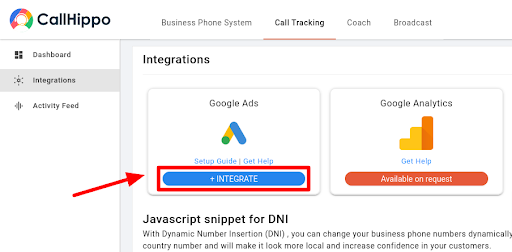
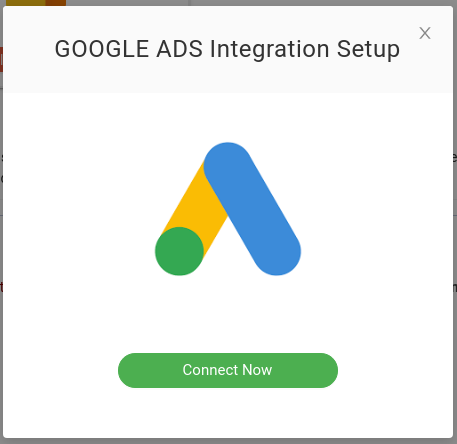
- In the pop-up that opens, click Connect Now.
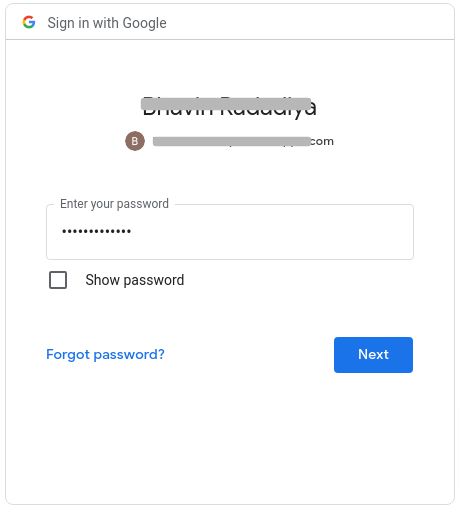
- You are redirected to the Google login page. Sign in with your Google Ads account credentials.
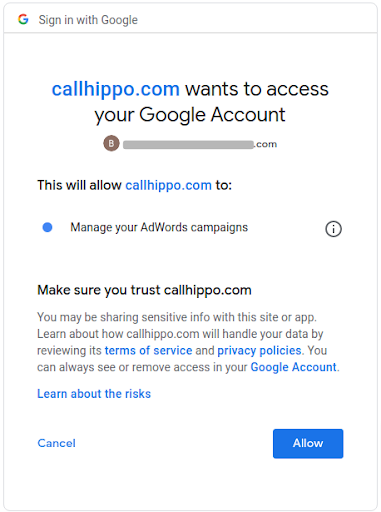
- On the permission page, click Allow to let CallHippo manage your AdWords campaigns.
- Back in CallHippo, select the Google Ads manager account you want to use for creating conversions and click Okay. Your Google Ads account is now integrated.
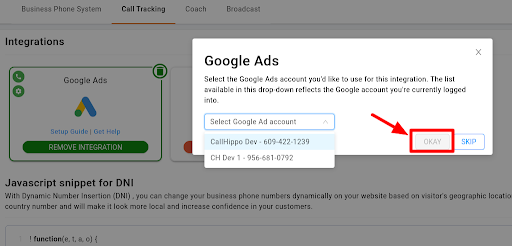
Track keywords and campaign details
CallHippo can display a caller’s keyword data in your call logs (activity feed). To enable this, add a tracking template to your Google Ads campaigns. Google automatically replaces the values inside the curly brackets with the visitor’s actual session information when they click your ad, so keep placeholders such as {keyword} intact.
- Log in to Google Ads and select All campaigns.
- Click Settings on the left of the page.
- Choose Campaign settings at the top.
- Tick the checkbox next to each campaign where you want to add the tracking template.
- Open the Edit drop-down and click Change tracking templates.
- Keep Set tracking template selected. Type
{lpurl}(which represents your final URL, so you don’t have to enter ad URLs manually) followed by the template. - Copy and paste this into the tracking template field:
{lpurl}?utm_campaign={_campaign}&utm_adgroup={_adgroup}&utm_keyword={keyword}&utm_content={creative}&utm_device={device}&utm_content={creative}&utc_matchtype={matchtype}&utc_network={network}&utc_adposition={adposition}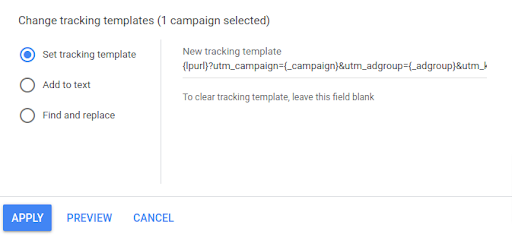
- Click Apply to save your tracking template.
Once the tracking template is saved, keyword details appear in your CallHippo call logs (Call Tracking activity) and in your call reports.
How call conversion tracking works
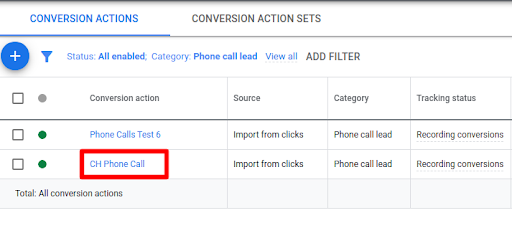
Once the integration is active, CallHippo reports incoming calls as conversions in Google Ads. When a visitor clicks your ad, lands on your site, and requests a callback through the Call Me widget, CallHippo connects the call between your agent and the visitor and automatically creates a conversion for it. In Google Ads you will see a CH Phone Call conversion action with the source Import from clicks.
To find your call conversions in Google Ads:
- Log in to Google Ads and select Tools at the top of the page.
- Choose Conversions from the Measurement section of the Tools drop-down.
- Your phone calls appear as CH Phone Call with a source of Import from clicks.
Still need help? Reach us at [email protected].