
Connect Google Drive with CallHippo and every call recording is saved straight to your Drive, neatly organized by agent and date. Follow the steps below to link the two accounts in a couple of minutes.
Connect Google Drive in CallHippo
- Log in to your CallHippo account.
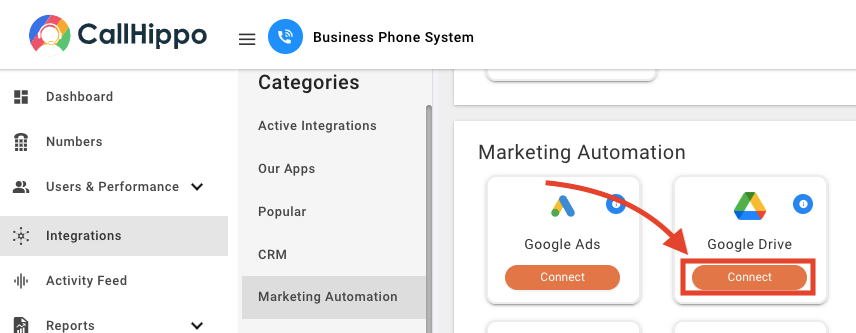
- Open the left sidebar menu and click Integrations.
- Find Google Drive and click Connect.
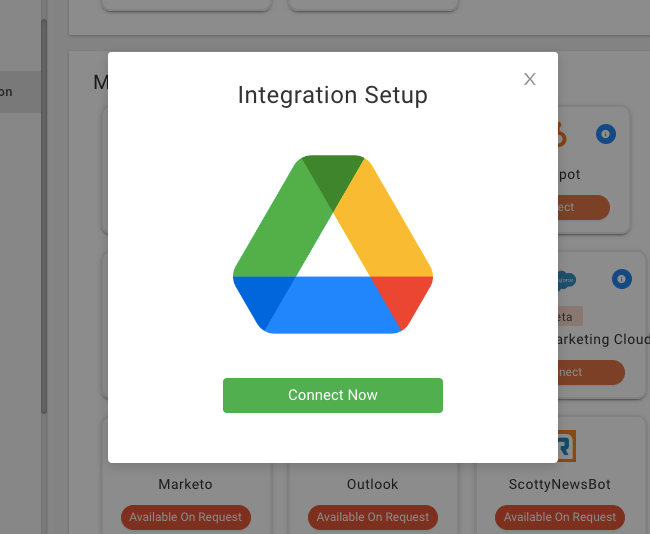
- In the Integration Setup popup, click Connect Now.
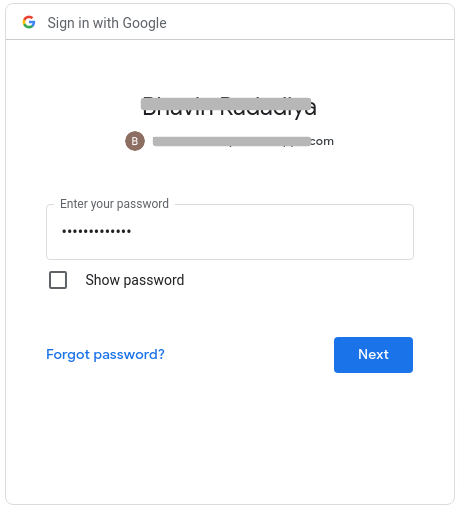
- Sign in with your Google account. If you are already signed in, choose the account you want to use.
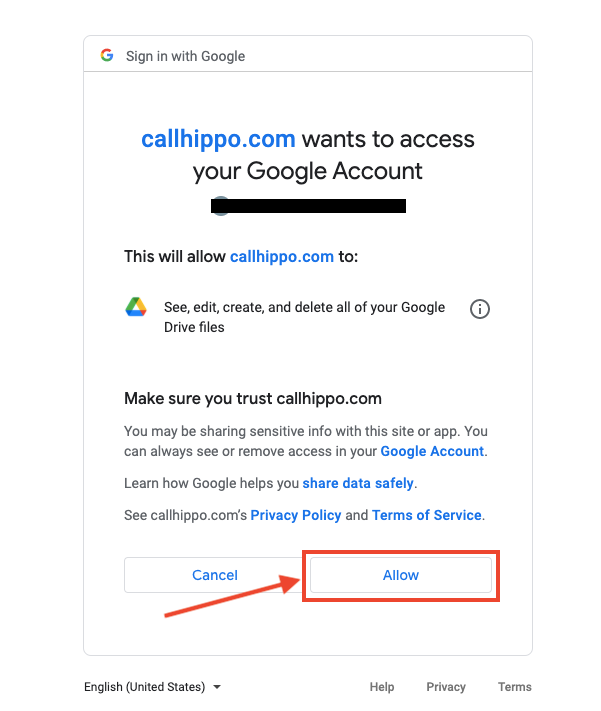
- On the permission screen, click Allow to grant CallHippo access to your Google Drive.
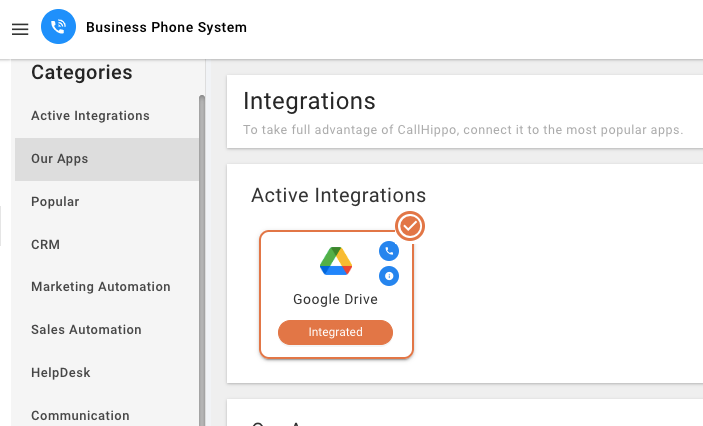
- You are redirected back to CallHippo. The integration status now shows Integrated, and a confirmation is also sent to your email.
How it works
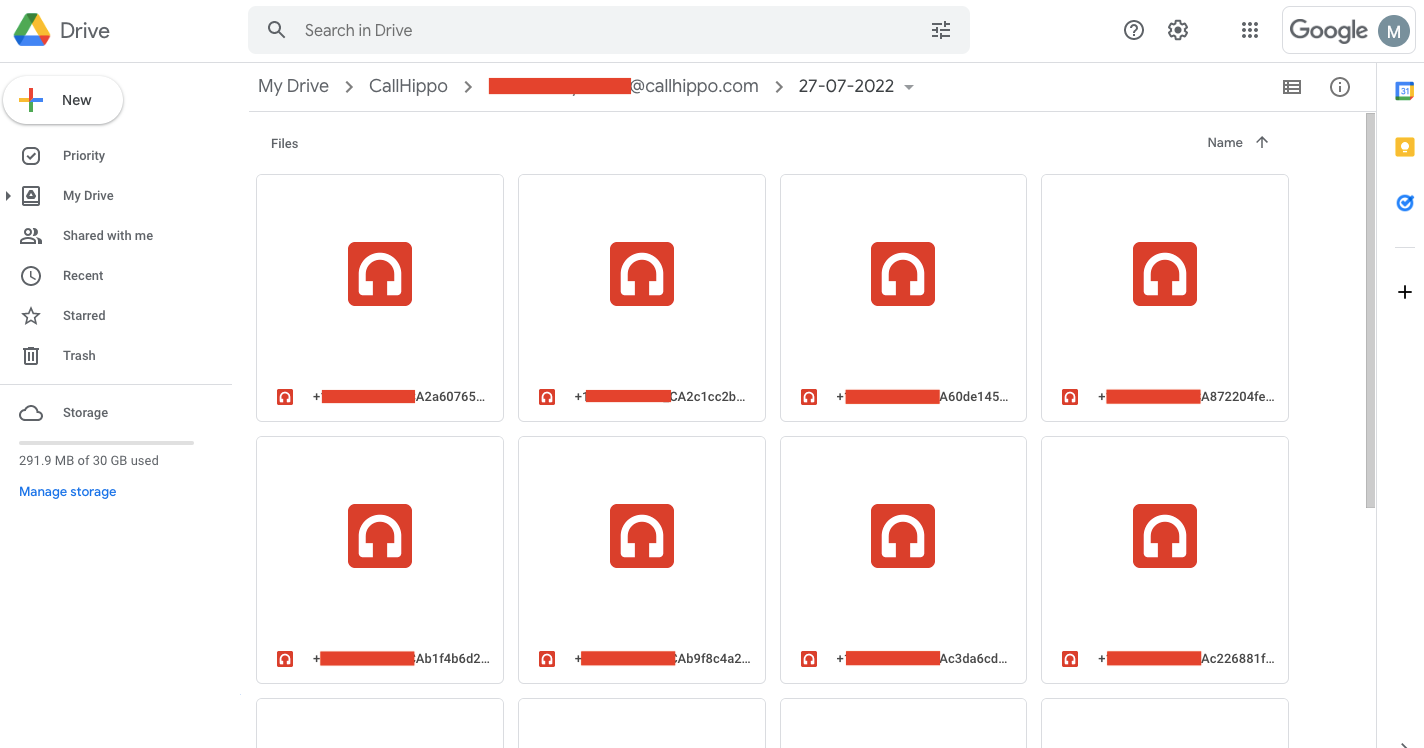
Once the integration is active, any call you make or receive that is recorded in CallHippo is automatically pushed to your connected Google Drive. A CallHippo folder is created in your Drive, and each recording is saved along this path:
- CallHippo » UserEmail (email of the agent who handled the call) » Date (the date the call was made) » the recording file
Still need help? Reach us at [email protected].