
Connecting CallHippo with HubSpot lets you log every call and text against your CRM records, place calls straight from a contact, and keep your pipeline in sync — all without leaving HubSpot.
Before you begin: You need owner/admin access in CallHippo and super admin access in HubSpot to set up this integration.
Configure call outcomes in HubSpot (optional)
If you want the CallHippo call status to appear in the outcome of the call activity, map the statuses in HubSpot first.
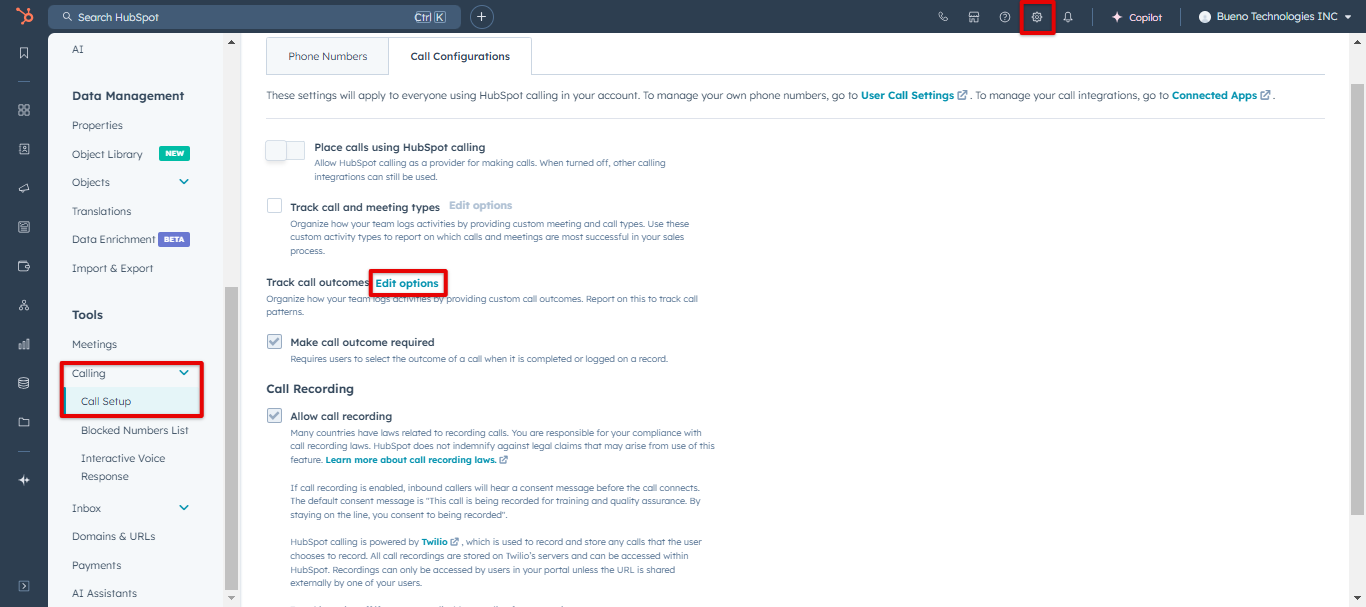
- Open the call configuration: Go to Settings > Tools > Calling > Call Configuration, find Track call outcomes, and click Edit options.
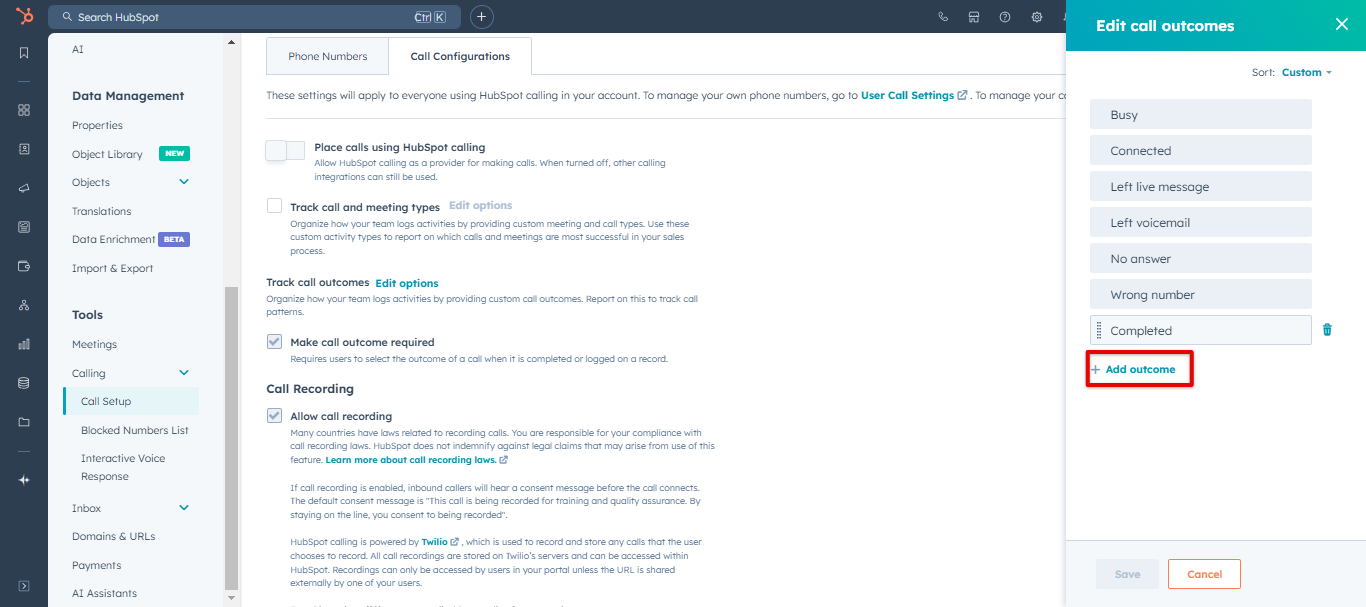
- Add each status: A sidebar opens. Click Add outcome and enter each CallHippo status exactly (listed below), one at a time, then save.
If you skip this step, CallHippo statuses are mapped to the matching HubSpot outcome automatically, as shown below.
| CallHippo Status | HubSpot Status |
| No answer | No answer |
| Canceled | No answer |
| Missed | No answer |
| Unavailable | No answer |
| Completed | Connected |
| Rejected | Busy |
| Voicemail | Left voicemail |
| Welcome message | Left live message |
| IVR message | Left live message |
Configure call dispositions in HubSpot (optional)
If you want CallHippo call dispositions to appear in the Call Type field of the call activity, map them in HubSpot as well.
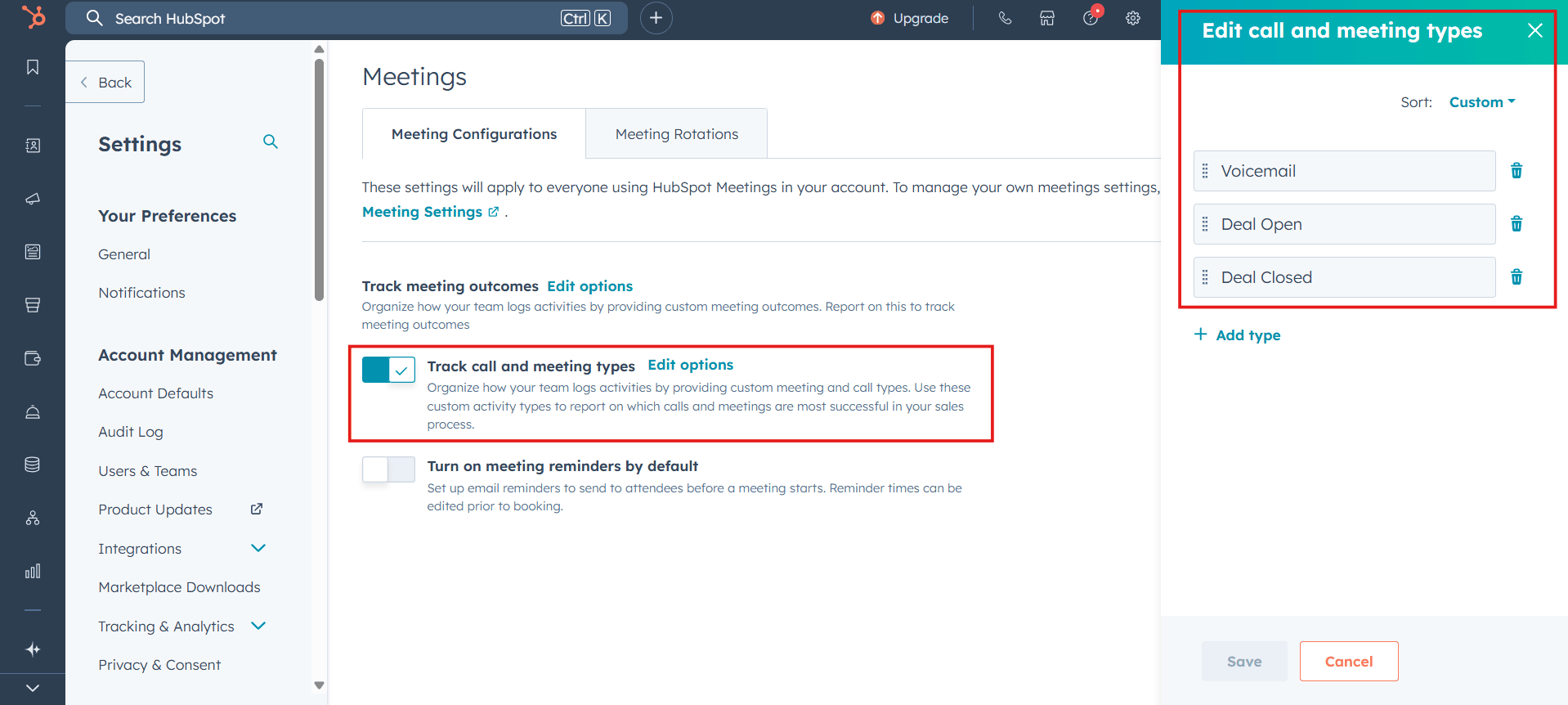
- Open the meeting configuration: Go to Settings > Meetings > Meeting Configurations, find Track call and meeting types, and click Edit options.
- Add each disposition: In the sidebar, click Add type and enter each CallHippo disposition exactly, one at a time, then save.
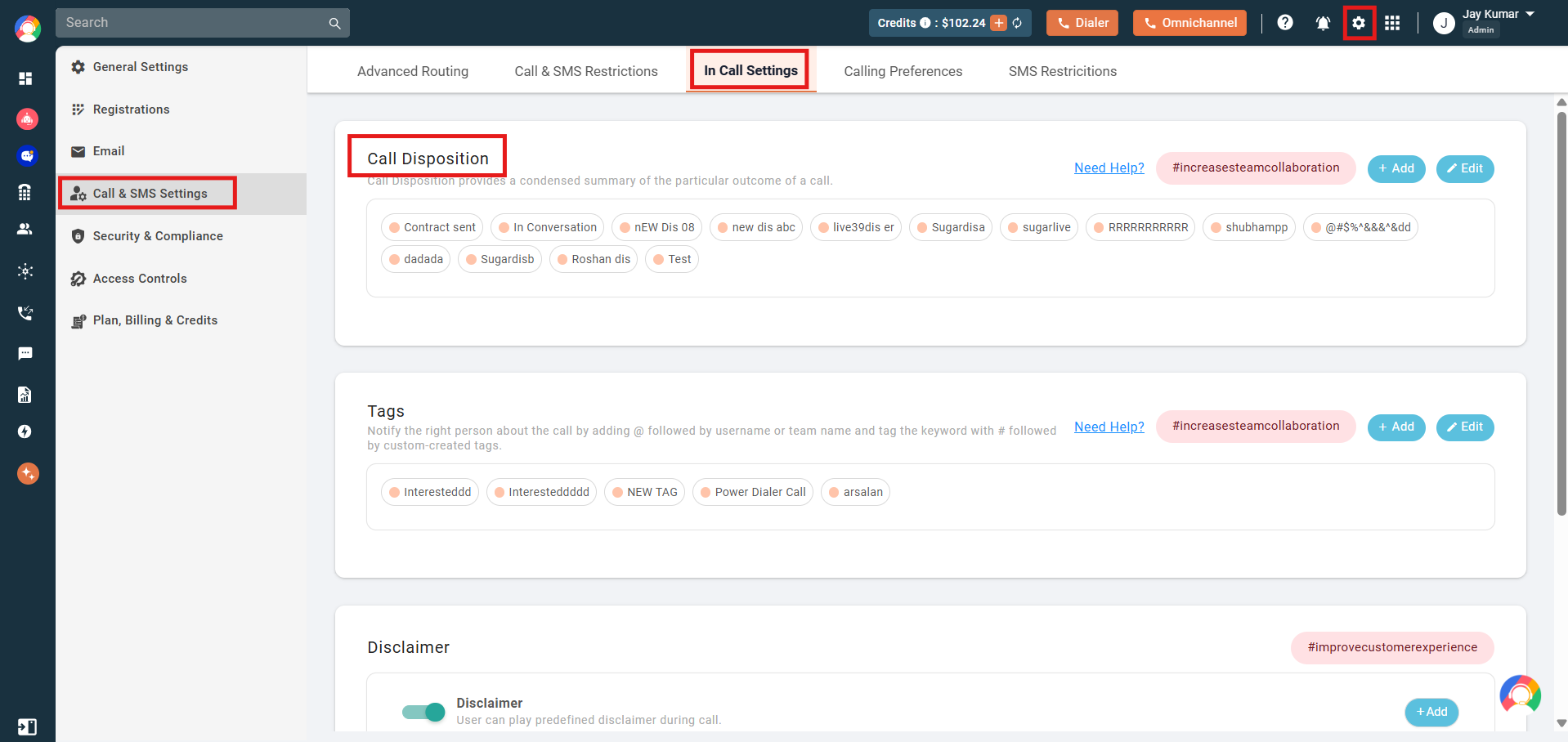
You can review your CallHippo dispositions under Settings > Call & SMS Settings > In Call Settings > Call Disposition.
Once configured, every call made afterward will carry its disposition in the Call Type field.
Connect HubSpot to CallHippo
- Log in to your CallHippo account.
- From the left panel, click Integrations.
- Search for HubSpot and click the Connect button under it.
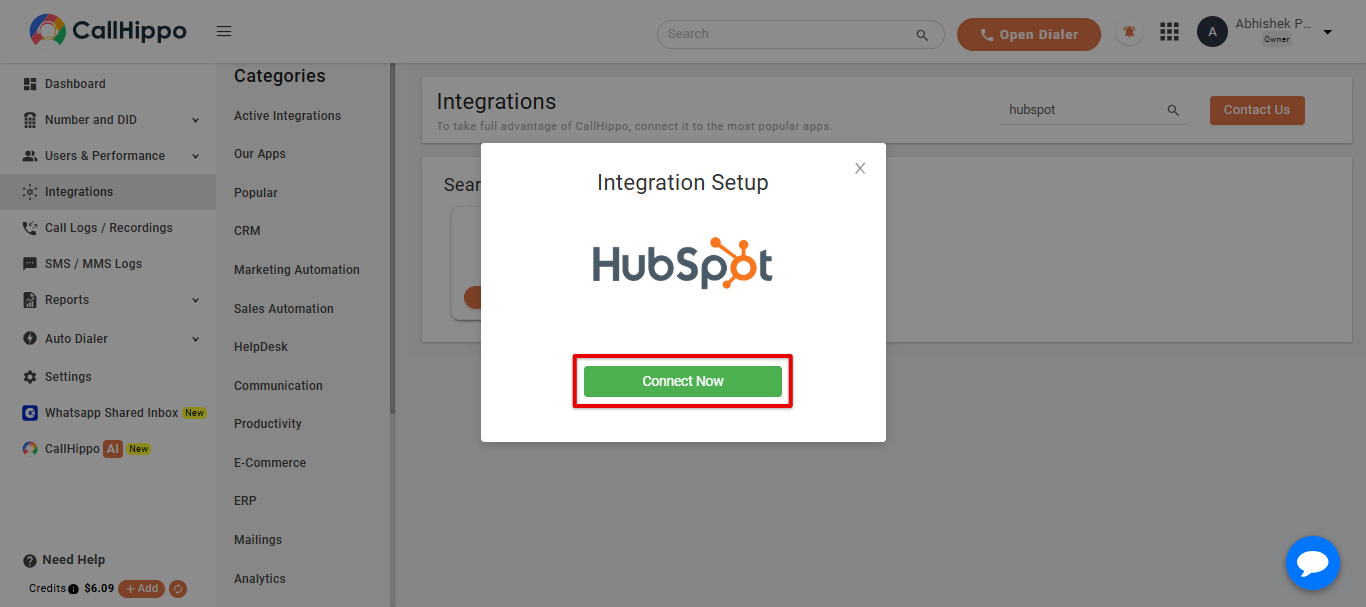
- A pop-up appears with a Connect Now button — click it.
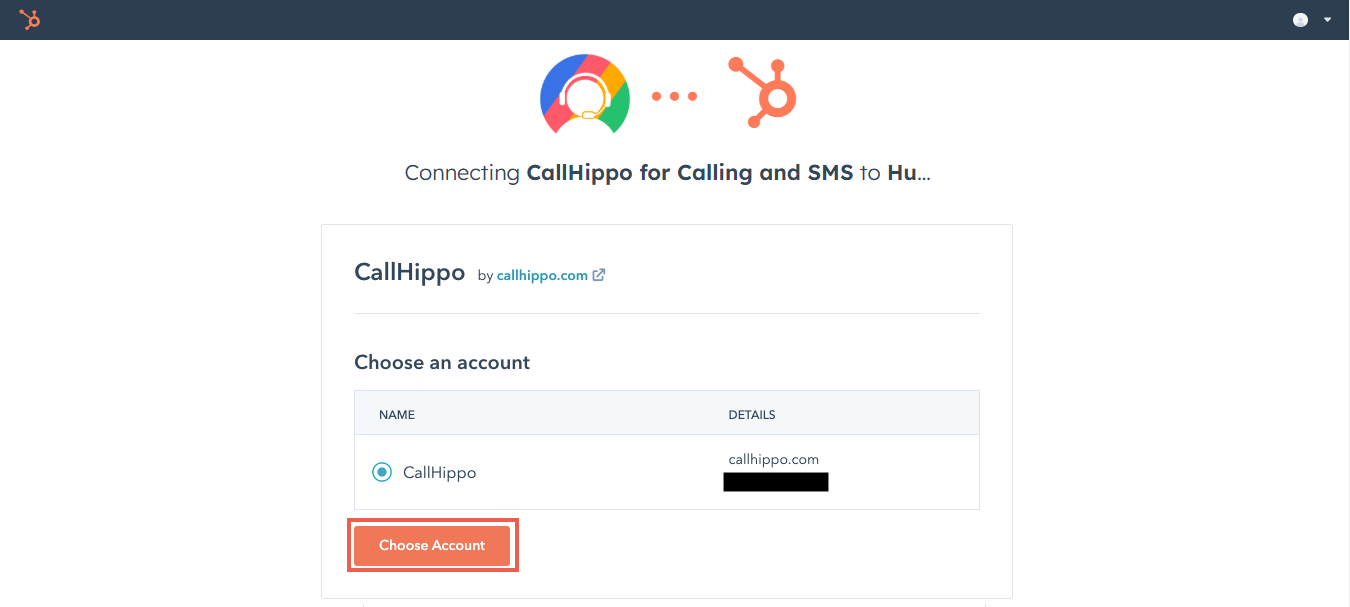
- You are taken to the HubSpot login screen. If you are already signed in, you land on the Choose Account screen instead.
- On the accounts screen, select the HubSpot CRM account you want to connect and click Choose Account.
- On the permissions page, click Connect app to grant the access the integration needs.
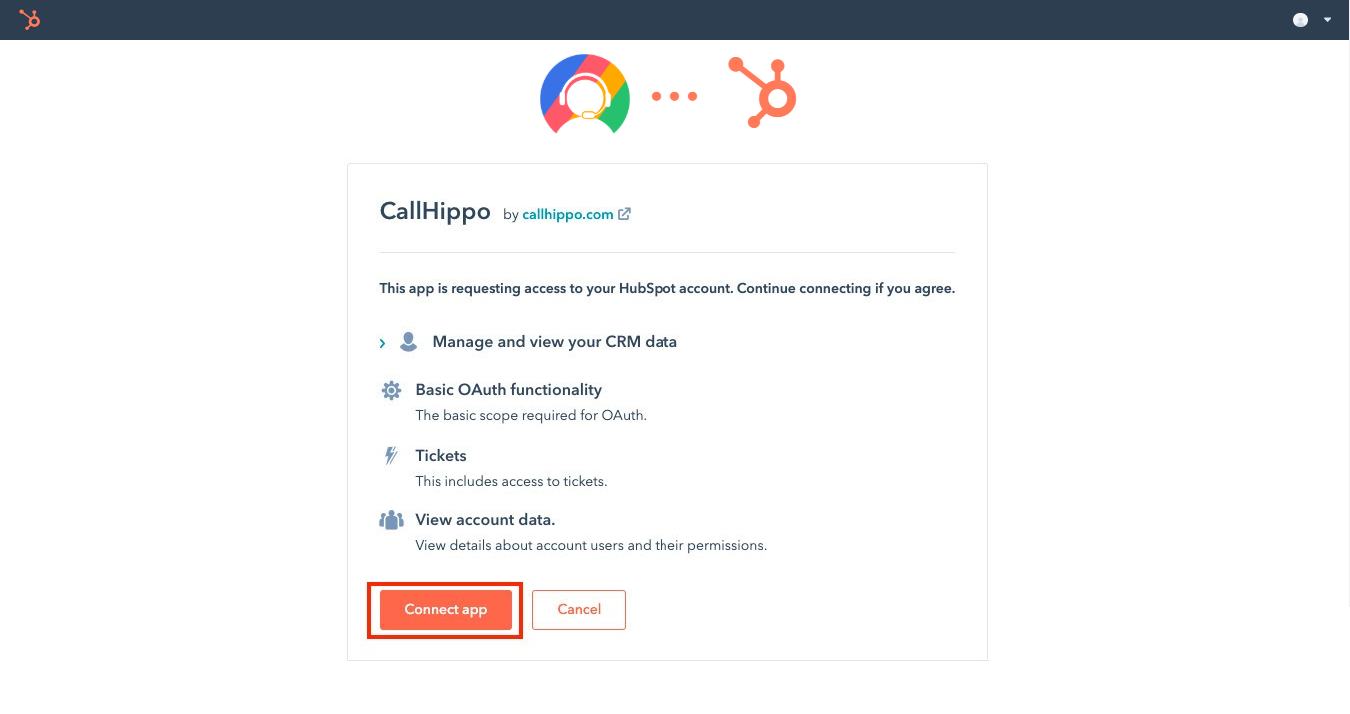
Once access is granted, you are redirected back to CallHippo and the integration status shows Integrated.
Integration settings
After connecting, CallHippo opens the Integration Settings popup where you can fine-tune how data flows between the two platforms.
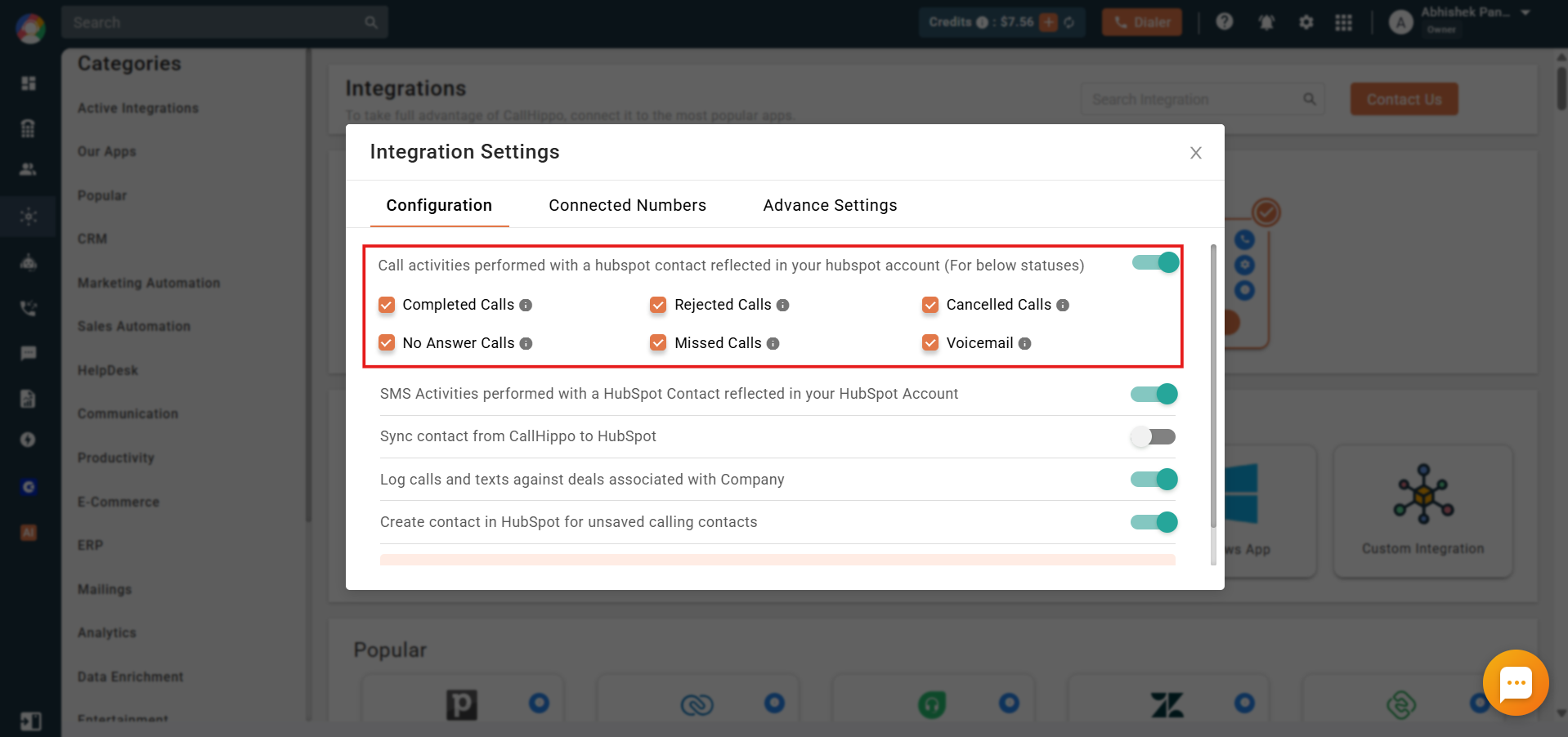
Configuration tab:
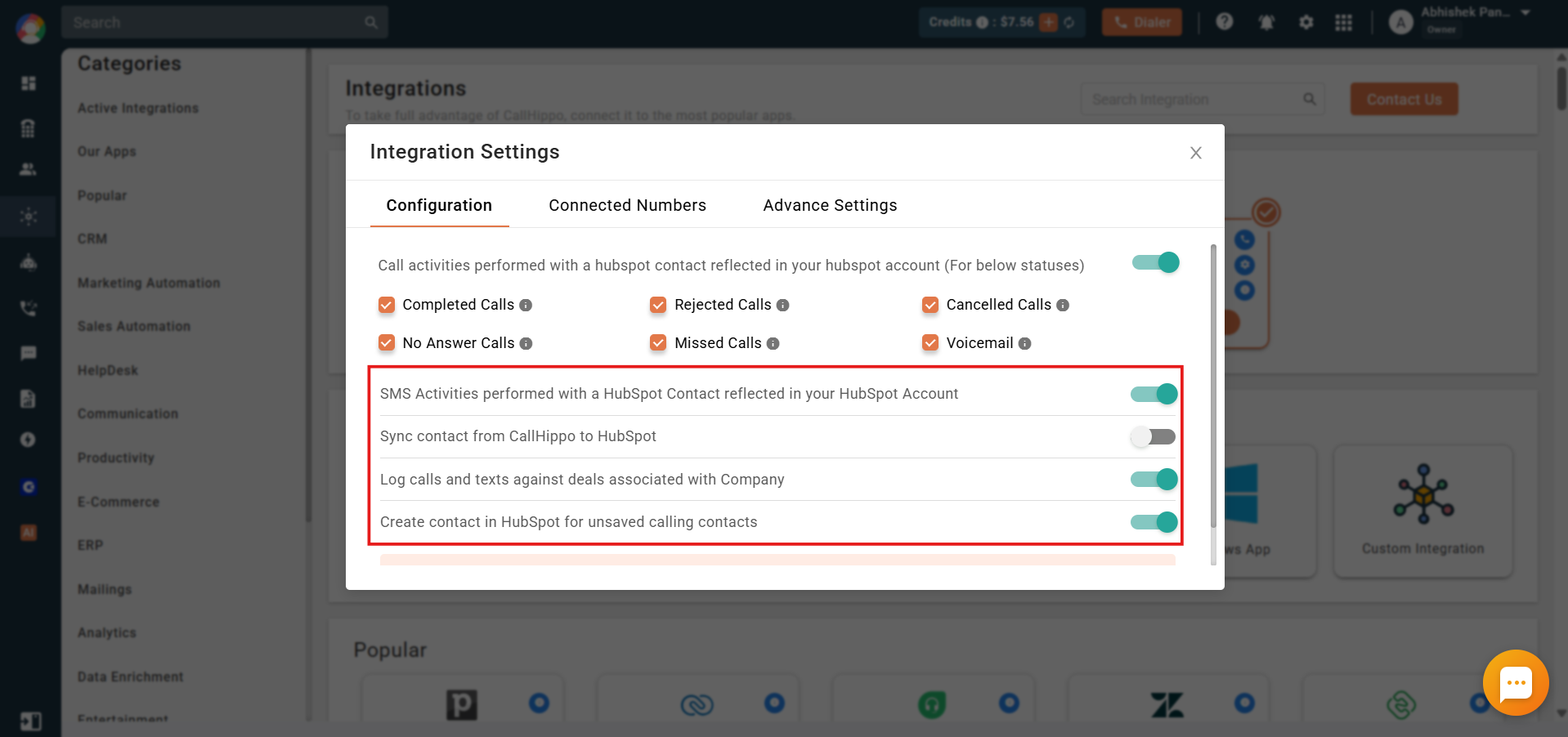
- Call activities reflected in HubSpot — When enabled, calls made on a HubSpot contact through CallHippo appear in that contact’s activity. Tick or untick the individual statuses to control which activities sync.
- After Call Work activity in HubSpot — If your plan includes Call Tags and Disposition and the feature is on, the activity pushed to HubSpot includes the tags and disposition added on the ACW screen. Note: this only syncs when tags and disposition are added on the After Call Work screen — adding them later from call logs will not sync.
- SMS activities reflected in HubSpot — Logs all SMS activity in the HubSpot contact’s activity section.
- Sync contacts from CallHippo to HubSpot — Contacts you add or update in CallHippo are also added or updated in HubSpot.
- Log calls and texts against deals associated with a company — Calls and texts are logged against the deals tied to the company.
- Create contact in HubSpot for unsaved calling contacts — Calls to or from unsaved numbers create a new HubSpot contact named “CallHippo Contact” and log the call against it.
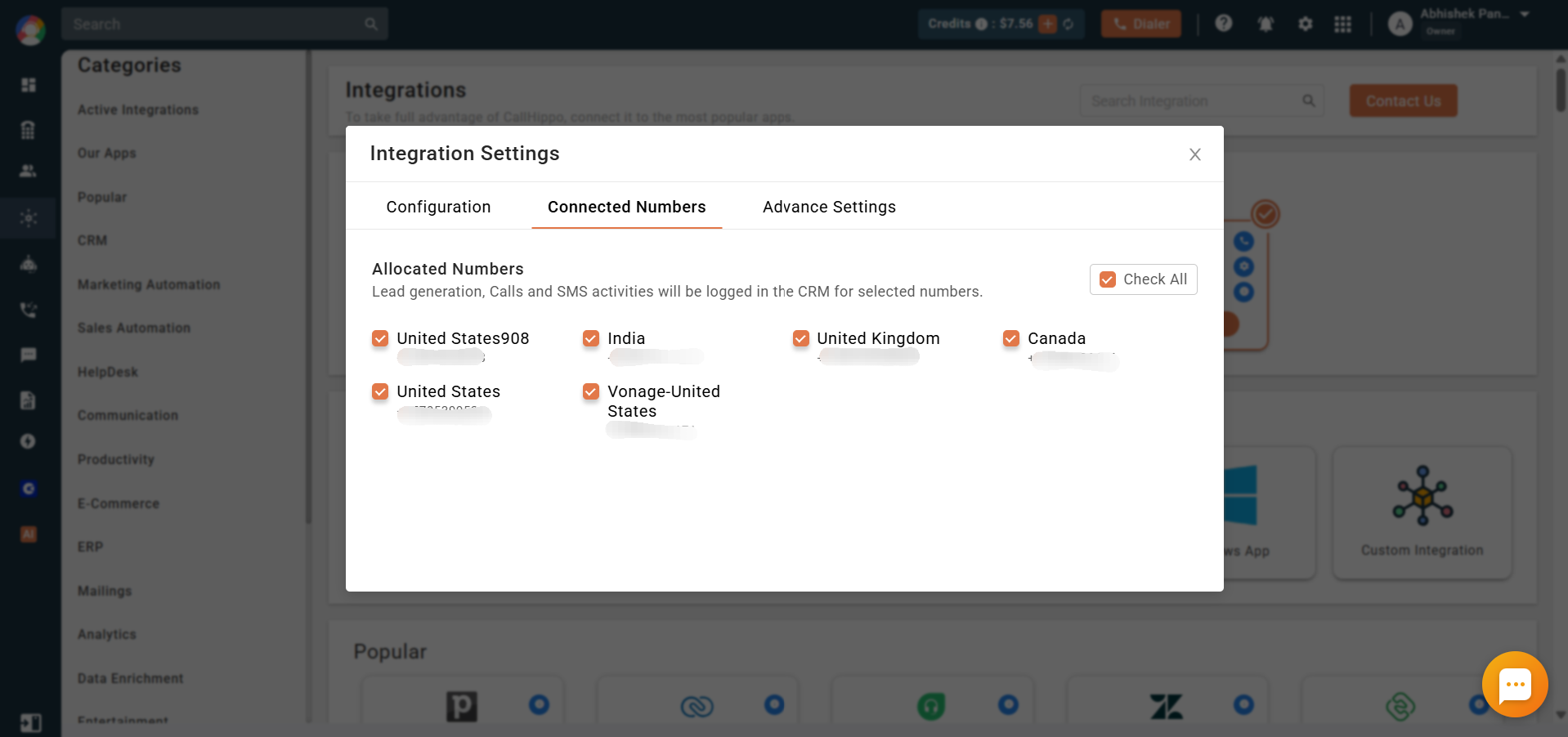
Connected Numbers tab: Select or deselect the numbers you want to connect with HubSpot. Call and SMS activities are logged only for the selected numbers.
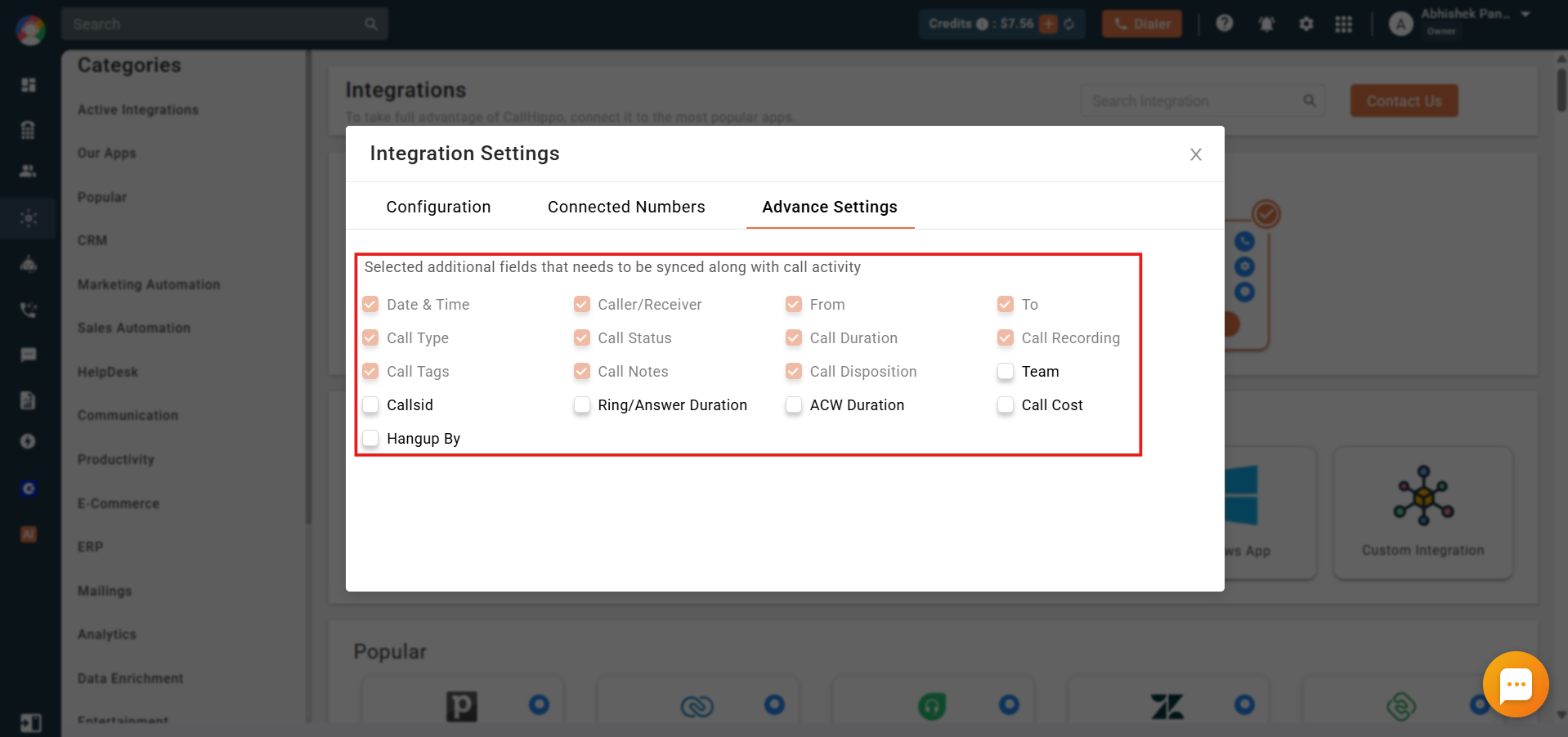
Advance Settings tab: Choose the additional fields you want synced along with each call activity.
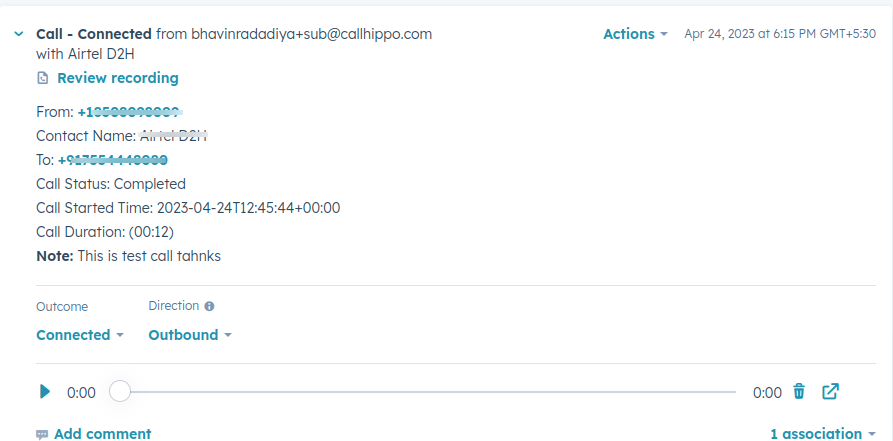
What the HubSpot integration gives you
- Contacts sync from HubSpot to CallHippo when a Click to Call takes place.
- Adding or updating a contact or company in HubSpot syncs it to CallHippo automatically.
- Adding or updating a contact in CallHippo syncs it to HubSpot automatically.
- Creating a new deal with an associated contact syncs it to CallHippo.
- Calls made to a HubSpot contact from the CallHippo dialer are logged on the contact’s detail page — and on the deal page if a deal exists. Calls to numbers not tied to any CRM contact are recorded in the Calls module.
- SMS sent to a HubSpot contact from the CallHippo dialer is logged on the contact’s detail page.
- You can call directly inside HubSpot using the CallHippo Click to Call extension — install it here.
Configure CallHippo as your HubSpot telephony provider
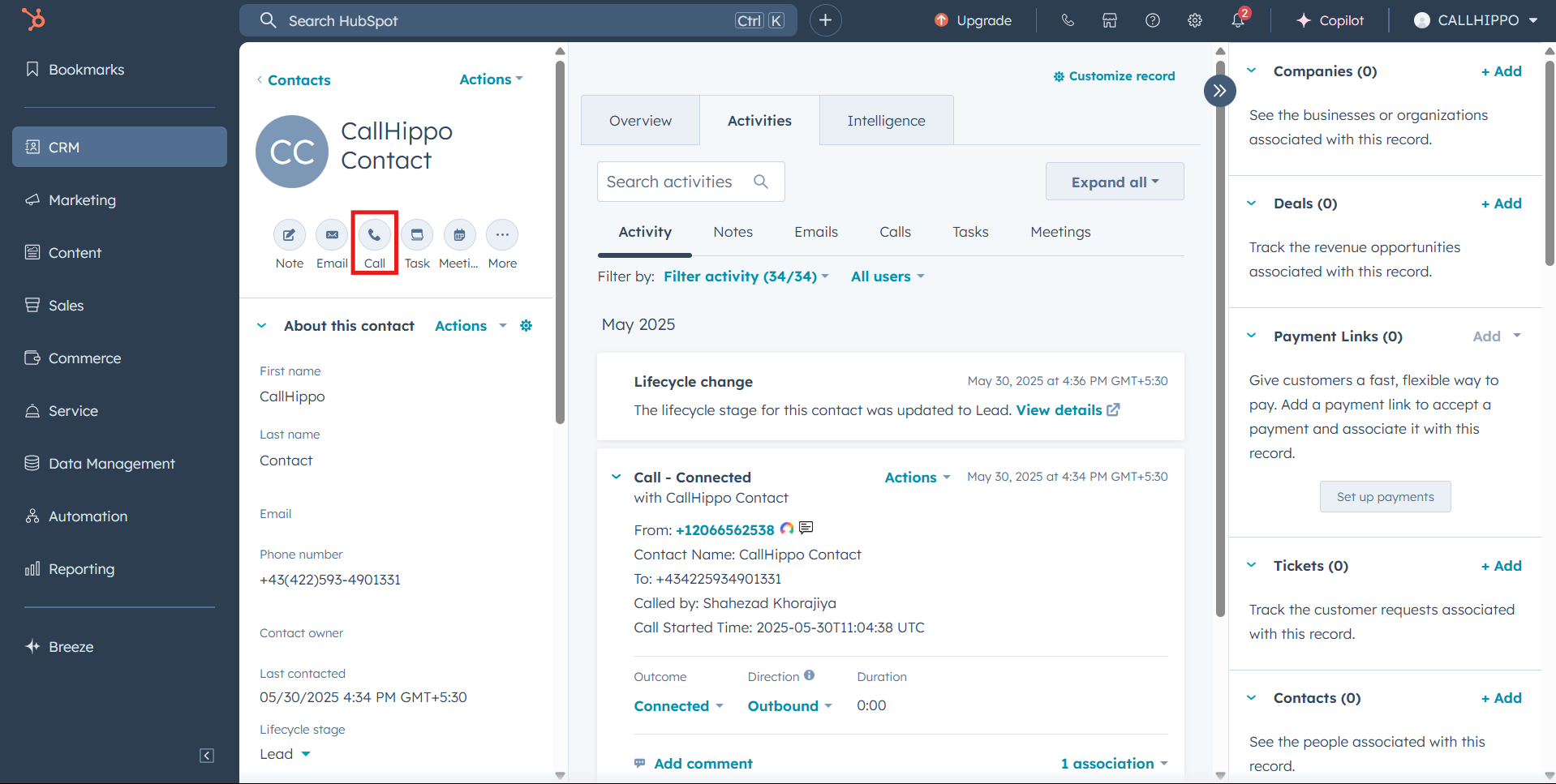
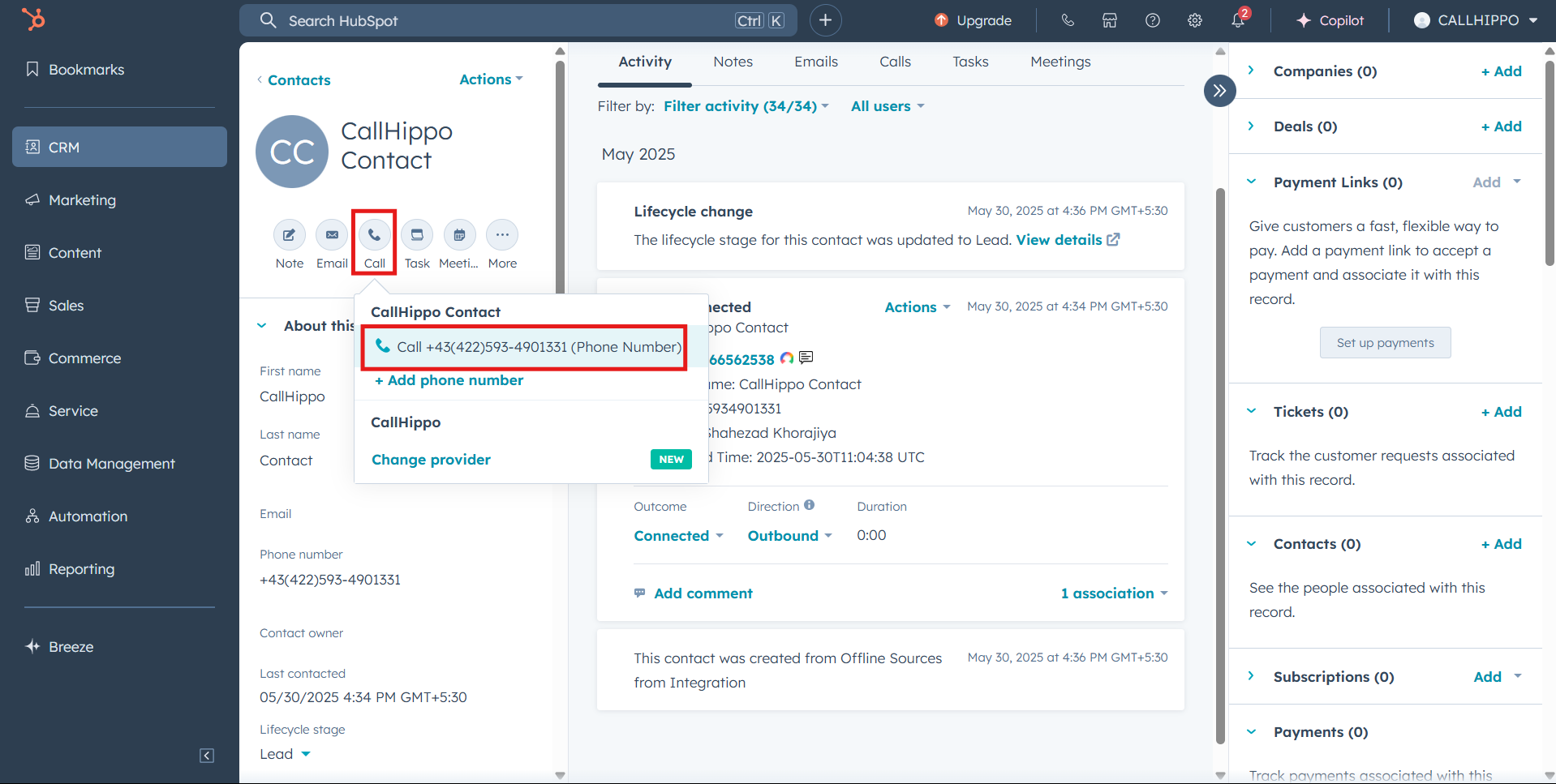
- Open a HubSpot contact, company, deal, or lead detail page and click the Call icon.
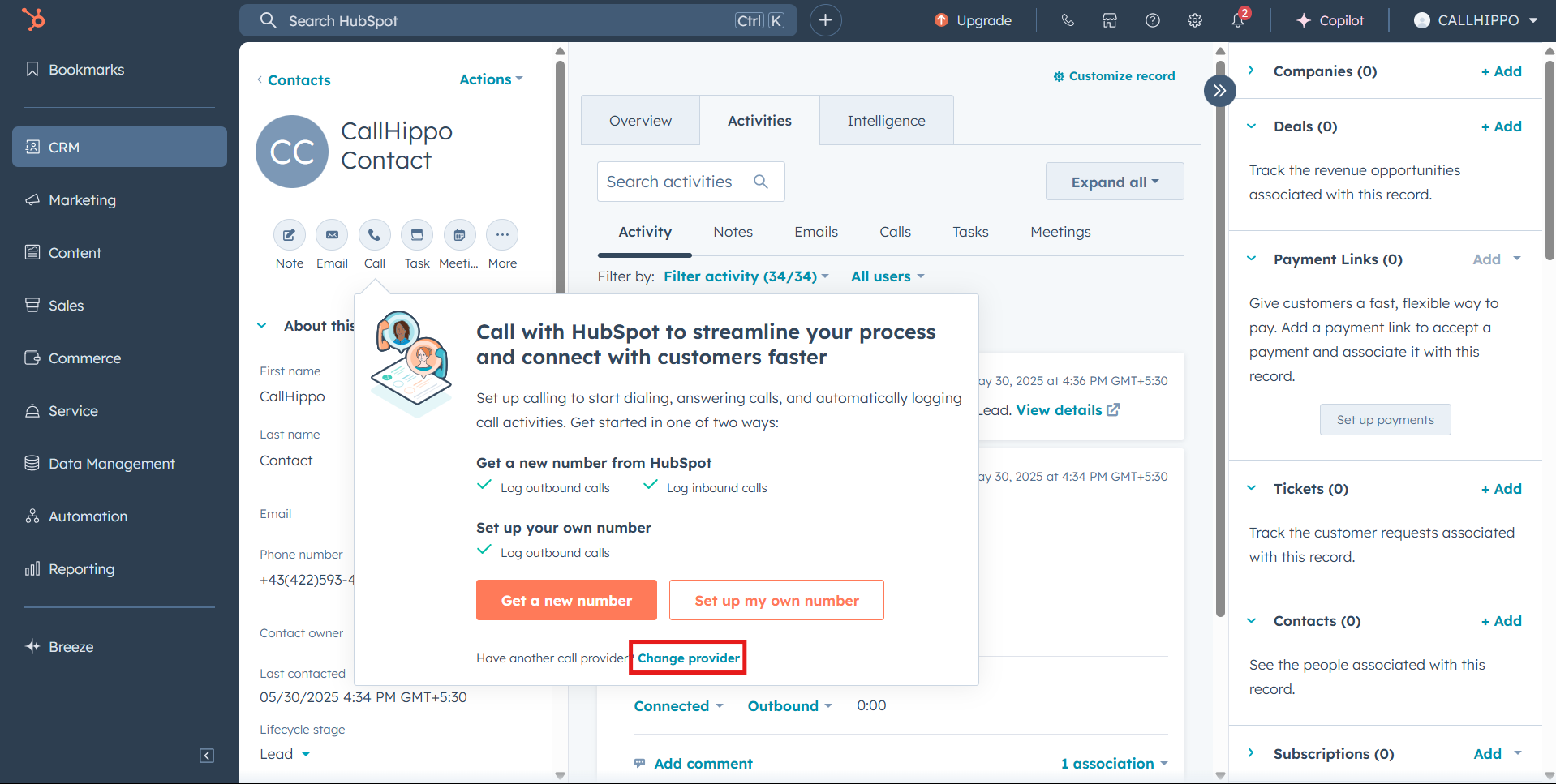
- Click Change provider.
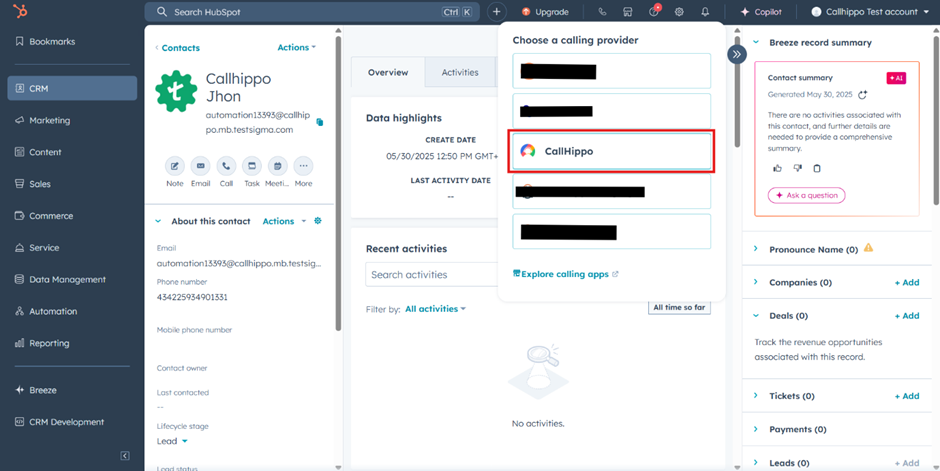
- Select CallHippo as your calling provider.
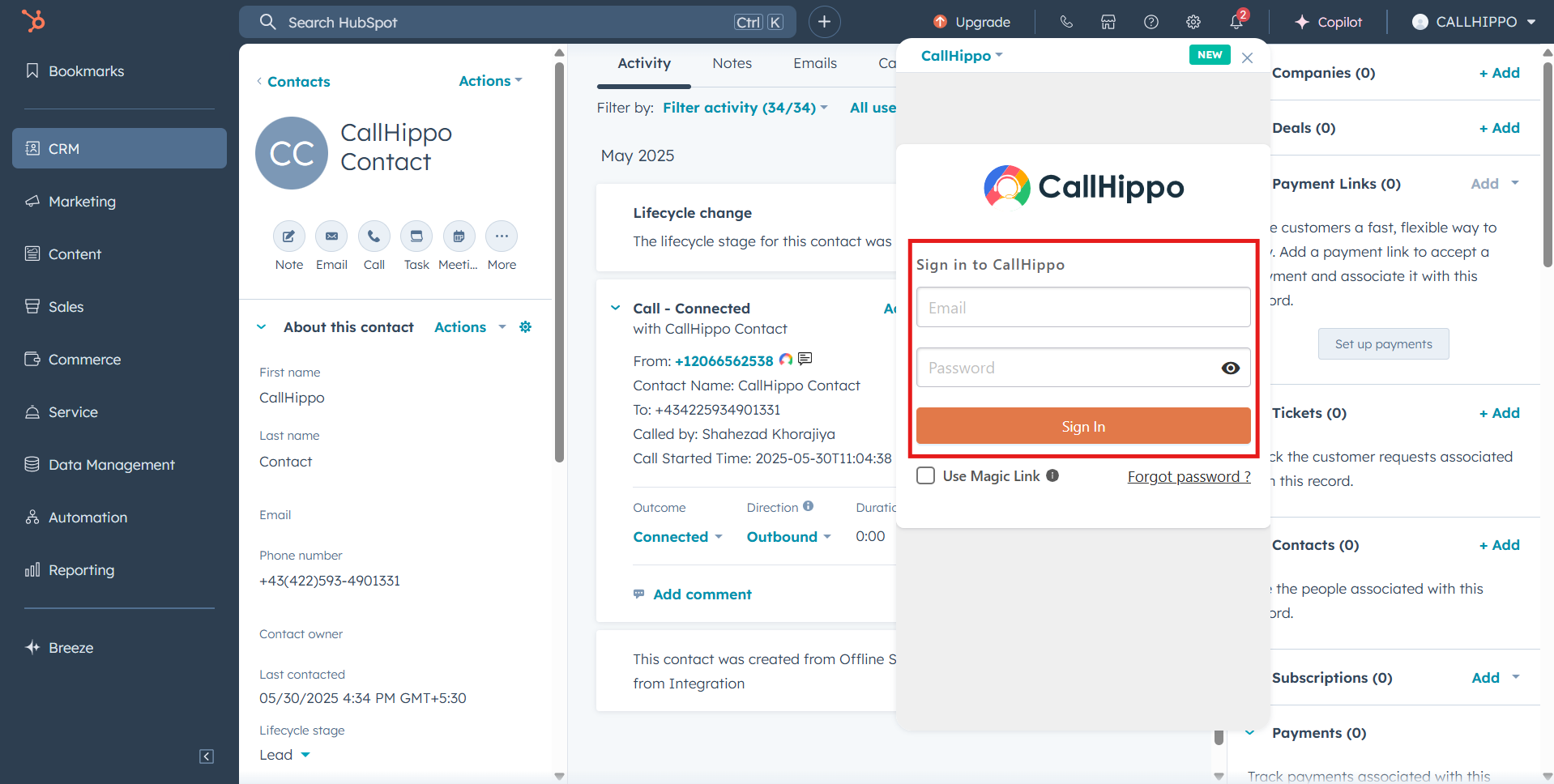
- Sign in with your CallHippo credentials to finish. You can now make and receive calls from within HubSpot.
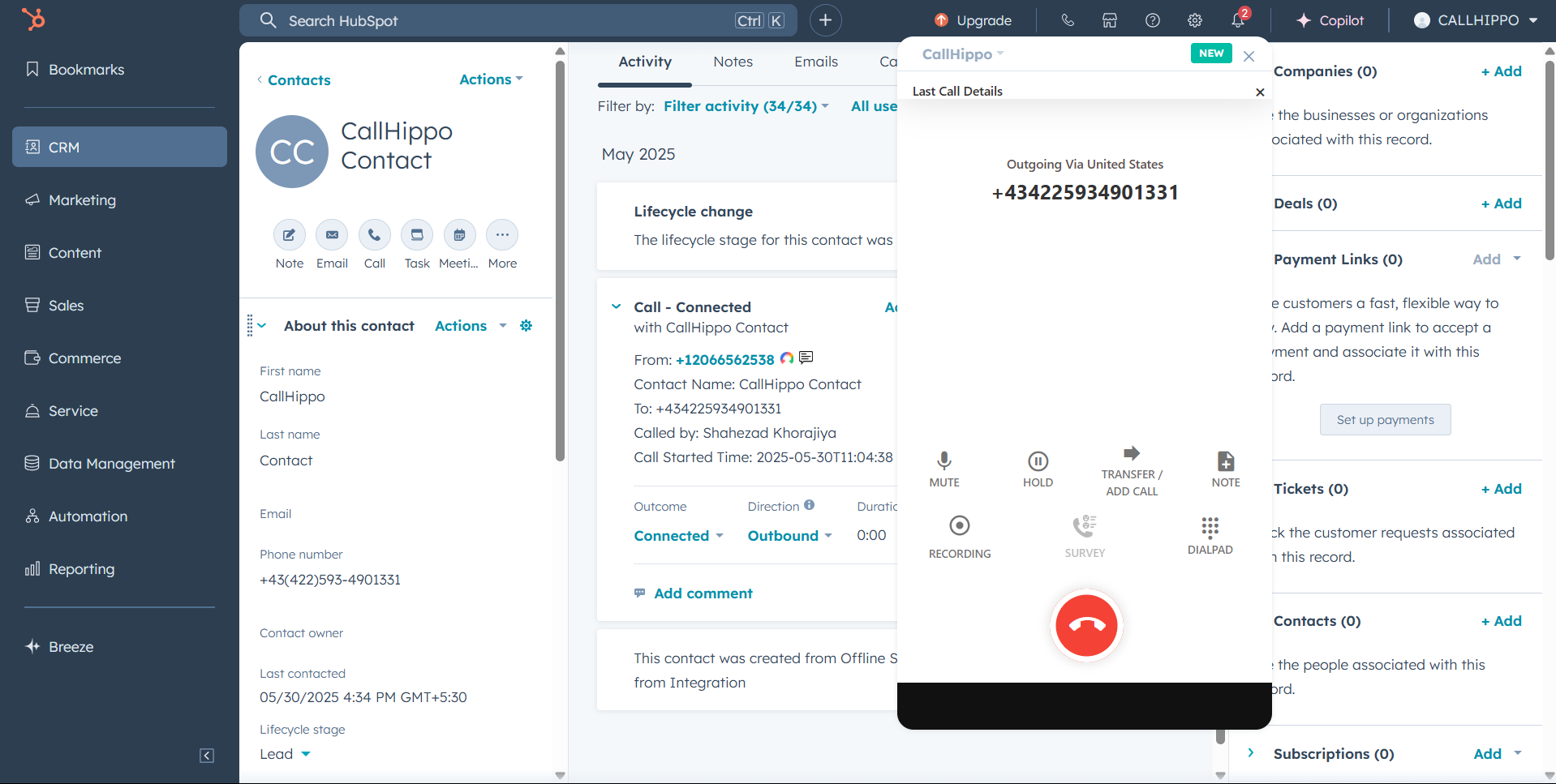
- To place a call, click the Call icon → Call (phone number).
- The outgoing call is initiated to that contact, right inside HubSpot.
Limitation
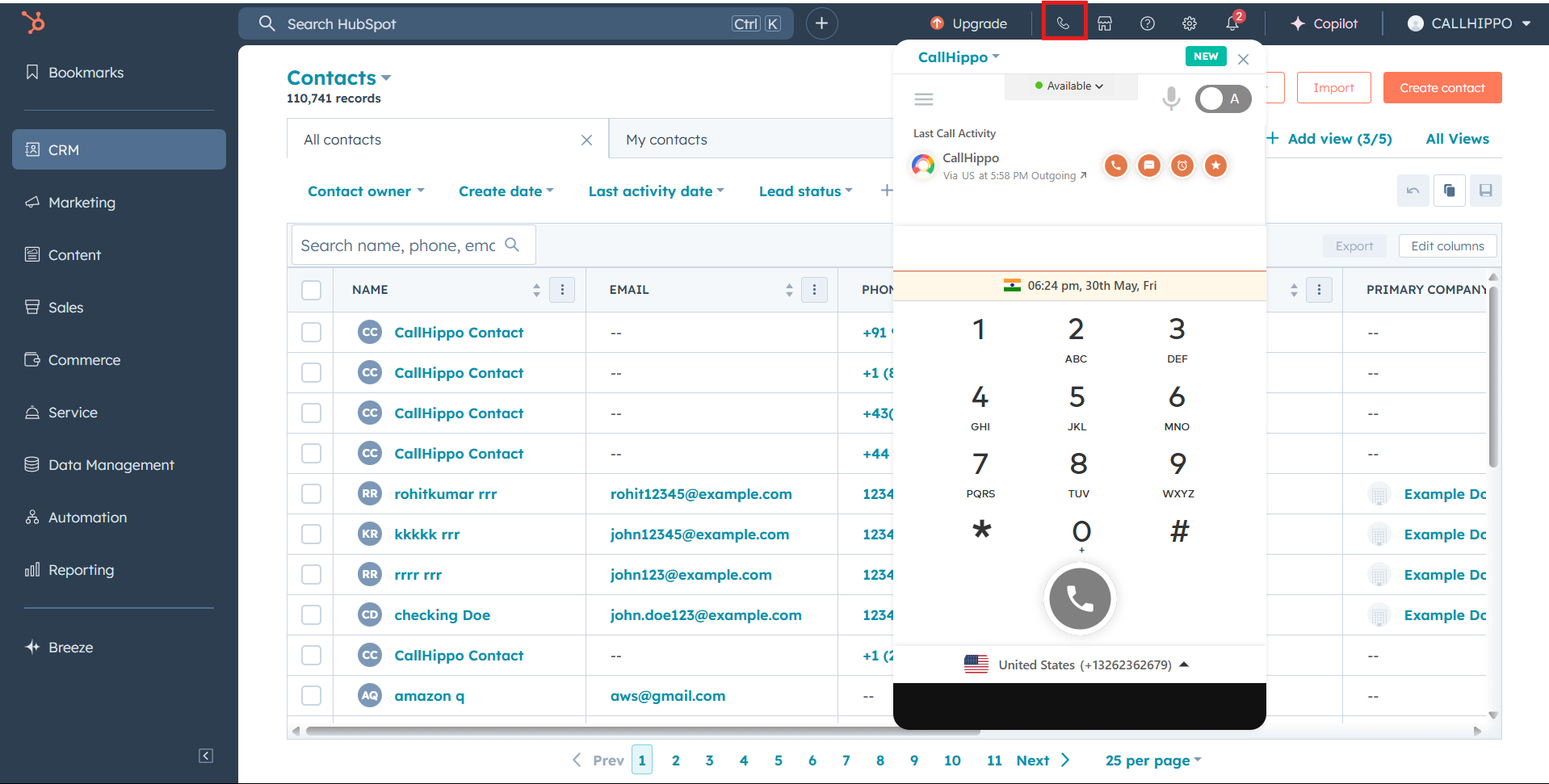
To receive incoming calls in HubSpot, click the Phone icon once each time you switch modules. For example, if you move from the Contacts module to the Deals module, click the Phone icon once to keep receiving incoming calls inside HubSpot.
Frequently asked questions
What access do I need to set up the HubSpot integration?
You must be an owner or admin user in CallHippo and have super admin access in HubSpot.
Do I have to map call outcomes and dispositions manually?
No. Mapping is optional — if you skip it, CallHippo statuses are matched to the corresponding HubSpot outcome automatically. Manual mapping only gives you finer control.
Why isn’t my After Call Work data syncing to HubSpot?
Tags and disposition sync only when added on the After Call Work screen during the call. If you add them later from the call logs or another feed, they will not sync to HubSpot.