
Connecting Insightly CRM with CallHippo logs your calls and texts against the right contacts and lets your team click to call straight from Insightly.
Step 1: Copy your API key from Insightly
- Log in to Insightly. Sign in to your Insightly account.
- Open User Settings. Click the user icon in the top-right corner and choose User Settings.
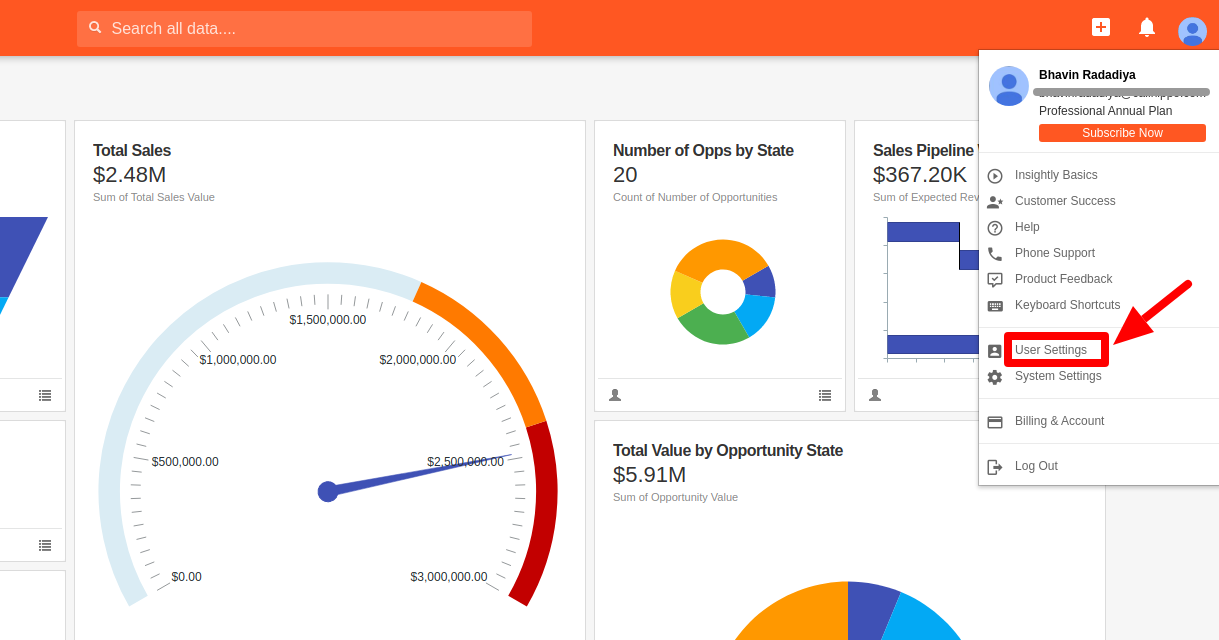
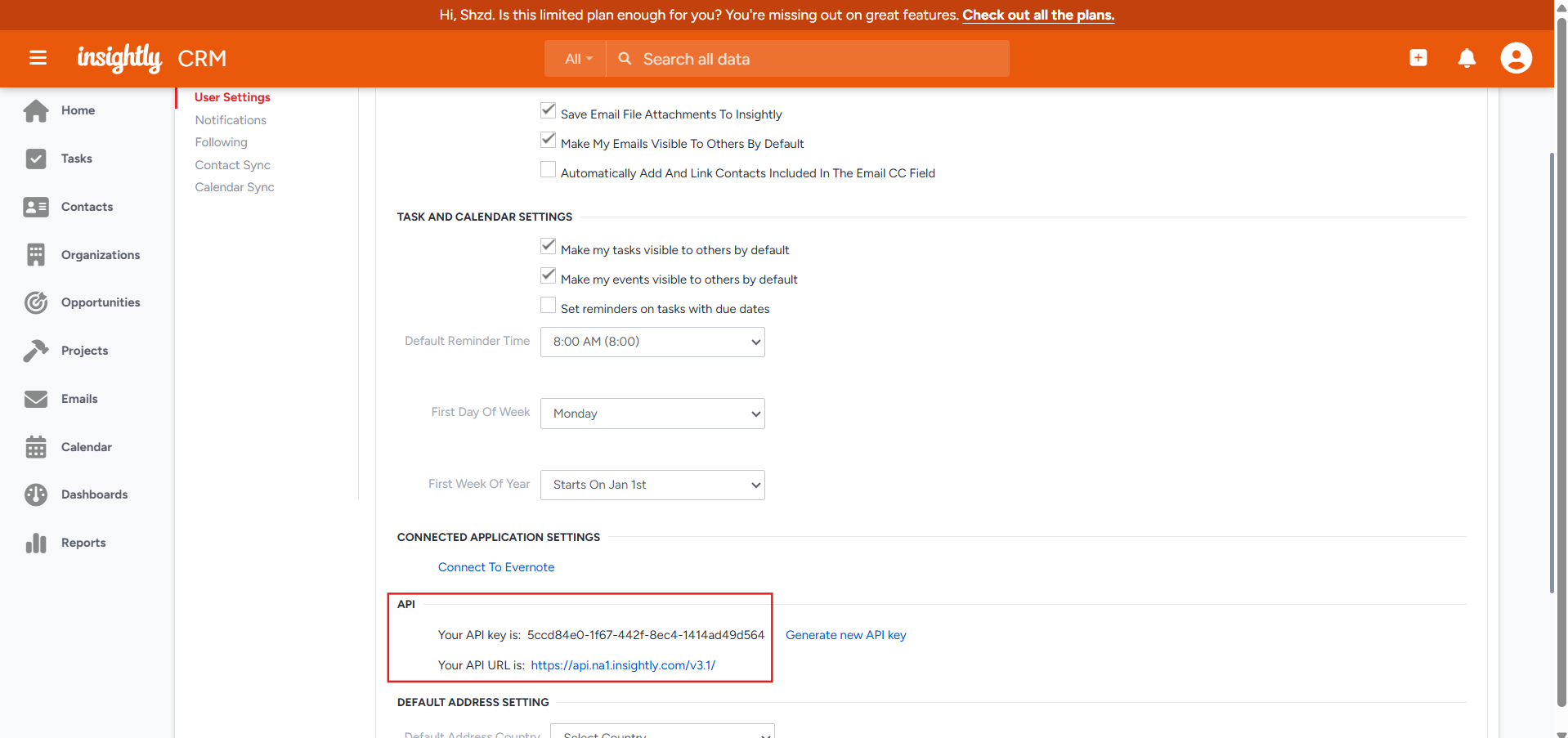
- Copy the API key. On the User Settings page, copy your API key and note down your API URL as well.
Step 2: Connect Insightly in CallHippo
- Log in to CallHippo. Sign in to your CallHippo account.
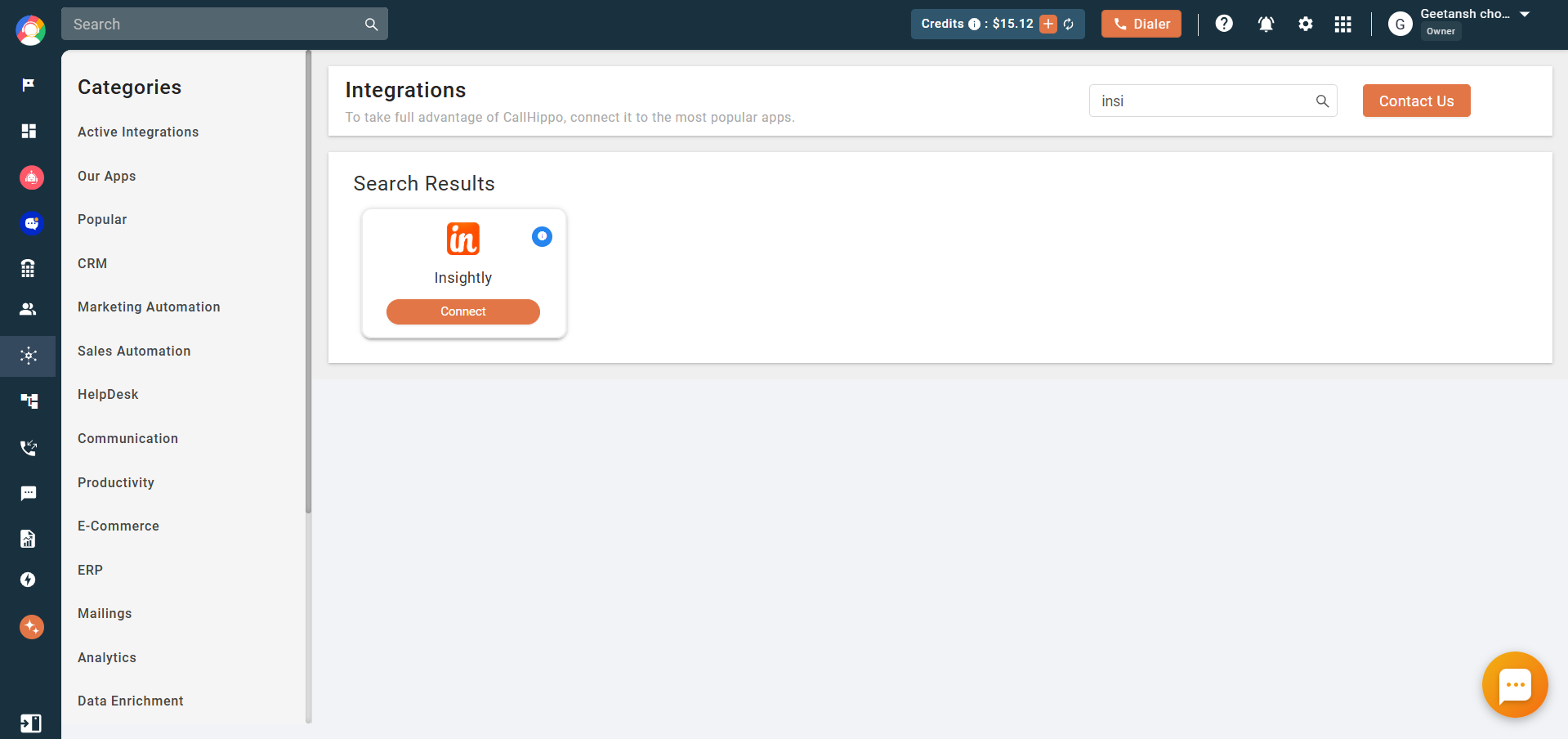
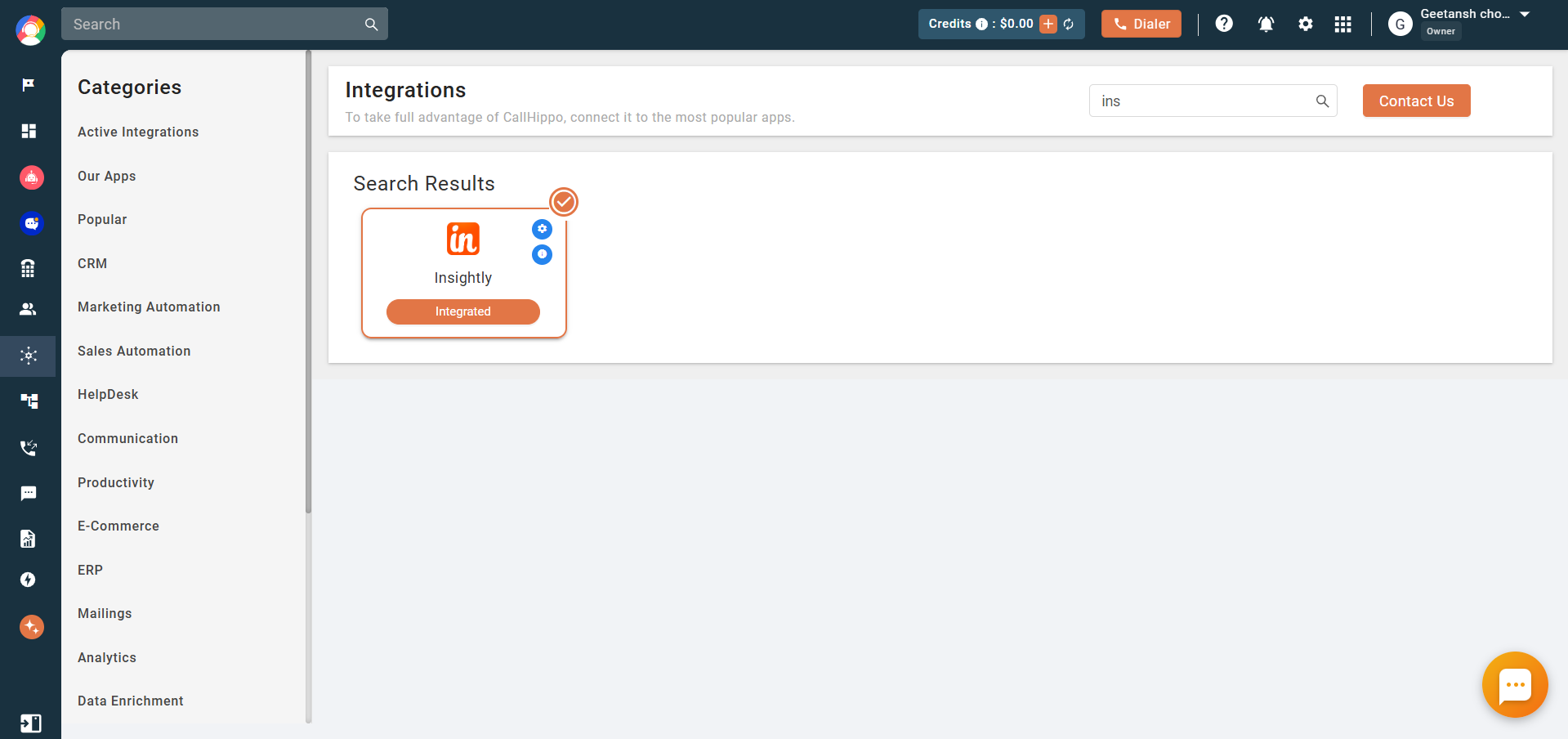
- Open Integrations. From the left sidebar, click Integrations, find Insightly, and click Connect.
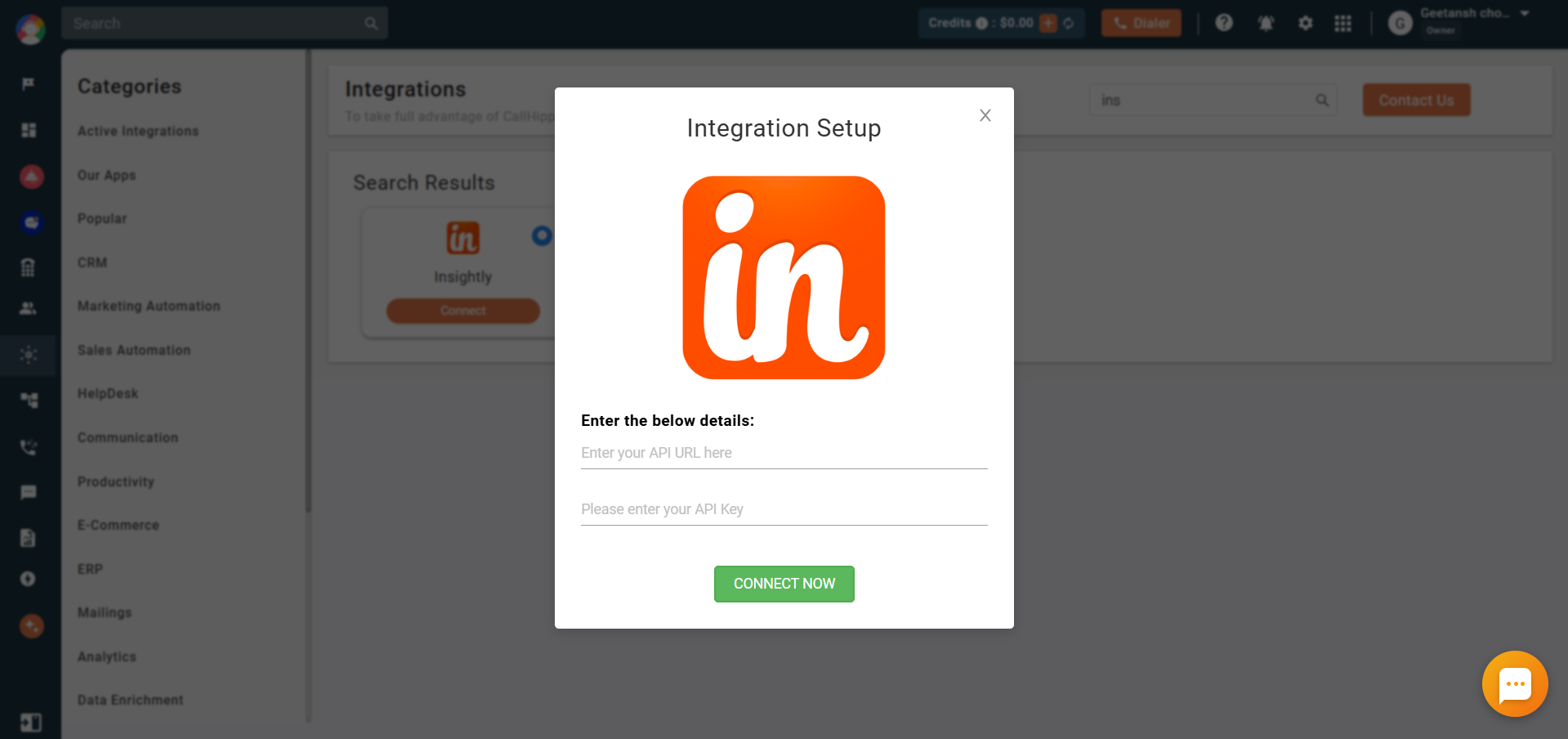
- Enter your details. Enter your Insightly API URL and API key, then click Connect Now.
- Confirm. Your Insightly account is now connected and the integration is complete.
Features of the Insightly and CallHippo integration
- Contact sync: Your Insightly contacts and leads are synced to the CallHippo dialer as contacts when a Click to Call action is performed on them.
- Activity logging: Call and SMS activity is synced as a task under the contact and is visible to all users.
- Rich call detail: Synced call activity can include subject, direction, from and to numbers, caller, contact person, call type, status, start time, duration, notes, recording link, and any tags.
After Call Work activity in Insightly
If your CallHippo plan includes call tags and dispositions and they are enabled, the activity pushed to Insightly will include the tags and disposition data you add on the After Call Work (ACW) screen.
Note: This only syncs when the tags and disposition are added on the After Call Work screen. If they are added later from the call logs or another feed, they will not sync to Insightly.
Enable Click to Call
Install the CallHippo Click-to-Call Chrome extension to call directly from Insightly. Add it from the Chrome Web Store.
Frequently asked questions
Where do I find my Insightly API key and URL?
Open User Settings from the user icon in Insightly. The API key and API URL are shown in the API section of that page.
Why did my call tags not sync to Insightly?
Tags and dispositions only sync when they are added on the After Call Work screen. Adding them later from the call logs or another feed will not push them to Insightly.