
IP whitelisting lets you lock CallHippo access down to a set of approved IP addresses, so only people connecting from your trusted networks can log in. It is a simple, effective way to keep unauthorized users out of your account.
What is IP whitelisting?
IP whitelisting is a security feature that allows access to your account only from approved IP addresses. Any IP that is not on the list is automatically blocked, which helps prevent unauthorized access to your data and settings.
Why use IP whitelisting?
- Secure internal access – restrict logins to your approved office or company network IPs only.
- Protect applications and data – ensure only trusted users can reach sensitive data and platform features.
- Enable secure remote work – allow remote access exclusively from recognized, approved IP addresses.
Key benefits
- Enhanced security by limiting access to trusted sources.
- Greater control over who can access your account.
- Simple and cost-effective to implement.
How to set up IP whitelisting in CallHippo
CallHippo’s IP whitelisting restricts account access to approved IP addresses so that only authorized users can log in and use the platform. IP whitelisting is available on specific plans; if your plan includes it, you activate and configure it yourself from the dashboard.
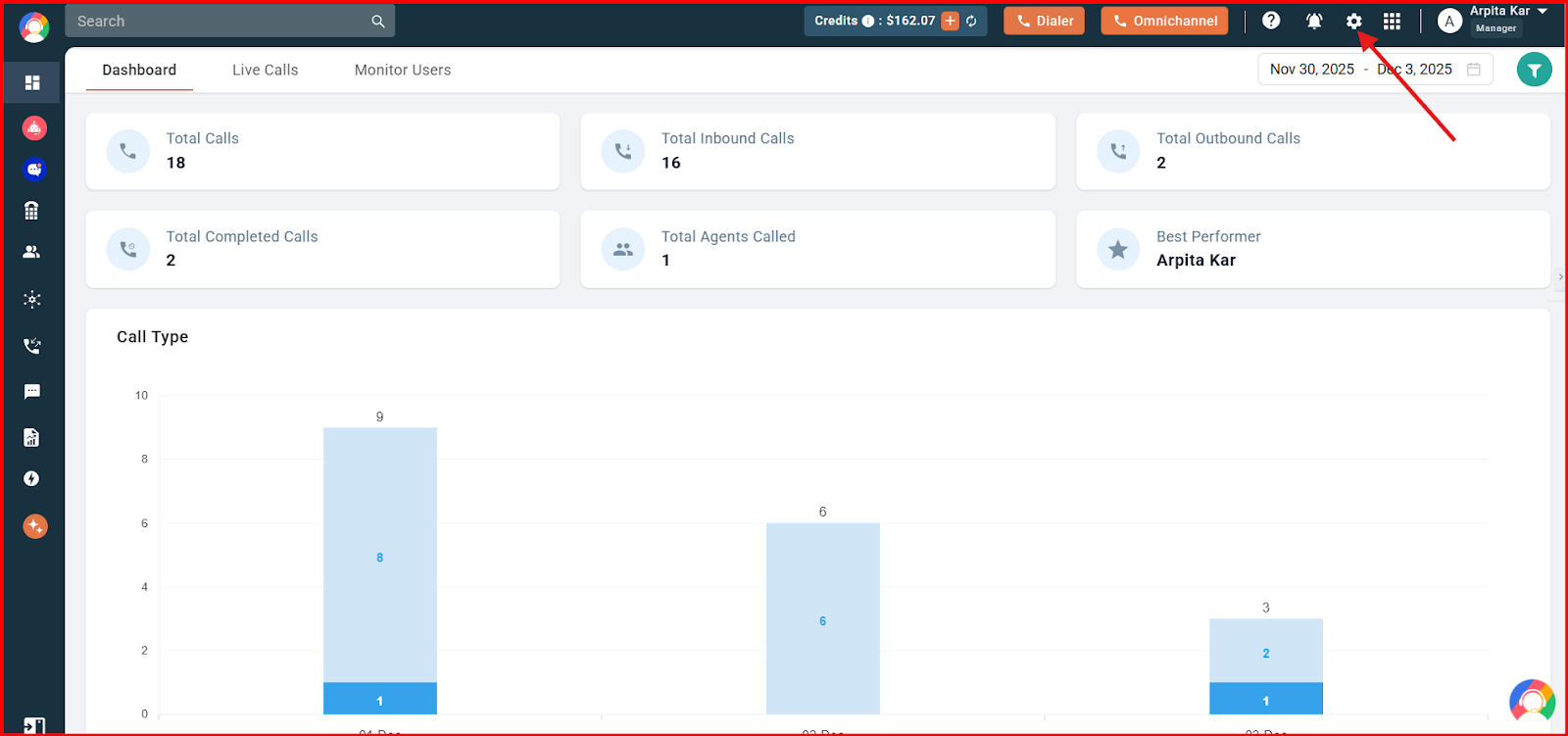
- Log in to your CallHippo account and click the Settings icon in the top bar.
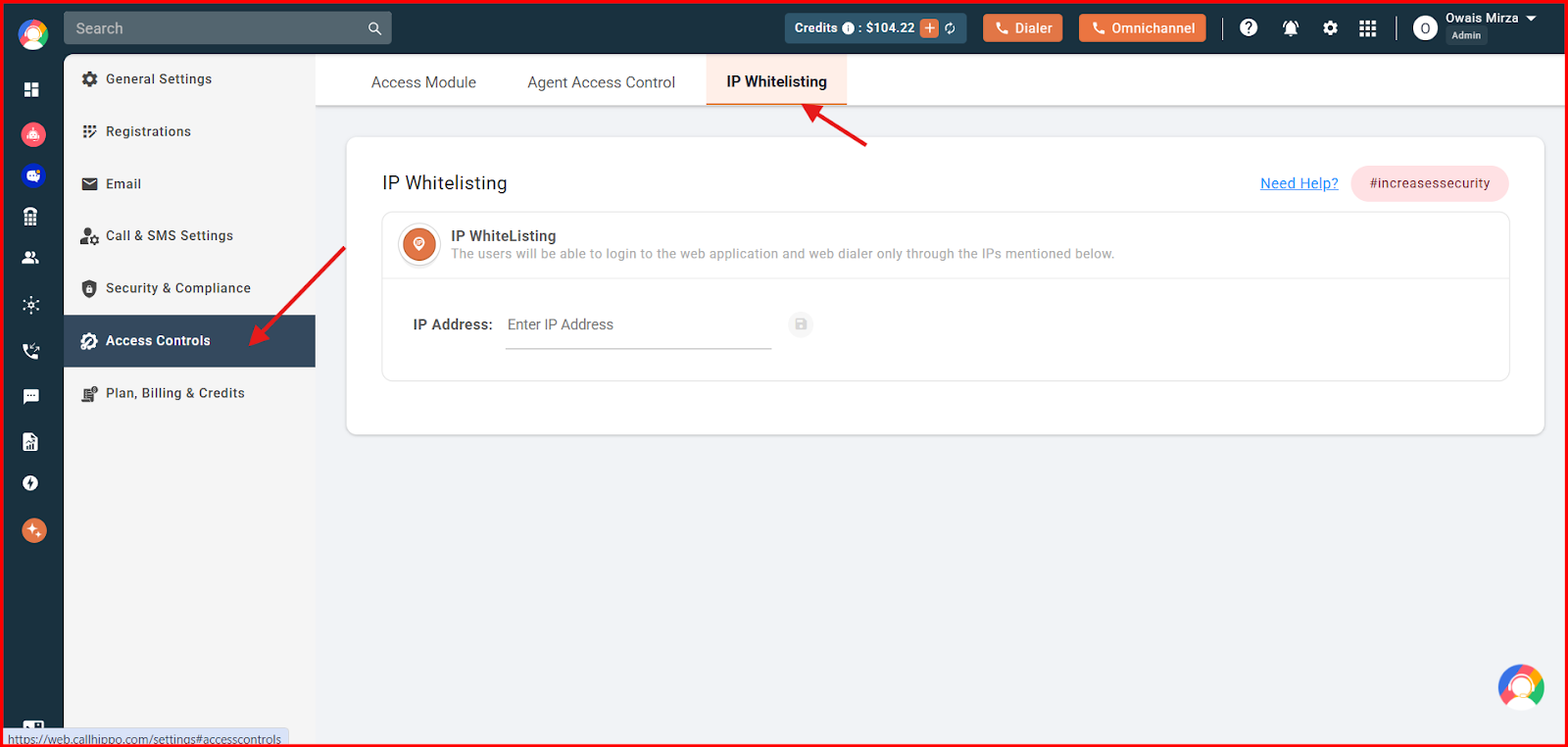
- Go to Access Controls and open the IP Whitelisting tab.
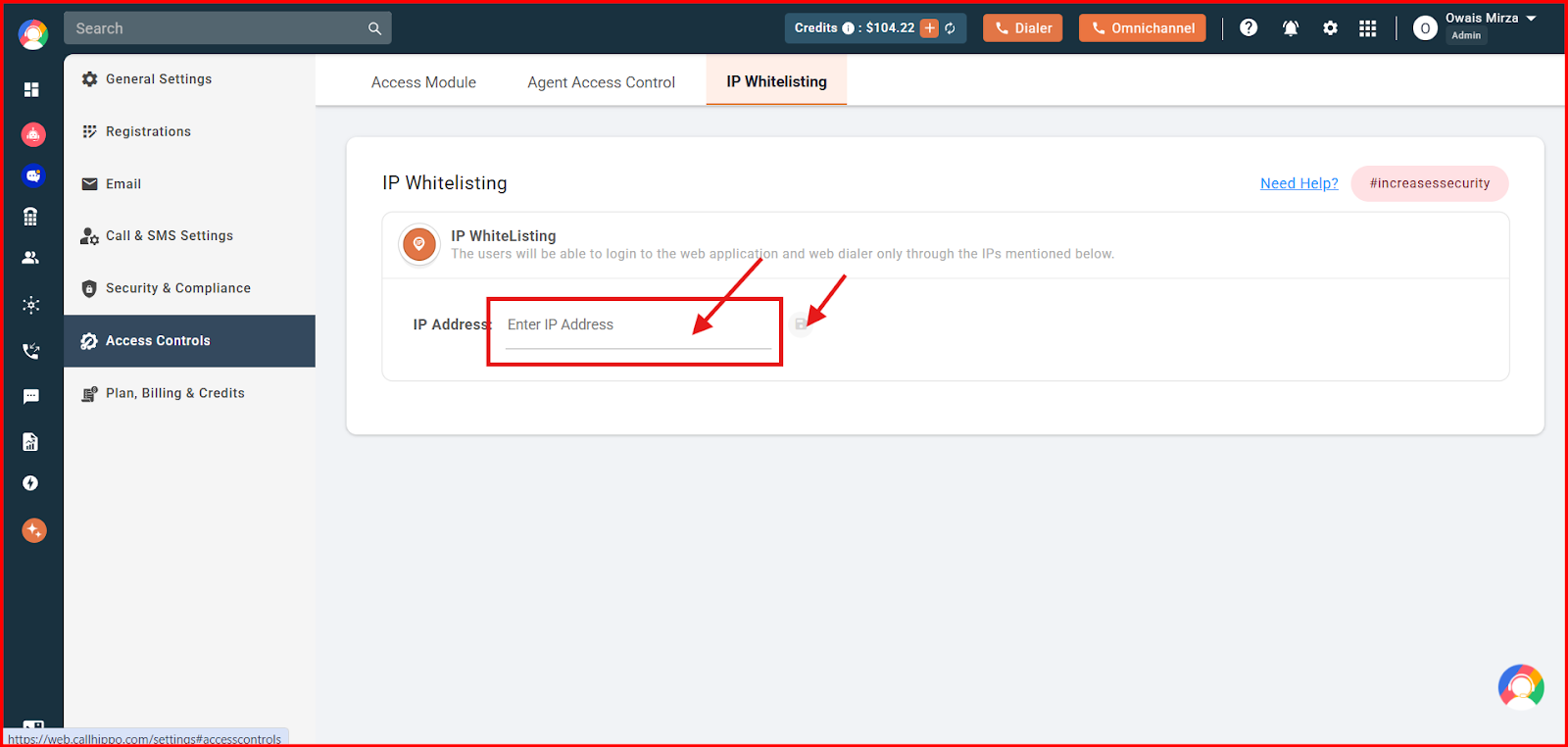
- Enter the IP address you want to allow in the IP Address field and click the save icon. Repeat to add as many trusted IPs as you need.
Frequently asked questions
Can I whitelist multiple IP addresses?
Yes. You can add multiple IP addresses to the whitelist to grant access to several trusted sources, such as different offices or remote workers.
What happens if a non-whitelisted IP tries to access my account?
Access attempts from IP addresses that are not on the whitelist are denied, so only authorized IPs can connect.
Is IP whitelisting enabled automatically?
No. The feature is available only on specific plans. If your plan supports it, you need to activate and configure it manually from the CallHippo dashboard by entering the IP addresses you want to allow.
Still need help? Reach us at [email protected].