
Connecting Keap with CallHippo syncs your Keap contacts and companies into the dialer and logs every call and SMS straight to the contact’s notes in Keap.
Steps to Connect Keap
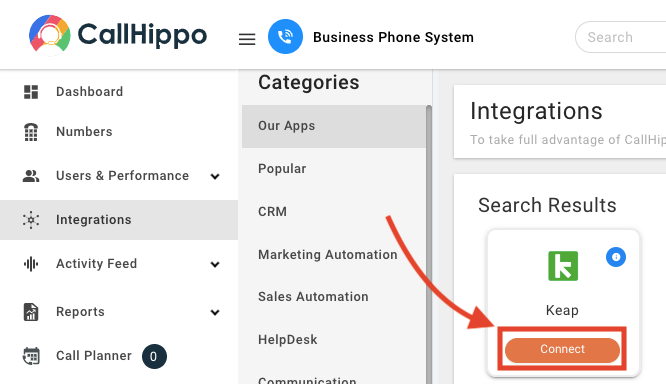
- Log in to your CallHippo account, open Integrations from the left sidebar, find Keap and click Connect.
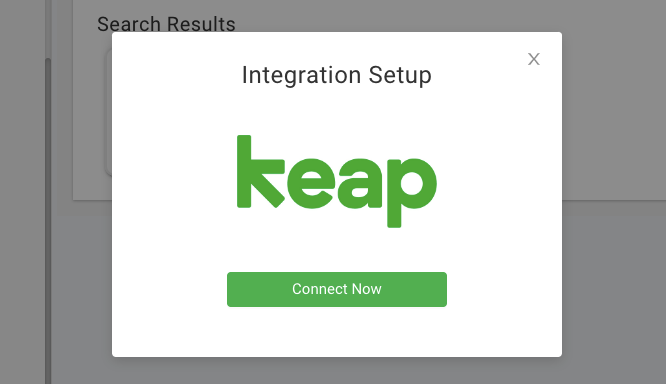
- In the pop-up that appears, click Connect Now.
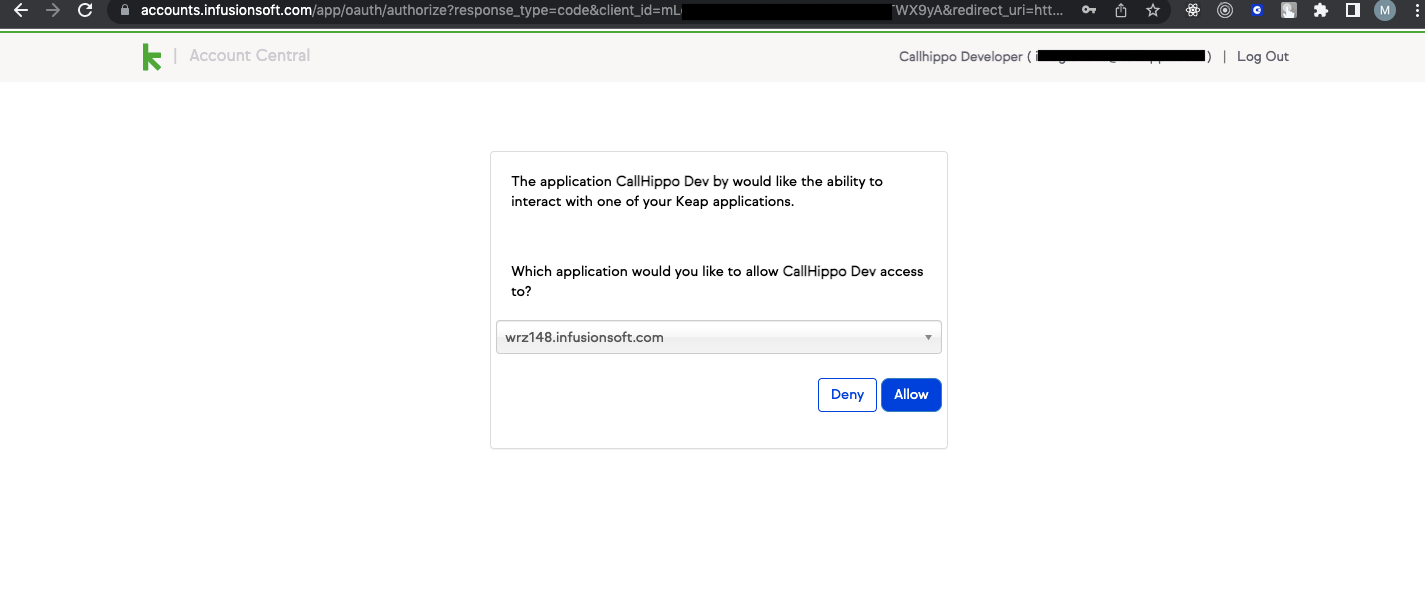
- You are redirected to the Keap login page (if not already logged in). Once signed in, choose the application you want to grant access to and click Allow.
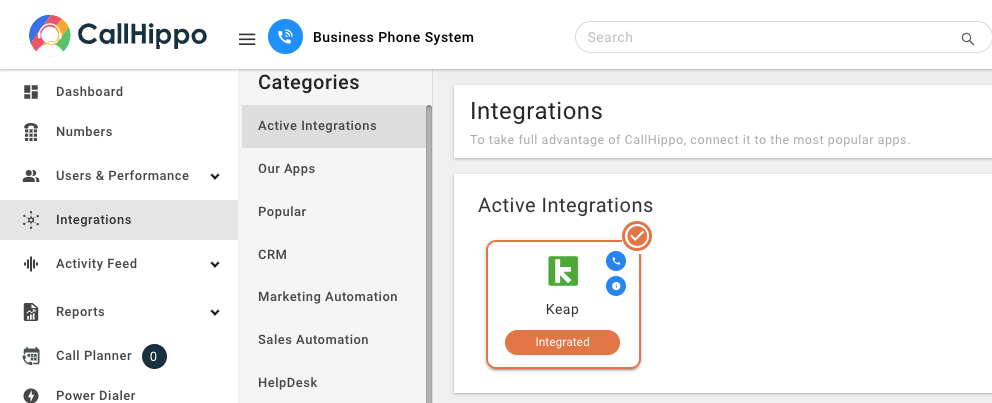
- After clicking Allow, you are redirected back to CallHippo. The integration status shows Integrated, and you also receive a confirmation email.
Features of the Keap Integration
- Contact sync: all your Keap contacts and companies are synced into the CallHippo dialer as contacts. Any contact or company you add, update or delete in Keap is synced with CallHippo.
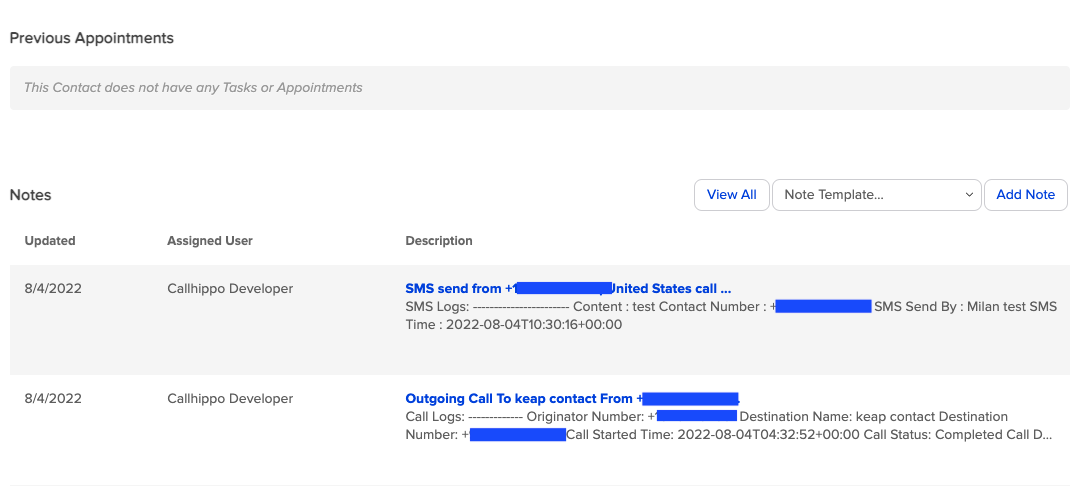
- Call activity: a note is added whenever you make or receive a call from a Keap contact or company in the CallHippo dialer.
- SMS activity: you also get SMS activity for any SMS sent or received from your Keap contacts.
- Logged to notes: call and SMS activity appears in the Keap contact’s Notes section.
Enable Call and SMS Note Types in Keap
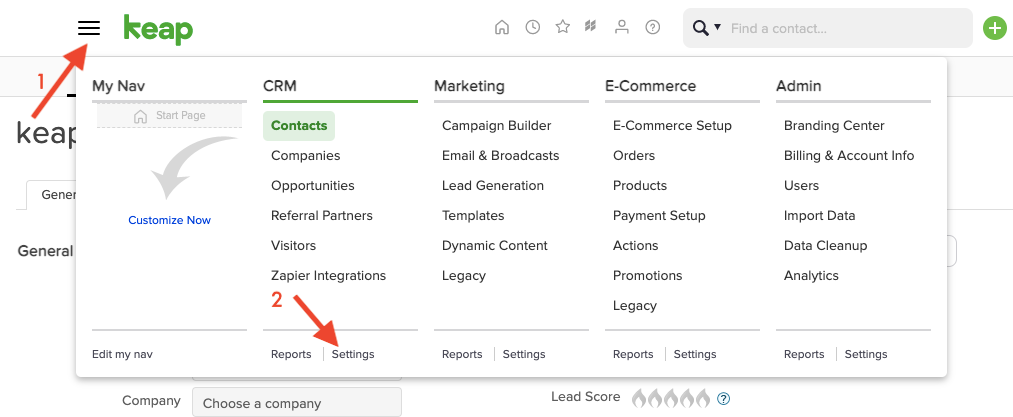
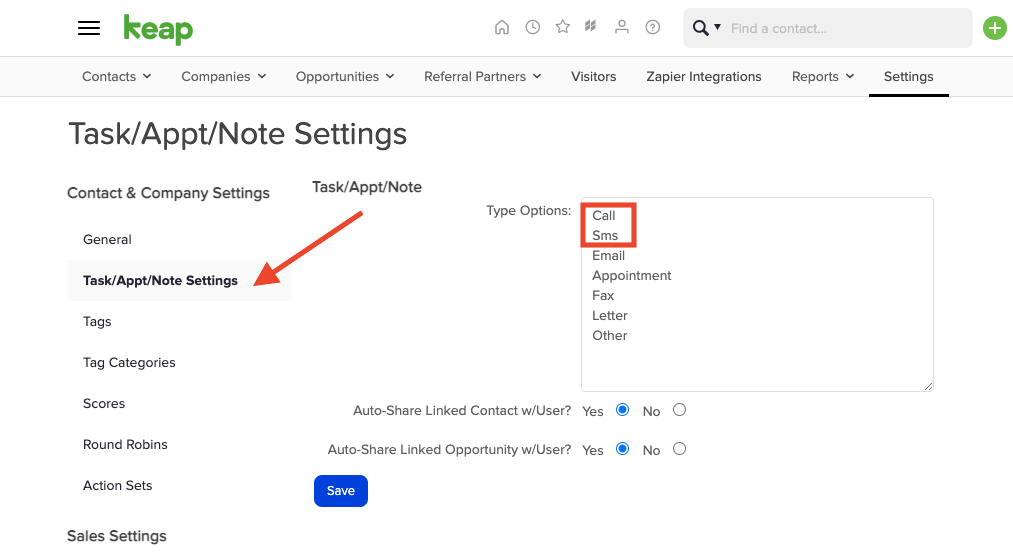
To log call and SMS activity, your Keap account must have Call and SMS as note types under Task/Appt/Note Settings. If they are missing, add them:
- In Keap, open the navigation menu, go to CRM, then Settings.
- Open Task/Appt/Note Settings and make sure Call and Sms are listed in the Type Options. Add them if needed and click Save.
Where do call and SMS logs appear in Keap?
They are added to the Notes section of the matching Keap contact, provided the Call and SMS note types are enabled in your Task/Appt/Note Settings.
Need help connecting Keap? Reach our team at [email protected].