
Connect Kommo (formerly amoCRM) with CallHippo to place calls straight from your leads, contacts, and companies, and to log every call and SMS as a note in your messenger-based CRM. This guide walks you through the full setup.
Connect Kommo to CallHippo
Set up the integration from your CallHippo dashboard in a few steps.
- Log in to your CallHippo account.
- In the left sidebar of your dashboard, click Integrations.
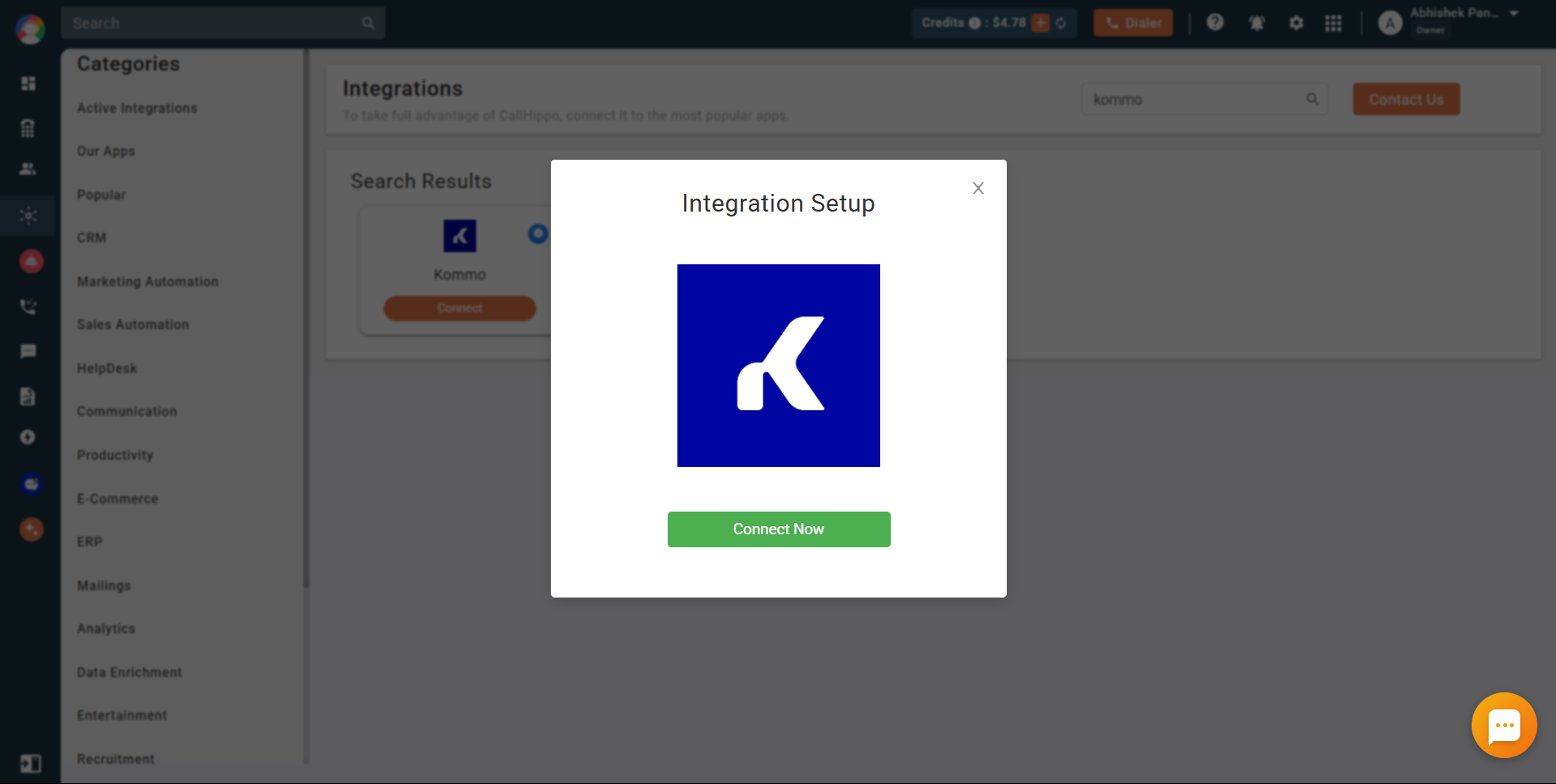
- Find Kommo and click Connect. In the pop-up that opens, click Connect Now.
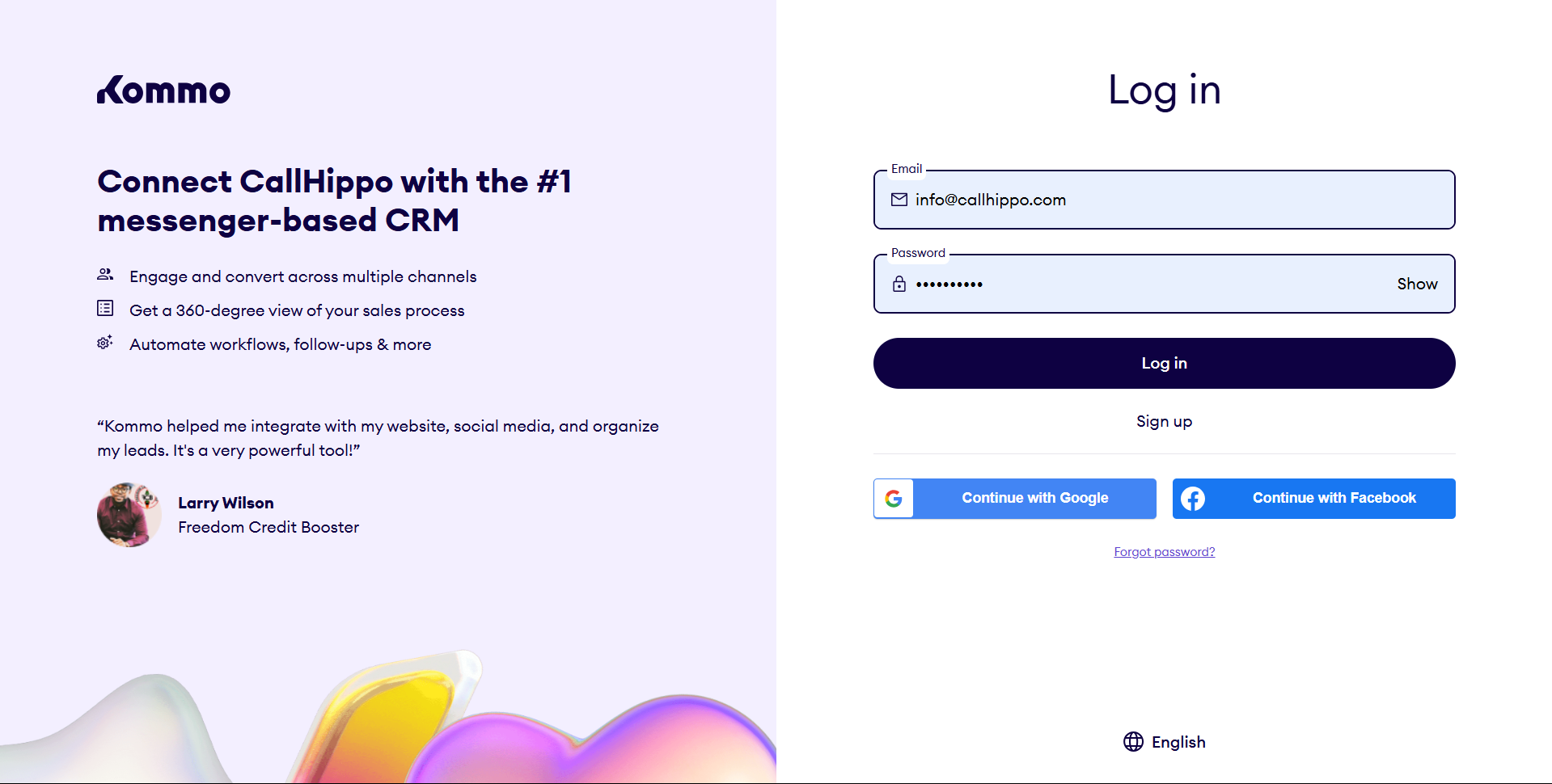
- You are redirected to the Kommo login page. Sign in with your Kommo admin account.
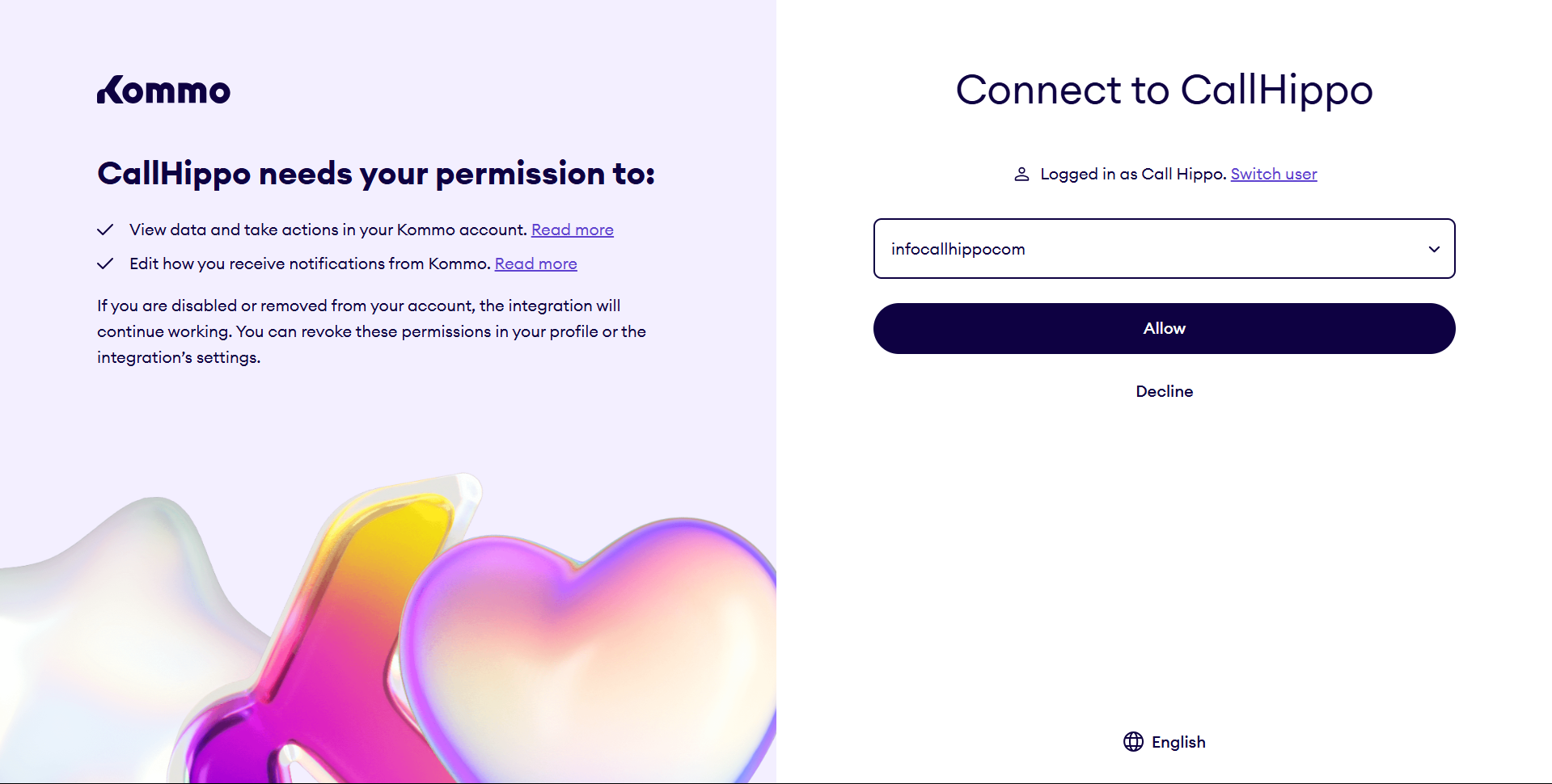
- On the Kommo access page, select the account you want to integrate and click Allow.
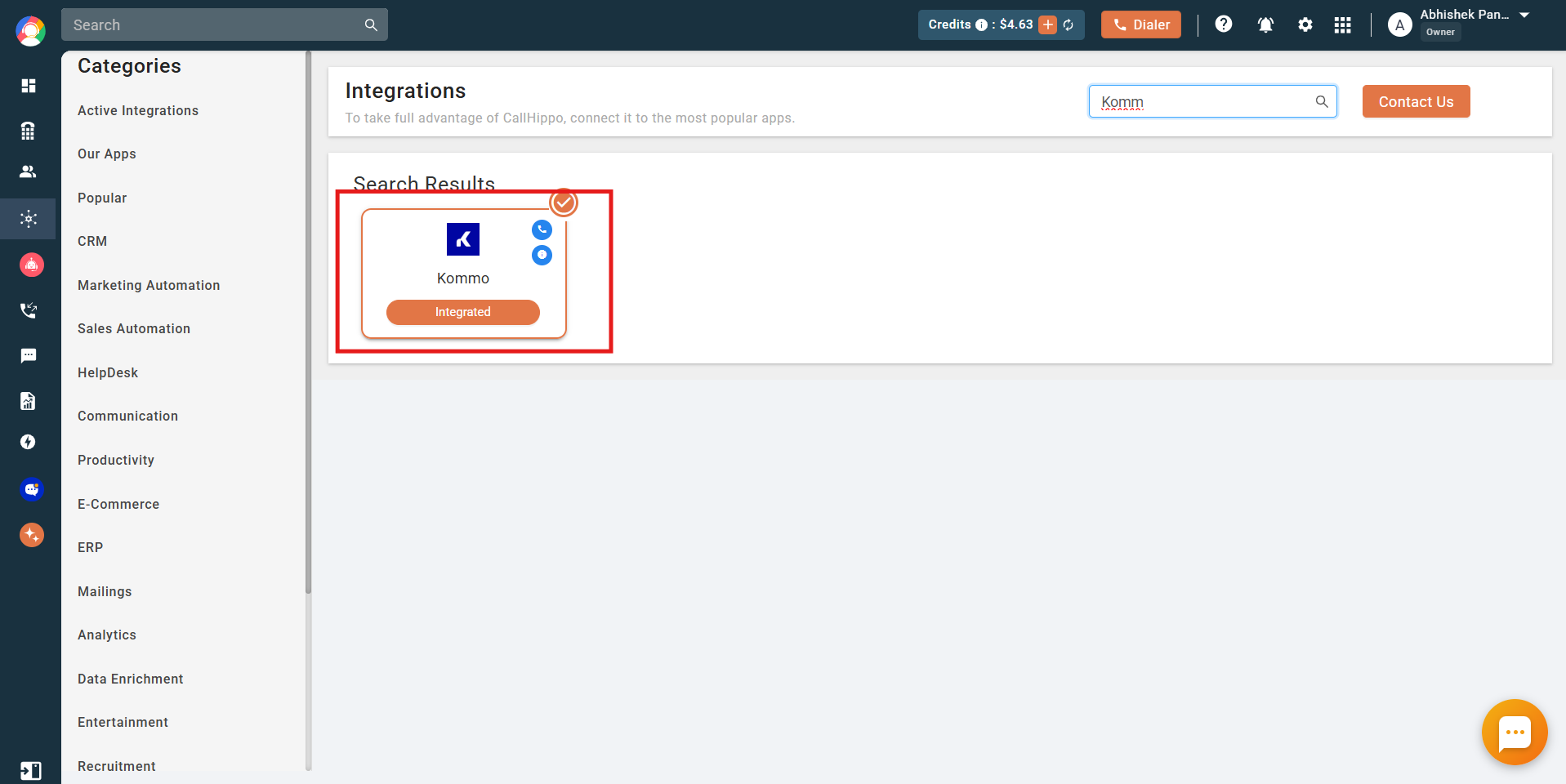
- You are returned to CallHippo, and Kommo is now marked as Integrated. Your Kommo account is successfully connected.
Enable Click to Call
To dial Kommo numbers with a single click, install the CallHippo Click-to-Call Chrome extension:
Once the extension is installed, a CallHippo icon appears next to every phone number in Kommo. Click it and the call connects automatically.
How the Kommo integration works
- All existing and new contacts, leads, and companies with phone numbers in Kommo are synced to the CallHippo dialer when a Click to Call action is performed on that record.
- For every call or SMS made through the CallHippo dialer, CallHippo creates a note recording the Call or SMS activity on the relevant contact, lead, or company.
Call activities on a lead are only displayed if the lead is associated with a contact or company.
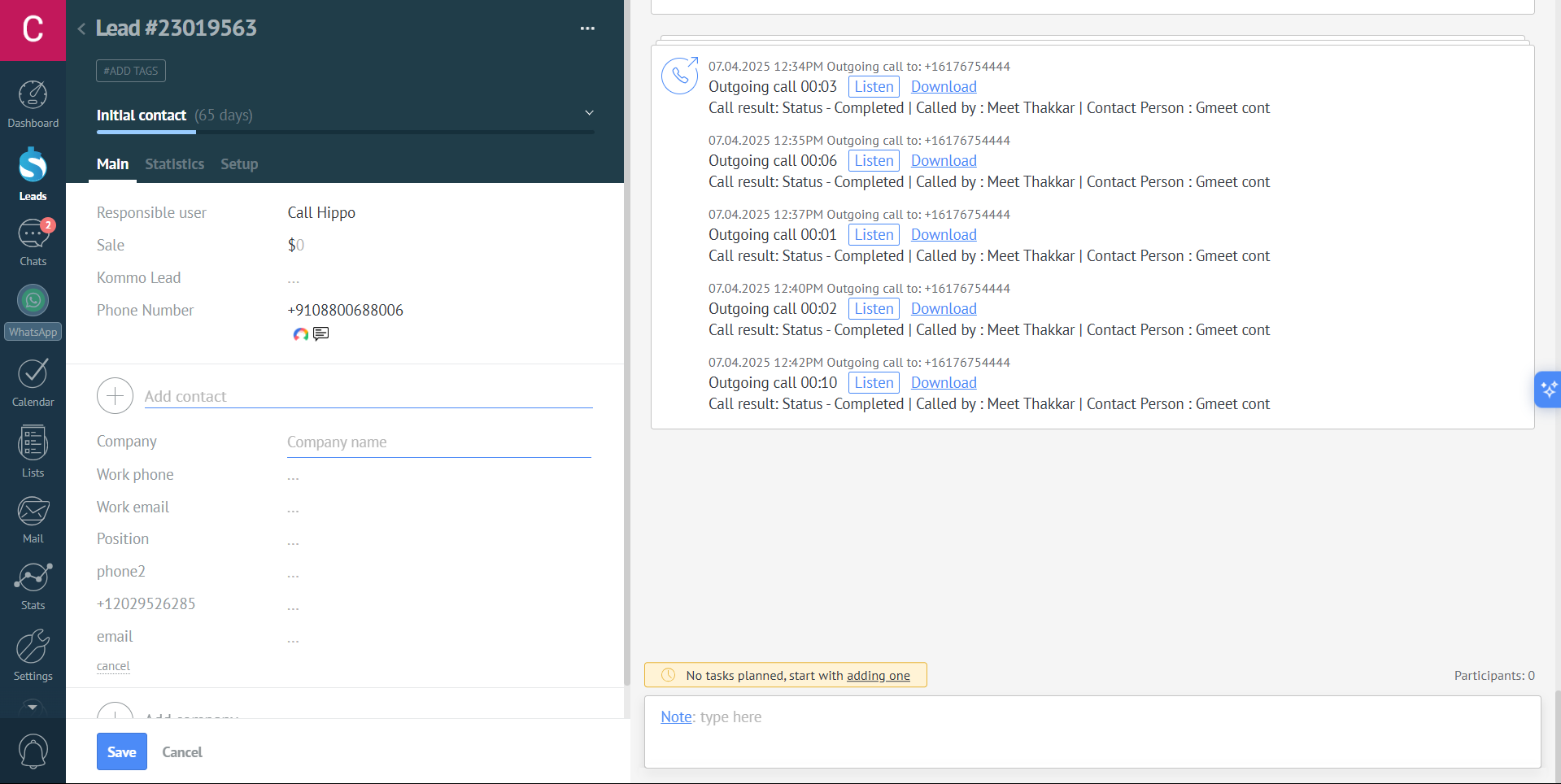
After Call Work data in Kommo
If your plan includes CallHippo’s call tags and disposition service and it is enabled, the activity pushed to Kommo also includes the tags and disposition you add on the After Call Work (ACW) screen.
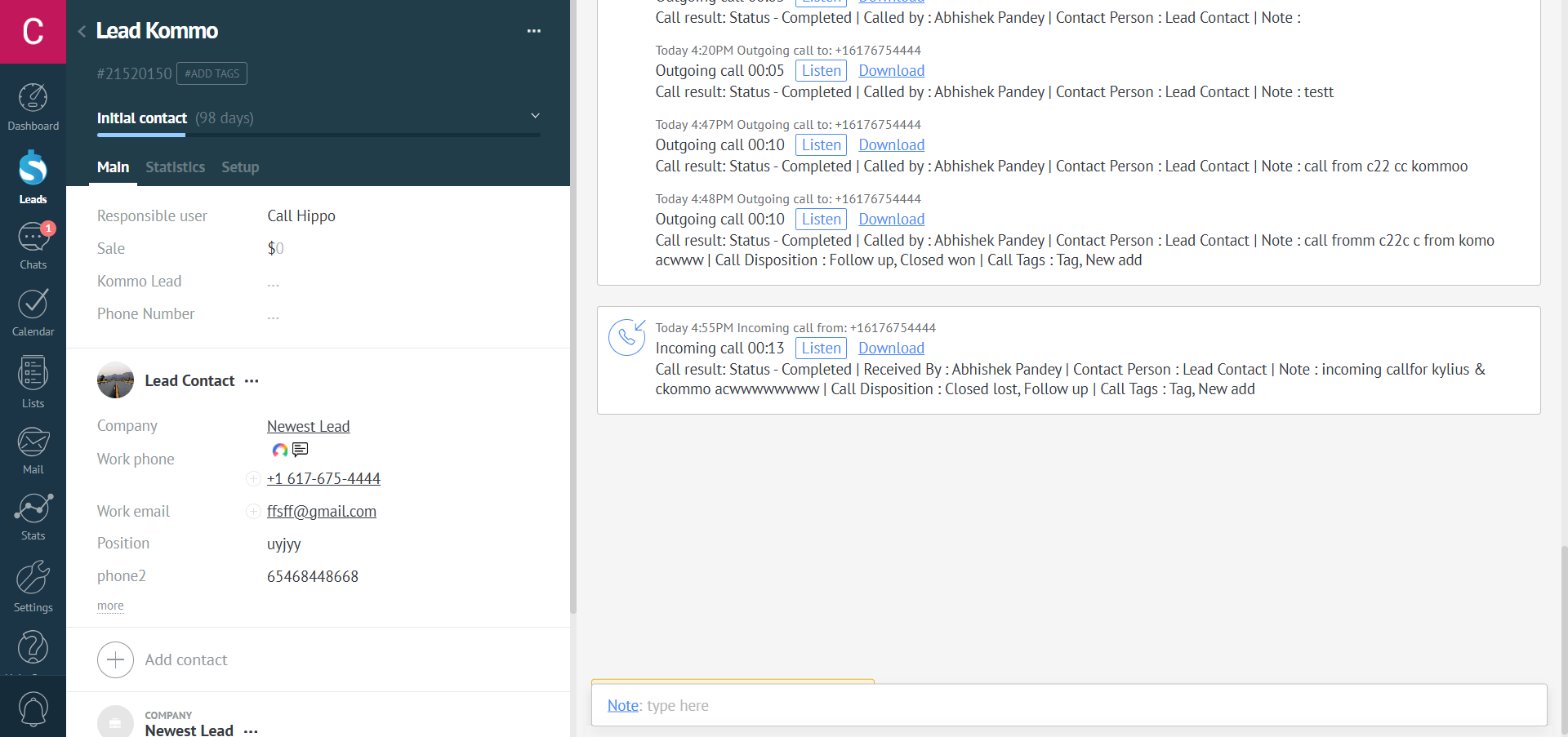
Note: Tags and disposition sync only when they are added on the After Call Work screen. If you add them later from the call logs or another feed, they will not sync to Kommo.
Still need help? Reach us at [email protected].