
If your microphone isn’t working with CallHippo, this guide walks you through every likely cause and fix, from browser permissions to system settings and physical device checks. It’s written for users of all experience levels.
1. Check your microphone connections
- Make sure your microphone or headset is properly connected.
- If you’re using a wired device, confirm it’s firmly plugged in.
- For Bluetooth devices, verify they’re paired and active.
- Confirm the mic isn’t muted and that the correct device is selected as your input.
2. Enable microphone access in your browser
CallHippo is browser-based, so your browser must be allowed to use your microphone.
For Google Chrome:
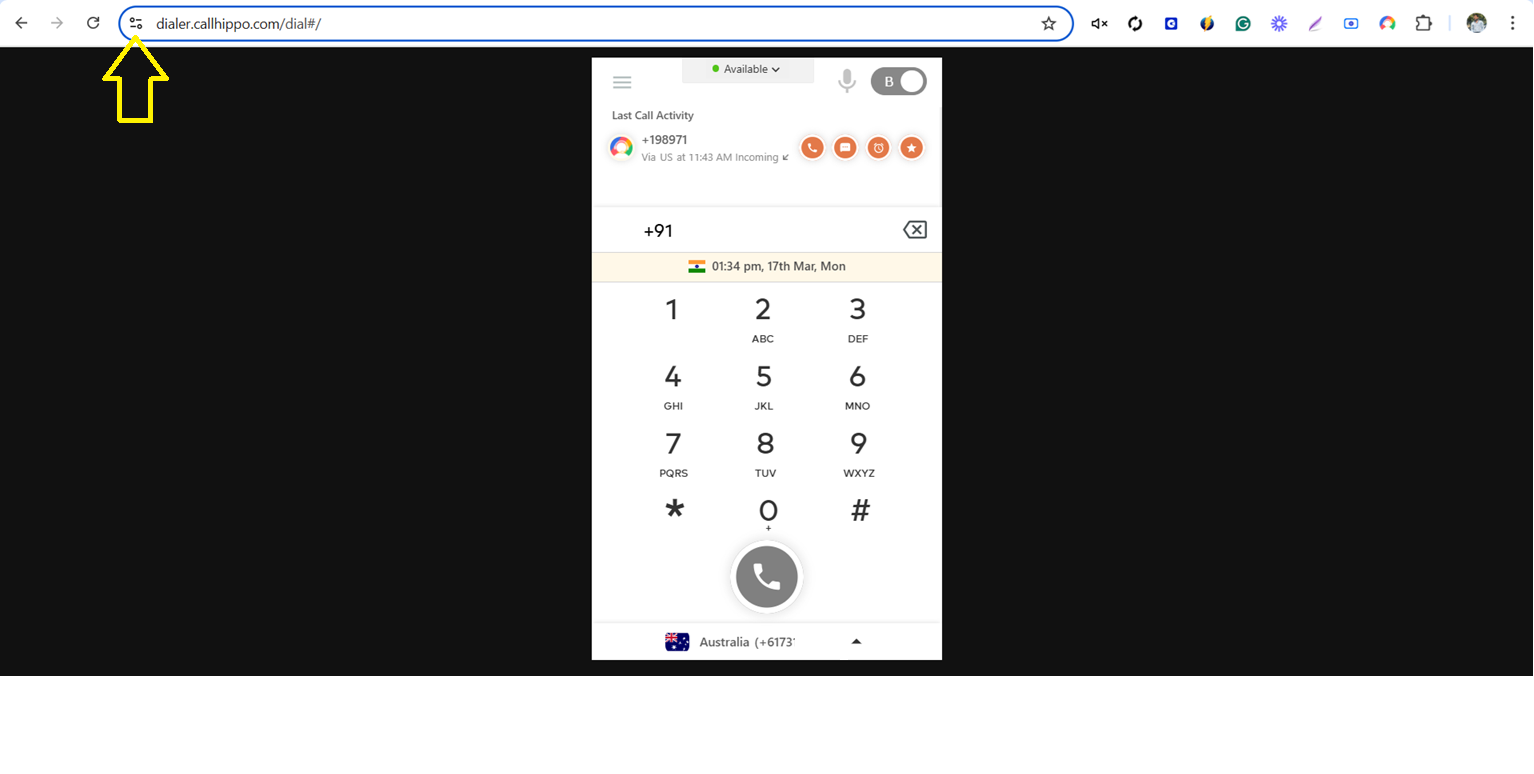
- Click the site information icon on the left of the address bar.
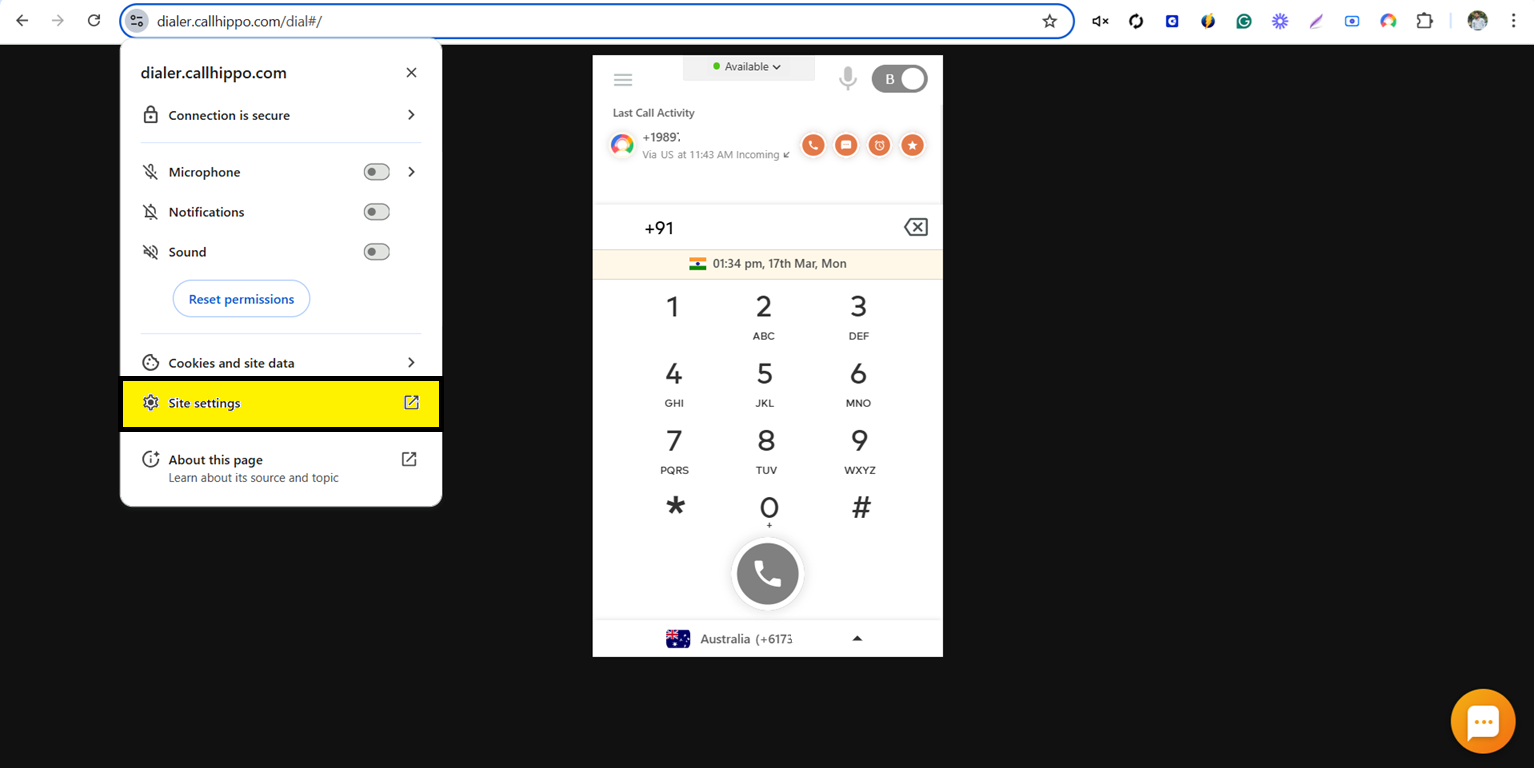
- Select Site settings.
- Set Microphone to Allow.
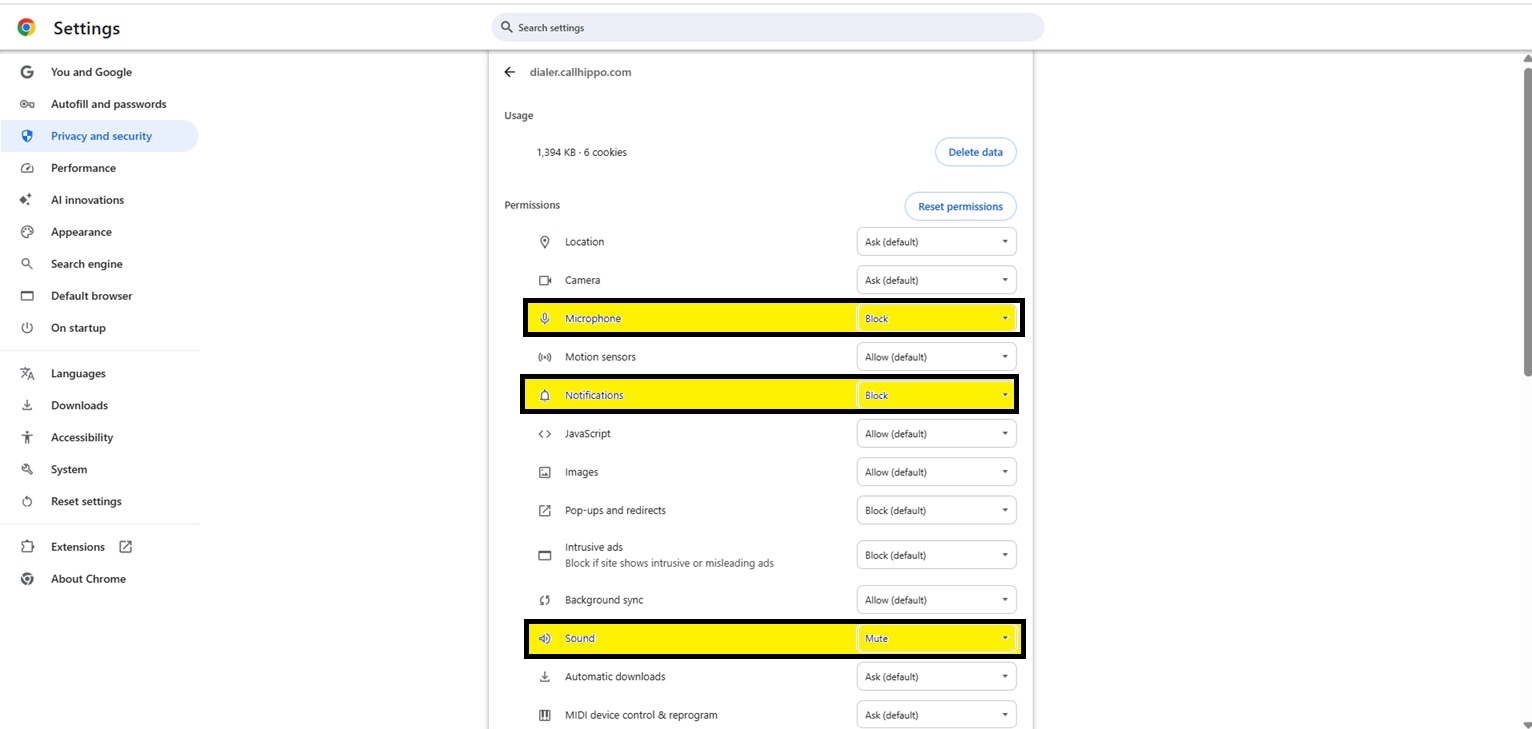
- Reload the dialer tab. To pick a specific mic, go to chrome://settings/content/microphone.
For Mozilla Firefox: Click the padlock icon next to the address, then under Permissions set Use the Microphone to Allow.
For Microsoft Edge: Click the lock icon in the URL bar, then go to Permissions > Microphone > Allow.
For Safari (Mac): Go to Safari > Settings for This Website and set Microphone access to Allow.
3. Allow permissions on the CallHippo dialer
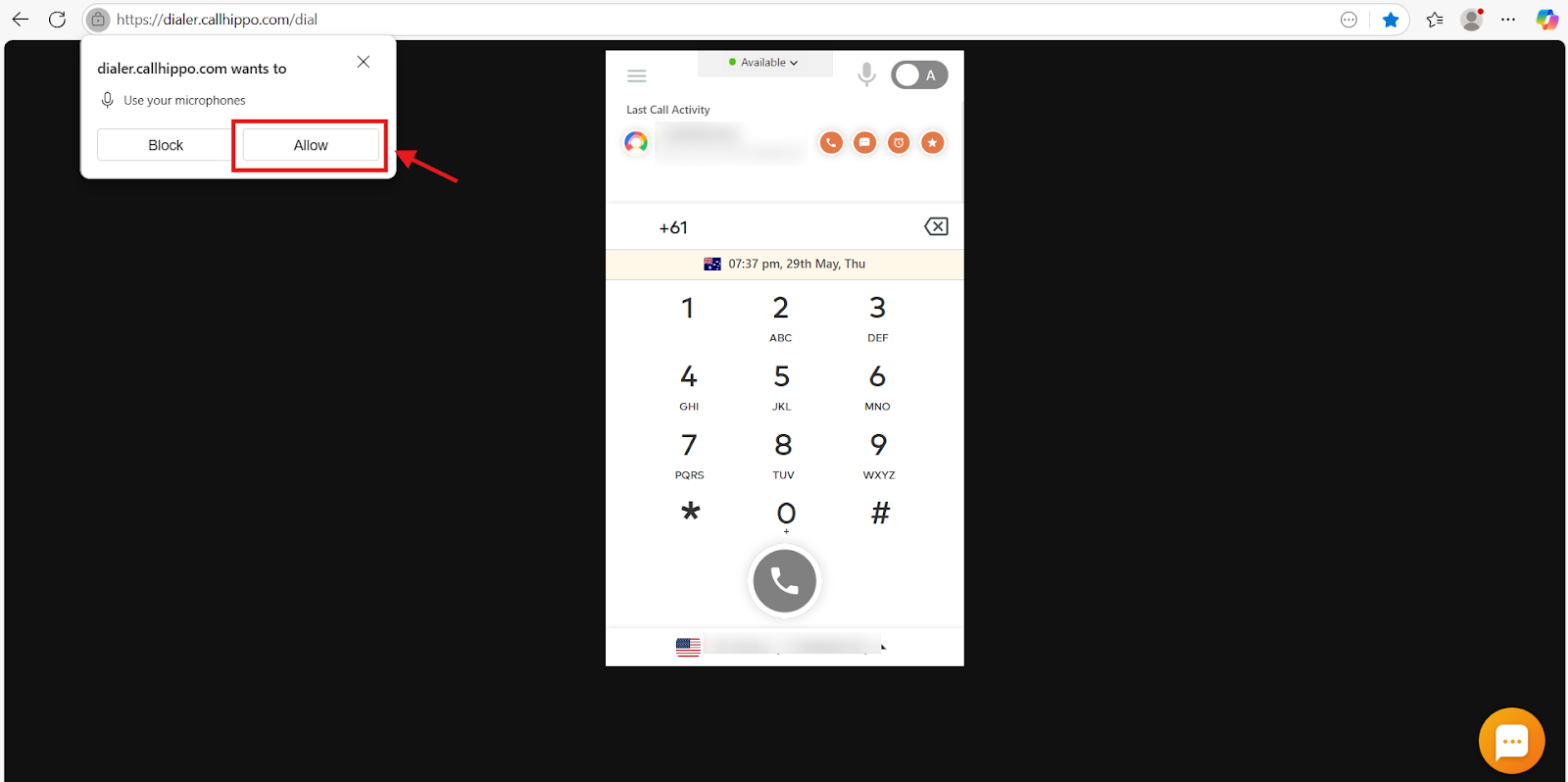
- Click Allow when the dialer prompts you for microphone access.
- Make sure the microphone icon on the dialer is not muted.
4. Check system-level microphone settings
Windows: Go to Settings > Privacy > Microphone, turn Microphone access on, and allow desktop apps and browsers to use the mic.
macOS: Go to System Settings > Privacy & Security > Microphone and make sure your browser (for example, Chrome) is checked.
5. Clear cache and cookies
Clearing your browser cache and cookies can resolve permission or script errors. In Chrome:
- Go to chrome://settings/clearBrowserData.
- Select Cookies and Cached images and files.
- Click Clear data.
6. Close conflicting apps and restart
- Close other apps that use the microphone, such as Zoom or Skype.
- Restart your browser and your system.
- Try using Incognito or Private mode.
7. Check external devices
If you’re using external hardware such as earphones or a USB mic:
- Make sure it’s selected in your operating system’s sound settings.
- Verify it works in another app, like a voice recorder.
- Install or update drivers for USB devices.
8. Update your browser
Older browser versions may have bugs or lack support for the audio APIs CallHippo uses. To update:
- Chrome: Go to chrome://settings/help to check for and install updates automatically.
- Firefox: Click the menu, then Help > About Firefox.
- Edge: Go to edge://settings/help.
- Safari: Update through System Preferences > Software Update.
Still not working?
- Restart your browser and re-log in to CallHippo.
- Test with a different browser (Chrome is recommended).
- Check whether antivirus or firewall software is blocking mic access.
- Restart the system you’re using.
Frequently asked questions
Why isn’t my microphone working even though I have headphones connected?
It could be an outdated browser or incorrect microphone settings. Update your browser, check microphone permissions, and confirm your hardware is properly connected.
How do I clear my browser cache to solve microphone issues?
Press Ctrl + Shift + Delete (Windows) or Cmd + Shift + Delete (macOS), choose “All time” as the range, select “Cached images and files,” and click Clear data.
How can I test whether the problem is my hardware or the browser?
Plug your microphone into another device, such as a different computer or smartphone, to see if it works there. This tells you whether the issue is the hardware or your settings.
Do I need to install anything for my microphone to work?
No. CallHippo runs in your browser and requires no software installation. Just make sure your browser has microphone permissions enabled and your mic is connected.
My mic works in Zoom but not in CallHippo. What’s wrong?
Apps like Zoom may be using the mic exclusively. Close those apps, refresh the CallHippo tab, and confirm the browser has permission to use the mic.
Do I need a special microphone to use CallHippo?
No. Any working microphone will do, including a built-in laptop mic, earphones with a mic, or an external USB mic. A quality headset is recommended for better call clarity.
My mic worked yesterday but not now. What changed?
System or browser updates can reset permissions. Re-check your mic selection, re-enable permissions if needed, and restart your browser and computer.
Still need help? Reach us at [email protected].