
Linking CallHippo with Microsoft Power BI pushes your call and SMS data into a Power BI dataset, so you can build custom analytics dashboards and visualize team performance.
Connect Power BI in CallHippo
- Log in to CallHippo at web.callhippo.com.
- Open Integrations: click Integrations in the left sidebar.
- Find Power BI: search for Microsoft Power BI (or open the Analytics category) and click Connect.
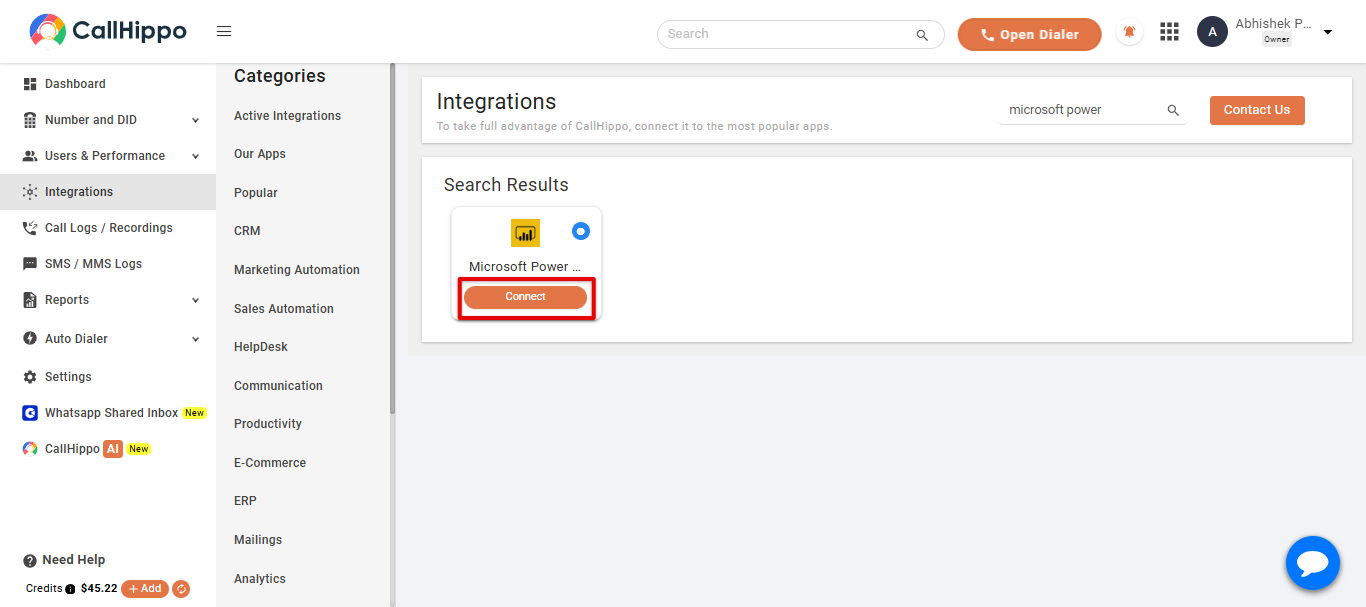
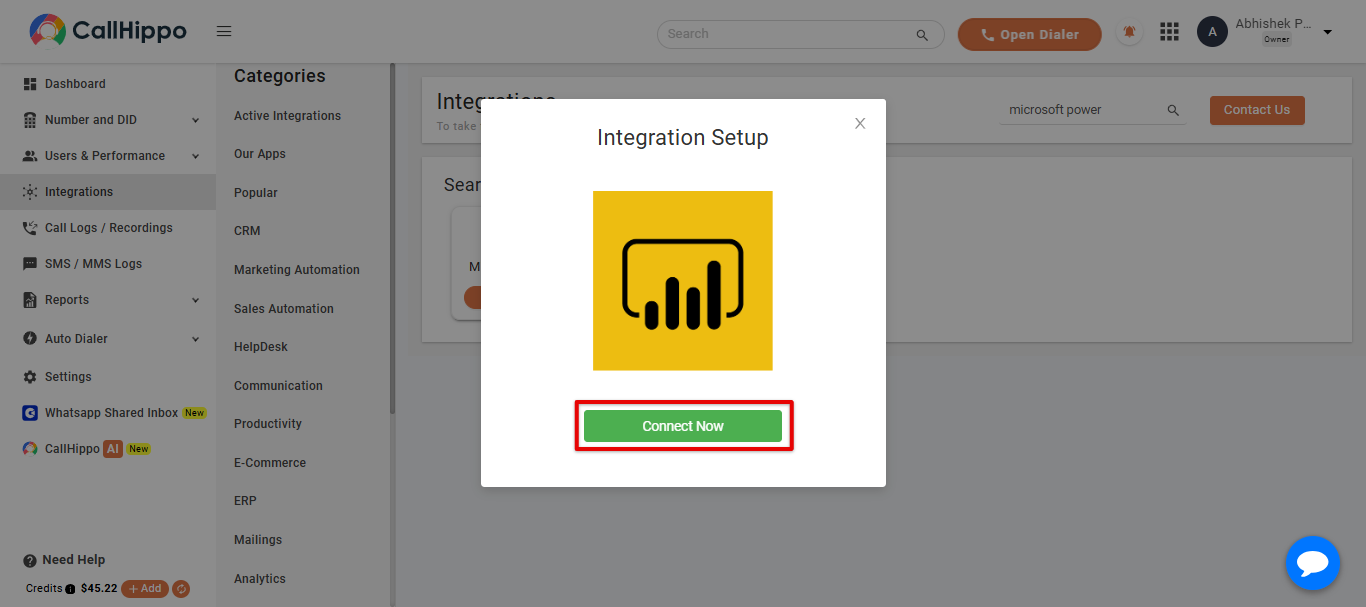
- Start the setup: in the pop-up, click Connect Now.
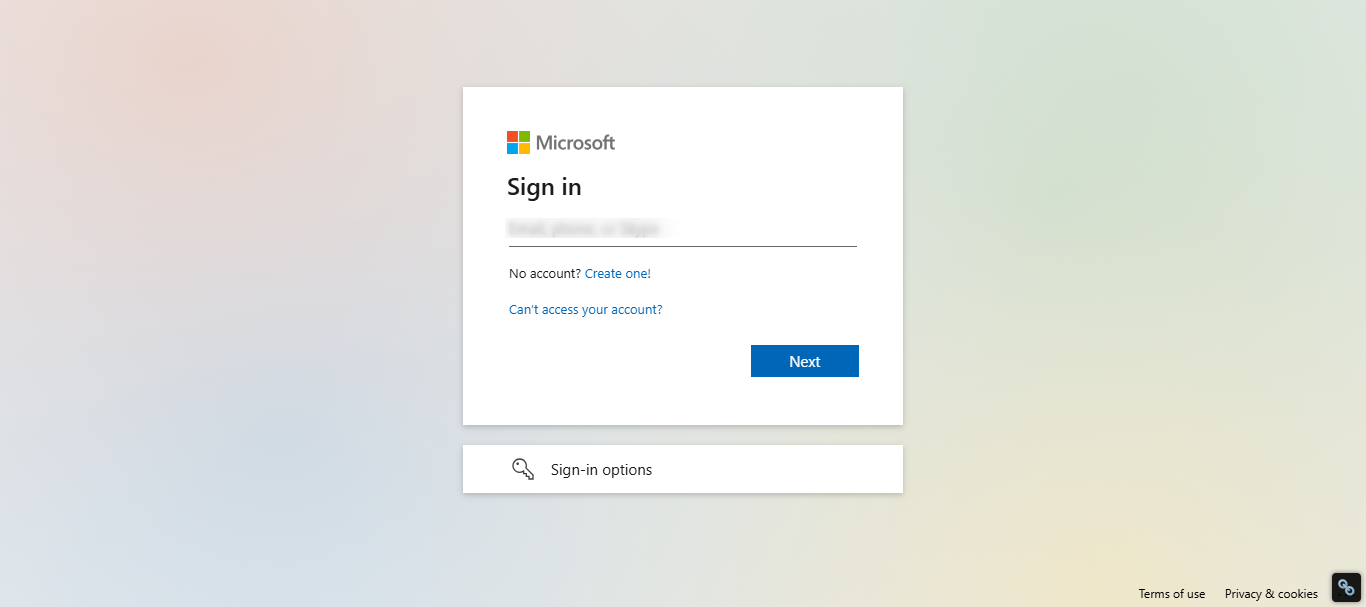
- Sign in to Microsoft: enter the email of your Power BI account and click Next. When prompted, choose Work or school account, enter your password and authorize access. If you are already logged in, this step is skipped.
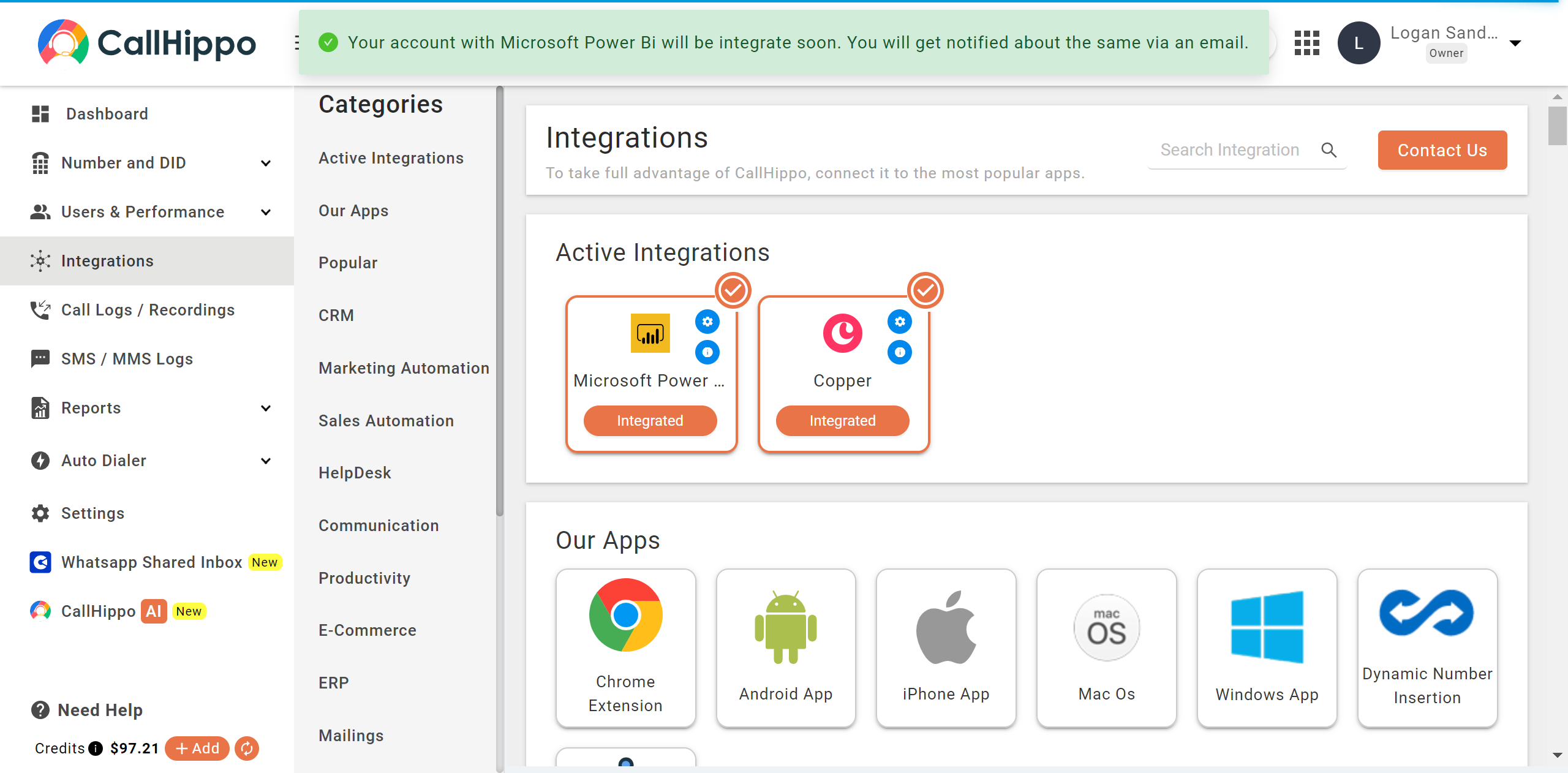
- Confirm: the window closes and you are returned to CallHippo, where your data source is linked and the status shows as Integrated.
Connect a dataset
Open the integration settings and decide whether to use an existing Power BI dataset or create a new one for CallHippo data.
- Use an existing dataset: pick a push dataset from the dropdown where your call and SMS activities should be mapped.
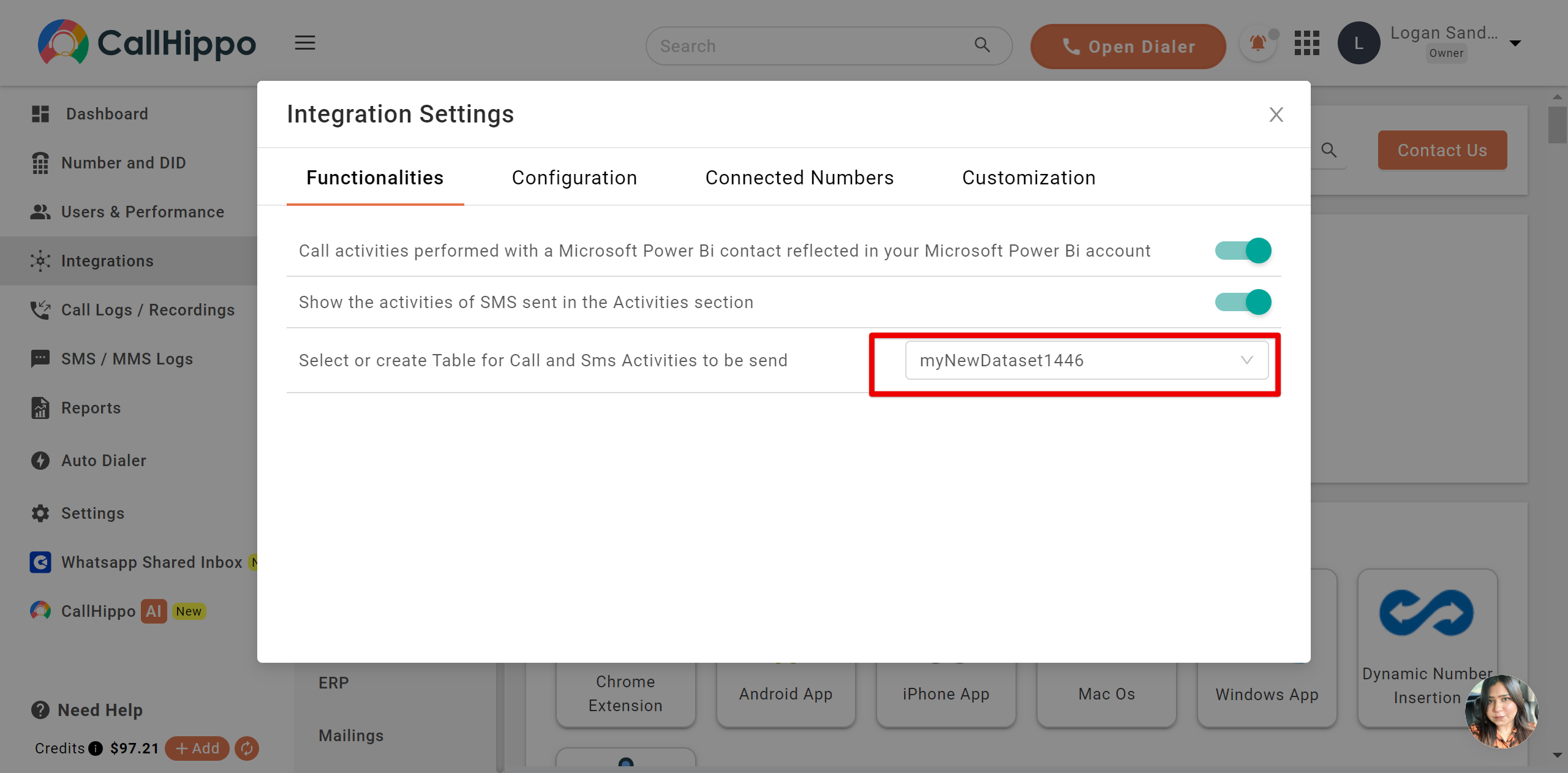
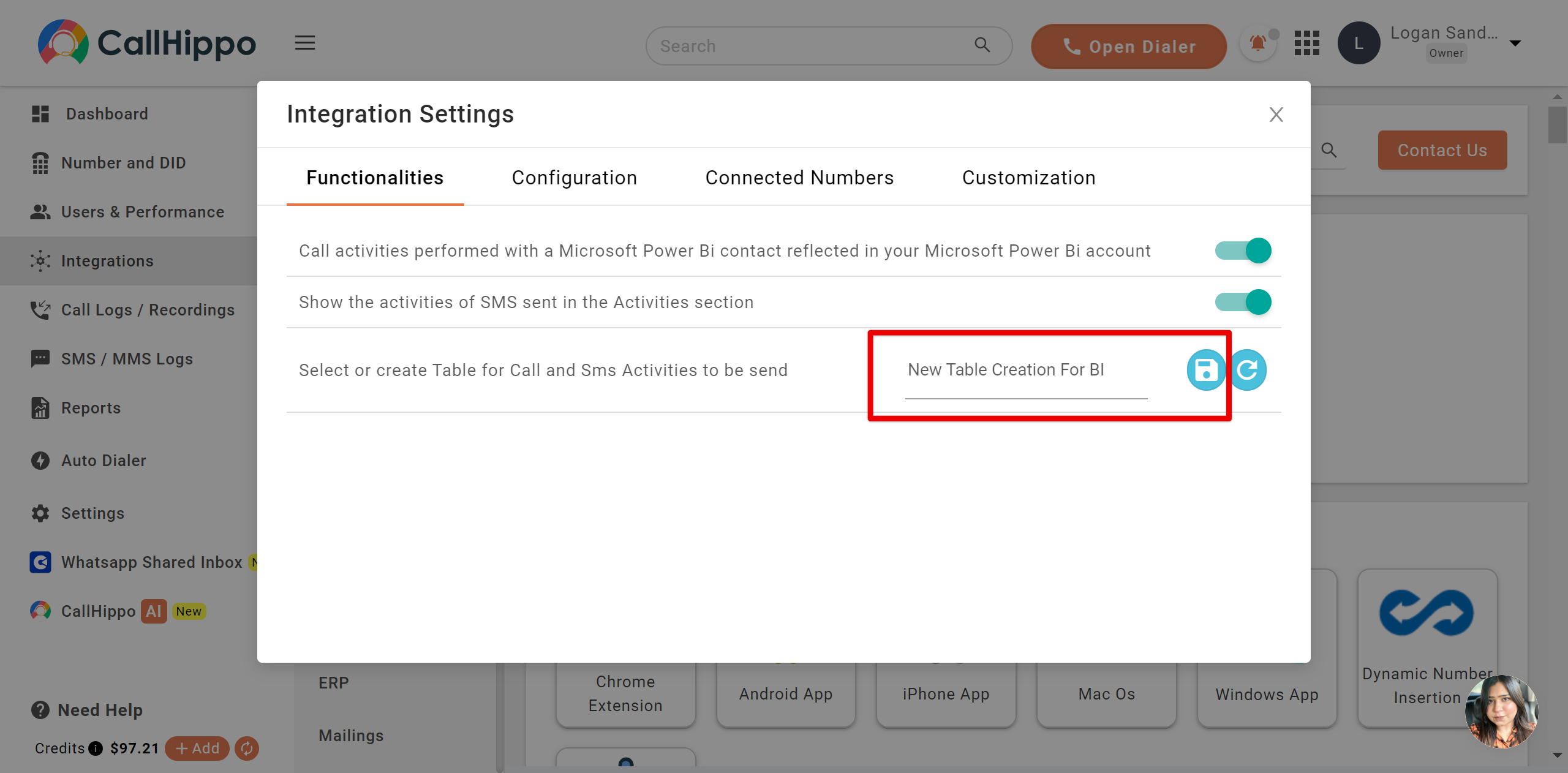
- Create a new dataset: choose to create the call logs and SMS tables, name it and click Save. All your call and SMS activity then syncs to the new tables.
What gets synced
Call and SMS data flows to the specified dataset and its tables. To pull the latest records into Power BI, just refresh your dashboard, tile or report.
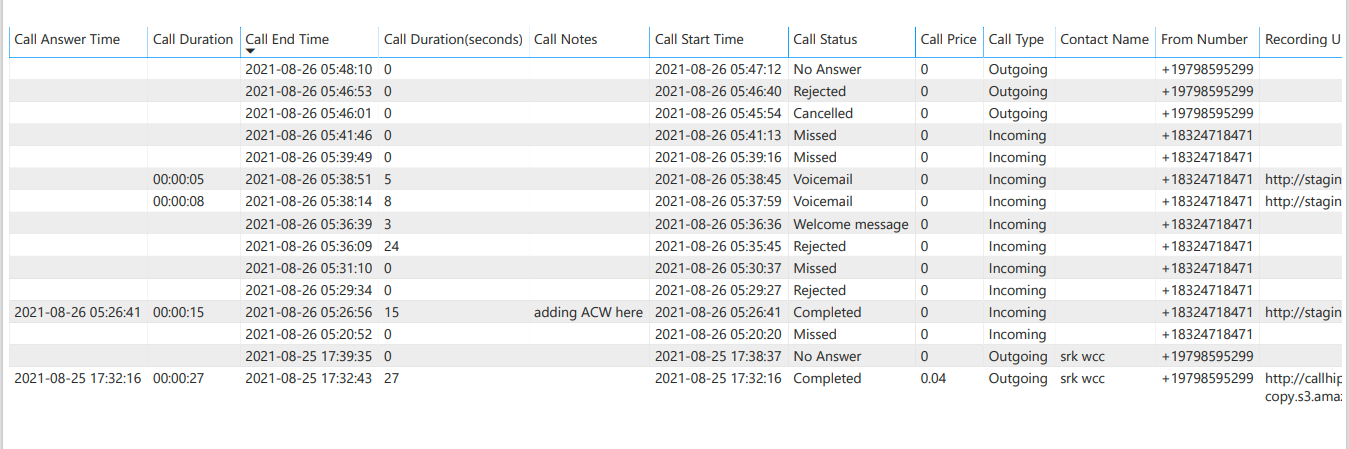
A newly created dataset contains two tables:
- callLogTbl: Call Type, Call Duration (seconds), Call Duration, To Number, From Number, Call Status, Call Start Time, Call Answer Time, Call End Time, Contact Name, Call Notes, Recording URL, User Name and Call Price.
- smsLogTbl: SMS Type, From Number, To Number, Send By, Send Time, Content, Send To and SMS Price.
Why don’t I see any datasets when choosing an existing one?
When using the current dataset option, CallHippo lists only push datasets. If you have none, create a new dataset instead.
I selected an existing table but no activity is syncing. Why?
If the table you selected does not contain the columns listed above, call and SMS activity will not sync. Use the matching columns or create a new dataset so the correct tables are generated.