
Connect Microsoft Teams with CallHippo to push your call and SMS activity straight into the Teams channels and users you choose, so your team stays on top of every conversation in real time.
Before you begin
- You must perform the integration from an admin account on both CallHippo and Microsoft Teams.
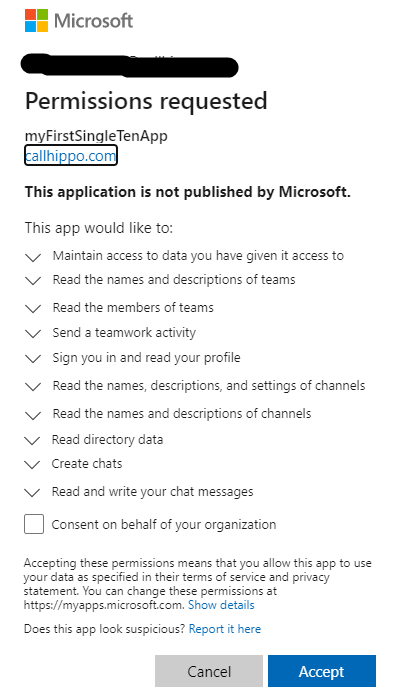
- The permissions requested during setup are required for the integration to work — you’ll need to allow them.
- Once you approve the permissions, you won’t be asked for them again.
Connect Microsoft Teams to CallHippo
- Log in to your CallHippo account at https://web.callhippo.com/.
- Open Integrations from the left-hand menu. Find Microsoft Teams by scrolling the list, using the search box in the top-right corner, or selecting the Communication category in the left sidebar.
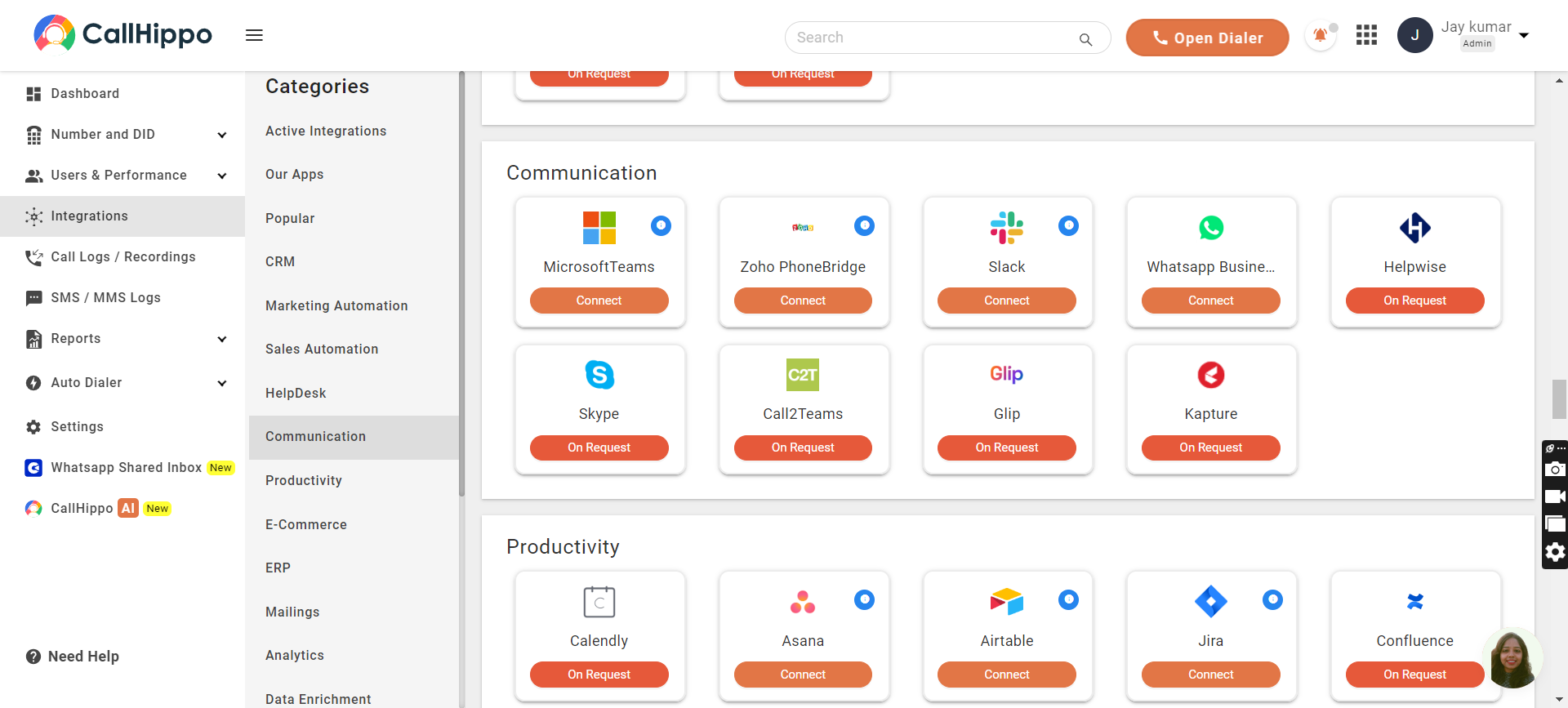
- Click Connect on the Microsoft Teams card. The Integration Setup popup opens.
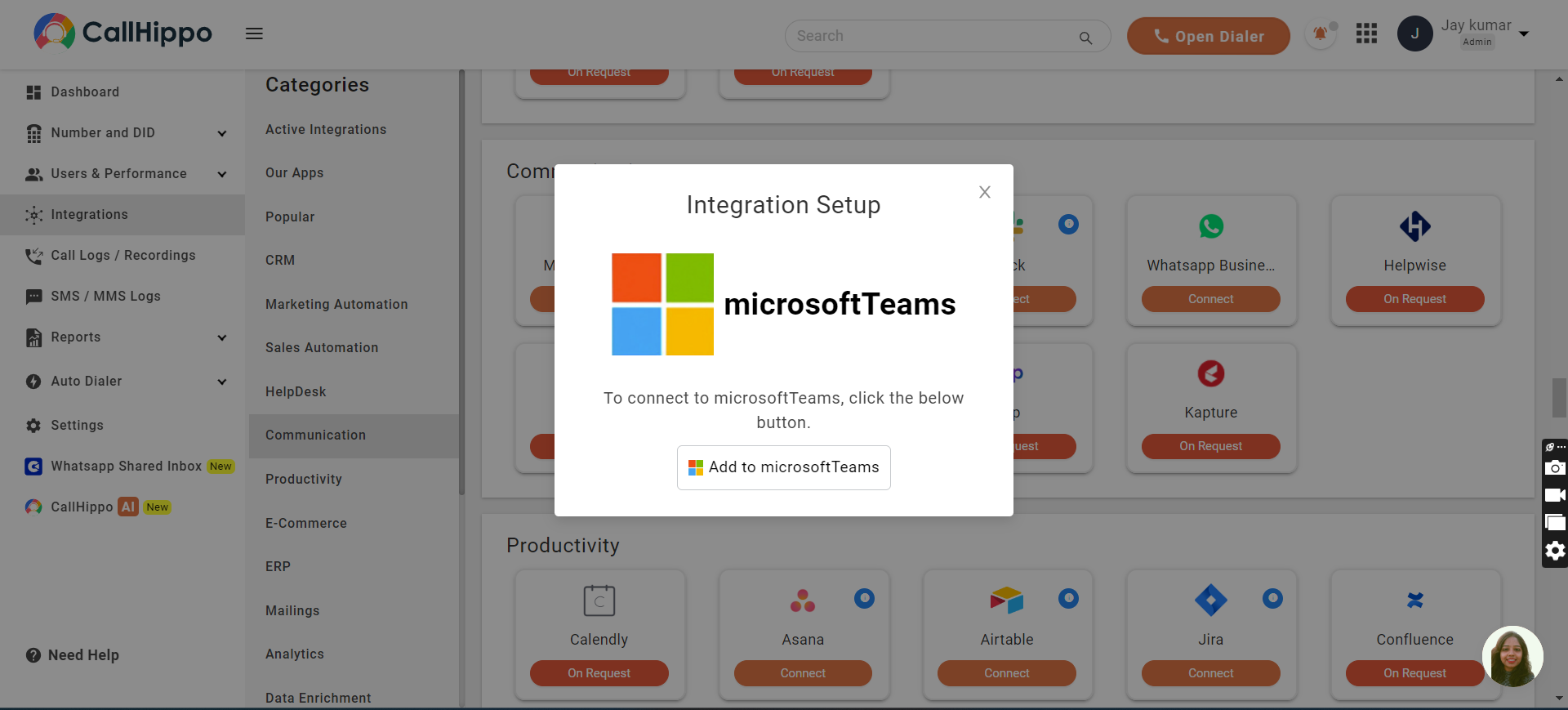
- Click Add to microsoftTeams. You’re taken to the Microsoft sign-in page — enter your credentials and log in.
- When prompted for permissions, click Accept to allow the requested access and complete the connection.
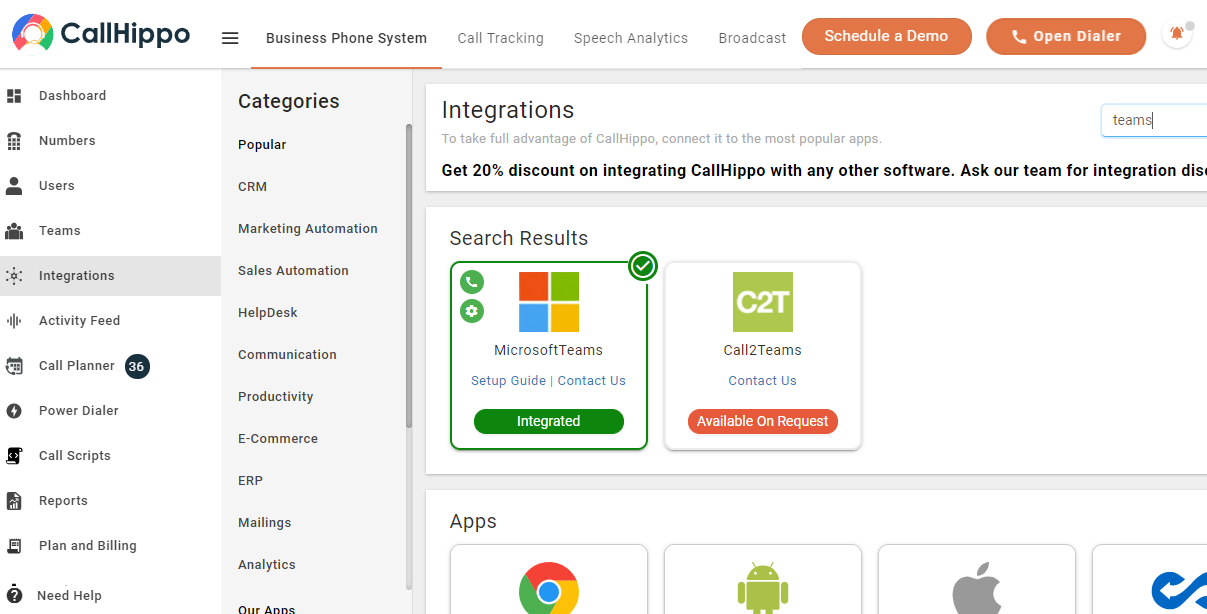
- You’re redirected back to the Integrations page, where the Microsoft Teams status now shows as Integrated.
Choose where notifications are sent
Click the gear icon on the Microsoft Teams integration block. In the popup that opens, select the users and/or channels from your Microsoft account that should receive call and SMS notifications. You can pick separate options for calls and for SMS, and select multiple channels or users for each.
Features of the Microsoft Teams integration
- Every incoming or outgoing call and SMS in CallHippo posts a message to the users and channels you selected.
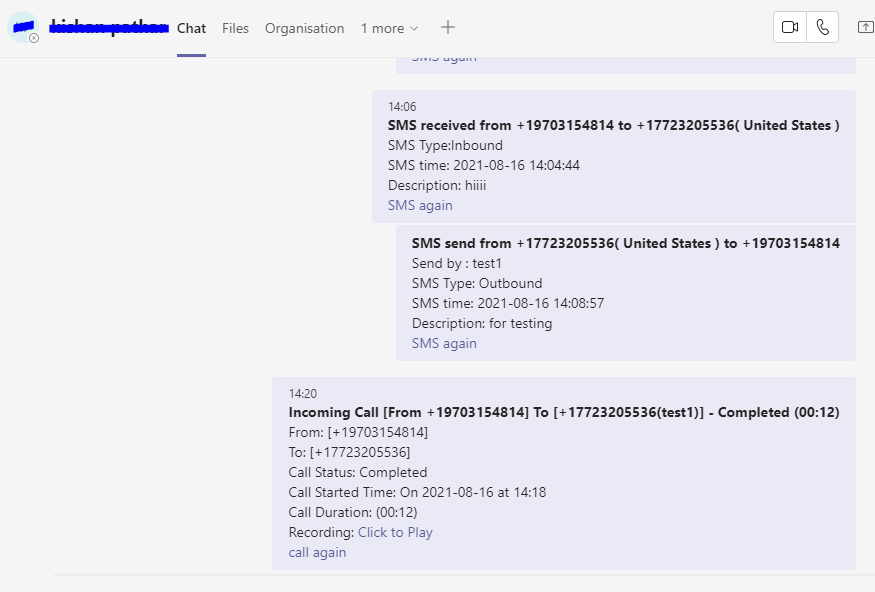
- You can select multiple channels or users for both call and SMS activity.
- If a selected channel or user is later deleted from your Microsoft account by a user or admin, it will no longer appear as an option in the web app.
Requirements
- The permissions prompted during setup are necessary for a successful integration.
- The integration must be performed with an admin account.
- Once permissions are allowed, your account won’t be asked for the same permissions again.
Still need help? Reach us at [email protected].