
This guide helps newly invited users (Agents) set up their CallHippo account quickly and easily. Once the account Owner sends the invitation, you can activate your account in a few simple steps. This article walks you through the entire process—from accepting the invitation to reaching the CallHippo dashboard—plus troubleshooting tips and answers to common questions.
In CallHippo, a sub-user (referred to as an Agent) is added by the Admin to make and receive calls. Once added, the Agent receives an invitation link via email. To get started, the Agent simply needs to verify the link and set up a login password.
Step-by-step account setup for sub-users
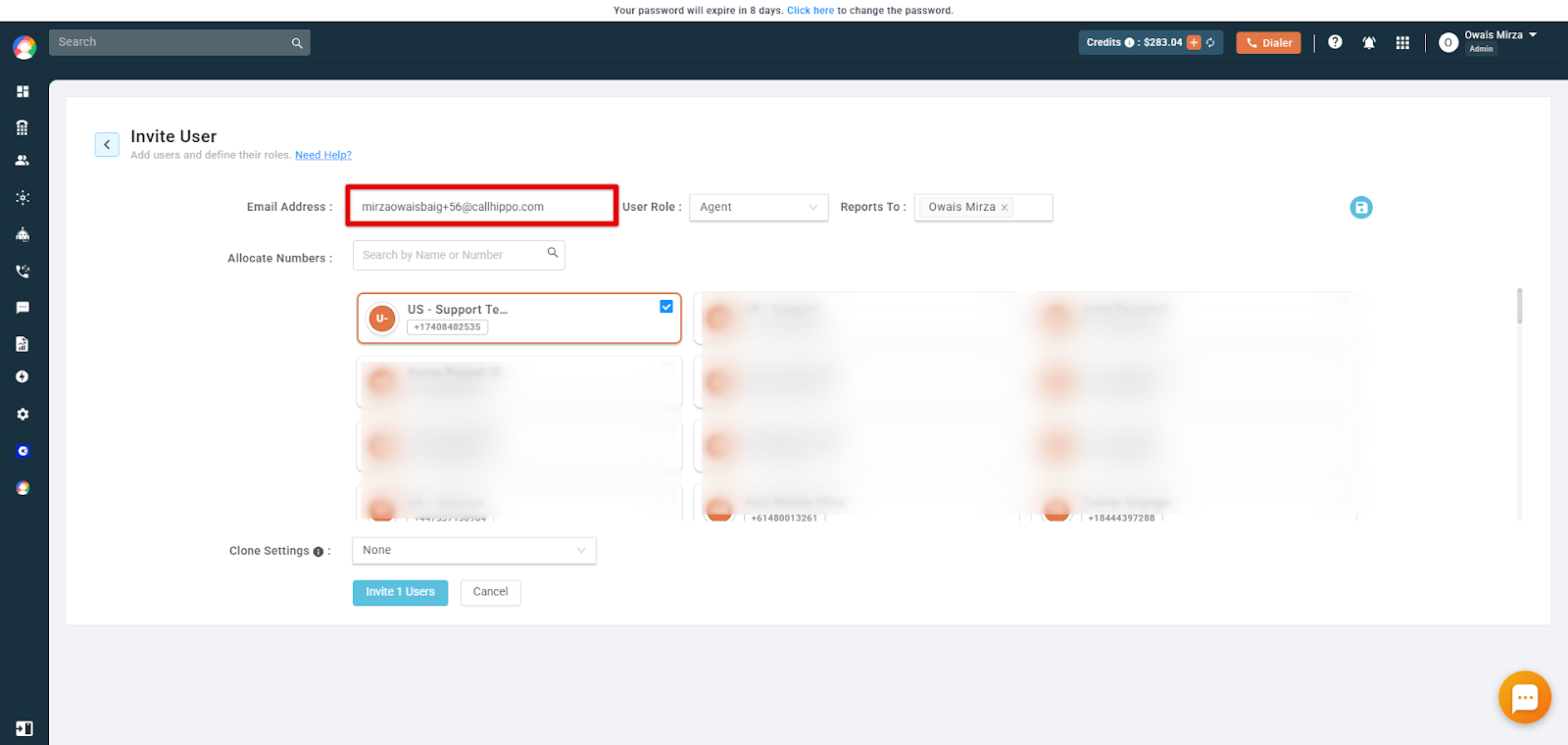
1. Admin sends the invitation. First, the Admin invites the user from their CallHippo account, as shown in the screenshot below.
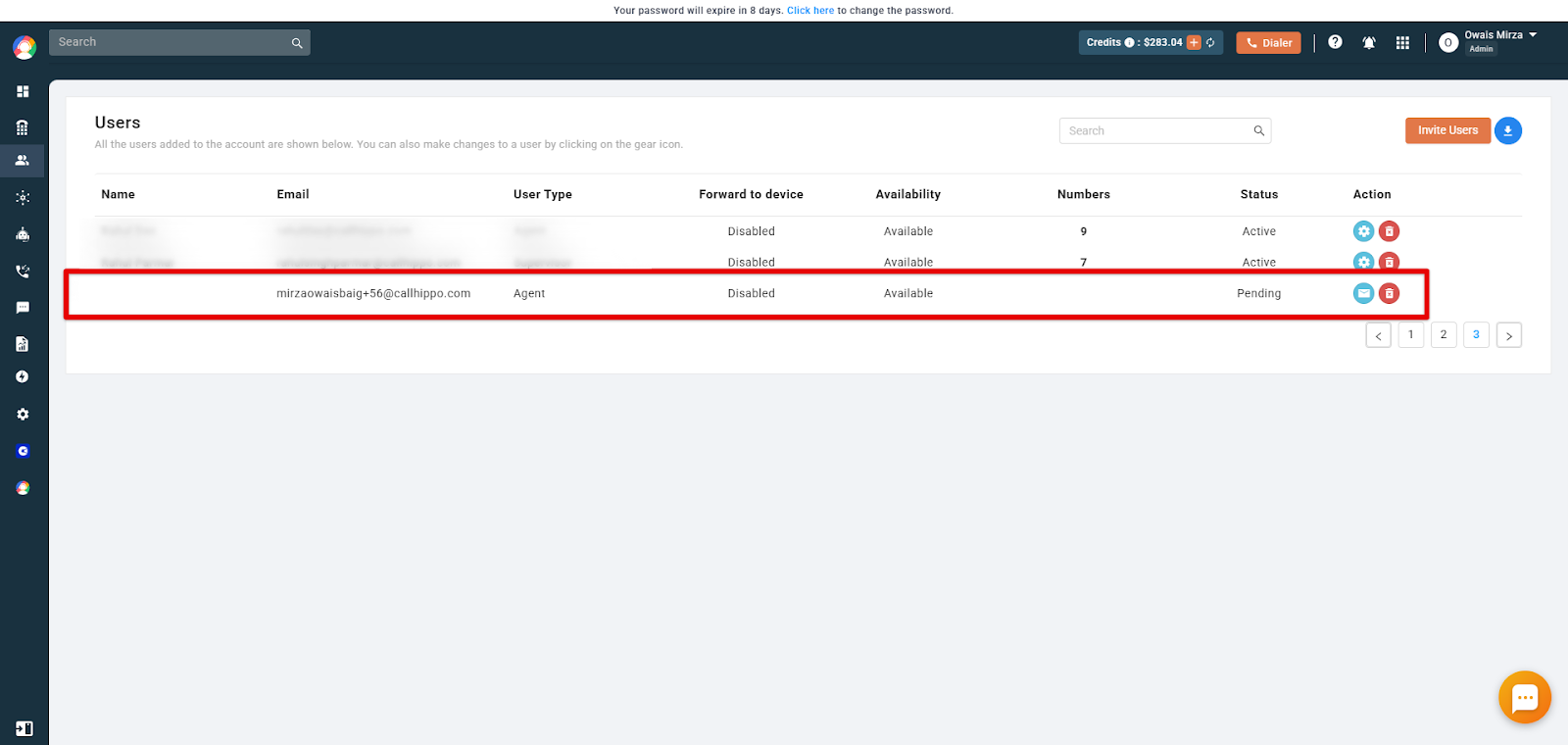
2. Invitation is sent (Pending status). Once the invite is sent from the Owner’s side to the Agent, its status is shown as Pending in the Users list.
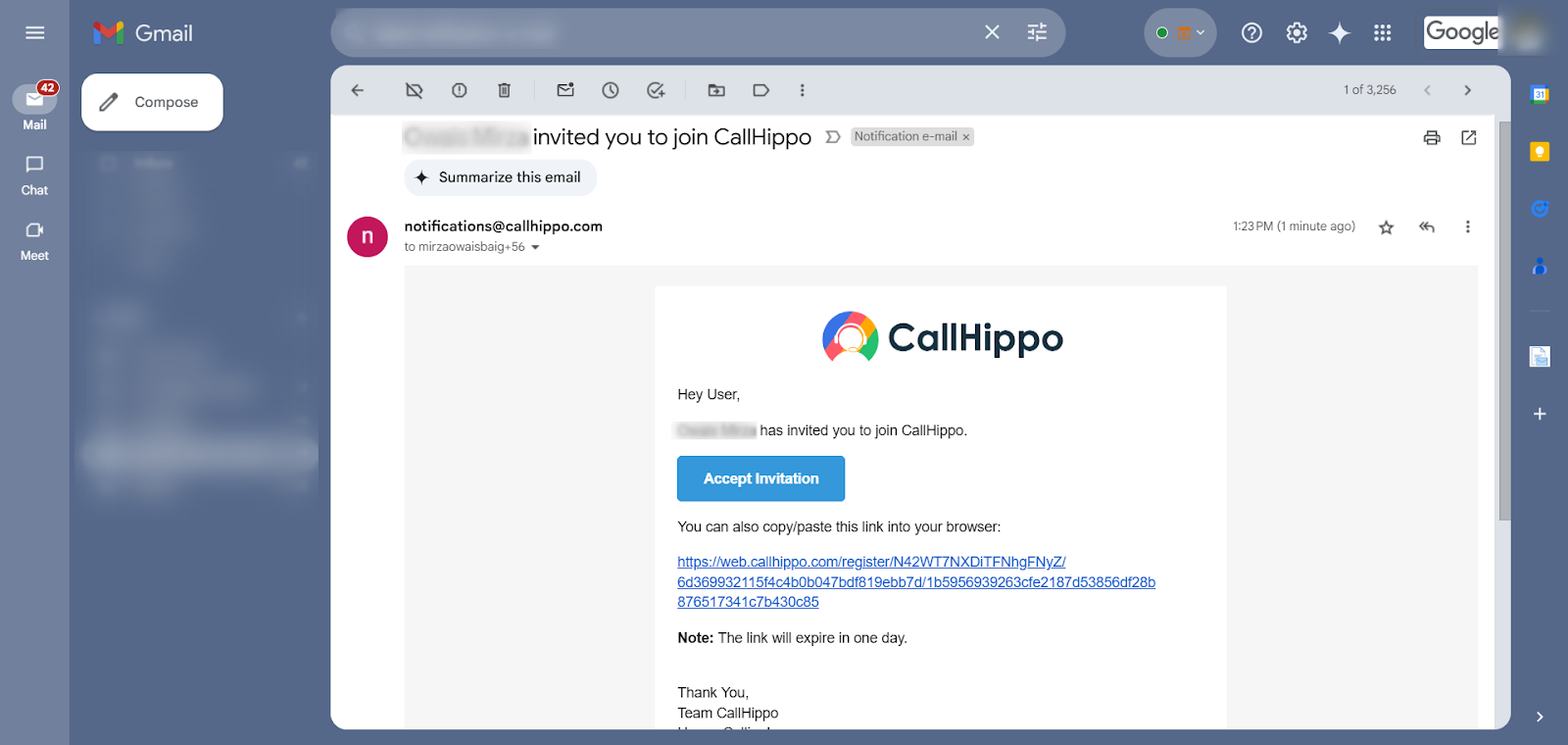
3. Open the invitation email. The sub-user receives an invitation email to log in and set up the account. To proceed, click the link provided in the email. Note: The link expires one day (24 hours) from the time the invitation is sent.
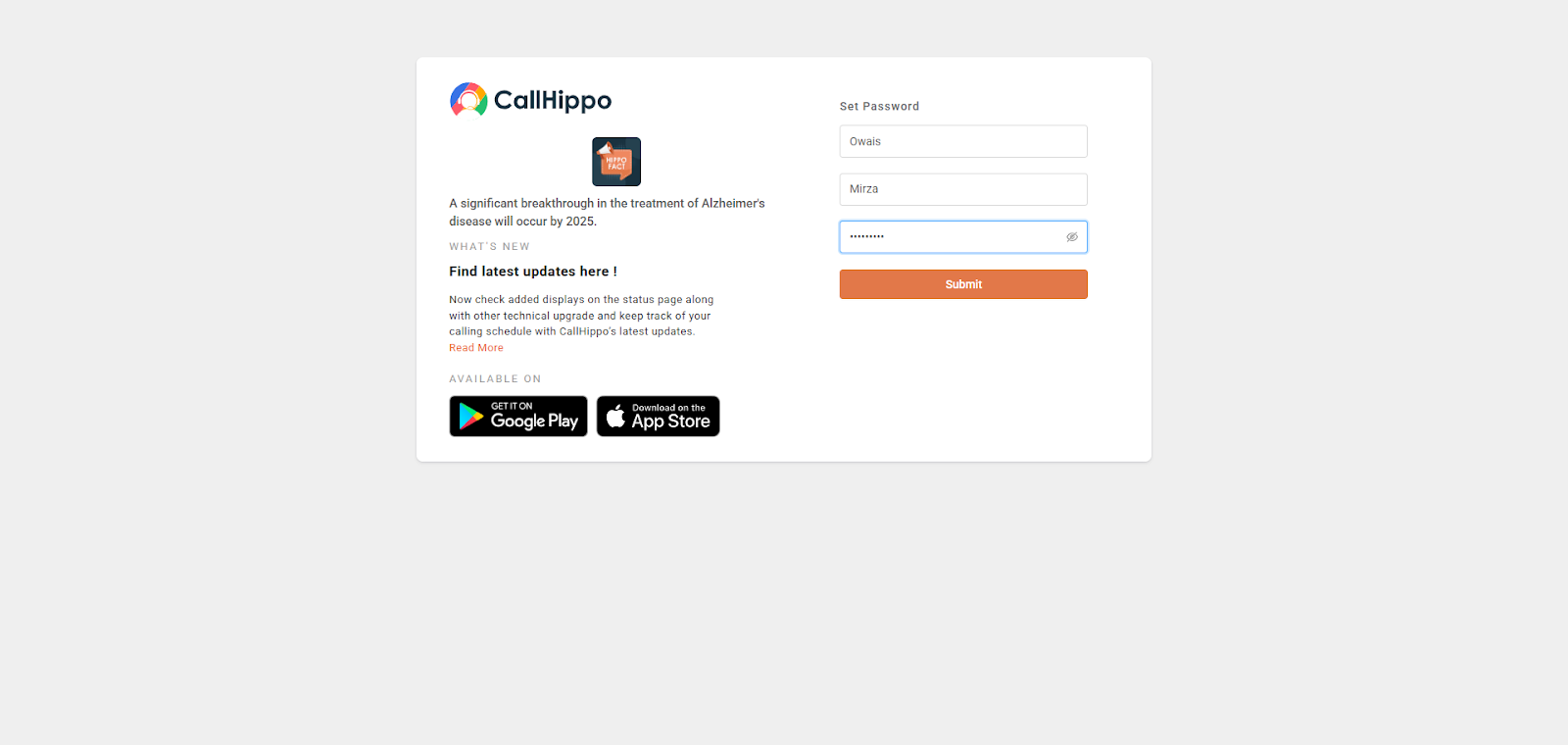
4. Set your name and password. Copy and paste the invitation link into a new browser window. You’ll be presented with options to set up your account: enter your first and last name, create a login password, and then click Submit to activate the account.
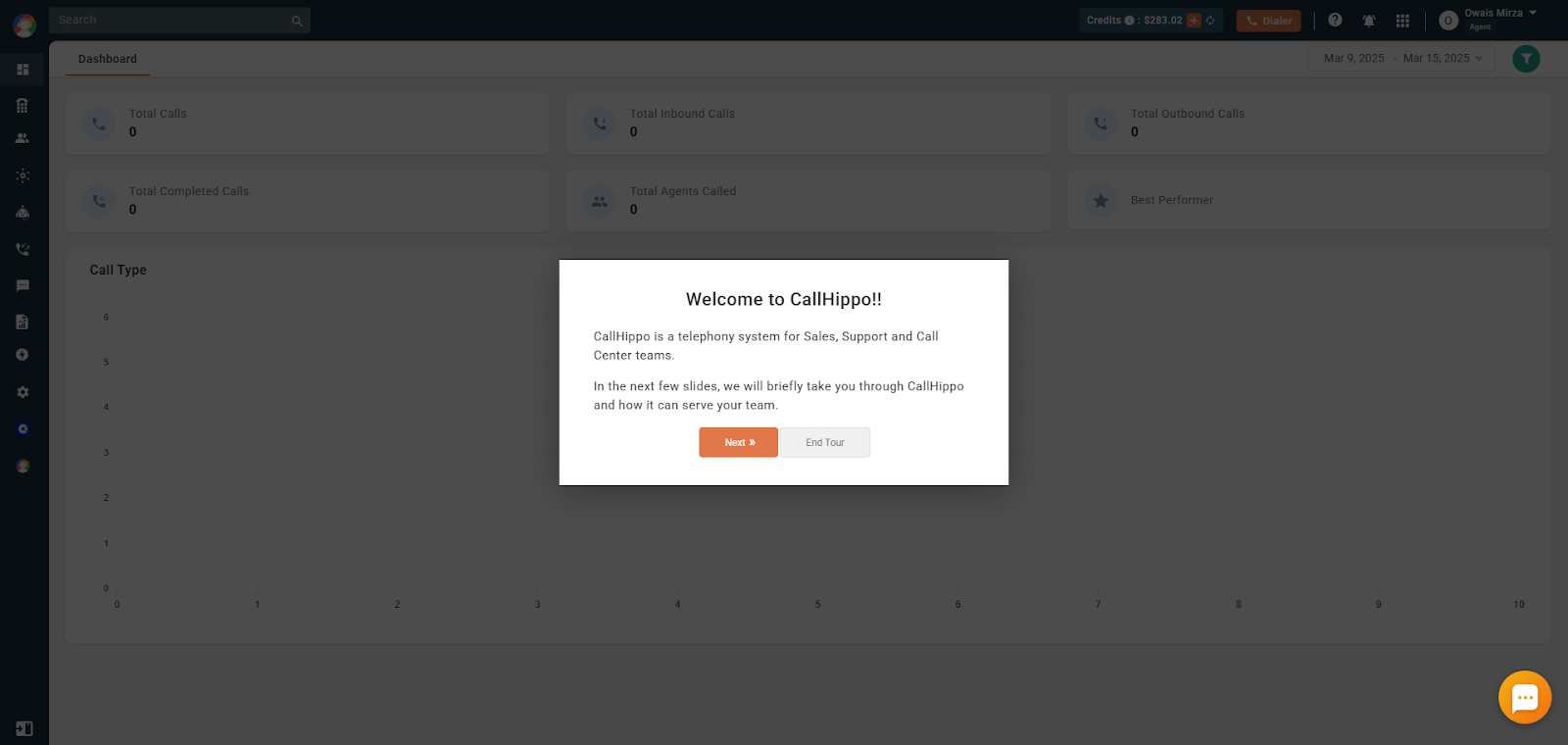
5. Reach the CallHippo Dashboard. You’ll be directed to the CallHippo Dashboard, where you can explore features and start using the available services.
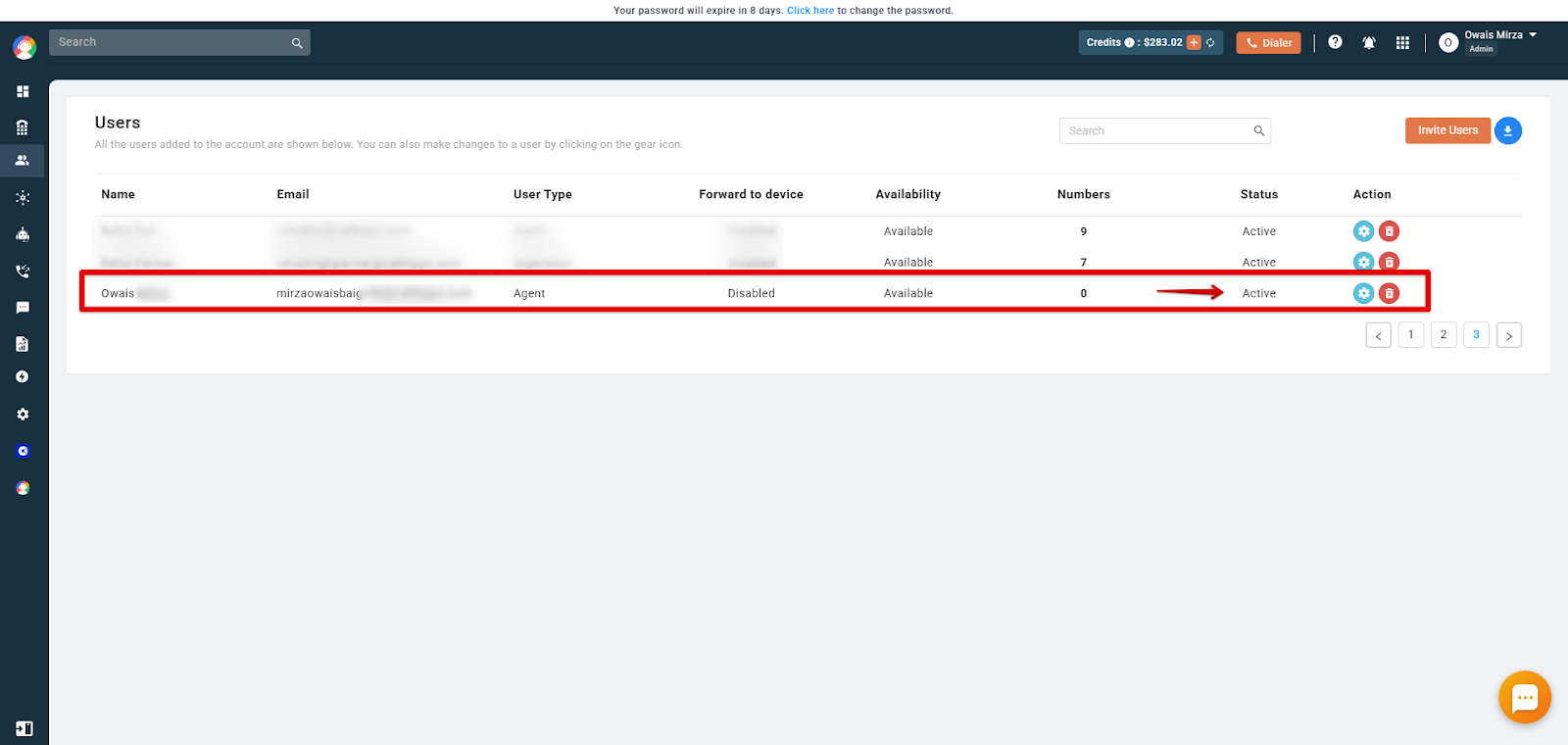
6. Status turns Active. The Admin can monitor your status in the main panel, where it will now be displayed as Active, as shown below.
Note: Once activated, you can log in anytime using your email and password via the web dialer at https://dialer.callhippo.com or the mobile app (available on Android and iOS).
Troubleshooting steps for account setup issues
If you’re facing difficulties while setting up your CallHippo account after receiving the invitation email, try the steps below.
1. Invitation link has expired
- The activation link is valid for only 24 hours.
- If it has expired, ask the Owner or Admin to delete your user from the CallHippo dashboard and re-add you using the same email address. This triggers a new invitation email with a fresh activation link.
2. Did not receive the invitation email
- Check your Spam or Junk folder for an email from [email protected].
3. Activation link is not opening properly
- Copy the link from the email and paste it into a new browser tab or window instead of clicking it directly.
4. Error during account setup
- Make sure your password meets the required criteria (for example, includes uppercase letters, numbers, and special characters).
- Refresh the page and try again.
- Clear your browser cache, or try using incognito mode or a different browser.
5. Still unable to activate the account
- Confirm with your Admin that your status is still showing as Pending in their dashboard.
- If the issue persists, contact CallHippo Support at [email protected] for further assistance.
Frequently asked questions
Q: The invitation link has expired. How can I get a new one?
A: Ask the Owner or Admin to delete your user and re-add you with the same email address. This triggers a new invitation email.
Q: I didn’t receive the invitation email. What should I do?
A: Check your spam or junk folder for an email from [email protected]. If it’s not there, ask the Admin to verify your email and resend the invite.
Q: Can I open the invitation link on a mobile device?
A: No, you must access the invitation link via a desktop browser.
Q: I clicked the link, but I’m getting an error after entering my details. What now?
A: Make sure your password meets the requirements, refresh the page, and try again. You can also try using incognito mode or clearing your browser cache.
Q: Is there a time limit to complete the account setup after receiving the email?
A: Yes, the invitation link is valid for 24 hours from the time it is sent.
Q: Can I change my name or password after setting up the account?
A: Yes, after logging in, you can update your profile details and change your password from your account settings.
Q: What should I do if I accidentally delete the invitation email?
A: Ask your Admin to delete your user and re-add you, which resends a fresh invitation link to your email.
We hope this helps. If you still have questions, feel free to reach out at [email protected].