
Connecting noCRM with CallHippo lets you call your sales leads without leaving noCRM and automatically log every call and SMS activity back to the matching lead. This guide walks you through generating your noCRM API key, connecting it in CallHippo, configuring what syncs, and placing calls from your leads.
Get your noCRM API key
Start in noCRM to create an API key that CallHippo will use to connect.
- Log in to your noCRM account.
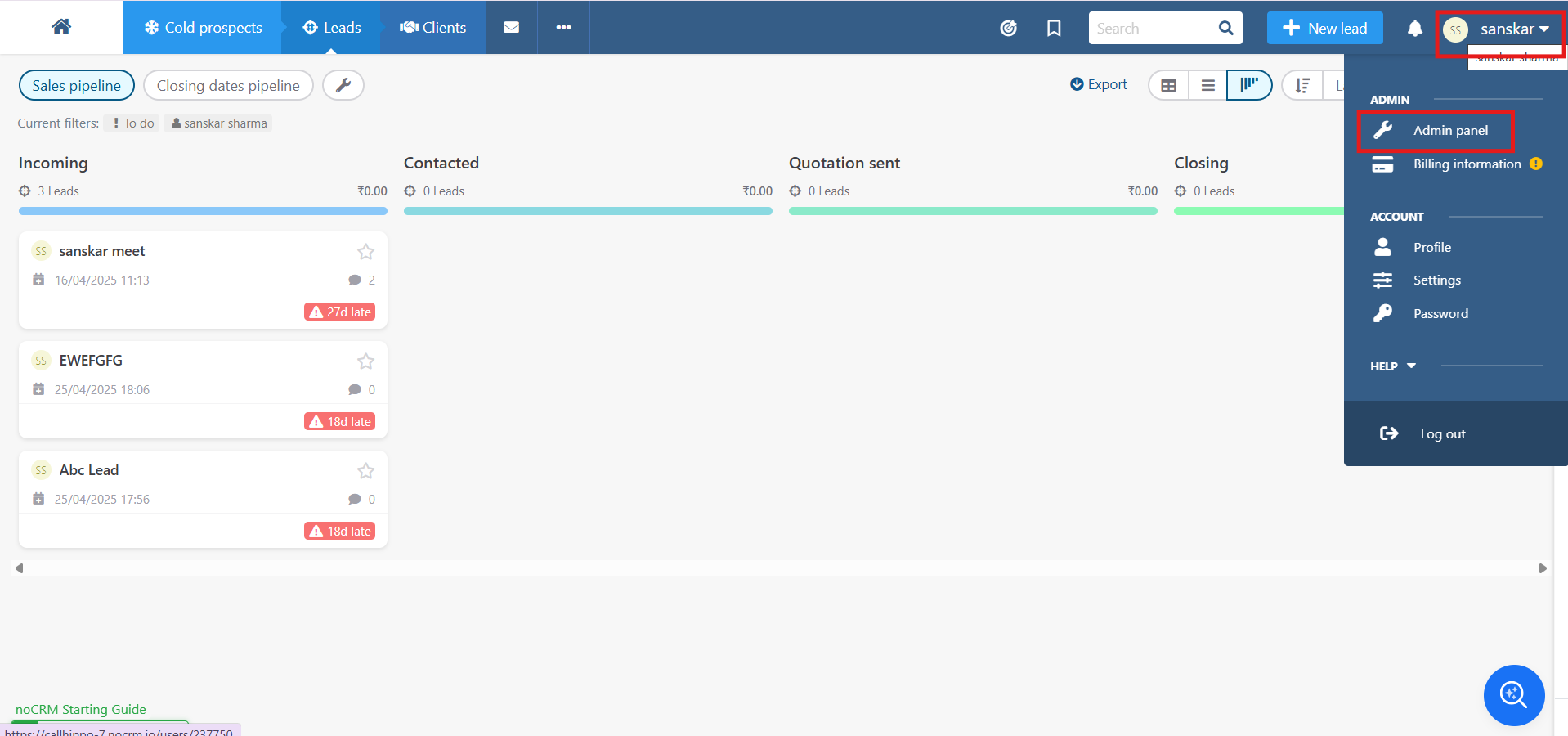
- Click the profile icon in the top-right corner and select Admin panel.
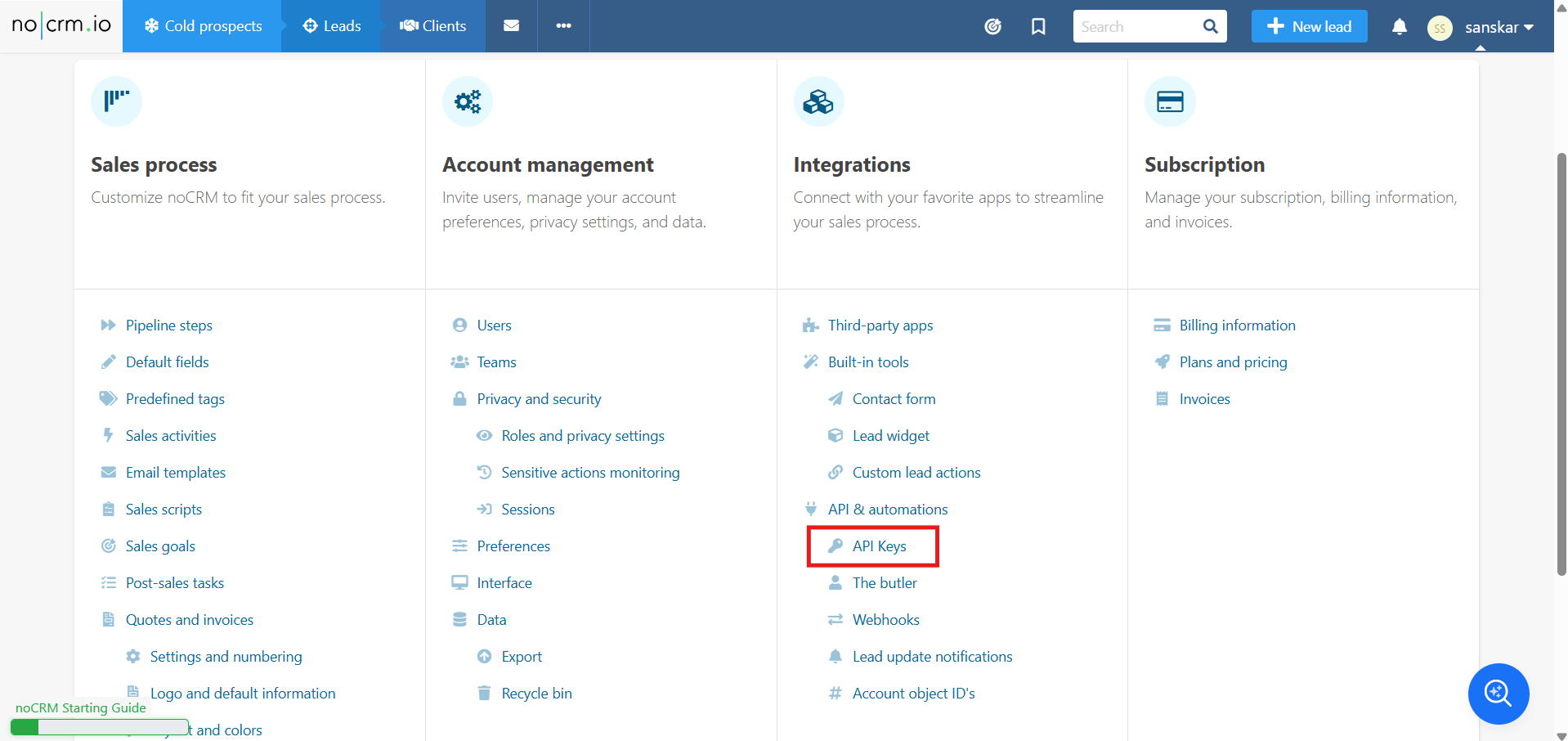
- Under Integrations > API & automations, click API Keys.
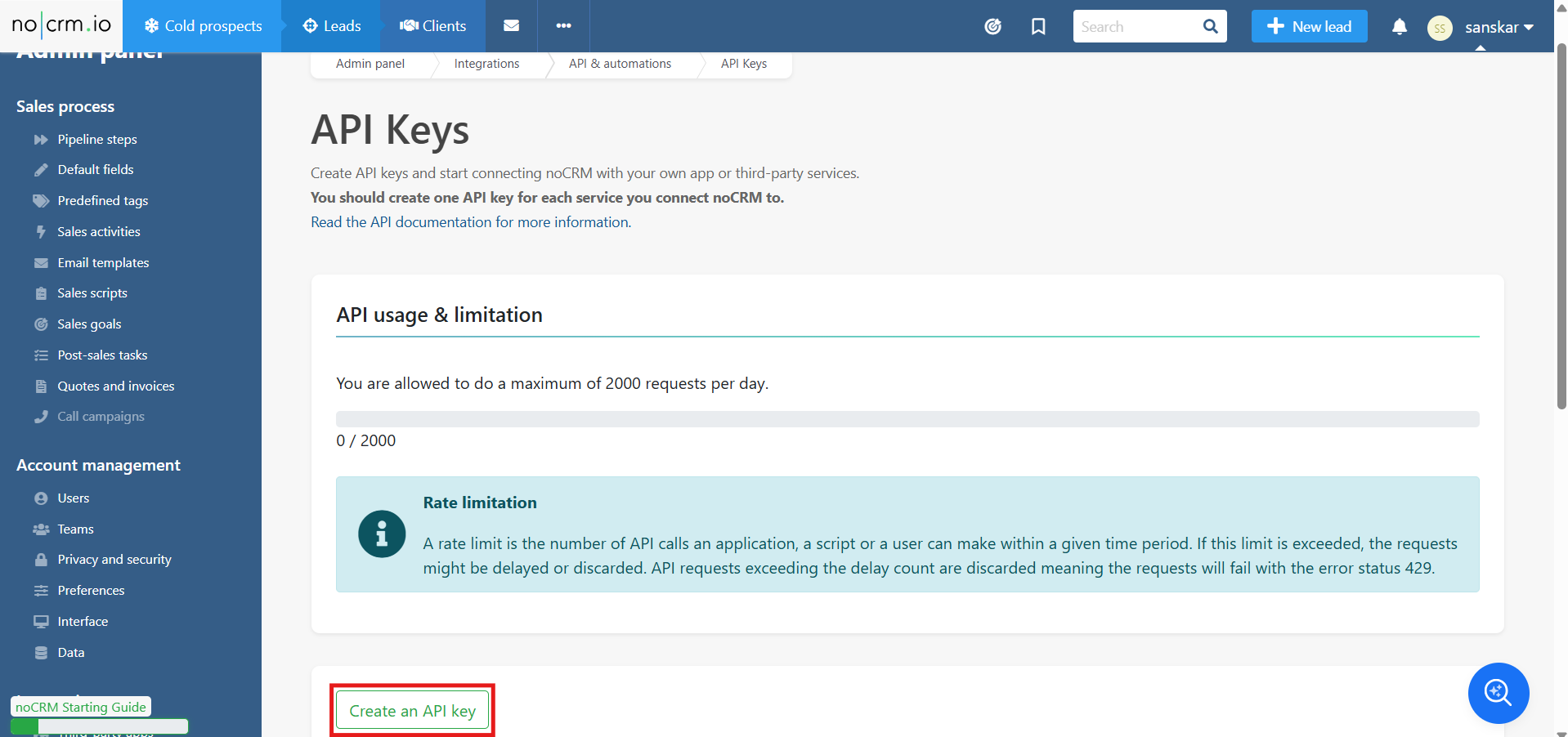
- Click Create an API key.
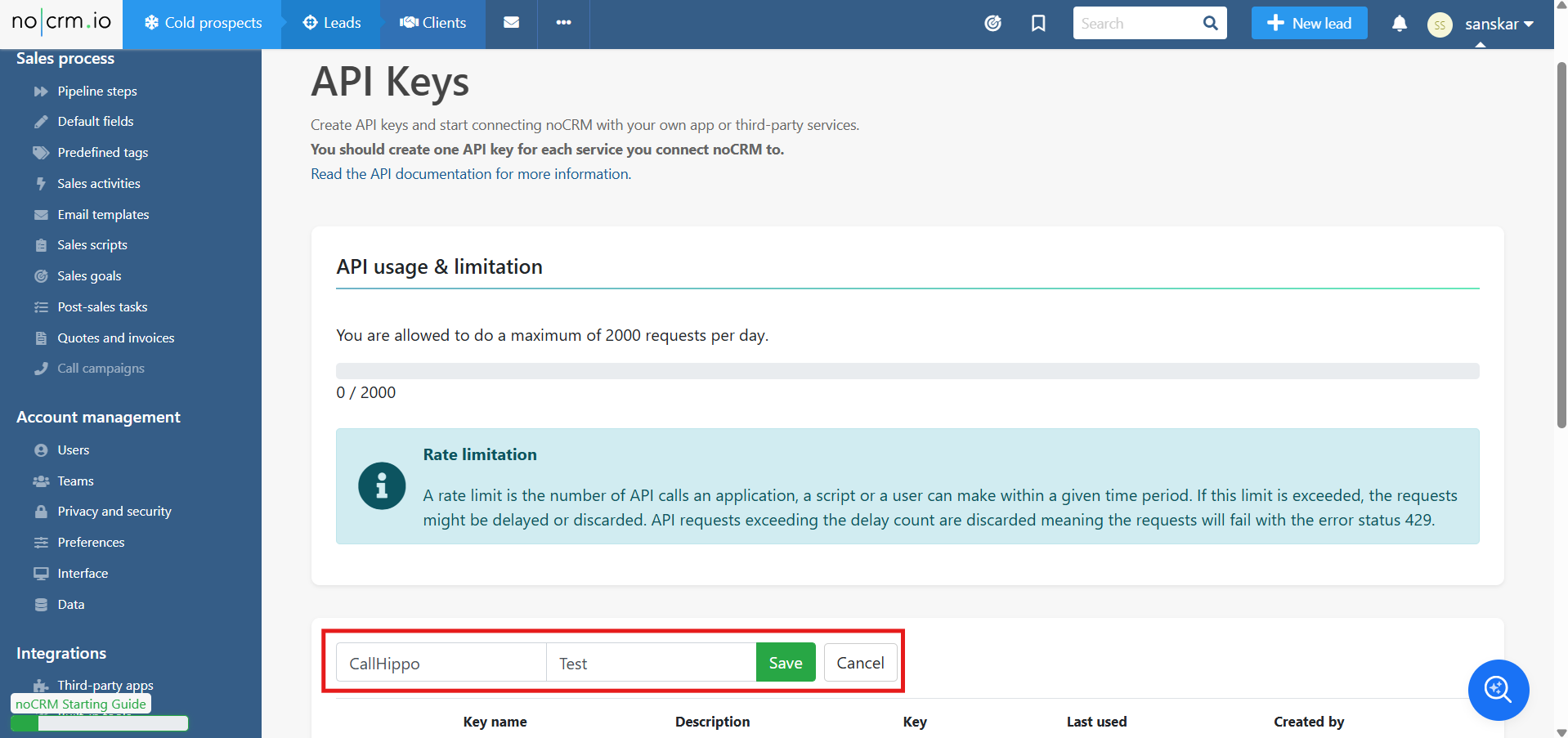
- Enter a name and description for the key, then click Save.
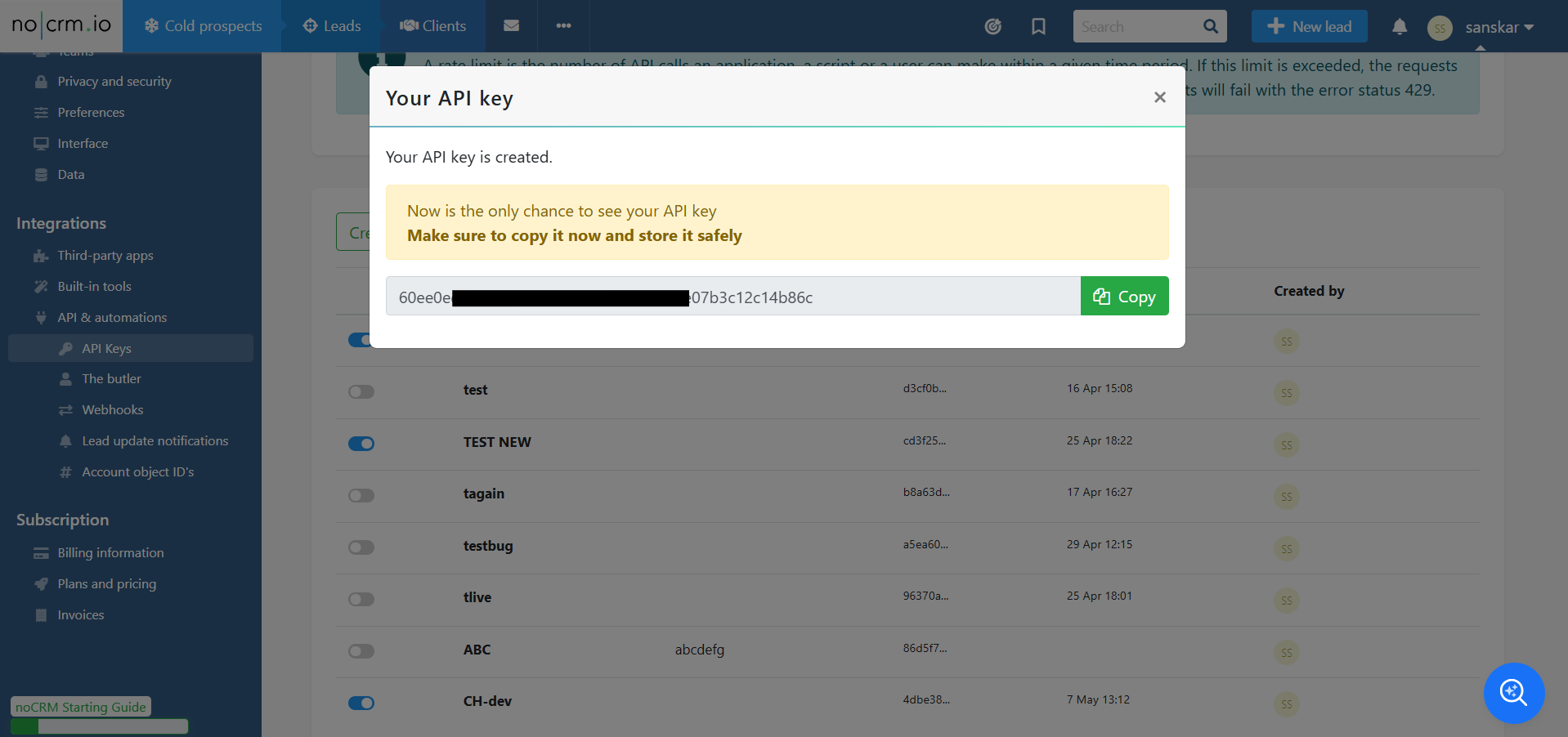
- A popup displays your API key. Copy it and store it safely, as this is the only time it is shown.
Connect noCRM in CallHippo
- Log in to CallHippo and go to Integrations.
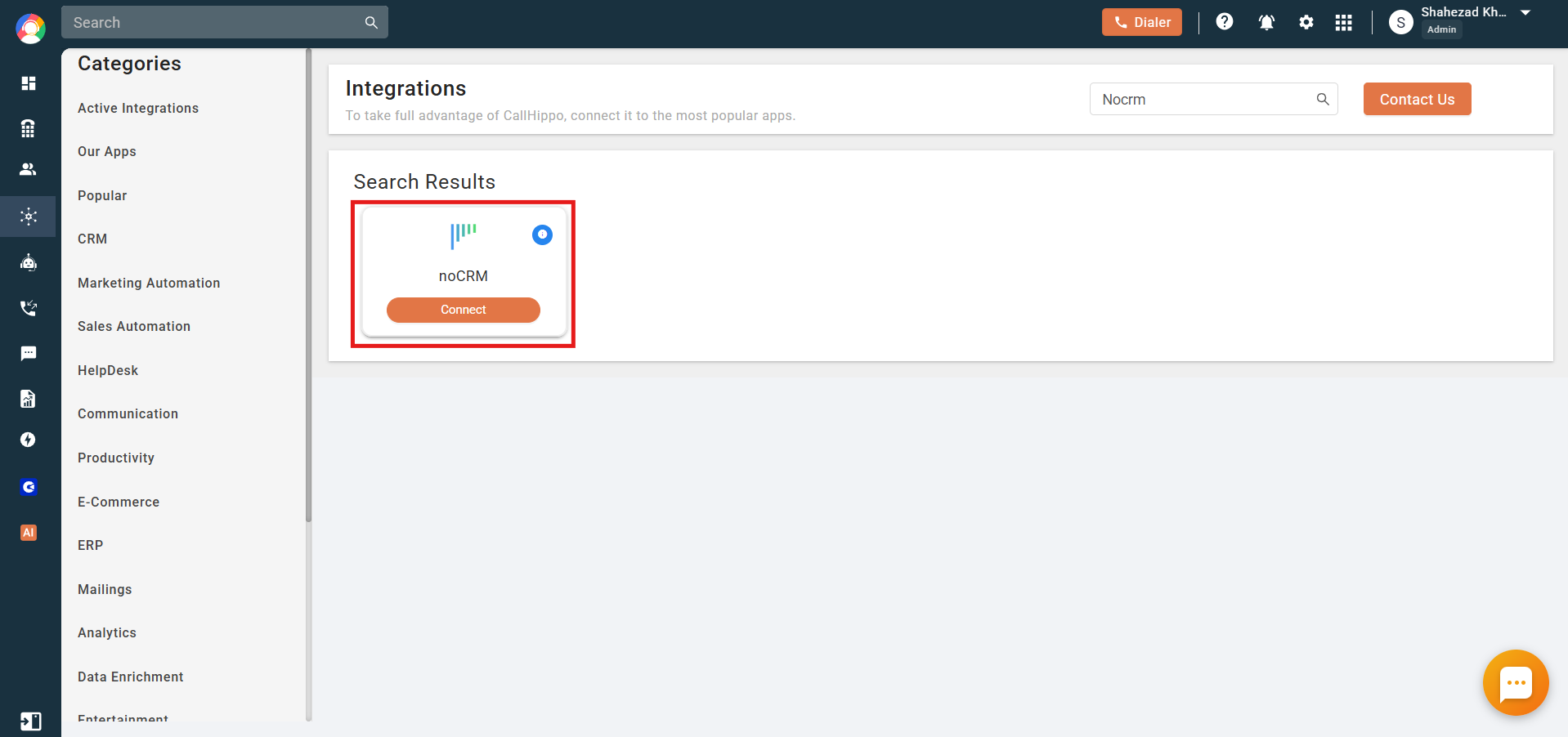
- Search for noCRM and click Connect on the noCRM tile.
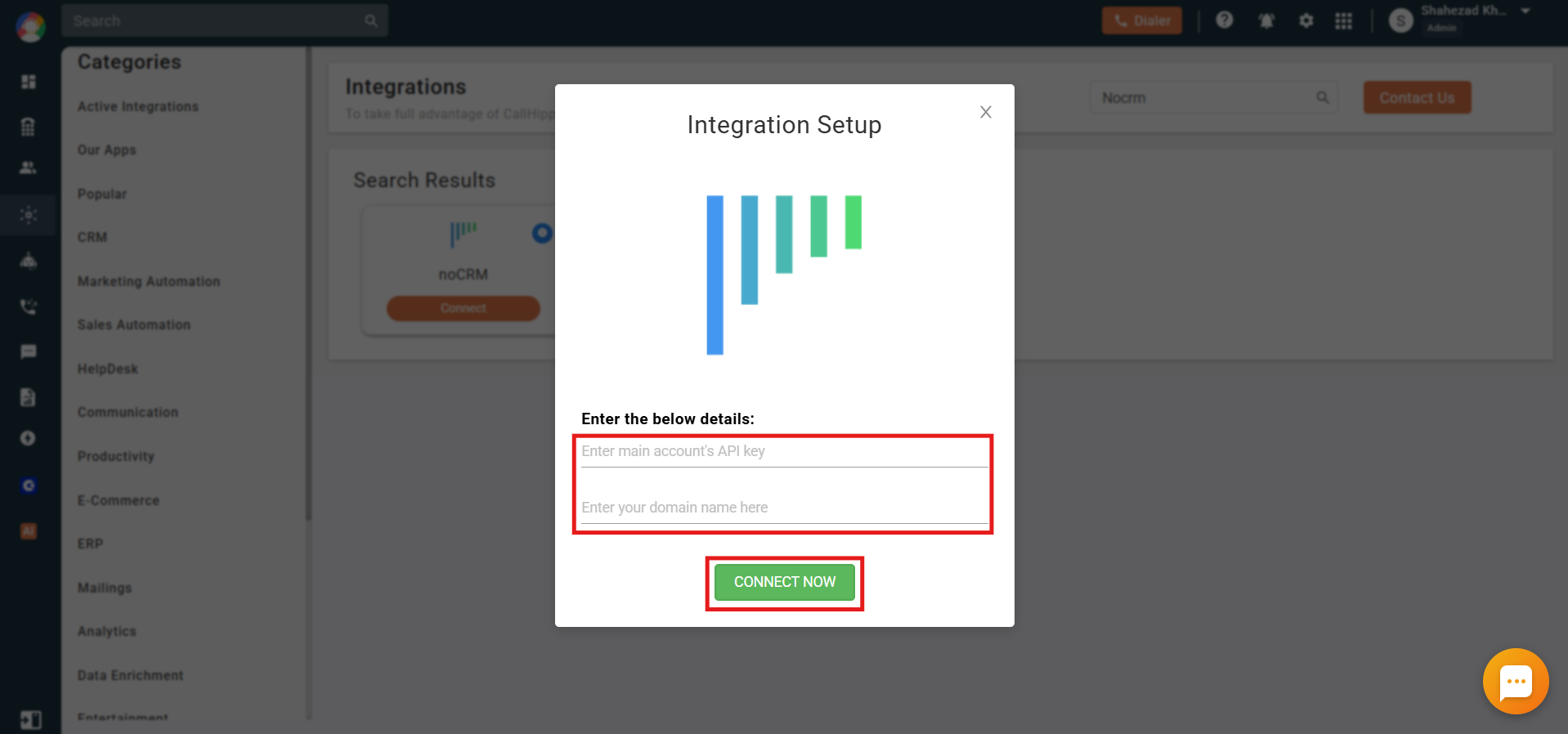
- Enter the API key you copied and your noCRM domain name. Your domain name is the subdomain of your noCRM URL, for example, if your URL is https://callhippo.nocrm.io/, the domain name is callhippo.
- Click CONNECT NOW. On success, you are redirected to CallHippo and the Integration Settings popup opens.
Configure integration settings
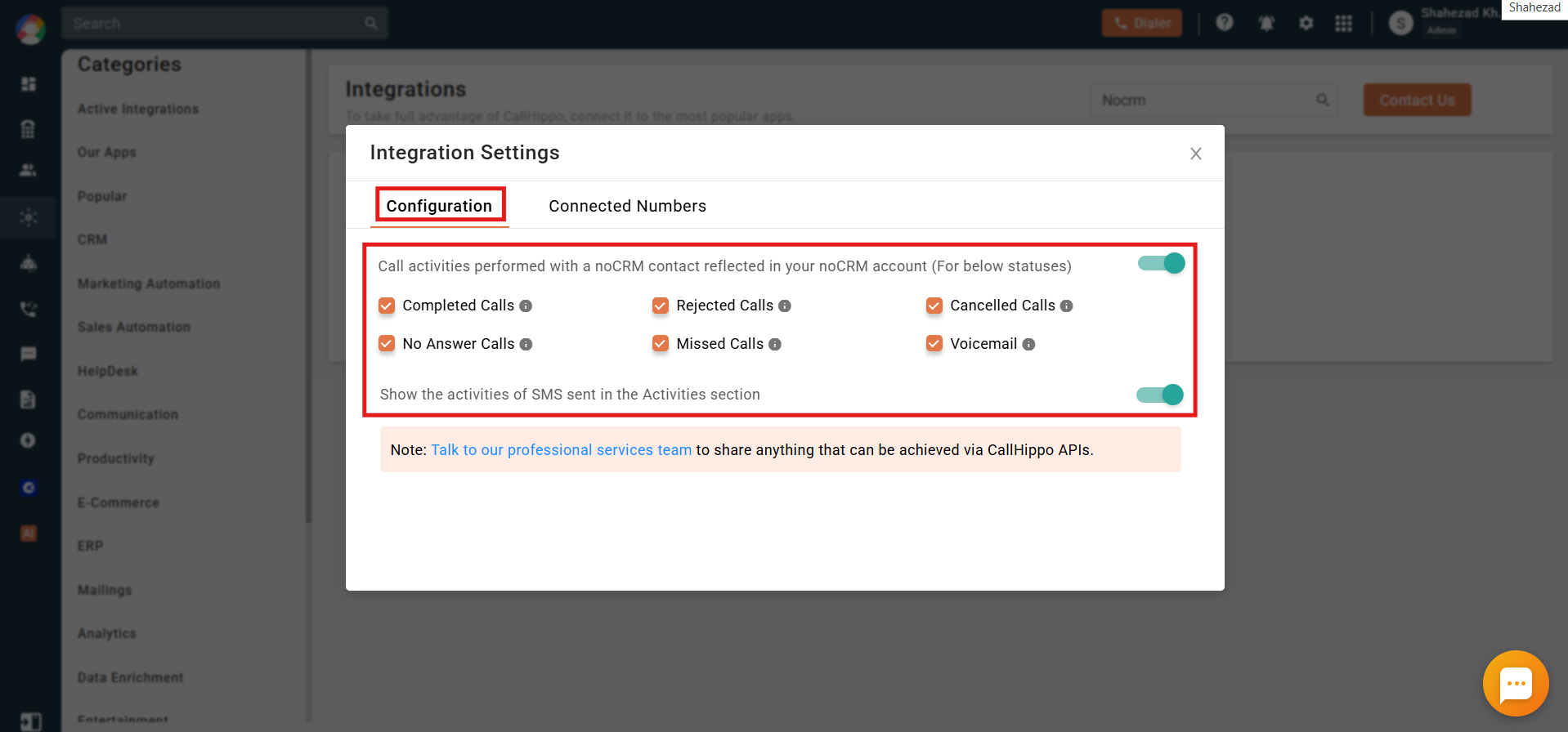
In the Configuration tab of the Integration Settings popup, choose what CallHippo syncs to noCRM.
- Call activities performed with a noCRM contact reflected in your noCRM account: When this toggle is on, all call activities on a noCRM contact made through CallHippo are reflected in noCRM. Select or deselect the call statuses you want to sync, such as Completed, Rejected, Cancelled, No Answer, Missed, and Voicemail.
- Show the activities of SMS sent in the Activities section: When this toggle is on, SMS activities are reflected in the noCRM Activities section.
Select connected numbers
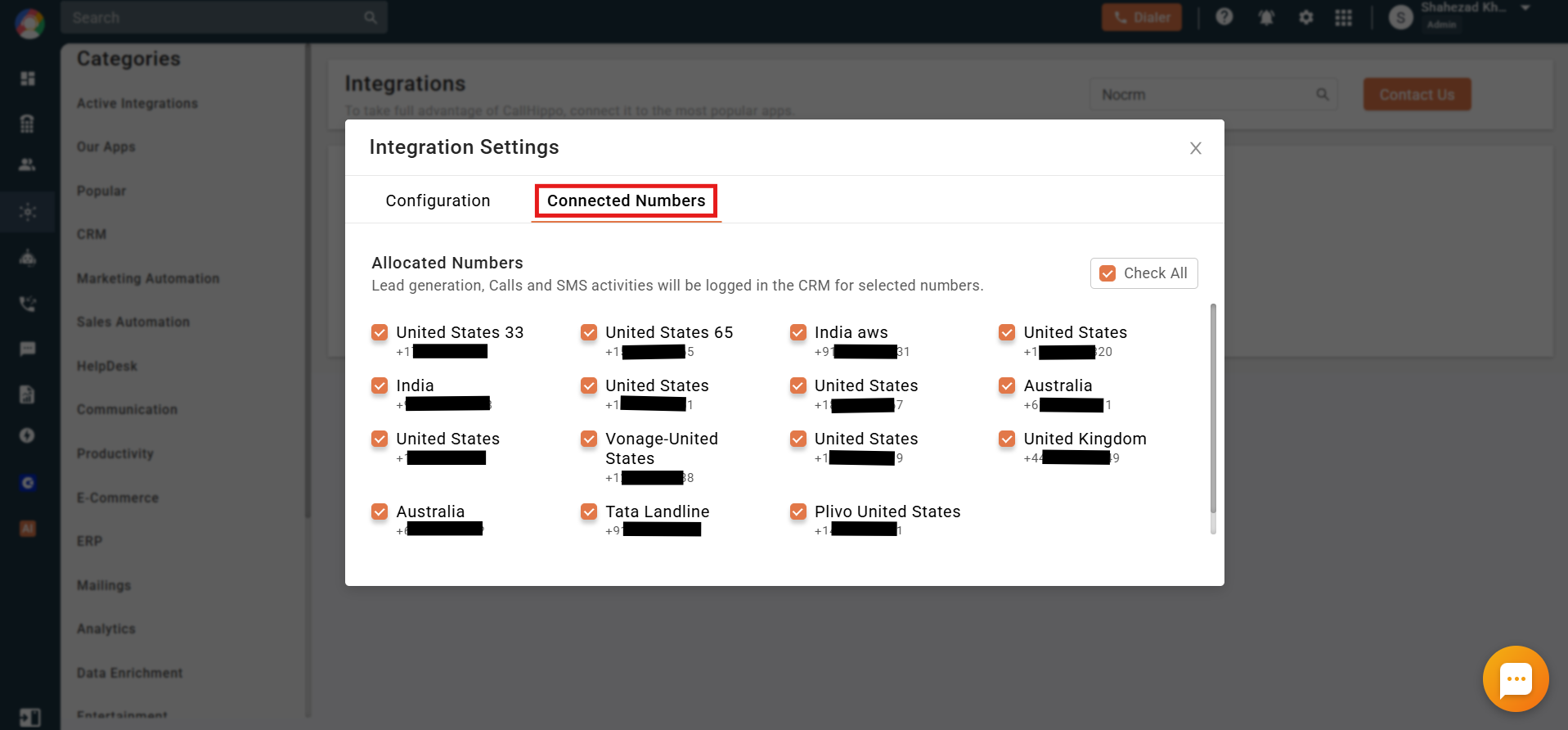
Open the Connected Numbers tab to choose which numbers connect with noCRM. Call and SMS activities are logged in noCRM only for the numbers you select. Use Check All to select every allocated number, or select and deselect numbers individually.
Make calls from your leads
Once connected, you can call your noCRM leads directly using CallHippo.
- Create or open a lead in noCRM.
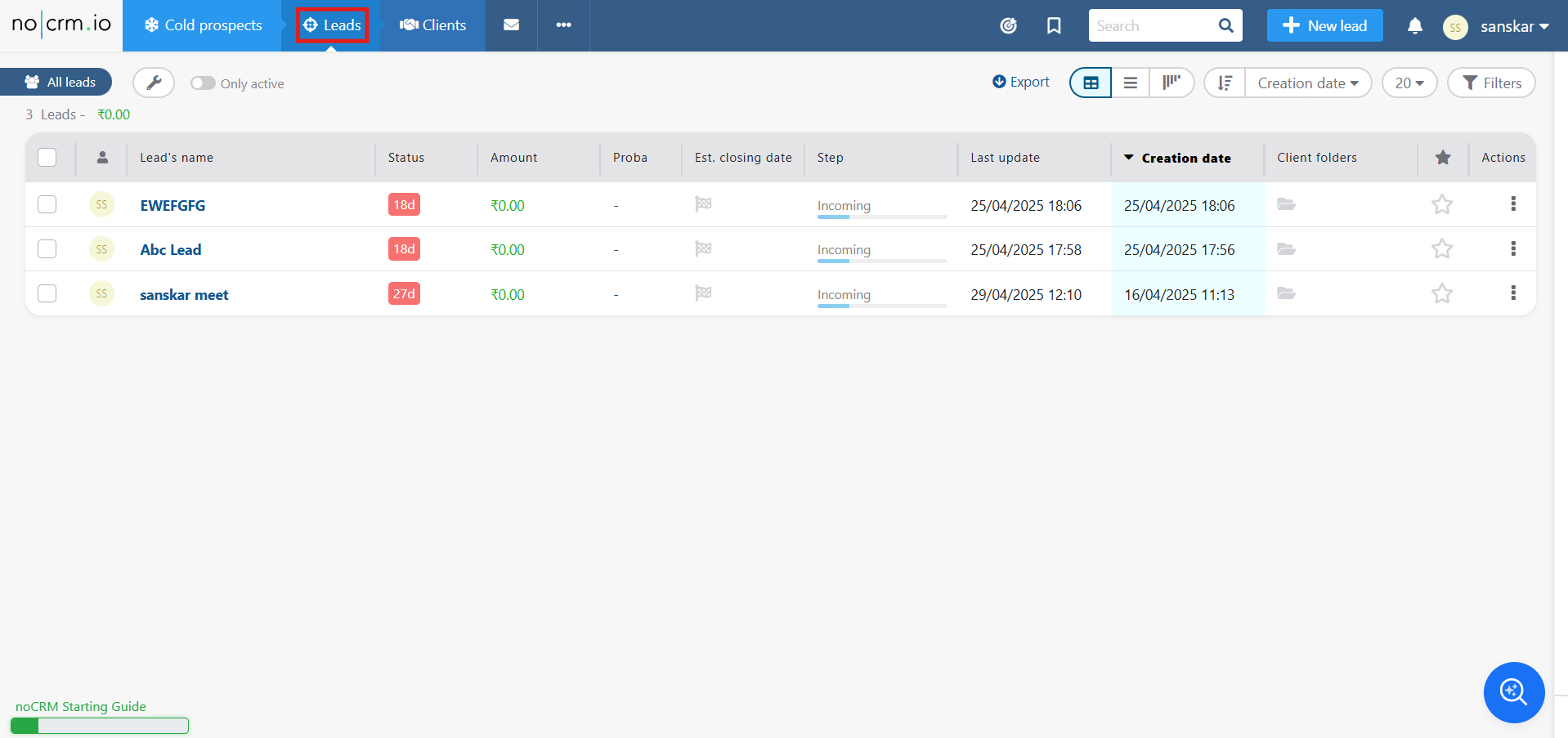
- Install the CallHippo Click-to-Call Chrome extension. Once installed, it appears on every lead.
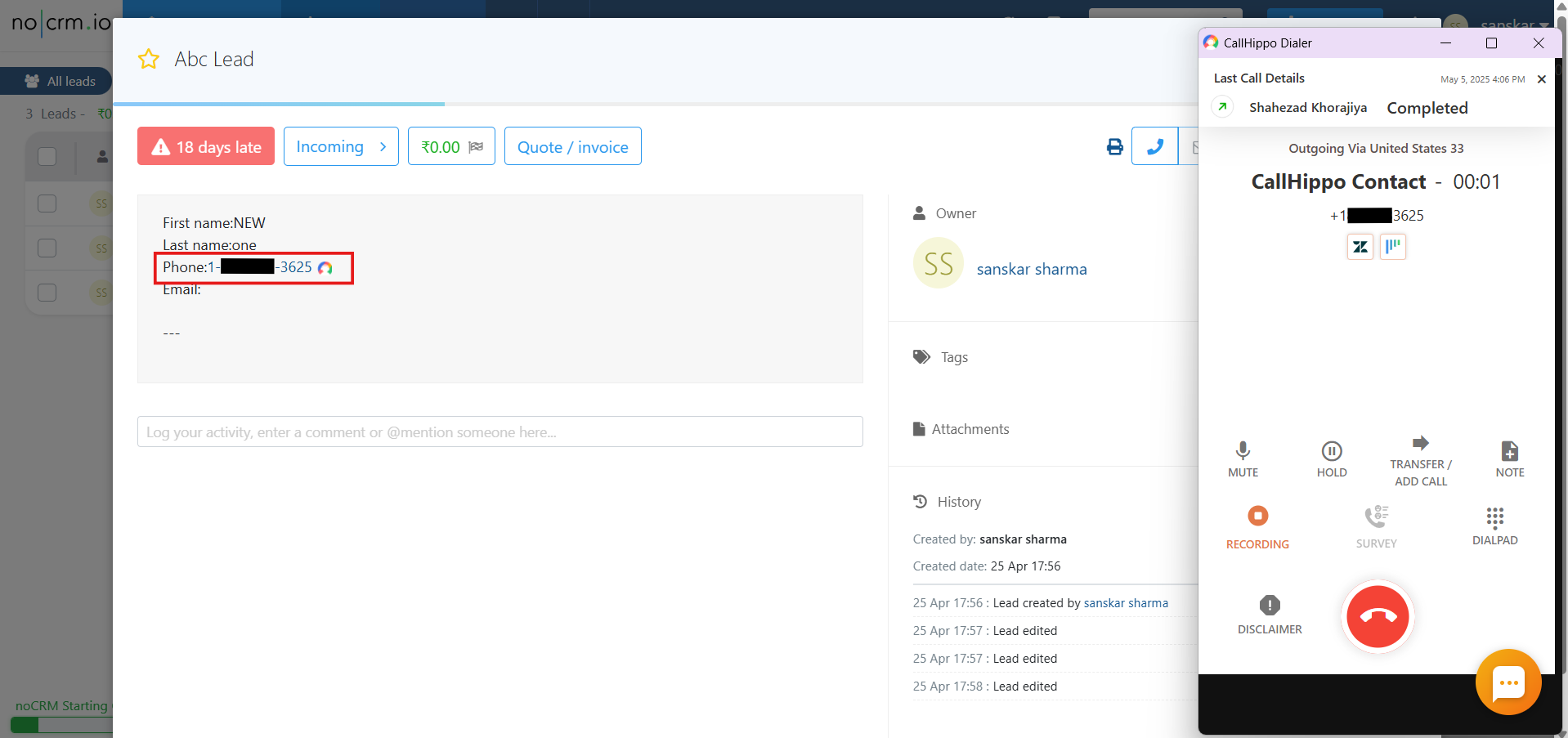
- Click the phone number or the extension icon on the lead to place the call. The CallHippo dialer opens and connects the call.
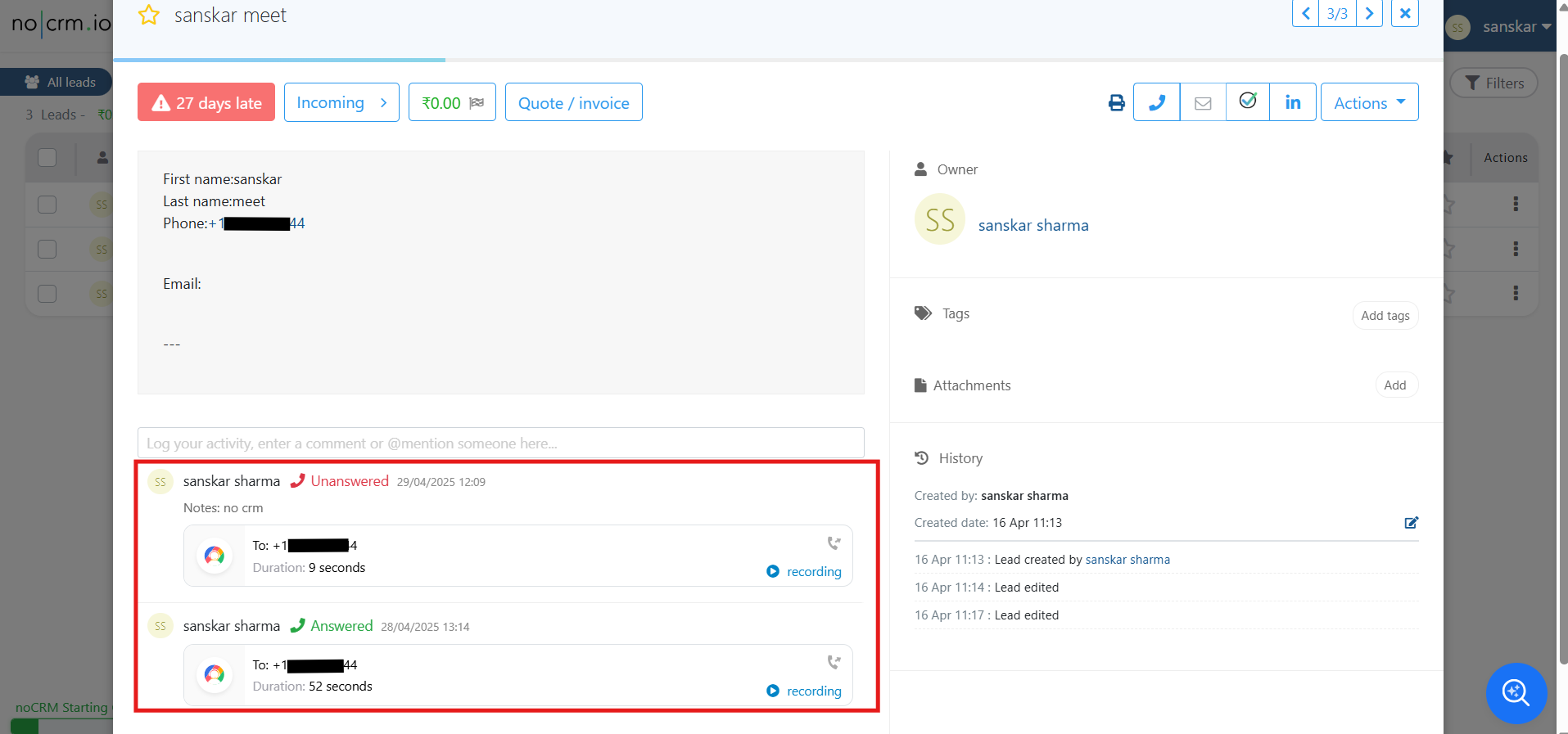
- Call activities are logged automatically under the lead, including recordings.
Features
- Calls connect through the CallHippo Chrome extension.
- All leads and contacts sync to the CallHippo dialer when called via the extension.
- Activities are logged under leads for calls made from the extension or dialer.
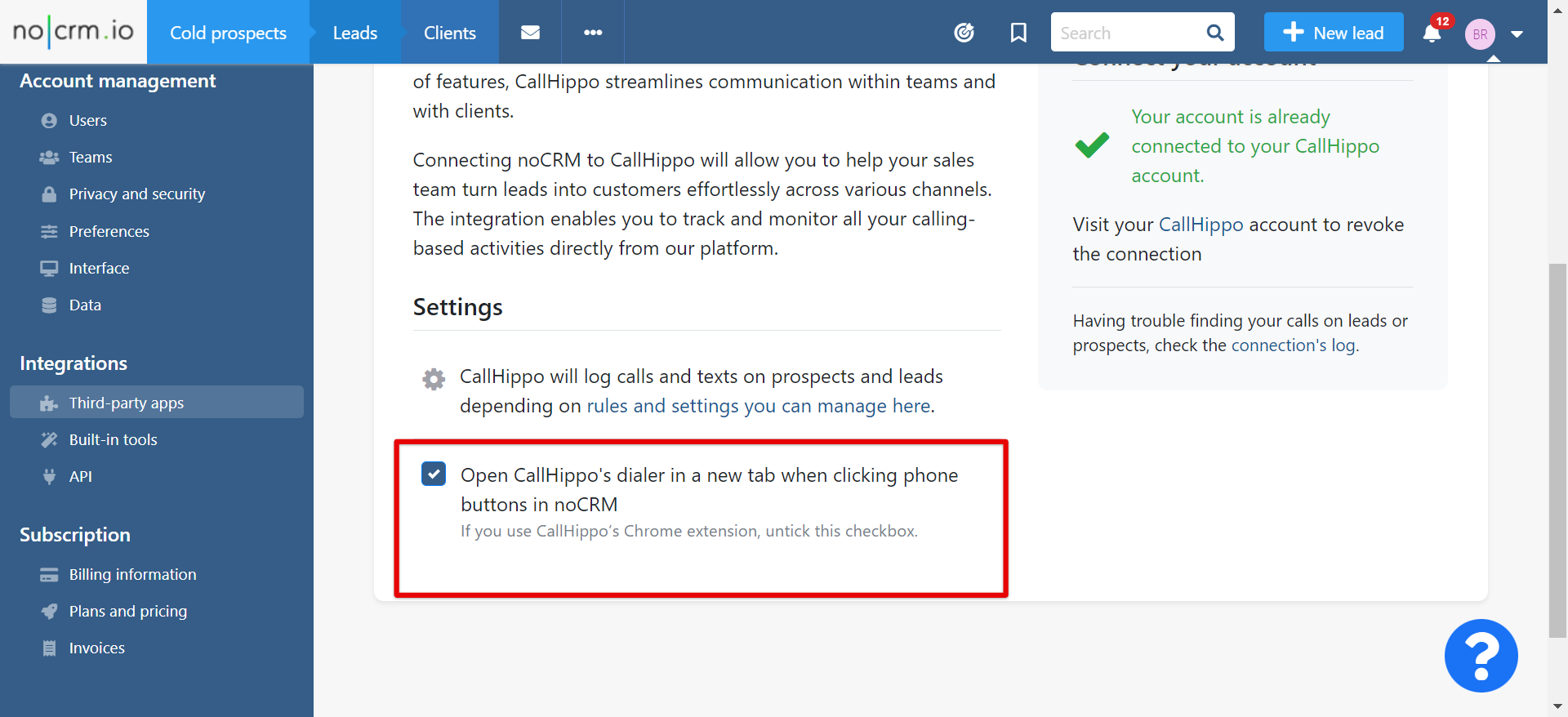
- You can open the dialer in a new tab or use the browser extension, depending on your checkbox setting. In noCRM, the Open CallHippo’s dialer in a new tab when clicking phone buttons in noCRM option controls this. If you use the CallHippo Chrome extension, untick this checkbox.
Notes
- Contacts deleted from noCRM are not automatically deleted from the dialer unless you remove the integration.
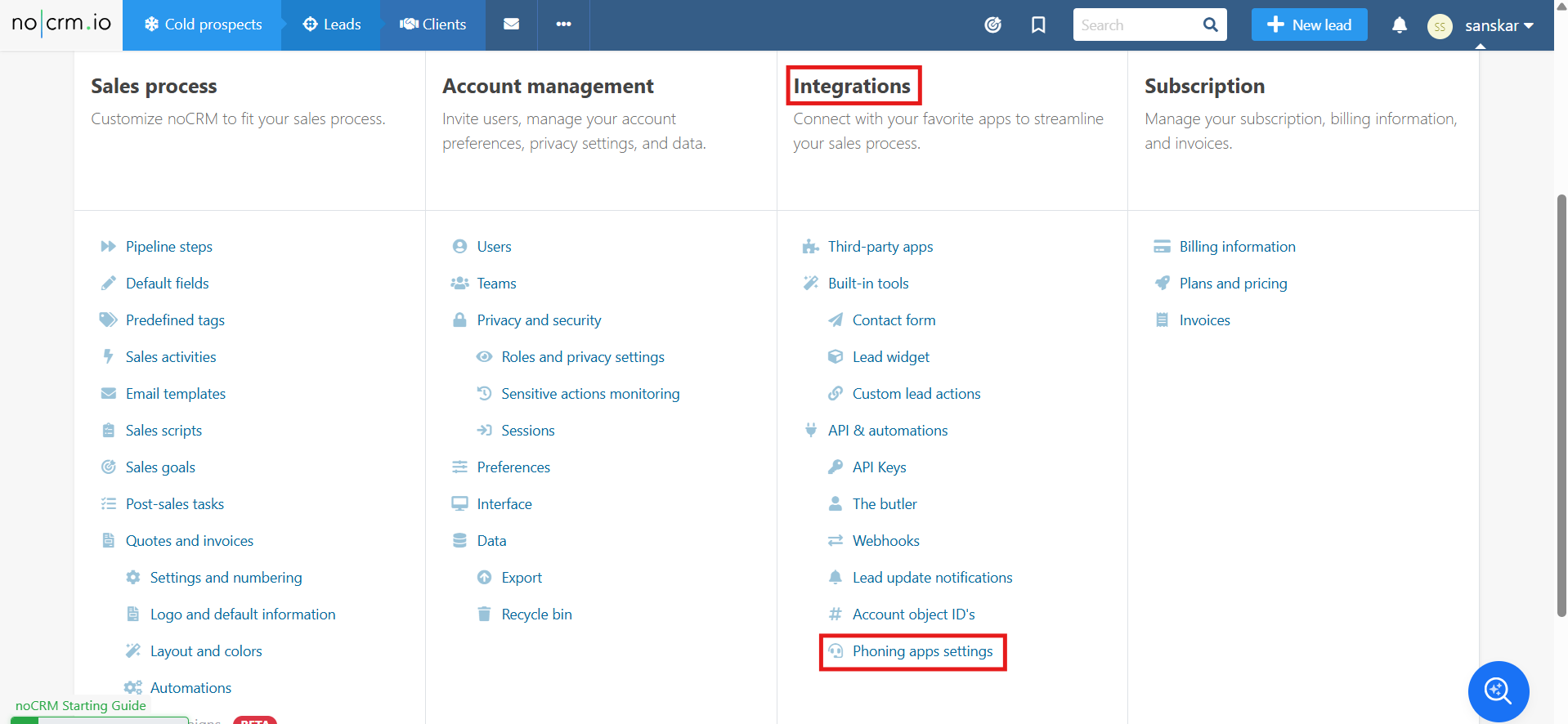
- By default, notifications of unattended (missed) calls are disabled in noCRM. To enable them, go to Admin Panel > Integrations > Phoning apps settings.
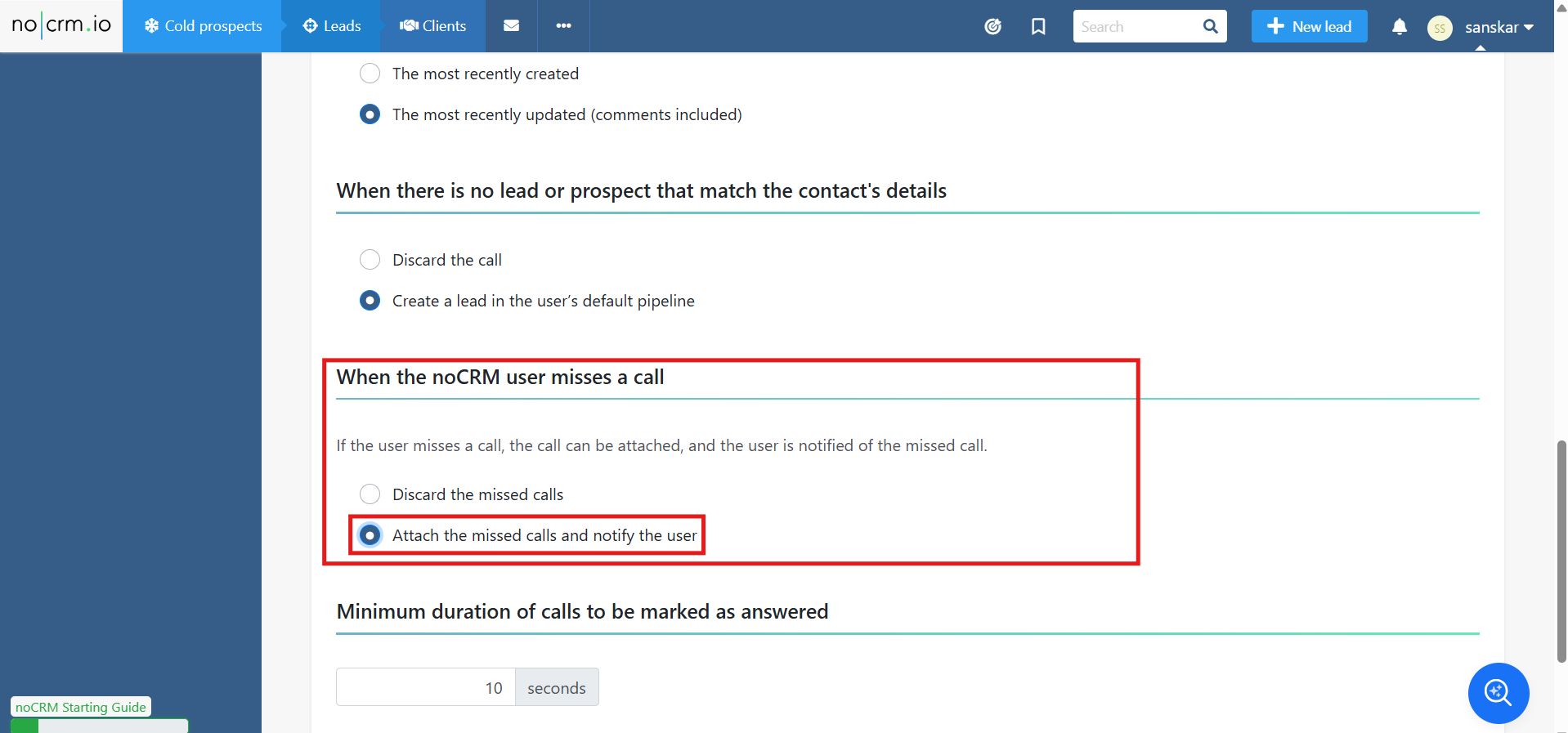
- Scroll to the bottom and select Attach the missed calls and notify the user.
Still need help? Reach us at [email protected].