
Connect OnePageCRM with CallHippo to automatically log every call and SMS against the right contact, keep activity synced both ways, and keep your sales pipeline moving without manual data entry.
Before you begin
- Use an account with owner access on both CallHippo and OnePageCRM to set up the integration.
- Make sure API permissions are enabled in OnePageCRM, with full access to settings.
- Data syncs almost instantly, but the initial sync of contacts may take a few minutes.
Set up OnePageCRM and get your credentials
- Log in to the OnePageCRM account you want to connect with CallHippo. An owner account is preferable.
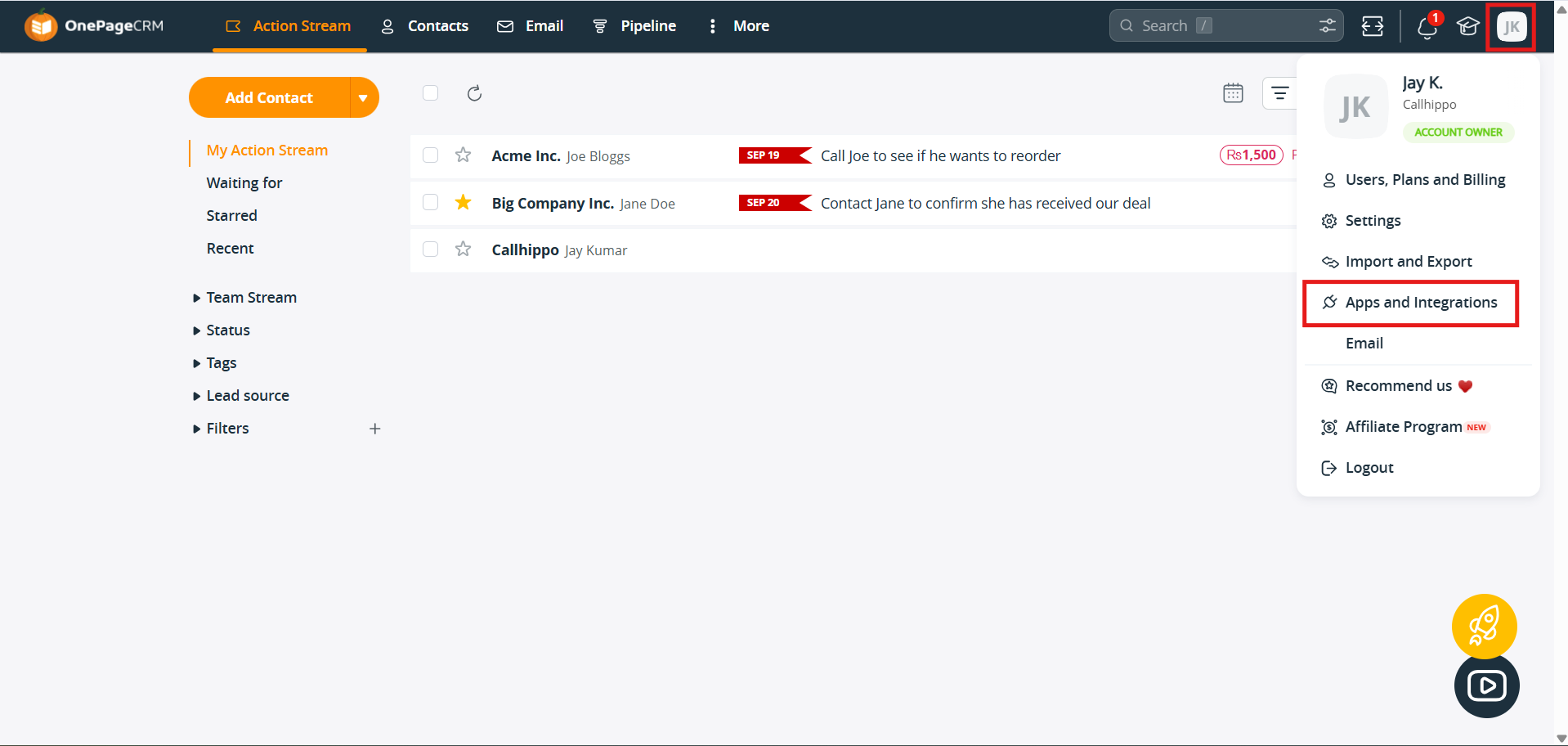
- Click the profile icon in the top-right corner and go to Apps and Integrations.
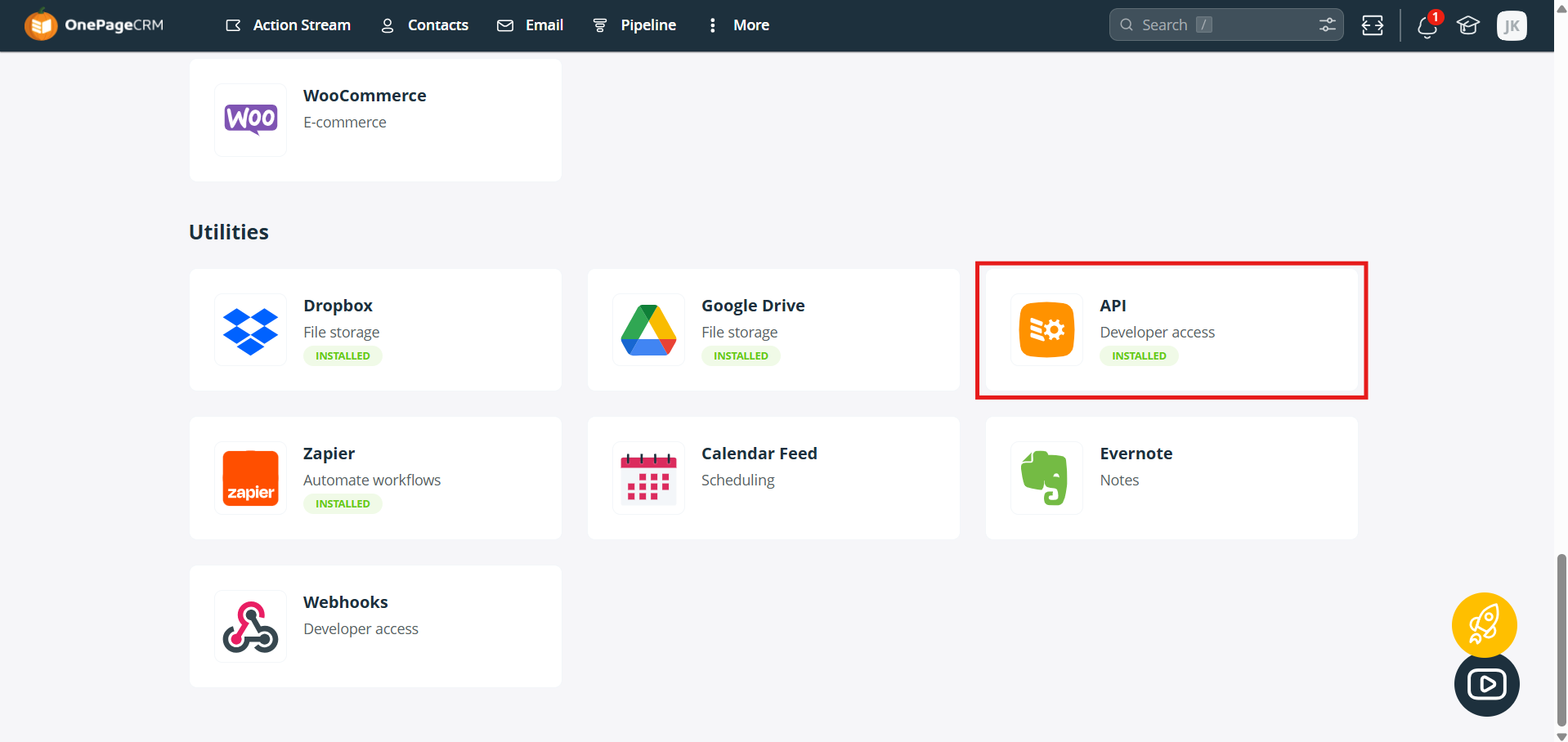
- Under the Utilities section, find API and install it.
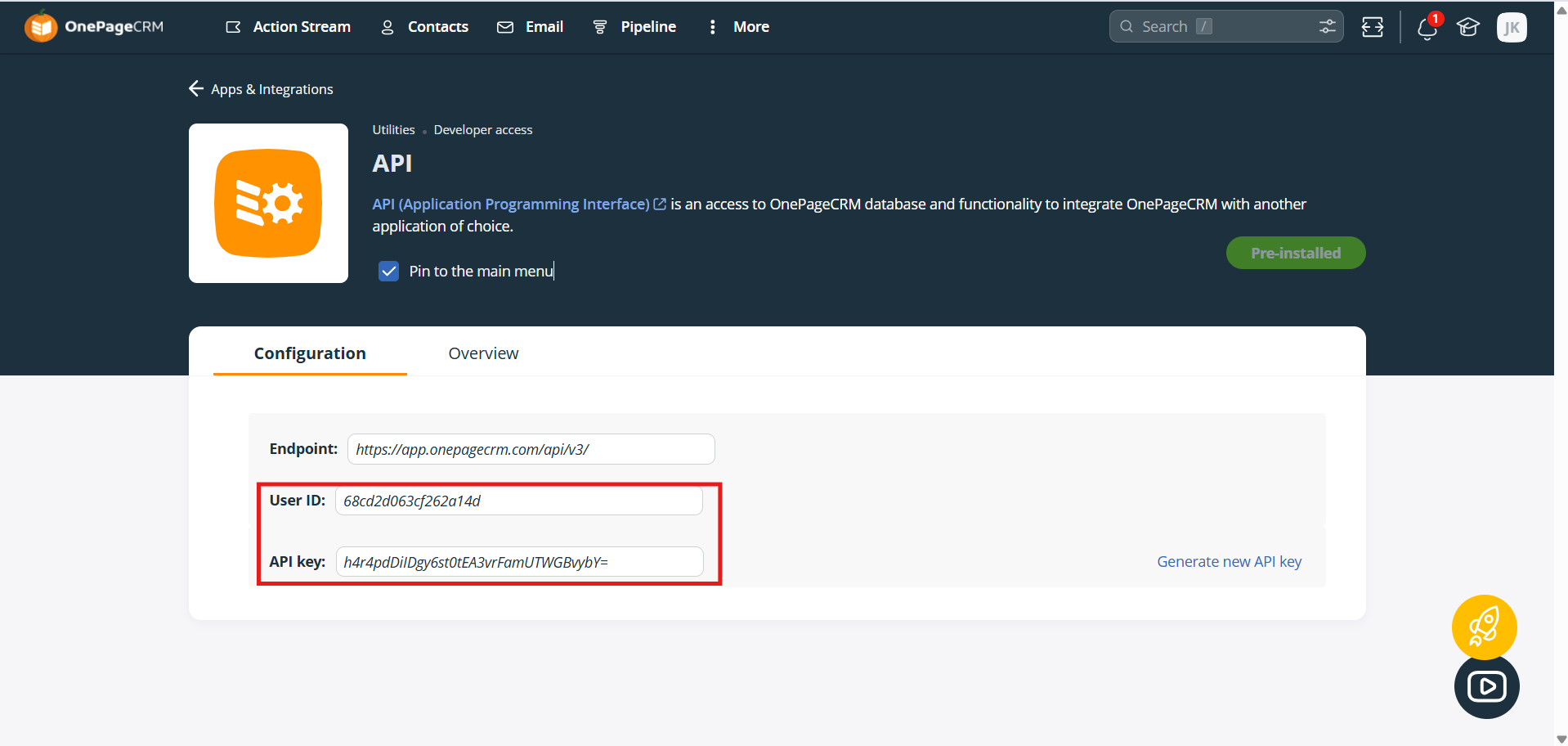
- Once installed, open the API and go to the Configuration tab, then click Create API Key (Generate new API key) to create a key for your account.
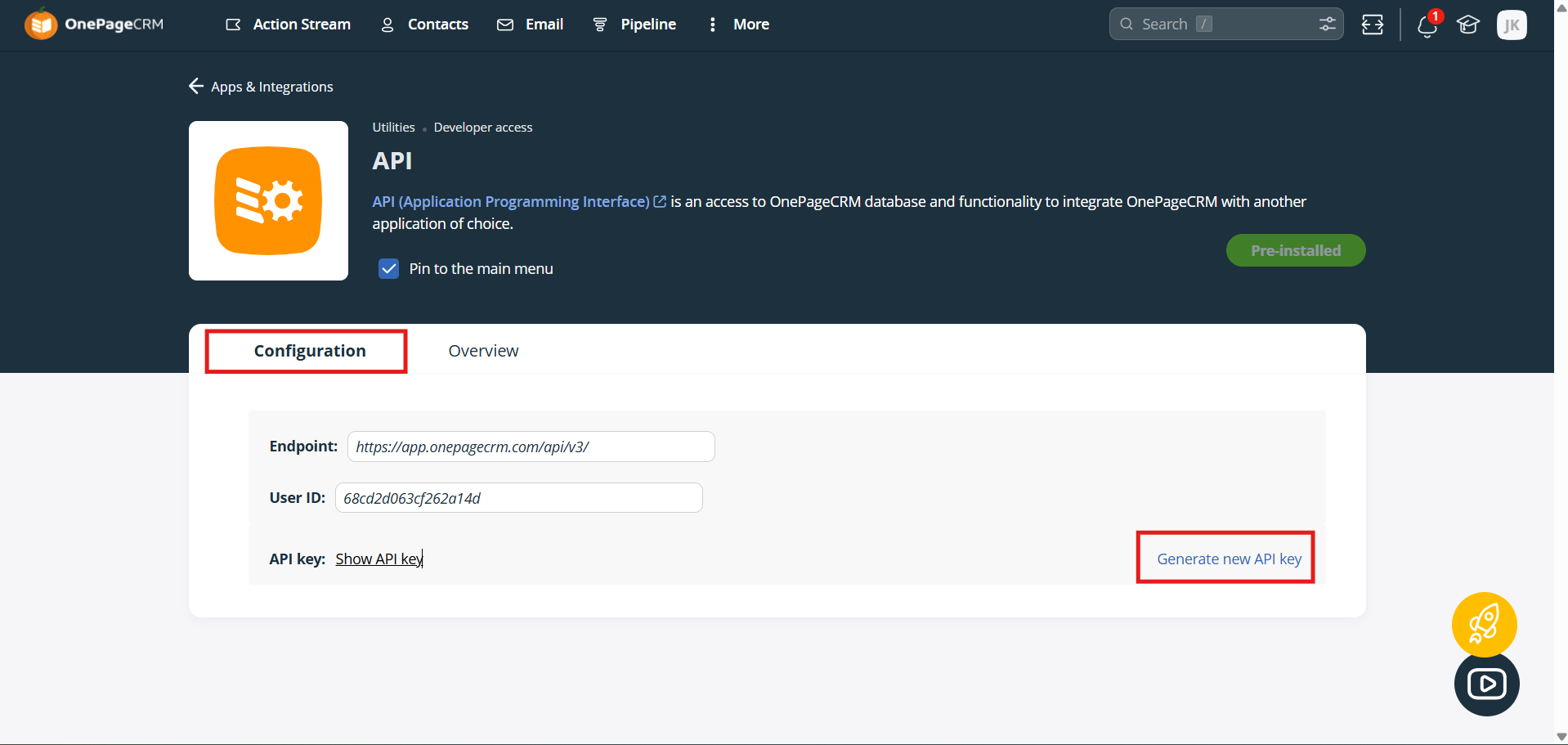
- From the Configuration tab, note down your User ID and the generated API Key. You will need both of these values for the integration.
Connect OnePageCRM in CallHippo
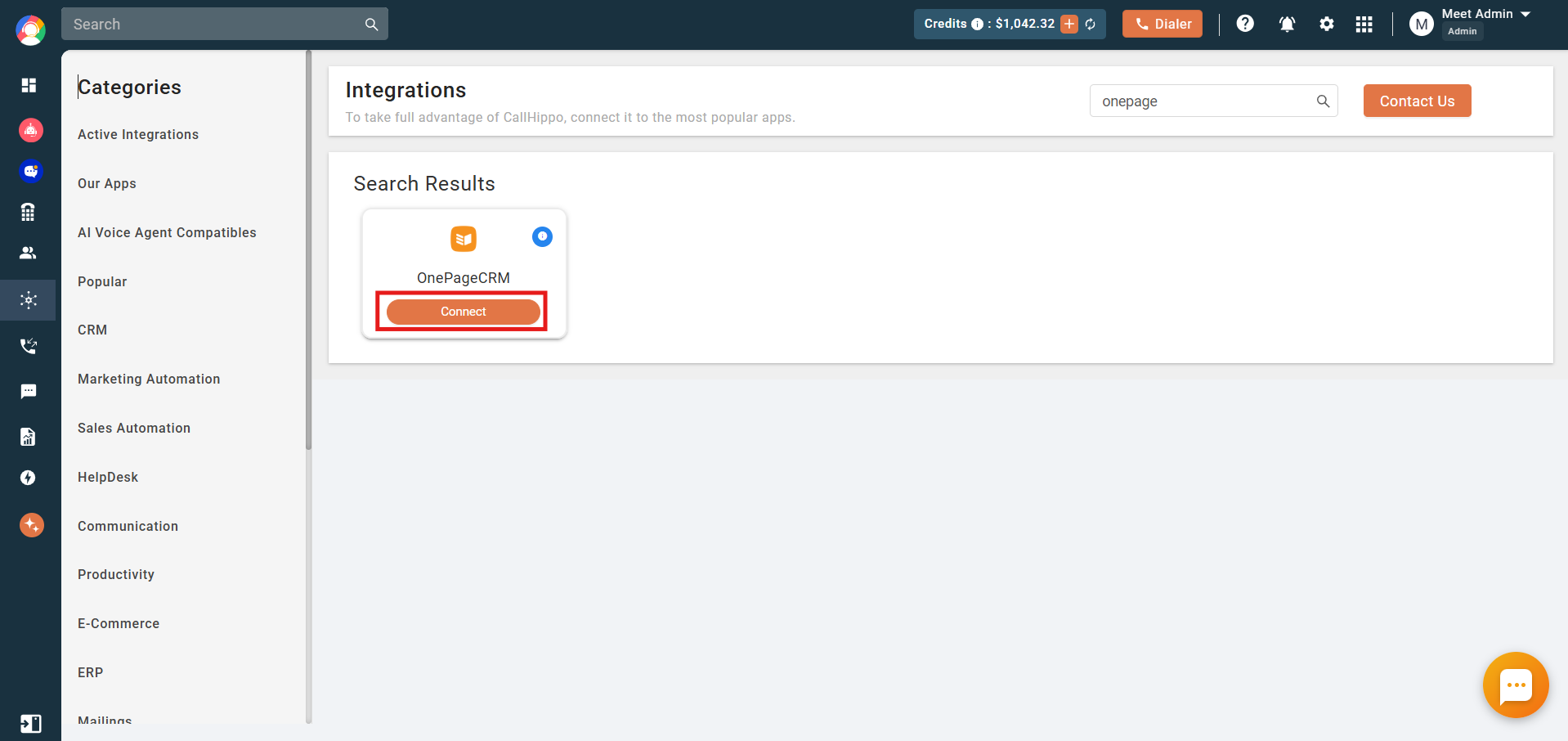
- Open the Integrations page in CallHippo, find OnePageCRM, and click Connect.
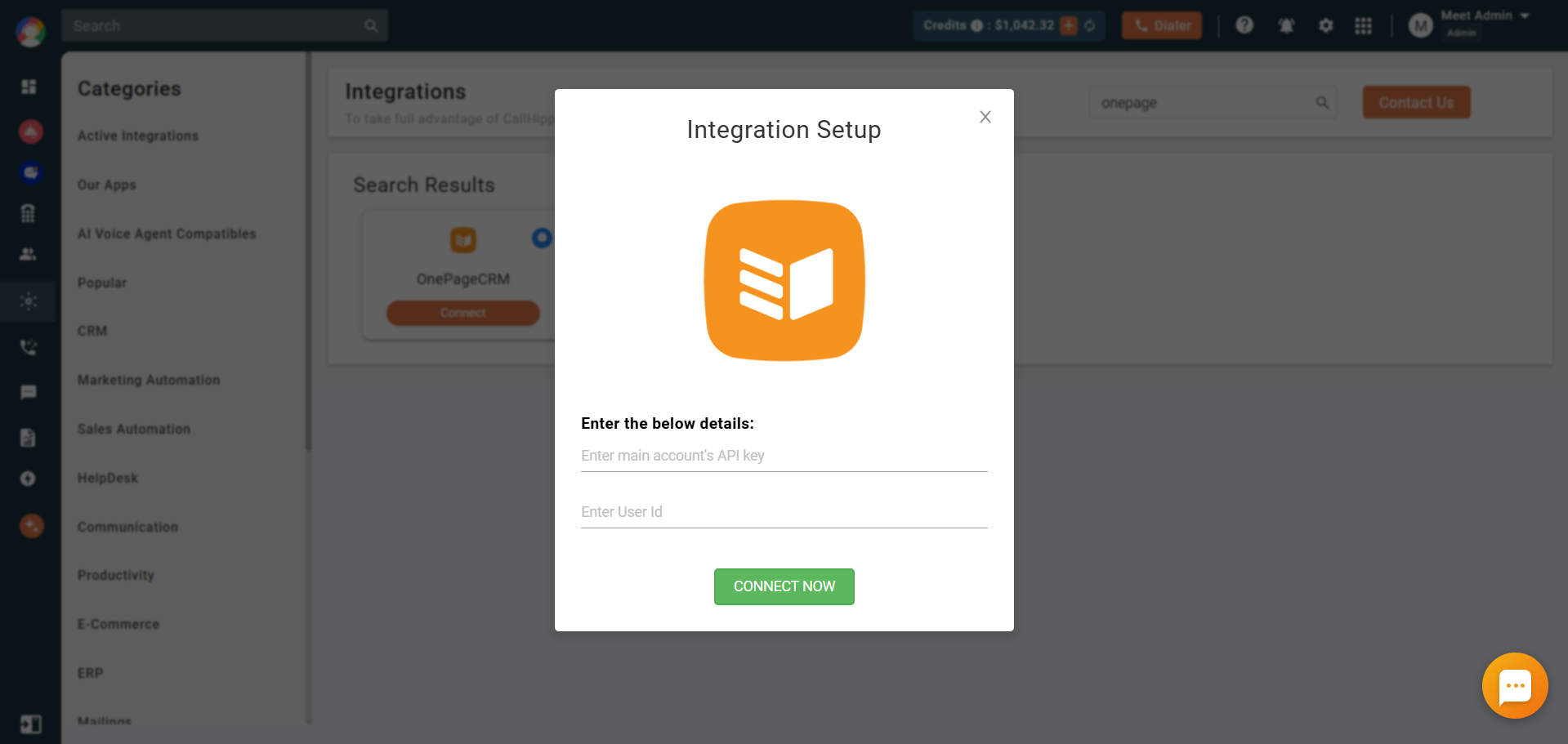
- Paste the User ID and API key you generated in OnePageCRM.
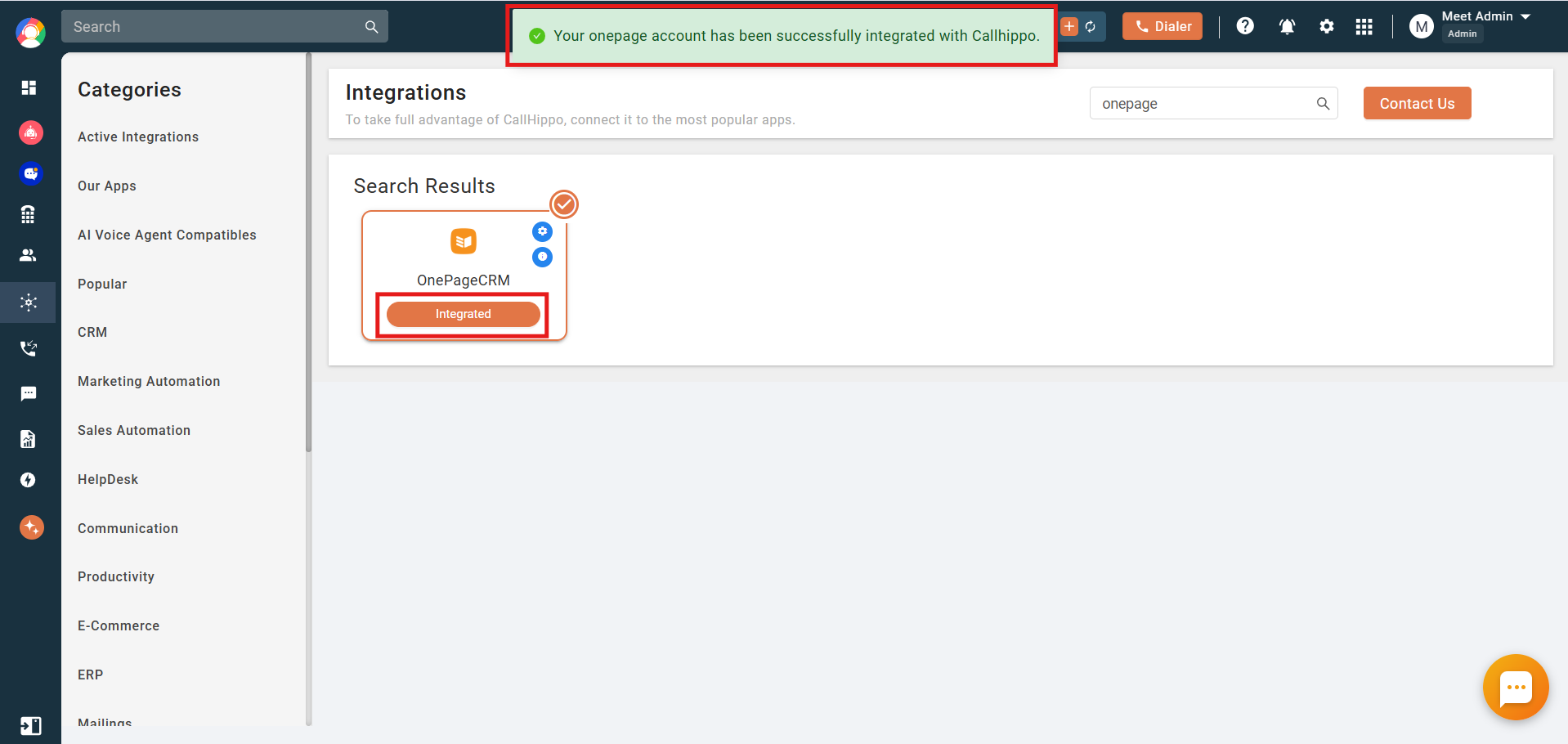
- Click Connect now. Once authorized, the status changes to Integrated and your CallHippo account is connected to OnePageCRM.
Configure the integration
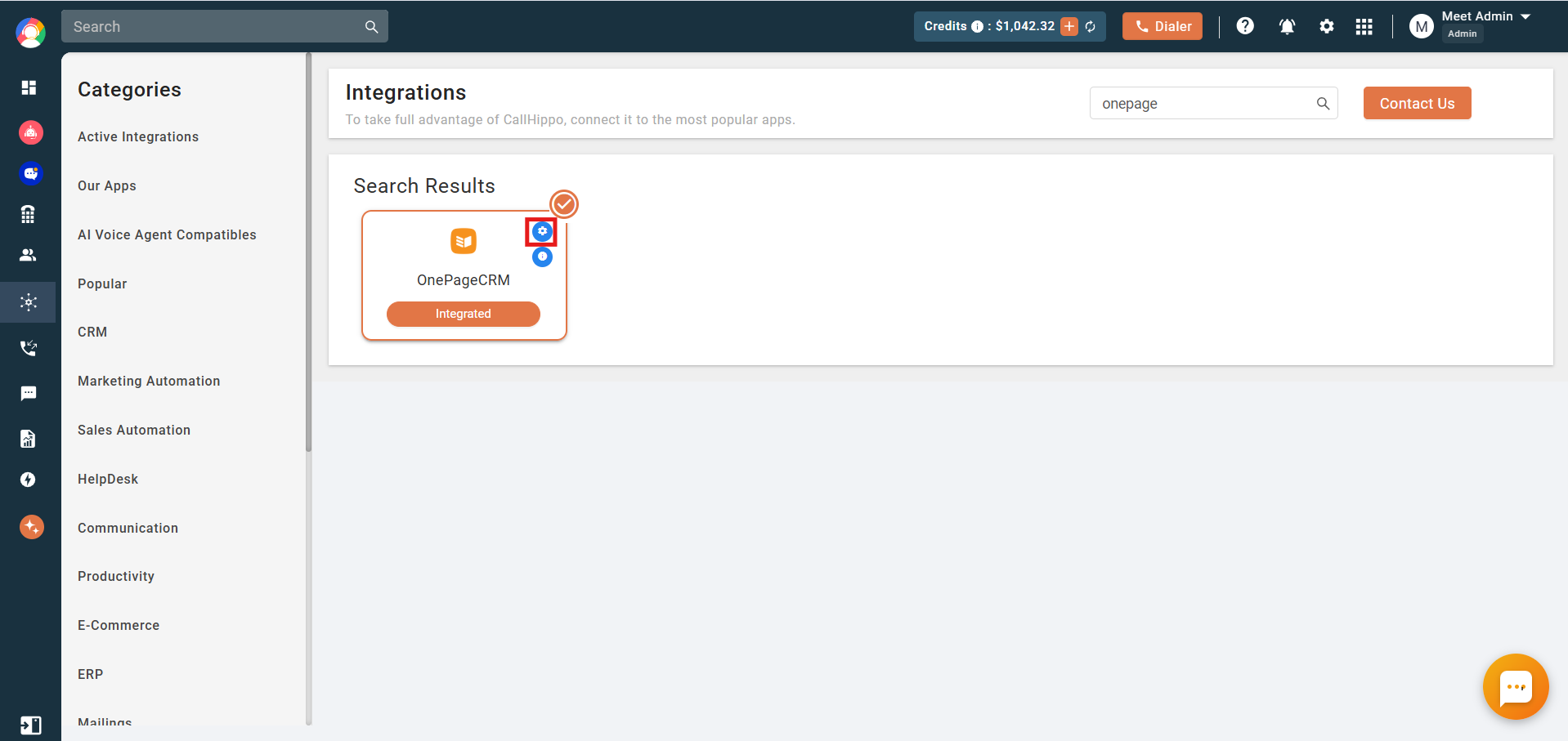
- Click the settings icon on the OnePageCRM integration card to open its configuration and choose which numbers push activities into OnePageCRM.
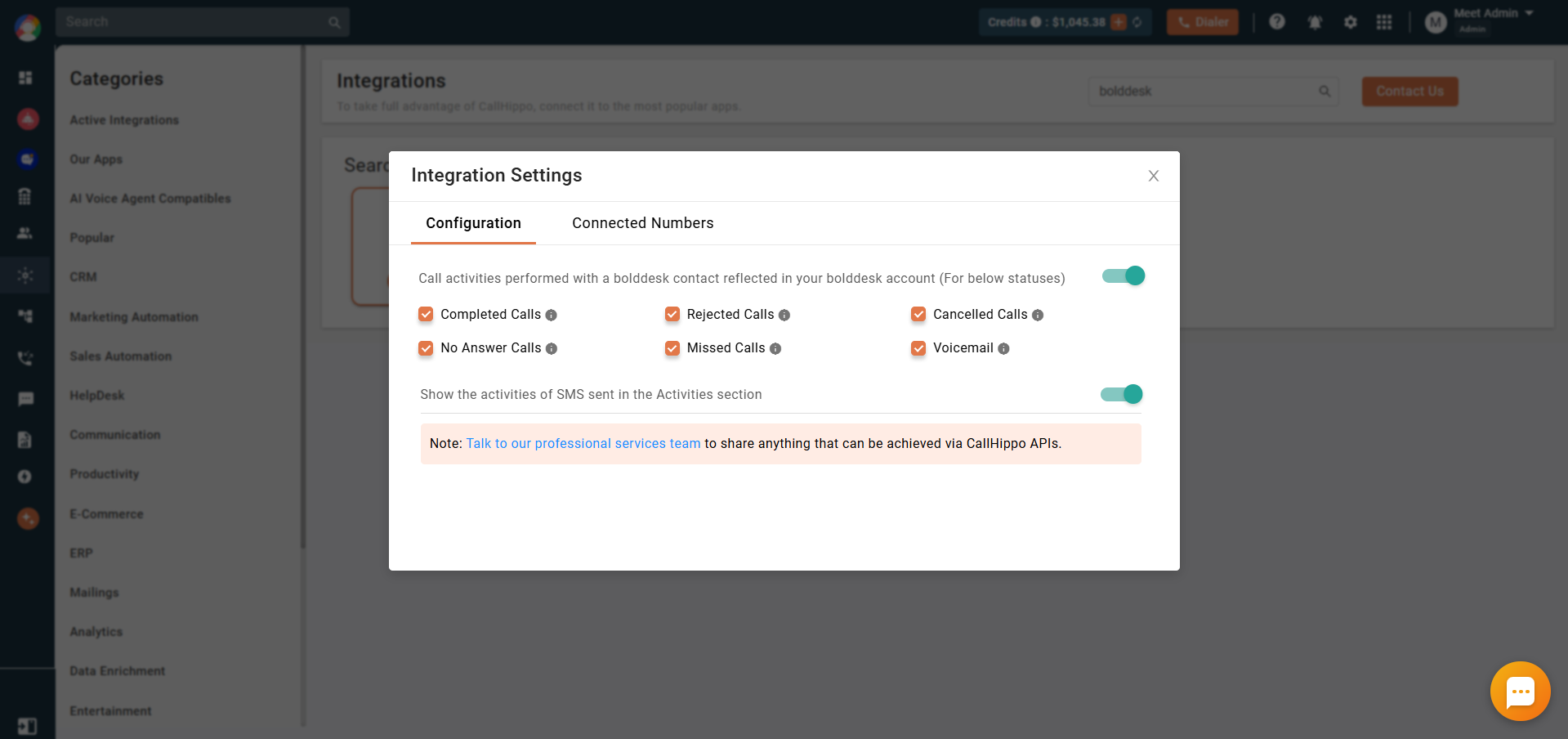
- On the Configuration tab, enable the toggle so that call activities performed on an OnePageCRM contact through CallHippo are reflected in OnePageCRM. Use the checkboxes next to each call status to choose which activities you want to sync.
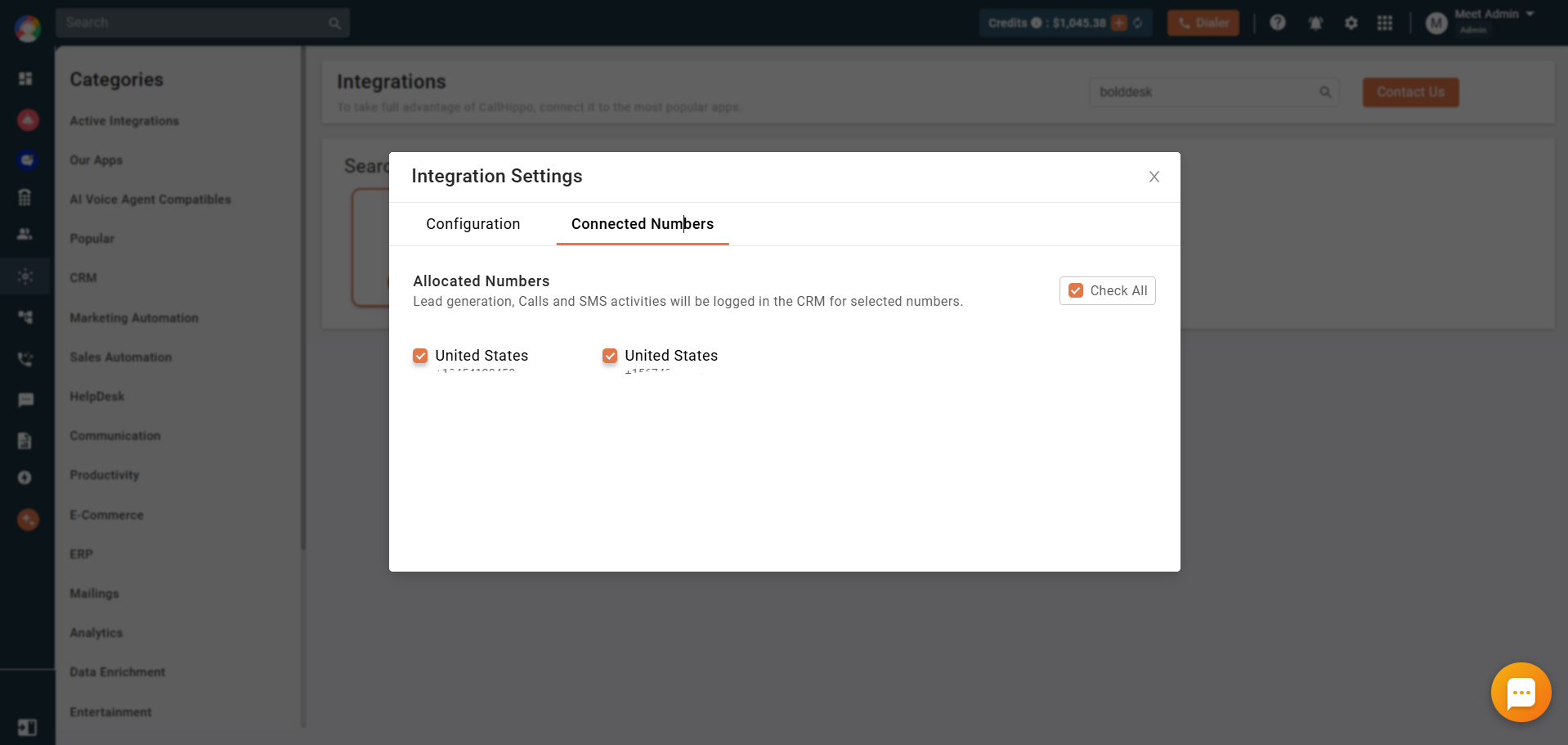
- Open the Connected Numbers tab and select the numbers you want to connect with OnePageCRM. Call and SMS activities are logged in OnePageCRM only for the selected numbers.
What syncs to OnePageCRM
Once connected, the integration keeps contacts and activity aligned across both tools:
- Contact sync: A contact syncs between OnePageCRM and CallHippo the first time you use Click to Call on it. Existing OnePageCRM contacts sync to CallHippo once dialed through Click to Call, and appear in the CallHippo dialer’s Contacts tab.
- Outbound calls: Make calls directly from OnePageCRM using the CallHippo Click to Call extension.
- Call and SMS activity logs: OnePageCRM logs all call and SMS activities related to your contacts.
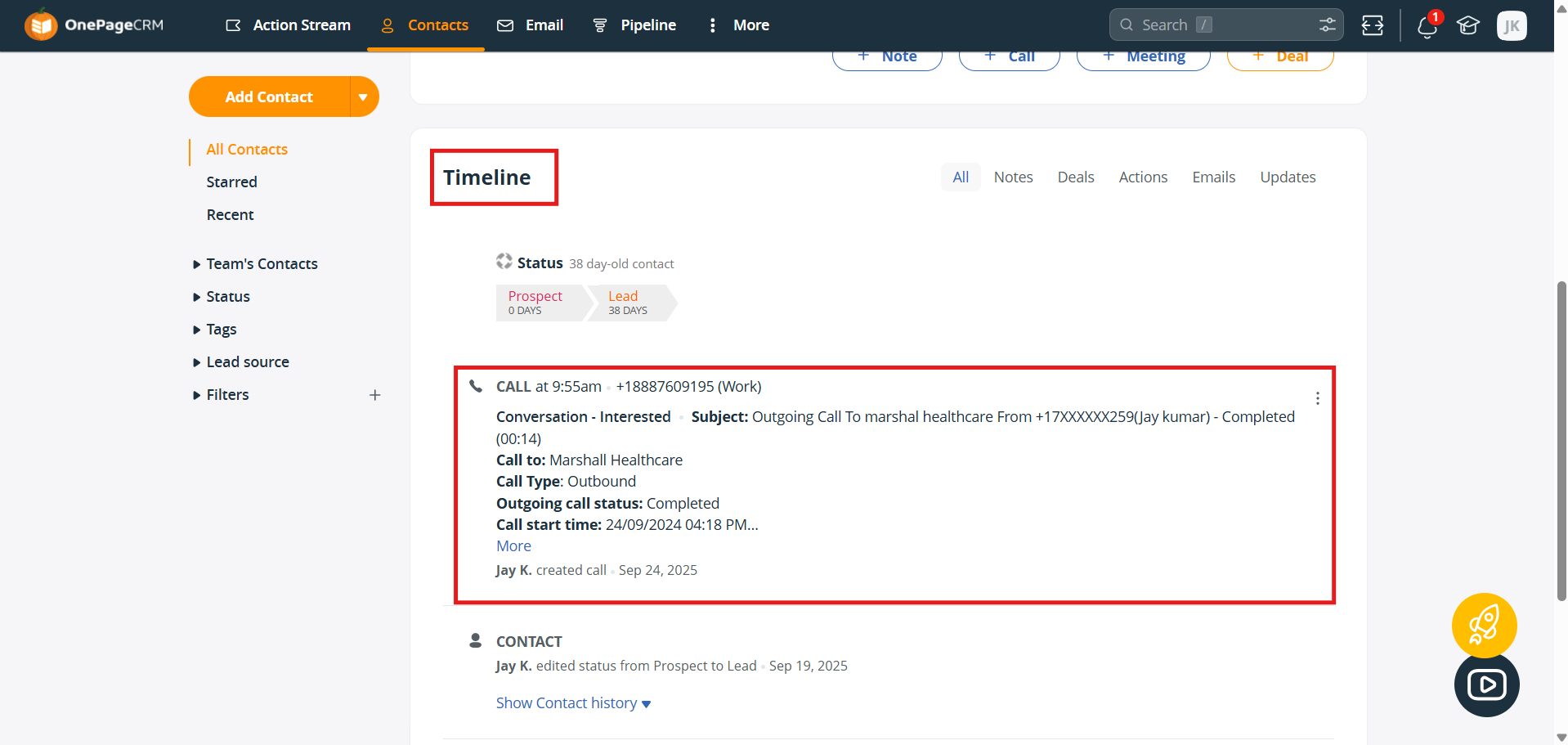
For every call made to or received from an OnePageCRM contact, a call activity is added to the contact’s recent events with fields such as:
- Called by, from number, and to number
- Call type and call status
- Call duration and call started time
- Recording URL
- Call notes, call tags, and call disposition
For AI Voice Agent calls, these additional fields are synced:
- AI voice agent name
- AI summary
- User sentiments
- Call outcome
SMS activities sent to or received from an OnePageCRM contact are logged too, including the sent/received time, sender, from and to numbers, and the SMS content. You will find all of these activities under the contact’s Timeline in OnePageCRM.
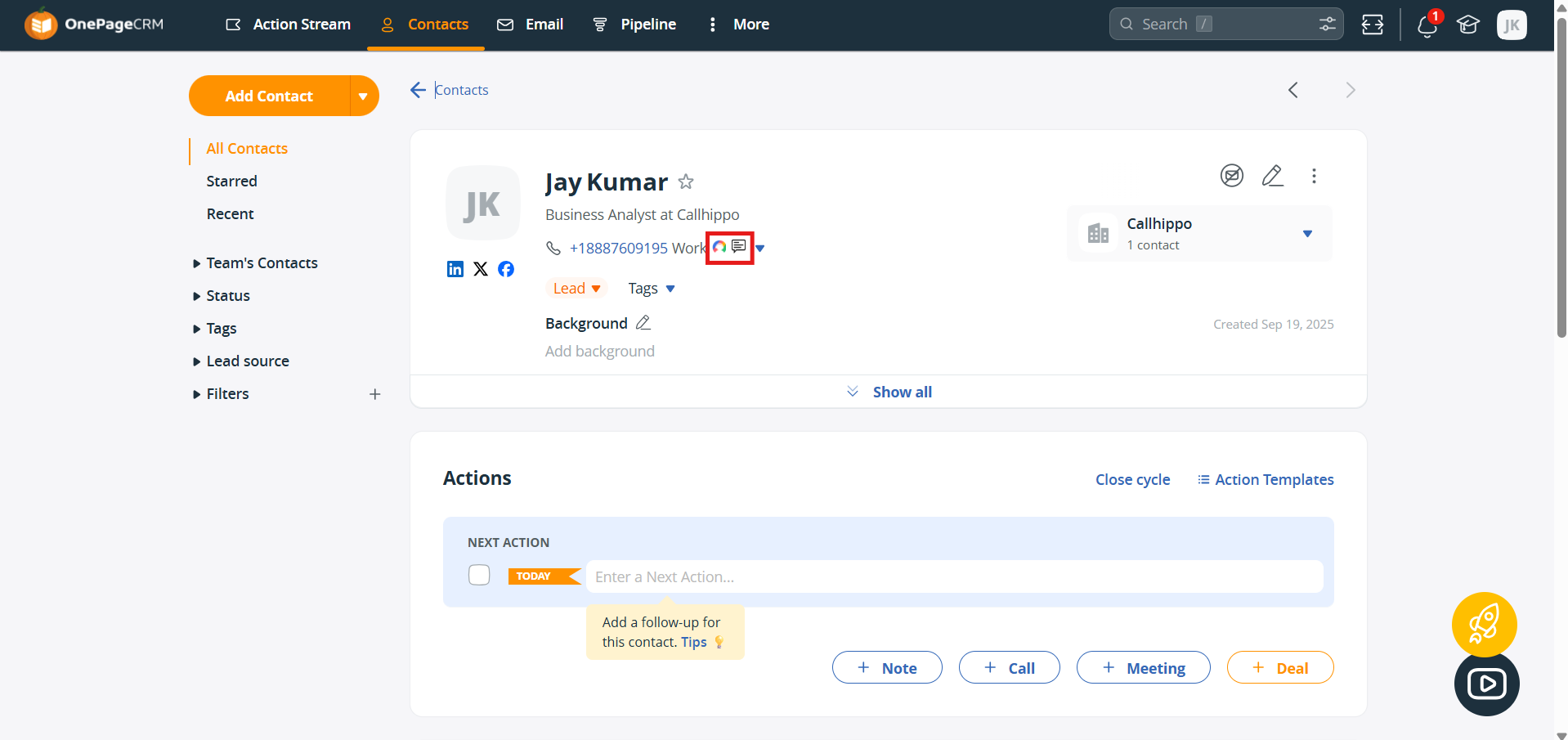
To place calls and send texts straight from OnePageCRM, install the CallHippo Virtual Phone System (Click to Call/SMS) extension from the Chrome Web Store. Once installed, Click to Call and SMS icons appear next to phone numbers on your OnePageCRM contacts.
Still need help? Reach us at [email protected].