
Connecting OpenCart with CallHippo brings your store’s customer data into the CallHippo dialer, so your support team can recognize callers and handle ecommerce queries faster. This guide walks you through copying your OpenCart API key and store URL and connecting them in CallHippo.
Before you begin
Make sure you have the following ready:
- Admin access to your OpenCart store.
- Your OpenCart store URL.
- An active CallHippo account with access to the Integrations tab.
Get your OpenCart API key
- Log in to your OpenCart admin panel.
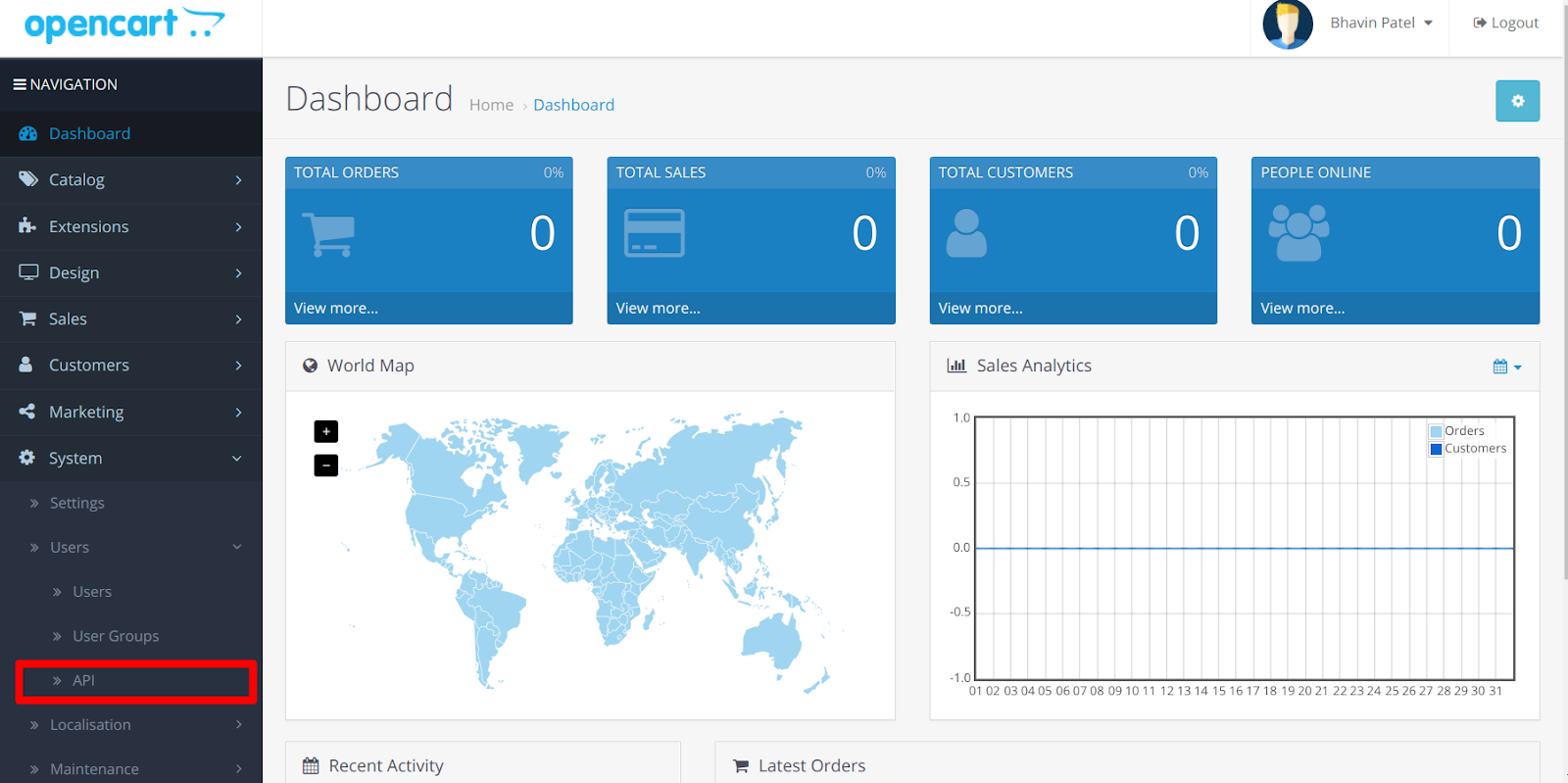
- Go to System > Users and click API.
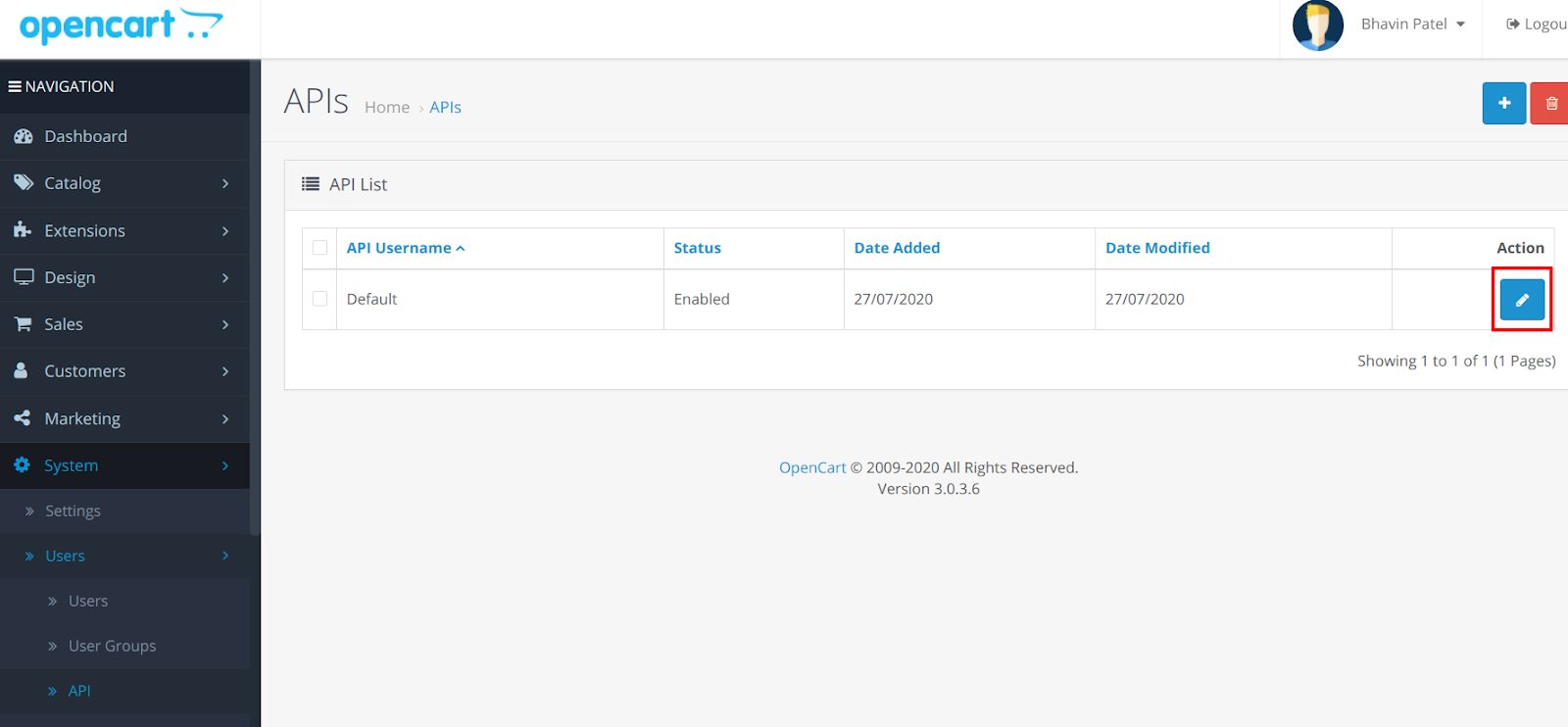
- Click the Edit (pencil) action next to your API user.
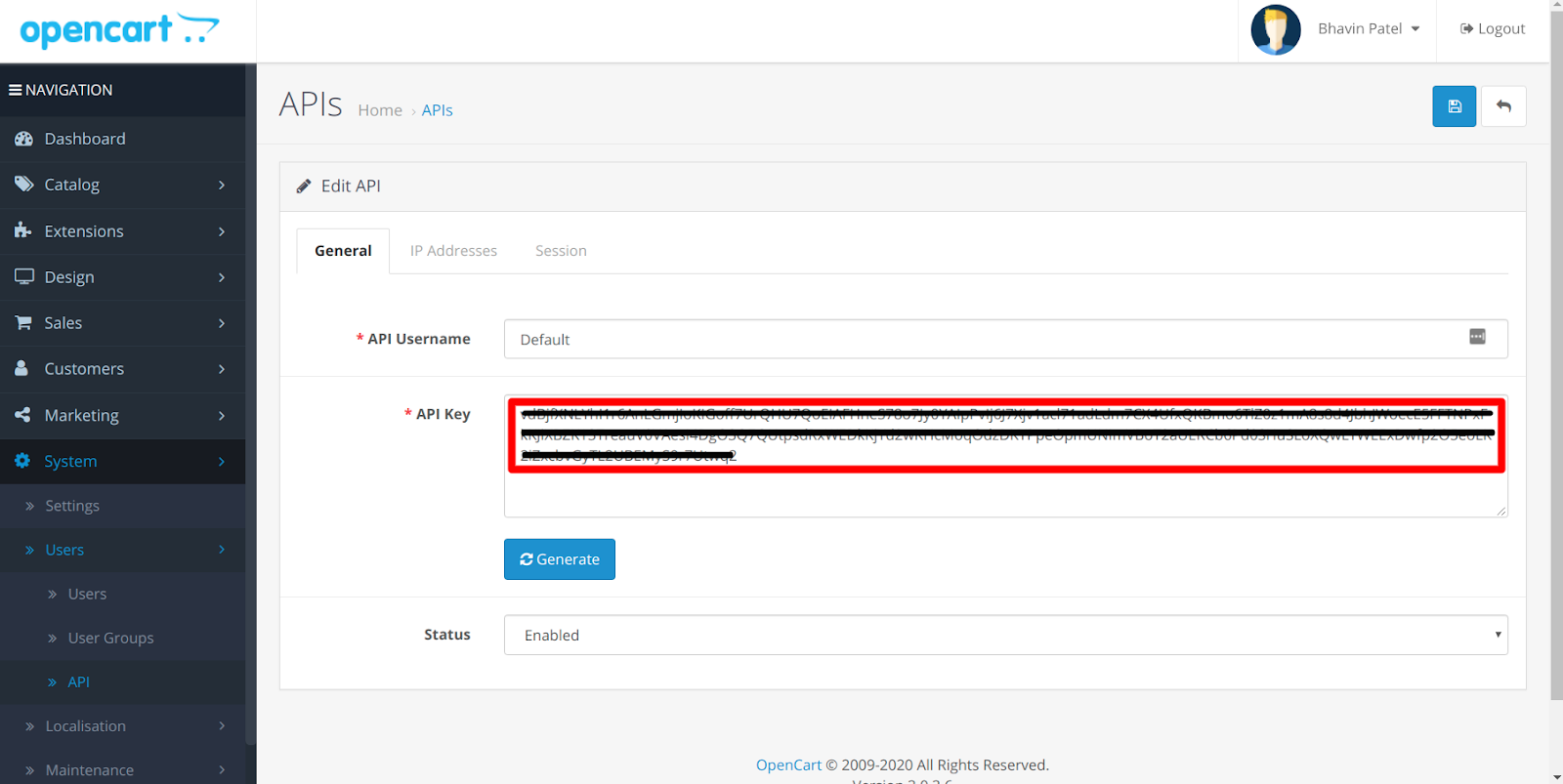
- Copy the API Key and note your OpenCart store URL. Save both somewhere safe.
Connect OpenCart in CallHippo
- Log in to your CallHippo account and go to the Integrations tab.
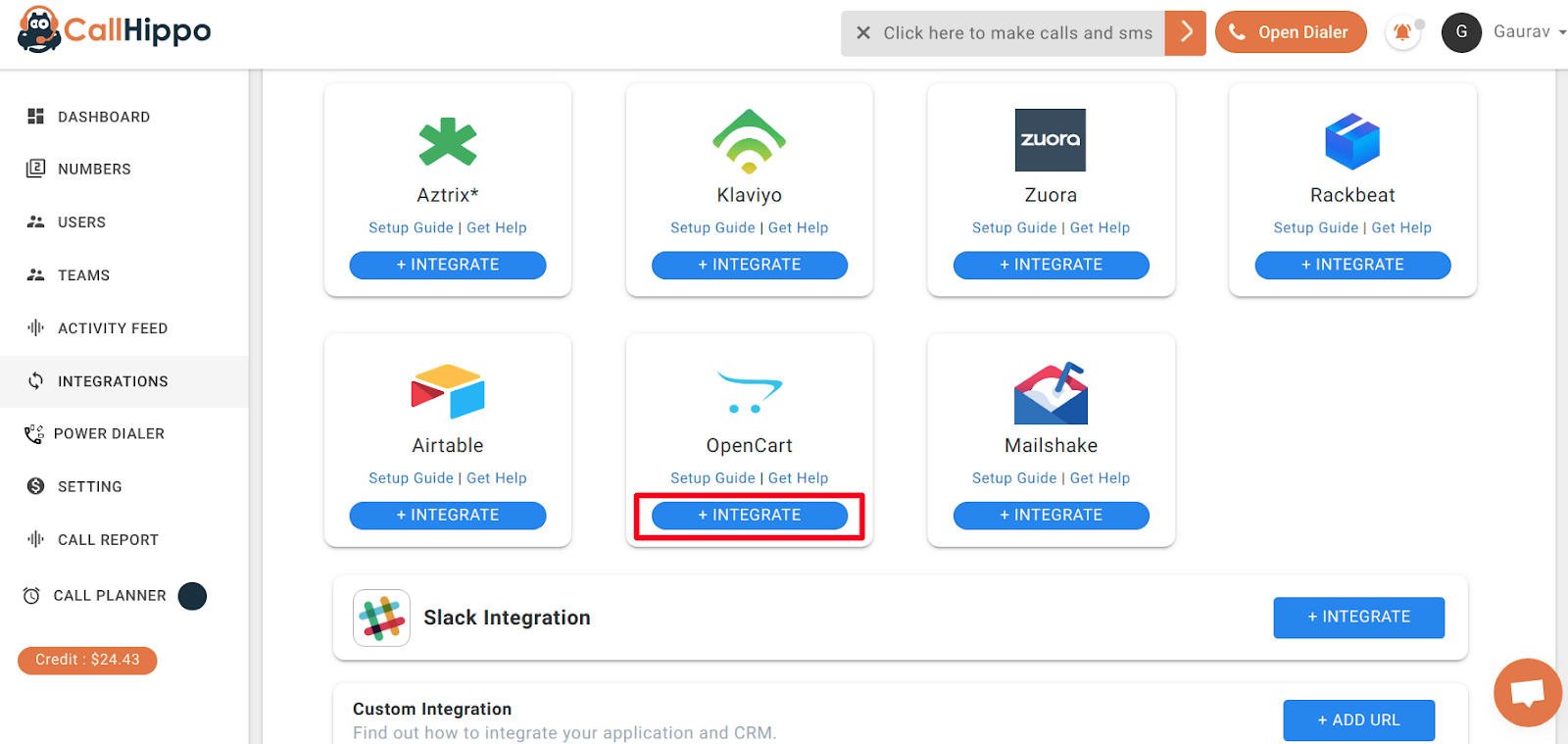
- Find OpenCart and click + Integrate. You are redirected to a setup page.
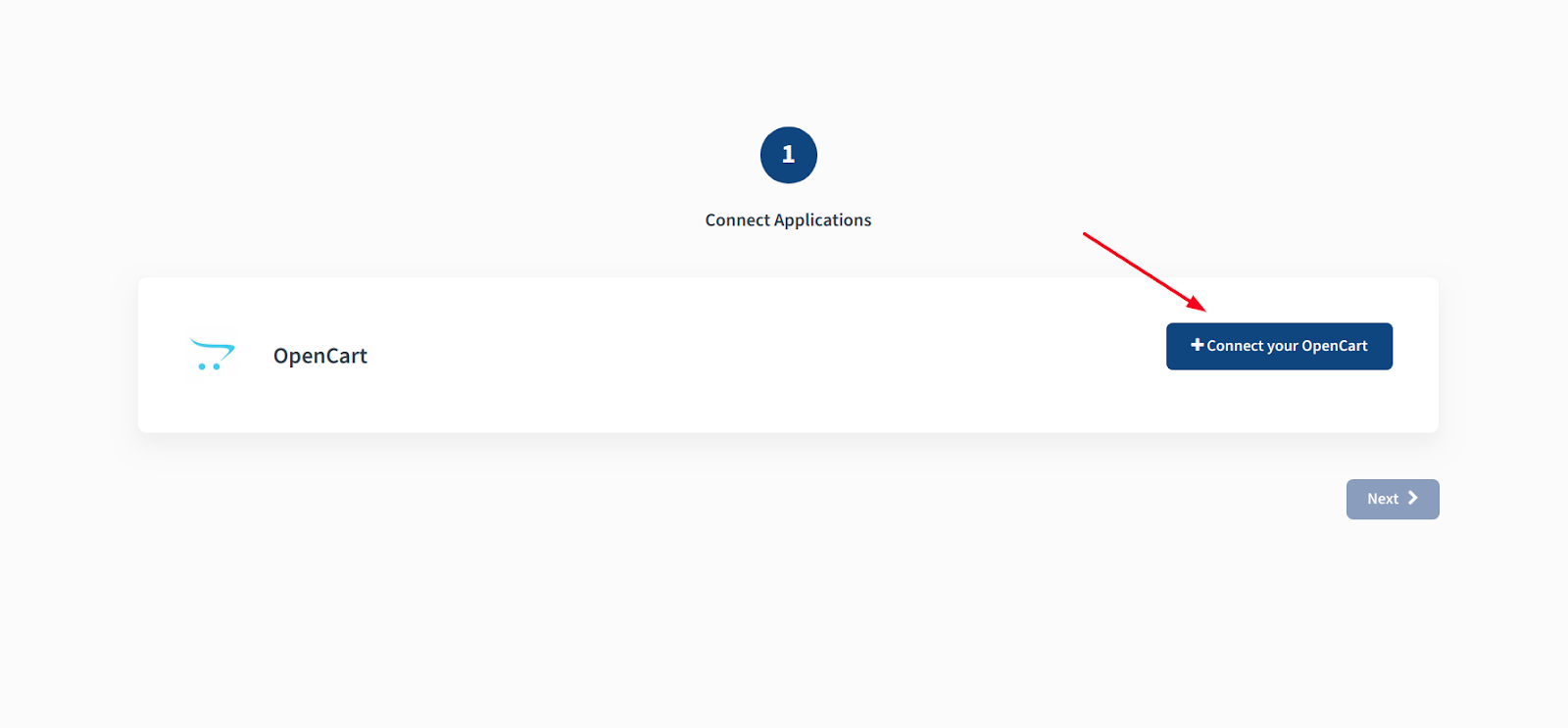
- Click + Connect your OpenCart.
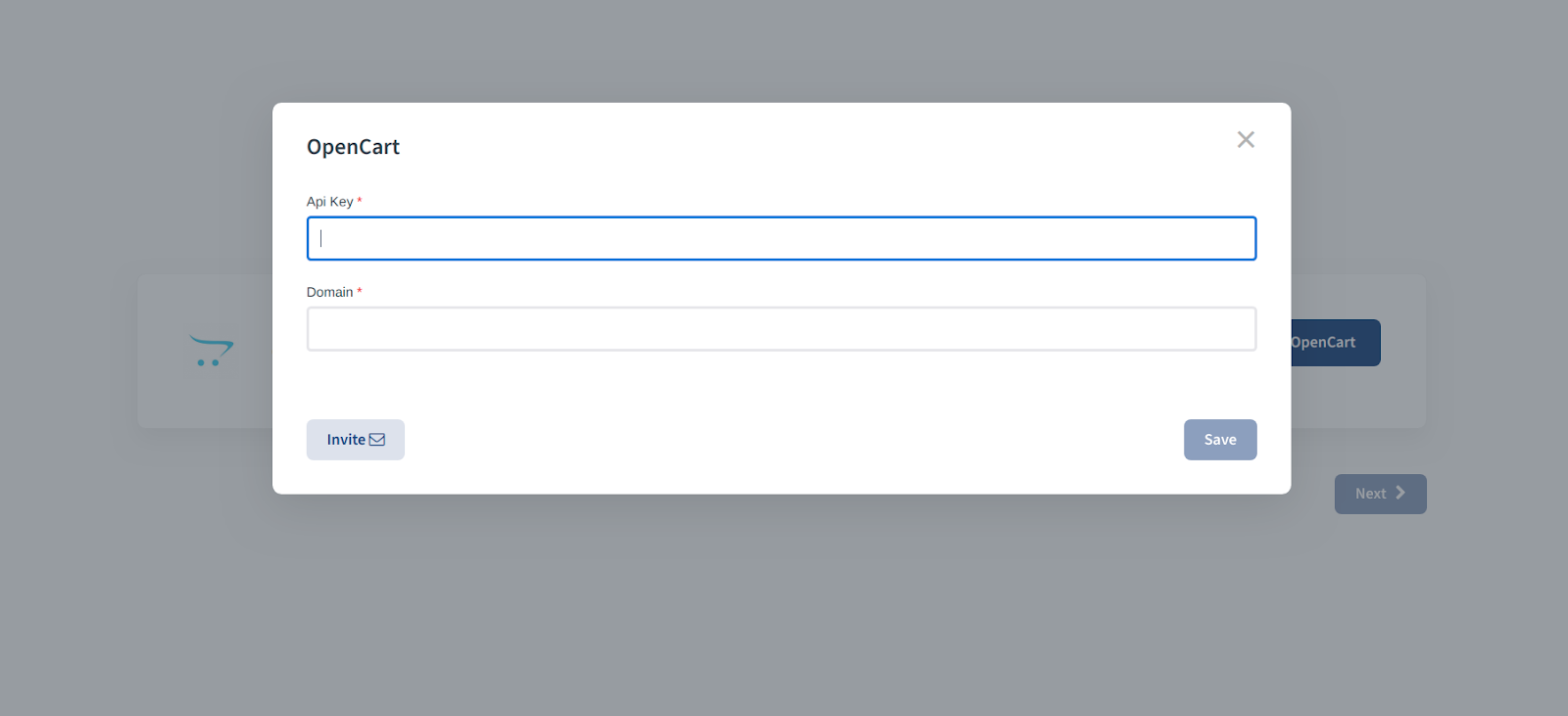
- Enter the API key and store domain URL you copied earlier, then click Save.
- When you see Datasource is linked, click Ok.
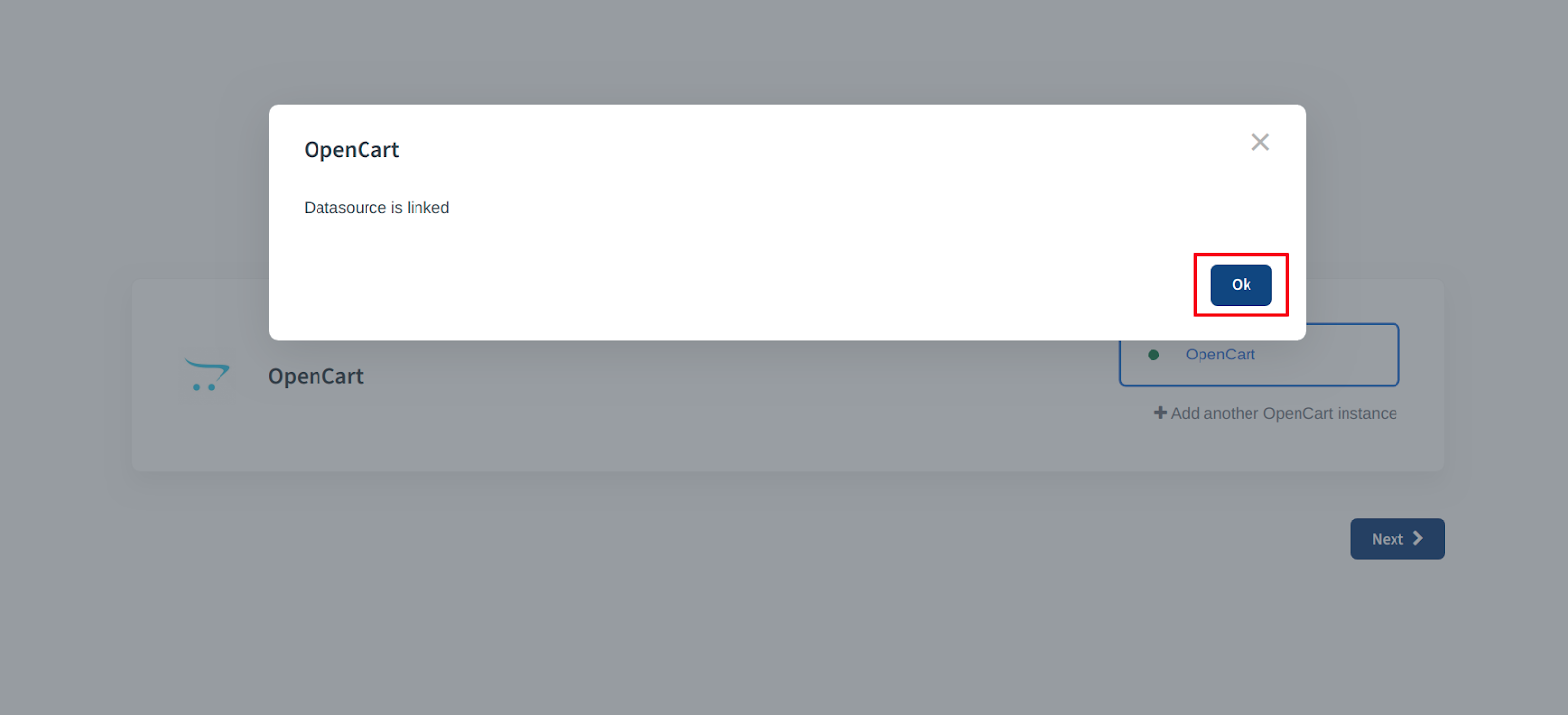
- Click Next. You are returned to CallHippo and the status changes to Integrated.
Verify the connection
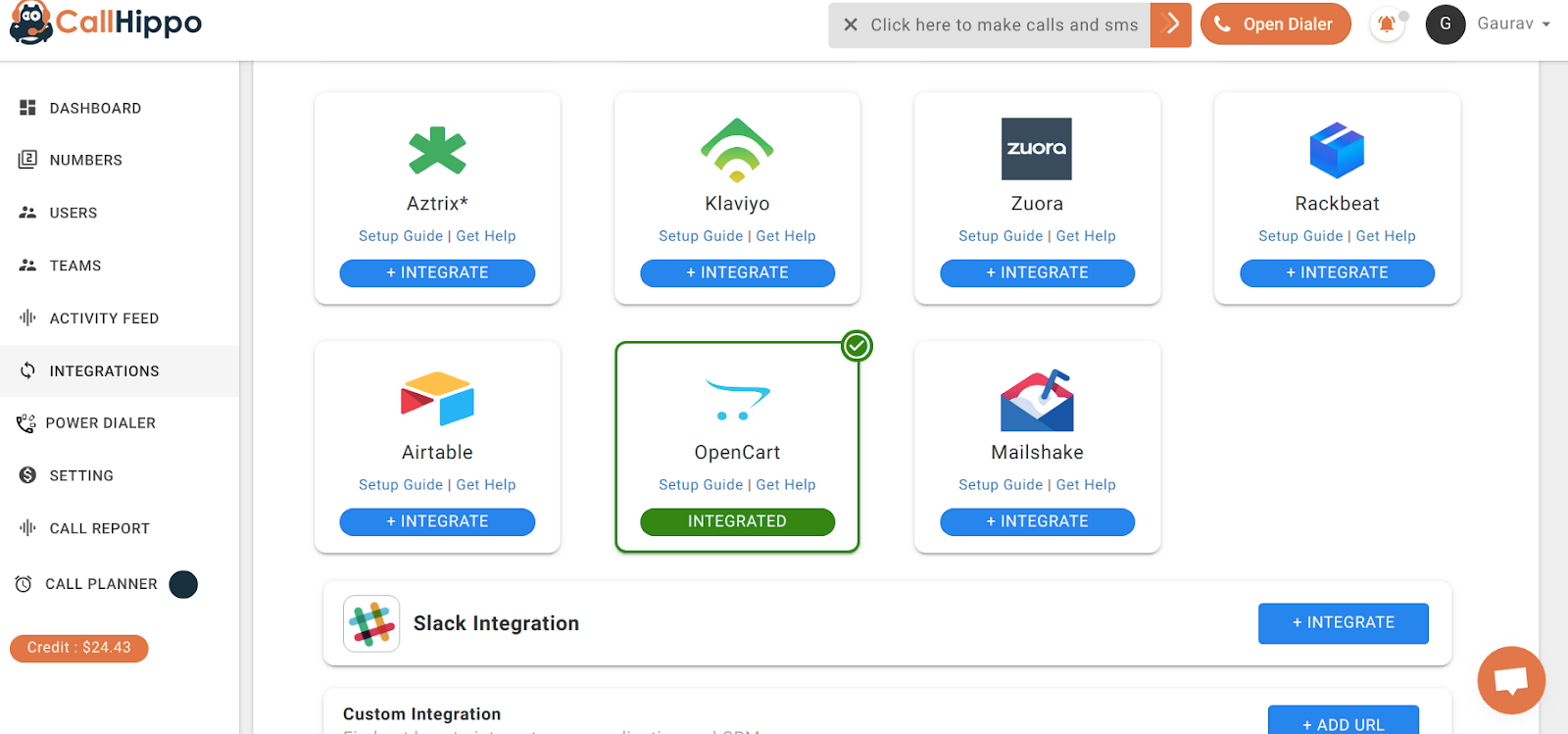
On the CallHippo Integrations page, the OpenCart card should show a green Integrated badge. Your store is now linked and ready to sync data with the CallHippo dialer.
Still need help? Reach us at [email protected].