
Integrating Outplay with CallHippo lets you call and text prospects straight from your Outplay sequences while every call and SMS syncs back to the prospect’s activity.
Set up your Outplay account
Begin in Outplay to create the API credentials CallHippo needs.
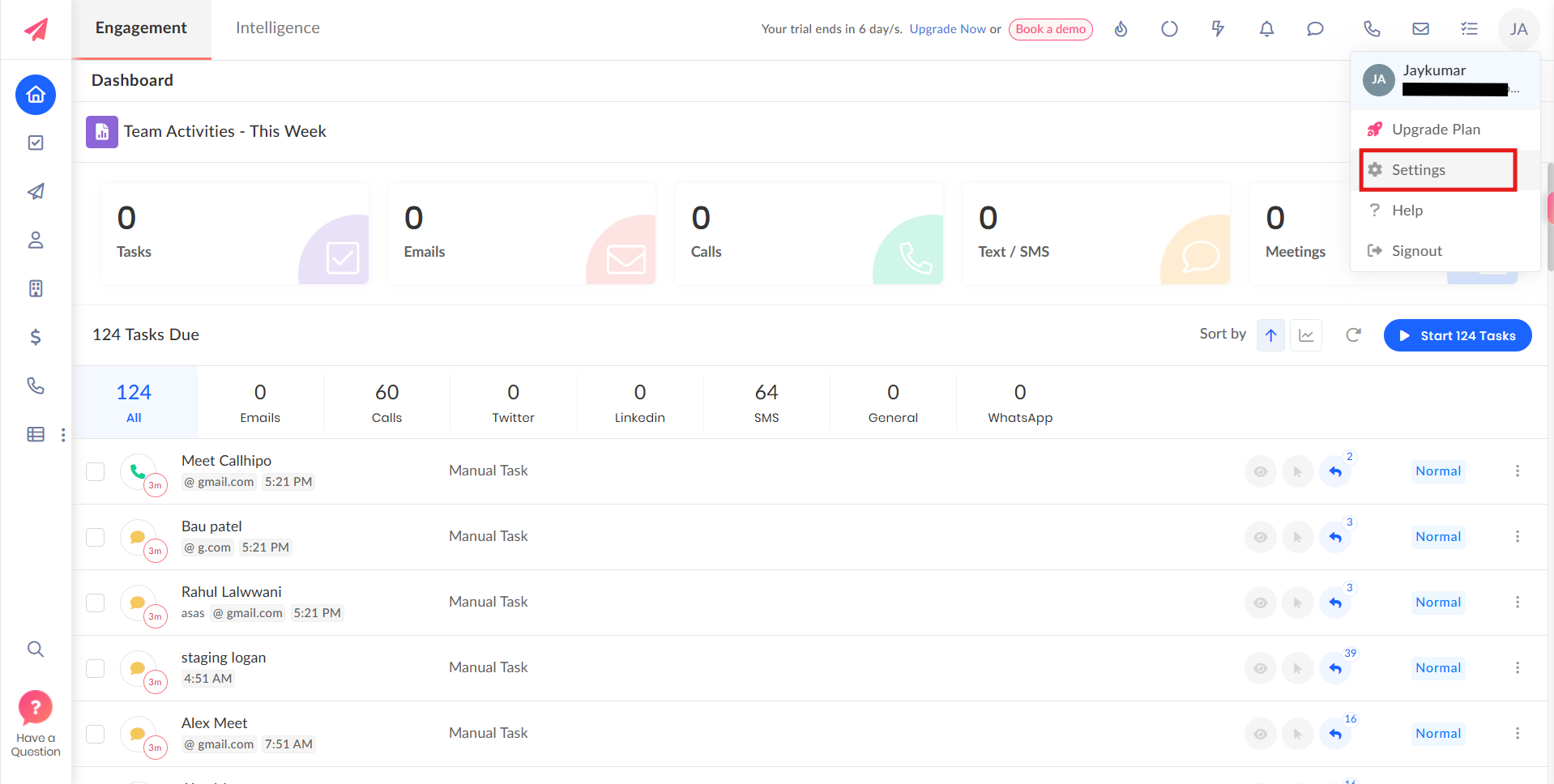
- Log in to your Outplay account.
- Click your profile, then choose Settings.
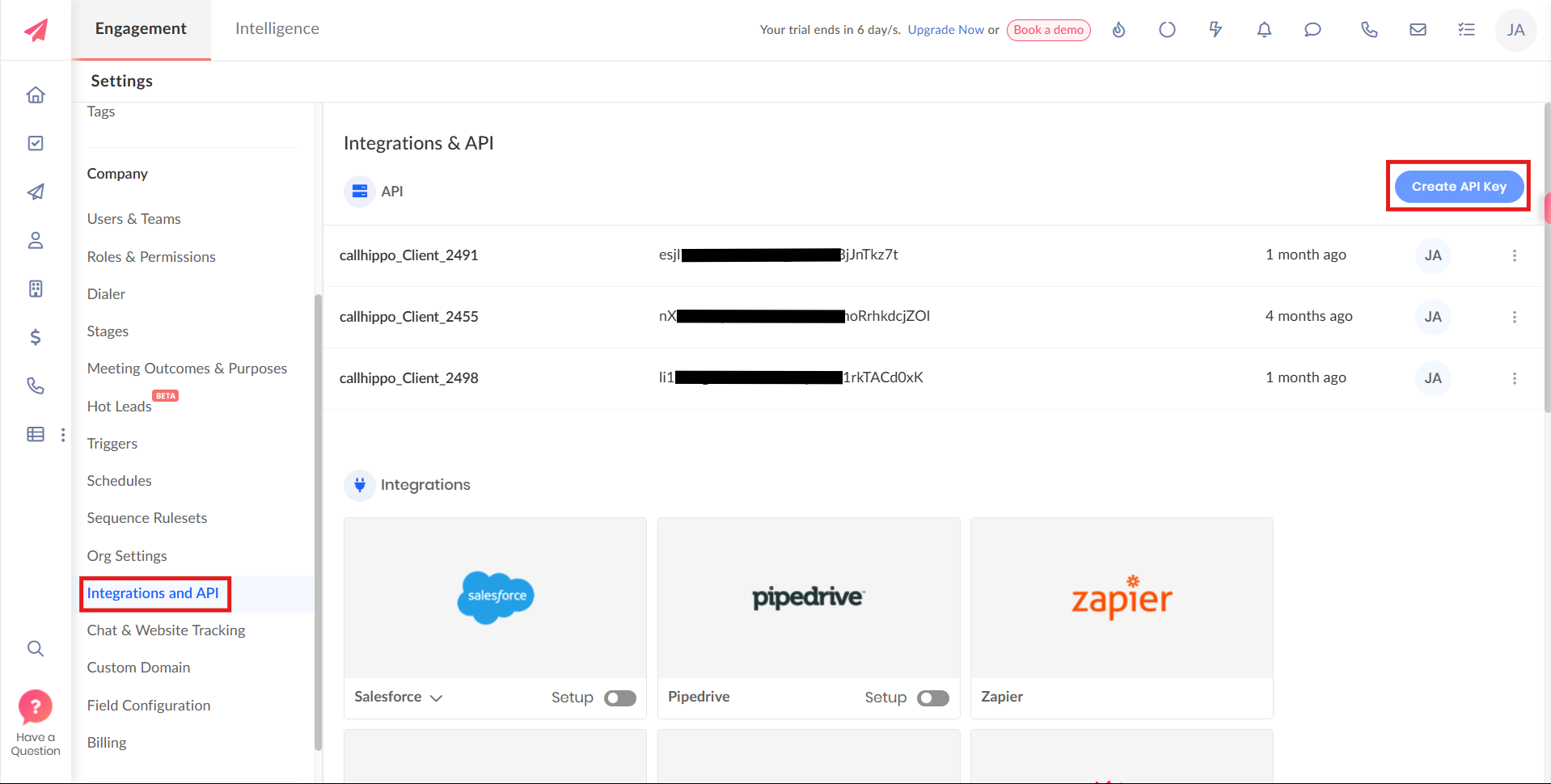
- Open Integrations and API and click Create API Key.
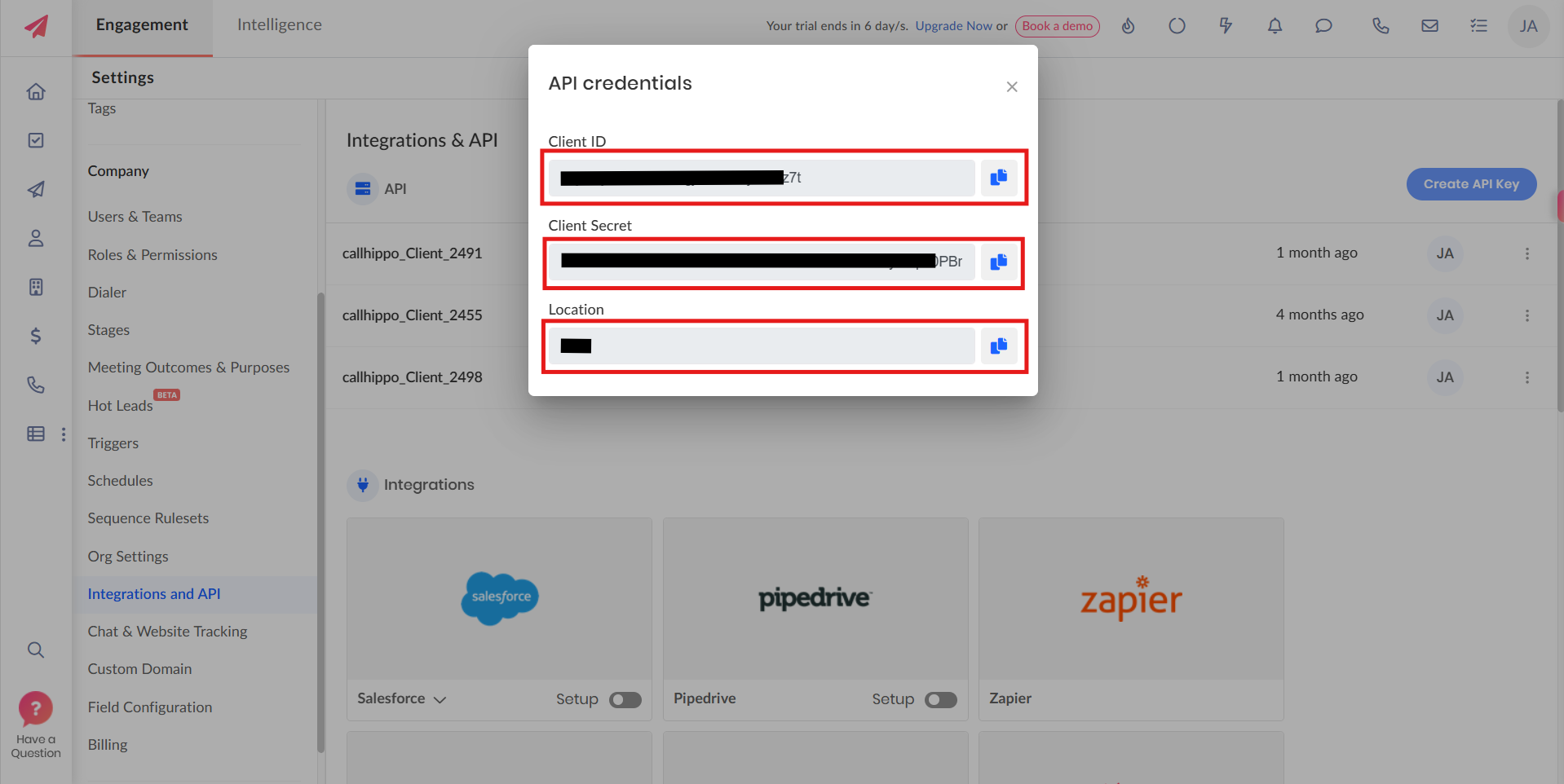
- Copy the Client ID, Client Secret, and Location shown in the credentials popup.
Connect Outplay inside CallHippo
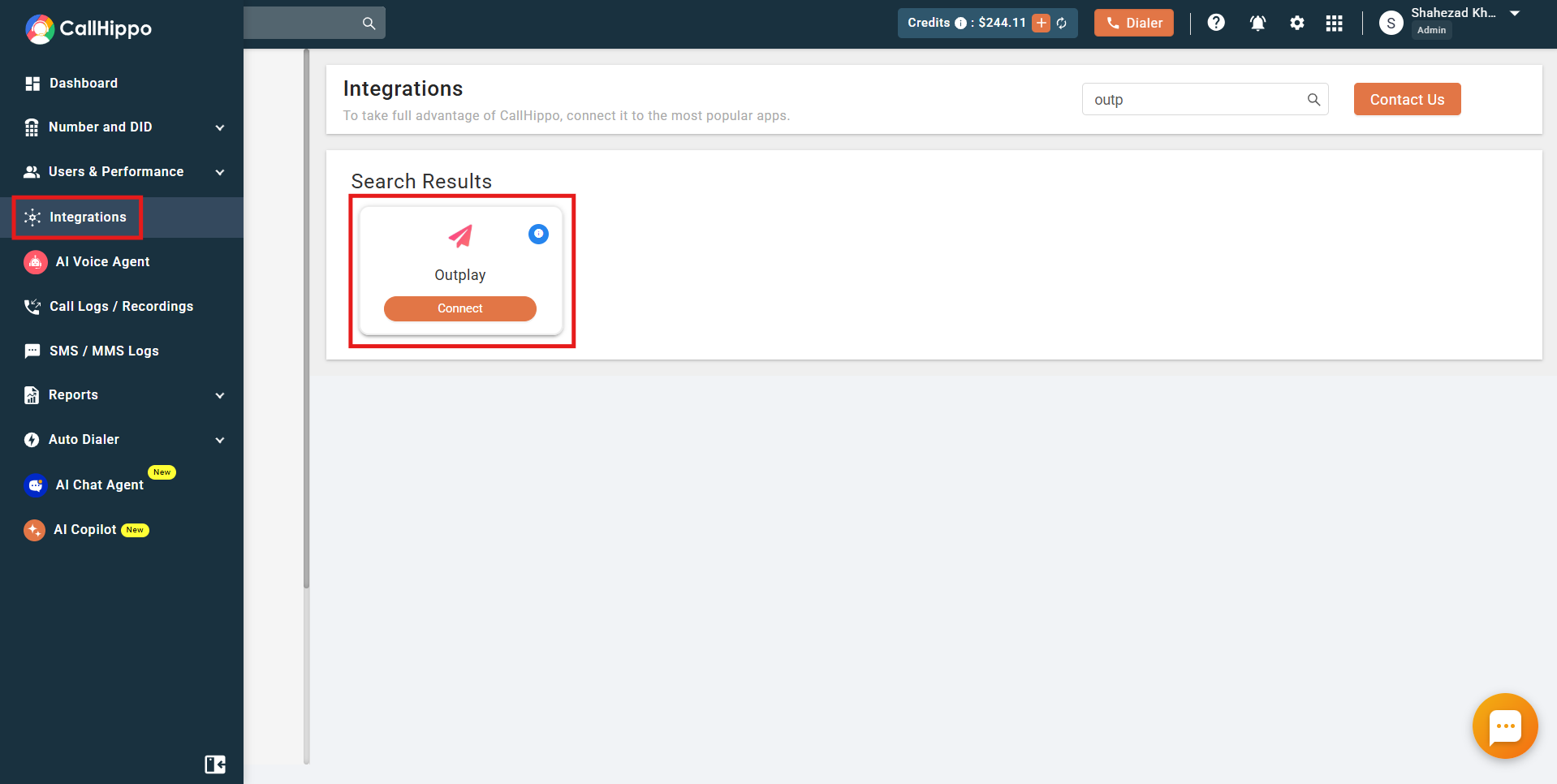
- Log in to your CallHippo account and open the Integrations tab.
- Find Outplay and click Connect.
- Enter your Client ID, Client Secret, and Location, then click Connect Now.
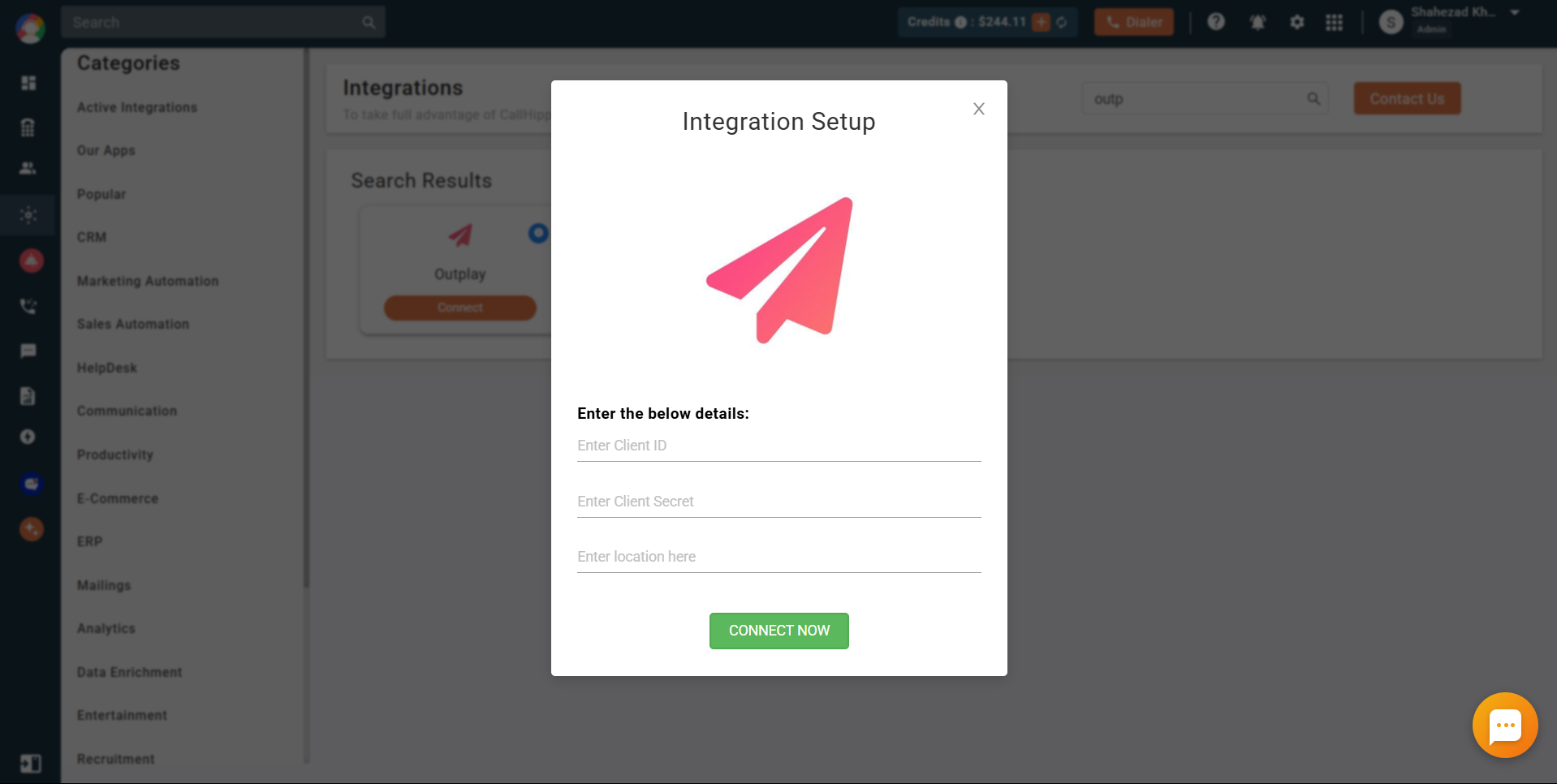
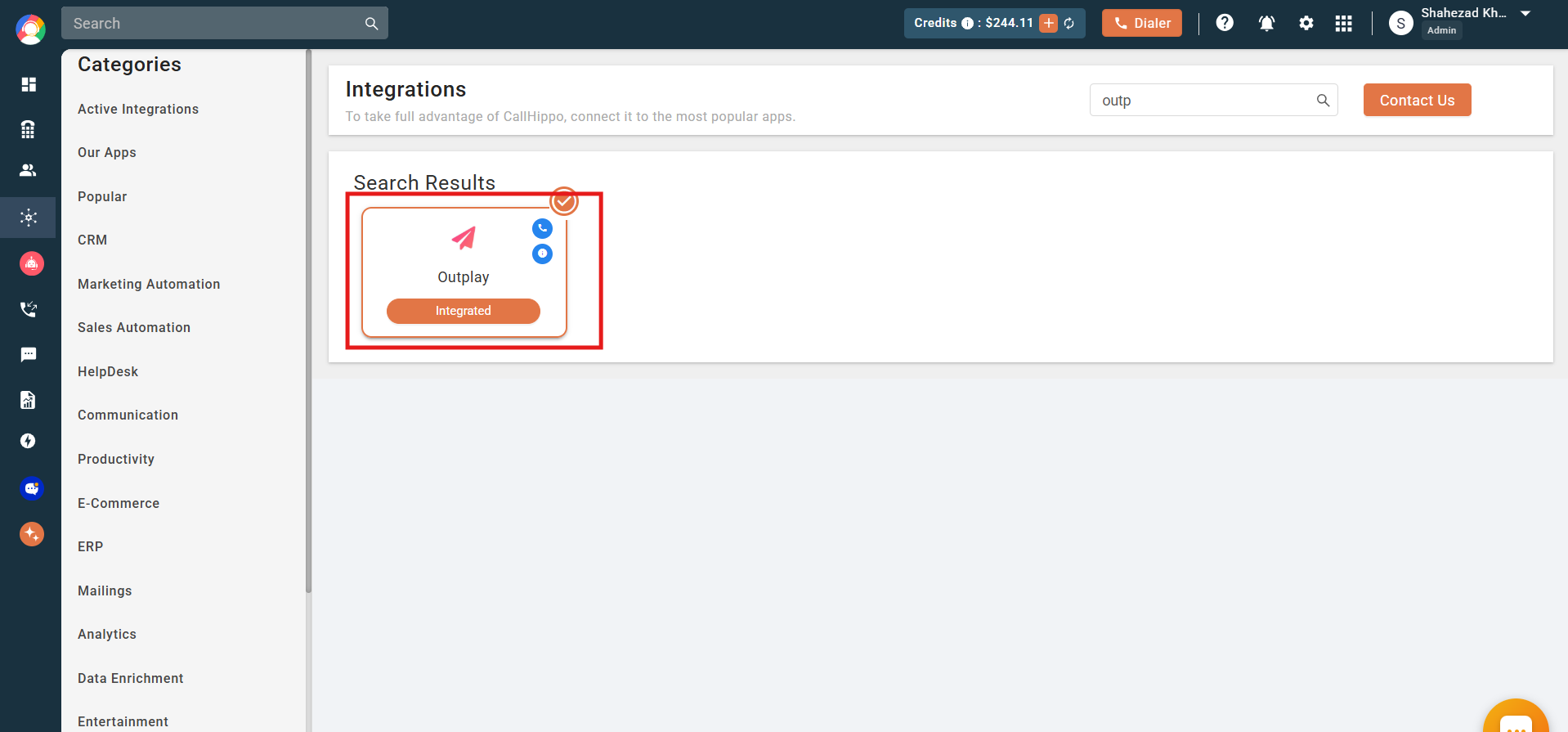
- Once connected, the status changes to Integrated.
Make calls and send SMS from Outplay
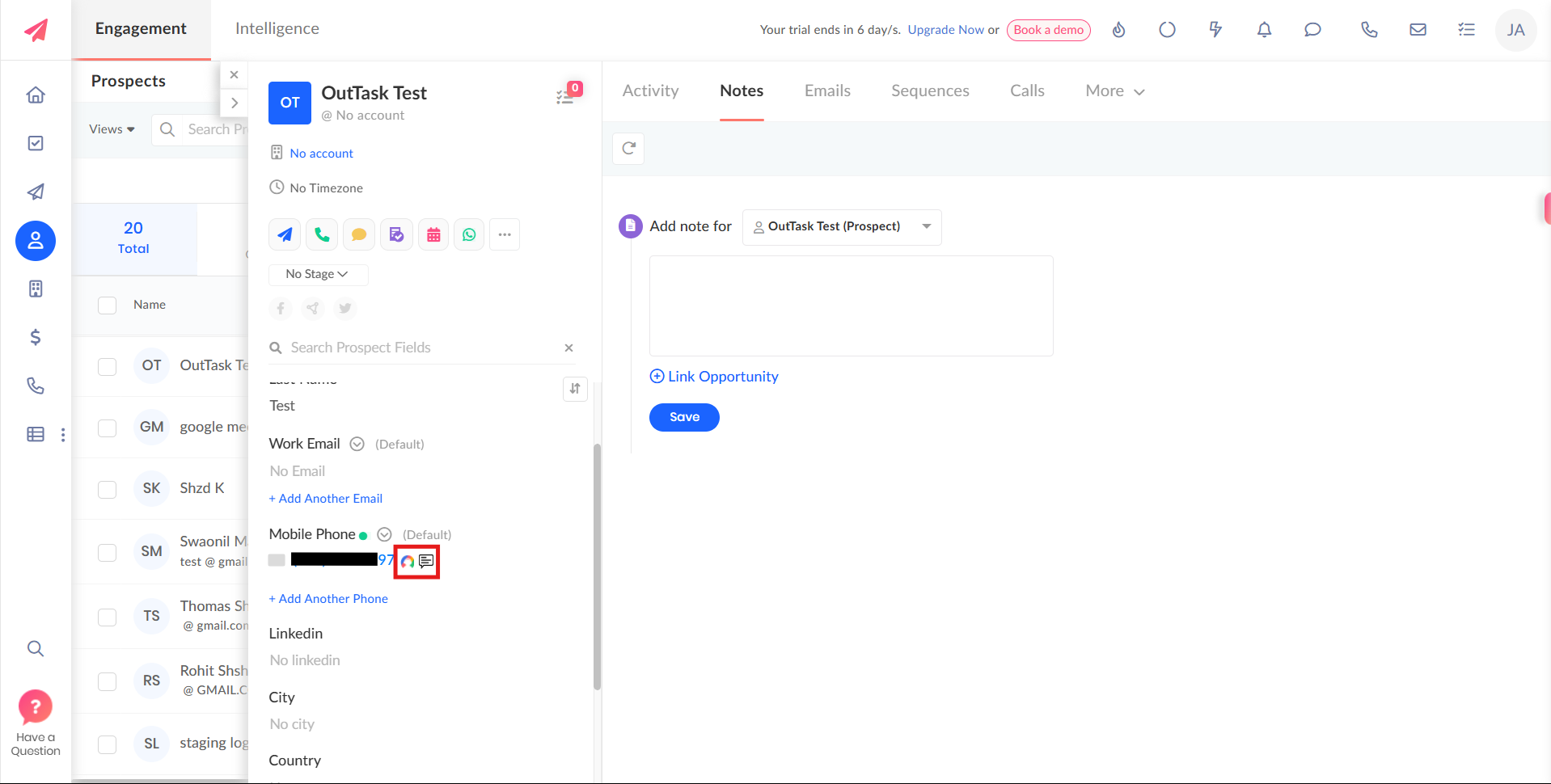
Install the CallHippo Click-to-Call Chrome extension, then place calls and messages by clicking the C2C icons that appear beside each number.
What the Outplay integration does
- Click-to-call from Outplay: call prospects and leads directly from Outplay records.
- Click-to-SMS from Outplay: send text messages to Outplay prospects and leads without leaving the CRM.
- Automatic contact sync: any contact you call or message through the extension is synced to the CallHippo dialer automatically.
- Activity tracking: track your agents’ calling and SMS activity from the CallHippo dashboard.
After Call Work activity in Outplay
If your plan includes CallHippo’s call tags and disposition feature and it is enabled, the tags and disposition you add on the After Call Work (ACW) screen are pushed to Outplay along with the call.
Note: this only syncs when the tags and disposition are added on the ACW screen. If they are added later from the Call Logs or another feed, they will not sync to Outplay.
Do I need the Chrome extension to place calls?
Yes. The CallHippo Click-to-Call extension adds the call and SMS icons next to Outplay numbers, and it also syncs those contacts to your CallHippo dialer.
Where can I review my team’s Outplay call activity?
All calls and SMS placed through the integration are tracked in your CallHippo dashboard.