
A Power Dialer automatically dials contacts one after another from your list, so agents spend more time talking to live prospects and less time punching in numbers.
What Is a Power Dialer?
A Power Dialer is an automated dialing system that helps agents make outbound calls more efficiently by dialing numbers sequentially from a contact list. Unlike manual dialing, it removes the need to enter numbers by hand, reducing idle time and boosting productivity.
How Does a Power Dialer Work?
You upload a CSV file of names and numbers into a Power Dialer campaign, so agents never have to copy and paste a number after each call. The system automatically dials the next number in the queue as soon as the current call ends. If a call is unanswered, hits voicemail, or reaches a busy tone, it moves on without delay, keeping agents connected only to live calls. You can also pause and resume a calling session at any time.
Key benefits:
- Increases call efficiency – agents spend more time talking and less time dialing.
- Reduces manual work – no more dialing numbers by hand.
- Minimizes idle time – moves to the next call automatically.
- Improves lead conversion – helps reach more prospects in less time.
Business Use Cases
- Sales and lead generation – automates dialing to increase conversions.
- Customer support and follow-ups – ensures timely callbacks for support, renewals, and issue resolution.
- Debt collection and payment reminders – automates collection calls to improve payment rates.
- Healthcare appointment reminders – reduces no-shows.
- Political campaigning and fundraising – enables large-scale outreach.
- Market research and surveys – conducts automated phone surveys.
- Recruitment and hiring – speeds up candidate outreach.
How to Use the Power Dialer
- Log in to your CallHippo dashboard at web.callhippo.com.
- Go to the Auto Dialer module on the left, then click Power Dialer.
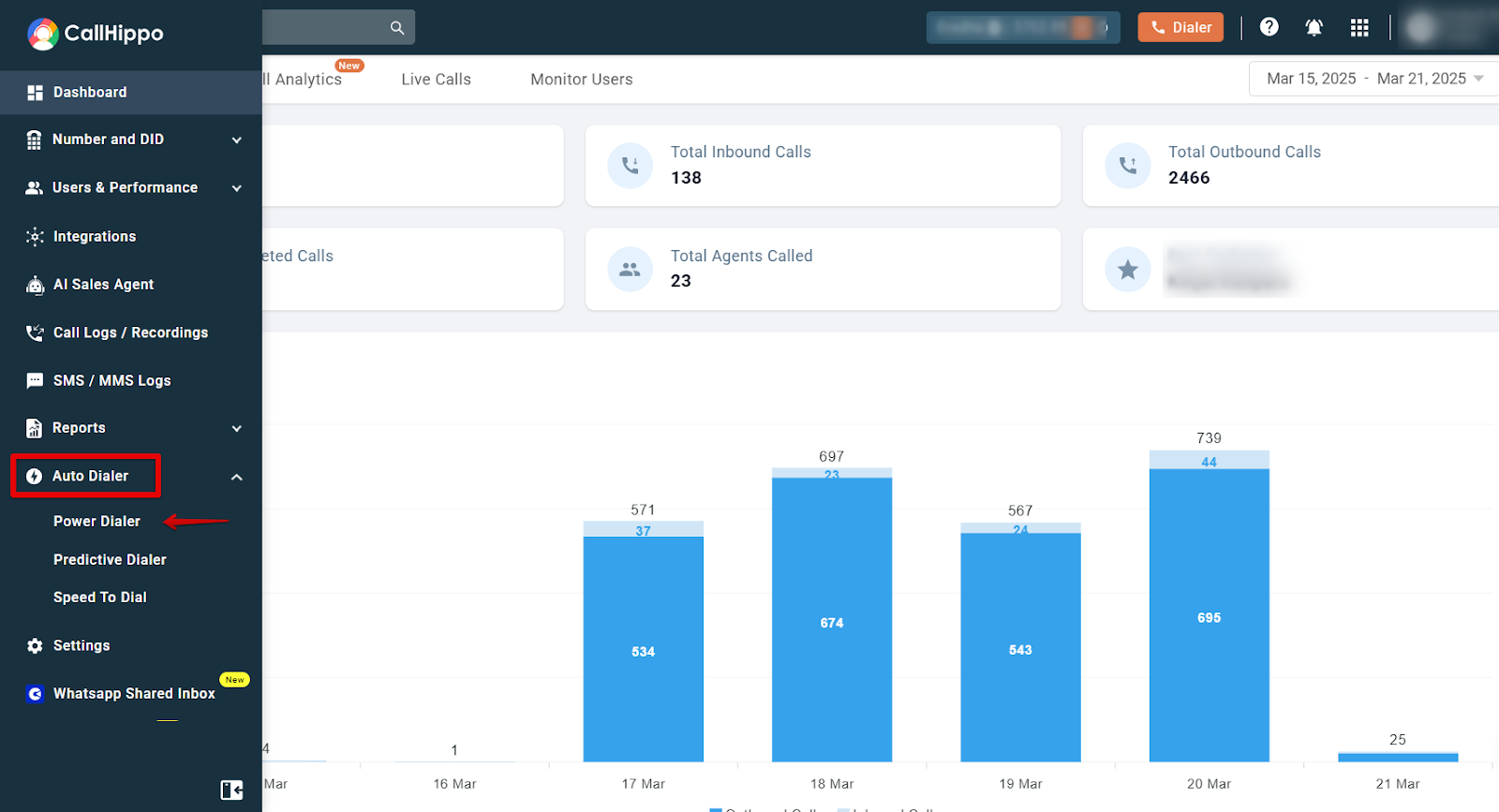
Inside the Power Dialer you will find four tabs: Data, Create Campaign, Campaign List, and Live Calls.
Data Tab: Import Your Contact List
The Data tab is where you import number lists for your campaigns. Click Upload List to add your data.
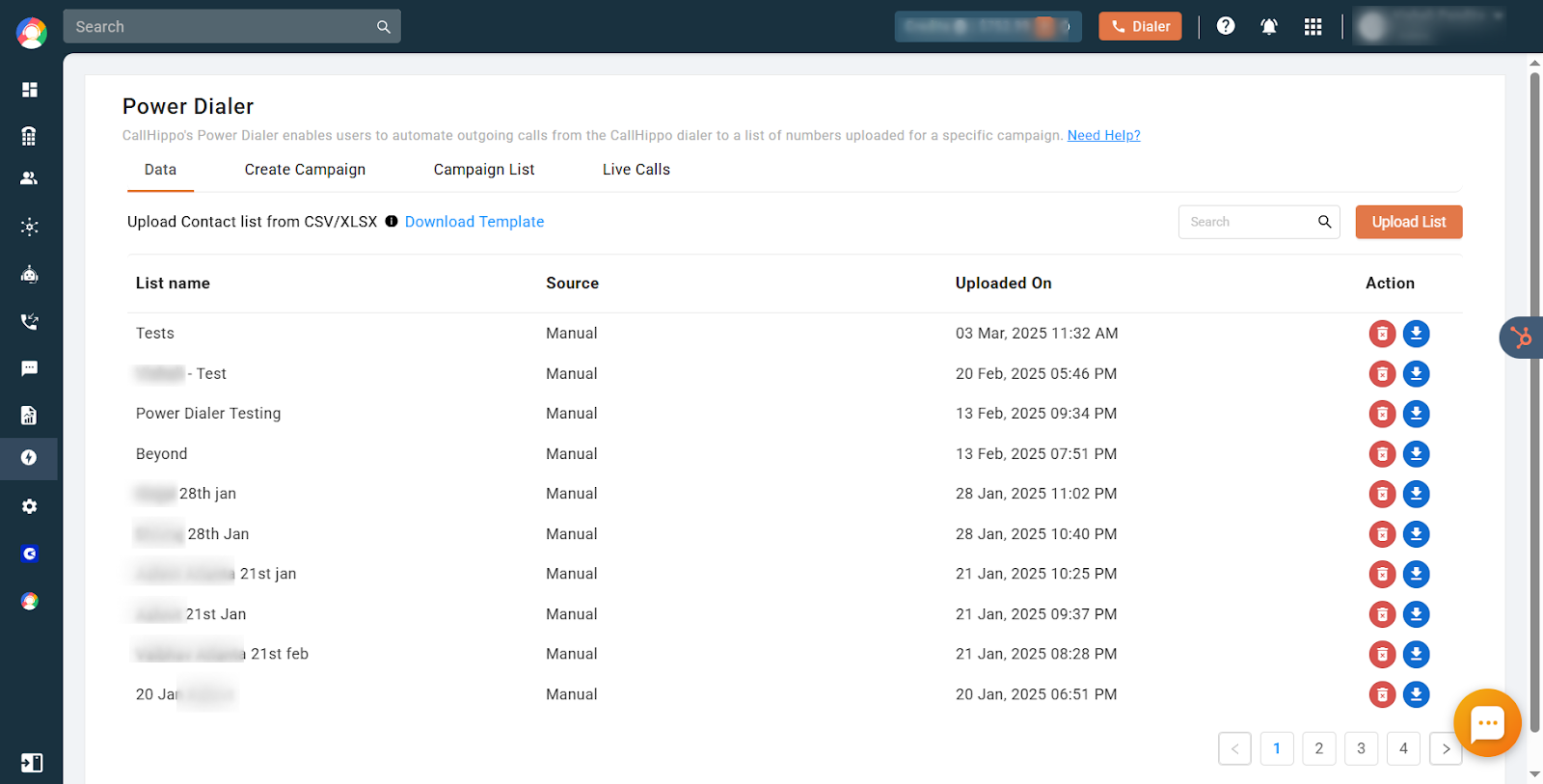
In the popup, enter a List Name, upload your data file as per the template, and click Submit.
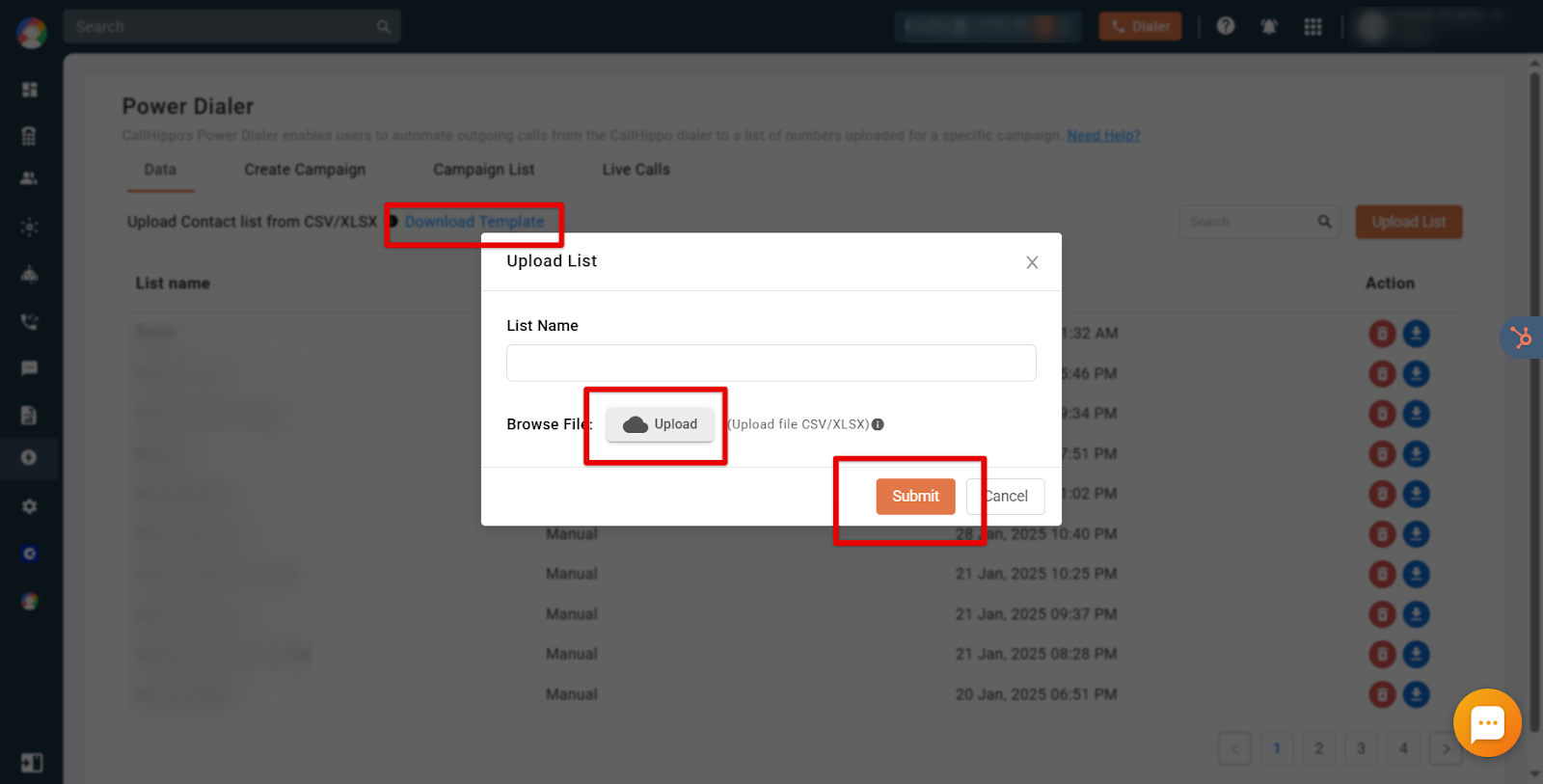
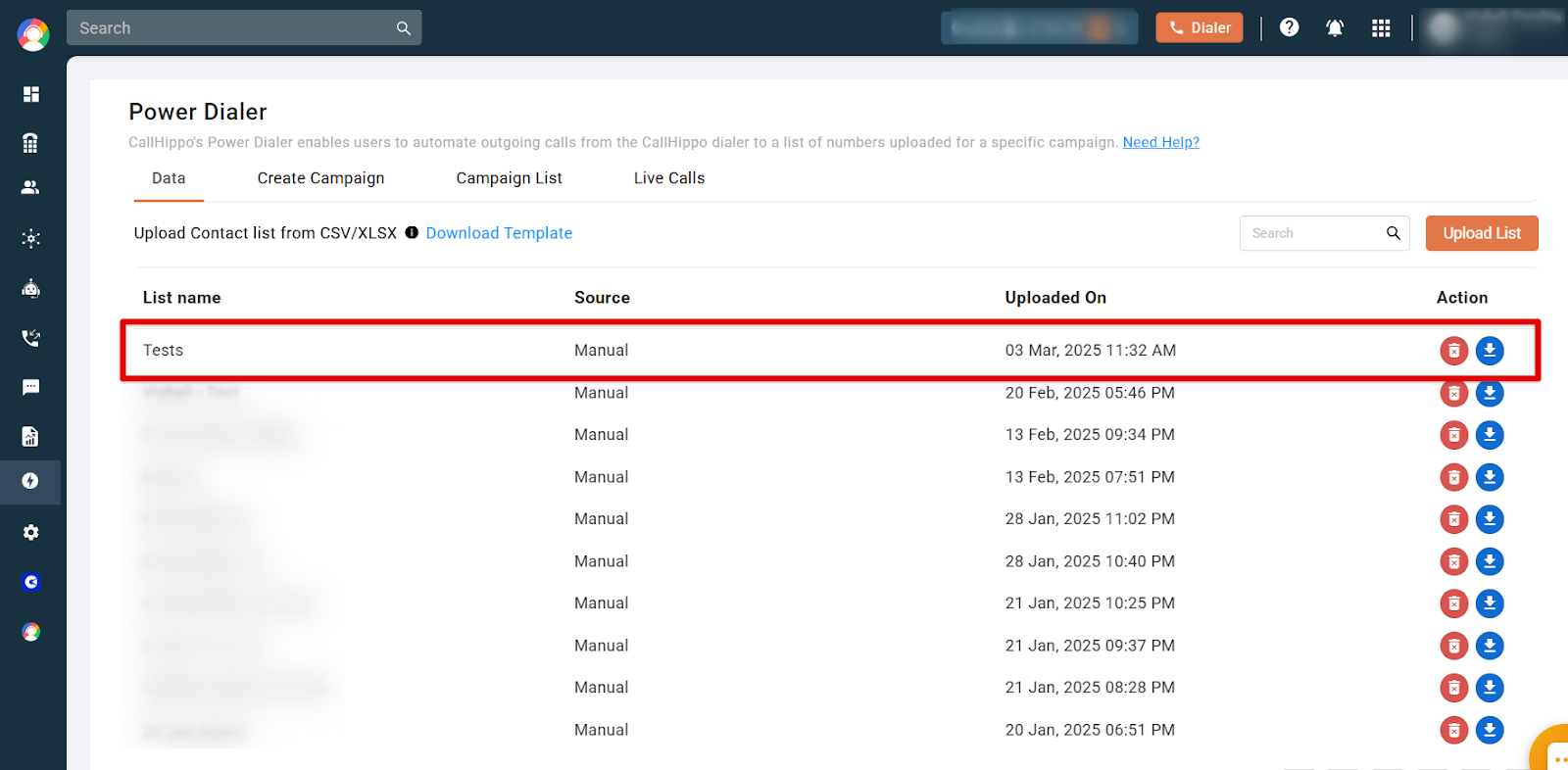
Once added, the list appears with Manual as the source and the import date and time. You can also delete or download an imported list.
Create Campaign
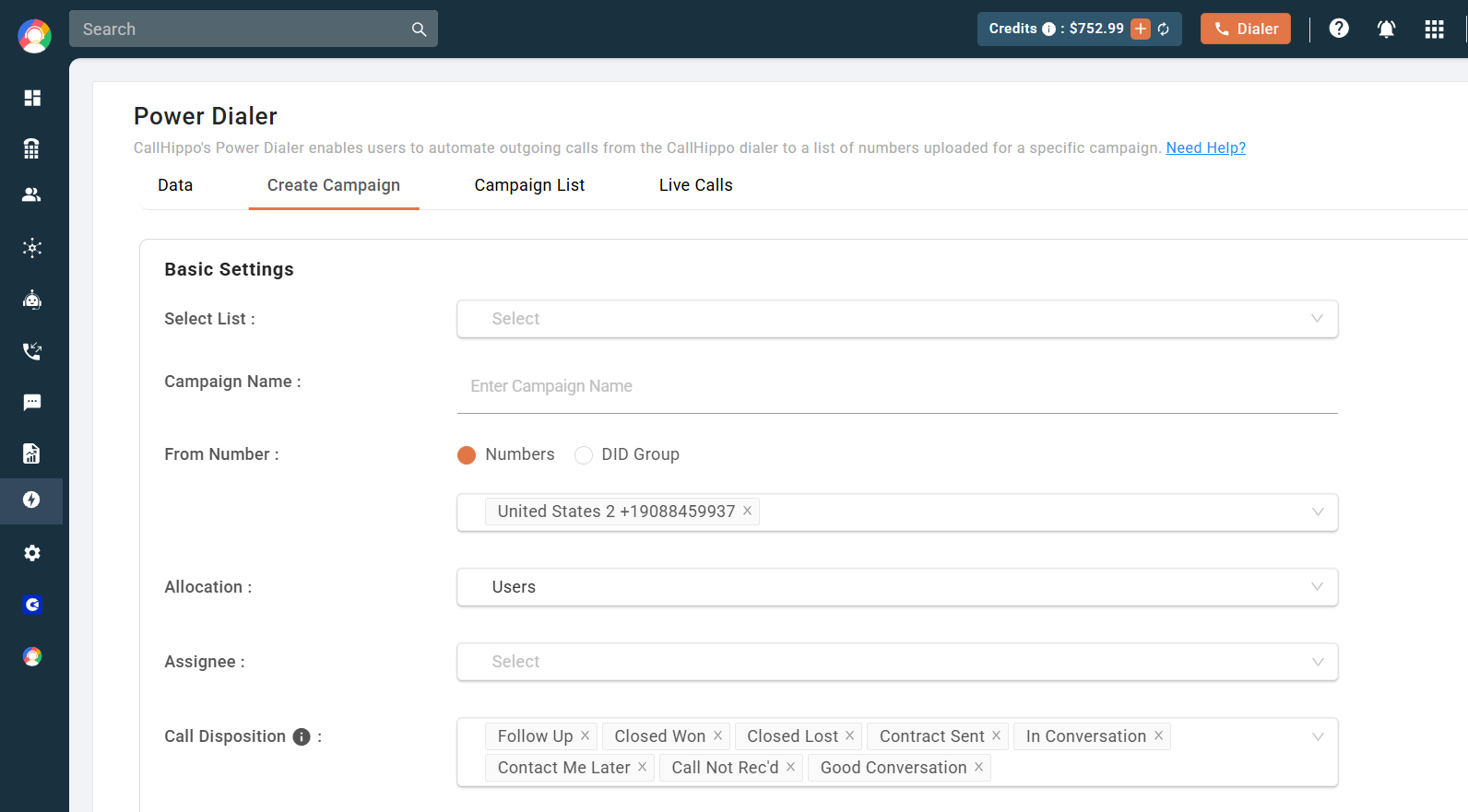
Use the Create Campaign tab to build a campaign from an uploaded list.
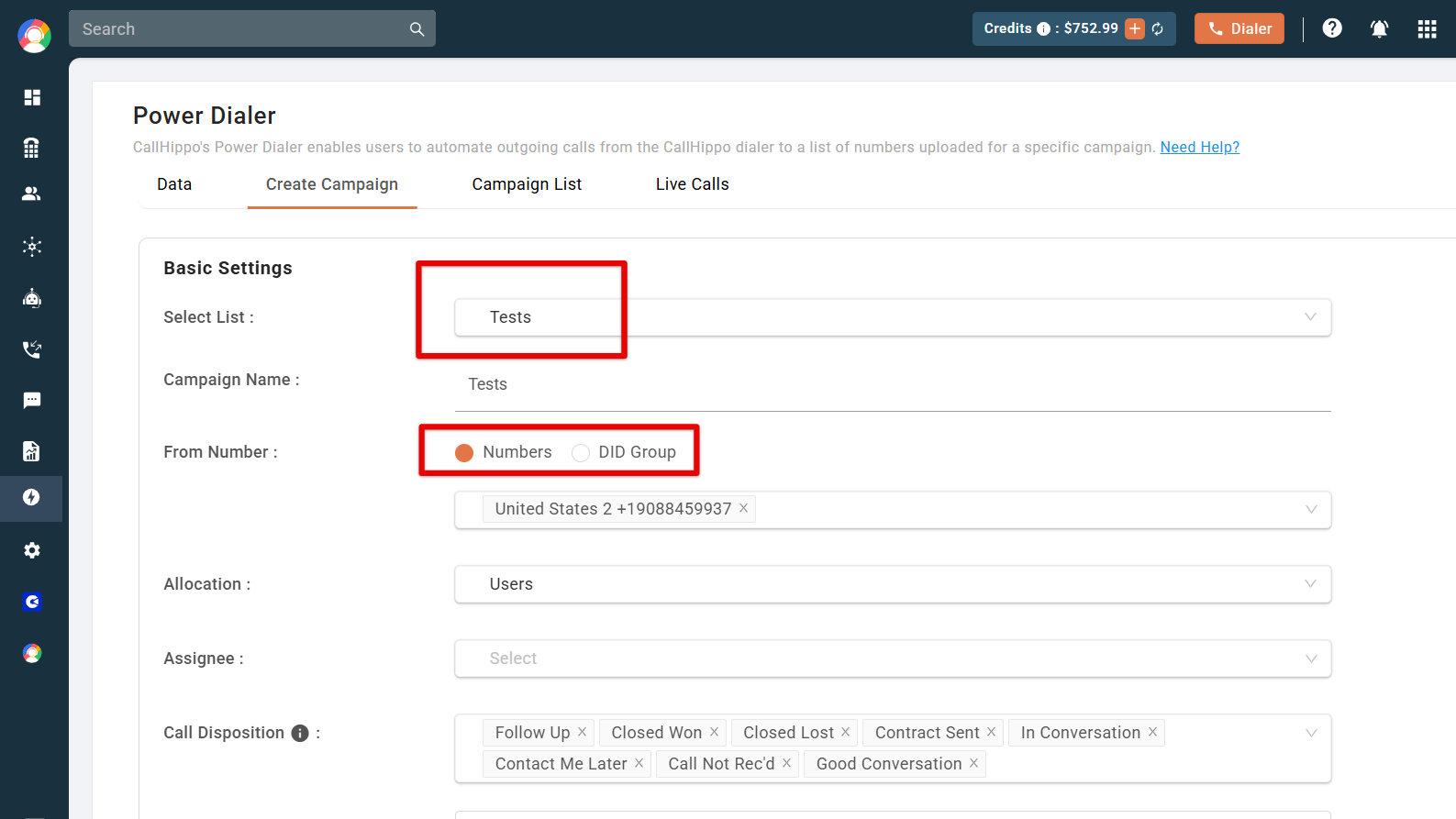
- Select the list of data you want to run the campaign on. The campaign name is auto-filled from the list, but you can change it.
- Choose the From Number – either specific Numbers or a DID Group.
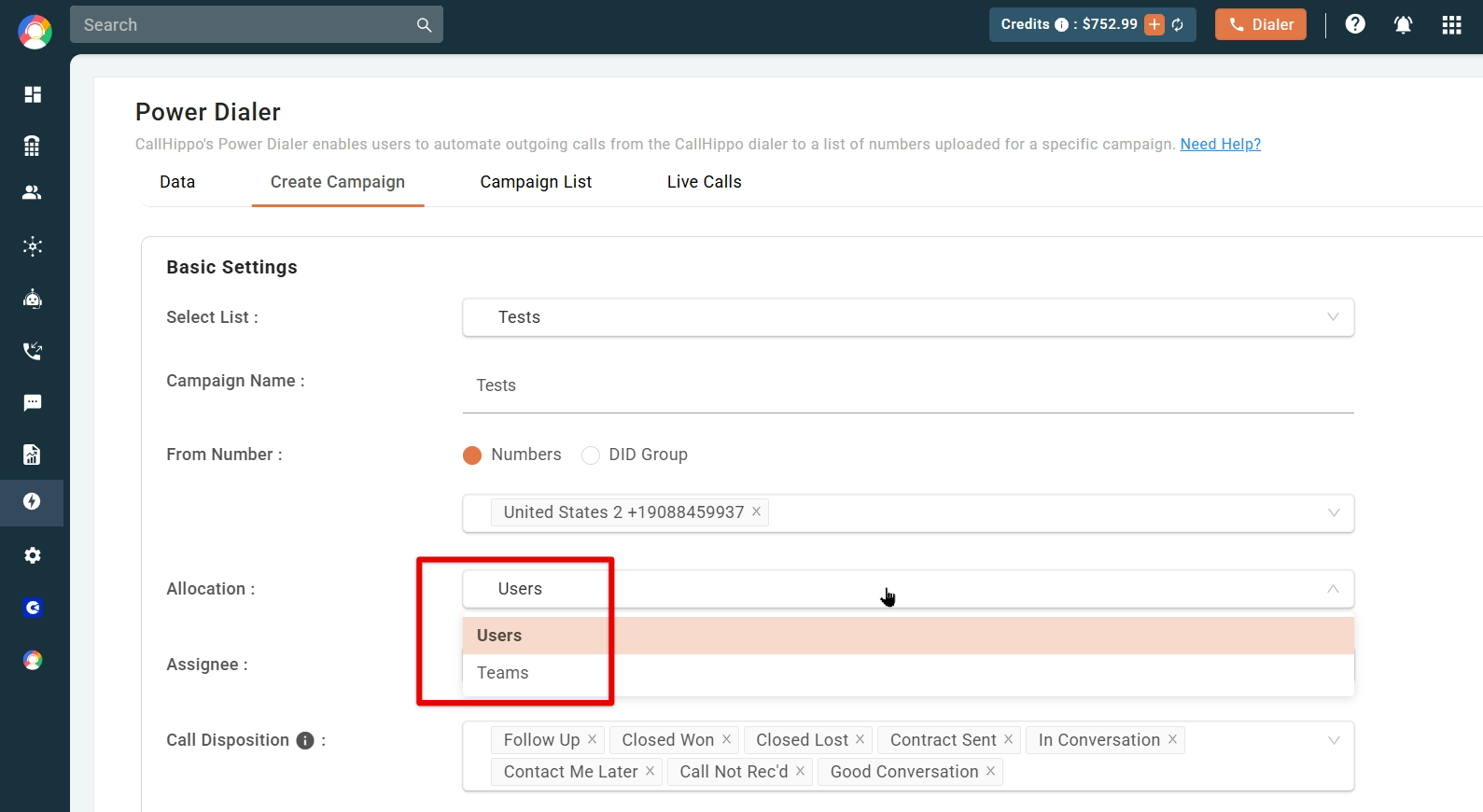
- Select the allocation type – Users or Teams – and pick the assignees.
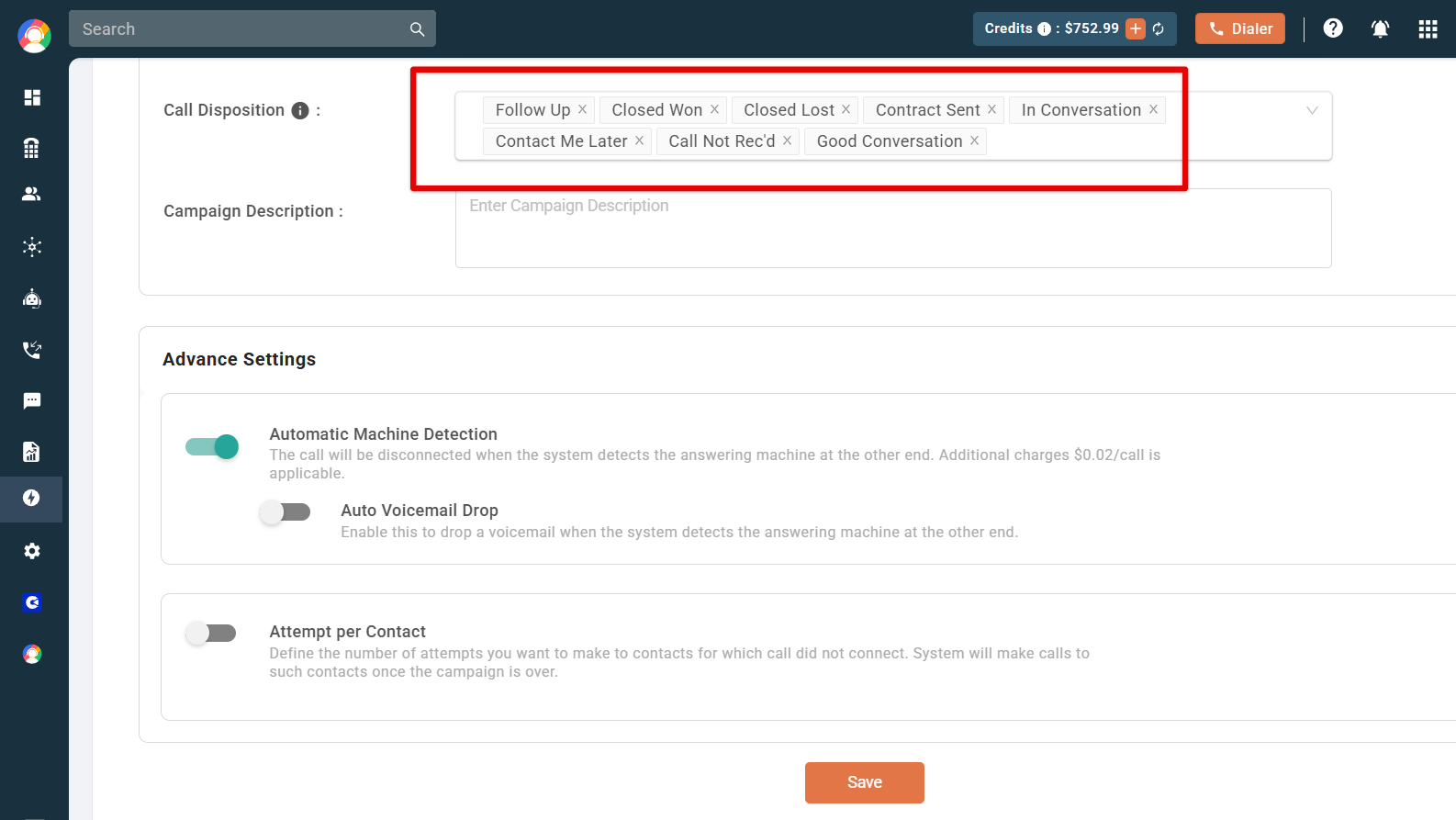
- Choose call dispositions for this campaign’s calls. The chosen dispositions appear on the After Call Work (ACW) screen. By default all system-defined dispositions are selected. You can also add an optional campaign description.
Advanced Settings:
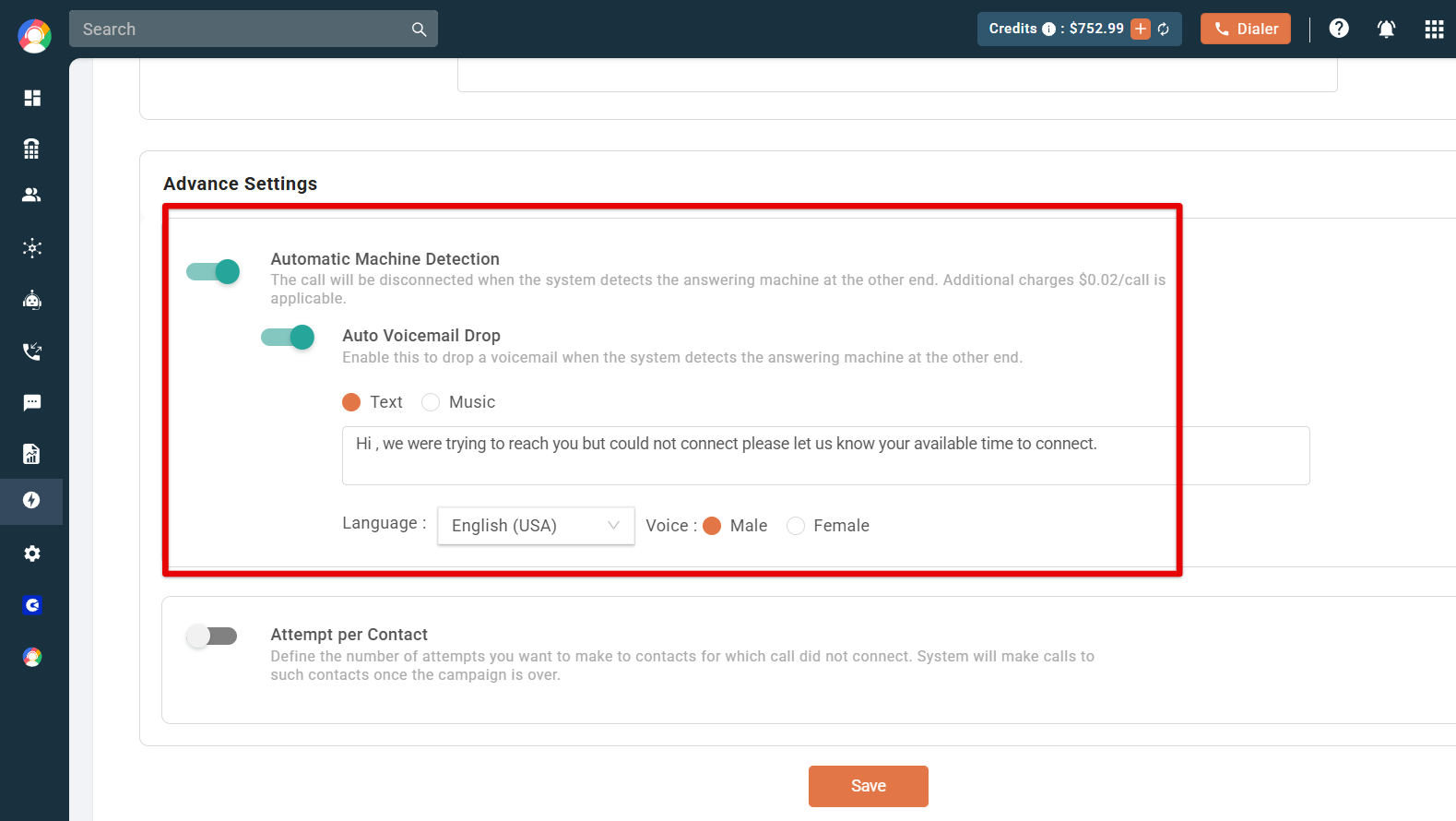
- Automatic Machine Detection – the call is disconnected if the system detects an answering machine on the other end.
- Auto Voicemail Drop – if a machine is detected, this automatically delivers a pre-recorded voicemail so your message still reaches the prospect.
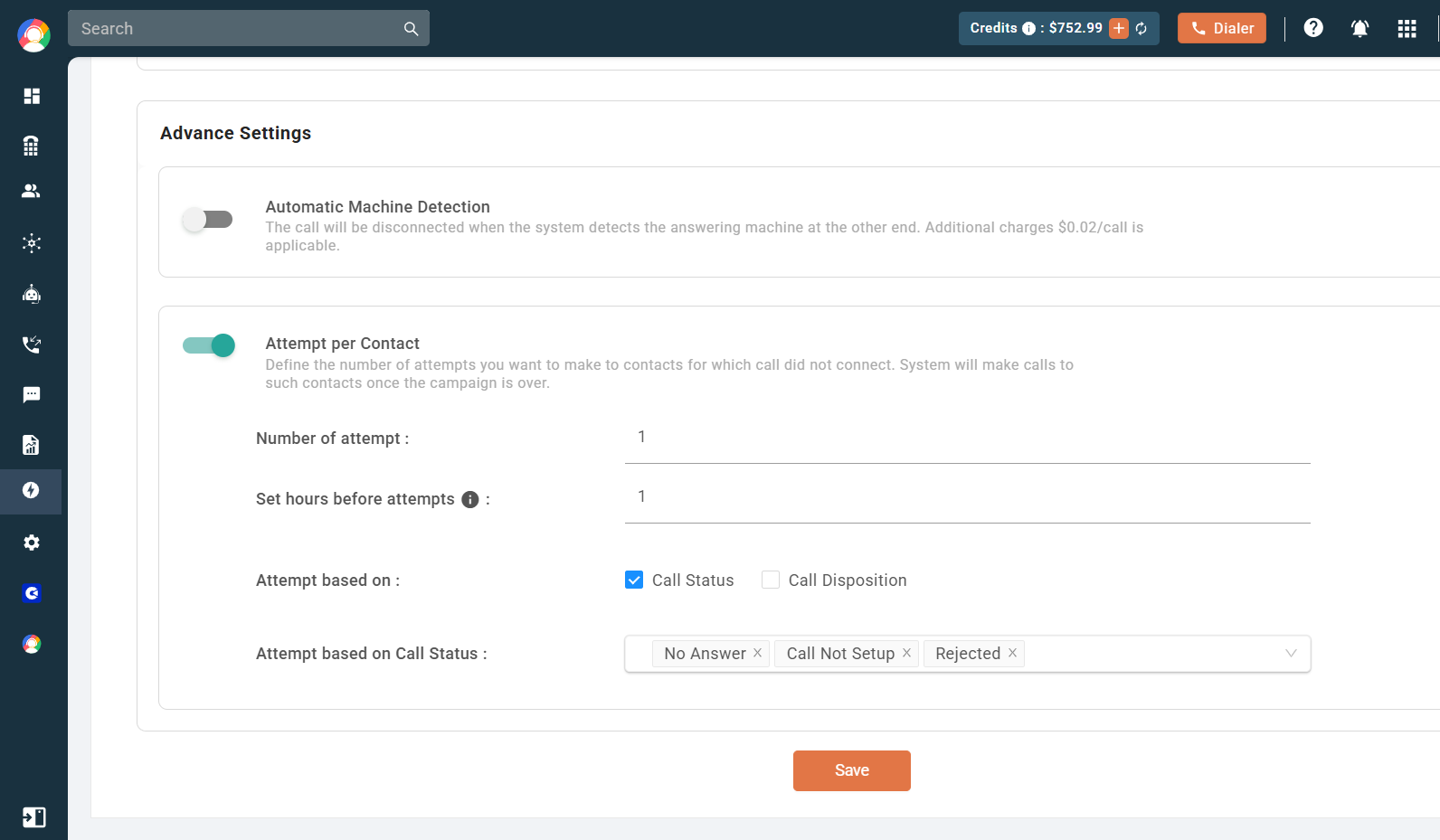
- Attempt per Contact – reattempt unconnected numbers after a set time. Set the number of attempts, the hours to pause before the next attempt, and whether attempts are based on Call Status, Call Disposition, or both.
Click Save to create the campaign.
Campaign List: Start and Manage Campaigns
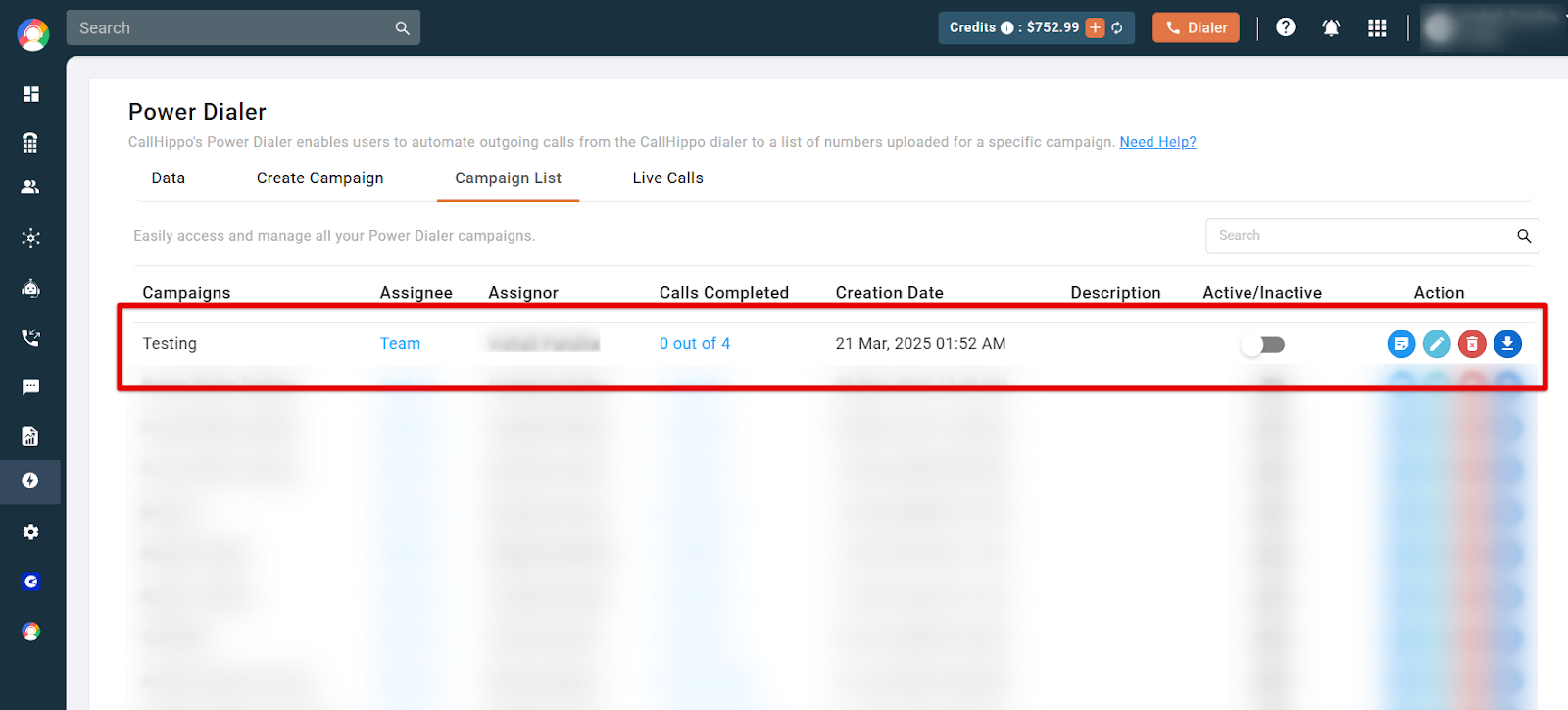
All created campaigns appear under the Campaign List. Make sure every agent has their dialer open, then click the toggle to start the campaign. Agents will begin receiving calls on their dialers.
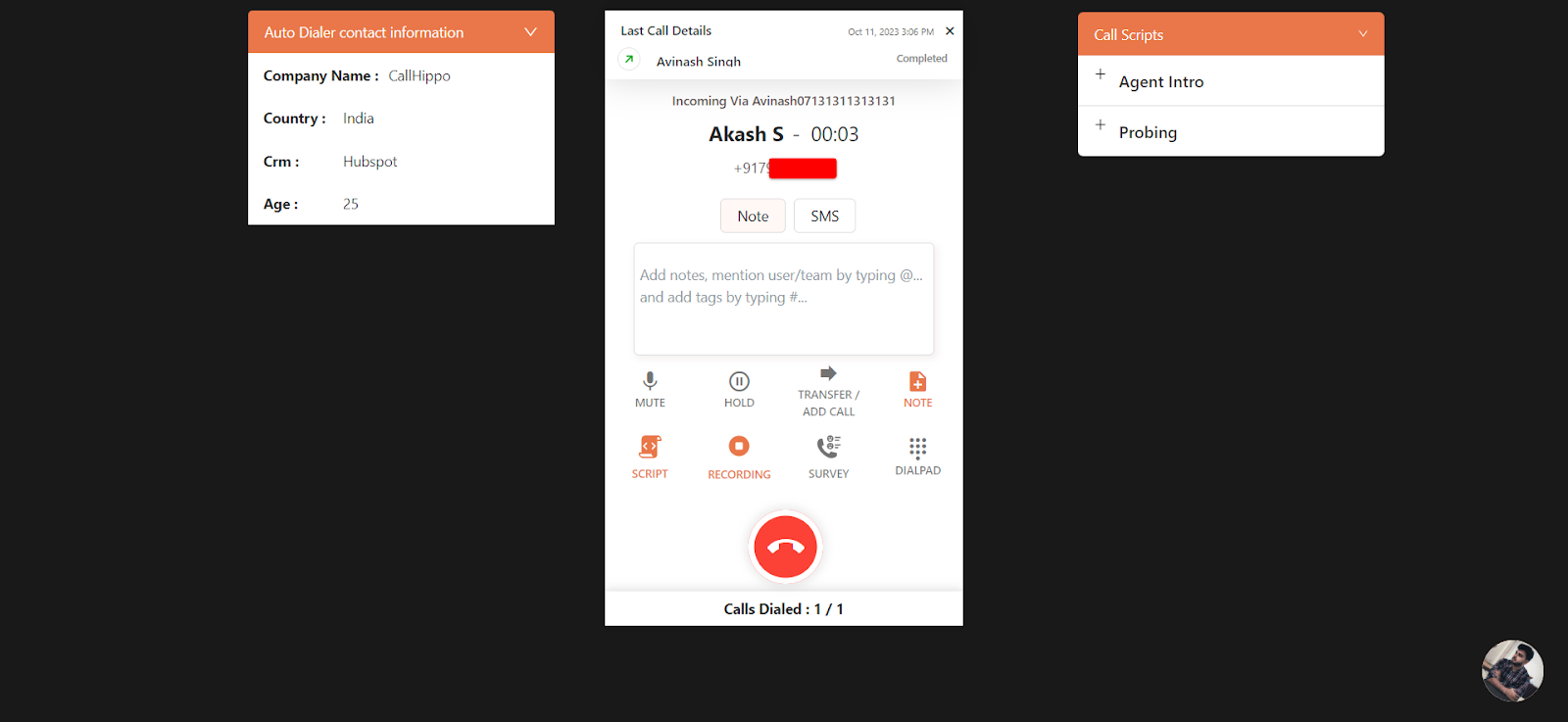
When a call connects, the agent sees the contact’s details alongside call controls and any call scripts.
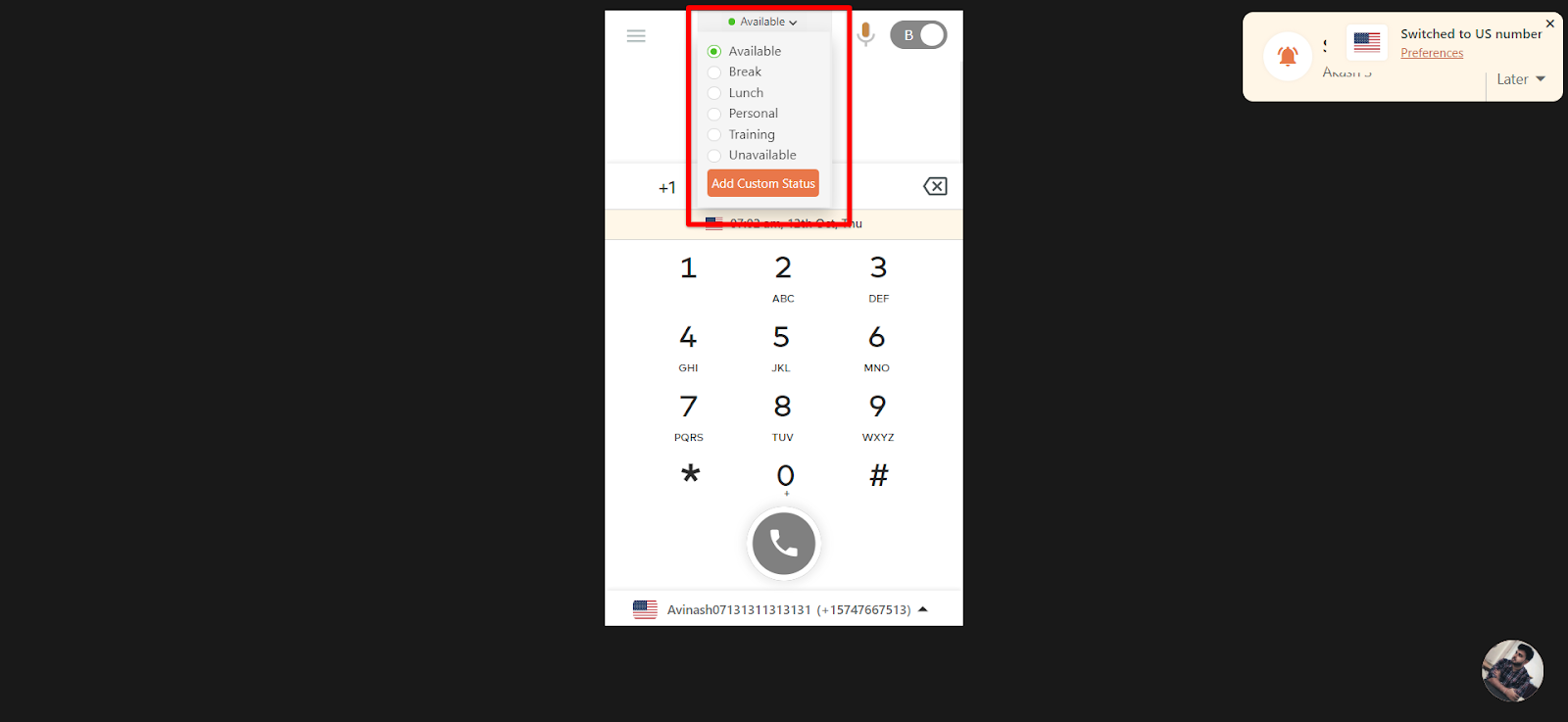
Agents can change their availability status to take a break and switch back when they return.
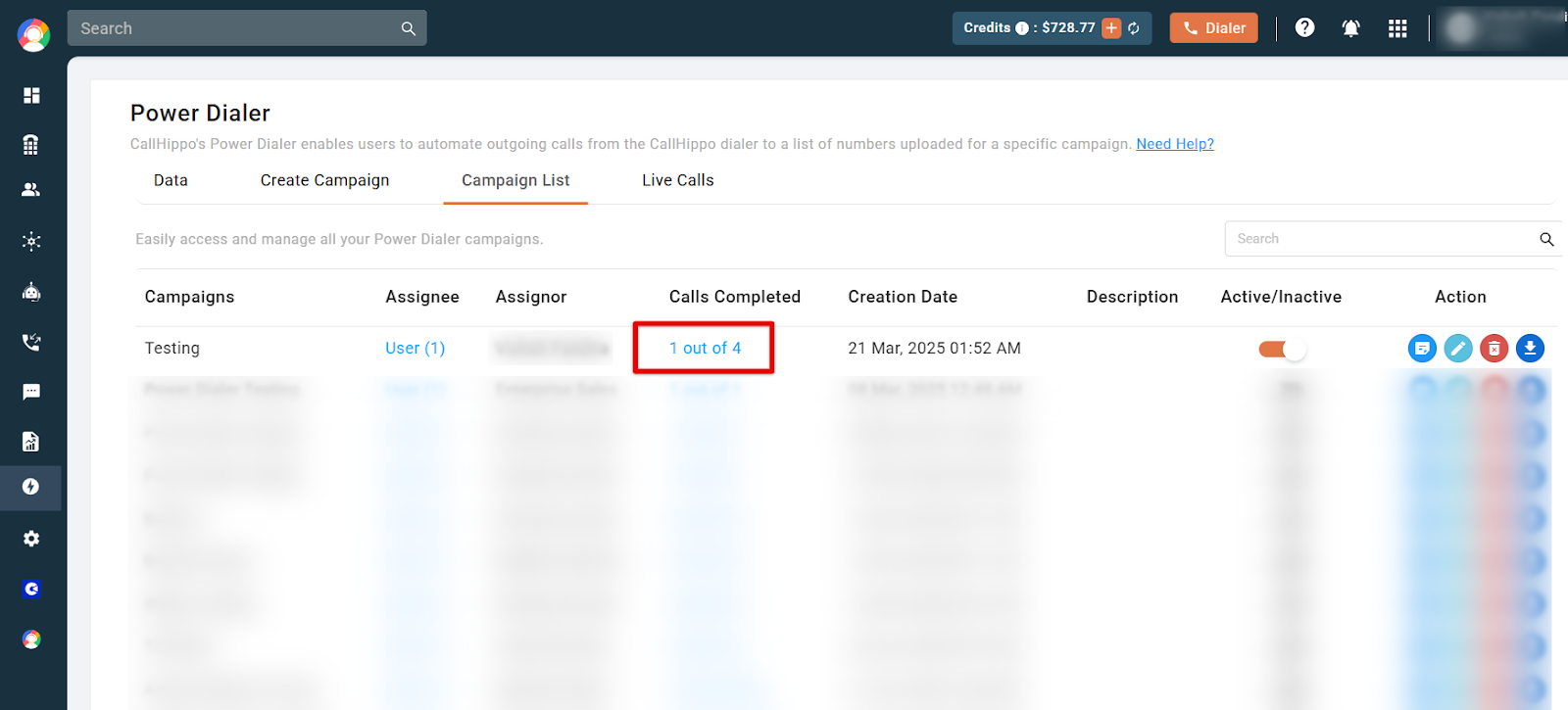
To check progress, return to the Campaign List where the number of calls made is shown.
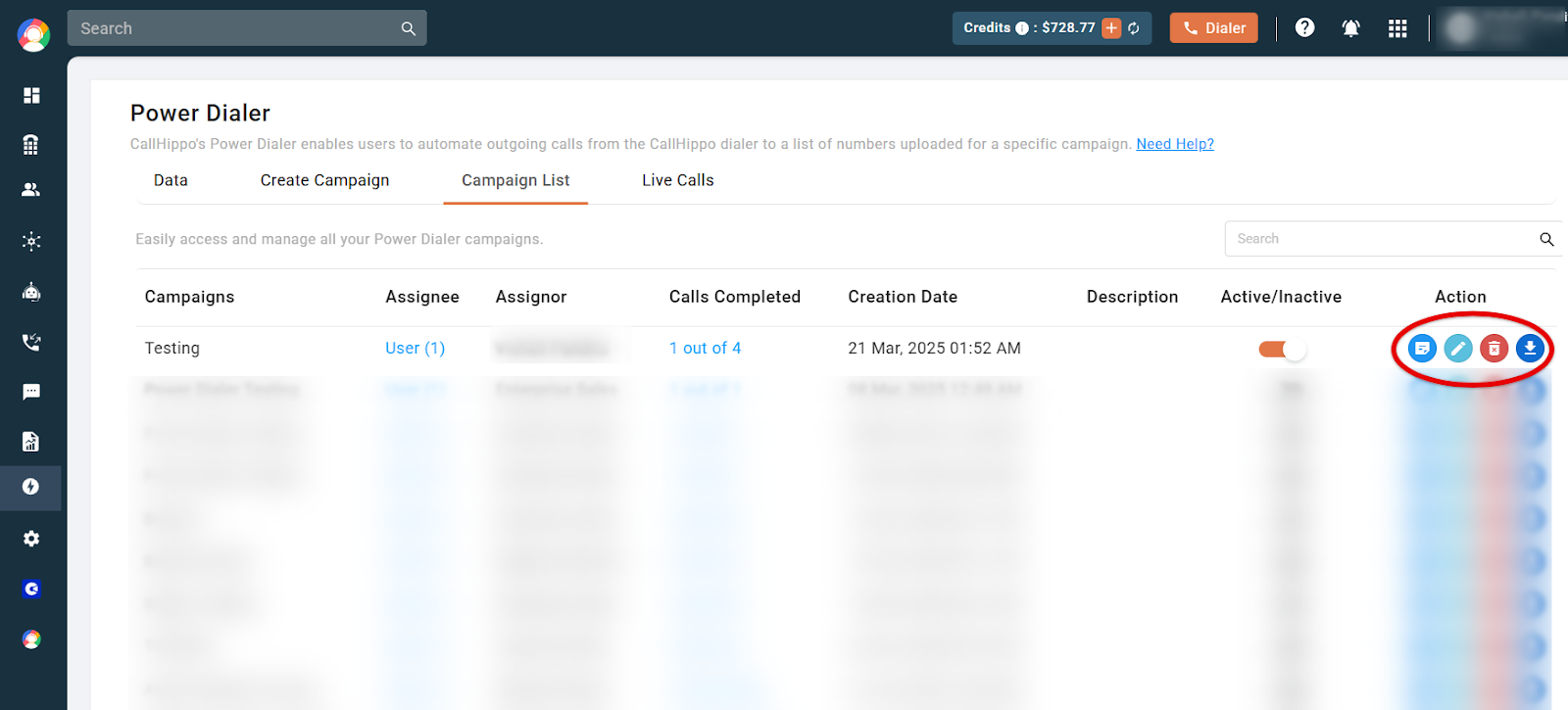
From the action buttons you can edit or delete the campaign, download the report, or view it.
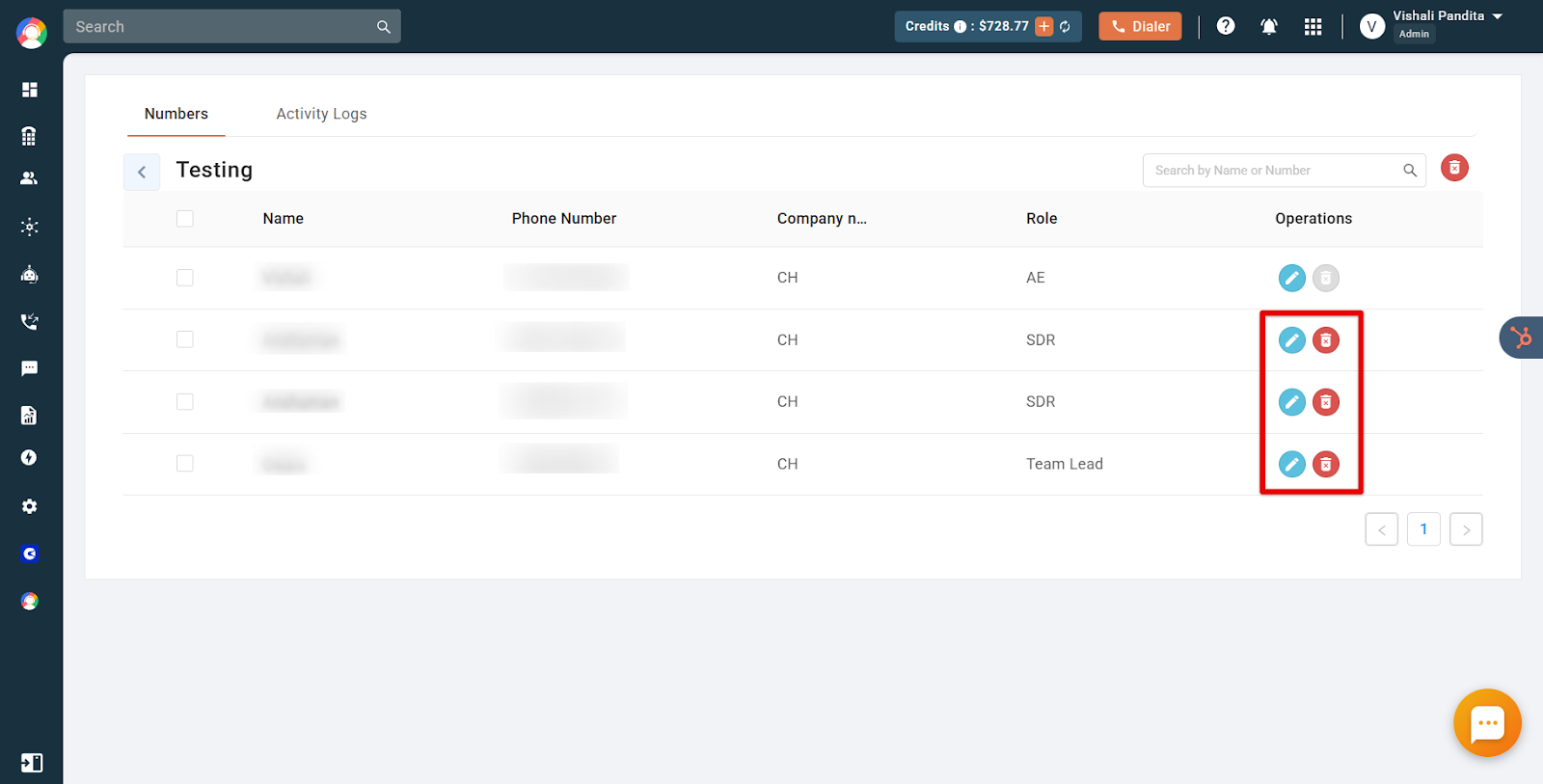
In the View section you can access the uploaded contact details and edit or delete any contact the system has not yet called.
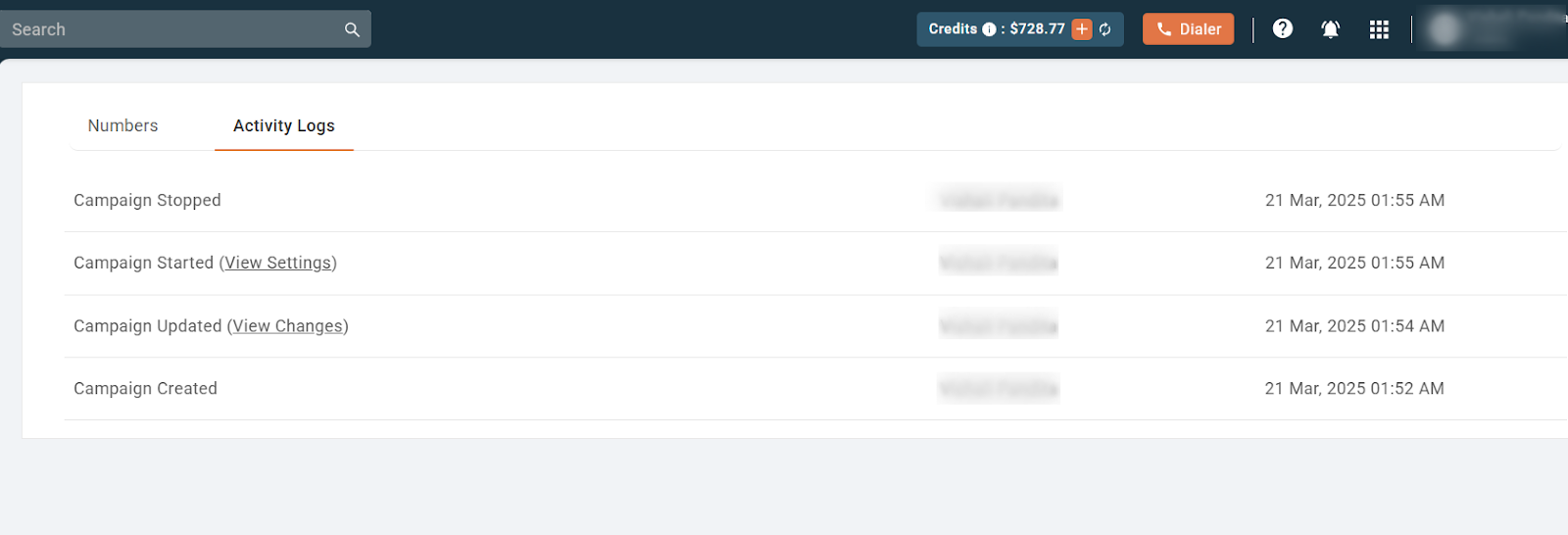
The Activity Logs section lets you audit campaign activity, including the timestamp and the person who performed each action.
Live Calls
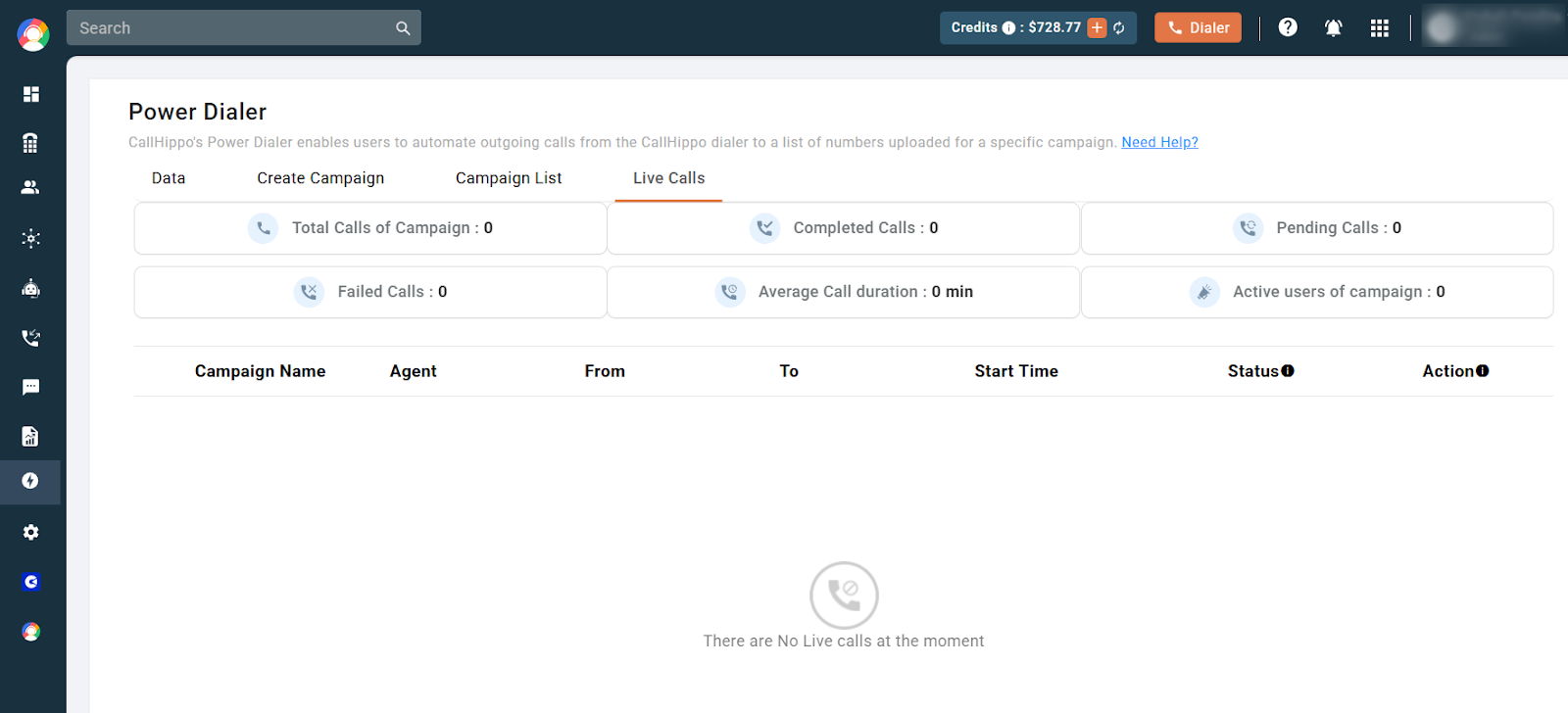
The Live Calls tab shows all ongoing calls in active campaigns, with detailed insights including total calls in the campaign, completed calls, pending calls, failed calls, average call duration, and active users in the campaign.
Frequently Asked Questions
Can multiple campaigns run simultaneously?
Yes. The Power Dialer lets you create and run multiple campaigns at the same time for efficient call management and better outreach.
What format should the contact list be in?
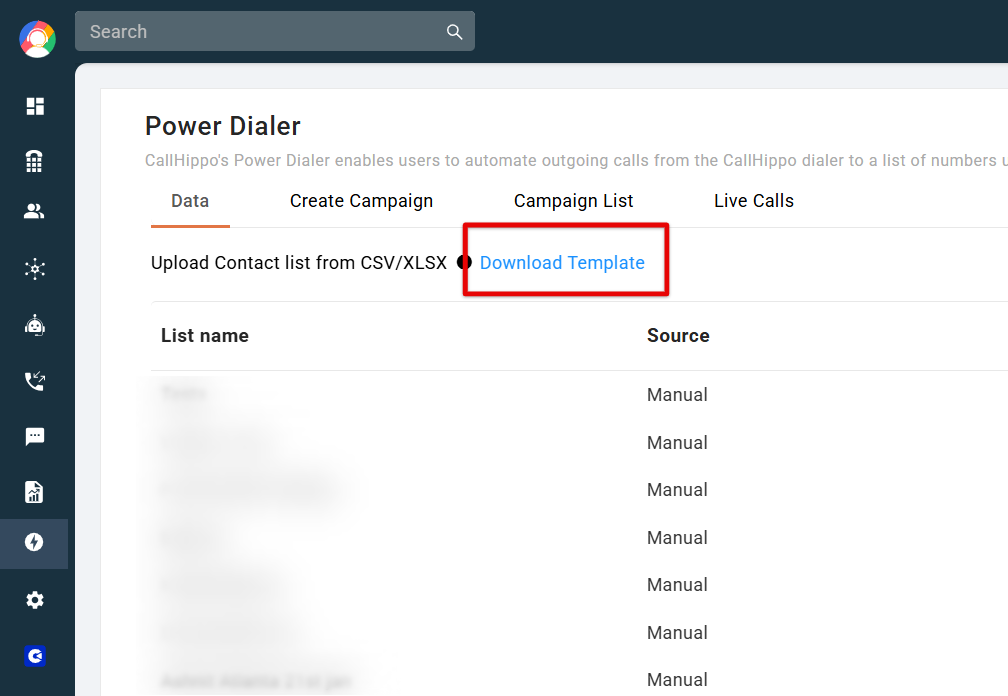
Upload the list in the specific format provided by the system. Download the template from the Data tab to be sure.
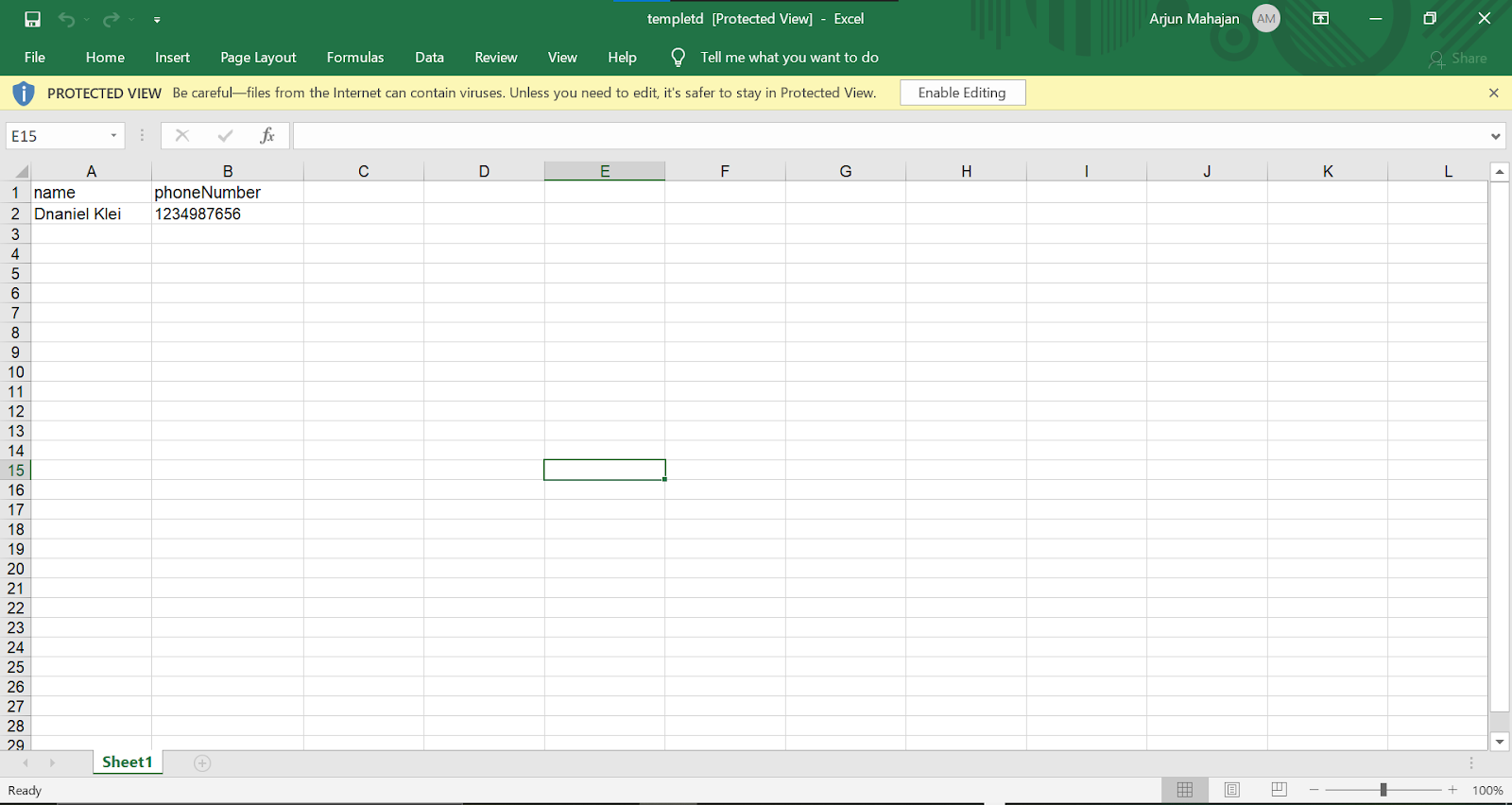
Keep these points in mind: numbers must be complete with the country code and free of special characters; names and numbers must be filled in with no blank rows or columns; and you can add up to 10 columns, which will all appear in the dialer during calls.
What are the benefits of Auto Voicemail Drop?
It lets you leave a message even when a call is unanswered. Instead of recording a voicemail each time, the system delivers a pre-set message when a call reaches voicemail. Key advantages:
- Saves time – no need to leave voicemails manually.
- Increases connectivity – your message reaches prospects even if they do not answer.
- Consistency – delivers a uniform message across all unanswered calls.
- Improves productivity – agents focus on live conversations rather than voicemail recordings.