
CallHippo’s pricing page has been updated to help you easily compare plans, features, and add-ons — all on a single page. This guide walks you through the updated pricing page step by step so you can choose the right plan with confidence.
Before You Begin
We recommend watching the demo video walkthrough on the pricing page before getting started. It provides a quick overview to help you navigate the updated layout more easily. Everything below can also be done directly from the CallHippo pricing page, where all plans, features, and pricing details are available.
Step 1: Visit the Pricing Page
Go to the official CallHippo pricing page at https://callhippo.com/pricing/. All plans, features, and pricing details are available on this single page.
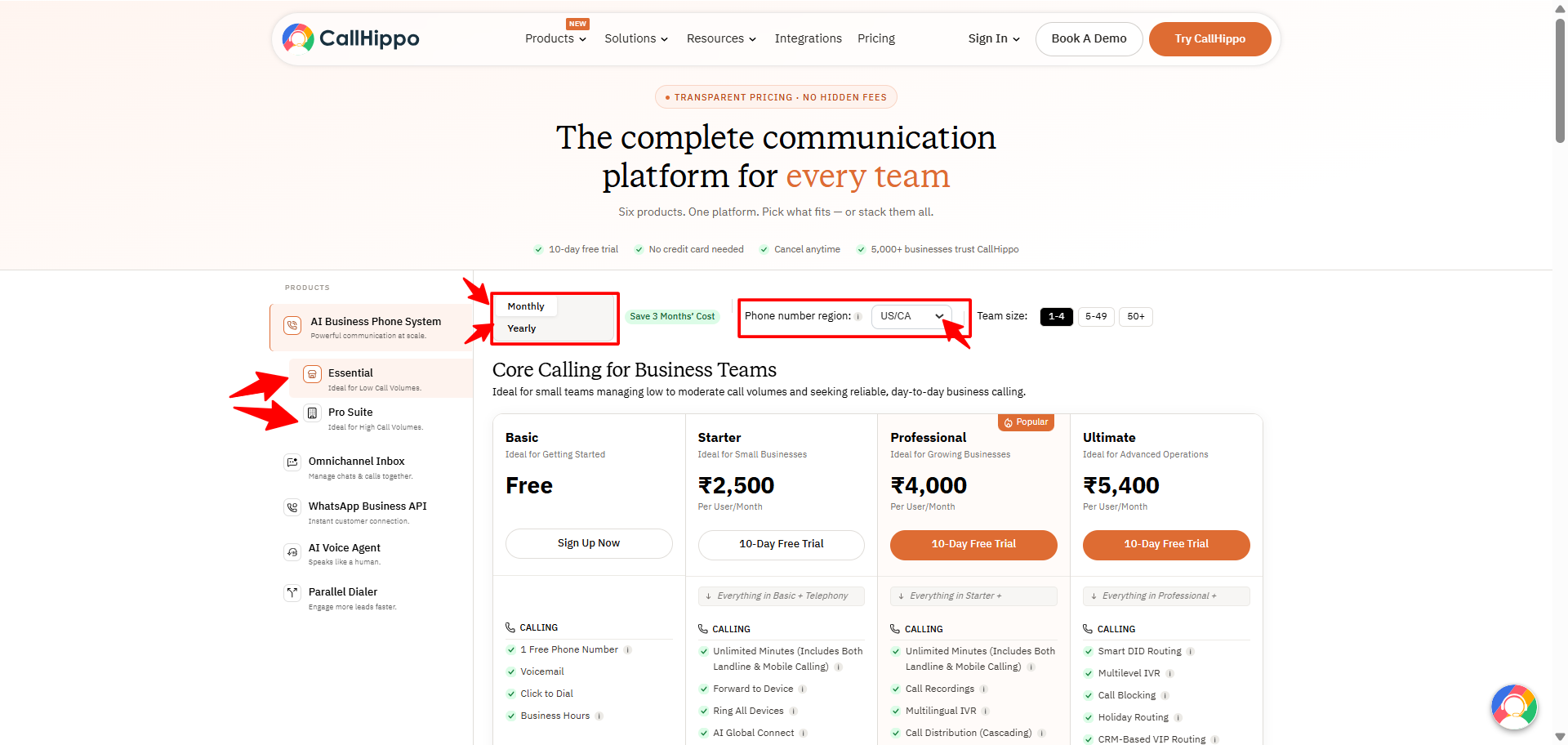
Step 2: Review the Available Plans
At the top of the page, you’ll see different plan cards. Each card displays the essentials at a glance:
- Plan name — for example, Basic, Starter, Professional, and Ultimate
- Price per user — the monthly cost per user
- Key features — a summary of what’s included
This lets you quickly compare plans side by side.
Step 3: View the Full Feature Comparison
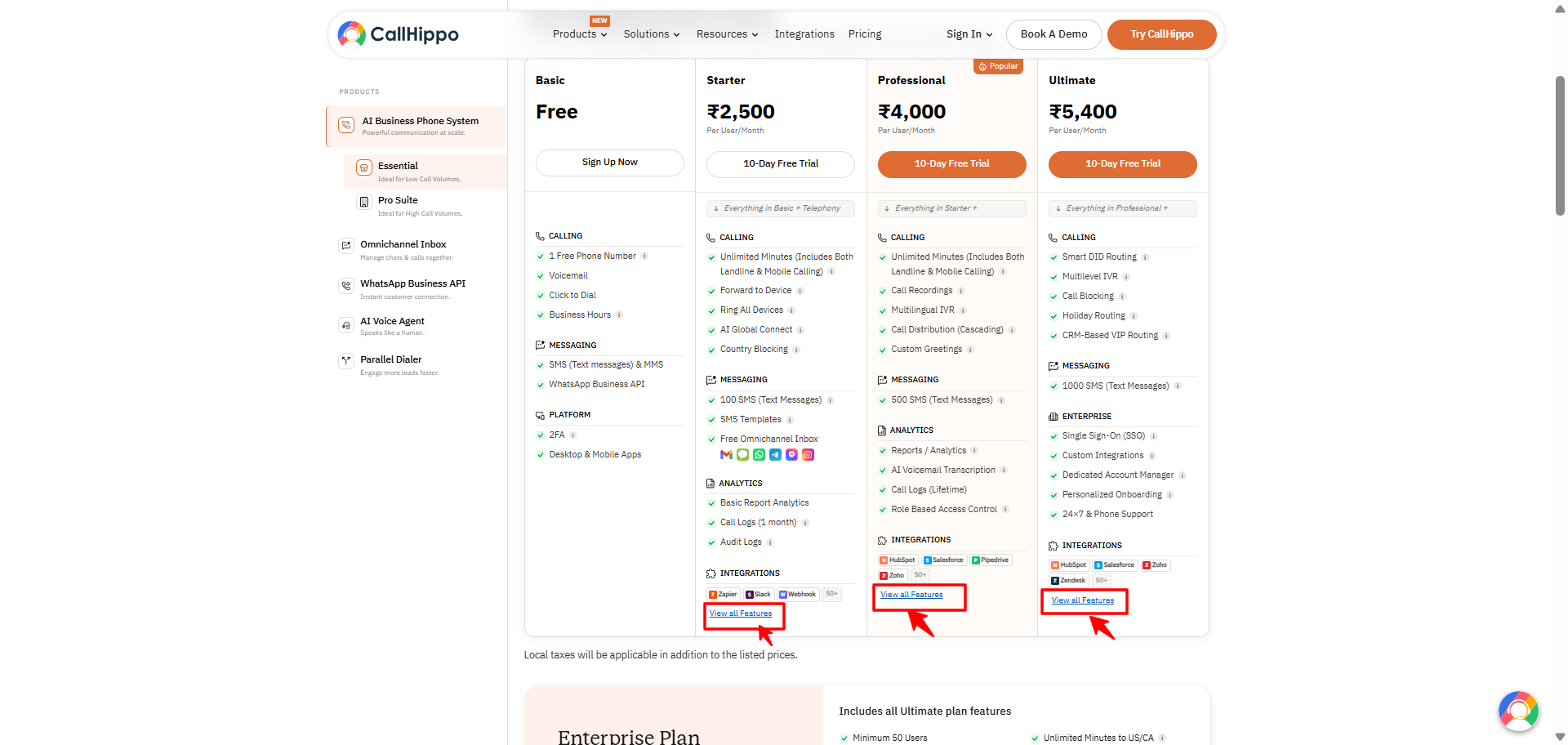
Each plan card includes a View all Features link so you can see everything bundled into that tier.
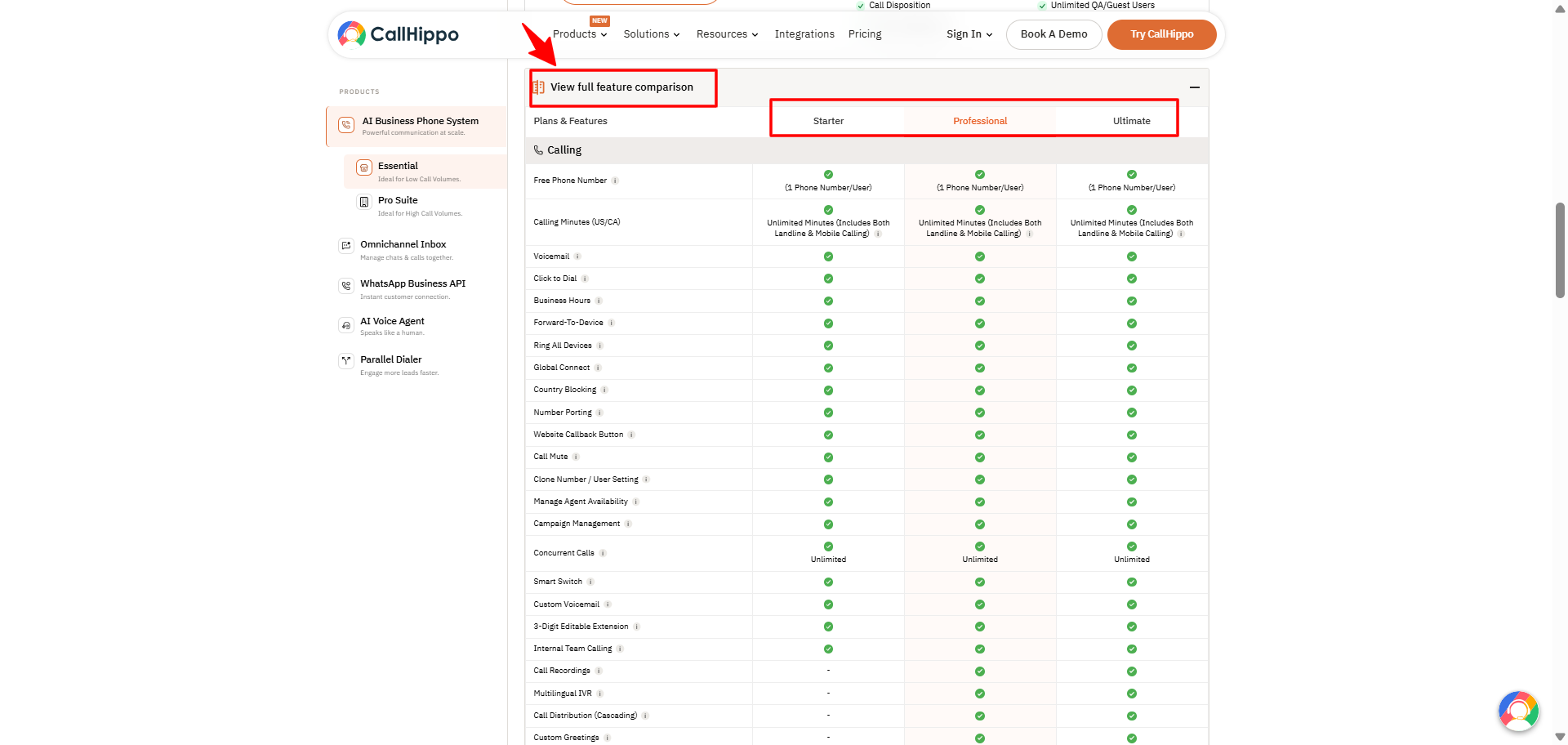
Scroll down on the same page to open the detailed feature comparison table. This section clearly lists all features included in each plan, making it easier to identify which plan meets your business requirements.
Step 4: Select Monthly or Annual Billing
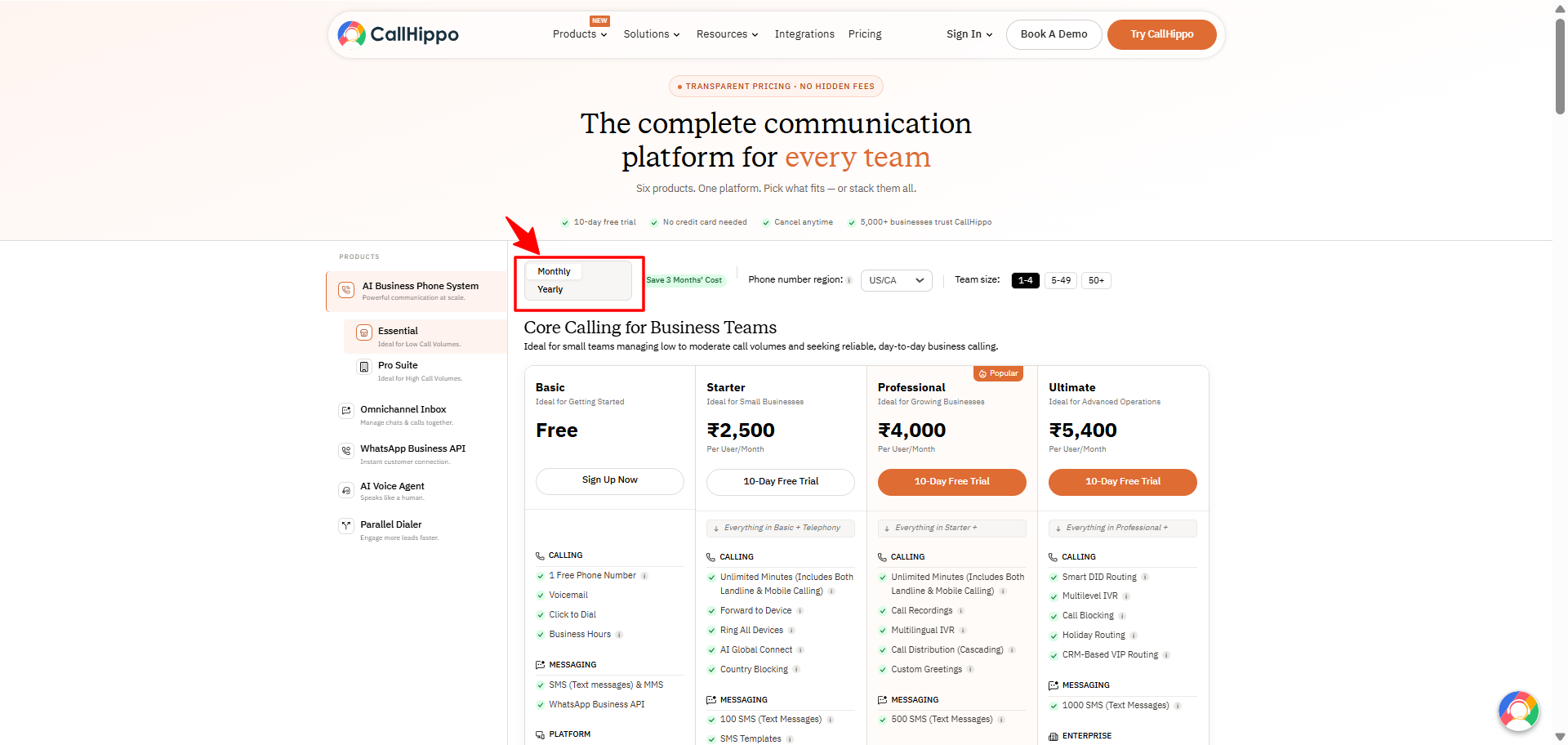
Use the billing toggle to switch between:
- Monthly billing — pay month to month
- Annual billing — discounted pricing when you commit for the year
Choose the option that best fits your budget.
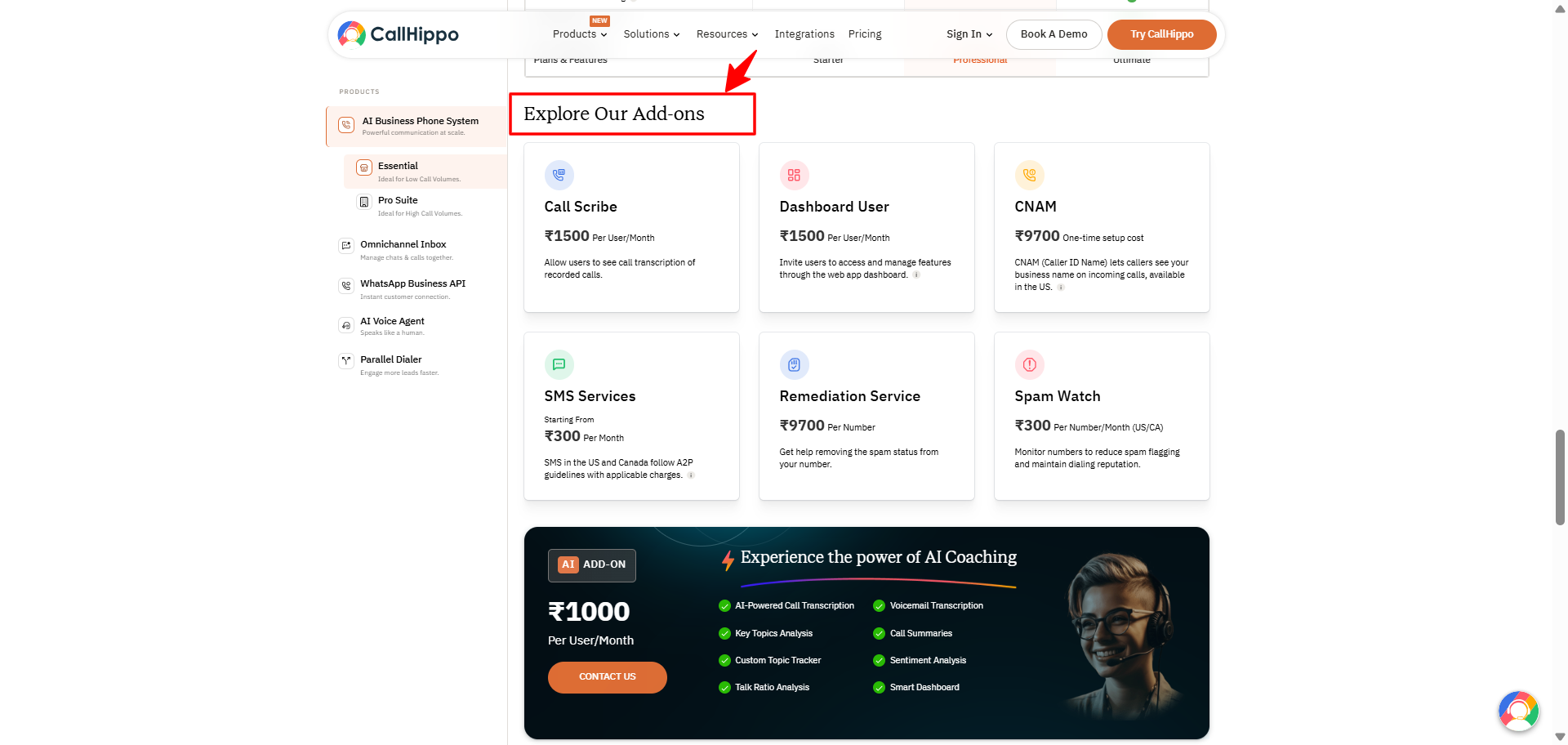
Step 5: Explore Add-On Services
Scroll further down to the Add-On Services section. Here you can:
- View the available add-ons
- Check the pricing listed for each add-on
- Decide which additional services you may need
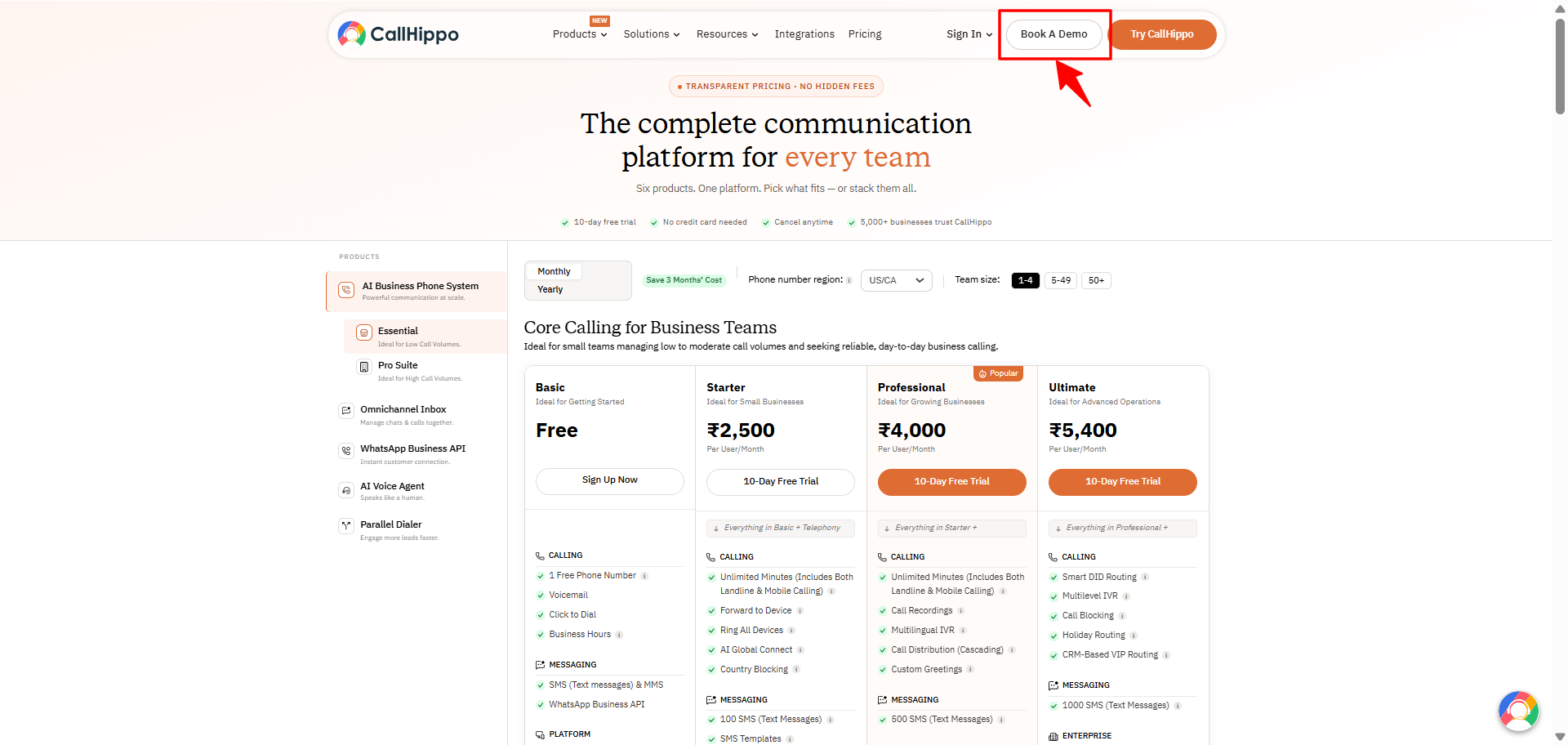
Step 6: Book a Demo (If You’re Still Unsure)
If you’re unsure which plan to choose, you can fill in your details and book a demo directly from the pricing page.
Important:
- Demo bookings are applicable for accounts with three or more users.
- If you are looking to create or upgrade an account for one or two users, please reach out to our support team for assistance instead of booking a demo.
Step 7: Select Your Plan and Continue
Click Get Started or Buy Now on your preferred plan:
- New users will be prompted to create an account.
- Existing users can log in and upgrade their plan.
Step 8: Complete Your Setup
Once your plan is selected, you can:
- Add users
- Purchase phone numbers
- Add calling credits
You’re now ready to start using CallHippo.
We hope this helps. If you still have questions, feel free to reach out at [email protected].