
Before Speed to Dial can work between Salesforce and CallHippo, Salesforce needs to trust requests sent to CallHippo’s servers. You do this by adding a Remote Site Setting. This short guide walks you through the setup.
Before you begin
- You need administrator access to your Salesforce org.
- Your CallHippo account should already be connected to Salesforce.
- The remote site you will add points to https://activity.callhippo.com.
Set up the remote site in Salesforce
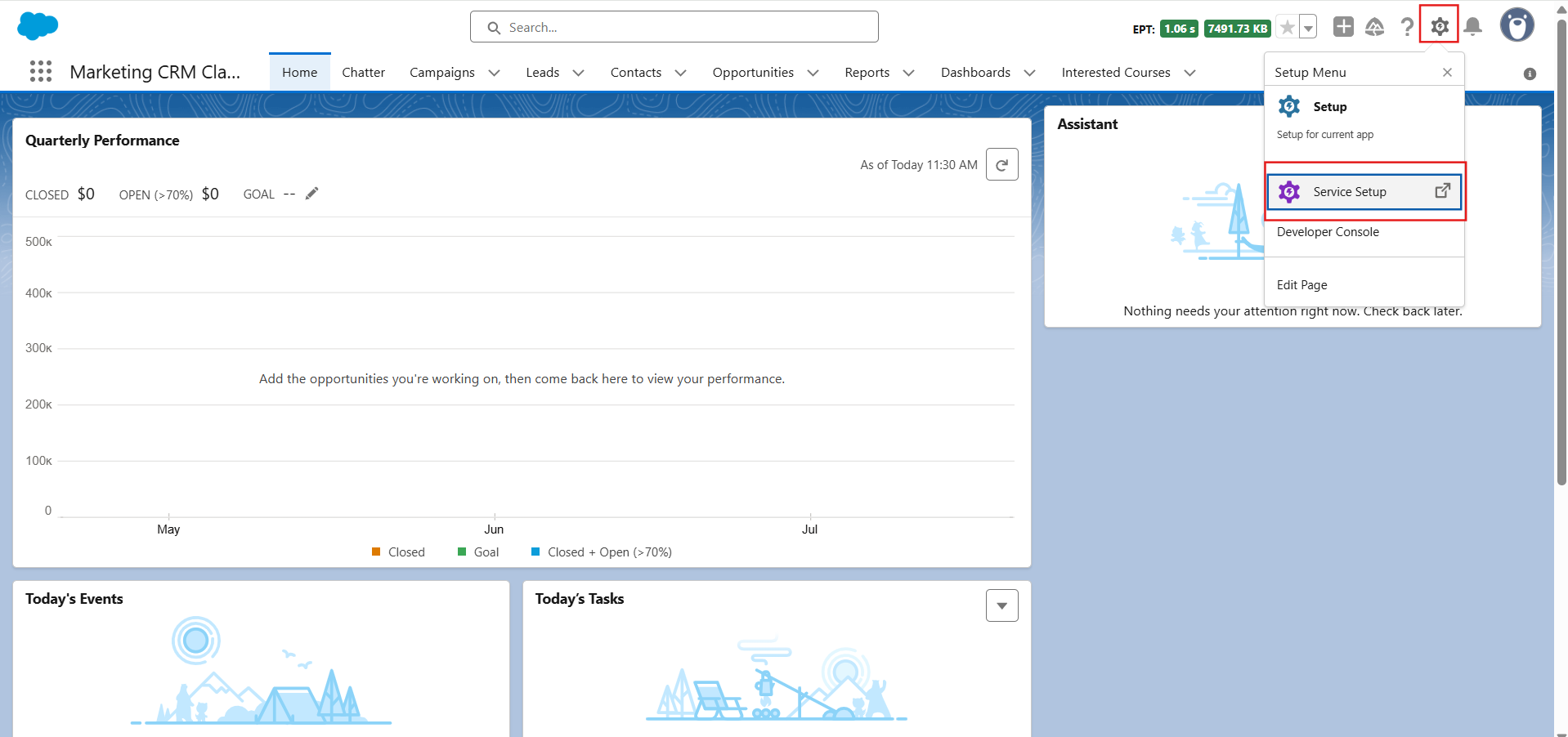
- Log in to your Salesforce account, click the Setup icon in the top-right corner, and select Service Setup from the menu.
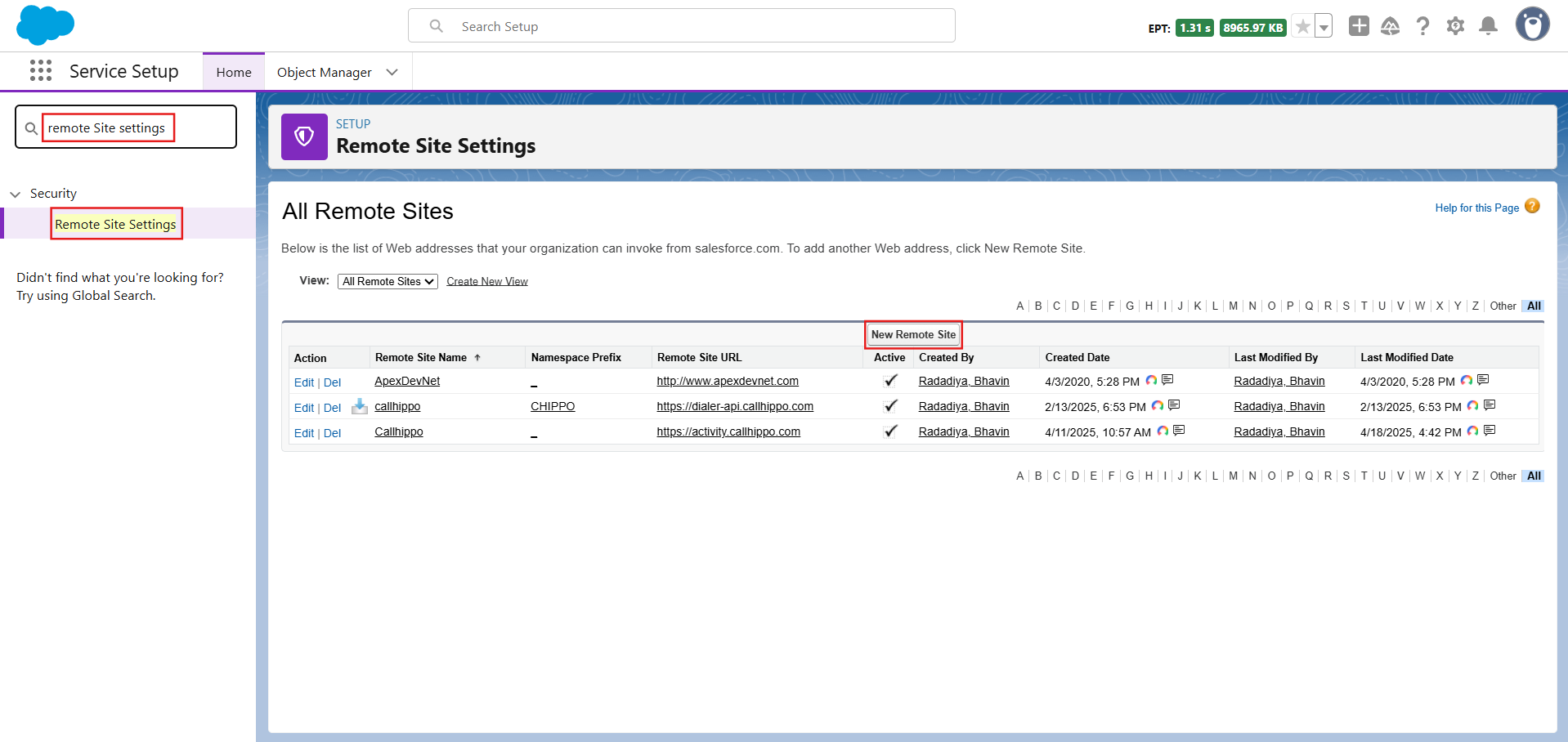
- In the search bar, type Remote Site Settings, open it, then click New Remote Site.
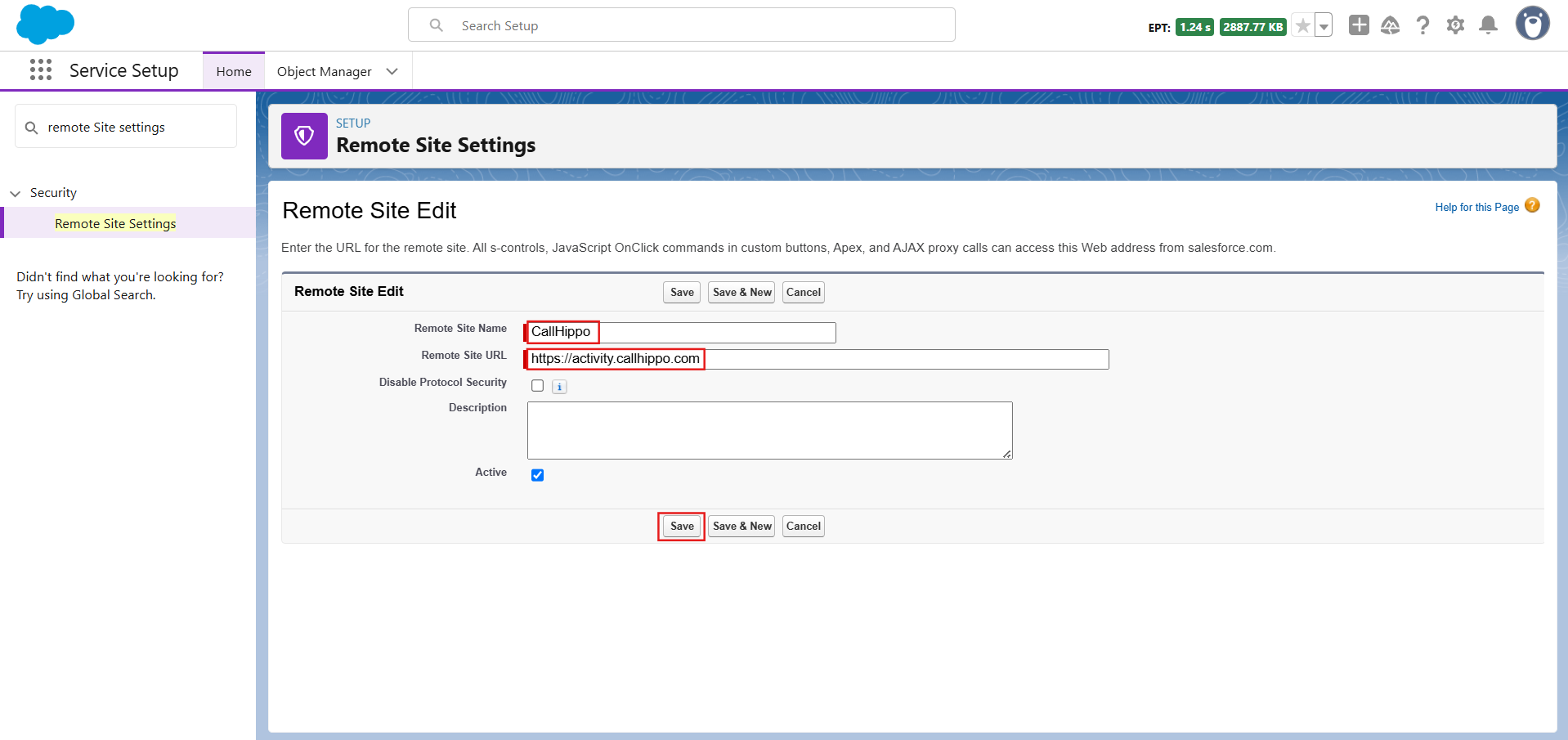
- On the Remote Site Edit page, fill in the details below and click Save:
- Remote Site Name — enter a name of your choice (for example, CallHippo).
- Remote Site URL — enter https://activity.callhippo.com
- Select the checkbox next to Active.
Verify the configuration
Once saved, the remote site appears in your list of Remote Site Settings with the Active status. Salesforce can now communicate with CallHippo, and Speed to Dial will function as expected.
Still need help? Reach us at [email protected].