
CallHippo brings SMS and MMS right into your dialer, so you can send messages, reply to threads, and track everything alongside your calls.
Understanding SMS and MMS
- SMS: Sends text messages of up to 160 characters.
- MMS: Extends SMS with multimedia such as images, videos, and audio for richer communication.
Method 1: Send an SMS from the dialer homepage
- Log in to your CallHippo dialer.
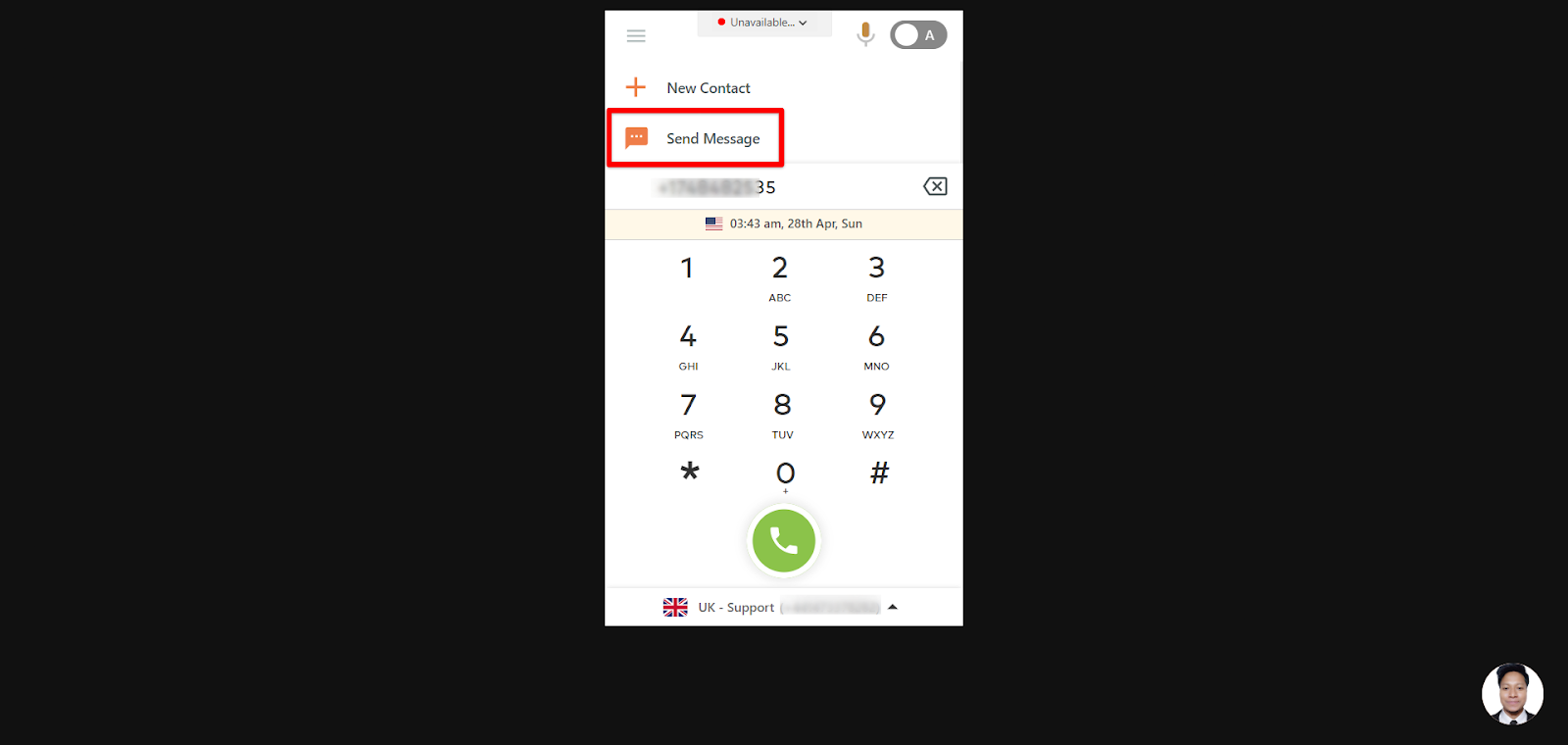
- Type the number you want to message.
- Click Send Message on the dialer screen.
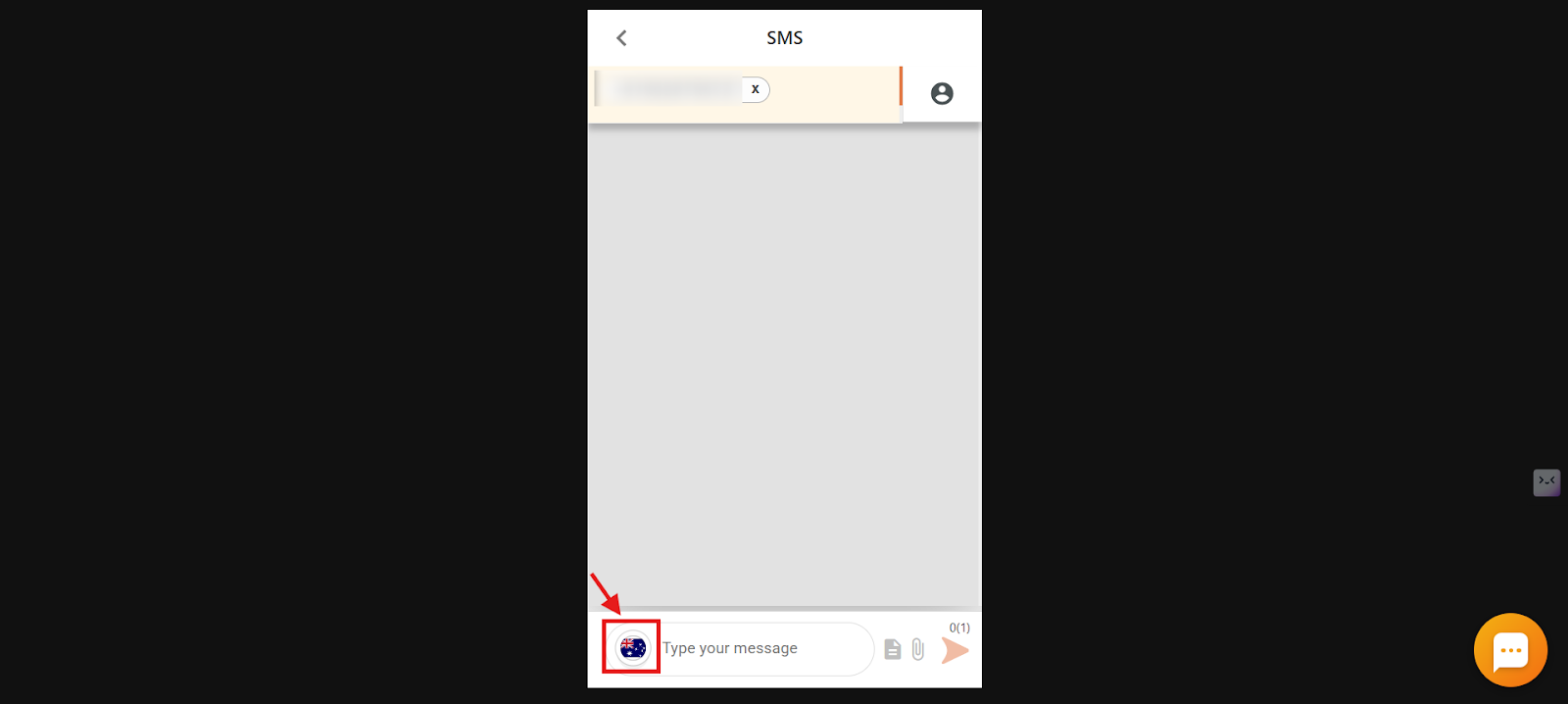
- Select the sender number from your allocated numbers.
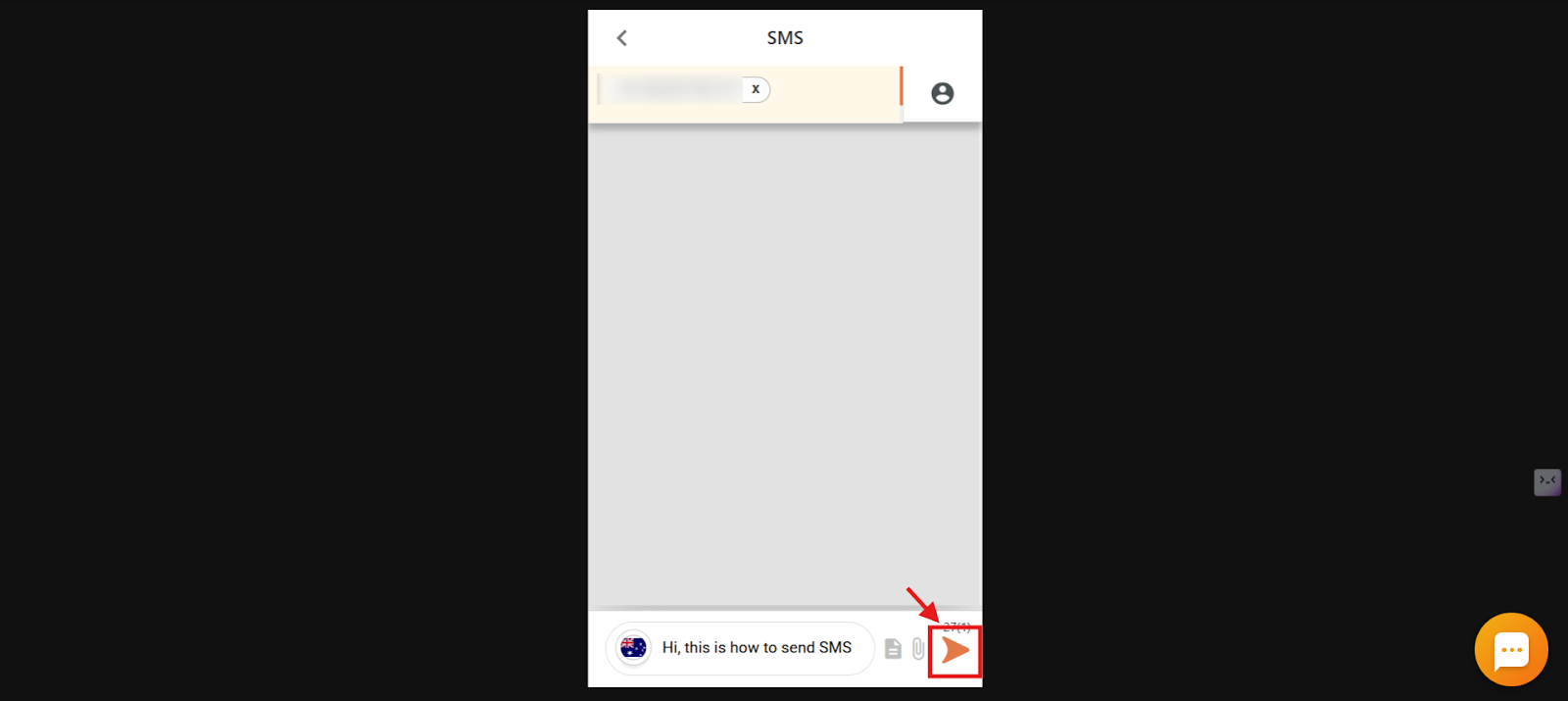
- Enter your message and click send.
Method 2: Send an SMS from the SMS / MMS section
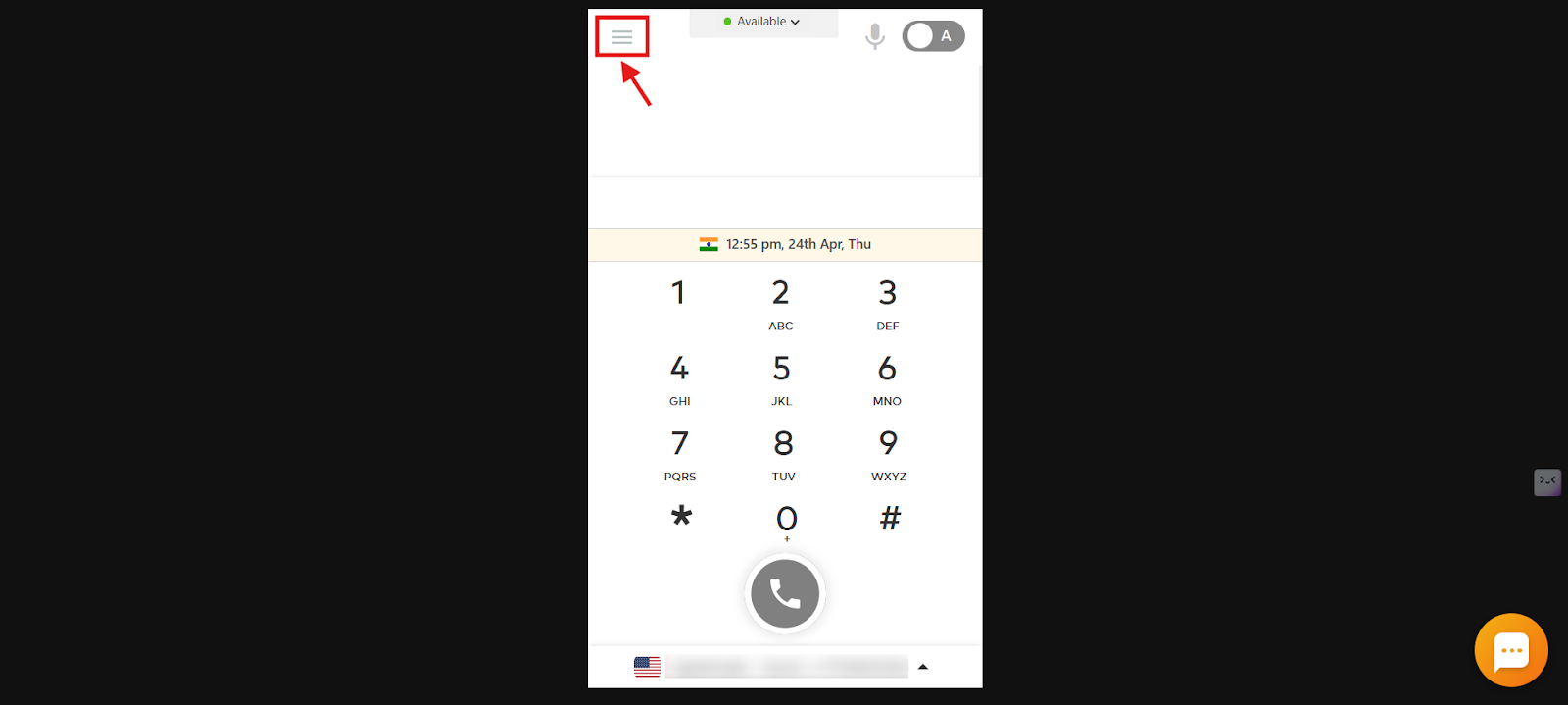
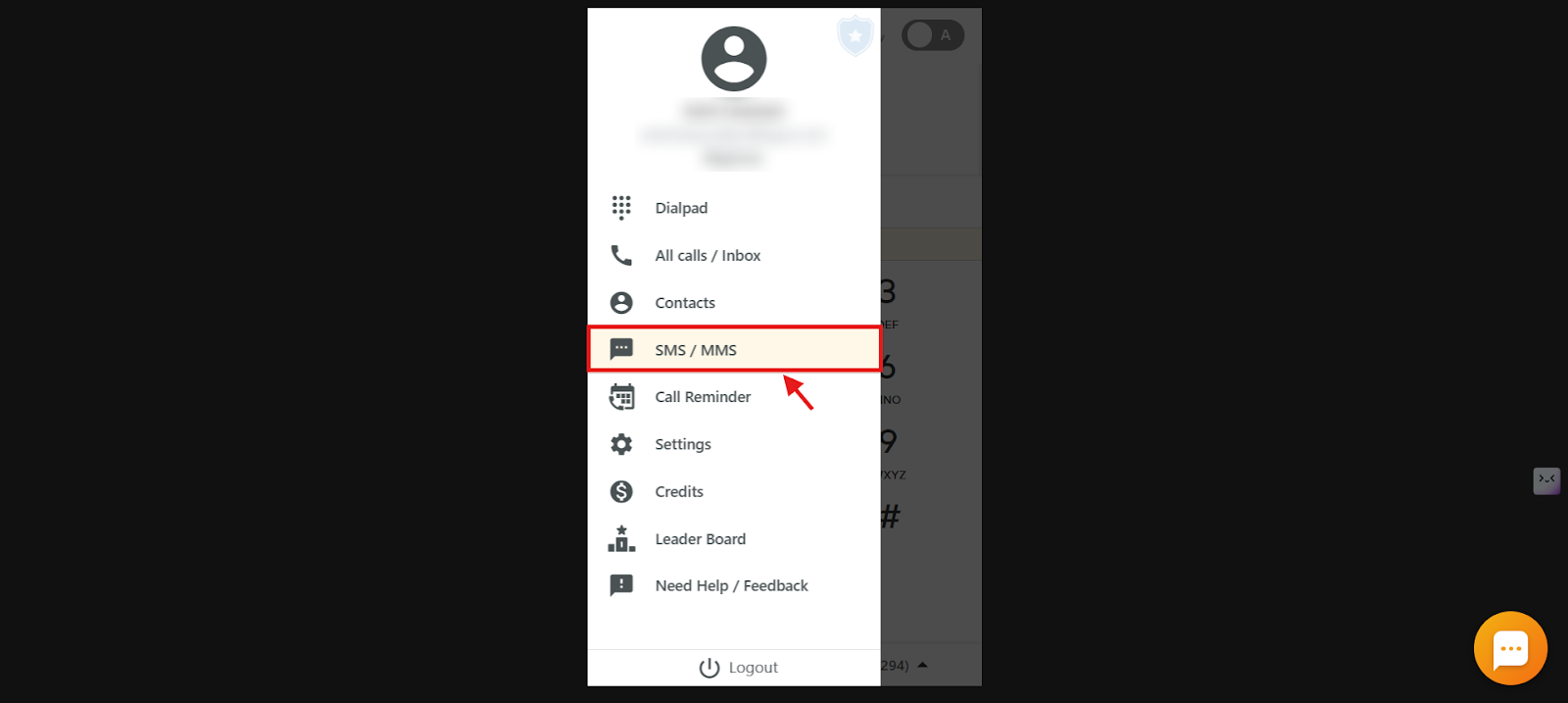
- Log in to your dialer and open the main menu.
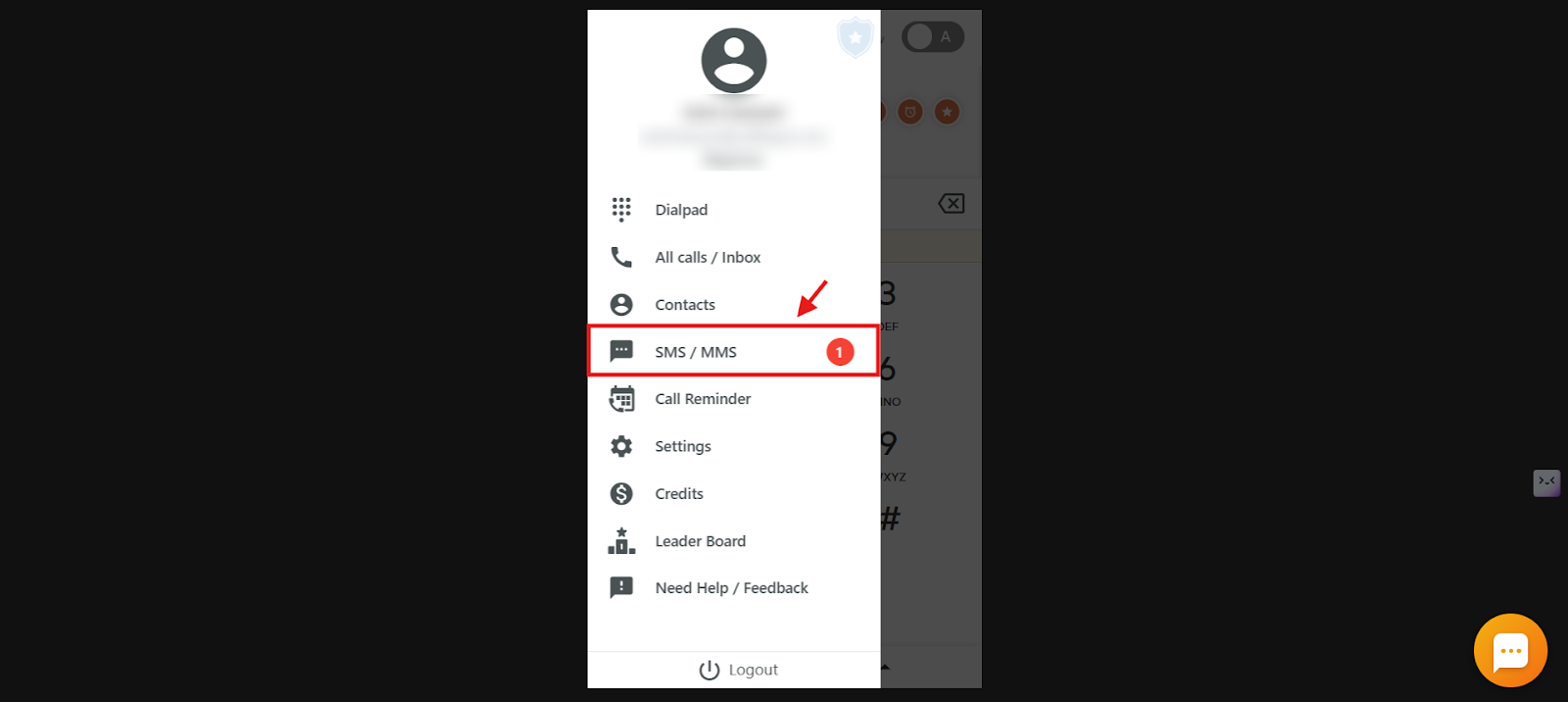
- Click SMS / MMS.
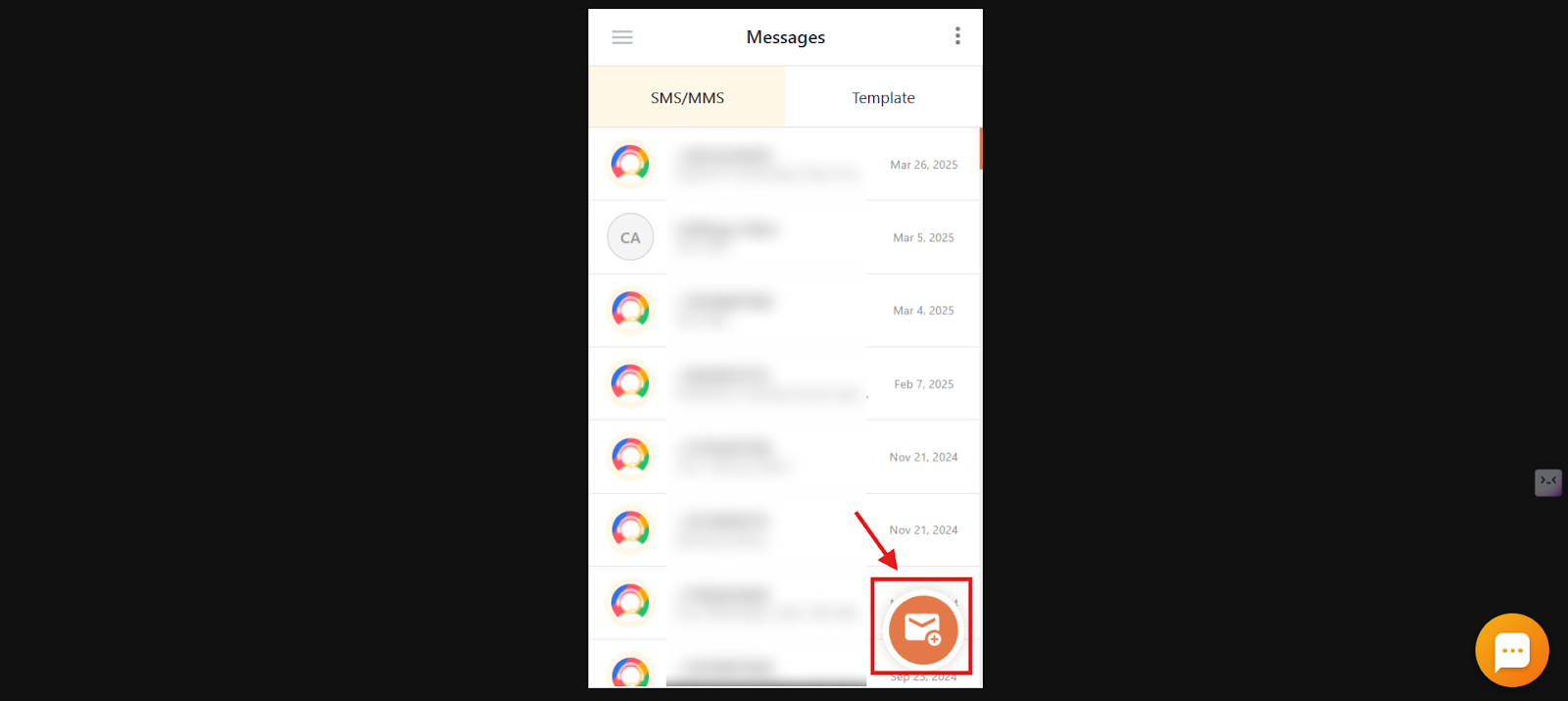
- Click the new SMS icon.
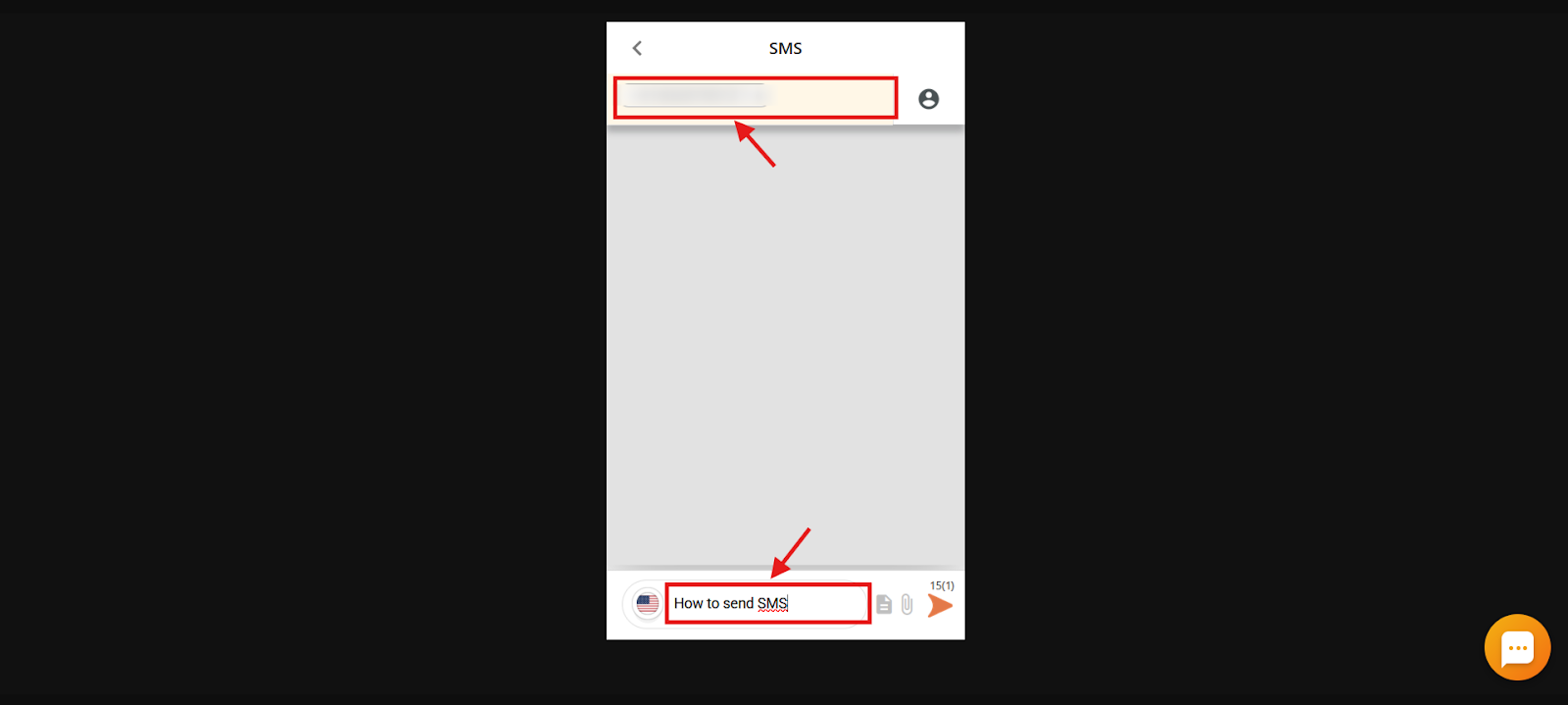
- Enter the number and message in their fields.
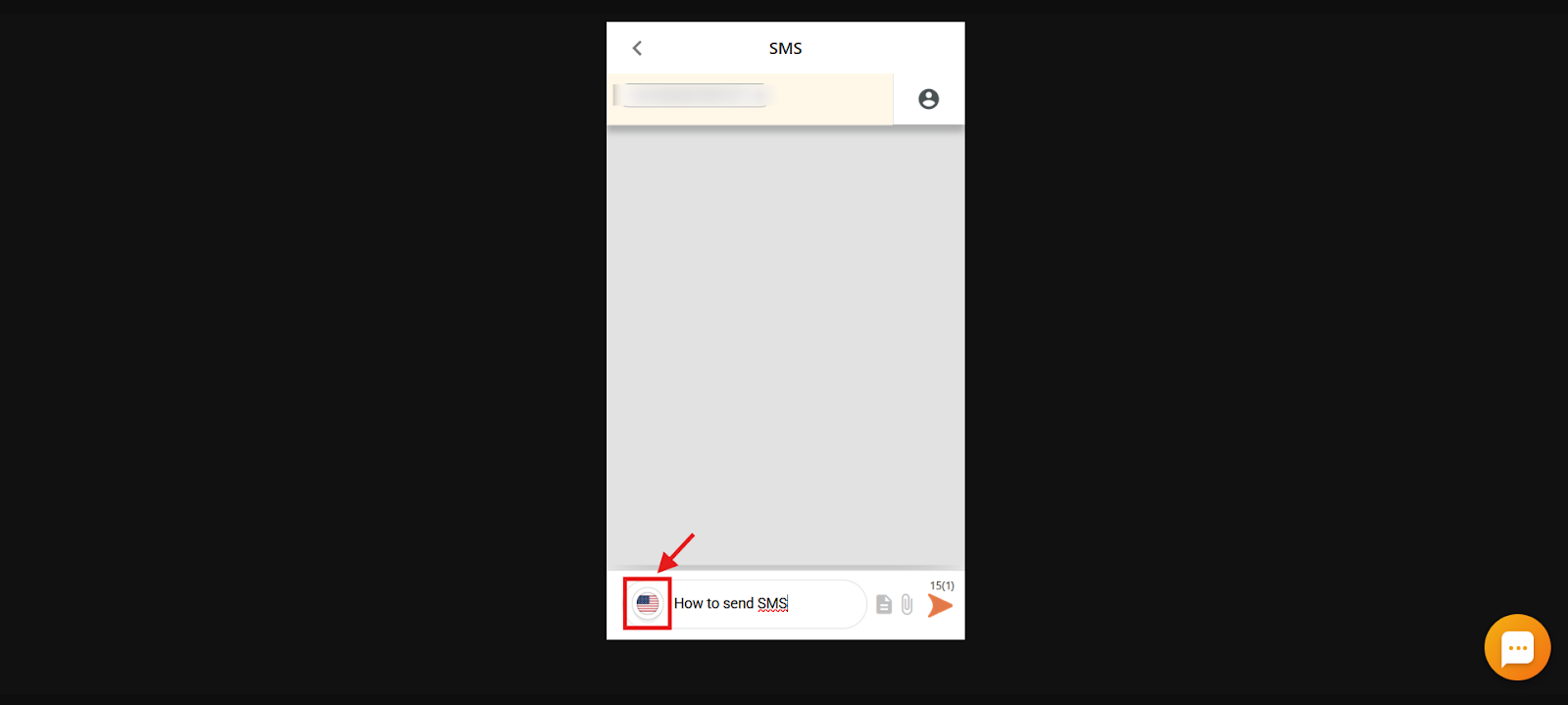
- Select the allocated sender number, then click send.
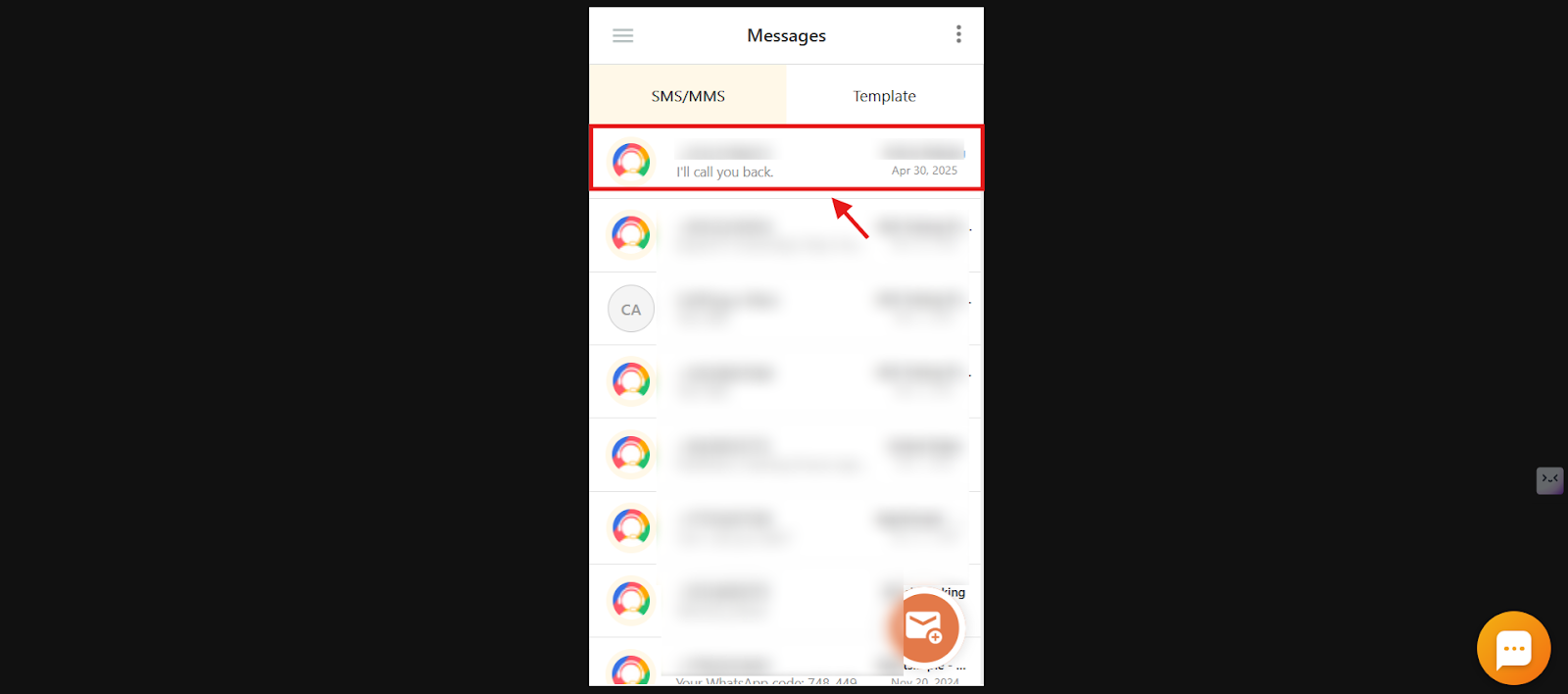
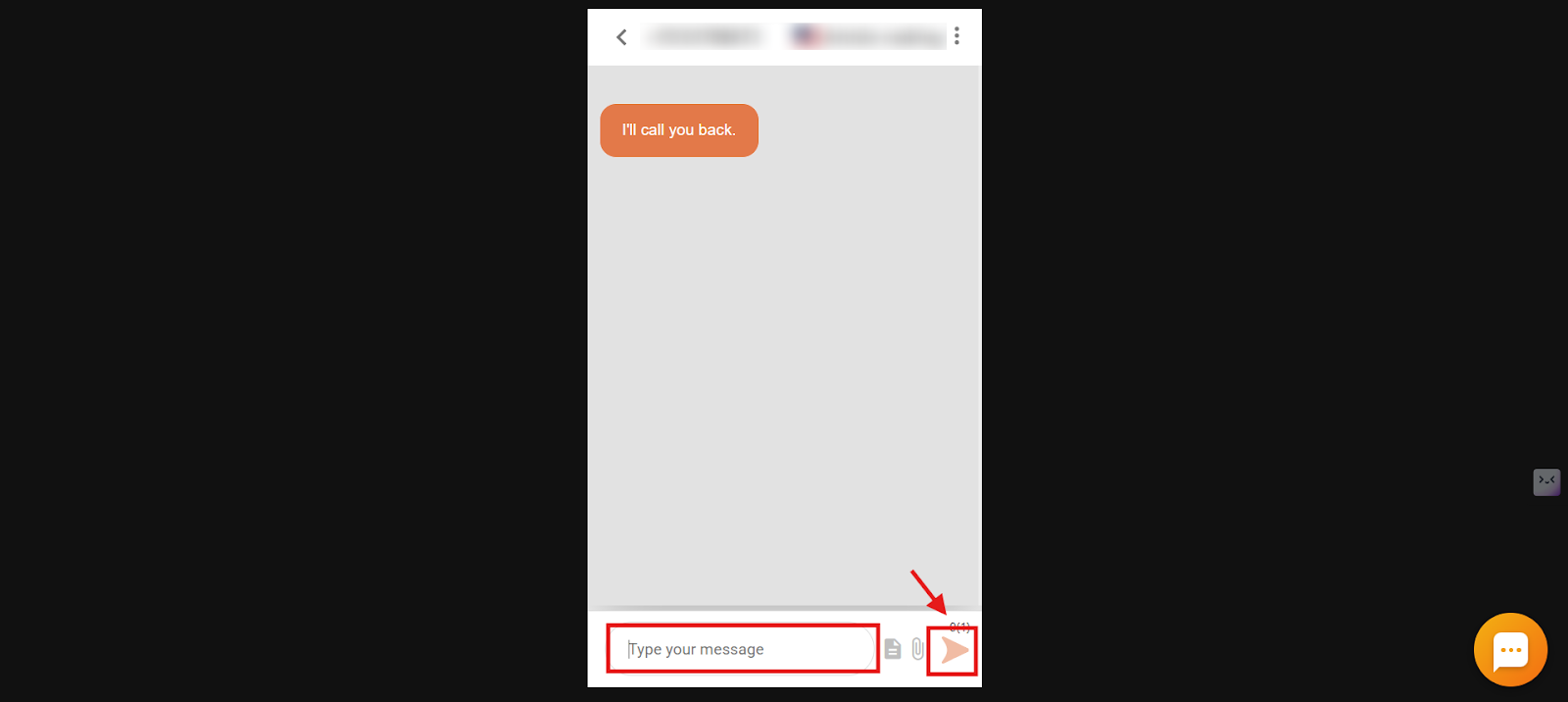
Method 3: Reply to an ongoing SMS thread
- Log in to your dialer and open the main menu, then click SMS / MMS.
- Click the ongoing thread from your SMS/MMS logs.
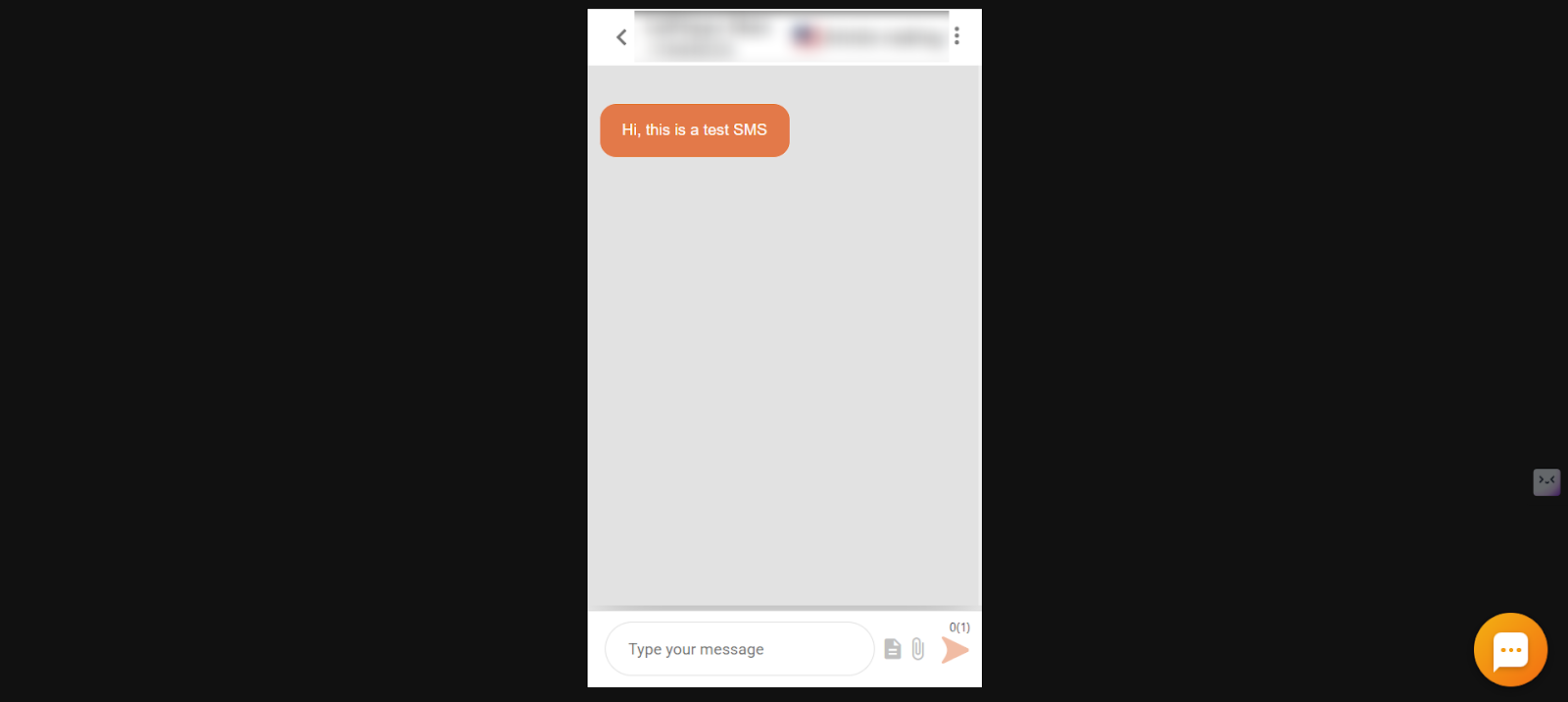
- Enter your message and click send.
Note: When replying within an existing thread, the system automatically uses the number that received the previous message. You cannot select a different sending number for that thread.
Method 4: Send an SMS to a saved contact
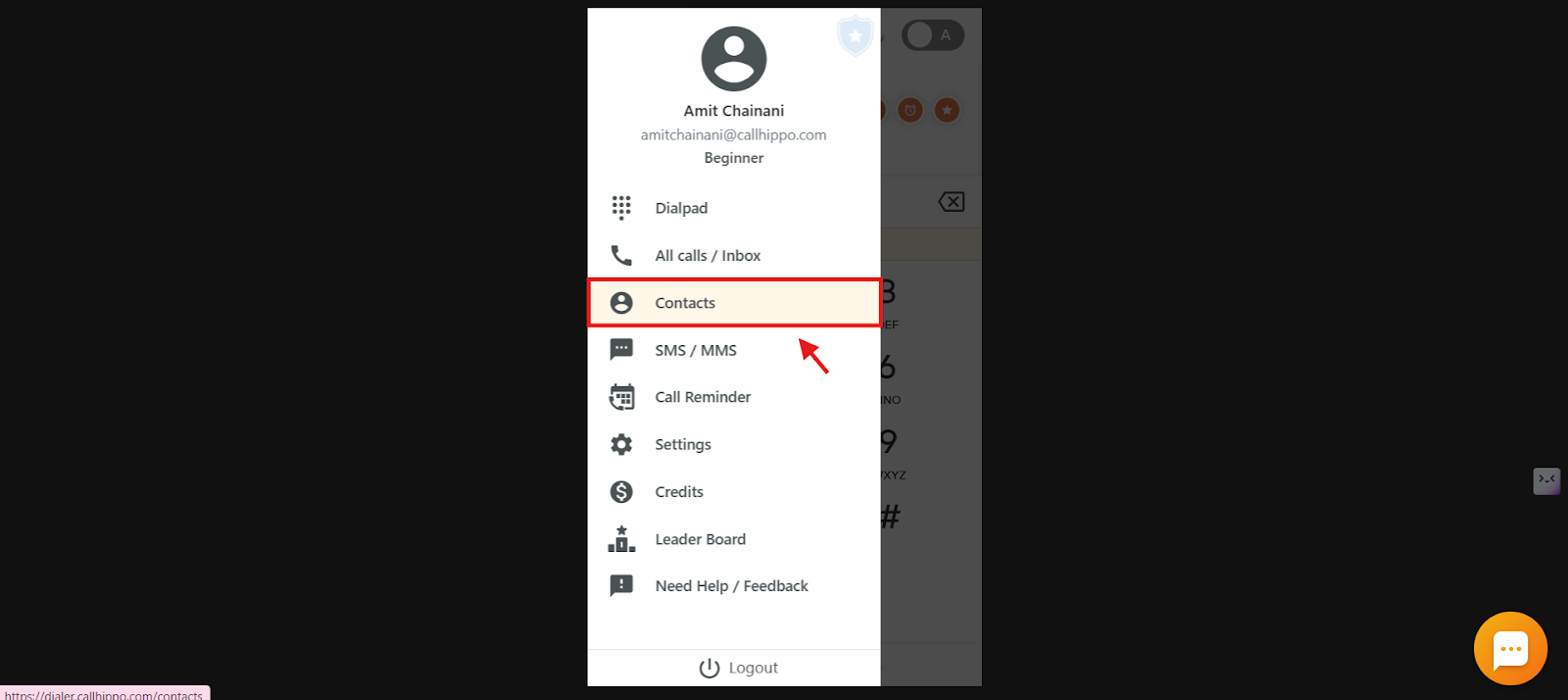
- Log in to your dialer and open the main menu.
- Click Contacts.
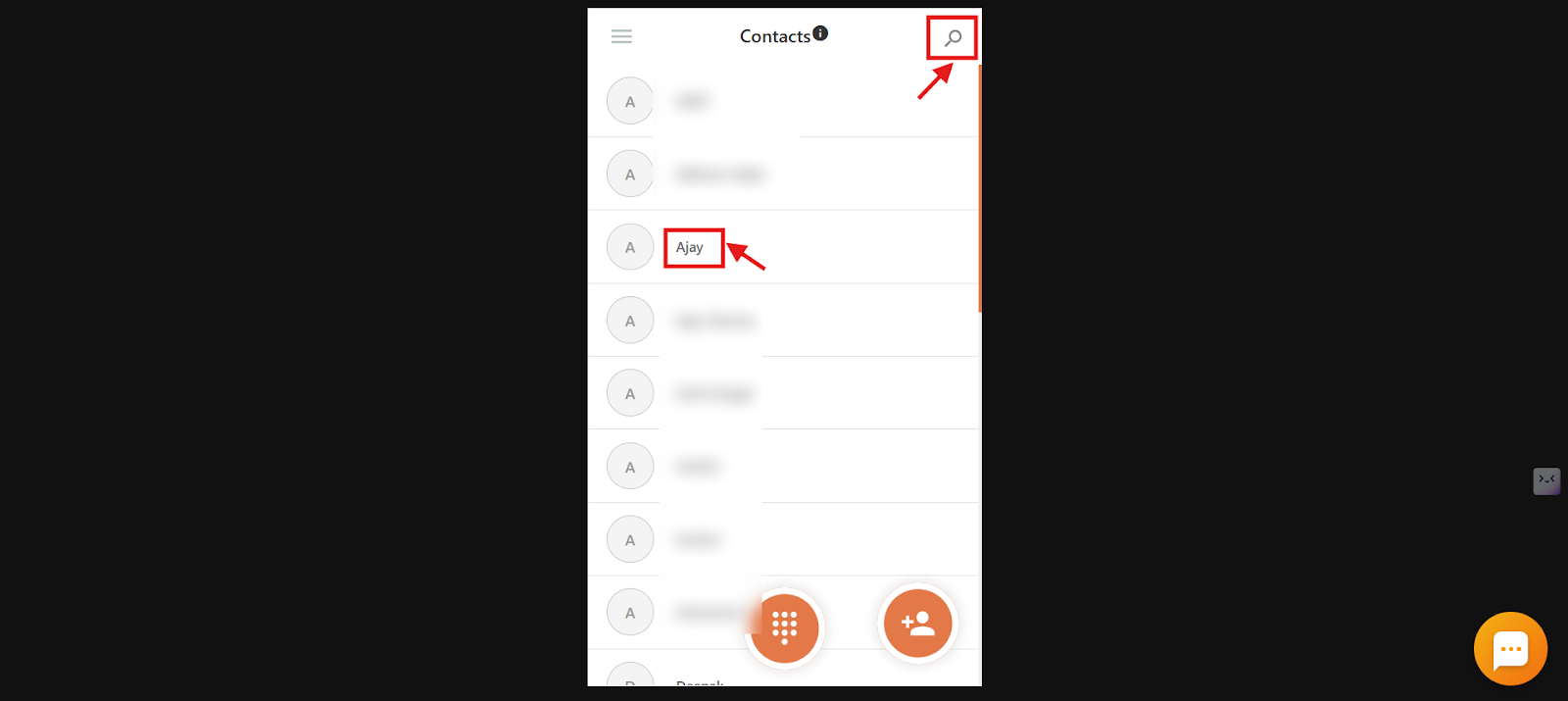
- Select or search for the contact you want.
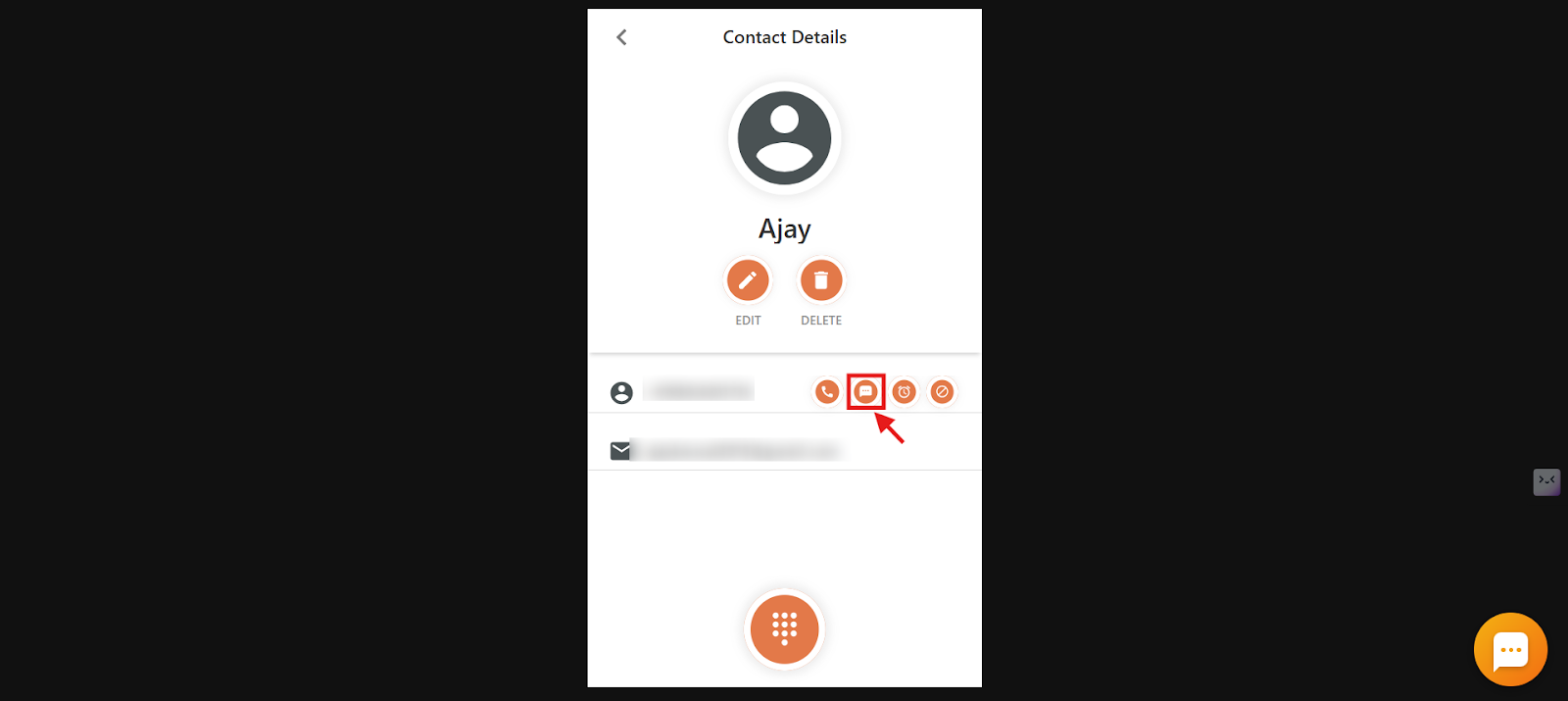
- Click the SMS icon on the contact to start messaging.
How to check incoming SMS
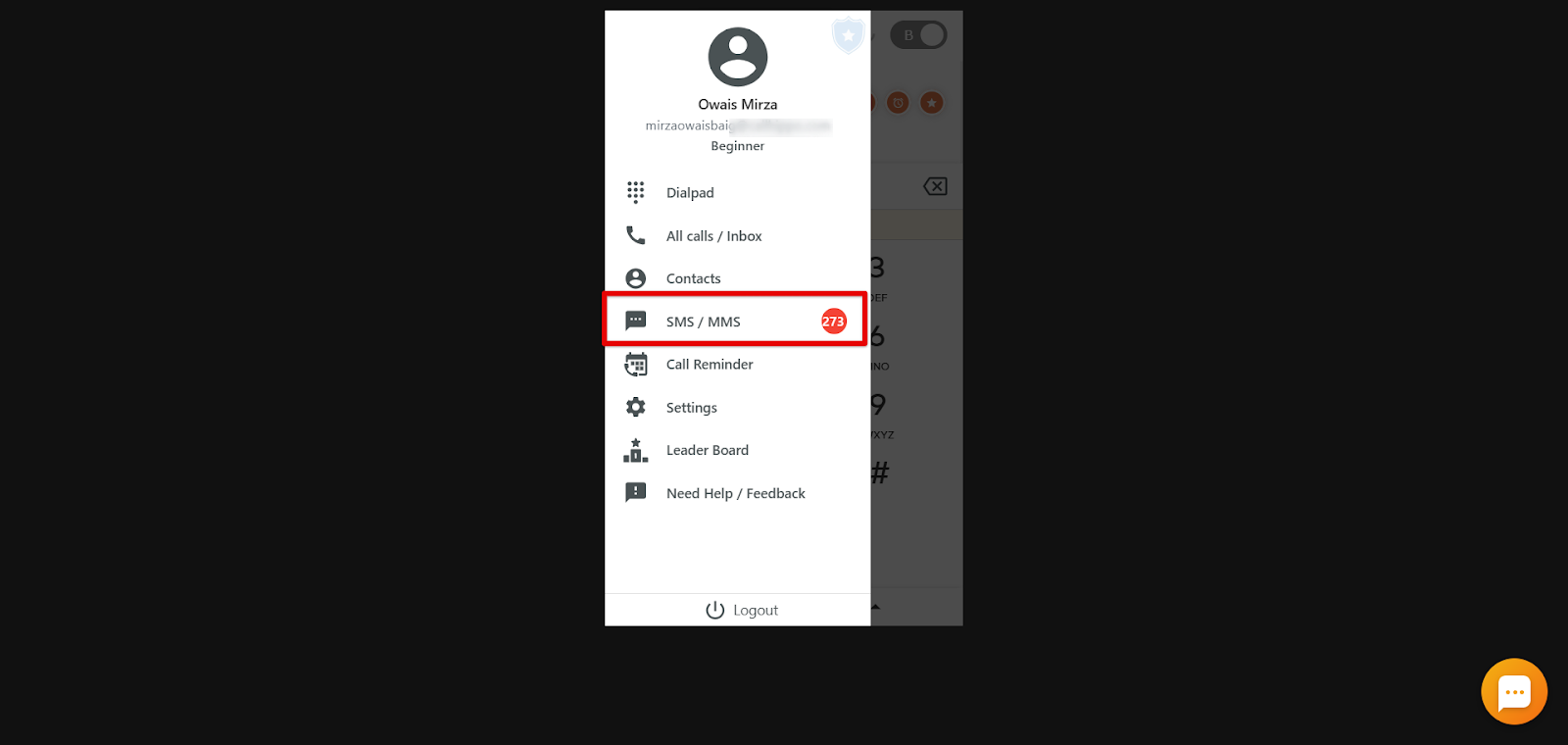
- Log in to your dialer and open the main menu, then click SMS / MMS.
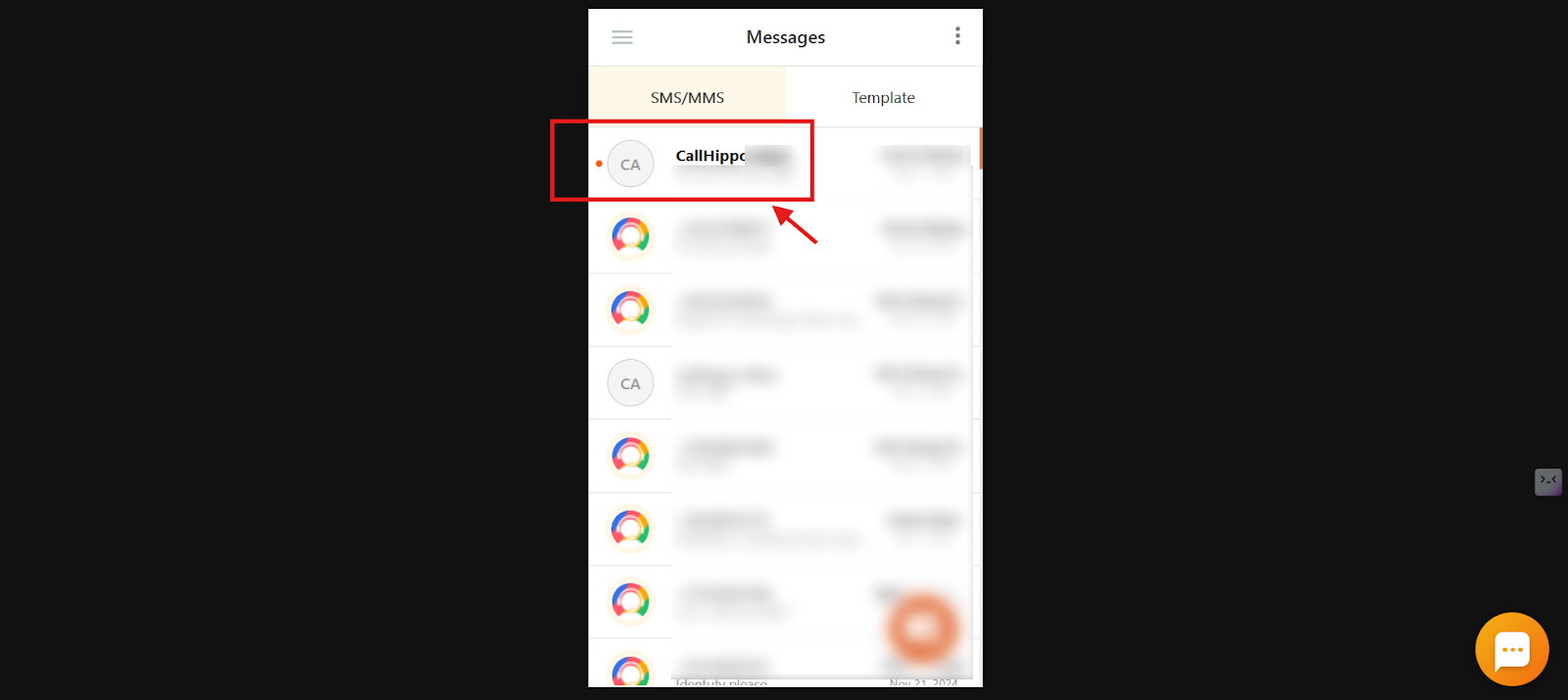
- Look for unread messages — the count appears in red, and unread threads are shown in bold with a red dot.
- Click a thread to view the message.
You can also filter to unread only. Click the three dots on the SMS / MMS section and choose Unread SMS/MMS.
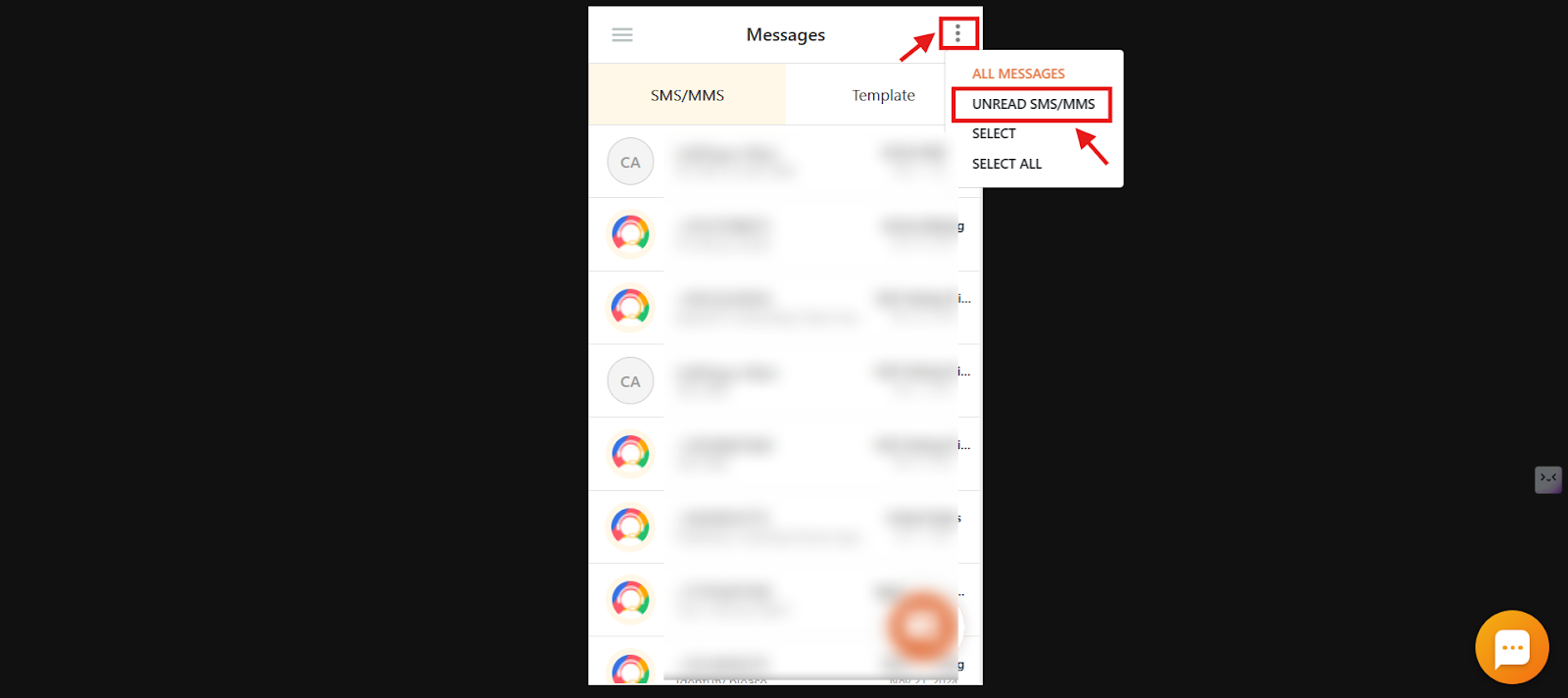
How to view incoming and outgoing SMS from the dialer
- Log in to your dialer, open the main menu, and go to SMS / MMS.
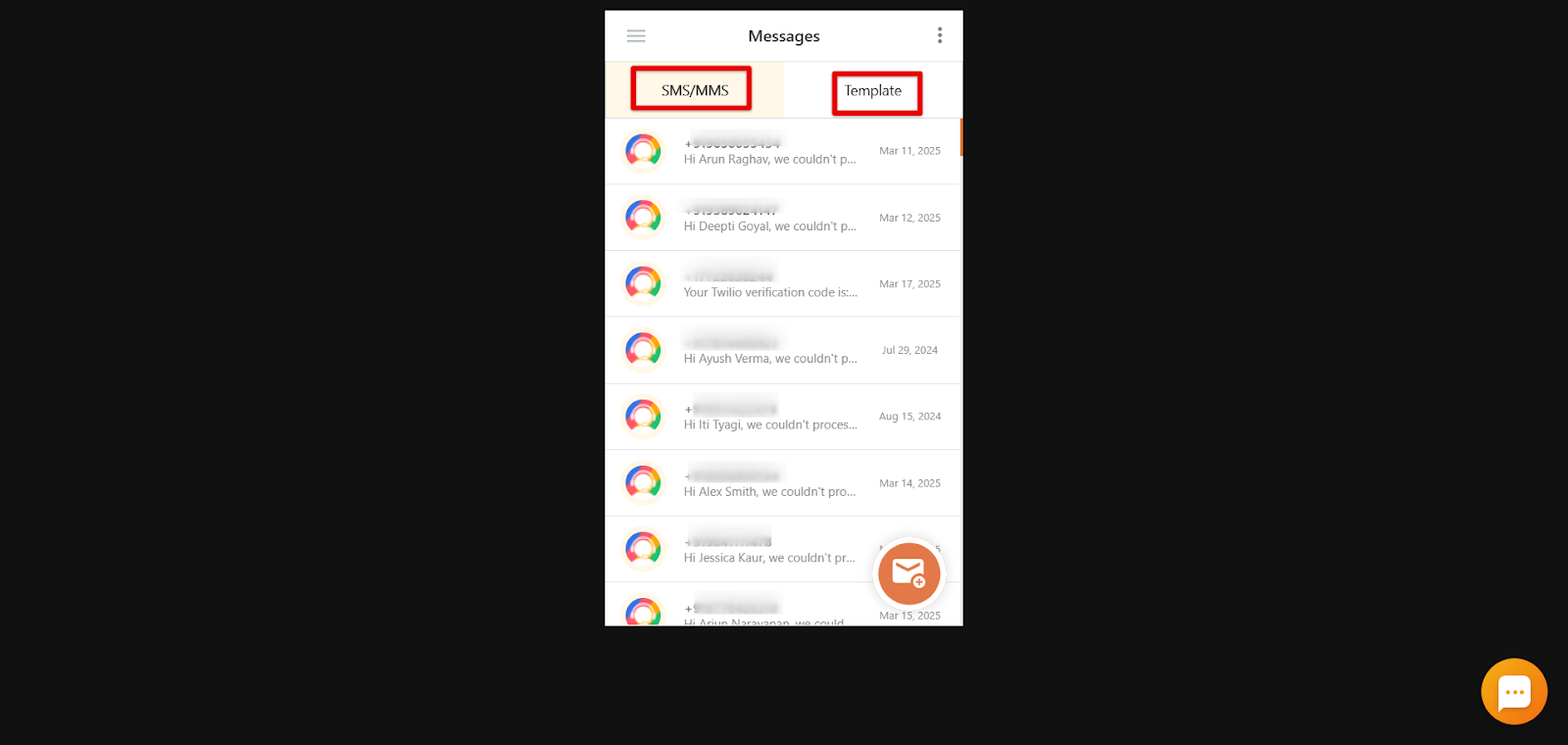
- Use the two tabs — SMS/MMS and Template. Open any thread to read received messages and reply.
- Click the (+) message icon to compose a new SMS/MMS and send it from your chosen number.
How to check SMS / MMS logs from the dashboard
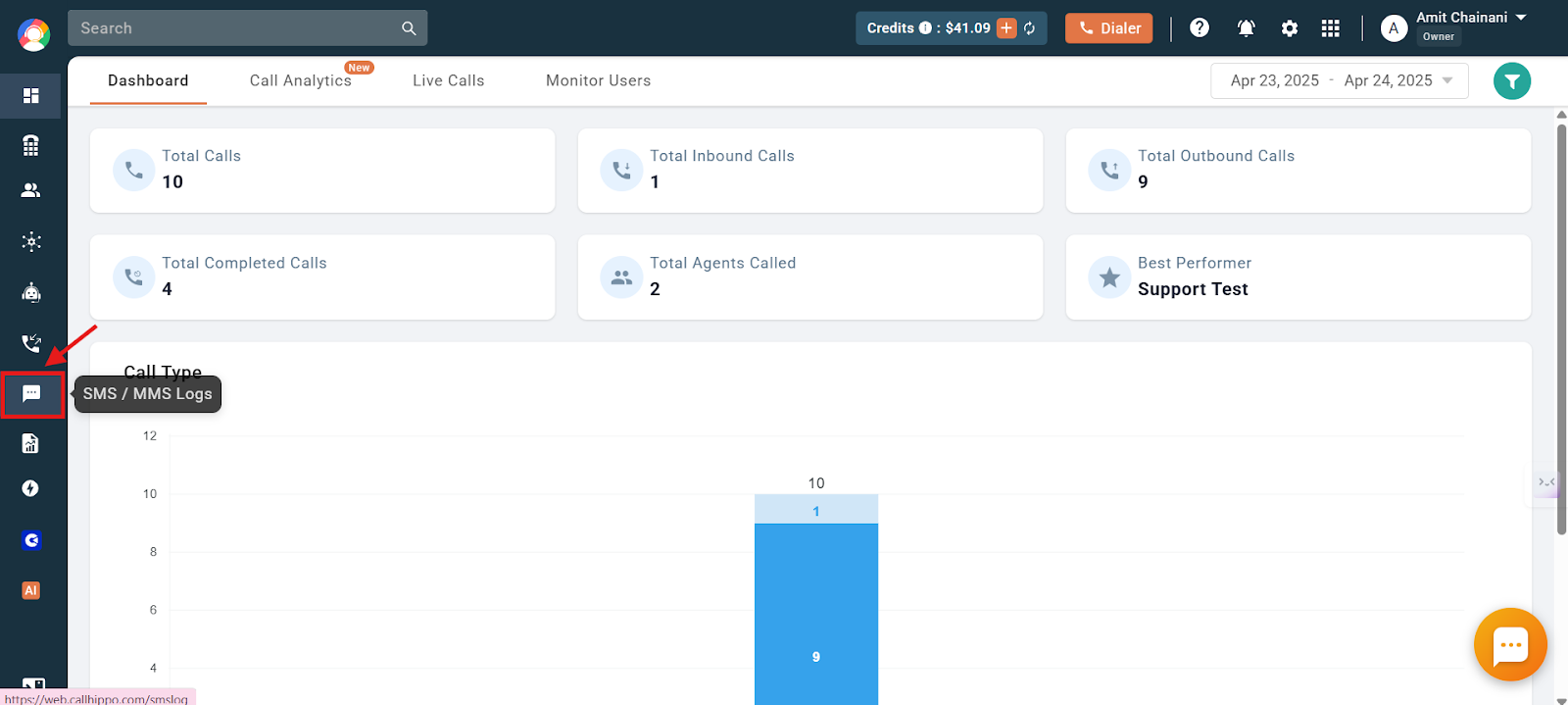
- Log in to your CallHippo dashboard.
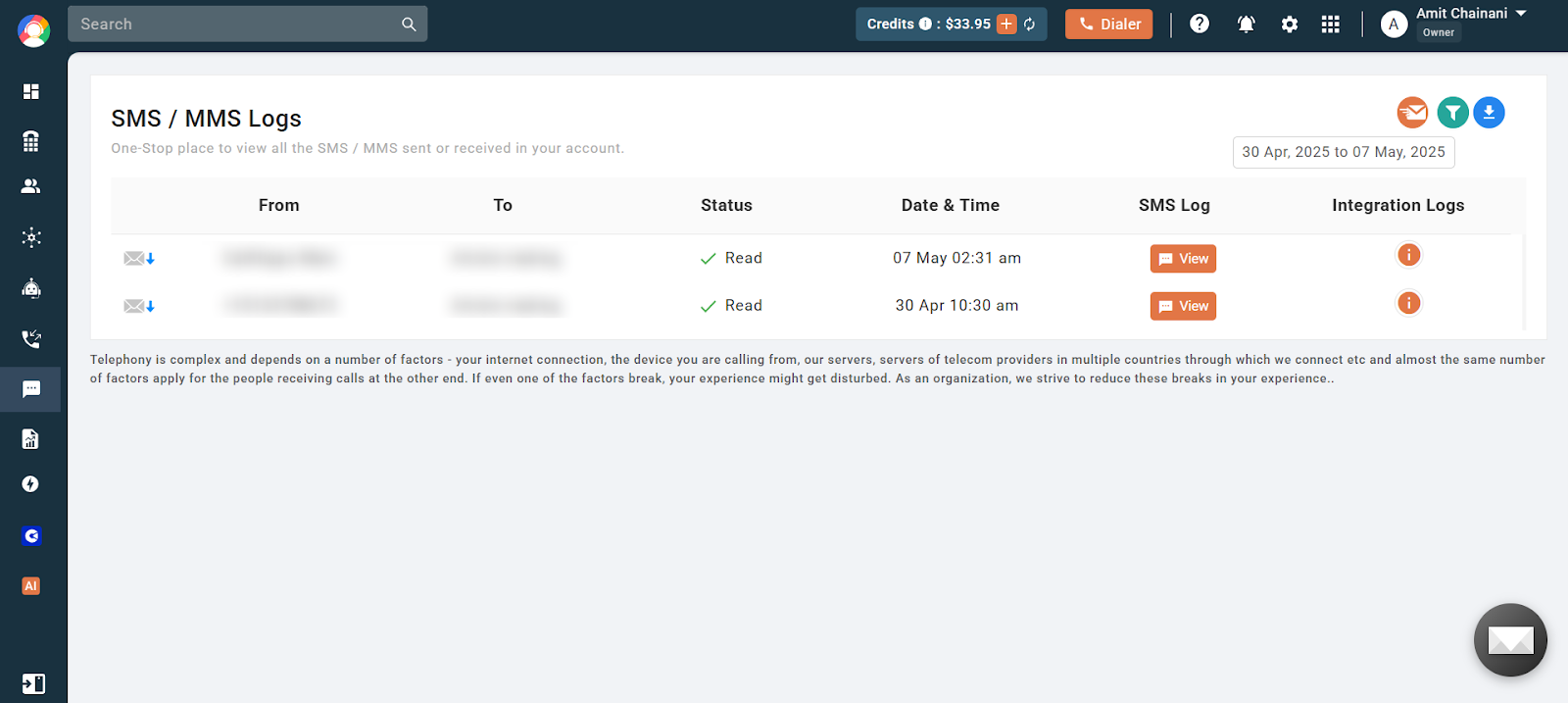
- Click SMS / MMS Logs from the left of the dashboard.
The logs give a centralized view of every message tied to your account. For each one you can see:
- From: The sender’s number or name.
- To: The recipient’s number.
- Status: Whether the message was sent, read, failed, and so on.
- Date & Time: When the message was sent or received.
- SMS Log: Click View to open the full message content in the CallHippo dialer tab.
- Integration Logs: Click the information icon to view related activity for messages tied to a CRM or helpdesk integration.
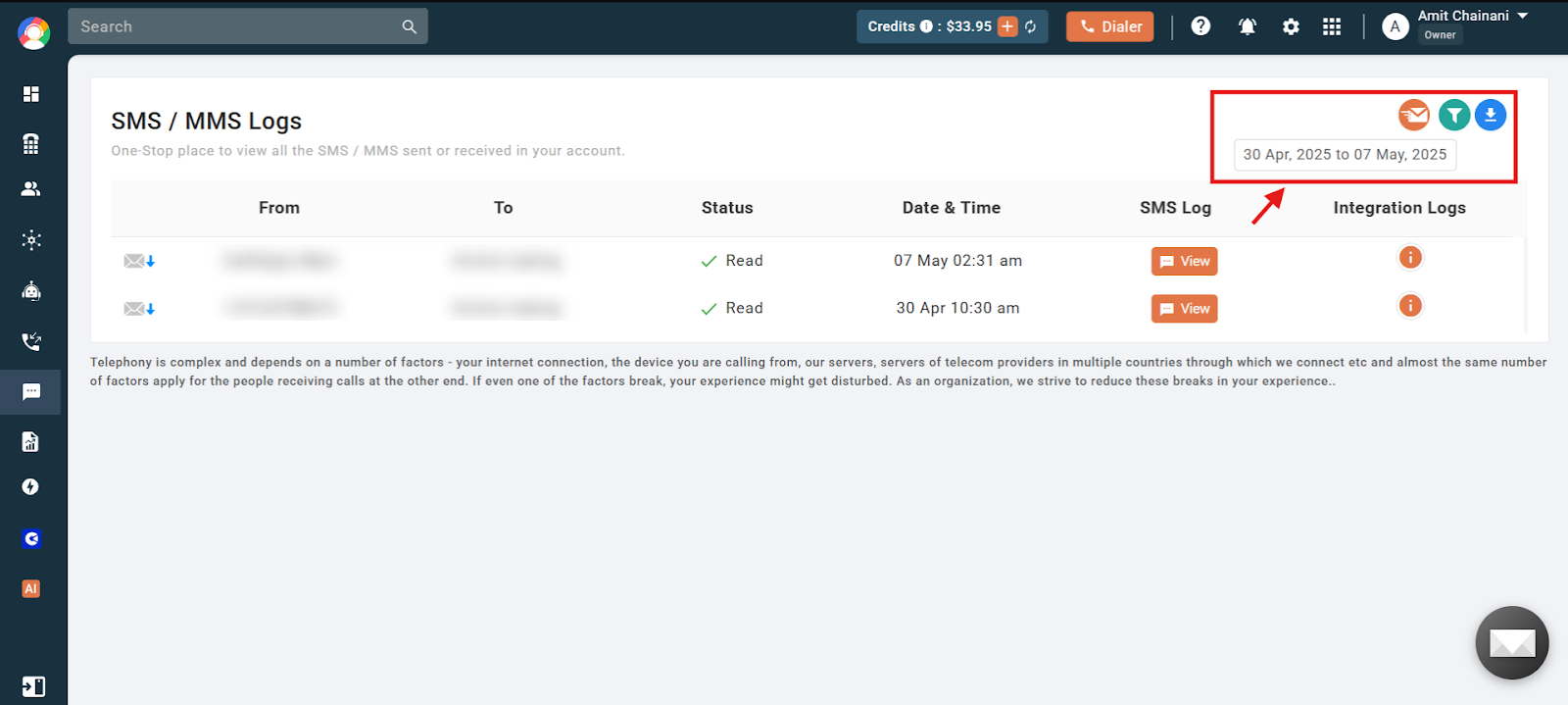
You can also filter by date range, download logs, or apply extra filters using the action buttons at the top right.
Common questions about SMS/MMS on CallHippo
Where can I see the SMS cost and status in the dashboard?
Go to SMS/MMS Logs from the left-hand menu, then use the filter icon at the top right to sort messages by date range, delivery status, or type.
Does CallHippo support bulk SMS/MMS?
No, CallHippo does not support sending bulk SMS or MMS messages.
Can I integrate SMS/MMS with other tools?
Yes. CallHippo integrates with various CRM and business tools so you can sync SMS/MMS with your workflows.
What are the benefits of using SMS/MMS in business communication?
Immediate delivery, higher open rates than email, rich content sharing through MMS, and cost-effective messaging overall.
Do you provide SMS forwarding to an external number?
No. CallHippo does not support SMS forwarding to external phone numbers. Messages can only be accessed and managed within the CallHippo platform.