
Connecting SendGrid with CallHippo lets you tie your email program to your calling activity, so you can trigger notifications and keep customer communication data in sync.
Create a SendGrid API key
CallHippo connects to SendGrid using an API key, so generate one first.
- Log in to your SendGrid account.
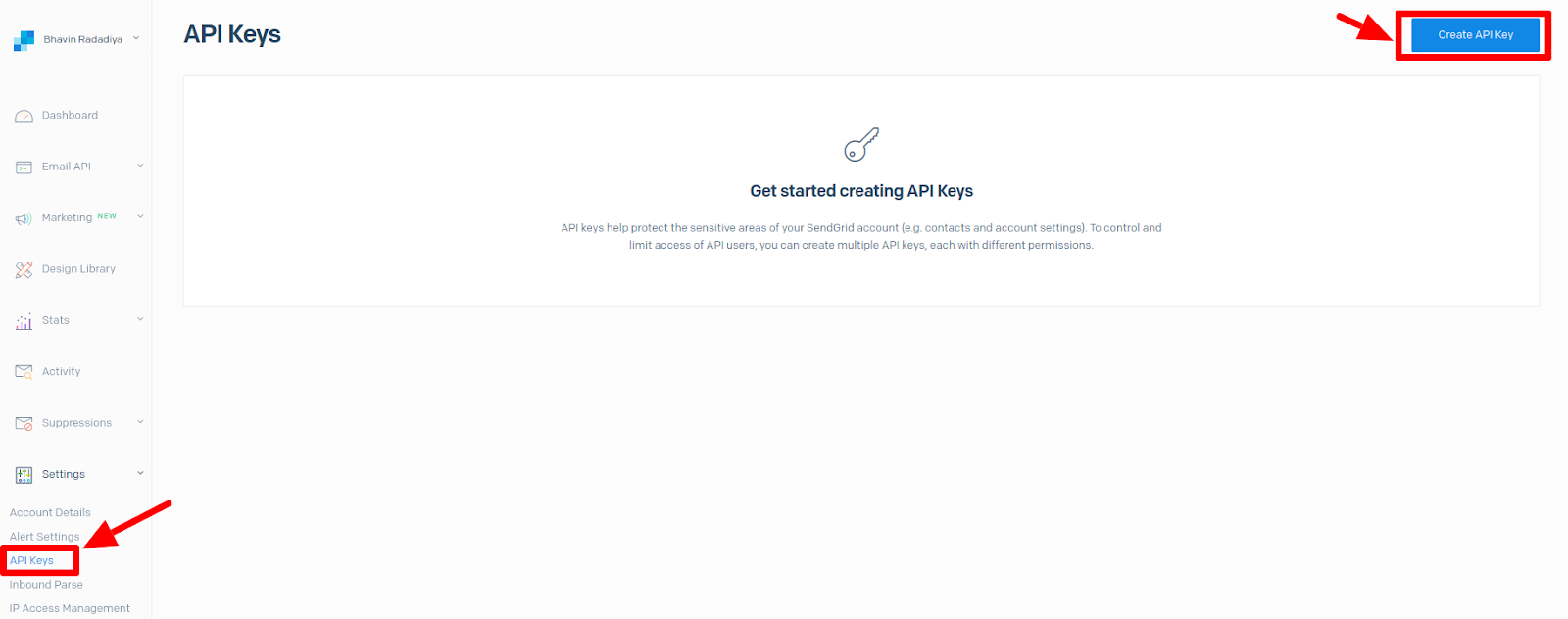
- From the left sidebar, go to Settings → API Keys, then click Create API Key.
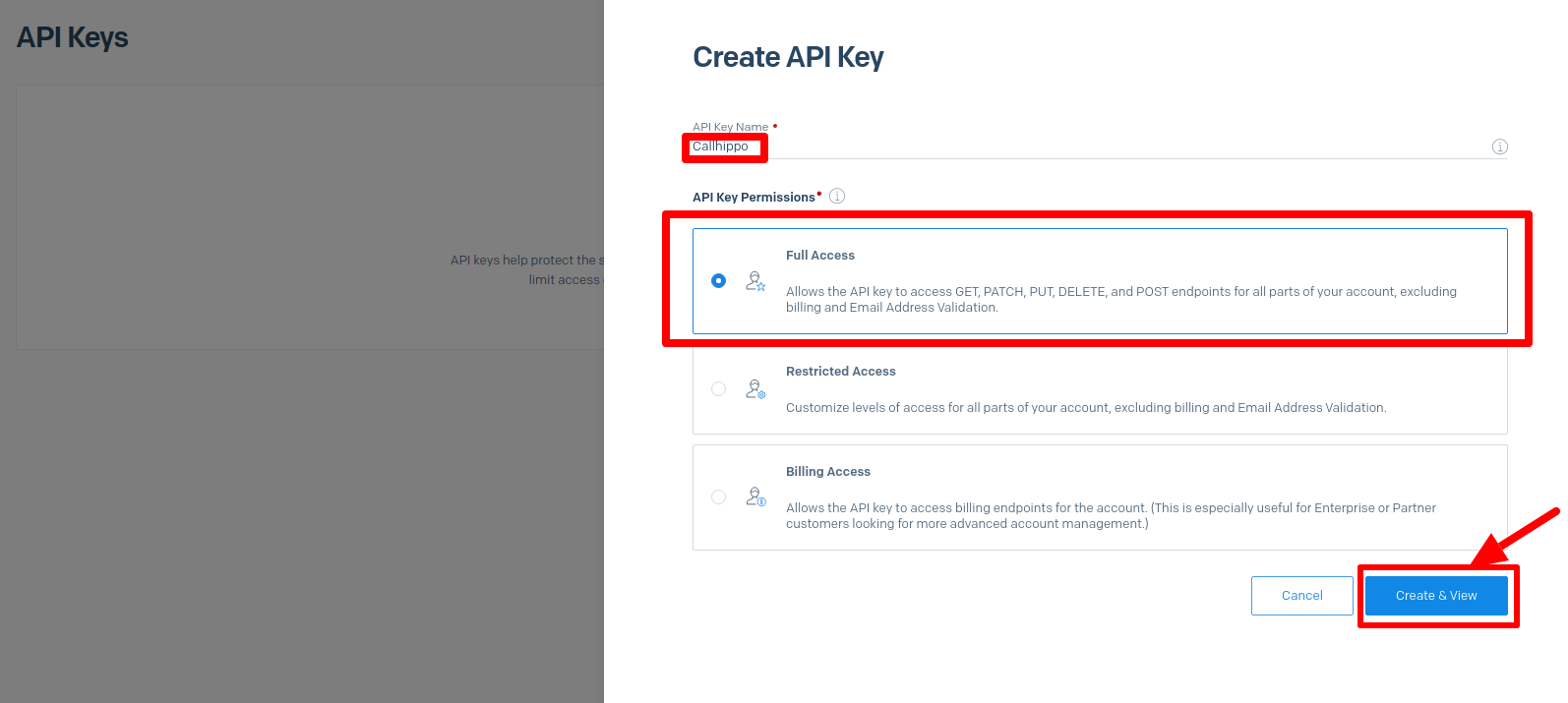
- Enter an API key name, choose Full Access under permissions, then click Create & View.
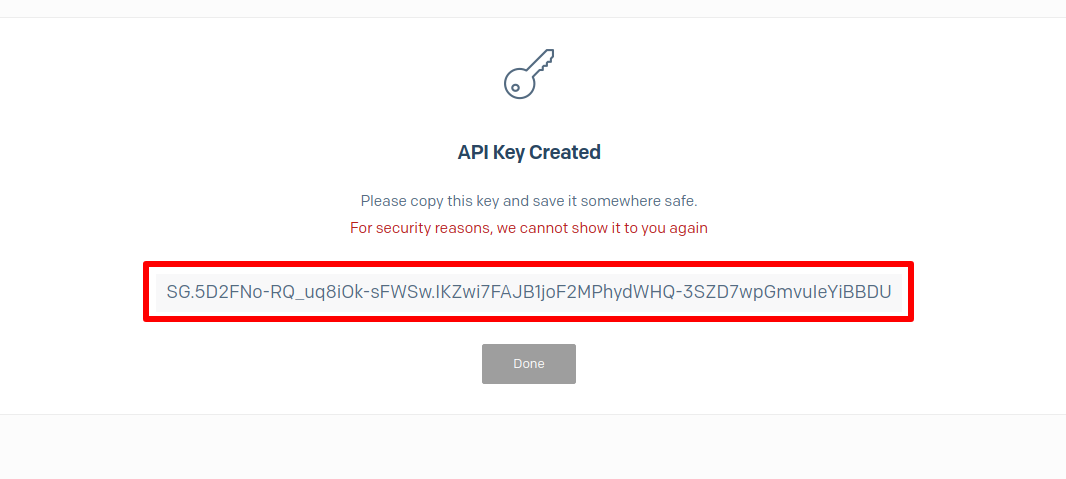
- Your API key is displayed. Copy and save it somewhere safe, as SendGrid will not show it again.
Connect SendGrid in CallHippo
- Log in to your CallHippo account.
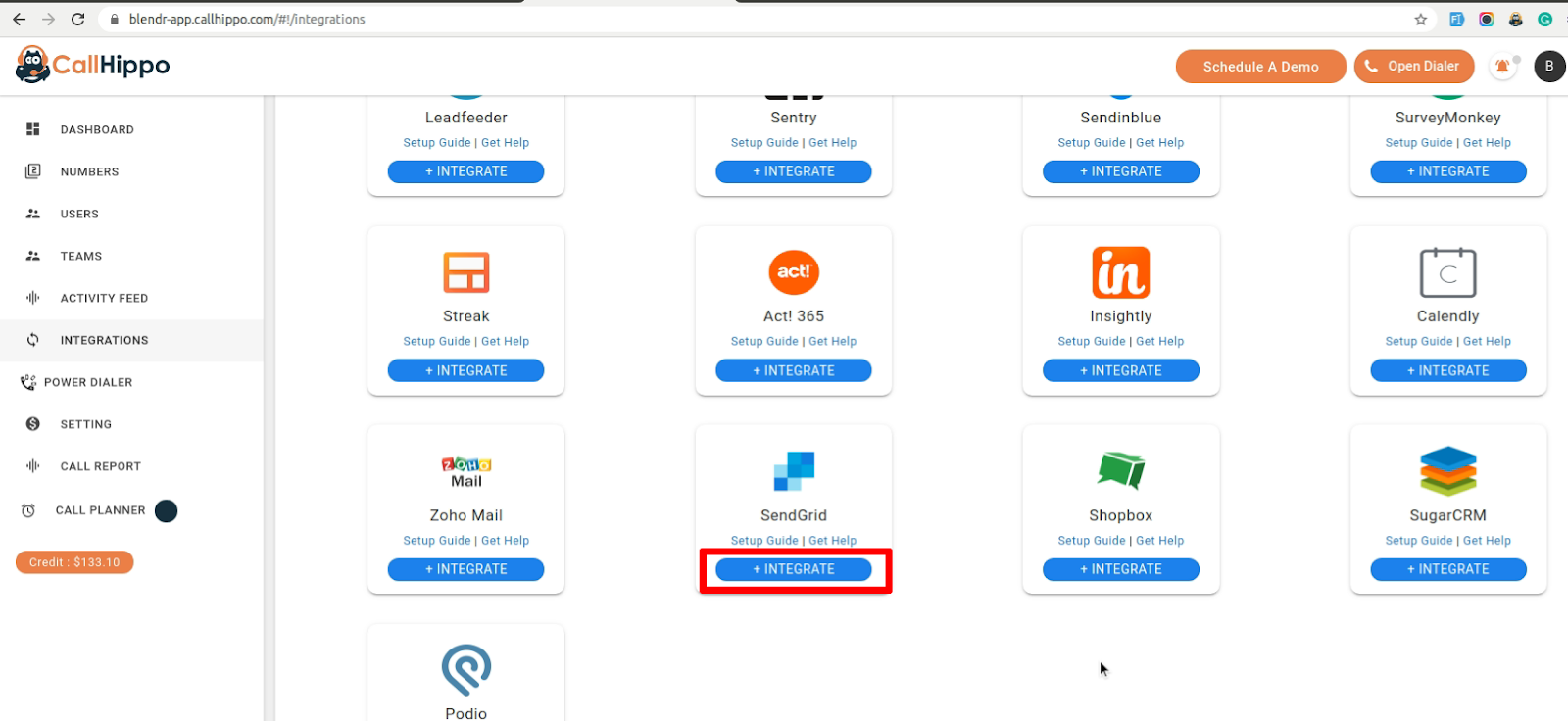
- From the left sidebar of your dashboard, click Integrations.
- Select SendGrid and click Integrate. You are taken to the setup page.
- Click Connect your SendGrid.
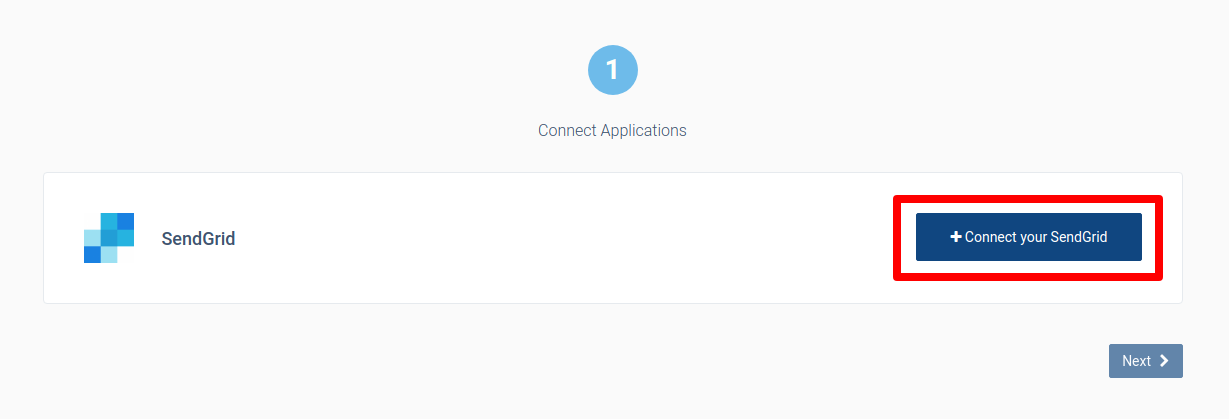
- Enter the SendGrid API key you copied earlier and click Save.
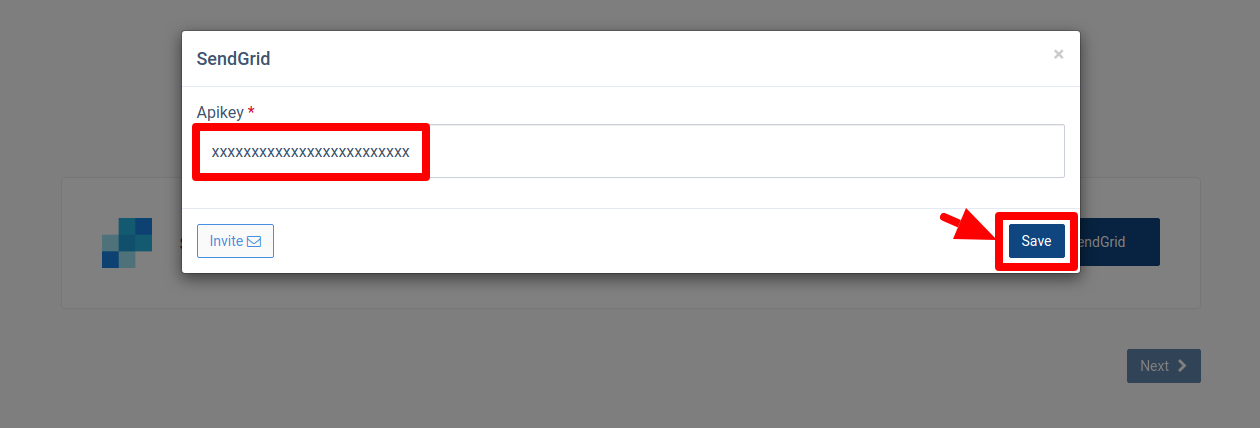
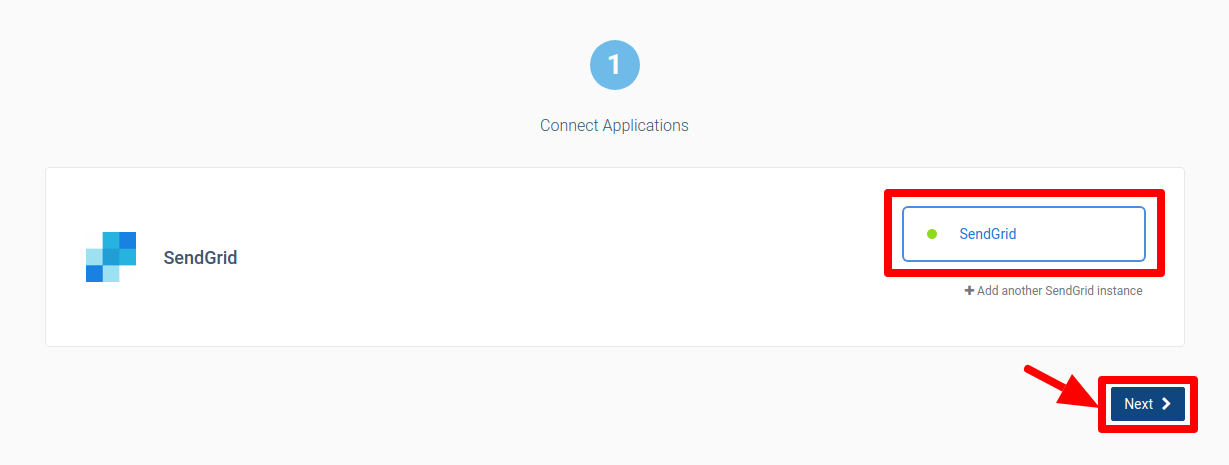
- Your SendGrid account is now connected. Click Next and wait to be redirected back to CallHippo.
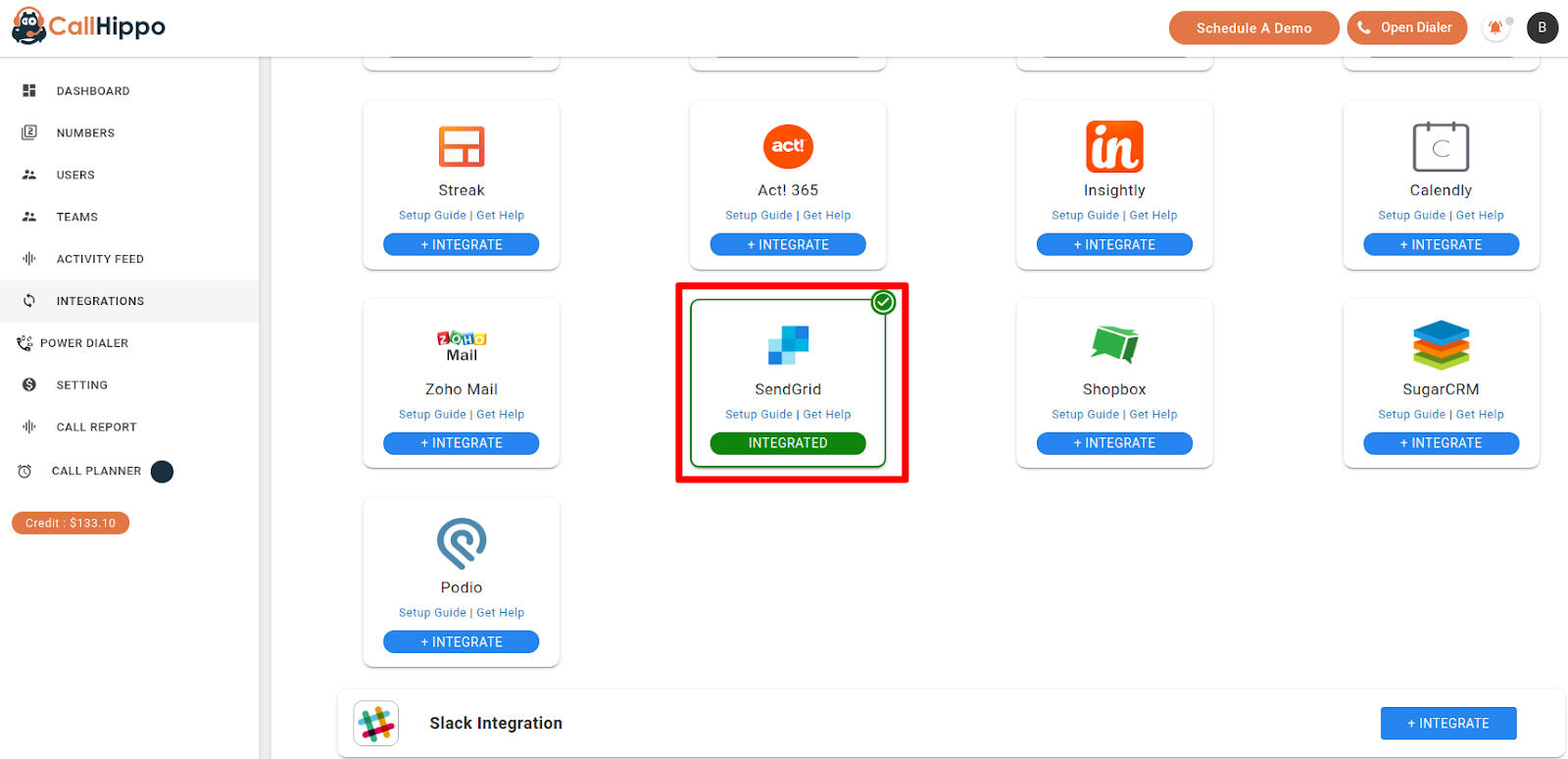
- The SendGrid card now shows as Integrated, confirming setup completed successfully.
What permission level should the SendGrid API key have?
Choose Full Access when creating the key so CallHippo can read and write the data it needs.
I lost my SendGrid API key. What do I do?
SendGrid only shows the key once at creation. If you did not save it, create a new API key in SendGrid and use that one when connecting in CallHippo.
Need help linking SendGrid? Reach our team at [email protected].