
Connecting ServiceNow with CallHippo brings your calling into your IT service management workflow, so call data flows into ServiceNow without extra manual work.
Connect ServiceNow in CallHippo
The whole setup happens inside CallHippo — you just need your ServiceNow instance details.
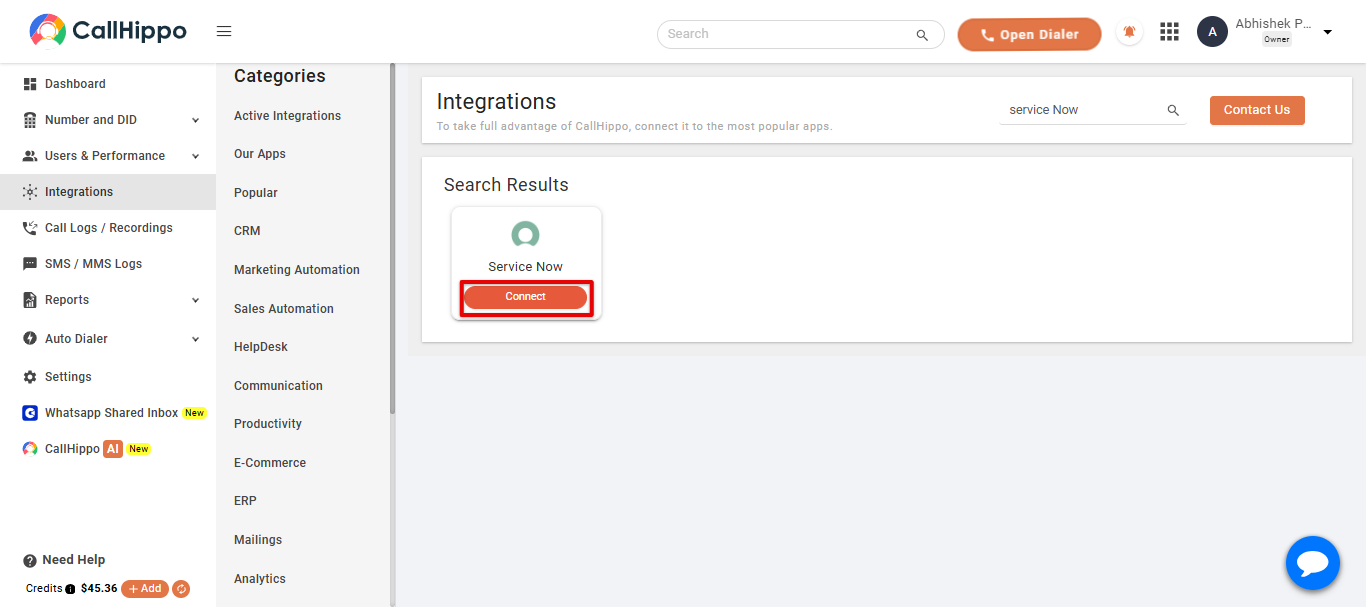
- Log in to your CallHippo account and open the Integrations tab. Search for ServiceNow and click Connect.
- Fill in the connection details in the setup popup:
- Instance — the instance from your ServiceNow URL. For example, if your URL is https://dev96782.service-now.com/, the instance is dev96782.
- Username — your ServiceNow username.
- Password — the password for your ServiceNow account.
- Timezone — the timezone you want to use.
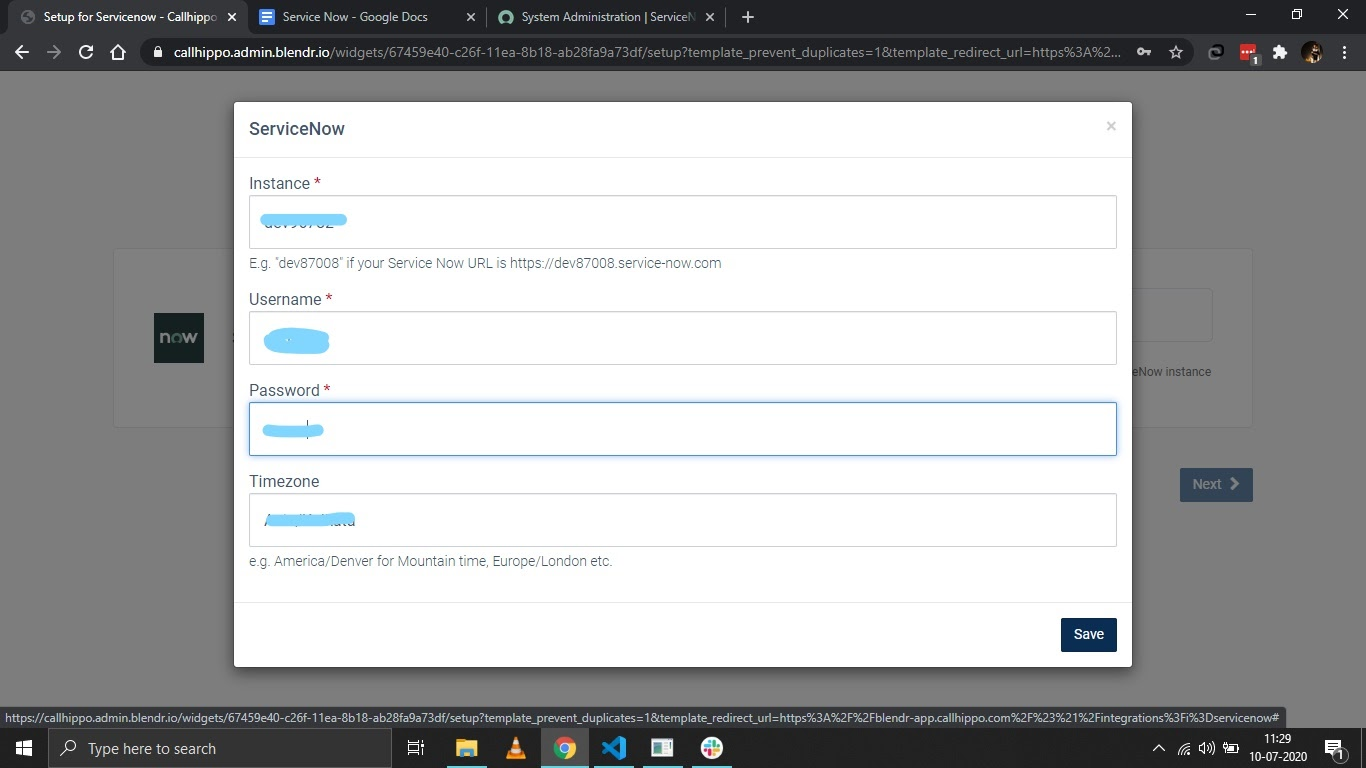
- Click Save, then Next.
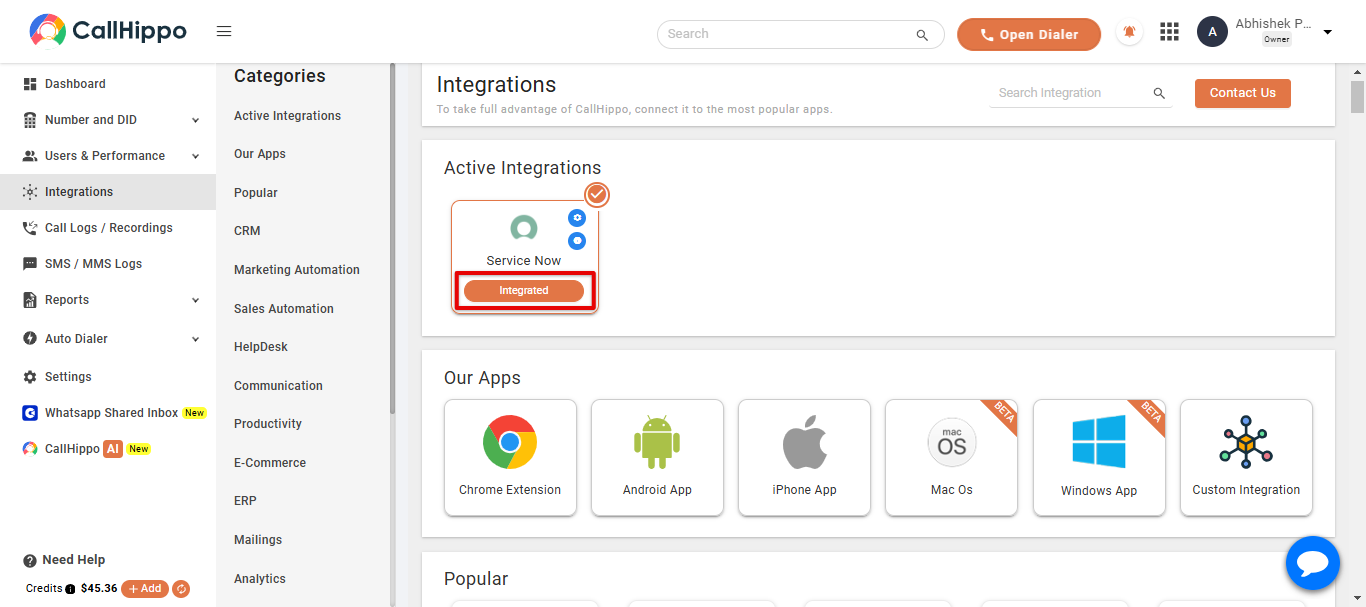
- You are redirected back to CallHippo and the status changes to Integrated.
FAQ
Where do I find my ServiceNow instance name?
It is the first part of your ServiceNow URL. For https://dev96782.service-now.com/, the instance is dev96782.
Why is my ServiceNow connection failing?
Double-check that the instance, username, and password are exactly correct and that the account has permission to sign in. Re-enter them and save again if the status does not switch to Integrated.
Need help connecting ServiceNow with CallHippo? Reach out to our team at [email protected].