
When you are assigned multiple phone numbers in CallHippo, manually selecting a number for every outbound call can be repetitive, especially if you prefer using just one number temporarily for a specific campaign or region. Setting a default number for outgoing calls streamlines this process by automatically using your chosen number, saving time and reducing errors.
However, it is important to note that the default number setting will not apply in the following cases:
- If auto-rotate is enabled for your numbers.
- If the number you are calling already has a previous call history with another number assigned to you.
When active, the default number will override Local Presence and Smart DID Routing, giving you full control over which number is used for outgoing calls.
Set a Default Number from the Dashboard
Account owners and admins can set a default number for any user directly from the dashboard.
- Log in to your CallHippo account.
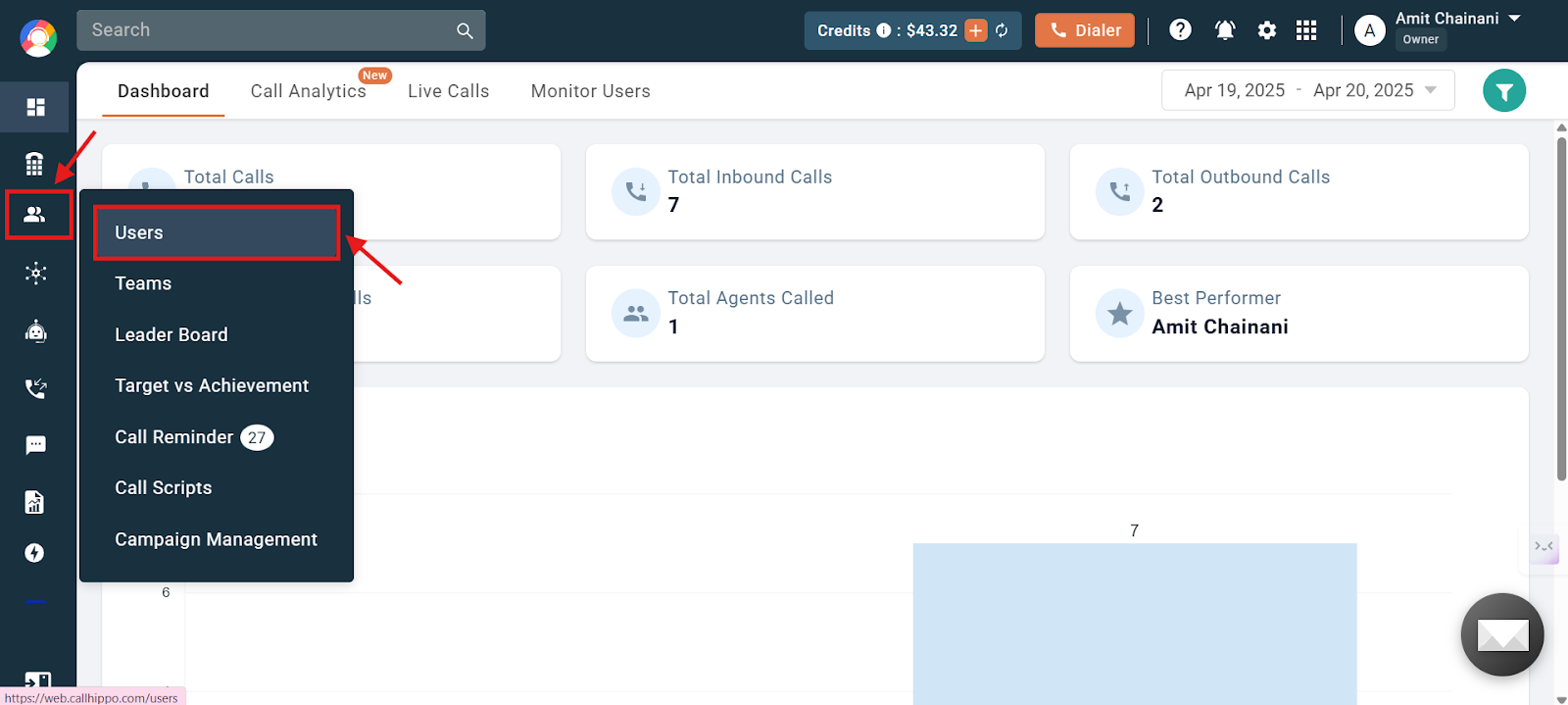
- Navigate to the Users and Performance section on the left side of the screen, then click Users.
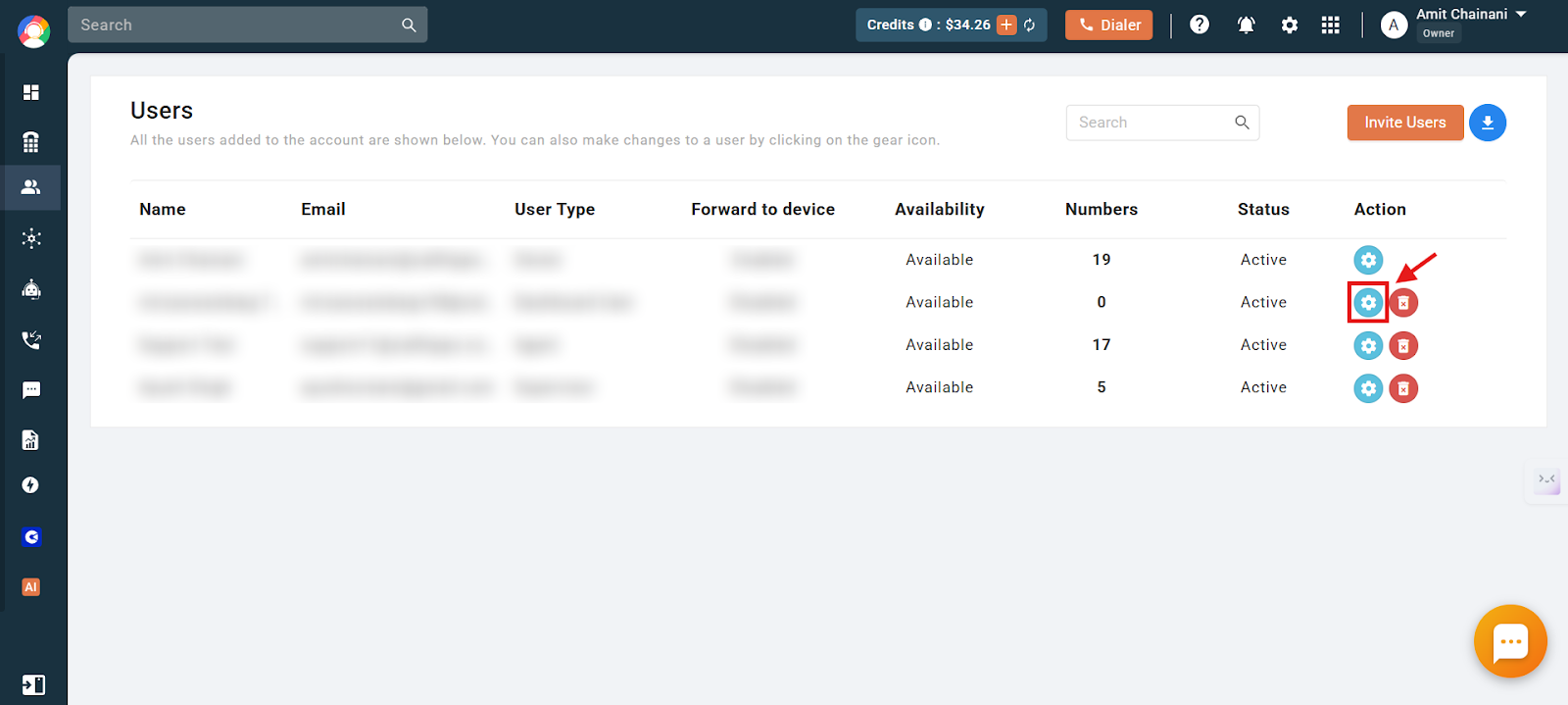
- Click the settings icon of the user you want to set the default number for.
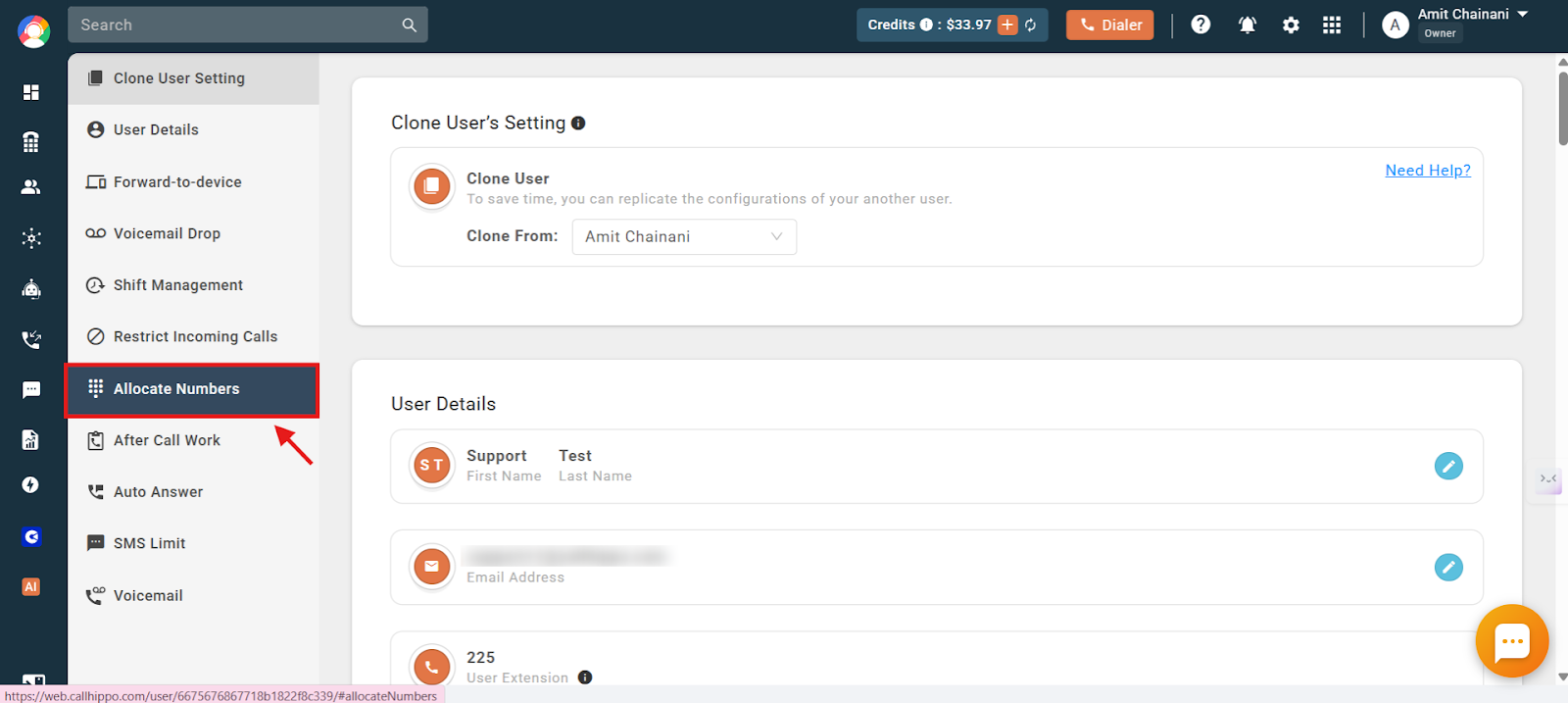
- Click the Allocate Numbers option on the left side of the dashboard.
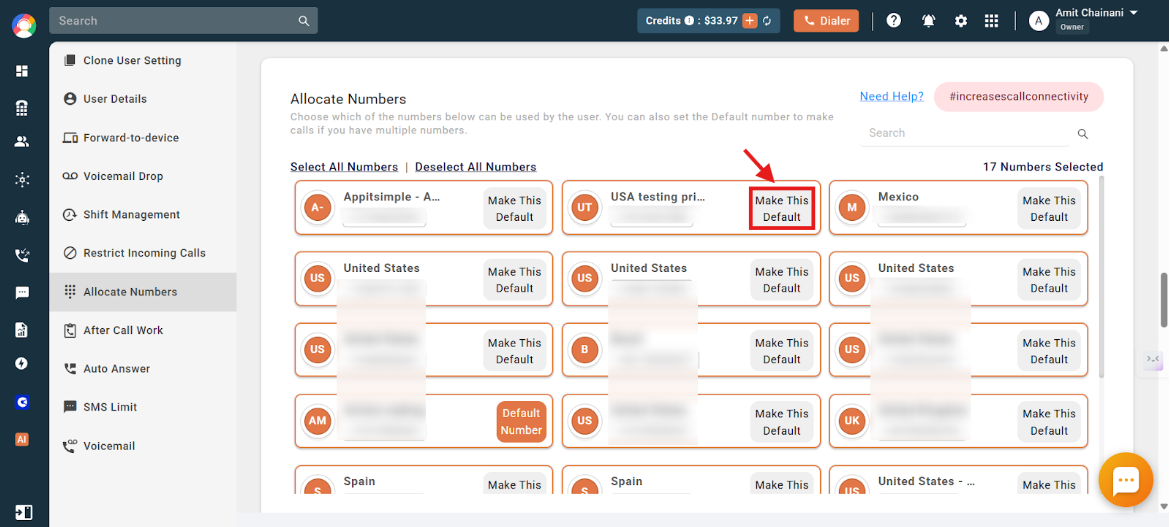
- From the list of allocated numbers, click Make This Default on the number you want to set as the default.
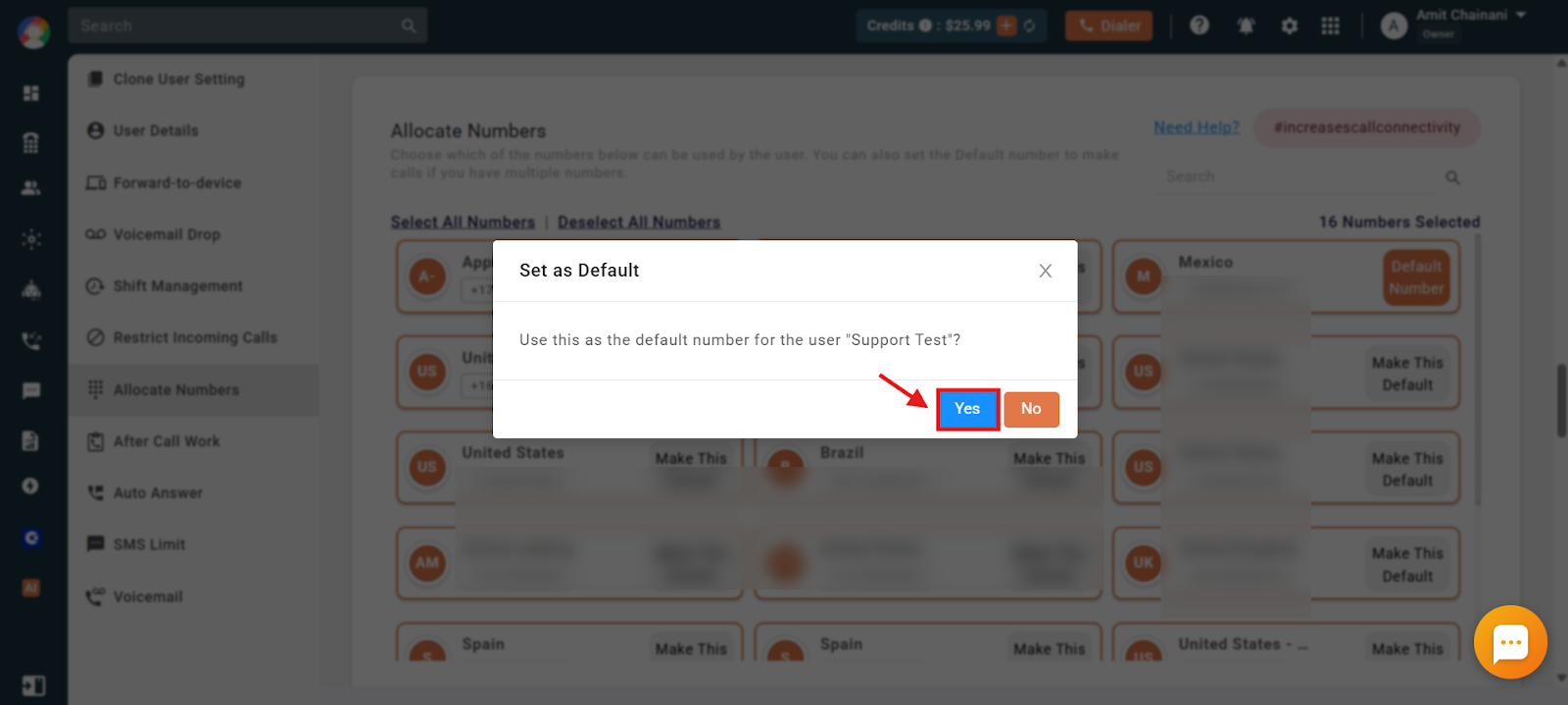
- Click Yes to confirm the change.
- Once the number is selected as default, it turns dark orange and displays a Default Number label beside it, as shown.
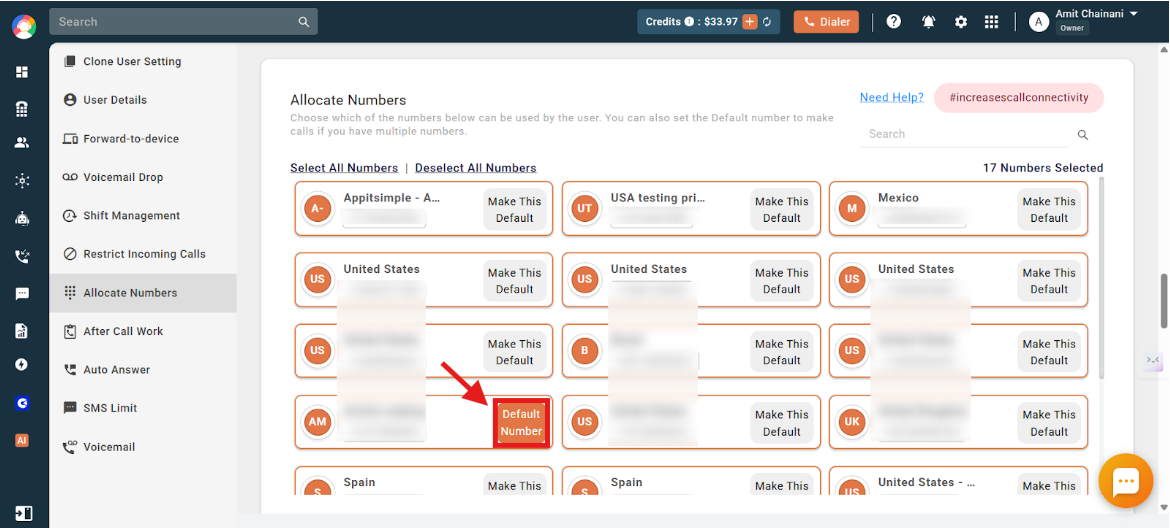
The default number for outgoing calls is now selected for the account.
Why a Default Number Helps with CRM Click-to-Call
If you are using a CRM that is integrated with CallHippo and making calls through the click-to-call extension, the dialer opens and the call is initiated automatically when you click the call icon. Since this process skips the step where you would typically choose from your list of allocated numbers, you will not have the option to manually select a number at that moment.
In such cases, setting a default outgoing number ensures that your preferred number is automatically used for all calls made via the extension, helping you maintain consistency and saving time when working from your CRM.
Important Points to Remember
- The default number applies to outgoing SMS as well as calls.
- You cannot deselect a default number — one must always be selected. If you have multiple numbers, you can only change the default.
- If a user has not selected a default number, the first number allocated to them is automatically set as the default.
- Each user can set their own default number individually from their account.
Set a Default Number from the Dialer
Each user can set their own default number directly from the dialer.
- Log in to your CallHippo account.
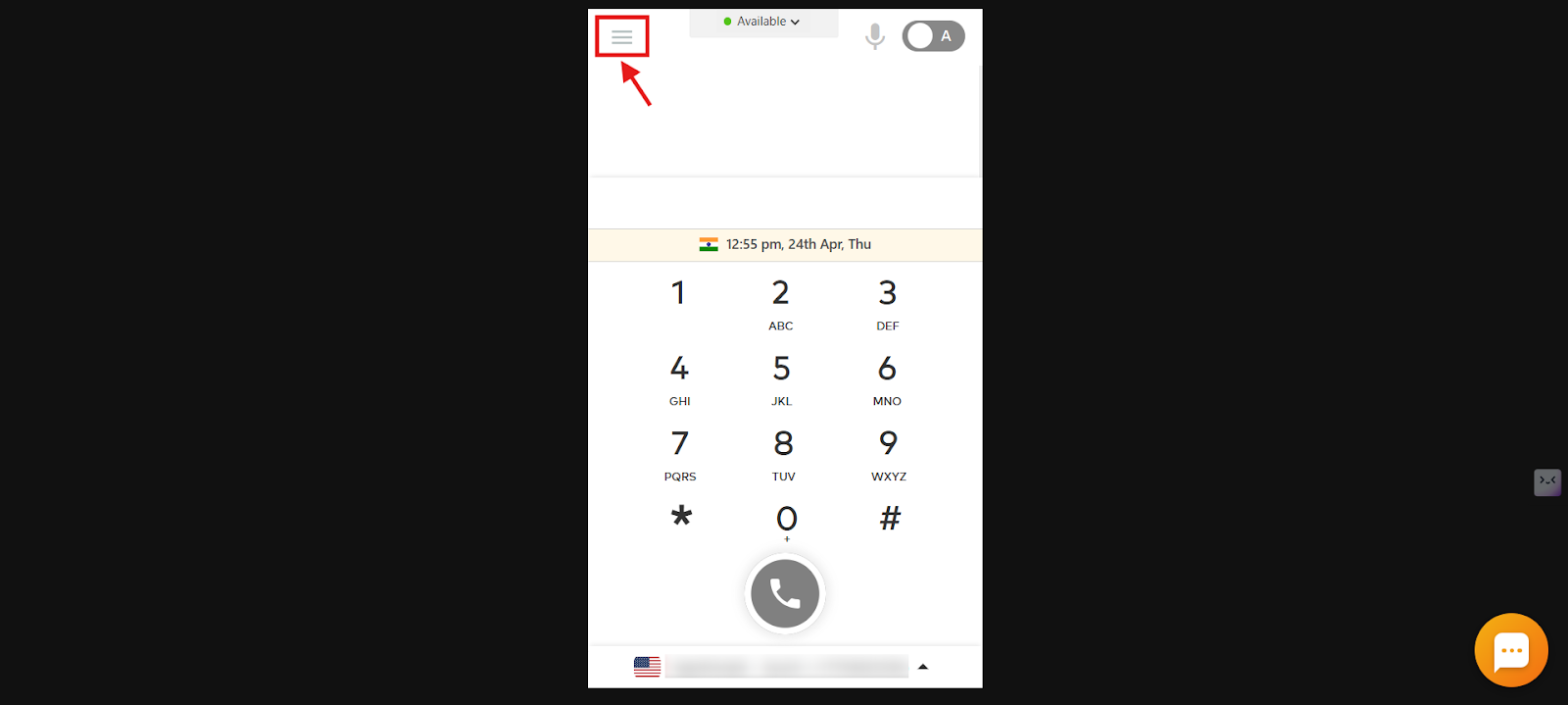
- Click the Main Menu icon.
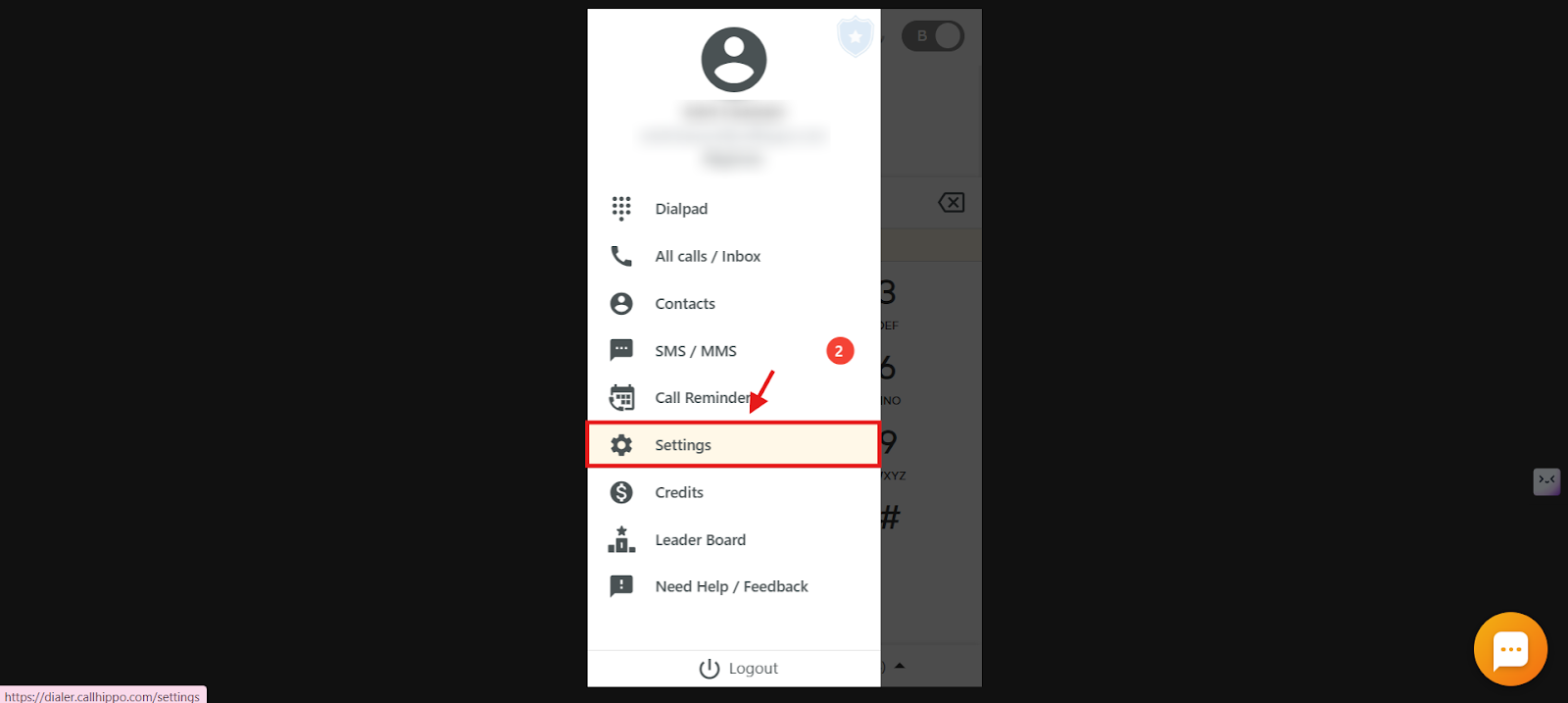
- Click the Settings option.
- Click the Default Number option.
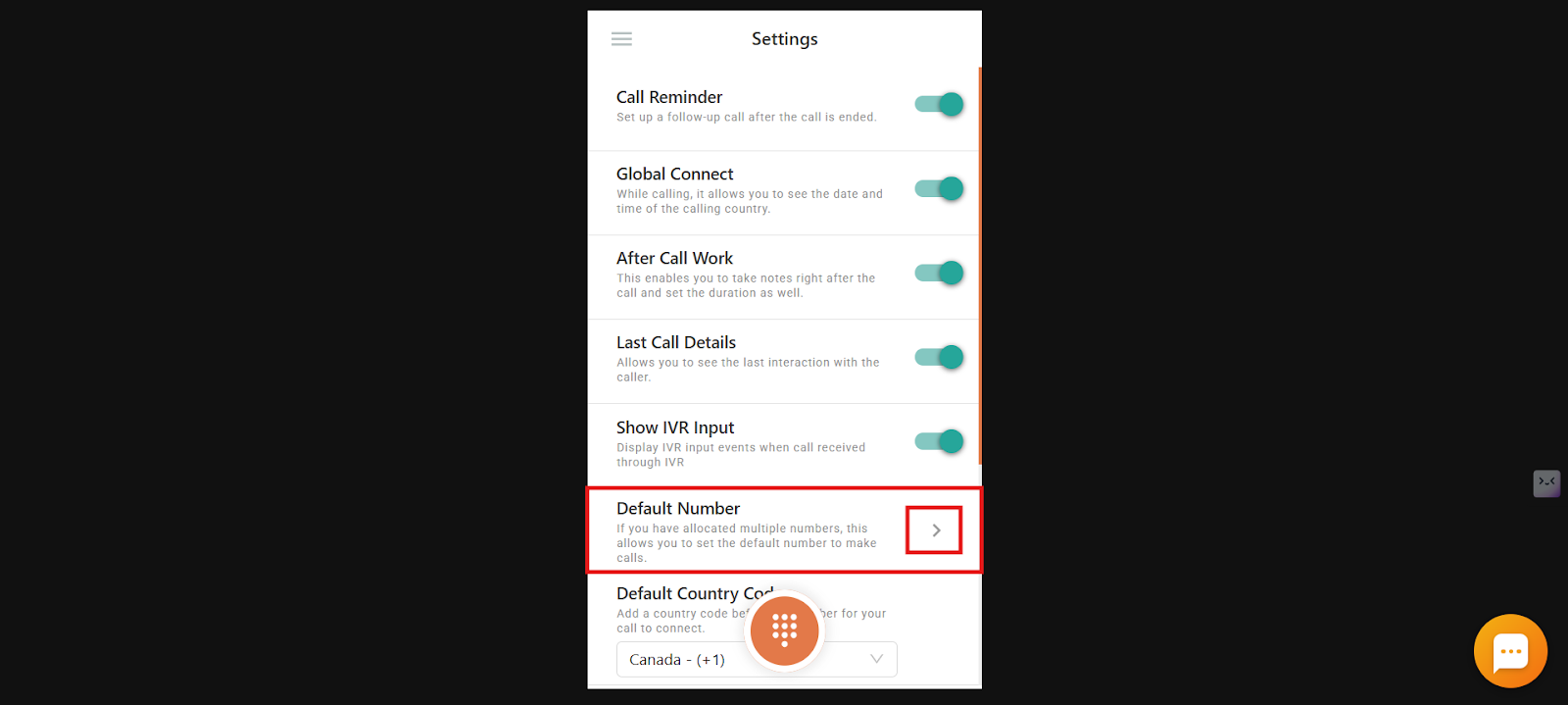
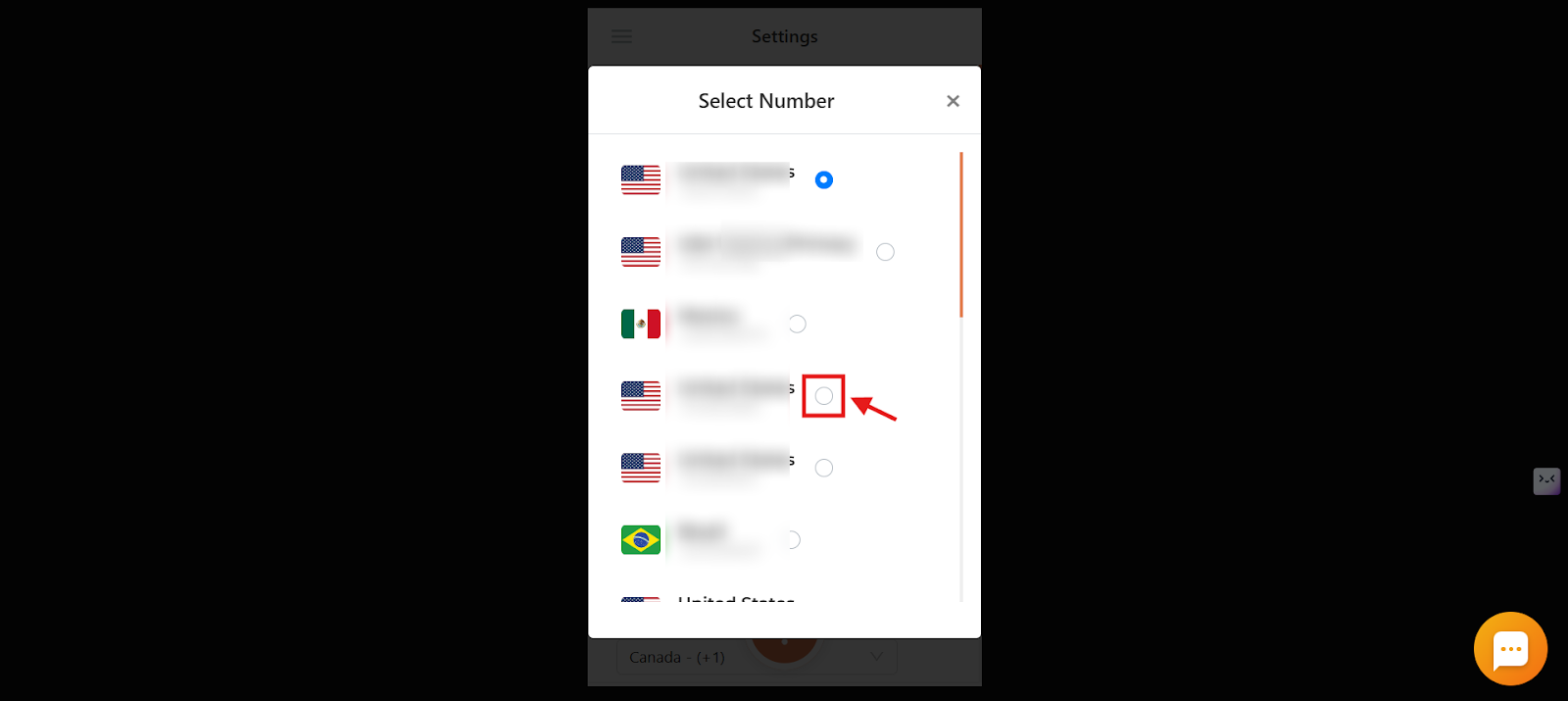
- Select the default number you want to set from the list of numbers allocated to you.
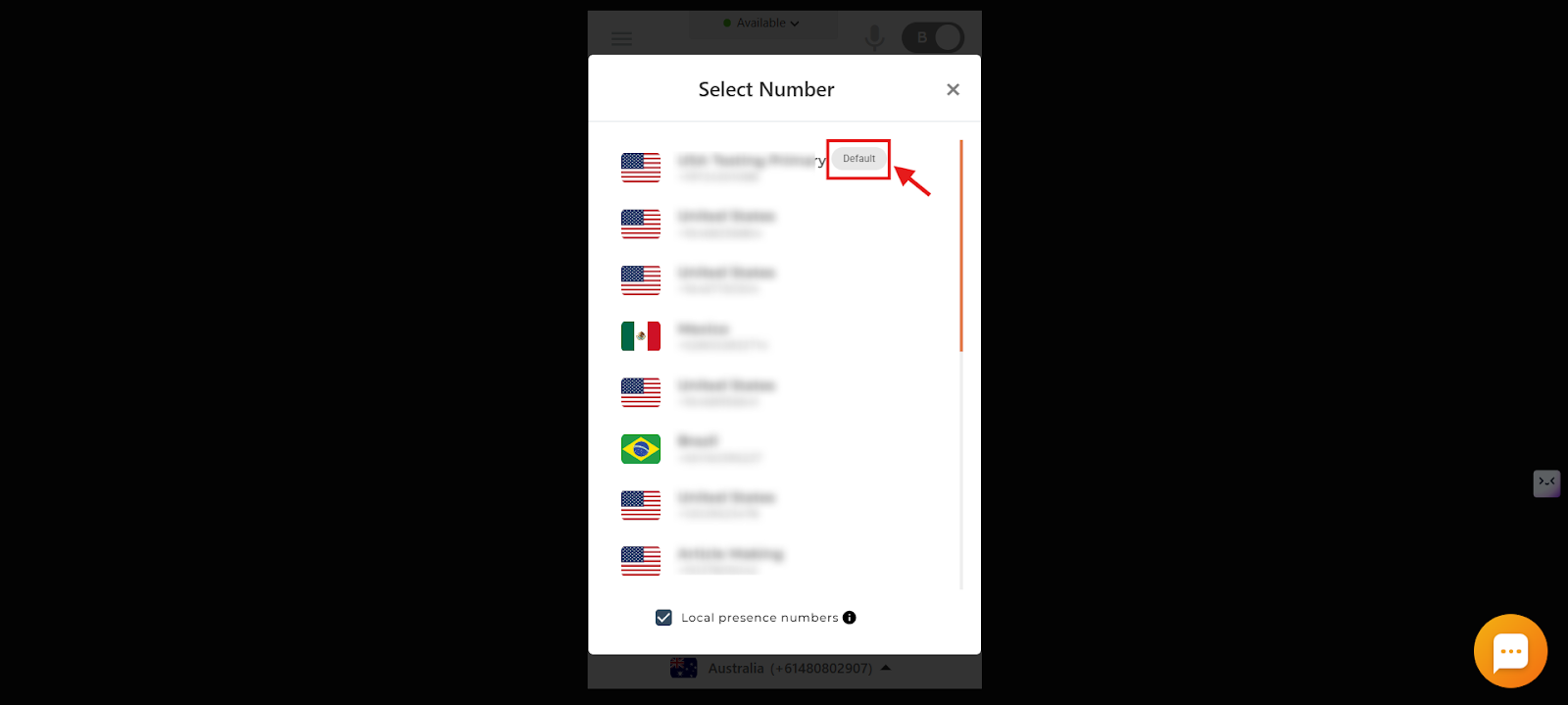
- In the allocated numbers list, the default number will have a Default tag next to it, as shown below.
The default number for outgoing calls is now selected for your account.
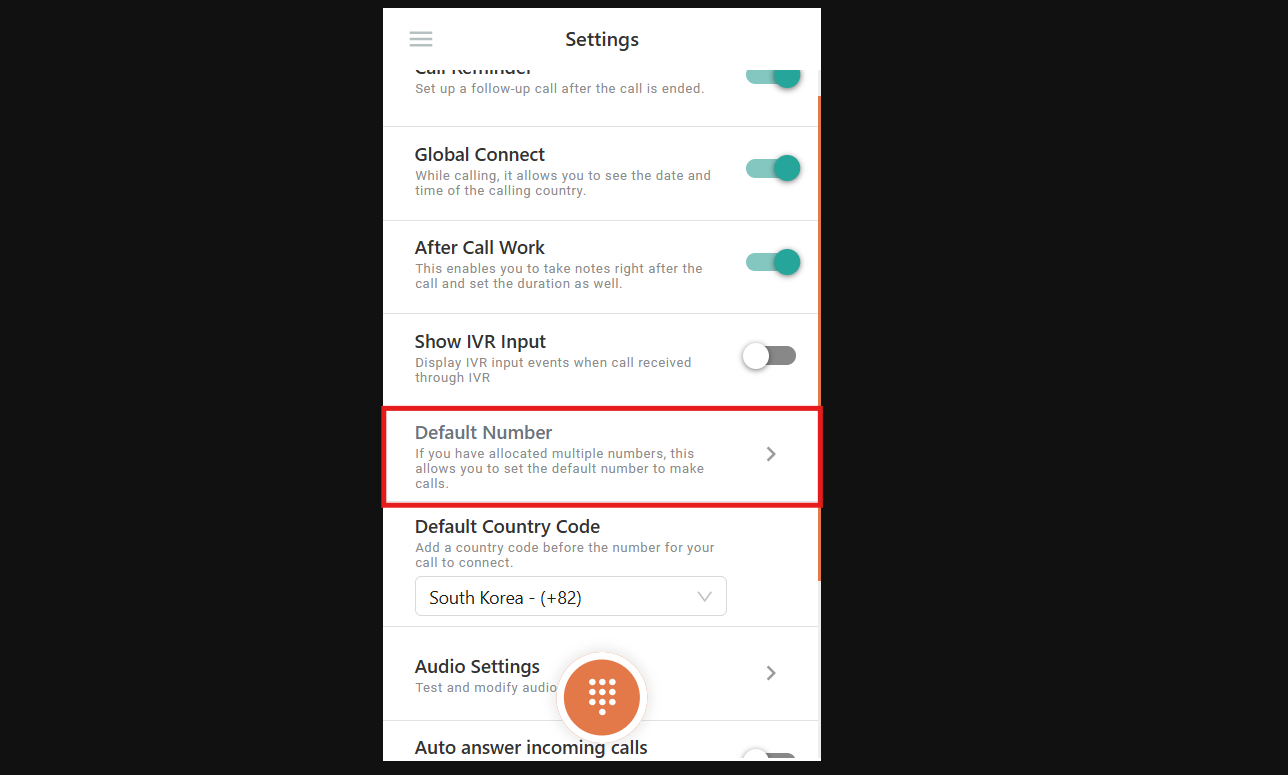
Note: If web app access for agent users is revoked, the Default Number option in dialer settings will be grayed out and non-functional for these users.
Frequently Asked Questions
Why is my default number not being used for outgoing calls even though I set it?
The default number will not apply if auto-rotate is enabled, or if the number you are calling already has a call history with a different number assigned to you. In such cases, the system may override your default setting.
Can I remove or deselect the default number once I have set it?
No, you cannot remove the default number completely. One number must always be set as default. However, you can change it by selecting another number as the new default.
What happens if I have not manually set a default number in my account?
If no default number is selected, the first number that was allocated to you is automatically set as your default number.
Why is the Default Number setting grayed out in my dialer?
If your web app access has been revoked, the Default Number option in the dialer settings will be disabled and non-functional. In such a case, kindly reach out to the owner of your account for further assistance.
Will my default number apply when I make calls through my CRM click-to-call feature?
Yes. If your CRM is integrated with CallHippo, the default number is used automatically when using click-to-call, since there is no manual number selection during that process.
Can different users in my company have different default numbers?
Yes, each user can individually set their own default number from their CallHippo account settings.
Will setting a default number override other routing features like Local Presence or Smart DID?
Yes. When a default number is active, it overrides both Local Presence and Smart DID Routing to give you full control over which number is used.
I just updated my default number, but it is still showing the old one in the dialer. What should I do?
After making changes to your default number, please log out and log back into the dialer to ensure the update is applied correctly. Refreshing the session helps sync the new settings.
I have more than one number on my account. How can I choose which one is used by default for outgoing calls?
You can change your preferred number by setting a new default. Go to your dashboard, open your user settings, click Allocate Numbers, and then click Make This Default for the number you want to prioritize.
I noticed that my outgoing calls are using a number from a different country. How can I make sure the correct number shows up instead?
If the wrong number is showing as default, you can manually update it by going to the dialer or dashboard settings and selecting your preferred number. Make sure auto-rotate is not enabled, as that can override the default setting.
We hope this helps. If you still have questions, feel free to reach out at [email protected].