
Integrating Shopify with CallHippo lets you sync customers, log calls and SMS in each customer’s notes, and place calls directly from Shopify with click-to-call.
Step 1: Create a custom app in Shopify
First you’ll create a private app in Shopify to generate an Admin API access token.
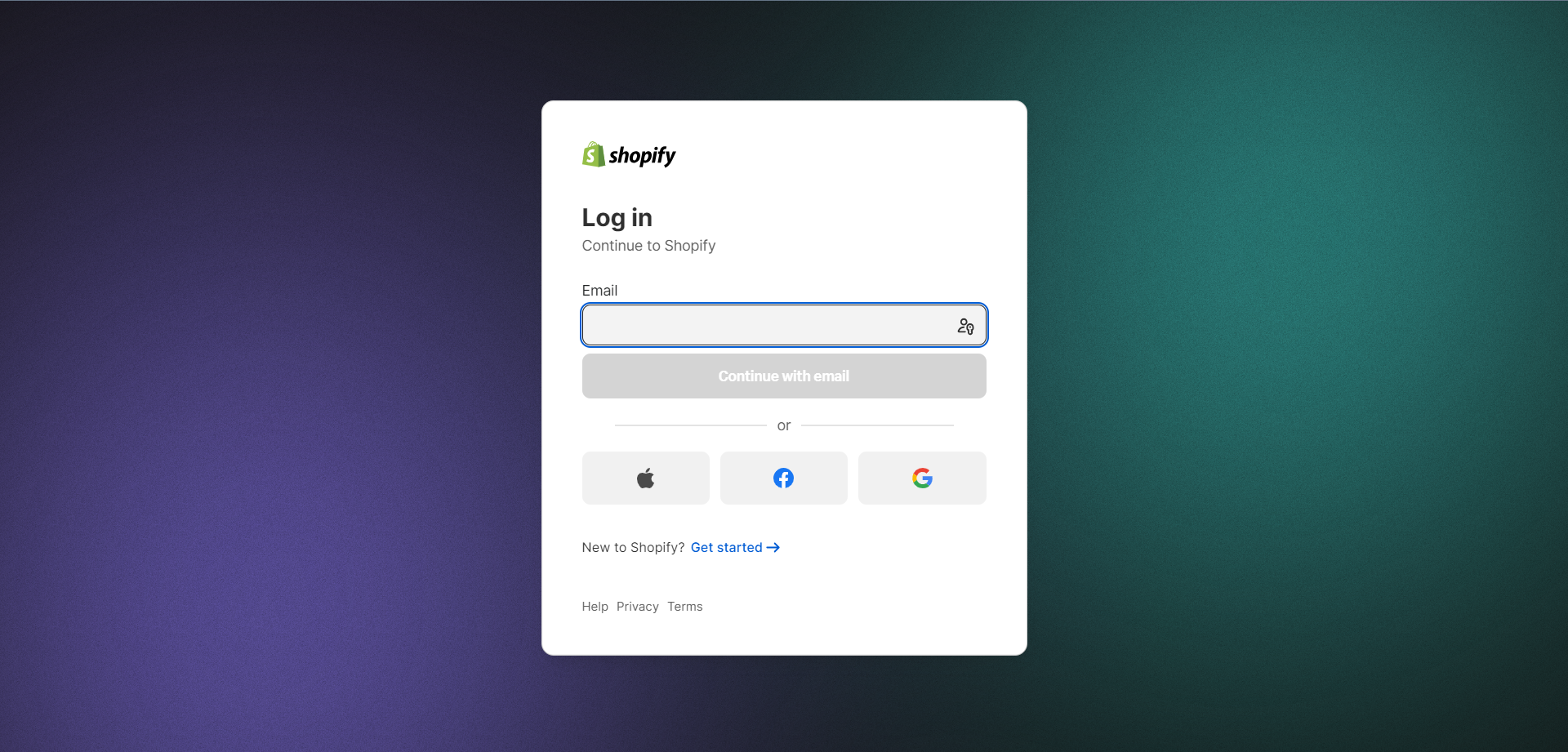
- Log in to Shopify. Sign in to your Shopify account with your email and password.
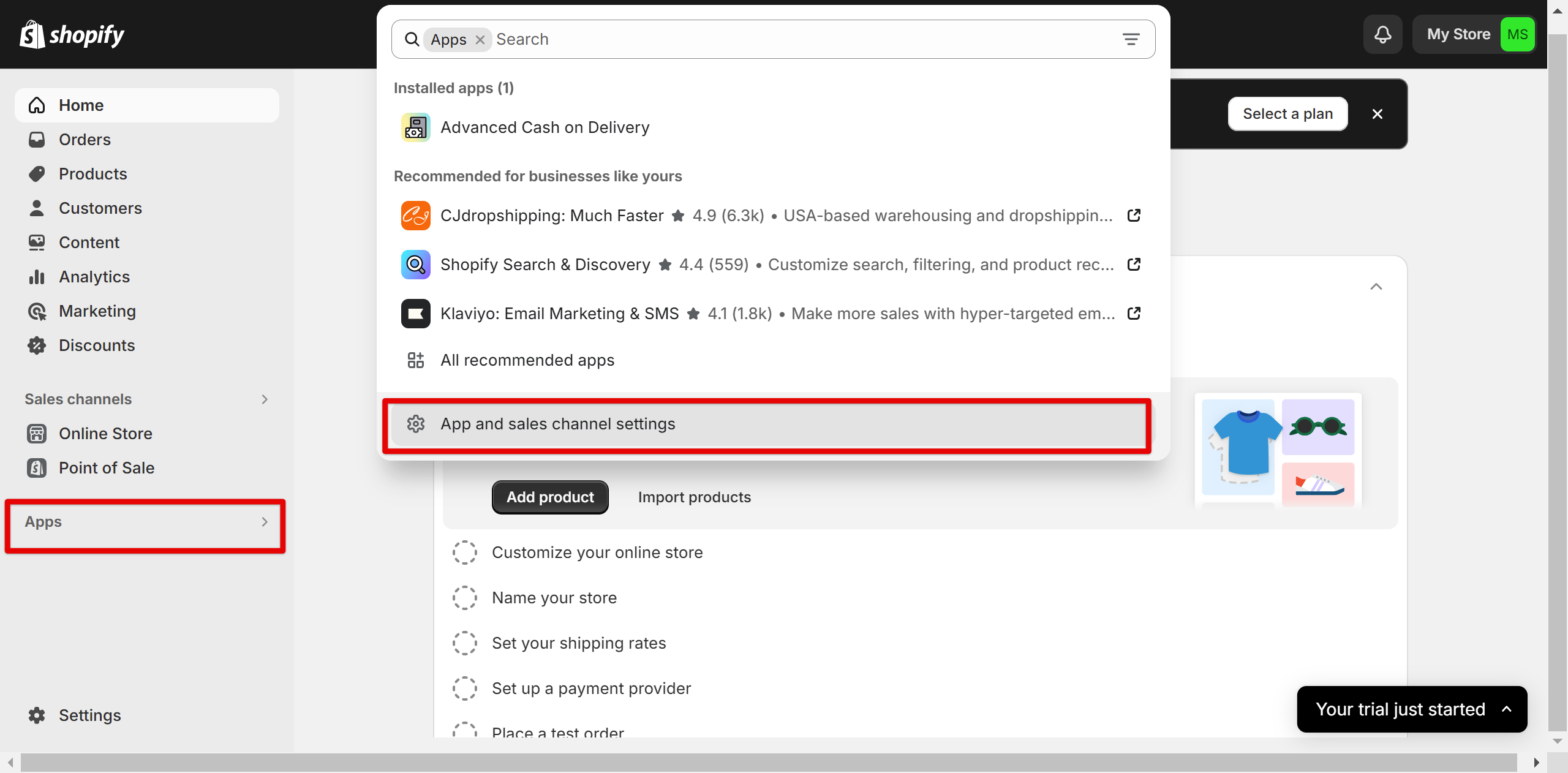
- Open app settings. Go to Apps and click App and sales channel settings.
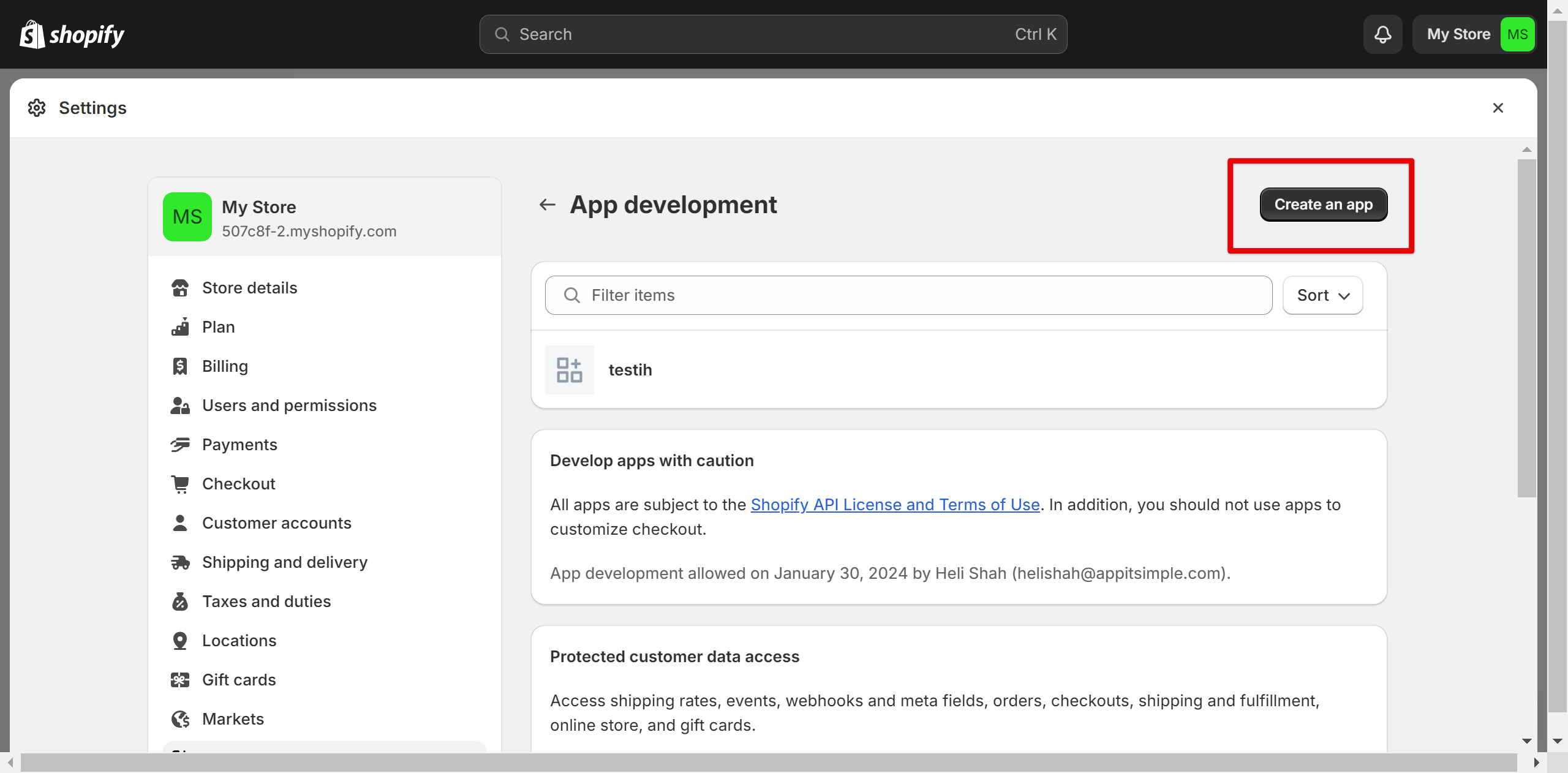
- Develop apps. Click Develop apps. If an app already exists, select it and skip ahead to Step 7. Otherwise, click Create an app.
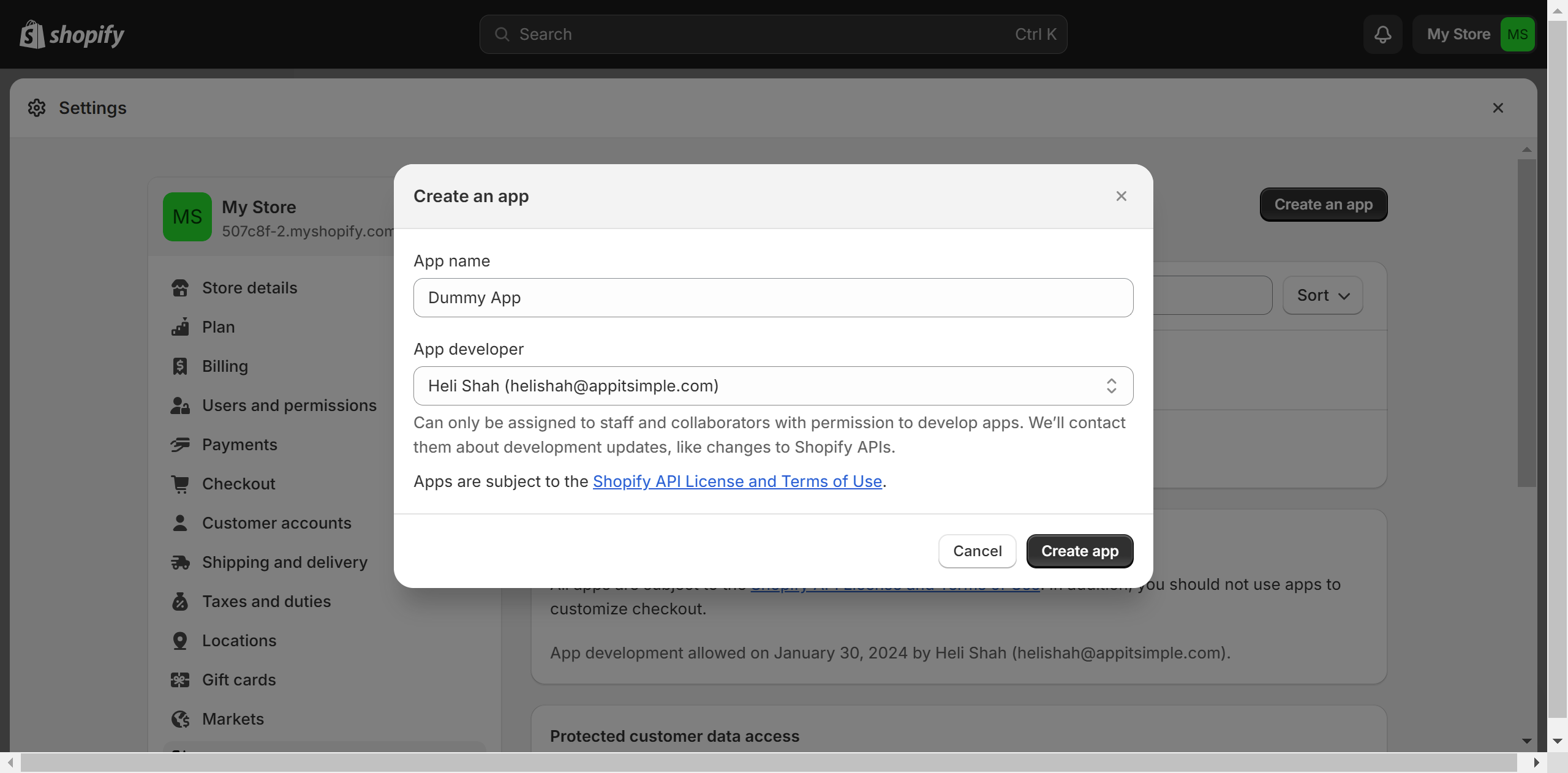
- Name your app. Give the app a name, keep the app developer selected, and click Create app.
Step 2: Configure and install the app
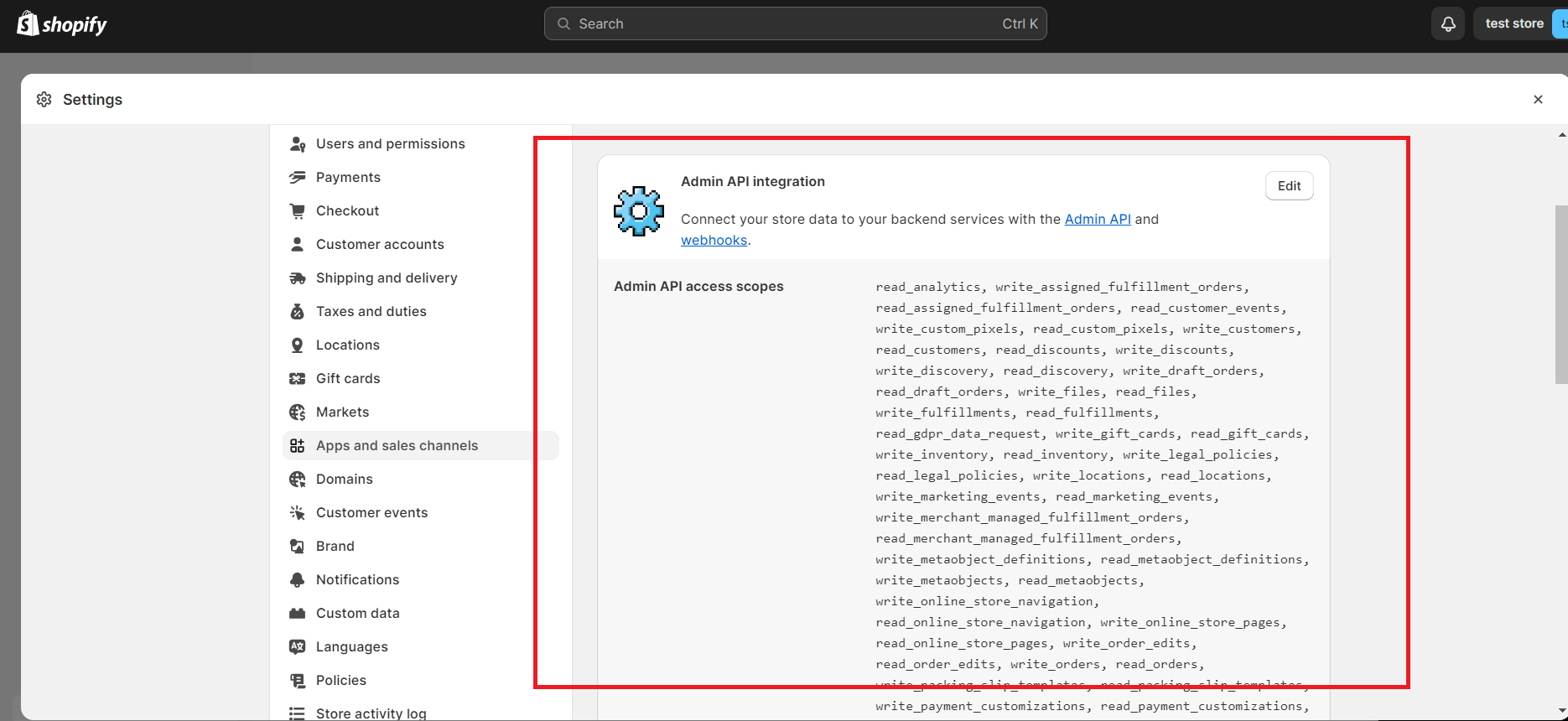
- Configure Admin API scopes. Before installing, open Configuration (or Review configuration), select all the necessary Admin API access scopes, and click Save.
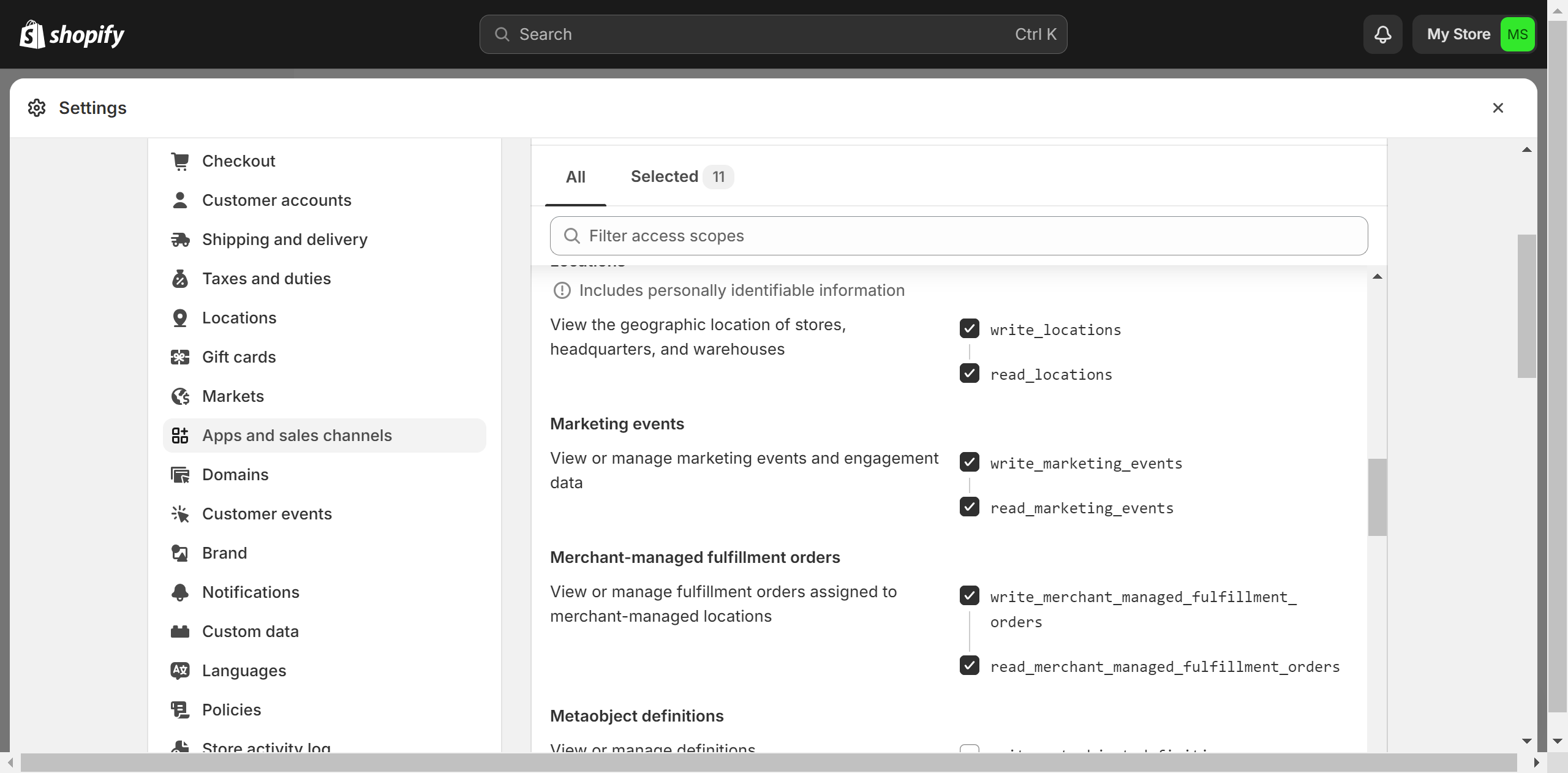
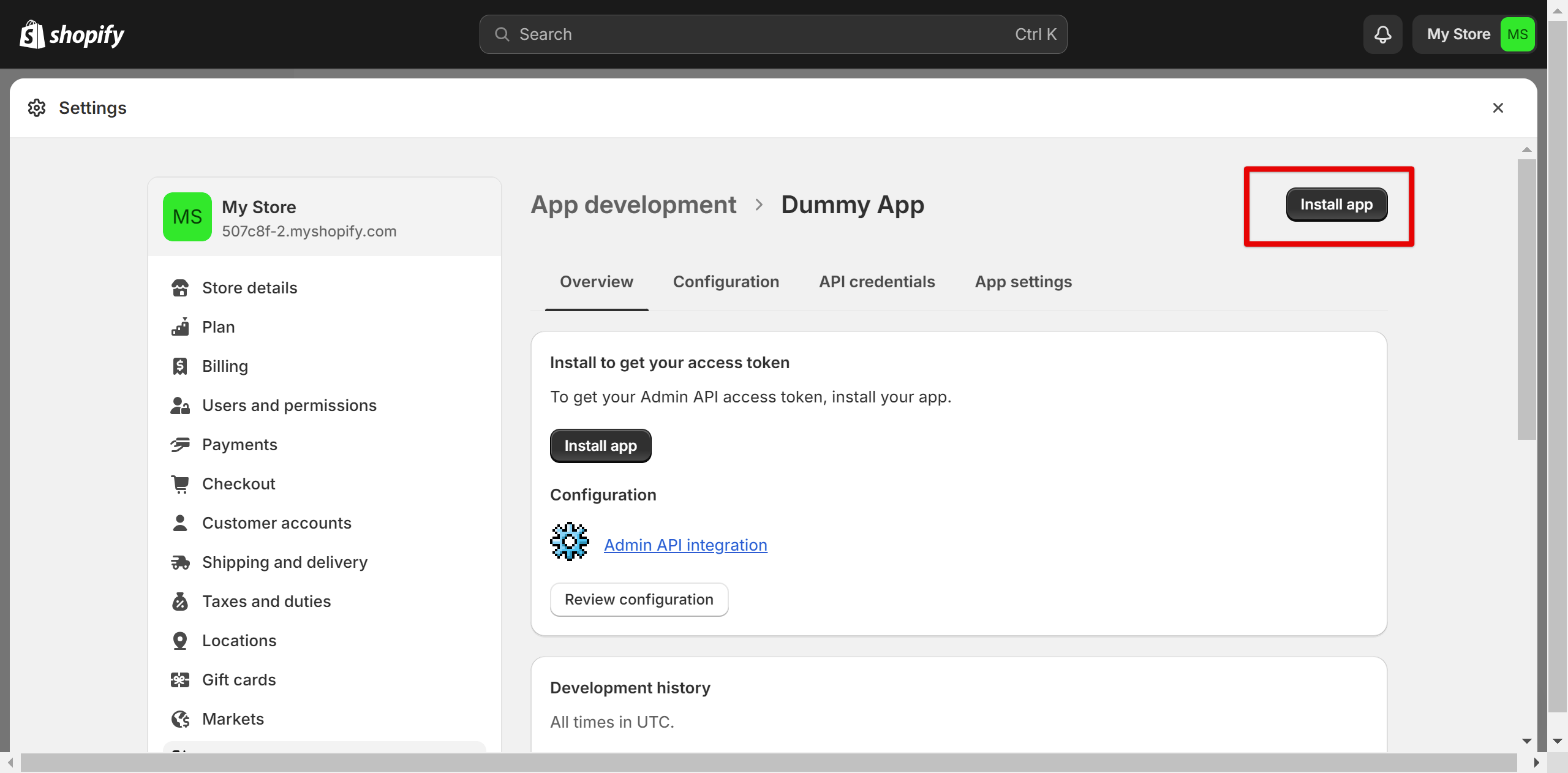
- Install the app. On the app overview, click Install app to generate your Admin API access token.
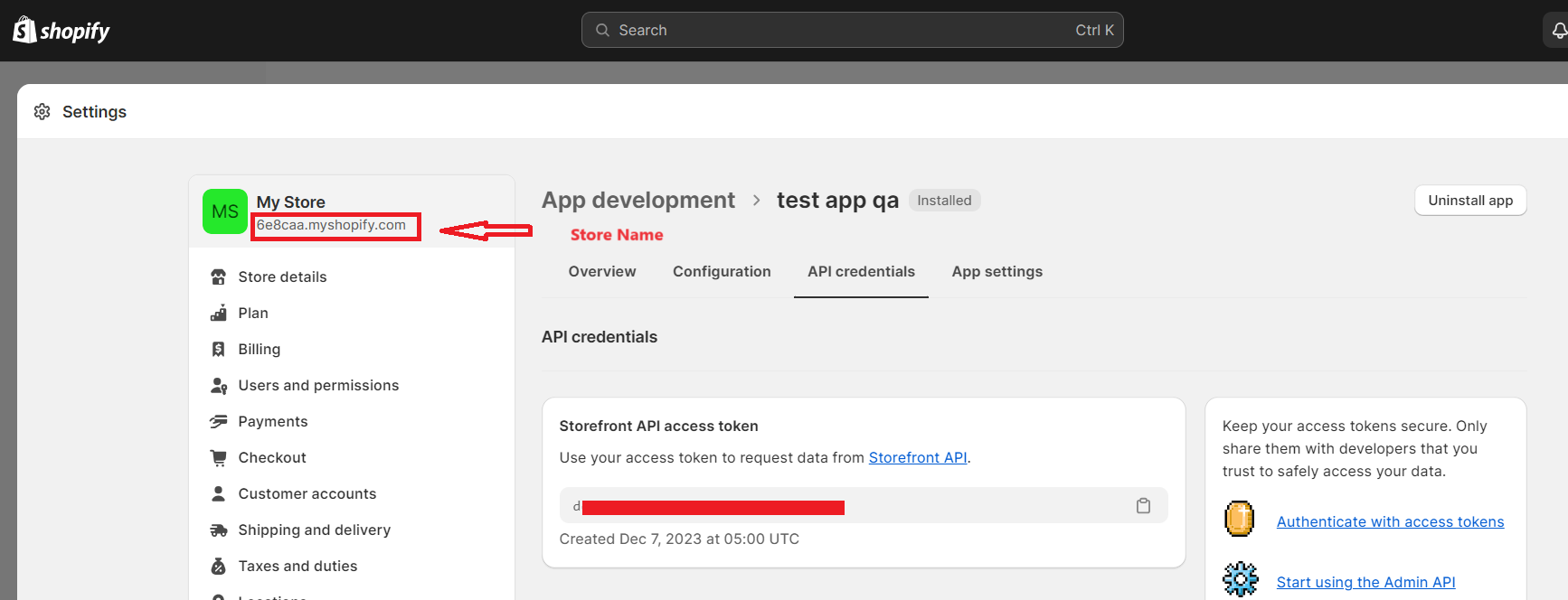
- Copy the token and store name. Go to Settings > Apps and sales channels > Develop apps > your app > API credentials. Copy the Admin API Access Token and note your store name.
Note: You can modify your Admin API access scopes at any time under Configuration.
Step 3: Connect Shopify in CallHippo
- Open Integrations. Log in to CallHippo and click Integrations in the left sidebar of your dashboard.
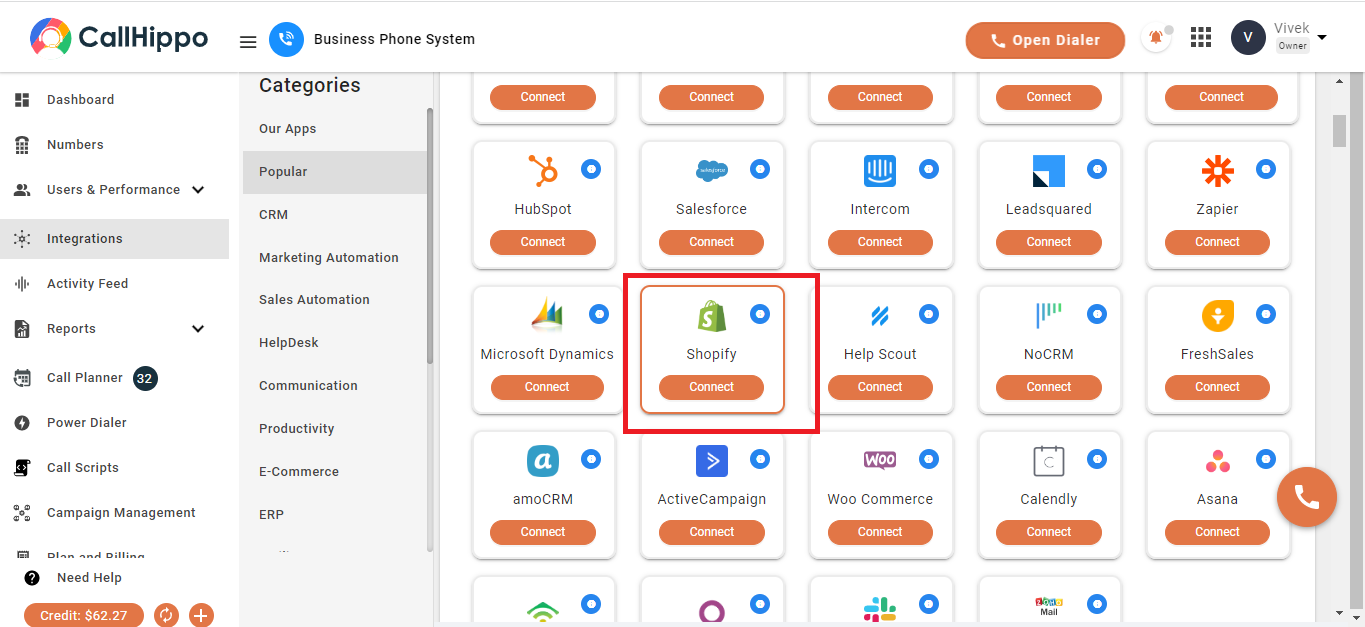
- Select Shopify. Find the Shopify tile and click Connect.
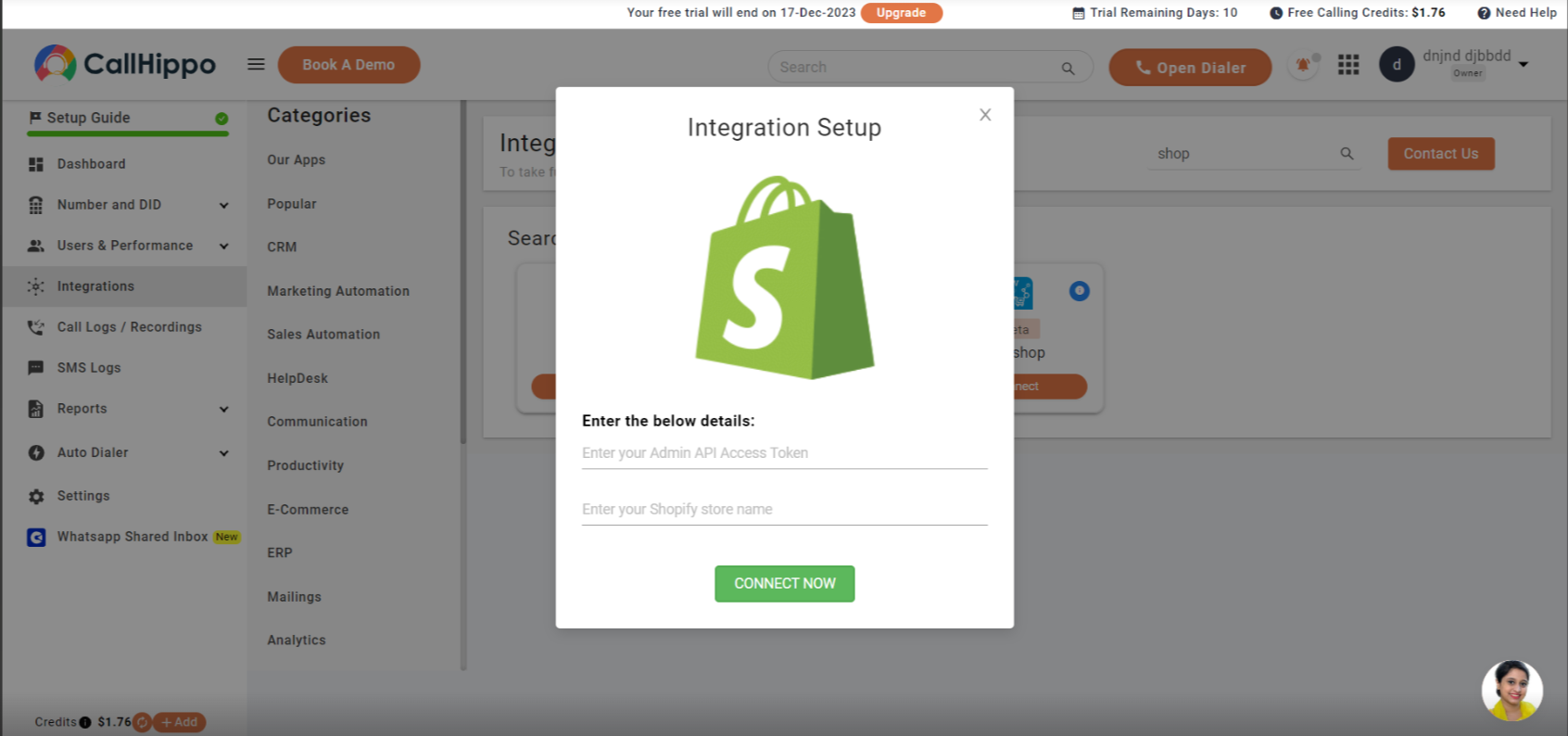
- Enter your credentials. In the pop-up, enter your Admin API Access Token and Shopify store name, then click Connect Now. You will be redirected to the CallHippo integration page.
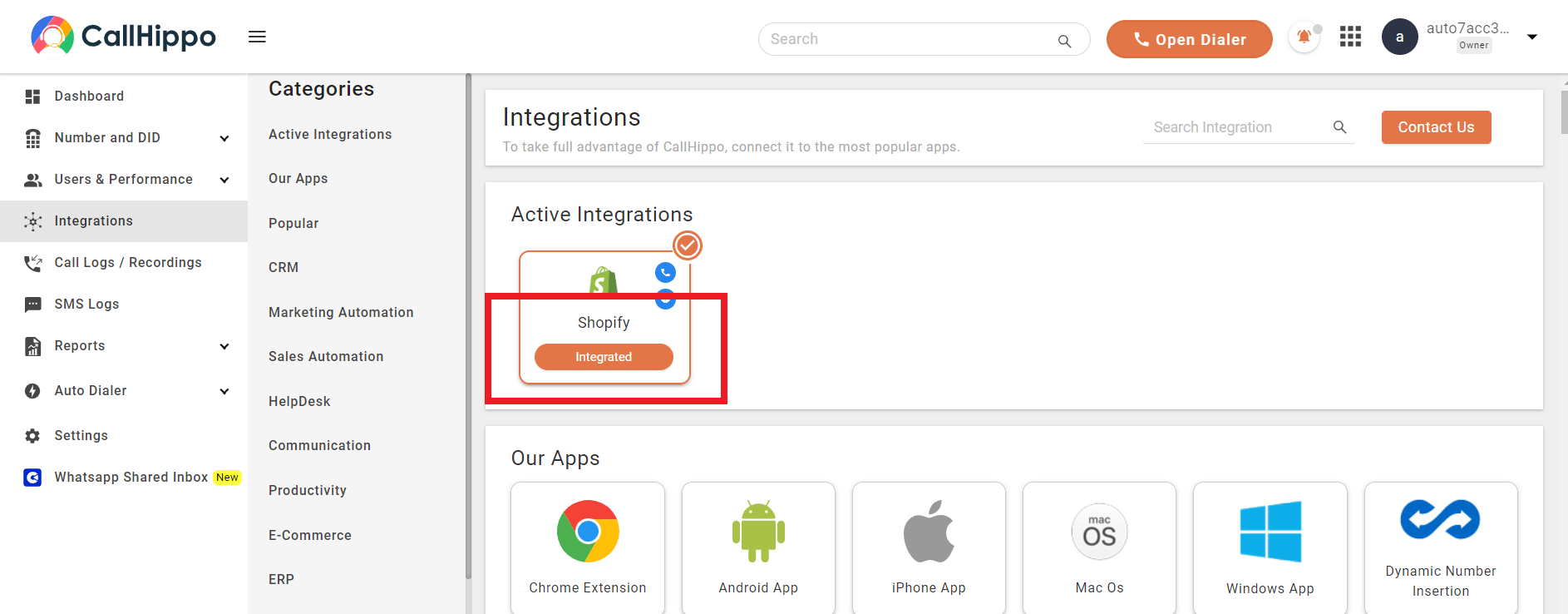
- Confirm the integration. Shopify now appears under Active Integrations marked as Integrated.
How call and SMS activity syncs
Once connected, calls and messages placed on Shopify customers through the CallHippo dialer are logged against the matching customer.
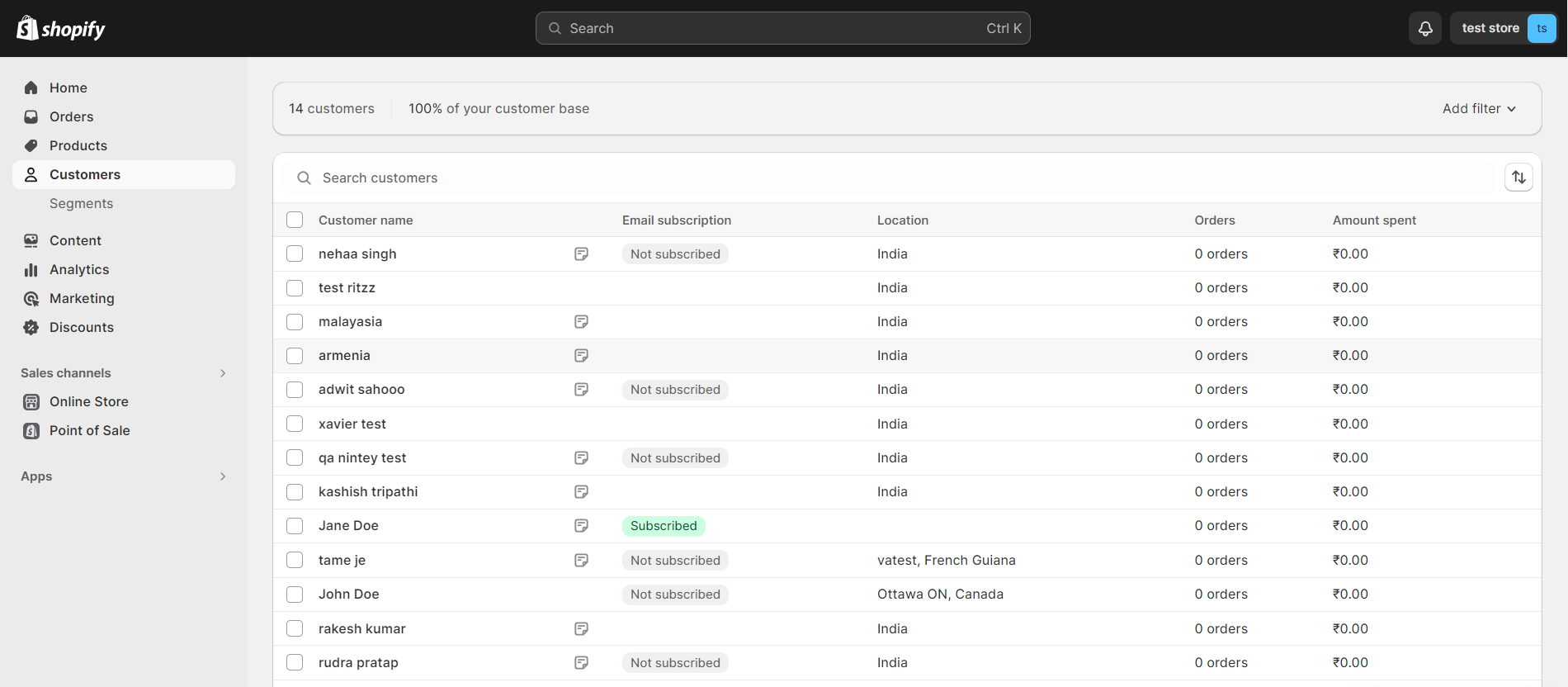
- Call activity: When a call is made on a Shopify contact from the CallHippo dialer, it is logged in that customer’s record (Shopify Dashboard > Customers > select the customer > Notes).
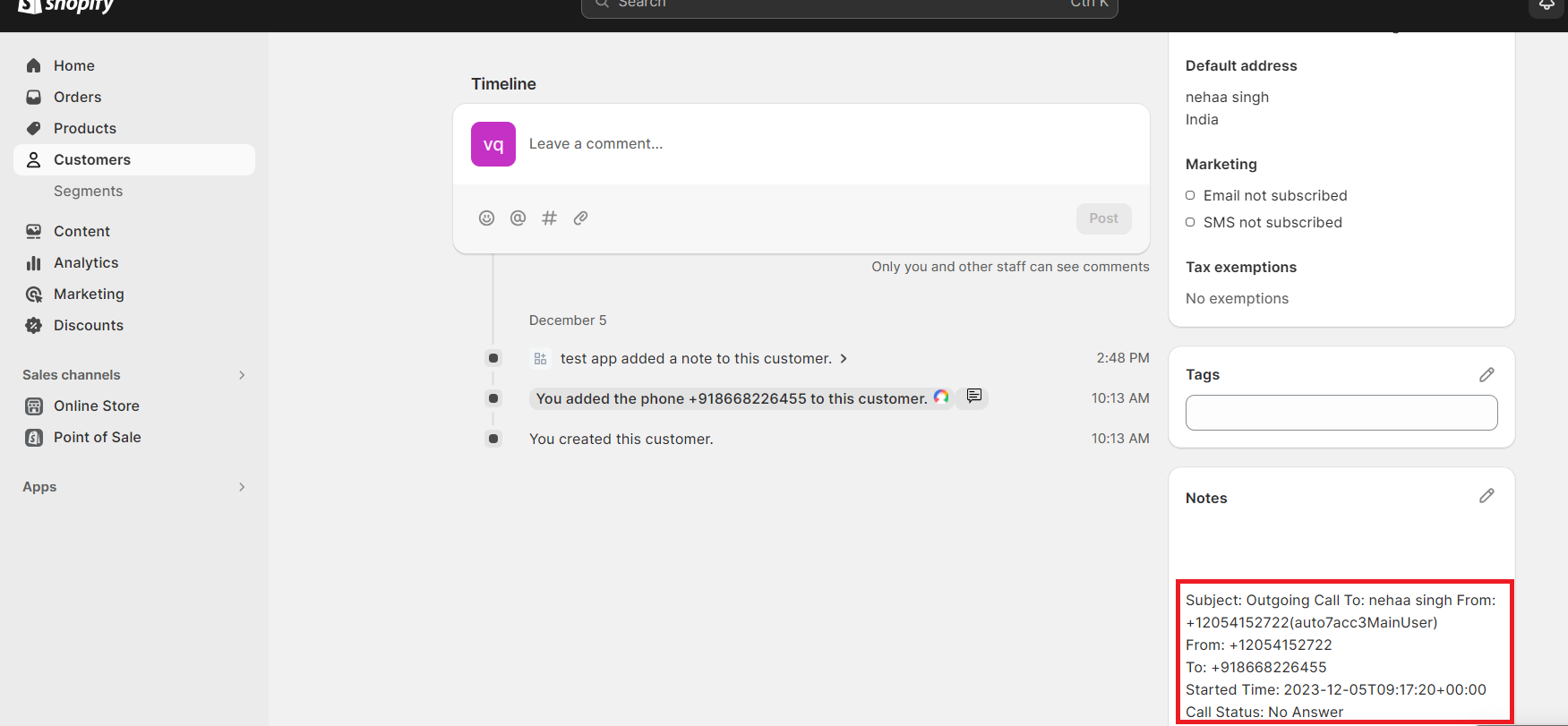
- SMS activity: Likewise, SMS sent or received on a Shopify contact from the CallHippo dialer is reflected in the same customer’s notes.
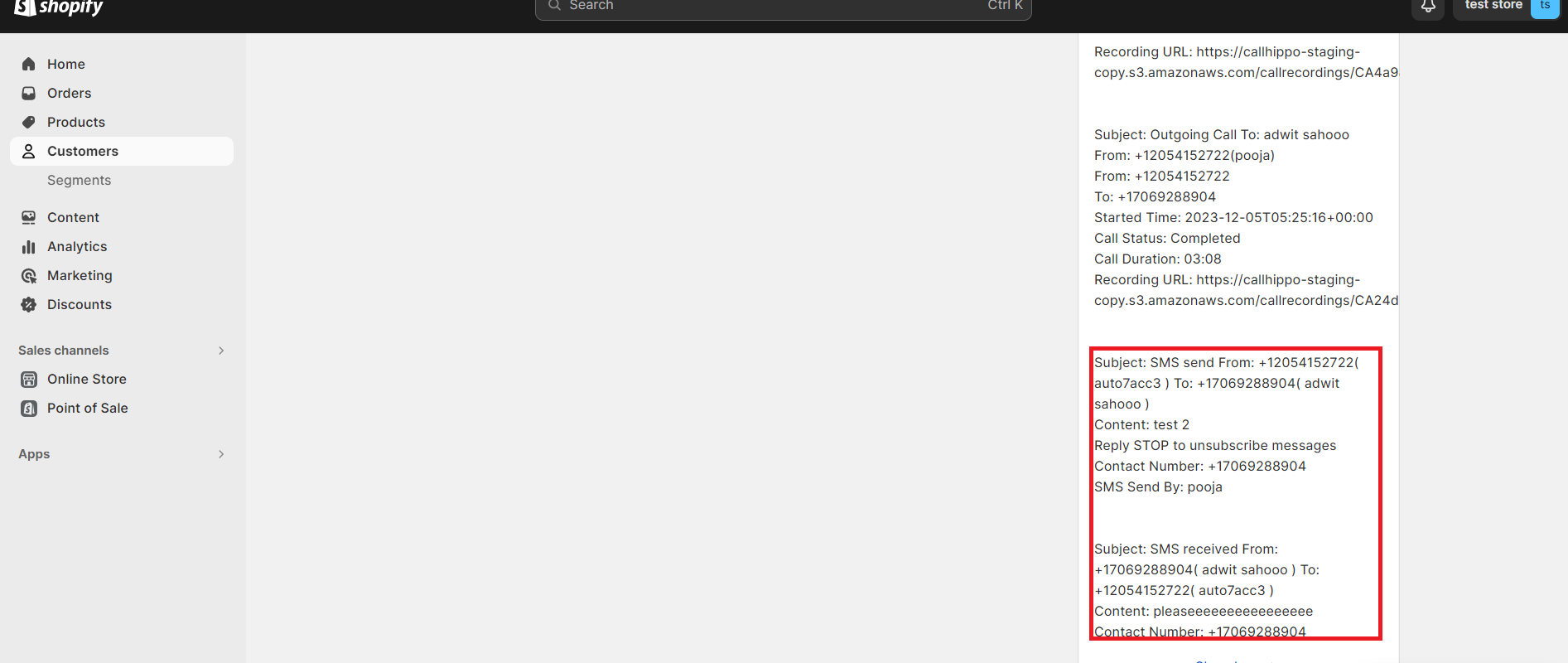
Note: On click-to-call or SMS, the contact is synced with your CallHippo contacts.
Enable Click-to-Call
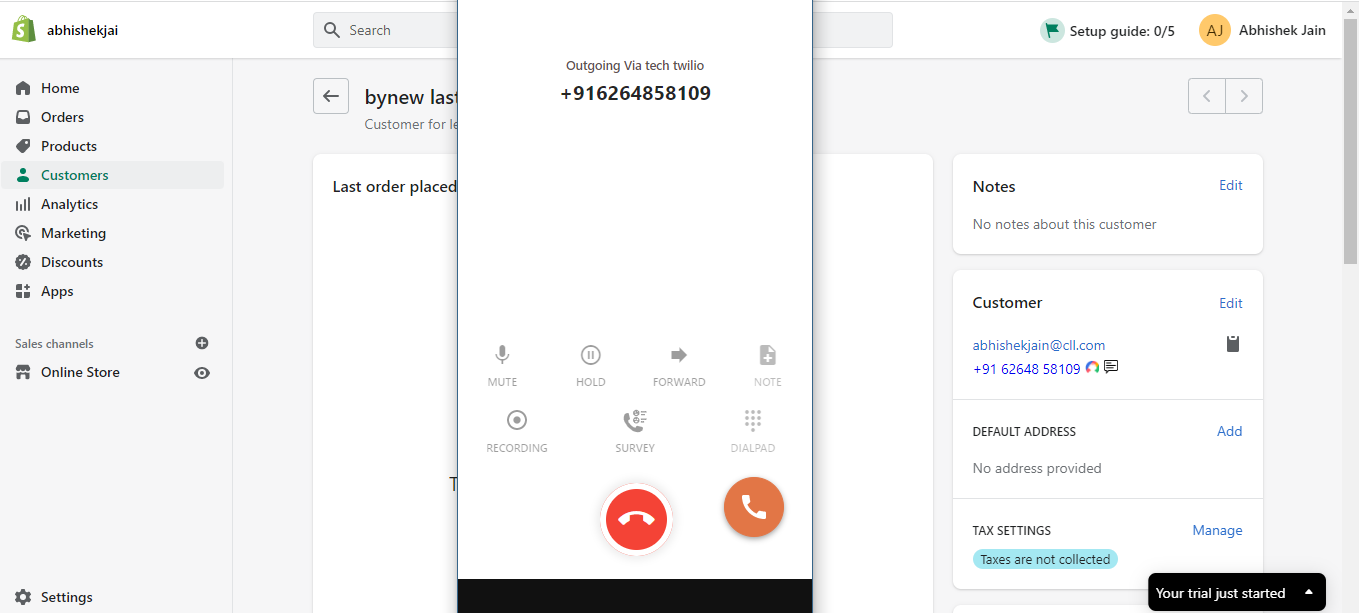
Click-to-call lets you dial Shopify customer numbers directly from the CRM, and every click-to-call is synced back to CallHippo.
- Install the extension. Add the CallHippo Click-to-Call Chrome extension from the Chrome Web Store.
- Call from a customer. Open a customer (Shopify Dashboard > Customers > select the customer) and click the CallHippo icon next to the phone number to start the call.
After Call Work and dispositions
If your plan includes CallHippo’s Call Tags and Disposition service and it is enabled, the activity pushed to Shopify also includes the tags and disposition data added on the After Call Work (ACW) screen.
Note: This syncs only when tags and dispositions are added on the After Call Work screen. If they are added later from the call logs or another feed, they will not sync to Shopify.
Feature note: Contacts are synced from Shopify to CallHippo only when a click-to-call takes place.
Do all my Shopify customers sync to CallHippo automatically?
No. Contacts are synced from Shopify to CallHippo only when a click-to-call is placed on that contact.
Where do I find the Admin API access token?
In Shopify, go to Settings > Apps and sales channels > Develop apps > your app > API credentials. You must install the app first for the token to be generated.