
Connecting Slack with CallHippo pushes your call and SMS activity into your Slack channels in real time, so your team stays in the loop without leaving Slack.
Before You Start
- Who can integrate: any CallHippo user with admin permissions.
- Permissions needed: admin access on both CallHippo and Slack.
- Sync time: the integration is instant, with real-time data synchronization once set up.
Modules Included in the Integration
- Slack Channels
- Threads
- Direct Messages
Steps to Connect Slack
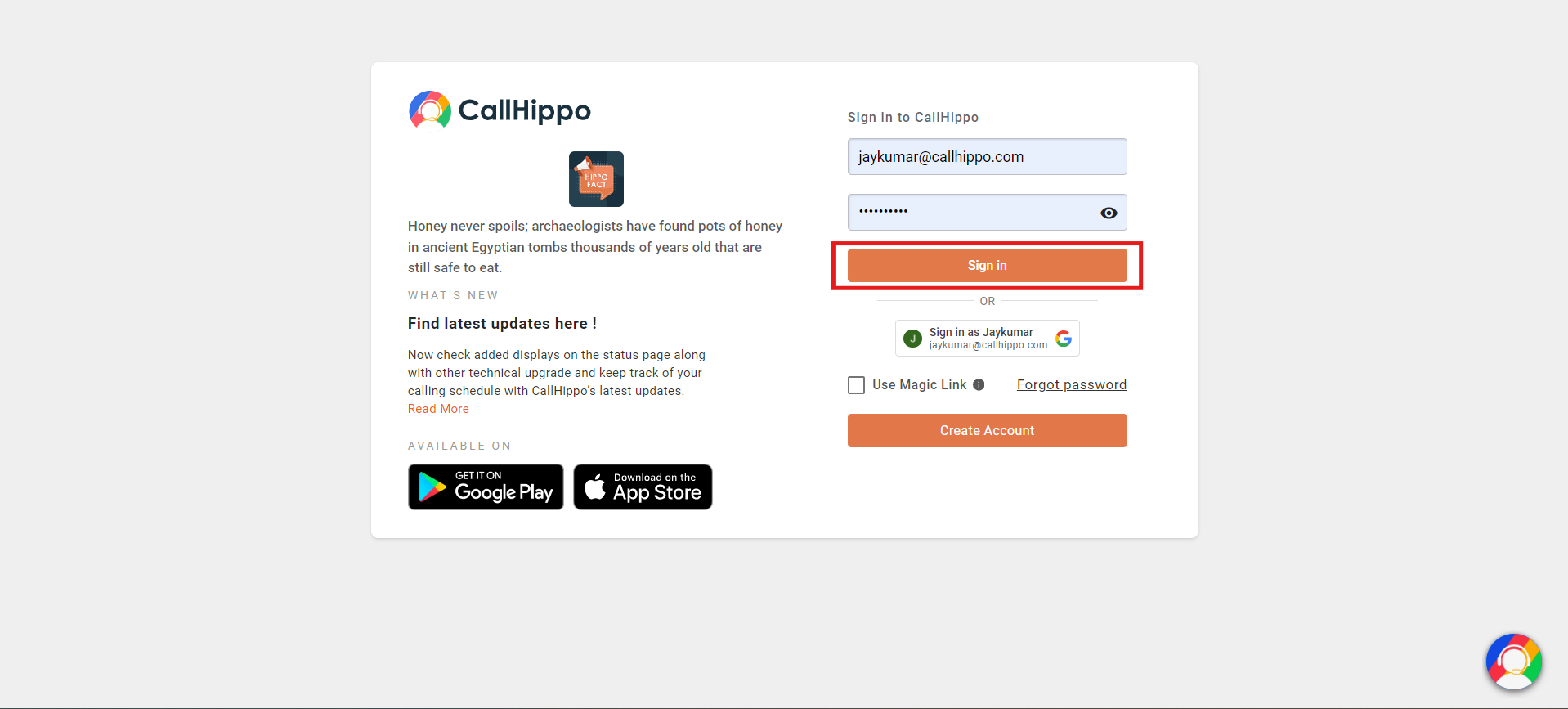
- Log in to your CallHippo account.
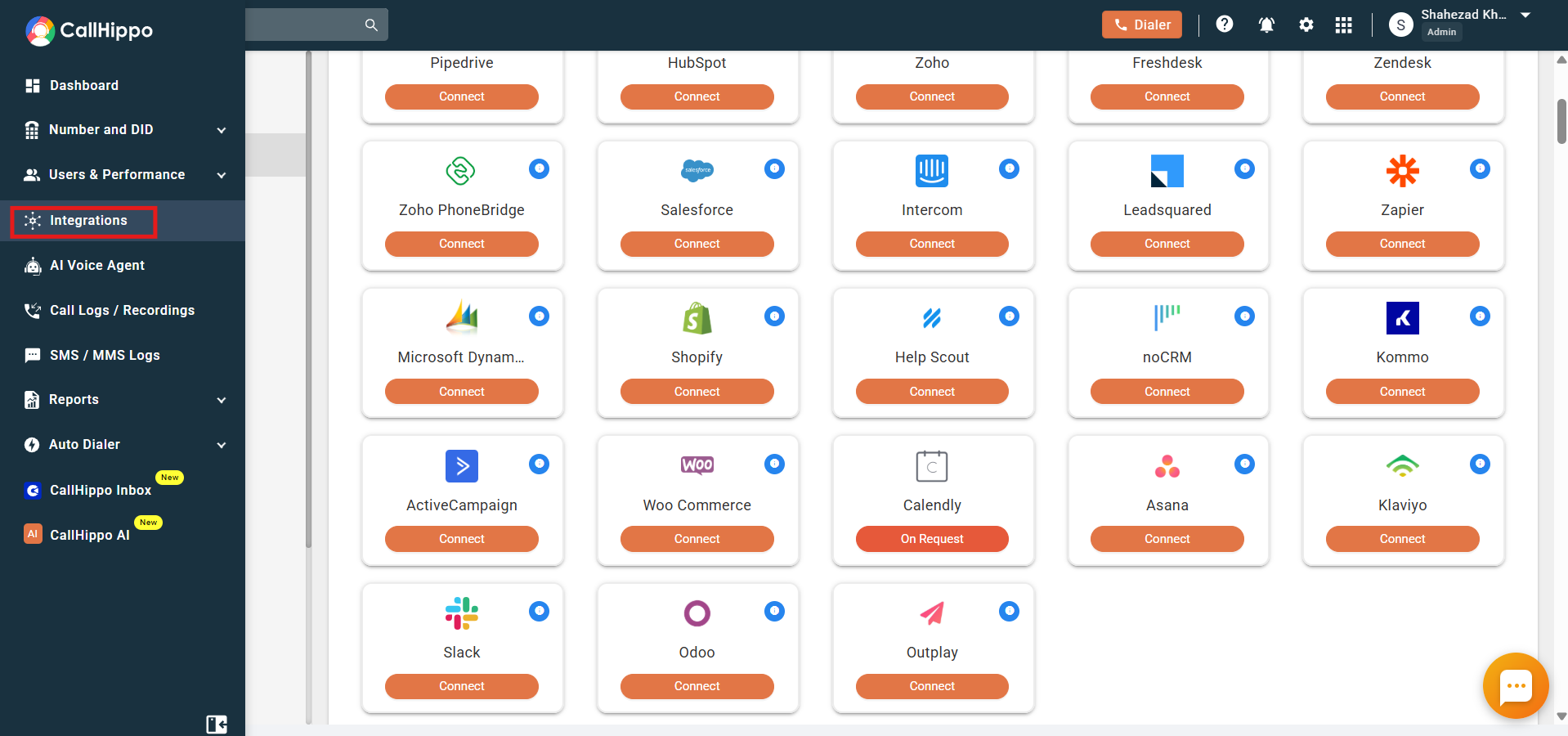
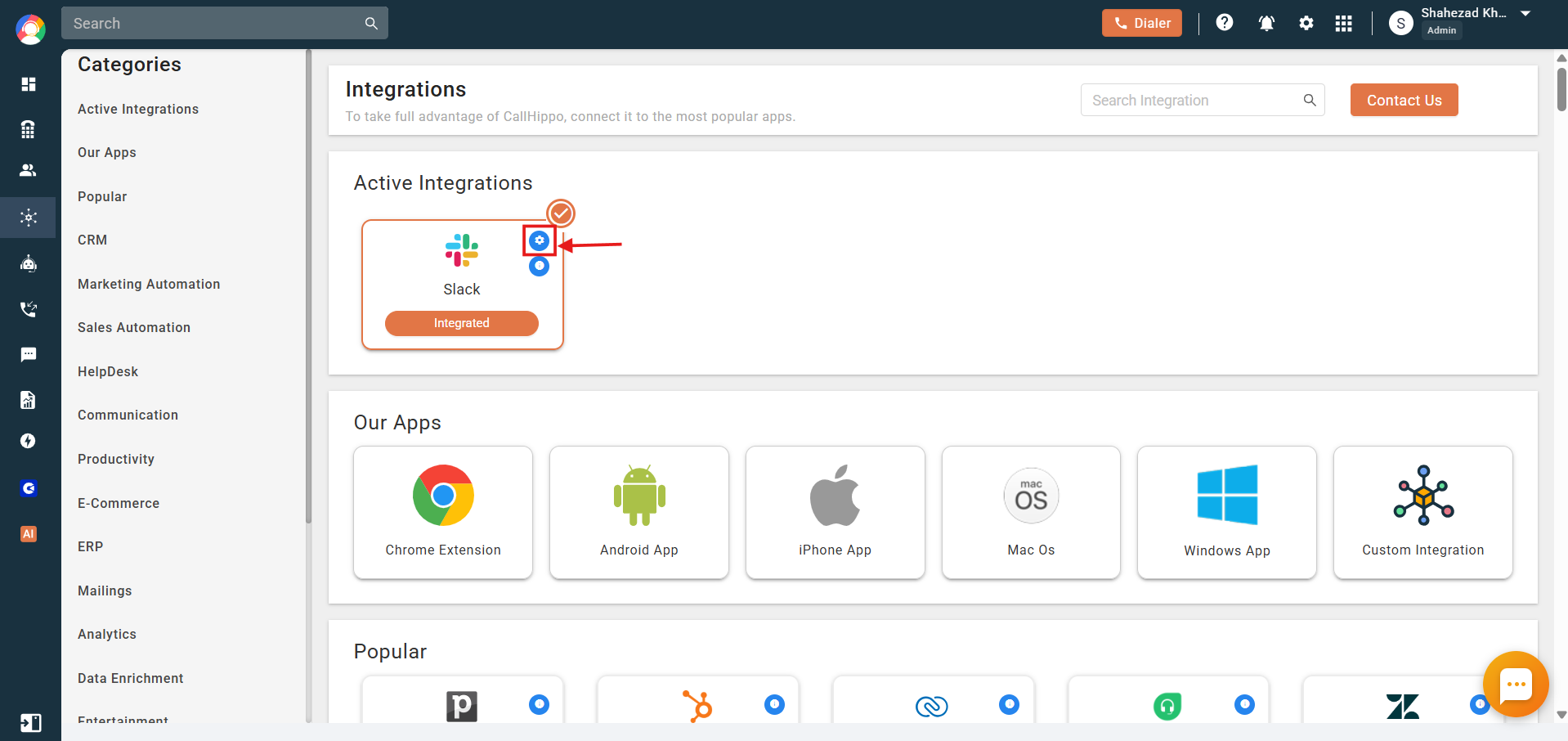
- Open Integrations from the left sidebar of your dashboard.
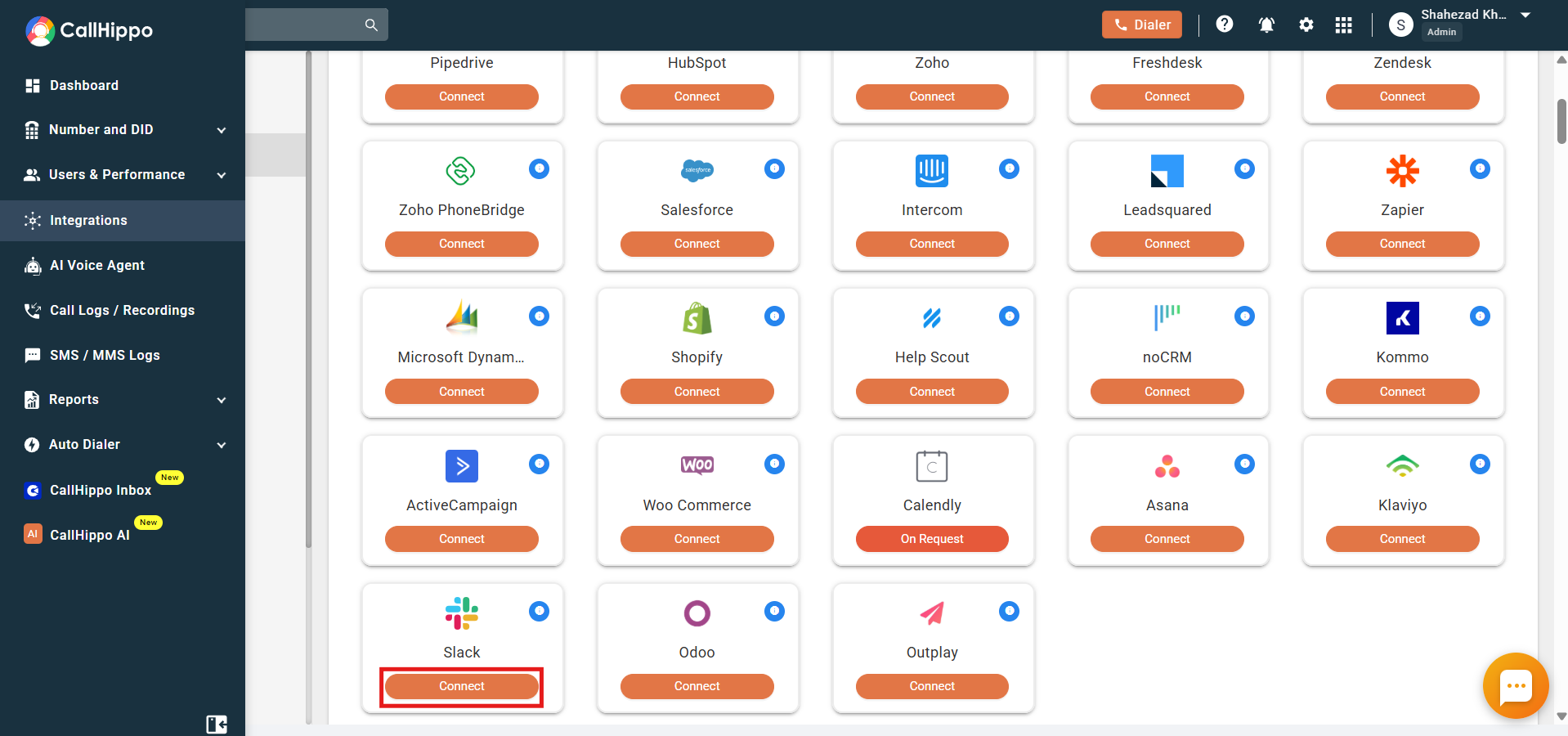
- Find Slack and click Connect.
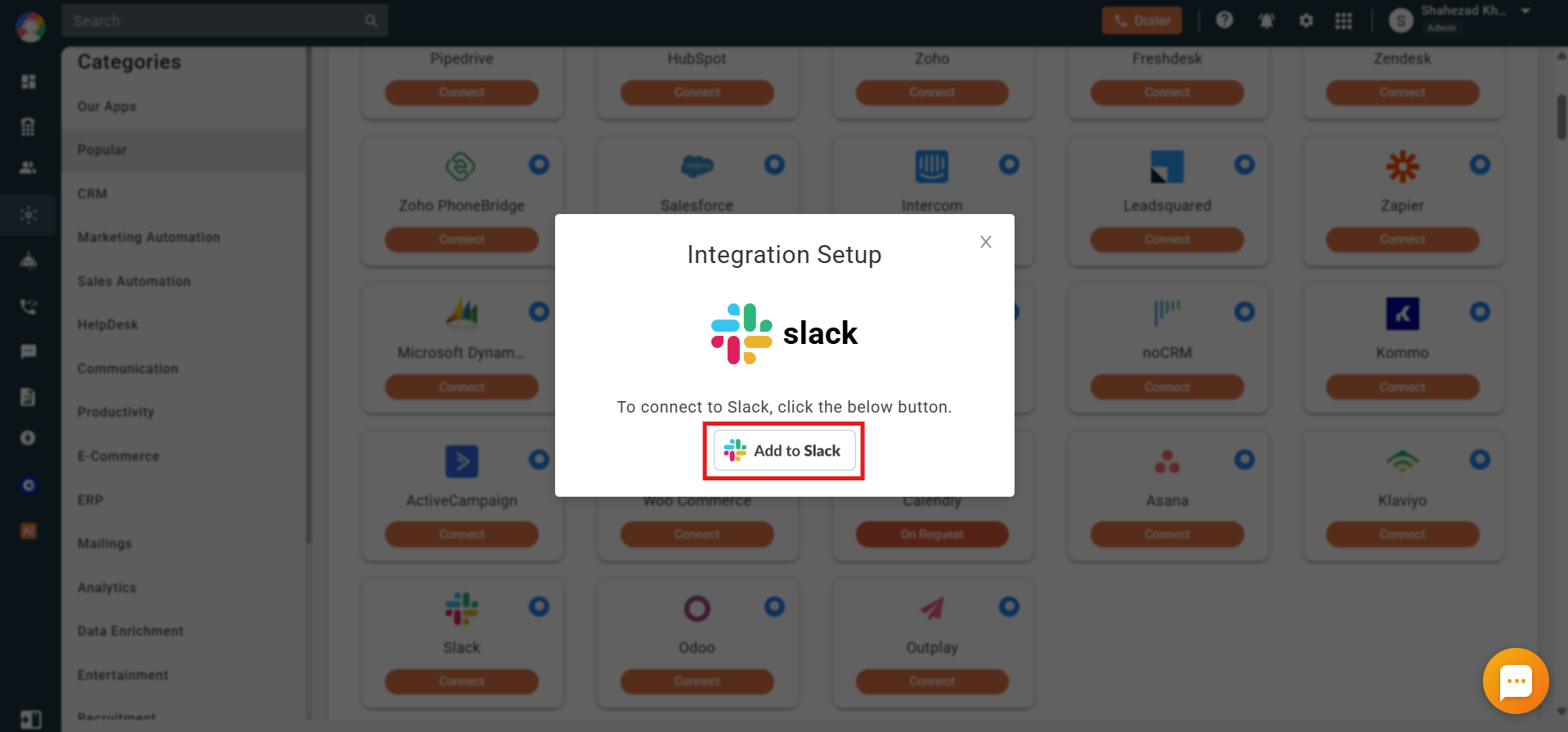
- A pop-up appears with an Add to Slack button. Click it.
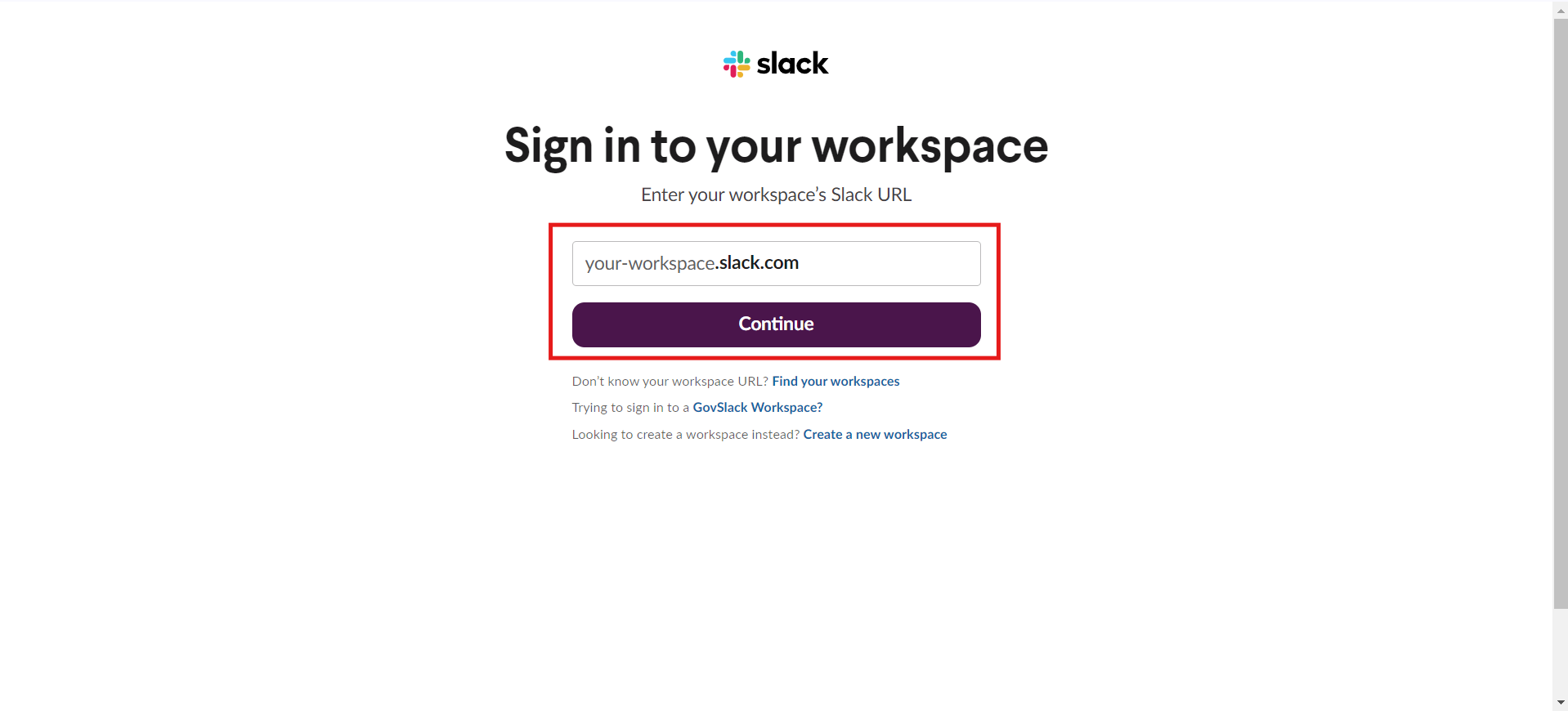
- If you are not already signed in, you will be redirected to the Slack login page. Enter your workspace URL and log in.
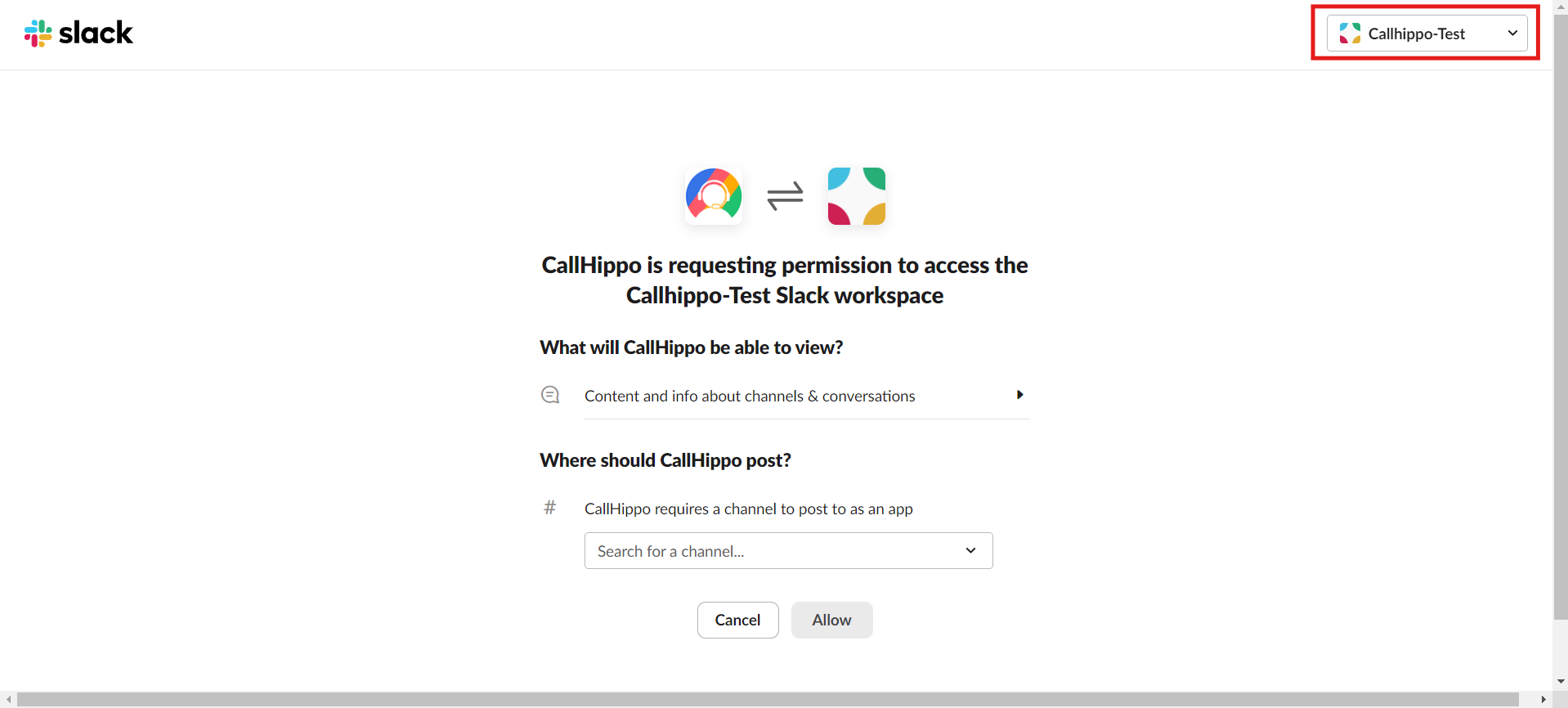
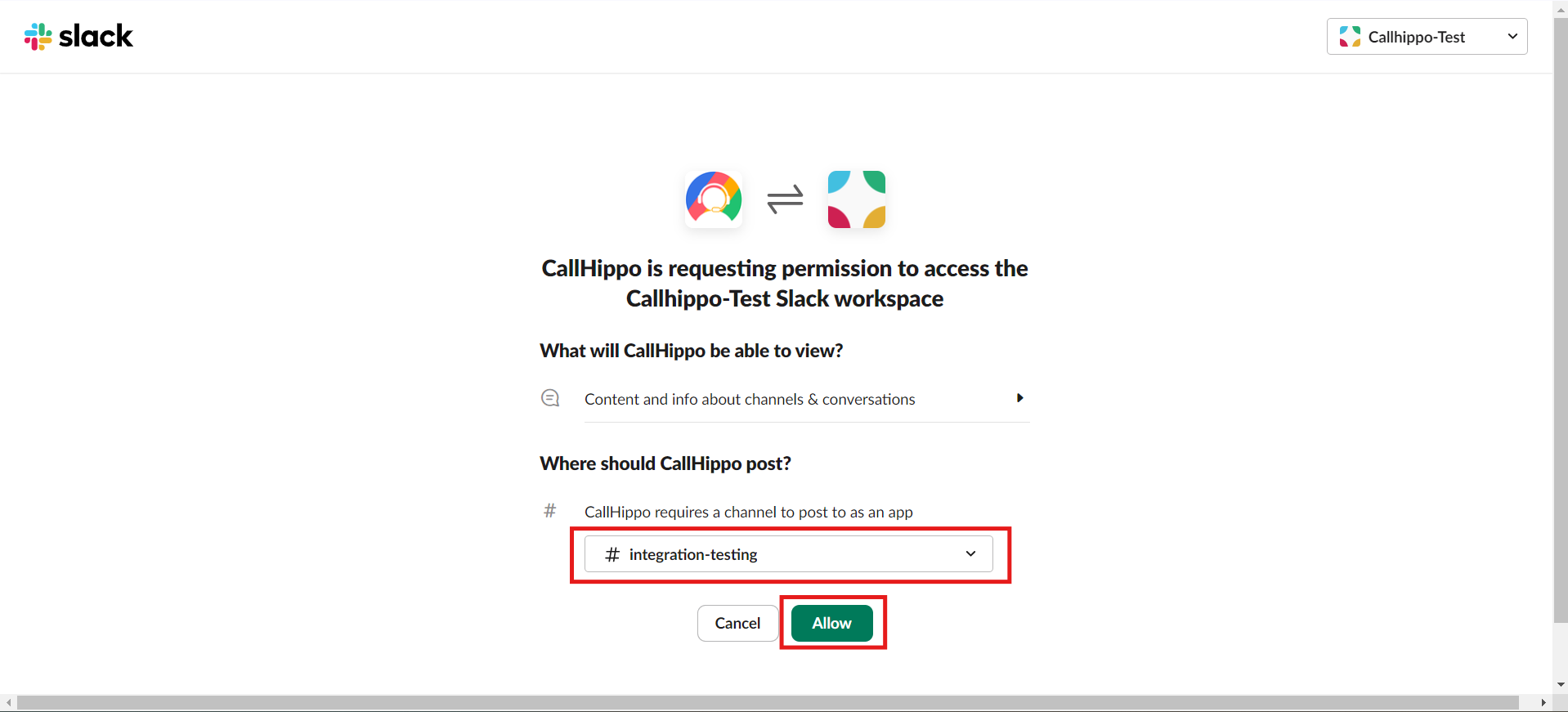
- On the permissions page, select the correct workspace from the top-right corner if you are logged into more than one.
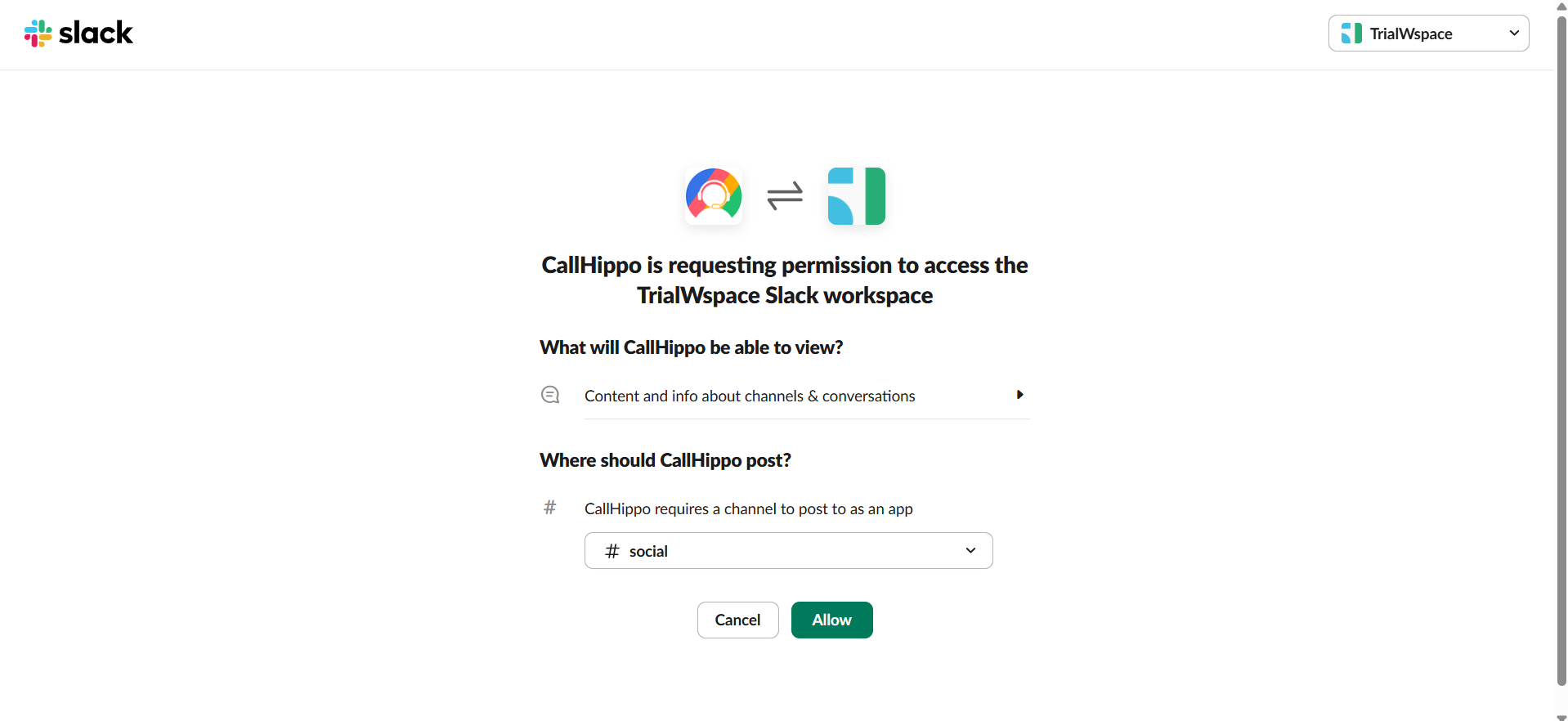
- Select the Slack channel for the integration and click Allow.
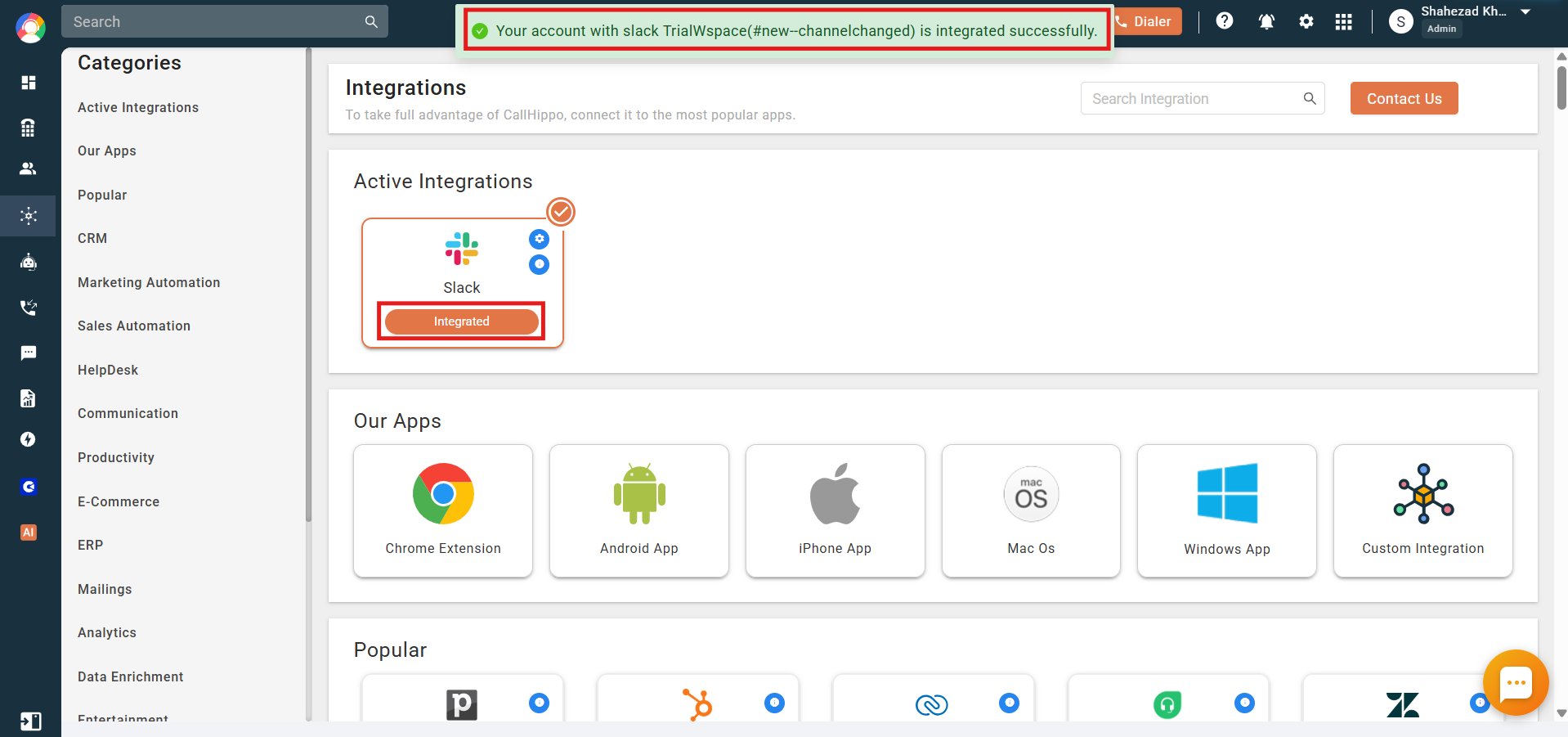
- After granting permission, you are redirected back to CallHippo and the integration status shows Integrated. Your Slack integration is now complete.
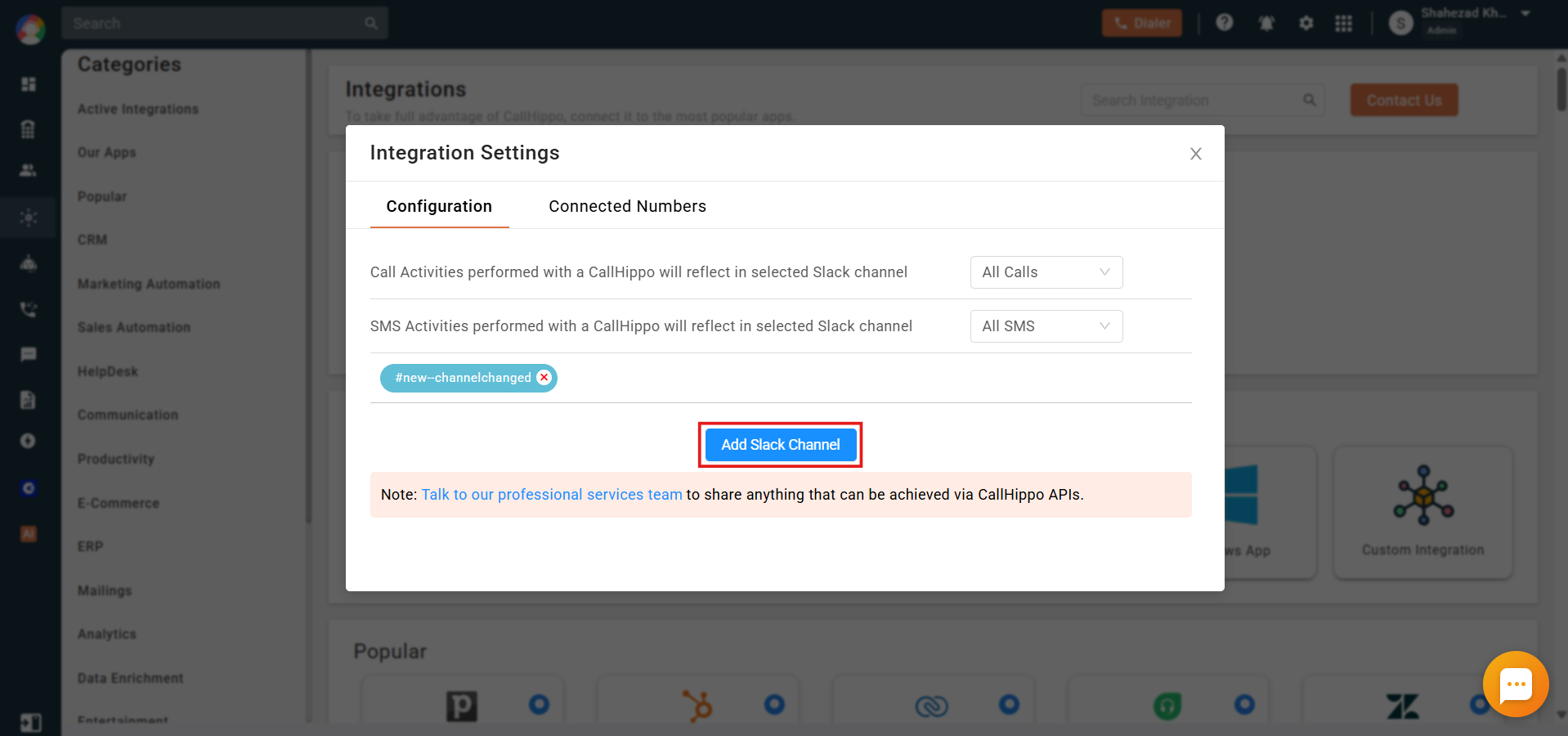
- Open the Integration Settings from the Slack card and customize the functionality. You can choose to monitor incoming and outgoing calls and SMS.
Add Multiple Slack Channels (Optional)
- Click Add Slack Channel in the settings. You are redirected to the permissions page again, where you can add another channel.
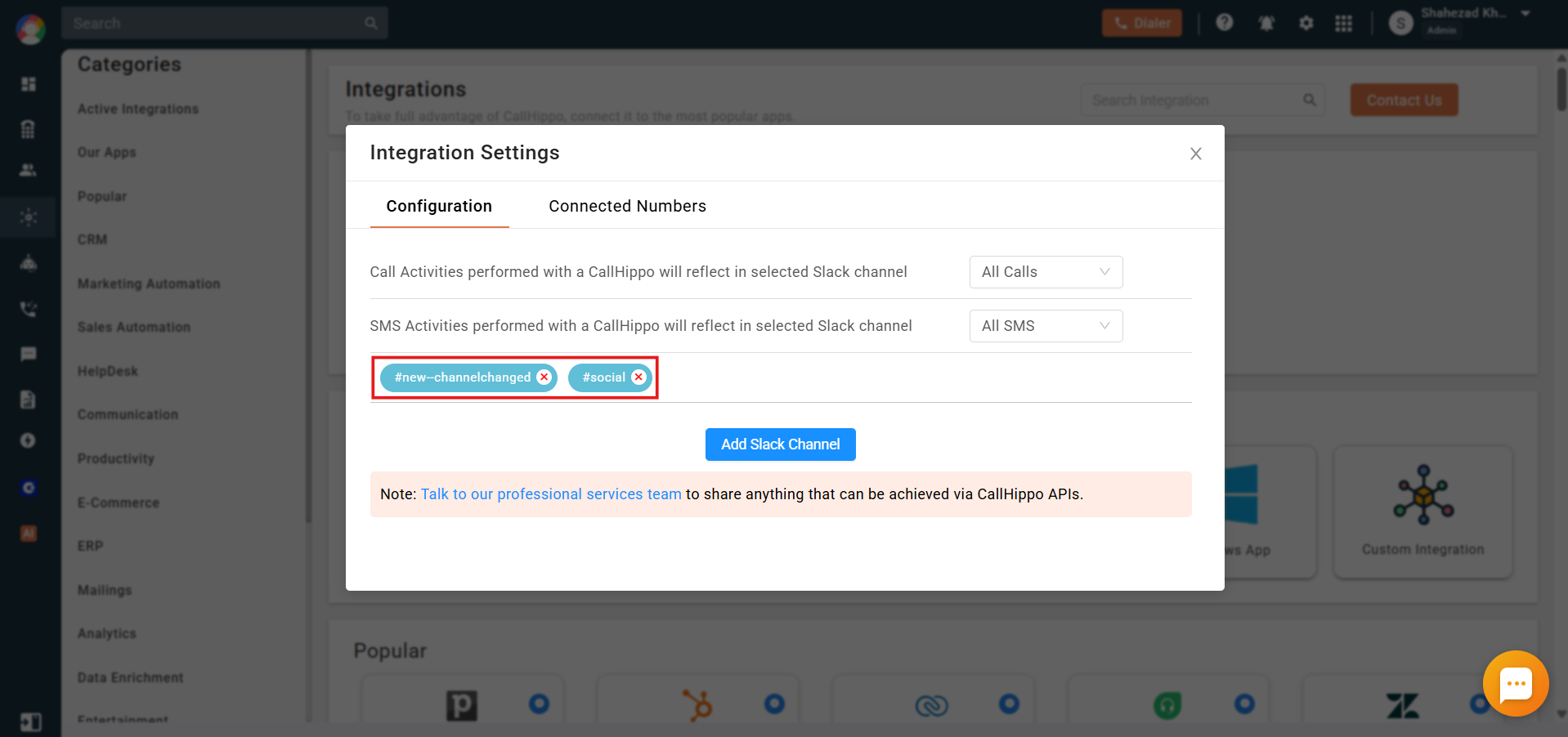
- The newly added channel appears under the integration settings. Repeat these steps to add more channels any time.
Connected Numbers
From the Connected Numbers tab you can choose which numbers push activity into Slack. By default all numbers are selected and mapped to the default channel (the first channel you added is auto-selected).
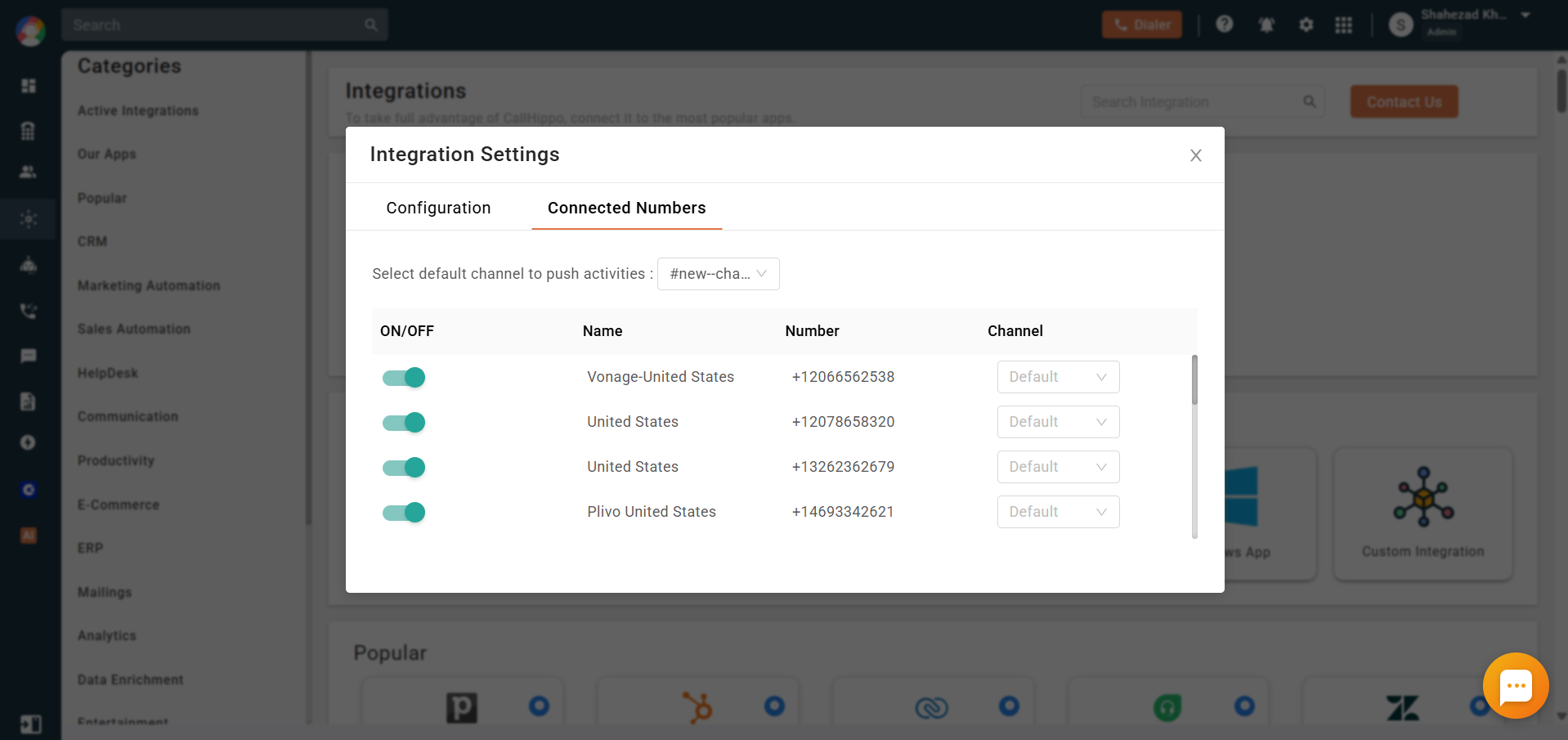
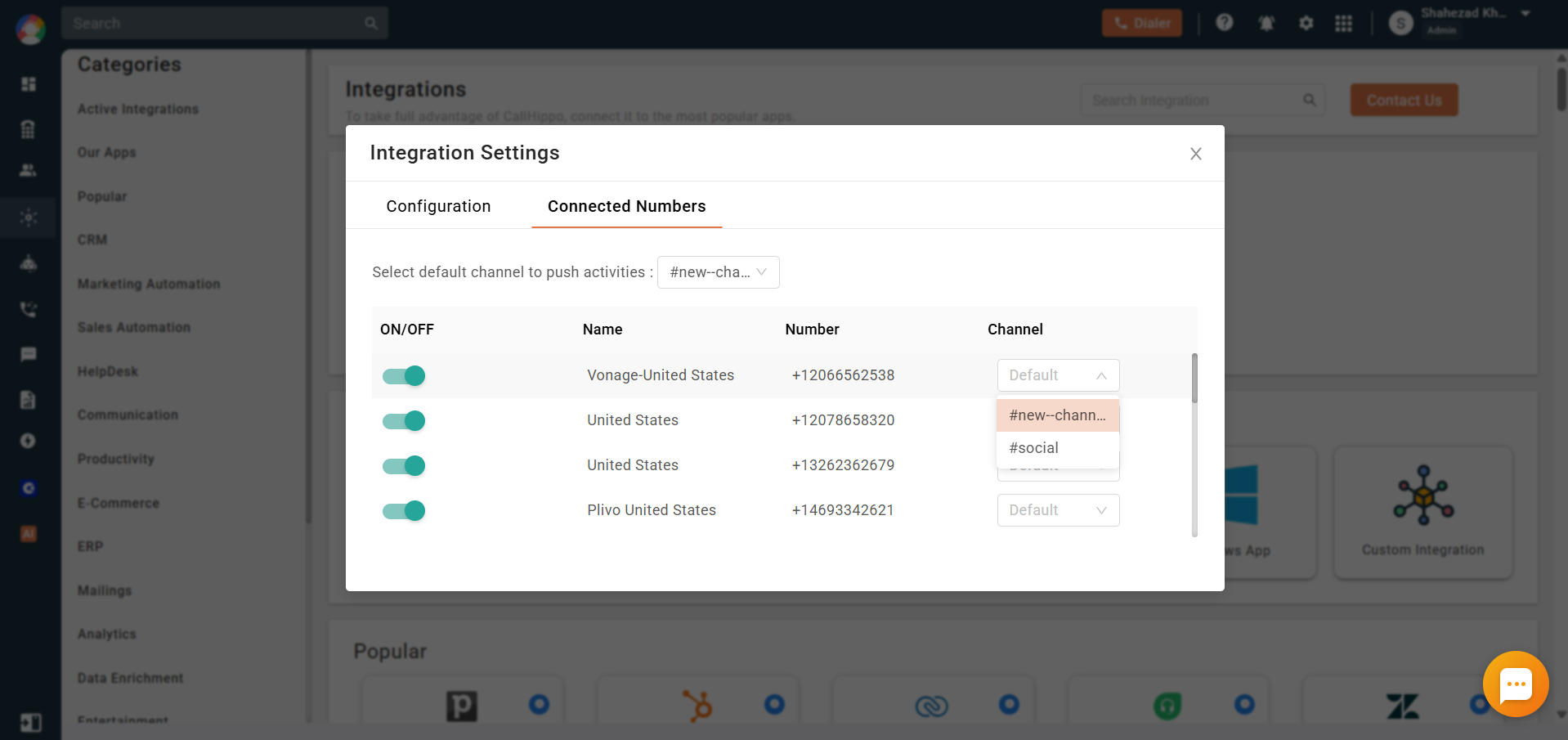
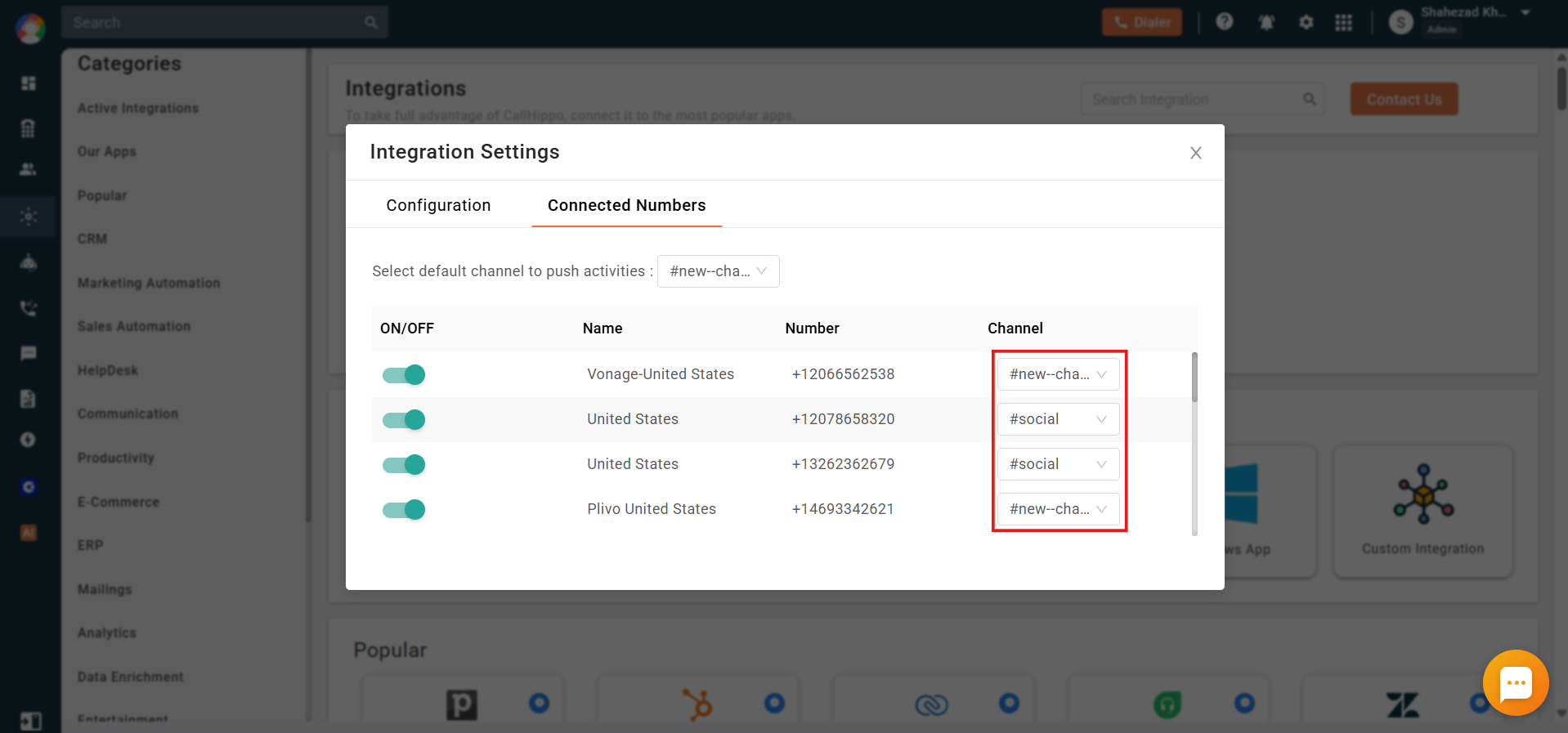
To send a specific number’s activity to a different channel, pick it from the channel dropdown. The same channel can be assigned to multiple numbers. If a channel cannot be found for a number due to a technical issue, that activity is synced to the default channel instead.
Activity Passed to Slack
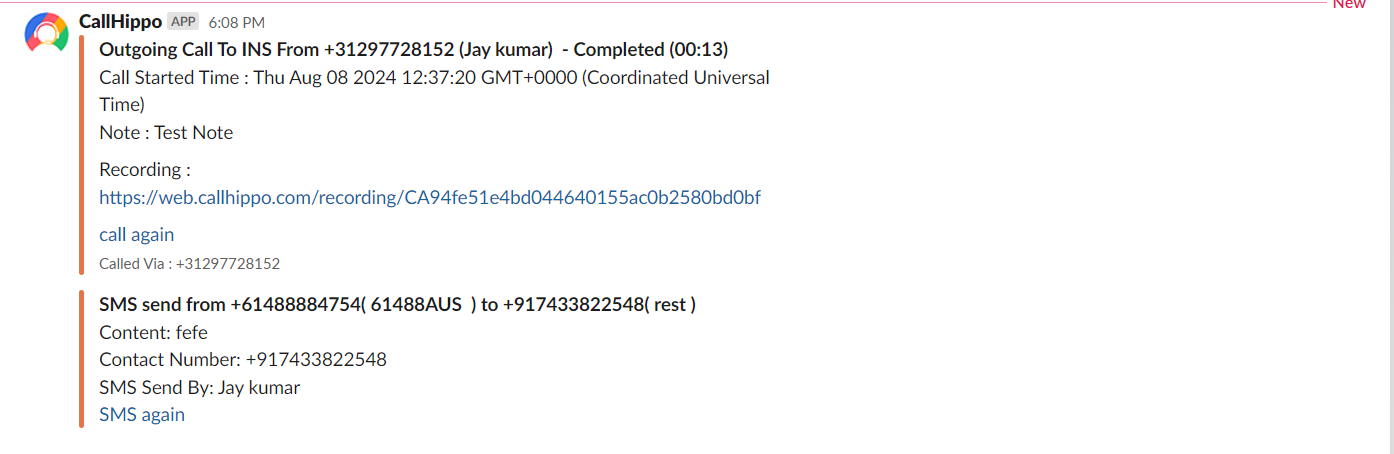
All call and SMS activities, both incoming and outgoing, performed through the CallHippo dialer are automatically sent to the integrated Slack channels. Call messages include details such as call type, from and to numbers, agent, status, duration, start time, notes, tags, disposition and the recording link.
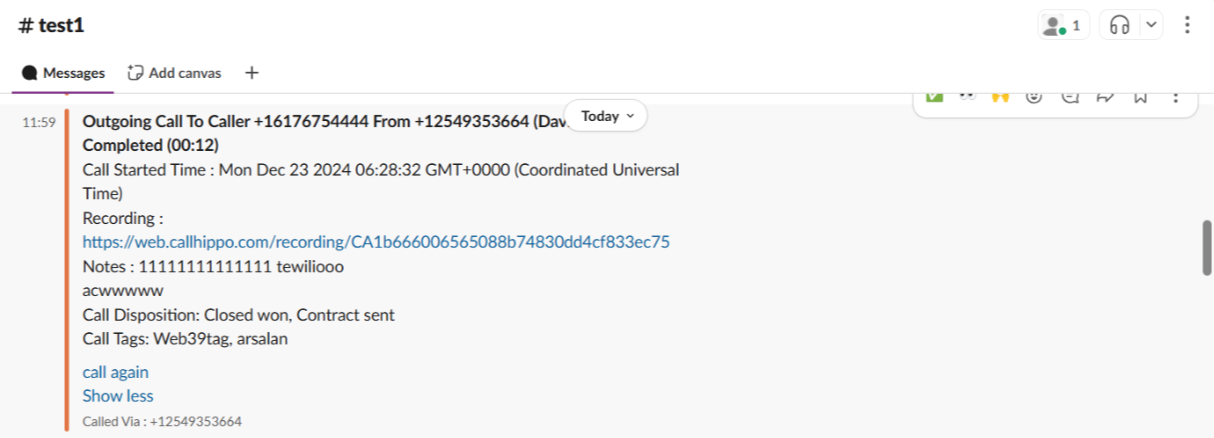
Will call tags and disposition appear in Slack?
Yes, if you have CallHippo’s call tags and disposition service enabled. The tags and disposition sync to Slack only when they are added on the After Call Work (ACW) screen. If they are added later from the call logs or another feed, they will not sync to Slack.