
CallHippo can email you when a text message is received on your assigned number, so you stay informed of SMS activity without constantly watching your dashboard. Enable the SMS Alert setting to get these emails, or turn it off any time from your profile settings.
Why use SMS Alert notifications
- Stay aware in real time – keep up with incoming messages even when you’re away from your dashboard.
- Respond faster – never miss a chance to follow up on a customer or lead conversation.
- Track messages better – ensure all important communication is accounted for.
Note: SMS alert emails do not include the sender’s phone number or the full message content. Alerts are sent only for incoming SMS messages, not for outgoing ones.
Enable or disable SMS Alert
To update your SMS alert preferences, follow the steps below:
- Log in to your CallHippo dashboard.
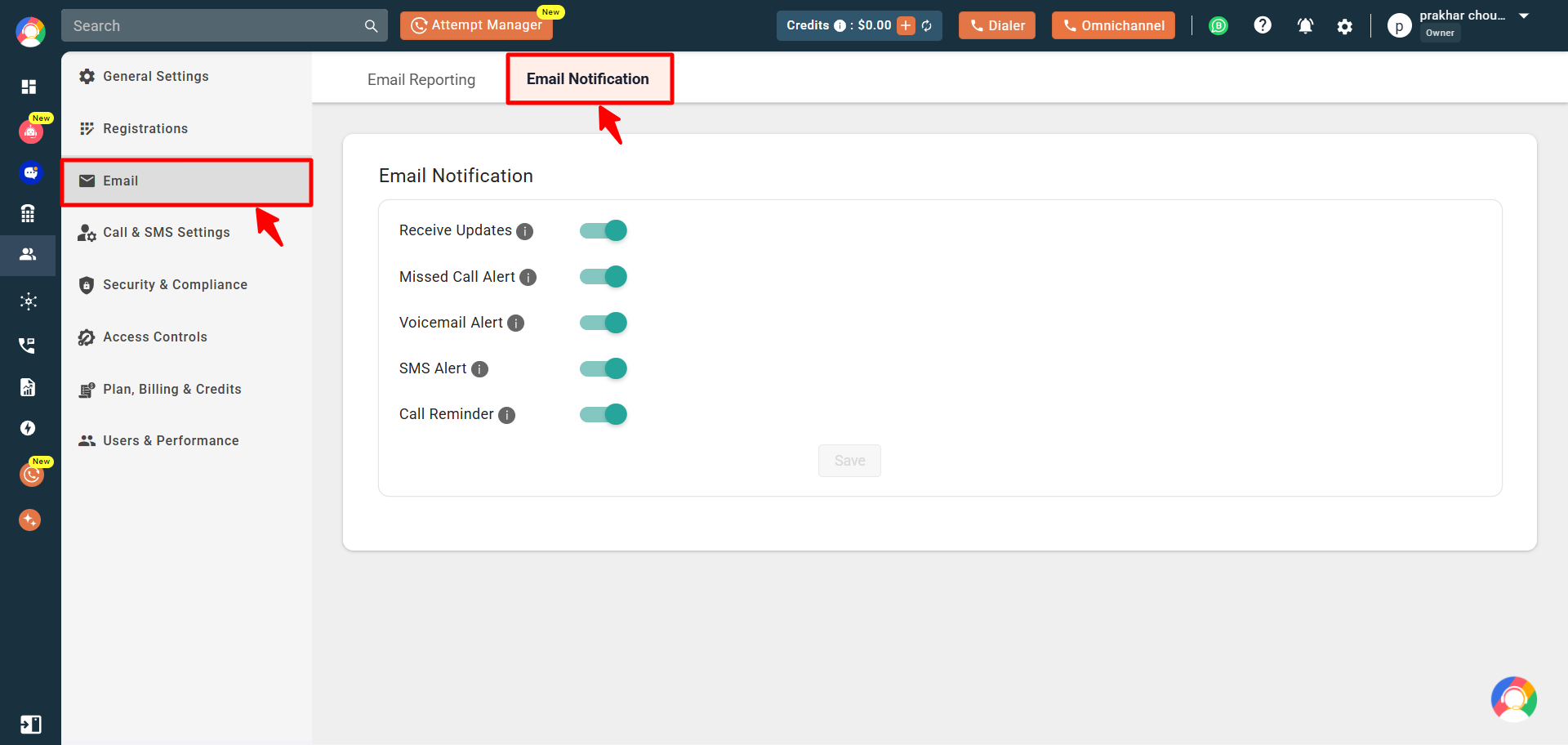
- Click the Settings (gear) icon in the top-right corner, open the Email section, and select the Email Notification tab.
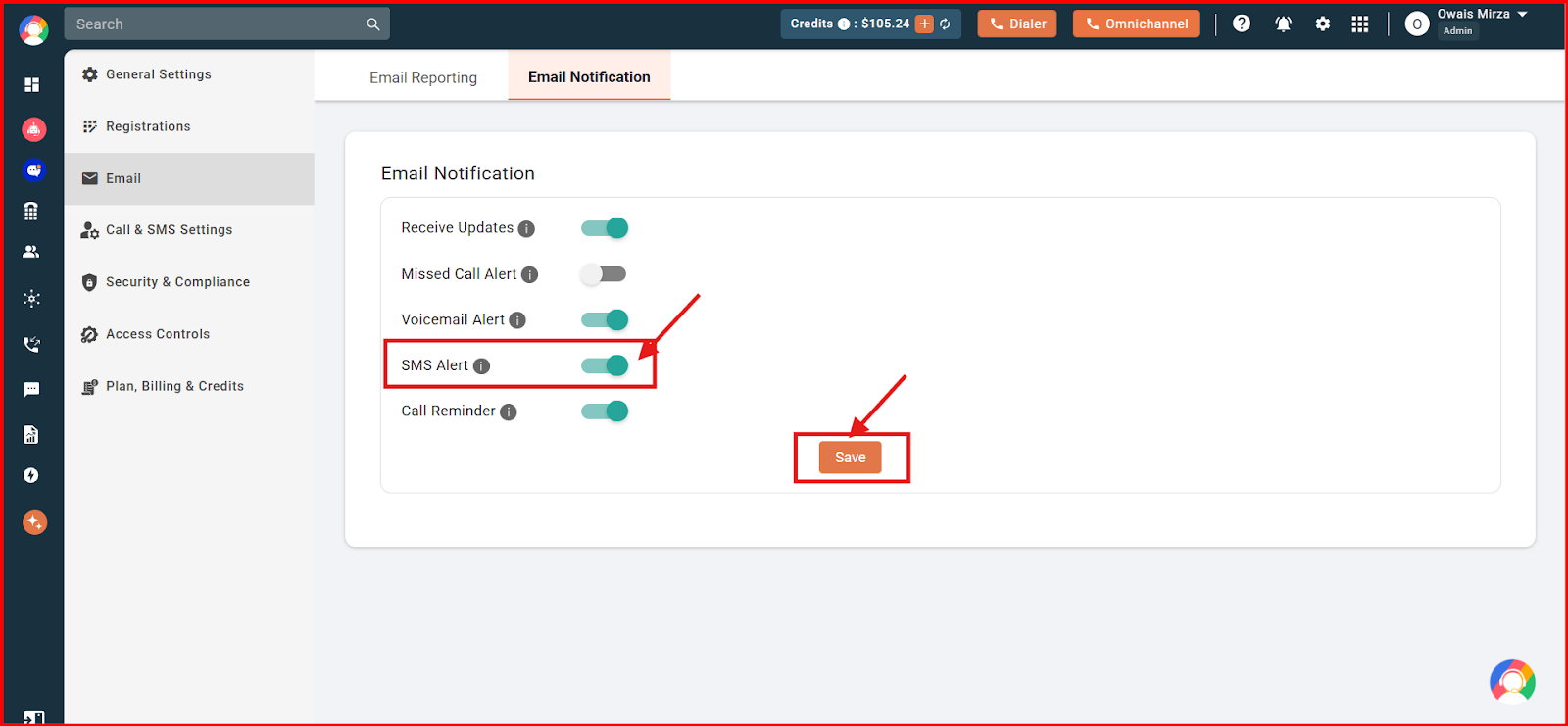
- Toggle the SMS Alert option on or off, then click Save to apply your changes.
- You will see a “User updated successfully” confirmation on screen.
Frequently asked questions
Why am I not getting SMS alert notifications?
Verify that the number used for the SMS is assigned to you, then make sure the SMS Alert setting is enabled in your profile.
I didn’t send or receive any recent messages, so why did I get an alert?
The email may be a delayed notification for an earlier message due to an email server issue. If there is no recent SMS activity in your logs, you can ignore the alert.
Still need help? Reach us at [email protected].