
SMS is one of the fastest, most reliable ways to reach customers, and CallHippo turns it into a simple, scalable channel you manage right from your dashboard or dialer.
What is SMS?
SMS (Short Message Service) lets you send short text messages of up to 160 characters directly to mobile phones. With CallHippo, you can send and receive SMS using your business numbers, all from one place.
Why use SMS with CallHippo?
- Fast delivery and high open rates: Messages are typically read within minutes, ideal for alerts, reminders, and updates.
- Customer-friendly communication: Less intrusive than calls and quicker than email, SMS is a preferred channel for many customers.
- Two-way messaging: Hold real-time conversations for support, confirmations, and follow-ups.
- Cost-effective and scalable: Suitable for everything from service notifications to marketing, whether you are a small team or scaling fast.
- Easy automation and integration: Automate messages, connect SMS with your CRM, and build time-saving workflows.
SMS pricing and charges
SMS charges in CallHippo depend on the destination country and the length of your message.
- Outbound SMS: Pricing varies by country. Some CallHippo plans include a fixed number of SMS/MMS.
- Incoming SMS: Incoming messages are typically charged at around $0.01 per SMS.
- Character-based billing: One SMS equals 160 characters. Longer messages are billed in 160-character segments, so a 600-character message is billed as 4 SMS.
For the most accurate, up-to-date pricing, refer to the CallHippo SMS pricing page.
How to check if a number supports SMS before adding it
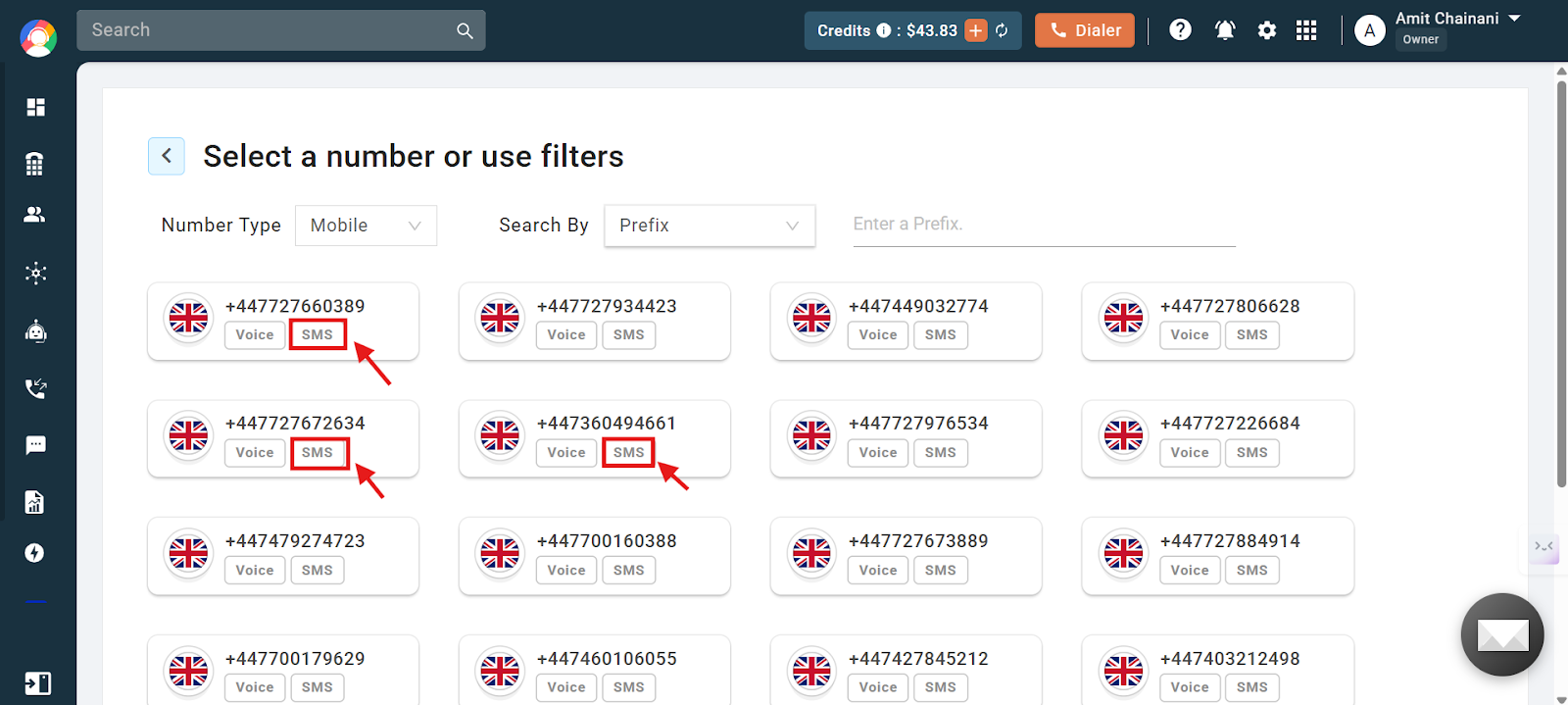
When adding a number, you can see whether it is SMS enabled directly in the Add Number section. Look for the SMS badge on each number card.
How to check which of your existing numbers are SMS enabled
Open your list of active numbers. The SMS capability appears as an icon next to each number so you can quickly tell which ones support texting.

How to view SMS logs in the dialer
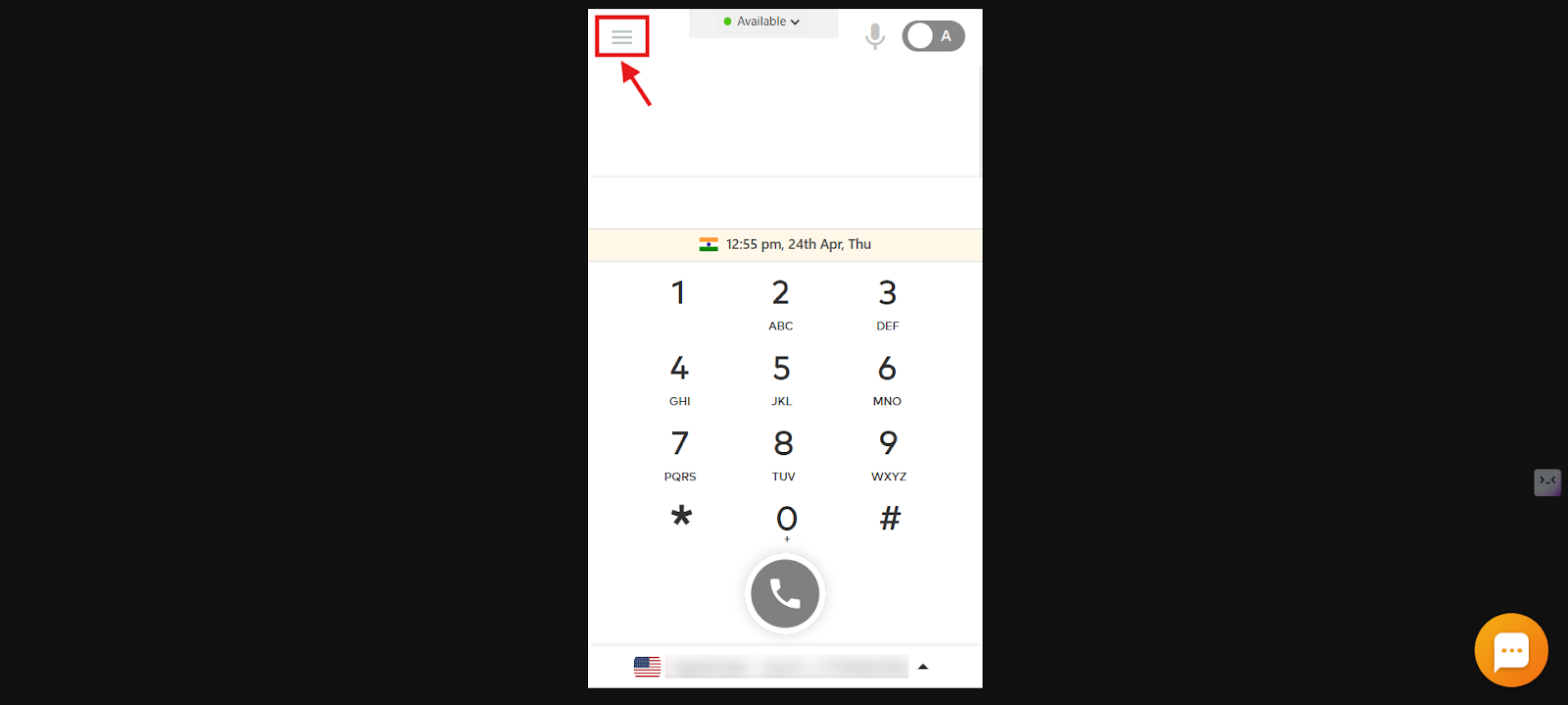
- Log in to your CallHippo dialer.
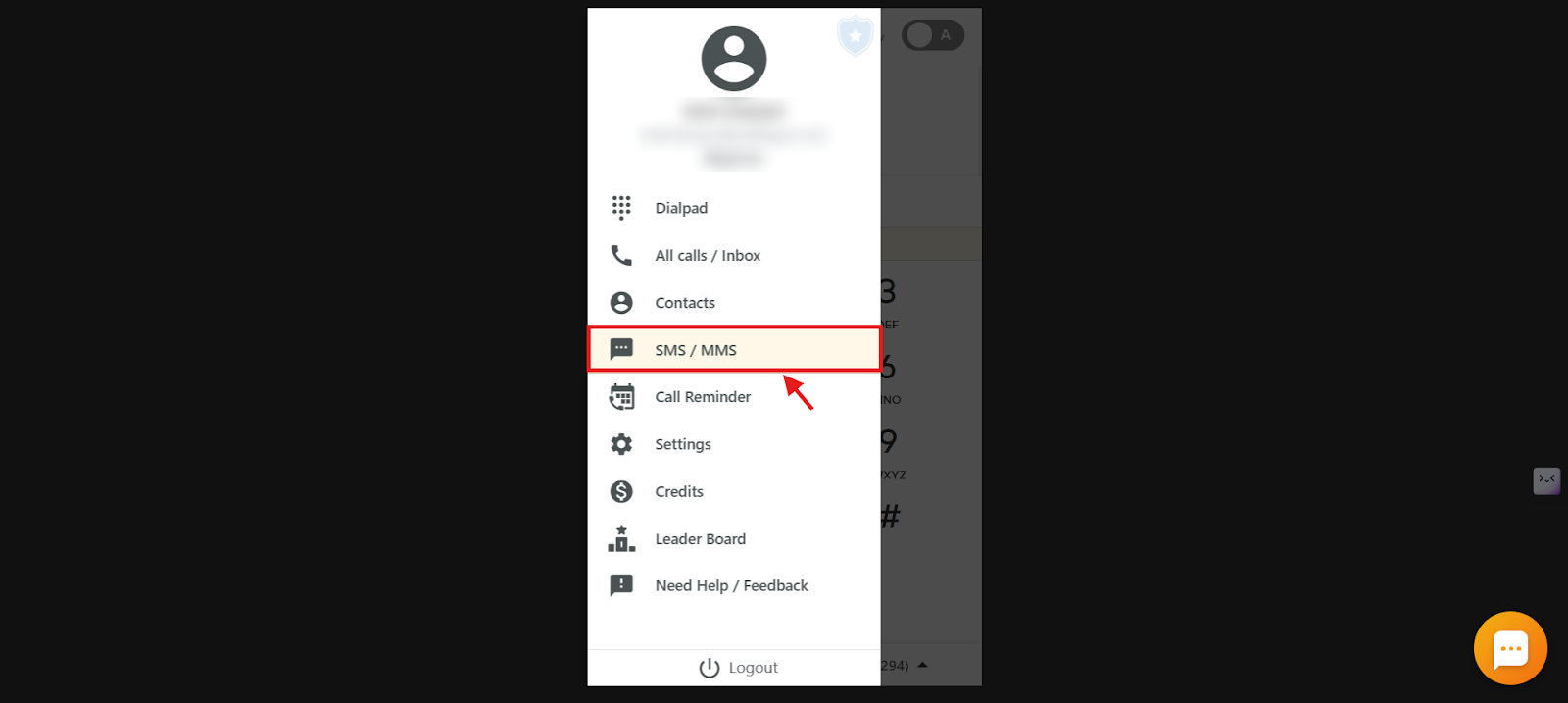
- Open the main menu using the menu icon.
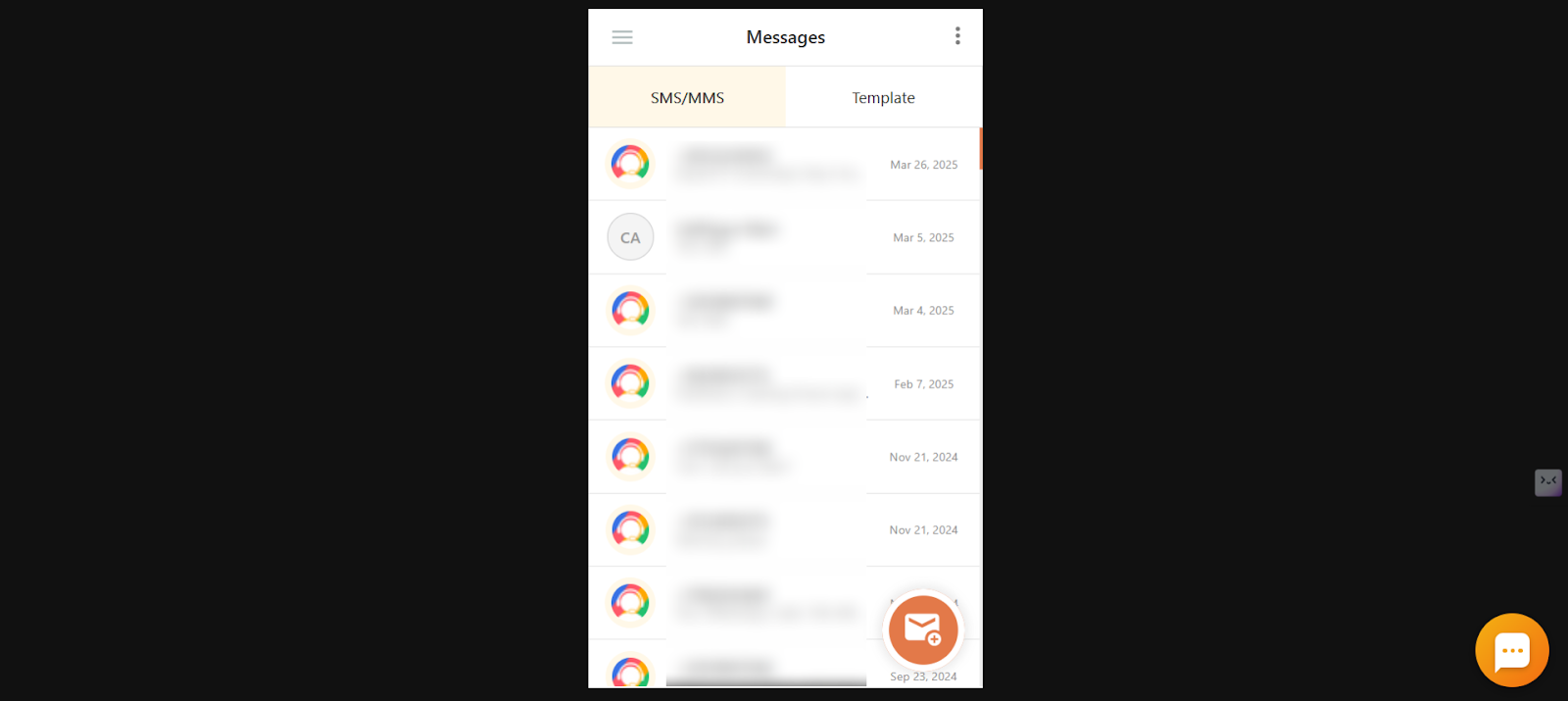
- Click SMS / MMS to open your message logs.
How to send an SMS from the dialer
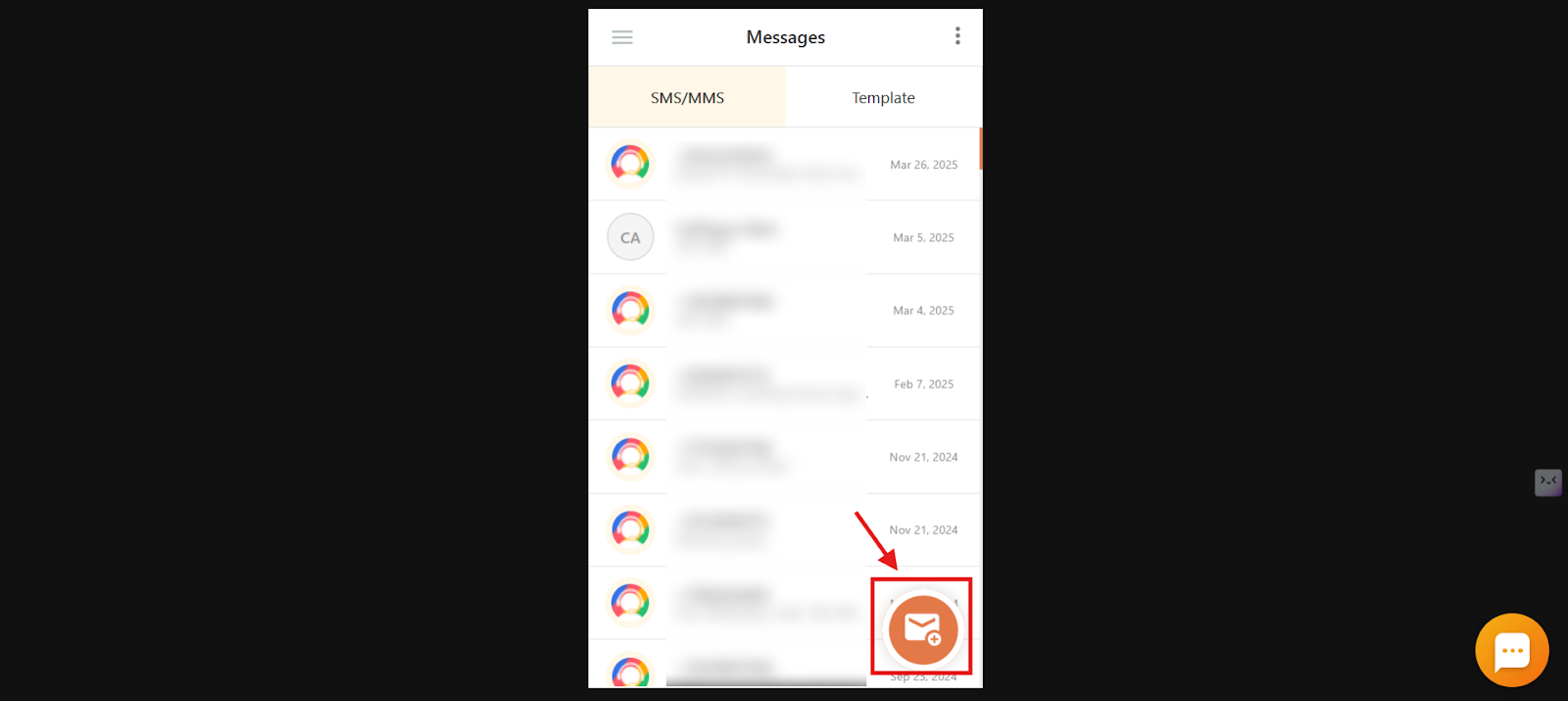
- Click the new SMS icon to start a message.
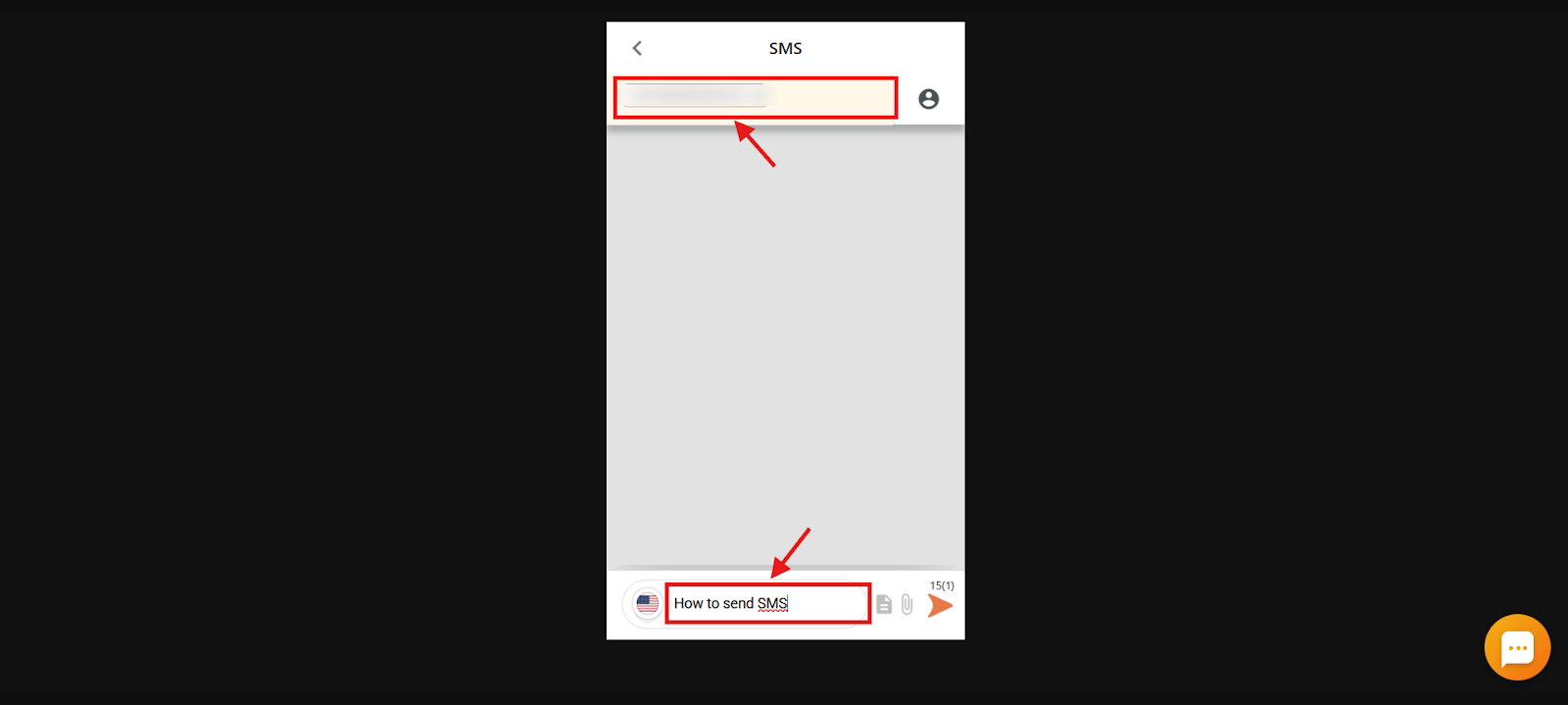
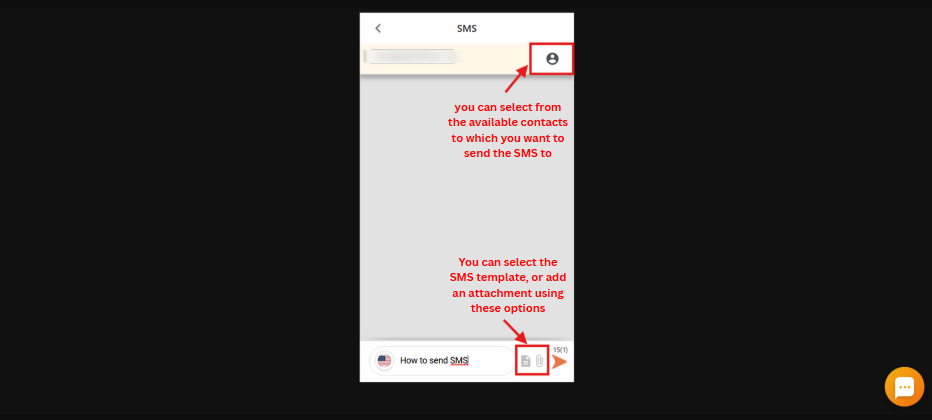
- Enter the recipient number and message in their respective fields. You can also pick an existing contact.
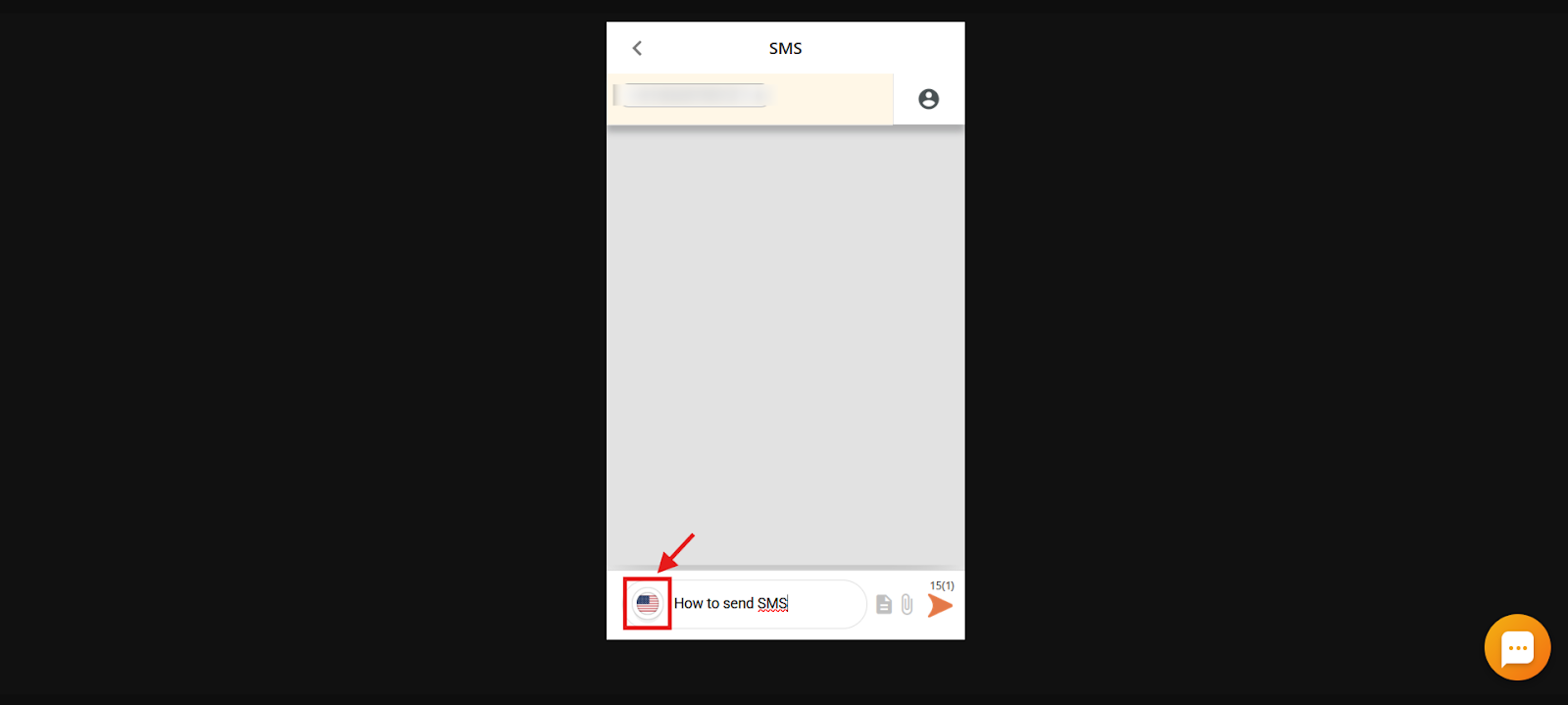
- Select the sender number from your allocated business numbers using the flag selector.
- Use the extra options to add a template or an attachment if needed.
- Click Send. You will see a confirmation and the sent message appears in the same conversation.
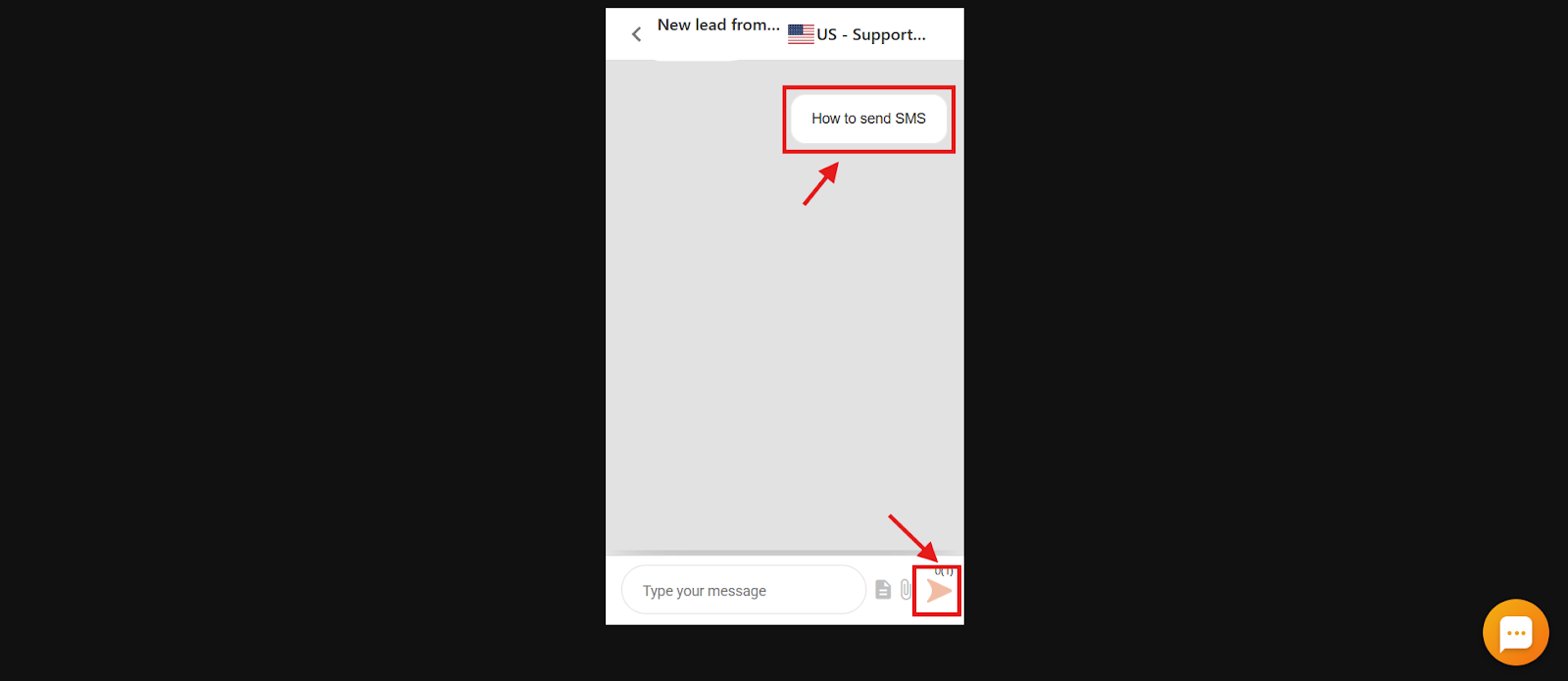
SMS templates
SMS templates let you send predefined messages quickly and consistently, ideal for routine updates, reminders, or alerts you would otherwise retype. Each template supports up to 600 characters, giving you enough room for clear, well-structured messages.
How to create an SMS template
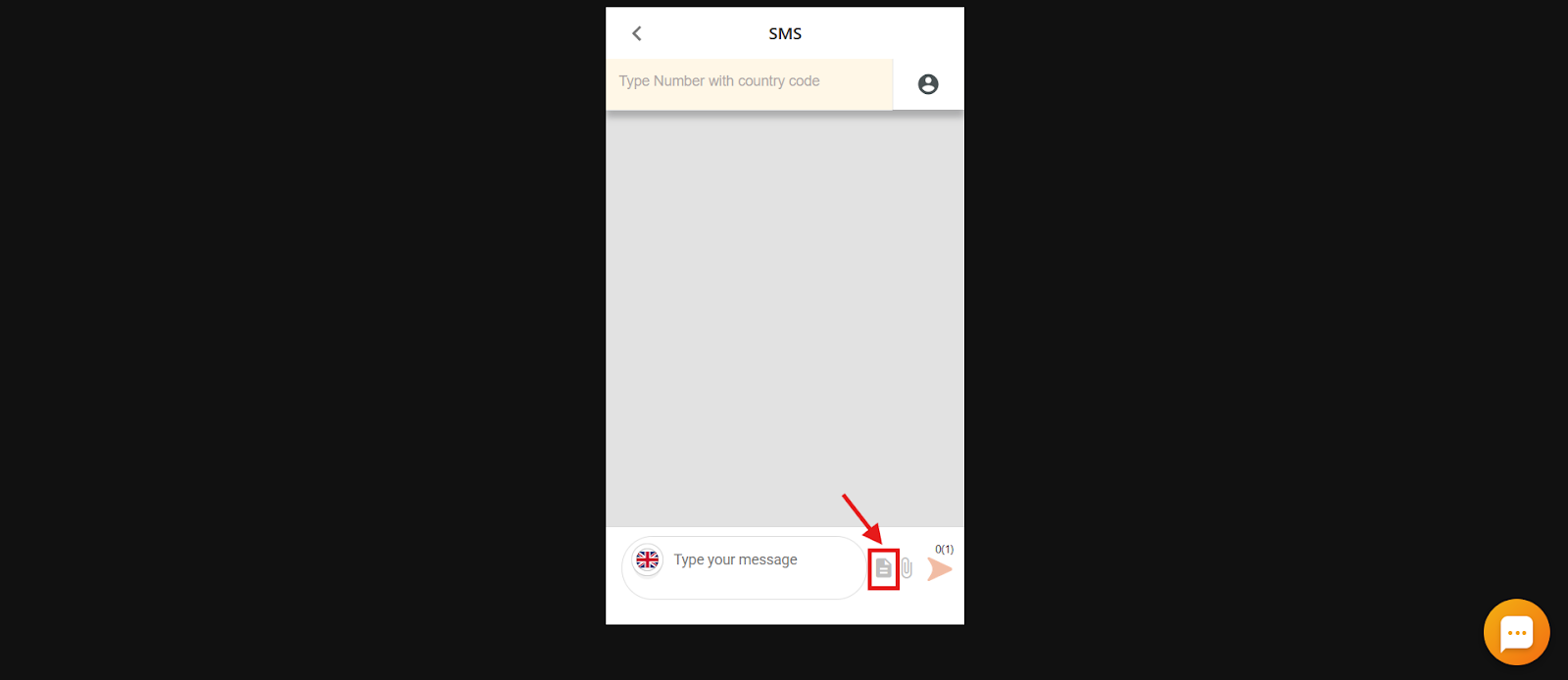
- Click the template icon shown on the dialer when composing an SMS.
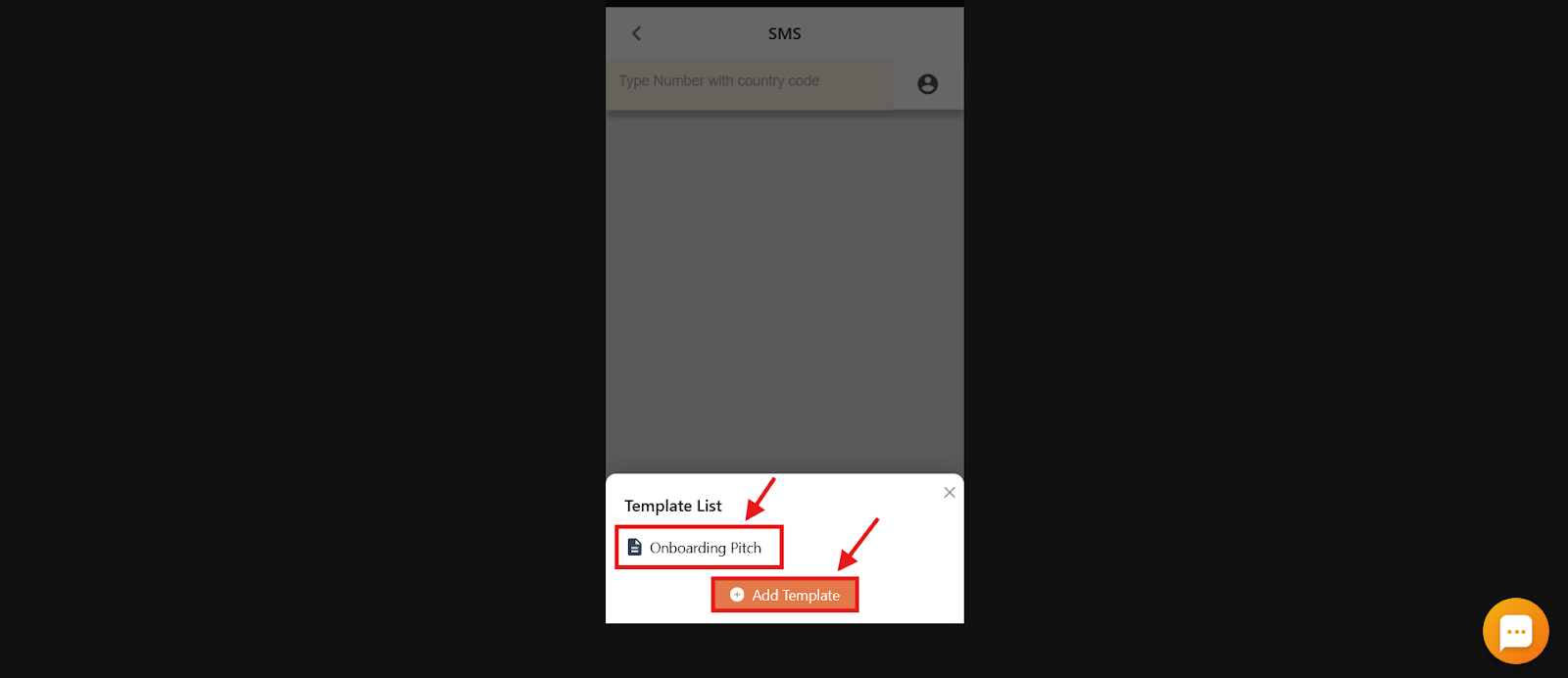
- Click Add Template, or select an existing template to insert it into your message.
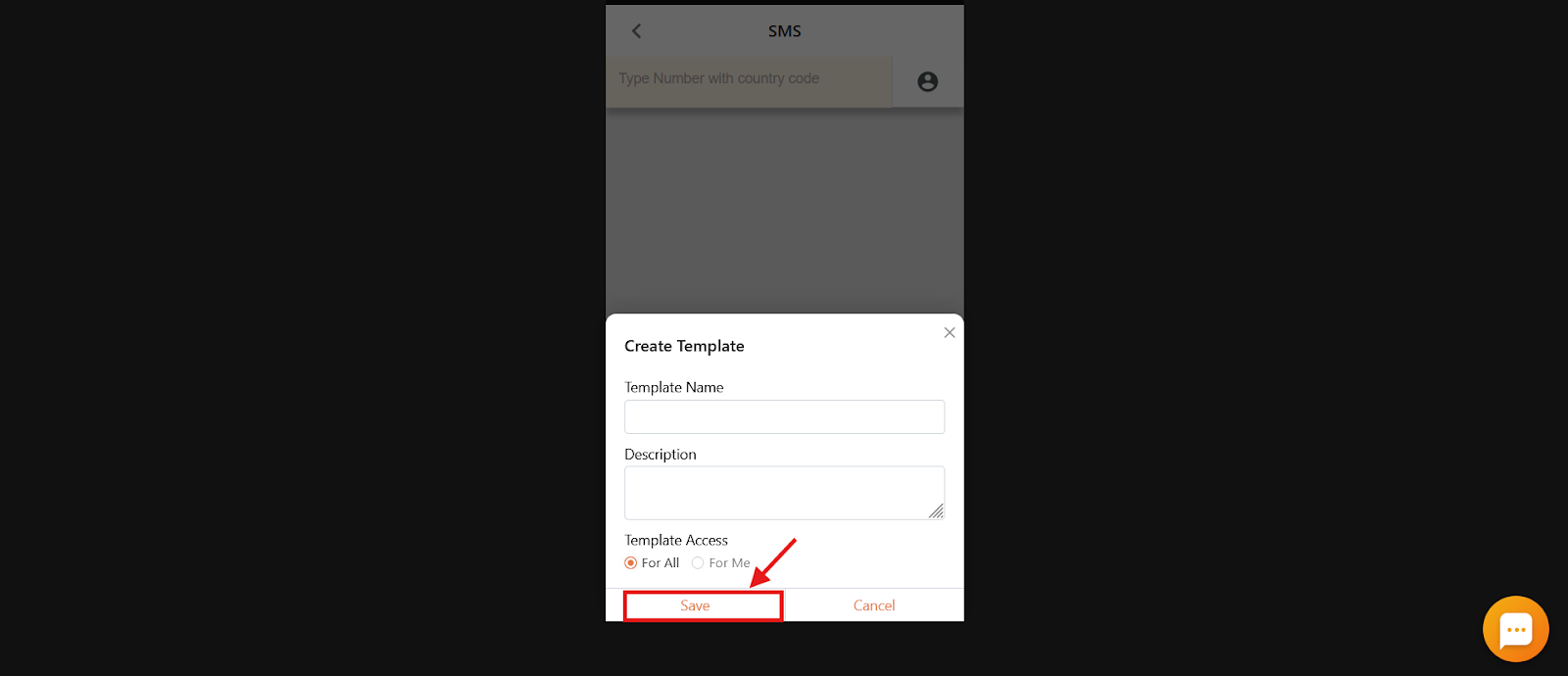
- Enter a title and content, choose whether the template is available to only you or to all users, then click Save.
Your saved template is now available from the same template icon whenever you send an SMS.
Important: Emojis can consume multiple characters each, so using them may increase your character count and the number of SMS segments billed. Use emojis sparingly and keep an eye on message length.
How to check SMS status
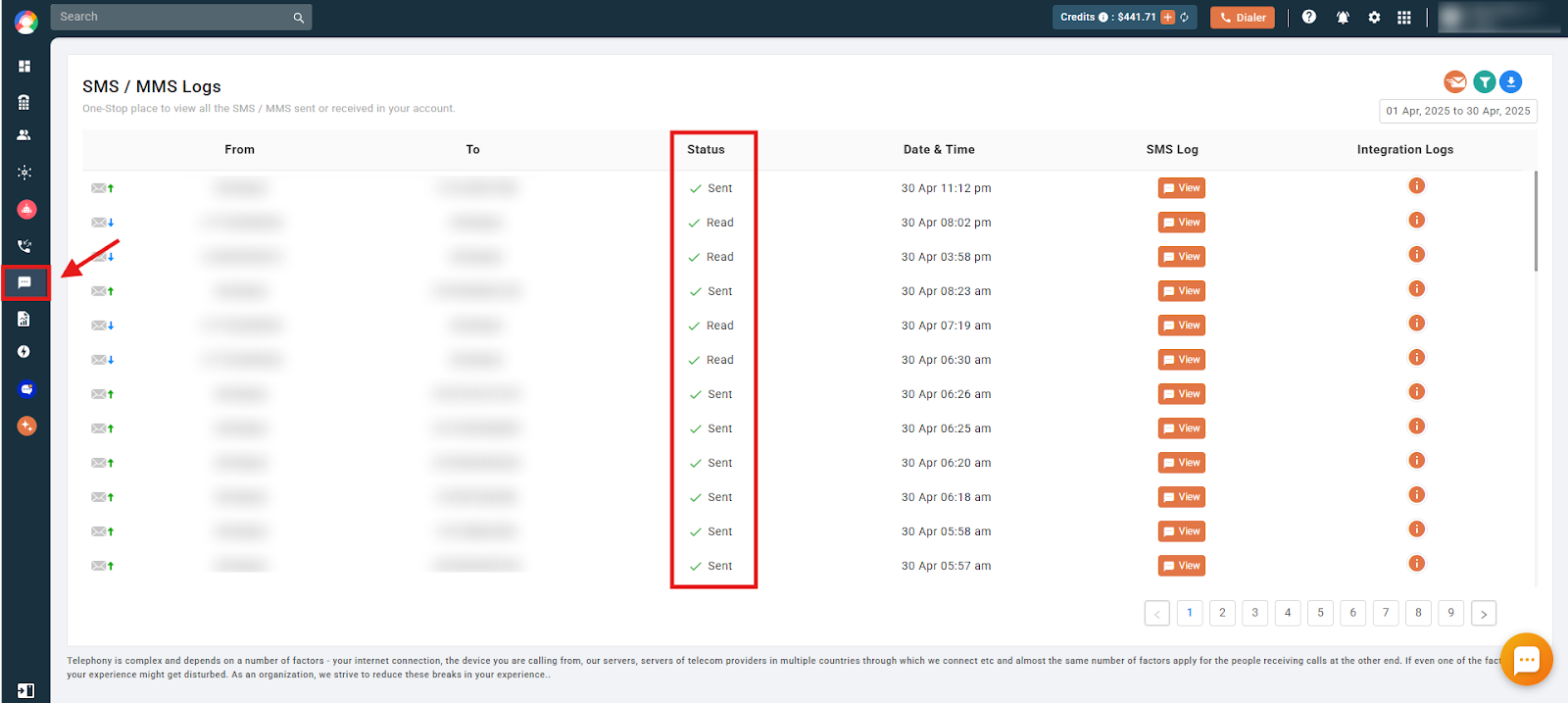
You can review delivery outcomes from the SMS/MMS Logs section on the dashboard. The Status column shows whether each message was sent, read, or failed.
Frequently asked questions
How much does it cost to send an SMS via CallHippo?
Outbound SMS pricing depends on the destination country, and some plans include a set number of SMS/MMS. For complete details, refer to CallHippo’s SMS pricing page.
Is there a charge for receiving SMS messages?
Yes. Incoming SMS messages are typically charged at around $0.01 per message.
What is the maximum length of an SMS?
One SMS equals 160 characters. Messages can be up to 1,600 characters and are billed per 160-character segment.
How are SMS templates billed?
Creating or using a template is free, but messages sent using templates are billed per 160-character segment. For example, a 600-character message is billed as four SMS segments.
Can I choose the sender number for an SMS?
Yes. You can select from your allocated business numbers when sending an SMS from the dialer.
Does CallHippo support bulk SMS or MMS?
No. CallHippo does not support bulk SMS or MMS sending.