
Linking SurveyMonkey with CallHippo lets you tie your survey program to your calling activity, so you can gather customer feedback right alongside your conversations.
Before you begin
Note: You need an Enterprise Edition subscription to integrate SurveyMonkey with CallHippo.
Connect SurveyMonkey in CallHippo
- Log in to your CallHippo account.
- From the left sidebar of your dashboard, click Integrations.
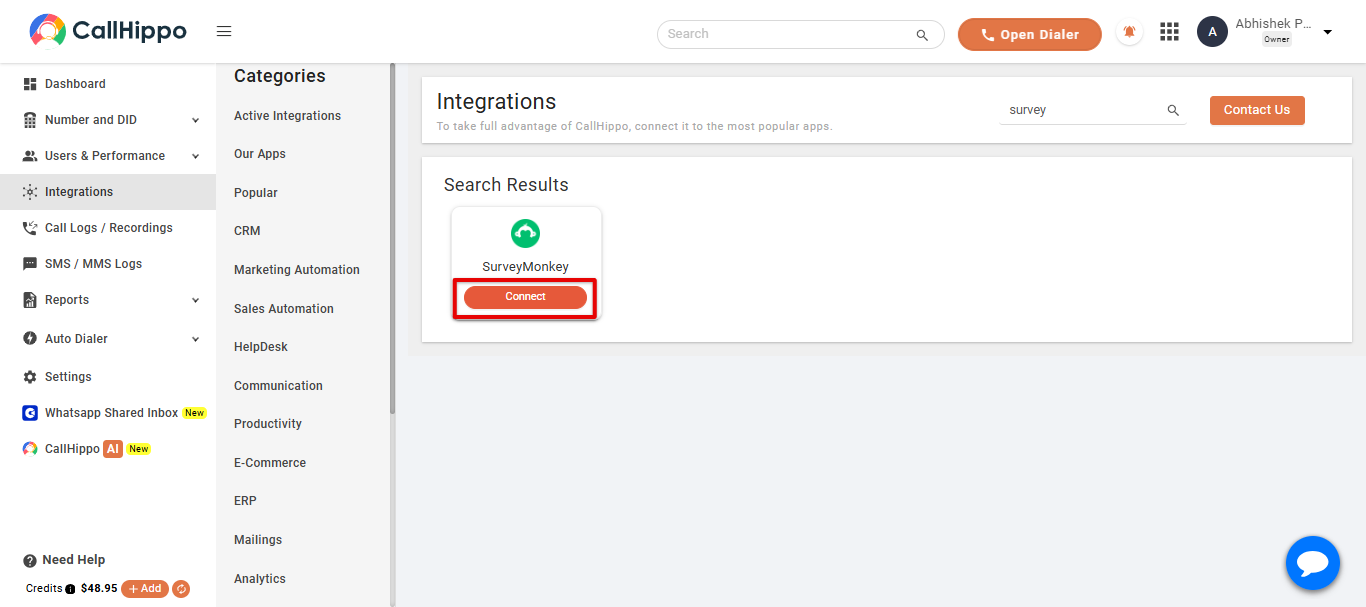
- Select SurveyMonkey and click Connect.
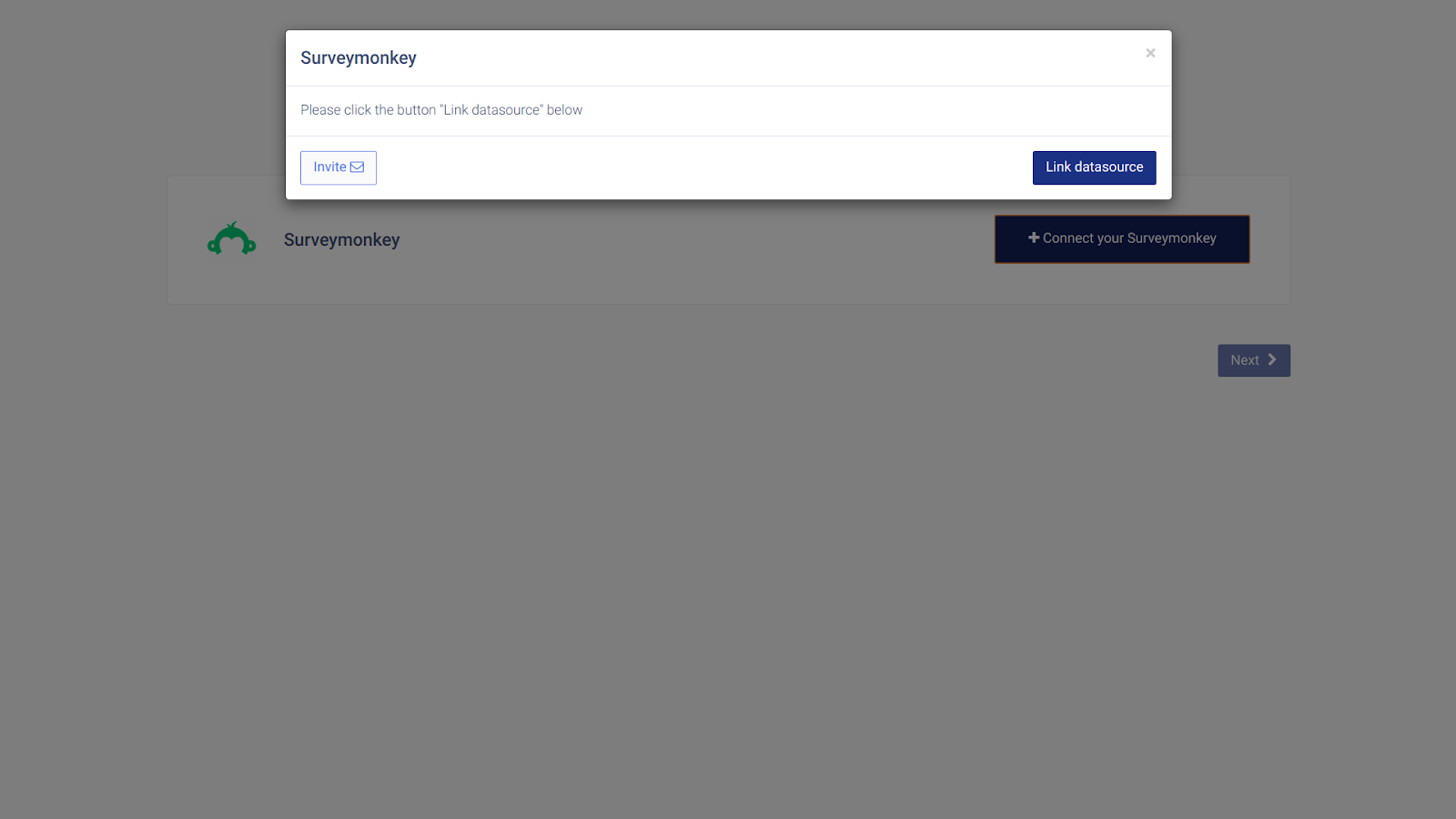
- Click Link datasource. You are redirected to the SurveyMonkey login page.
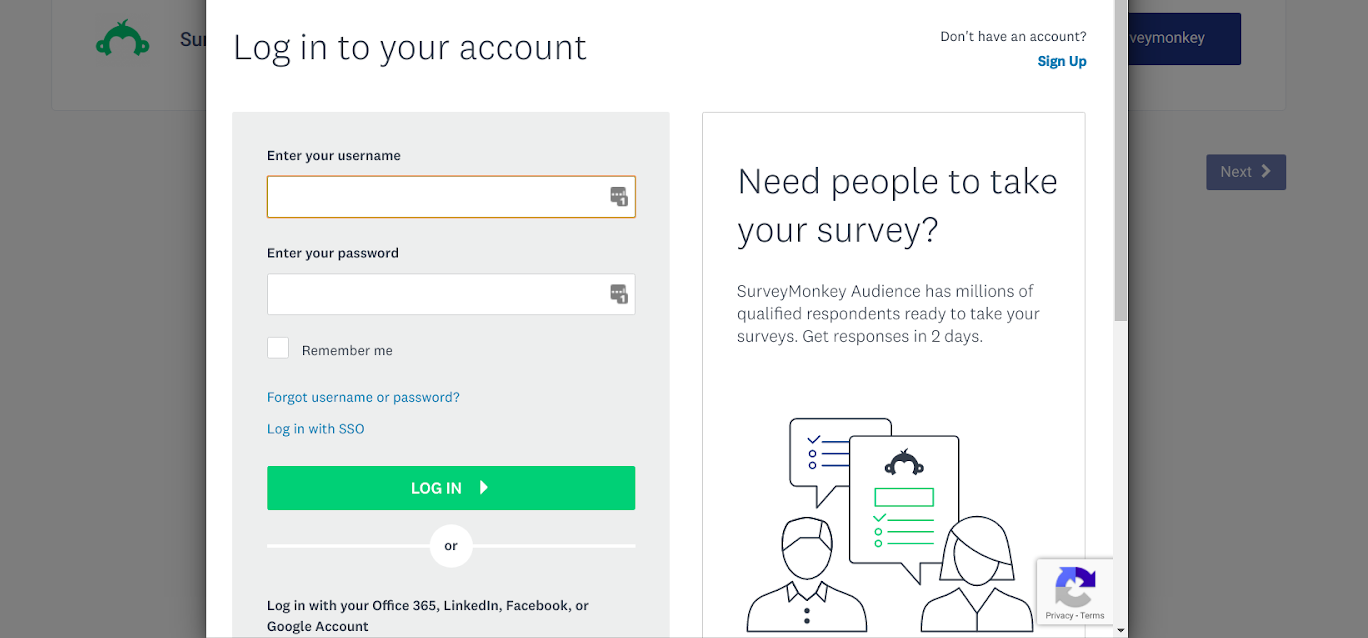
- Enter your SurveyMonkey username and password, then click Log In.
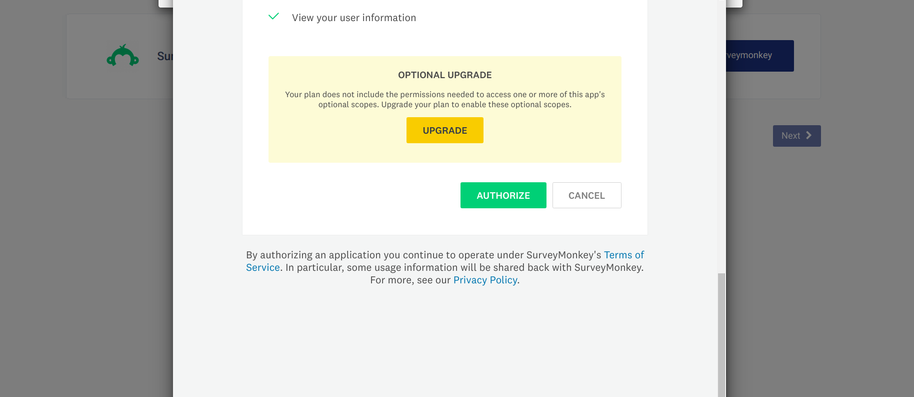
- On the authorization screen, scroll down and click Authorize.
- When you see Datasource is linked, click Ok.
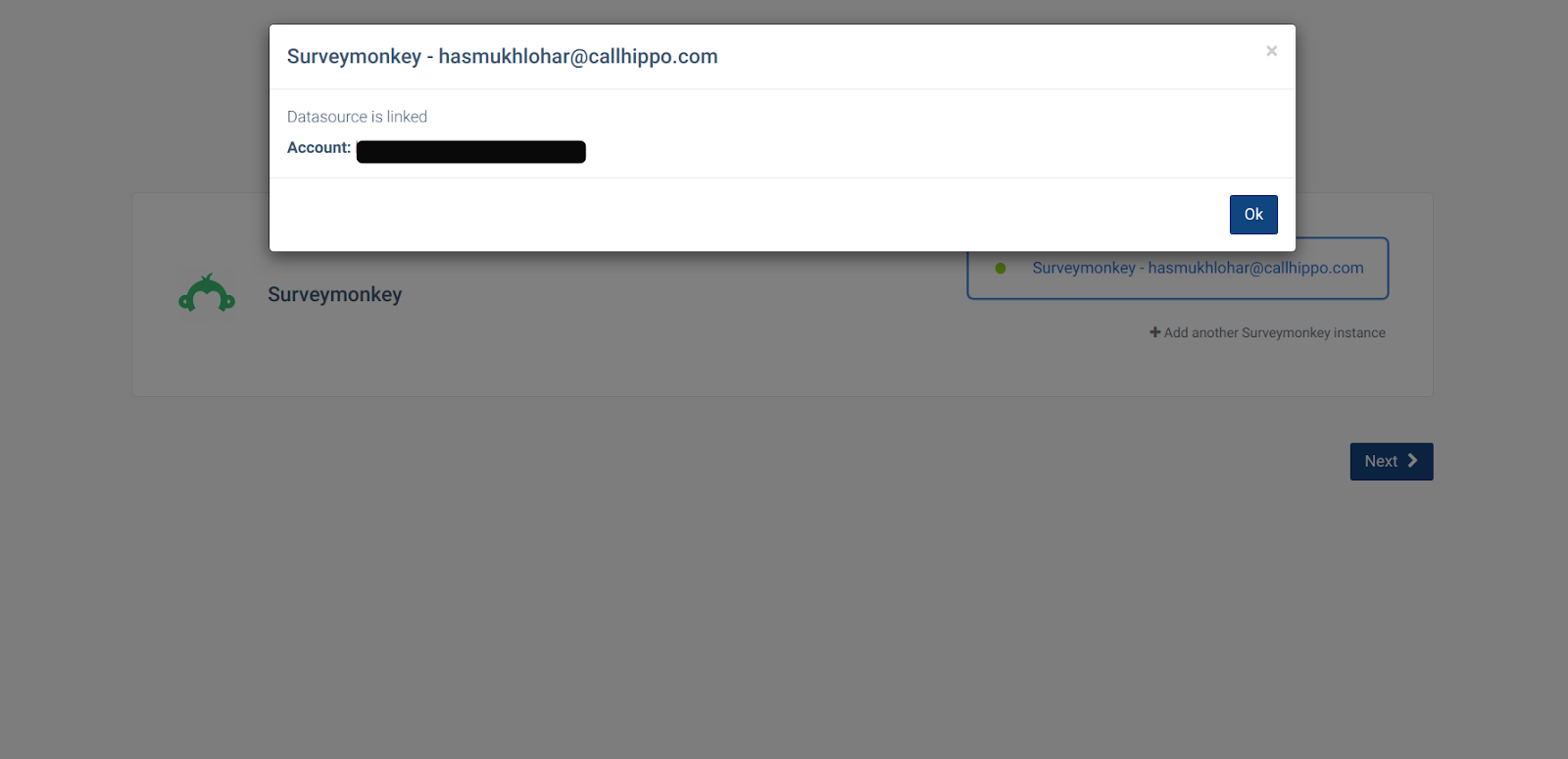
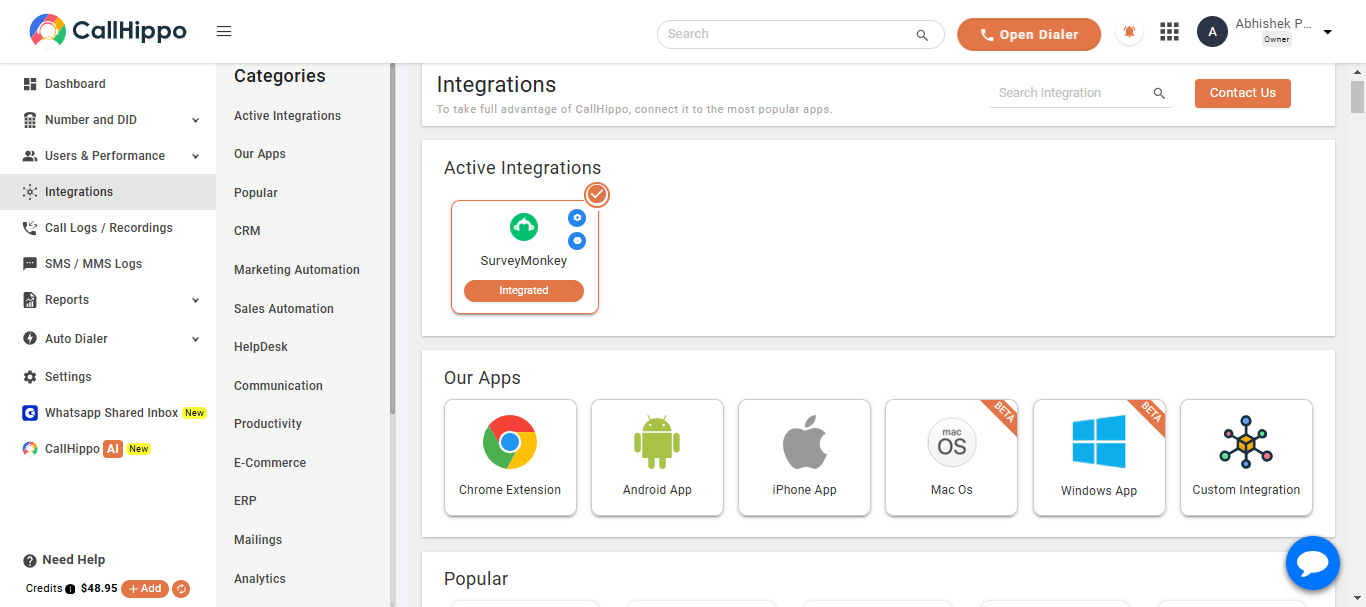
- Click Next. You are redirected back to your CallHippo account and the status changes to Integrated.
Do I need a specific plan to use this integration?
Yes. The SurveyMonkey integration is available on the CallHippo Enterprise Edition subscription.
The authorization screen mentions an upgrade. Do I have to upgrade?
Some optional survey scopes require a higher SurveyMonkey plan, but you can still authorize the core connection. Click Authorize to continue with the permissions your plan already includes.
Need help connecting SurveyMonkey? Reach our team at [email protected].